How to read sales and product reports in easySales
What the Sales and Products reports in easySales count: order value vs product value, statuses, dates and currencies, the Sales tabs and filters, best sellers and exports.
Two reports, two different totals
easySales has two business reports, under Reports → Business Reports:
- Sales — your orders: how many, how much they are worth, the average order and the number of customers, by day, channel, region or category.
- Products — what you sold: each product's quantity and value.
Their totals are built differently, so they never match — and they are not meant to:
| Counted in | Sales: Orders value | Products: Products value |
|---|---|---|
| VAT | Included | Not included |
| Shipping and other charges | Included | Not included |
| Order discounts | Deducted | Not deducted |
| What it answers | How much your customers paid | How much you sold of each product |
Three more things to know before you read the numbers:
- Every order counts, whatever its status — cancelled and returned orders included. Use the Status filter to leave them out.
- The date is the order date — when the customer placed the order, not when you shipped or invoiced it.
- Amounts in other currencies are converted into the currency chosen at the top of the screen, at the current exchange rate. A past period's total can therefore differ slightly from your invoices.
The Sales report
Choose the period and the value to show — Orders number, Orders value, Average or Clients number. Every filter you change updates the report straight away.
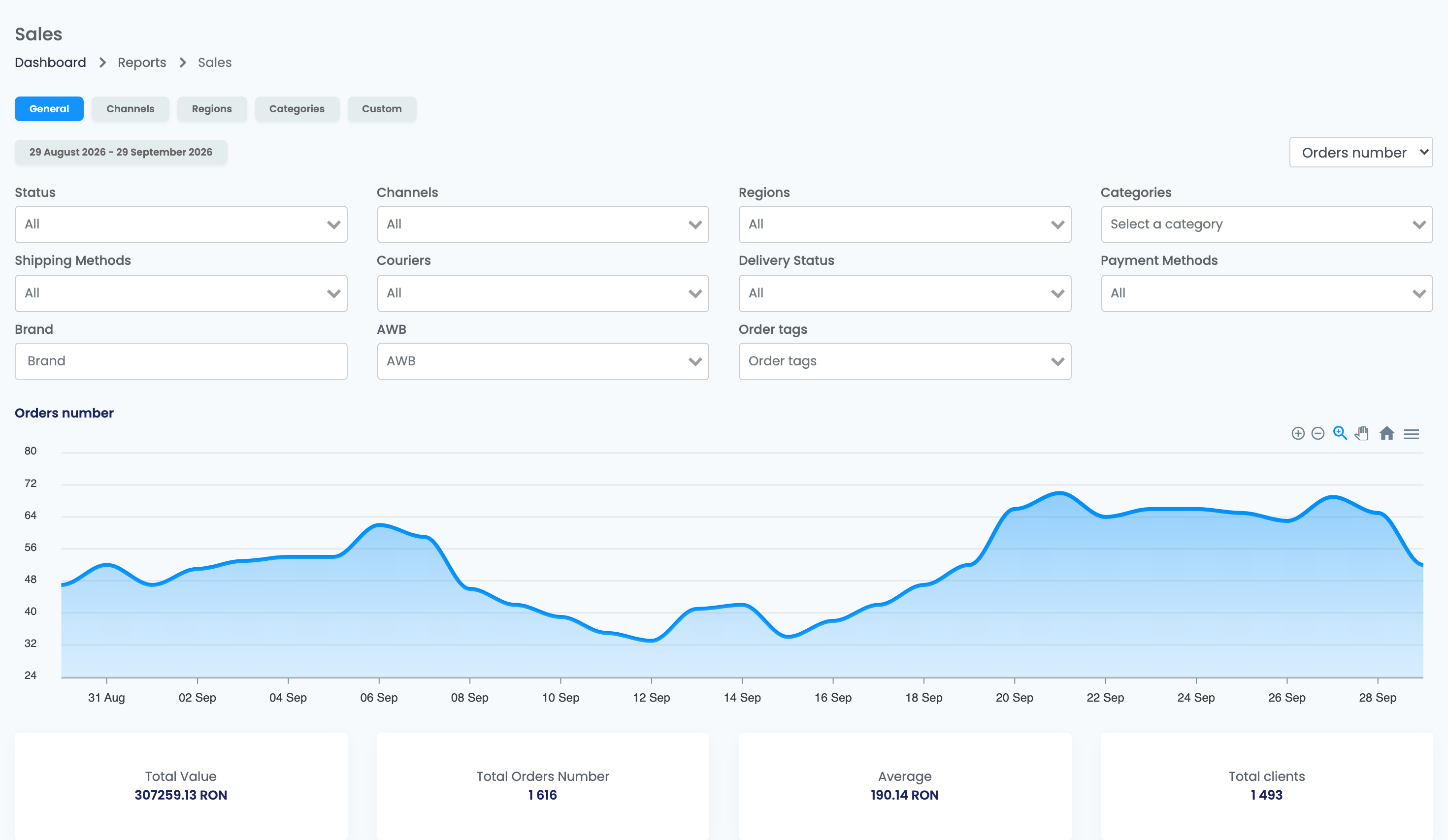
The tabs show the same orders in different ways:
| Tab | What it shows |
|---|---|
| General | A chart by day and four totals: Total Value, Total Orders Number, Average and Total clients. |
| Channels | The same totals for each marketplace and online shop, with its share of the whole. |
| Regions | The totals on a map, by county or region. Choose one country to see its regions. |
| Categories | The totals by product category. An order with products from several categories counts in each of them. |
| Custom | Reports prepared especially for your account, if you have any. |
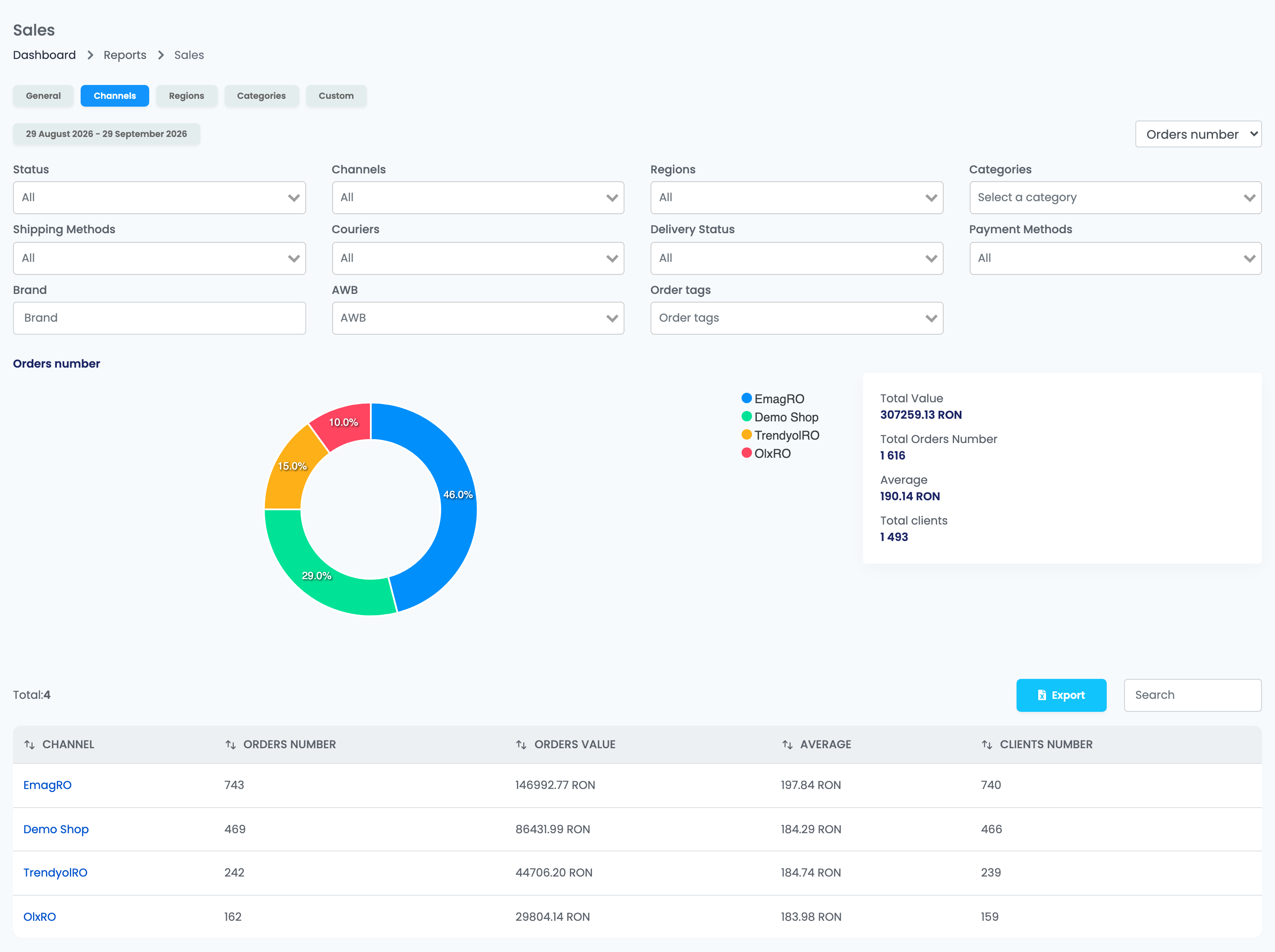
Click a channel or a region to open General for it.
Filters
| Filter | Keeps only |
|---|---|
| Status | Orders in the statuses you choose. |
| Channels | Orders from the marketplaces and online shops you choose. |
| Regions, Countries | Orders delivered to those regions or countries. |
| Categories | Orders with products from those categories. |
| Shipping Methods, Couriers, Delivery Status, Payment Methods | Orders shipped, delivered or paid that way. |
| Brand, AWB, Order tags | Orders with that brand, with or without an AWB, or with those tags. |
The Products report
All product lists every product sold in the period, with the quantity and the value, sorted by value — your best sellers first. Click a column to sort by it, or search by name or SKU.
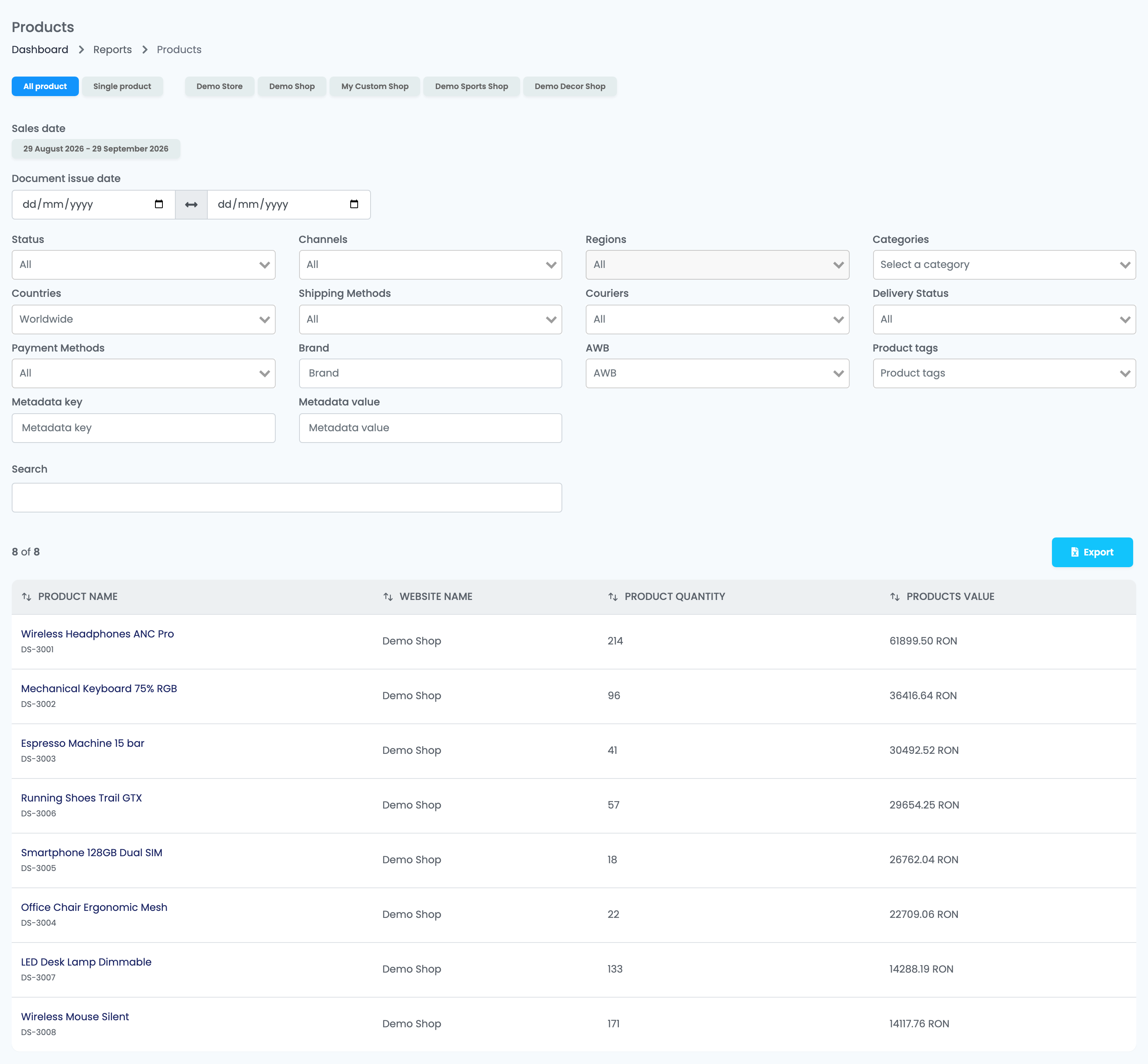
- Single product shows one product's sales over time.
- One tab per online shop shows only that shop's products.
- Document issue date keeps only the orders whose invoice was issued in the dates you choose — useful to match the report with your accounting.
Exporting a report
Press Export above a table. The file is prepared in the background and sent to your e-mail address — Export started. An email will be sent to … when ready confirms it. Channels, Regions, Categories, All product and the shop tabs can be exported; General and Single product cannot.
For long periods, a report takes longer to load. If it is slow, choose a shorter period and add the results up.