How to generate warranty certificates in easySales: templates, per-order and in bulk
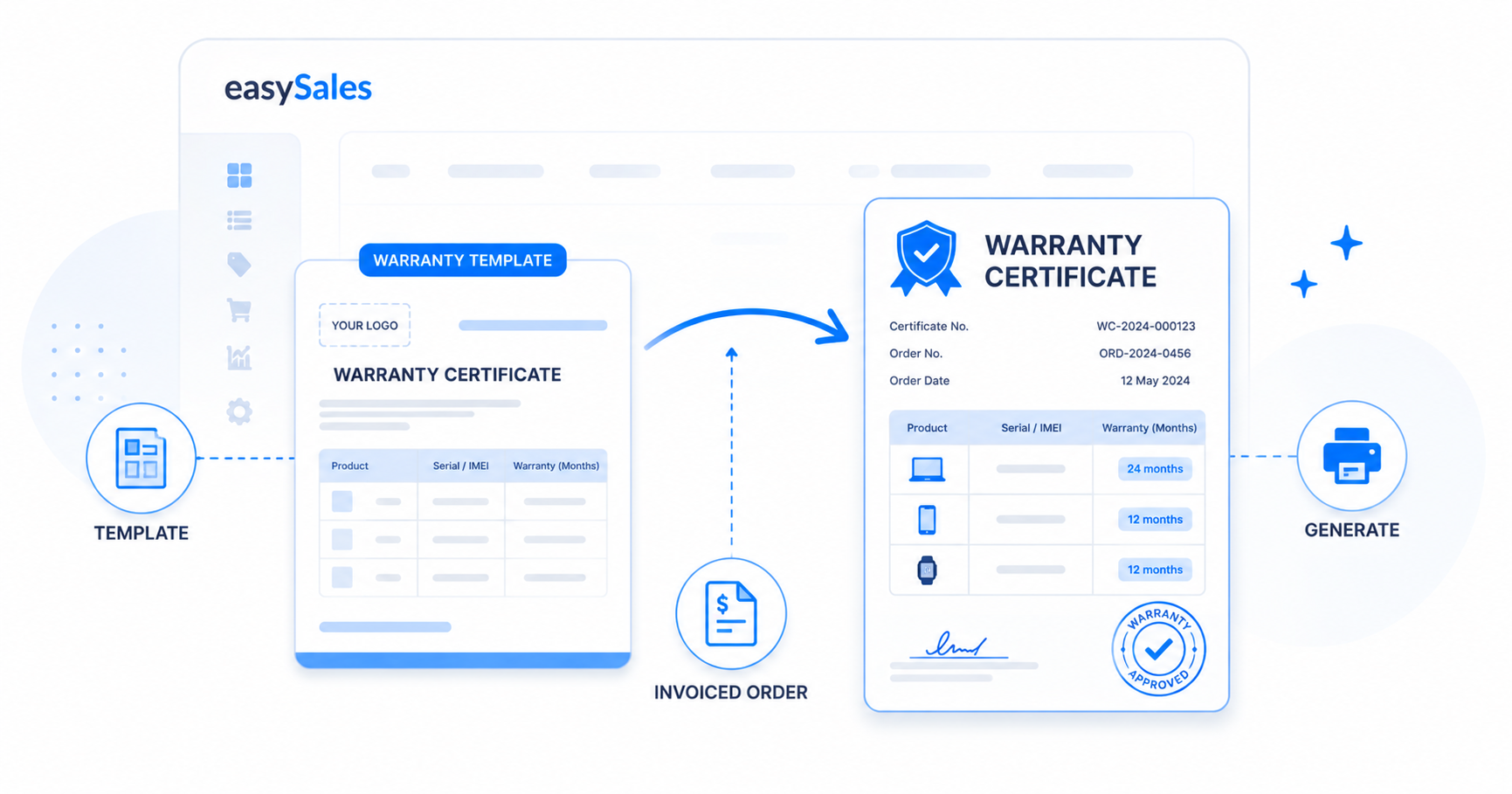
Build a reusable warranty template once, then generate a warranty certificate PDF for any invoiced order — one at a time or in bulk for a whole processing group.
A warranty certificate is the document a customer keeps to prove how long their purchase is covered. easySales generates it for you from a reusable template — you design the layout once, and every order produces a clean certificate listing its products, serial numbers and warranty period.
This guide covers what you need first, how to build a warranty template, and how to generate the certificate on a single order or for a whole batch.
What warranty certificates are
A warranty certificate in easySales is a PDF generated from a warranty template and attached to an order. The template controls the look — a header, a product table, and a footer — while the per-order data (products, serial numbers, warranty months) is filled in automatically when you generate it.
Before you start
Two things have to be in place before you can generate a certificate:
The warranty period itself isn't typed on the certificate — it comes from each product's warranty duration (in months), set on the product. Products without a warranty duration are simply left off the certificate.
Set up a warranty template
Open Order Processing → Warranties templates and create one. A template is reusable across every order, so you usually set it up once.
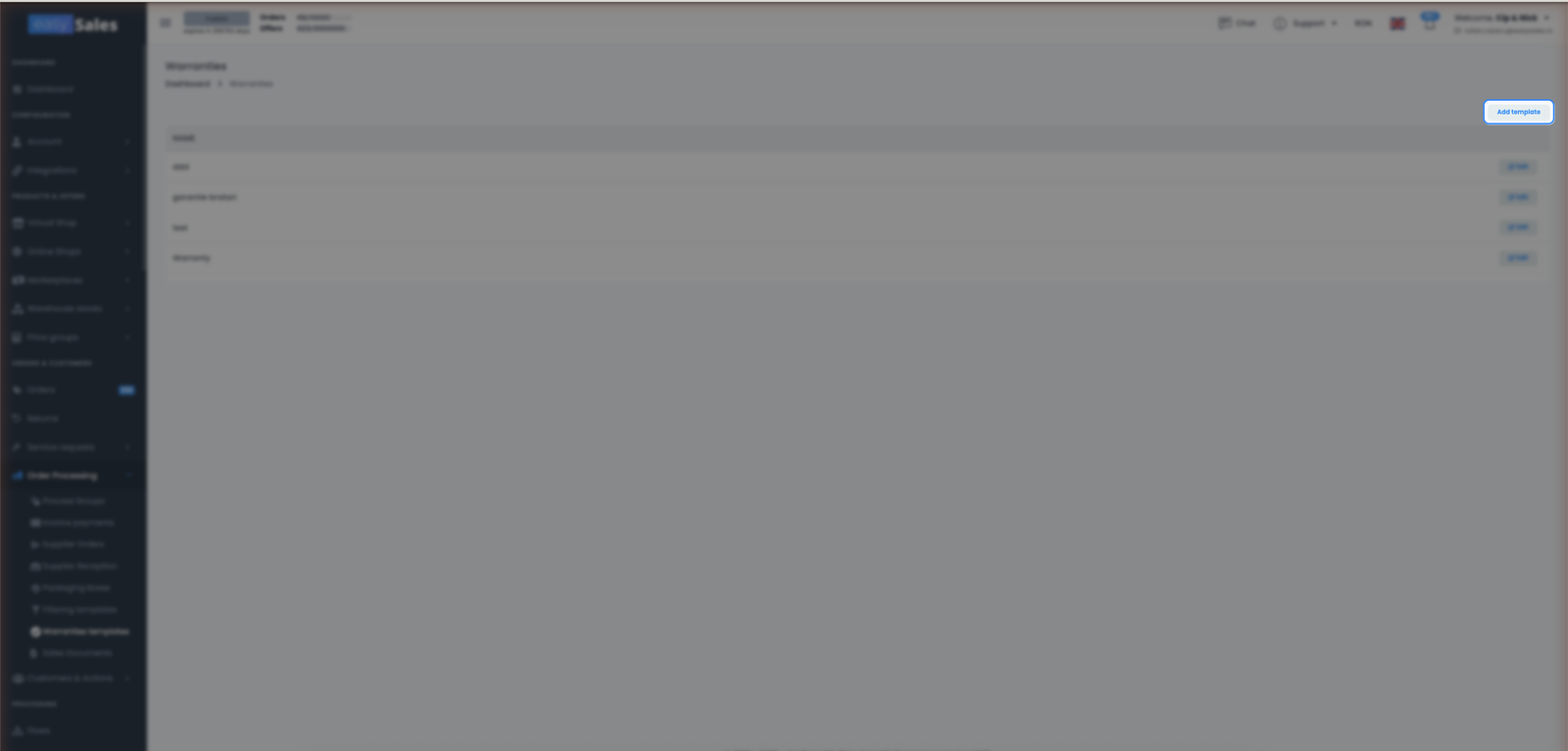
You control what the certificate shows:
Header and footer
Your own rich text — warranty terms, support contact, company details. You can drop in dynamic values like the order number or today's date.
Product columns
Choose which columns the product table shows: product name, serial number, SKU, EAN, quantity, and the warranty period in months.
Attached documents
Attach extra PDFs (for example your full terms and conditions) — they're merged onto the end of every certificate generated from the template.
A reusable name
Name the template so it's easy to pick when you generate a certificate, on an order or for a whole group.
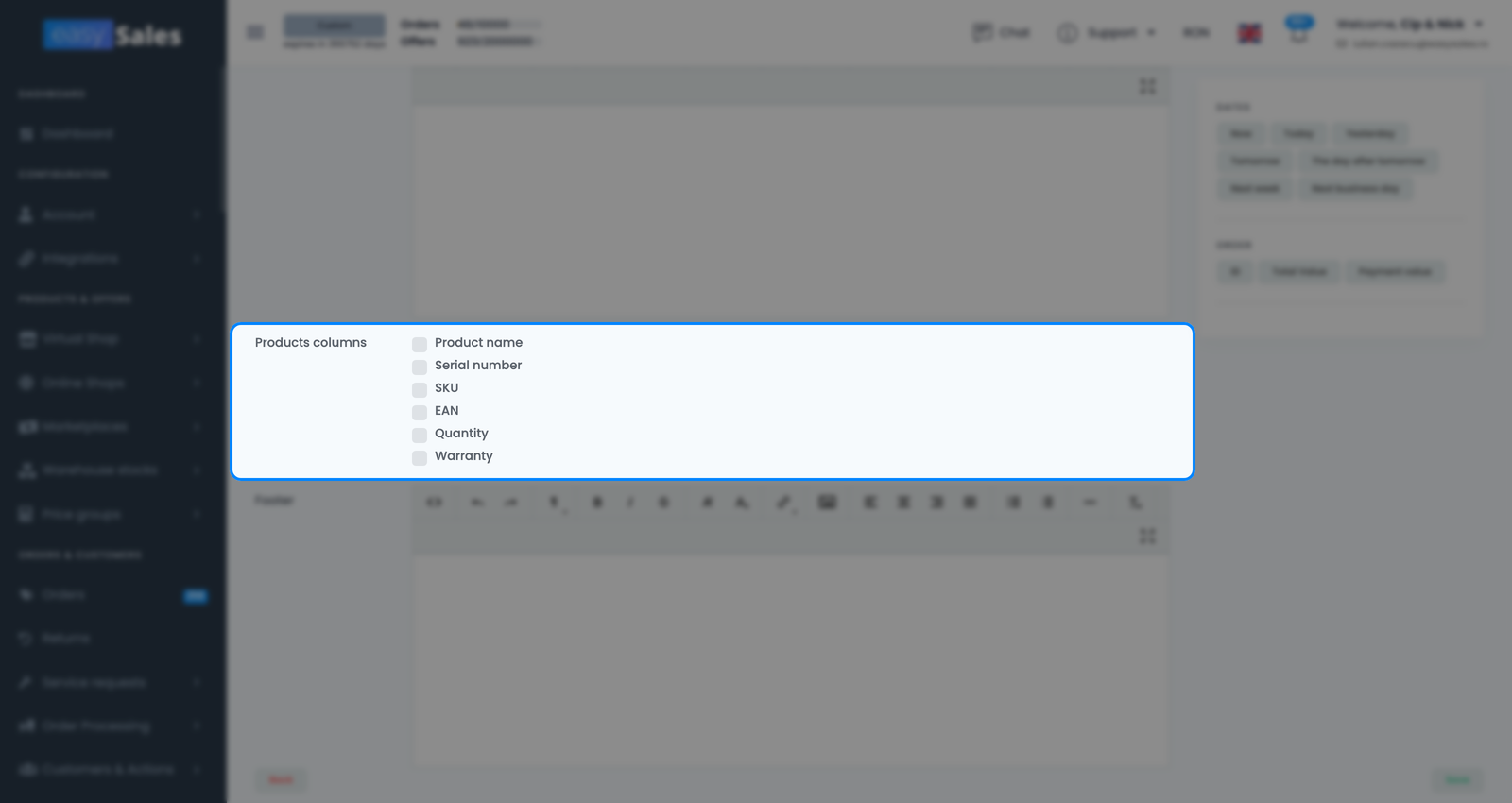
If you don't create one yourself, easySales starts you off with a default template so you can generate certificates right away.
Generate a certificate on an order
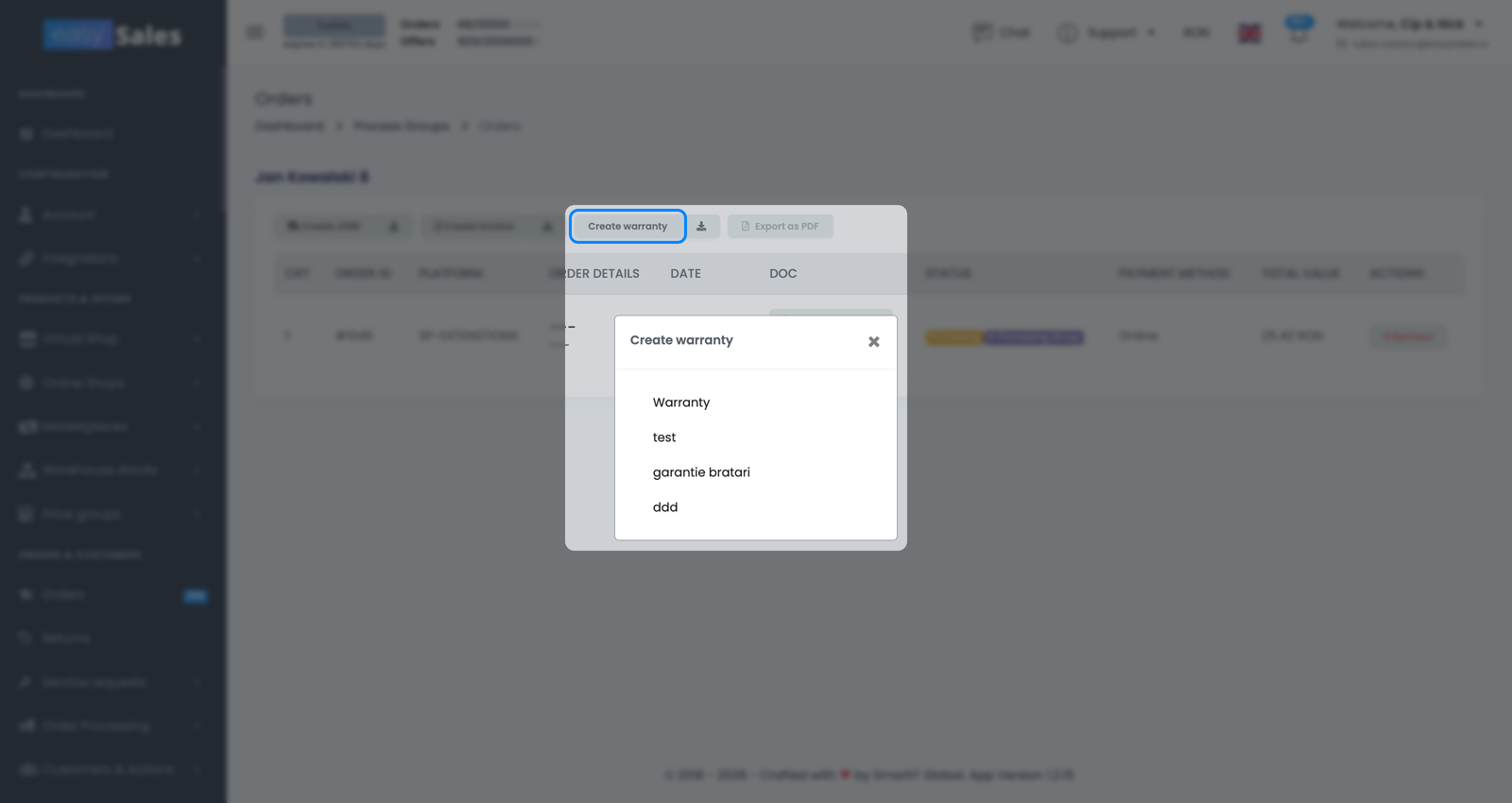
Open the order and use the Create warranty control (next to the invoice section). You have two options:
- Generate from a template — pick a warranty template and easySales builds the certificate from the order's products, their serial numbers, and each product's warranty months.
- Upload your own — attach a warranty PDF you produced elsewhere, if you'd rather not generate one.
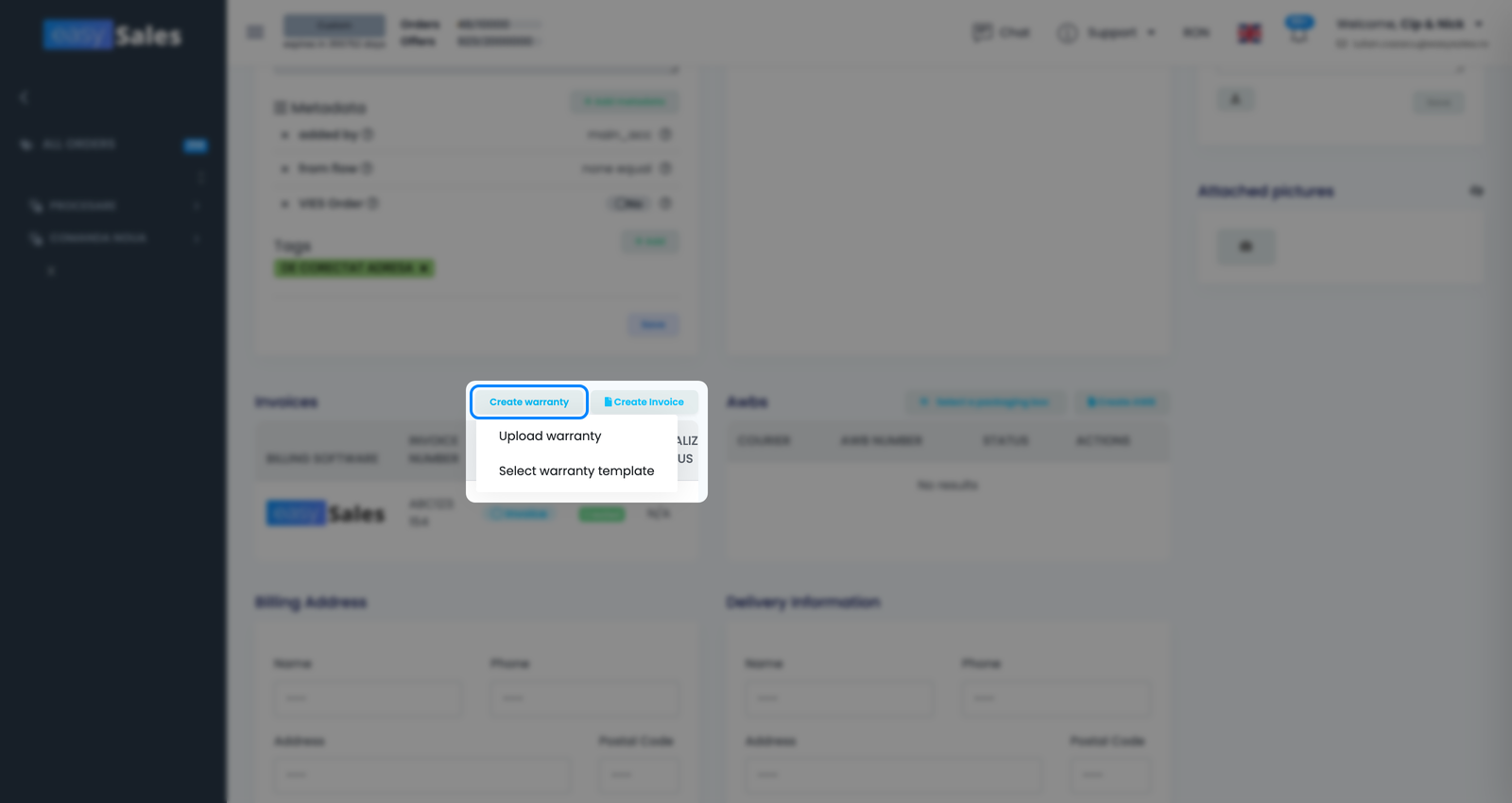
The certificate is saved on the order as a PDF you can download or share. If the template has extra PDF documents attached, they're merged onto the end of the certificate.
Generate certificates in bulk
When you're processing a batch of orders, you don't have to open each one. From a processing group you can generate warranty certificates for every eligible order at once — pick the template, and easySales works through the group, skipping orders that aren't invoiced or already have a warranty. There's also a regenerate option if you need to rebuild them.
What's on the certificate
The certificate is built from your template plus the order's data:
- Header and footer — your own text (terms, support contact, company details), with dynamic values like the order number and date filled in.
- A product table — one row per product that has a warranty, showing the columns you chose: product name, serial number, SKU, EAN, quantity, and the warranty period in months.
- Attached documents — any PDFs you added to the template (e.g. general terms), merged after the certificate.
Because the certificate reads serial numbers from the order and the warranty period from each product, the more complete that data is, the more useful the certificate — so keep product warranty months filled in and capture serial numbers where you track them.