How to find and fix website errors in easySales
Find the products and orders that failed to sync between your online shop and easySales, read what went wrong, fix it in your shop, and know what Dismiss and Delete all really do.
What Website errors shows you
Website errors lists every product and order that failed to sync between your online shop and easySales — in both directions. Open it from Products → Online Shops → Website errors. The red counter next to the menu item shows how many errors are waiting.
Two things to know before you start:
- You fix an error in your shop, not on this page. The error tells you what is missing or wrong — a SKU, an address, a category. Correct it in your shop, and the product or order syncs at the next attempt.
- An error disappears by itself once the sync succeeds. Dismiss and Delete all only take errors off the list. If the problem is still there, the product or order keeps failing — it just no longer shows.
Find the error
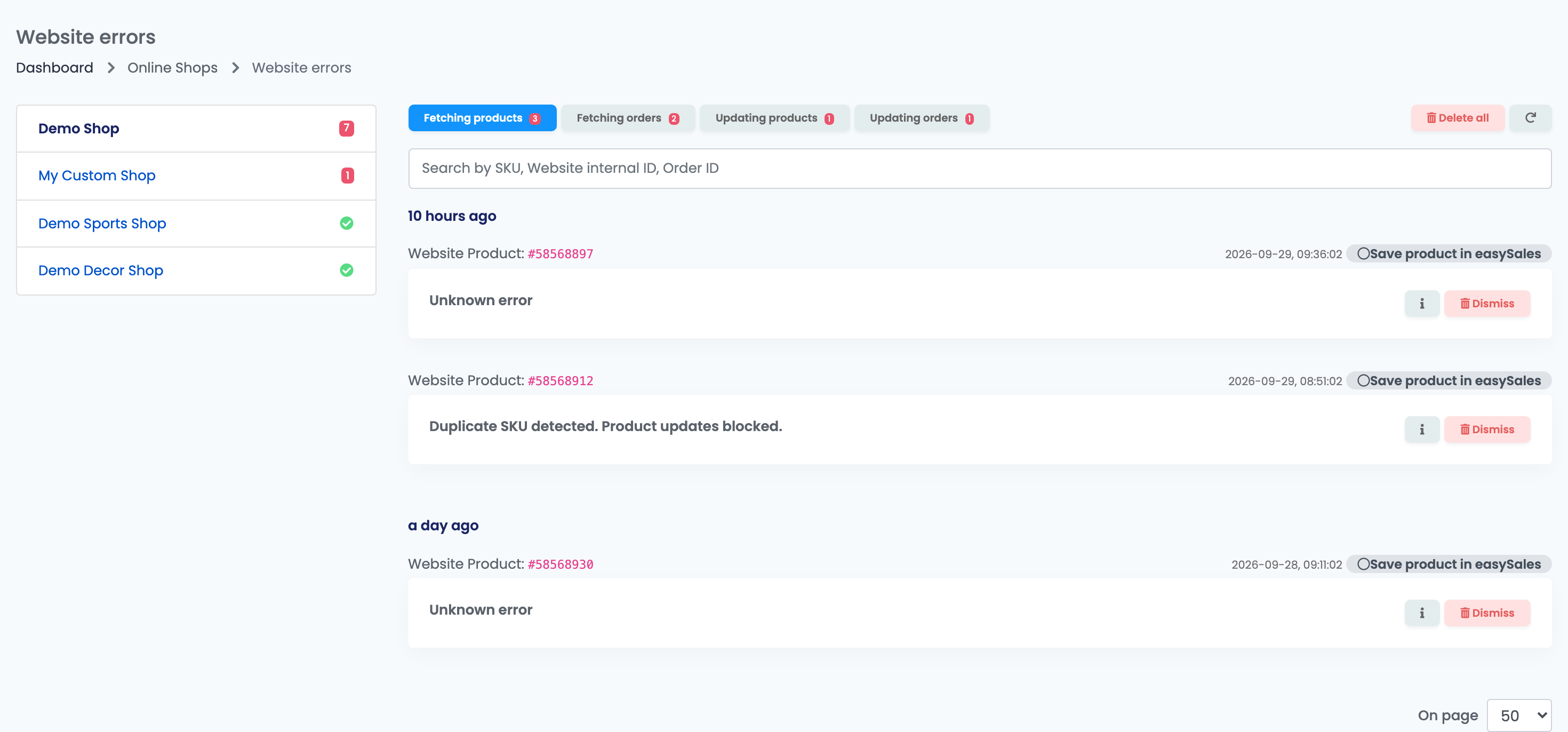
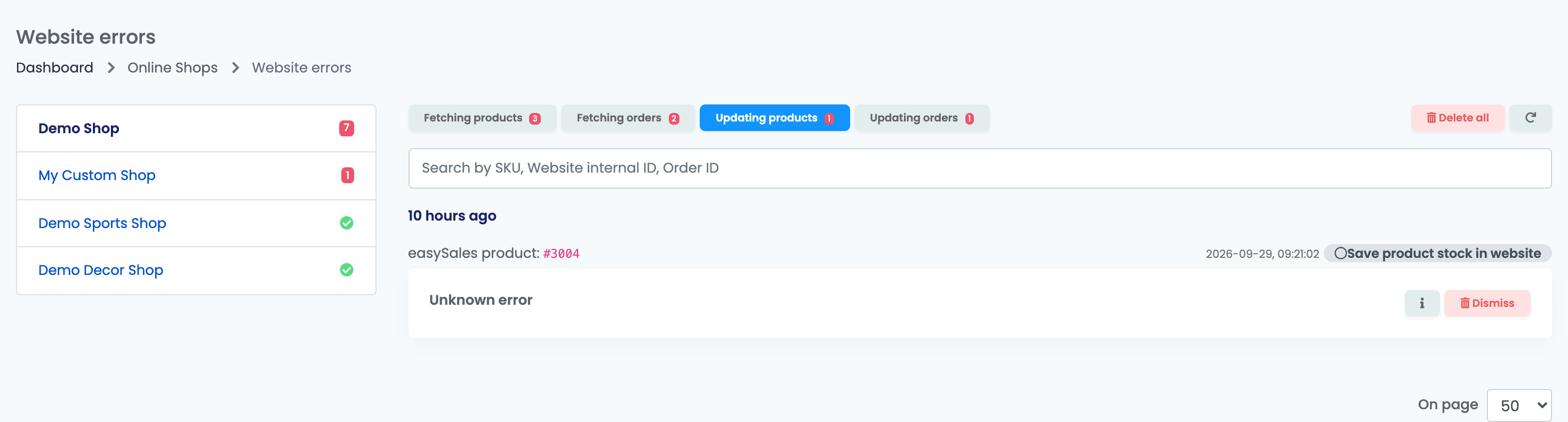
On the left are your connected shops, each with its own counter; a green tick means that shop has no errors. Choose a shop, then one of the four tabs:
| Tab | What failed |
|---|---|
| Fetching products | Importing a product from your shop into easySales. |
| Fetching orders | Importing an order from your shop, or the AWB or invoice attached to it. |
| Updating products | Sending stock, prices or product changes from easySales to your shop. |
| Updating orders | Sending an order status from easySales to your shop. |
To find one product or order, type its SKU, its ID in your shop or the order number into Search by SKU, Website internal ID, Order ID.
Read an error
Each card says what failed and when:
- The first line names the item — for example Website Product or Website order — followed by its ID in your shop.
- The grey badge names the step that failed, such as Save product in easySales or Save product stock in website.
- The title and the list under it give the reason.
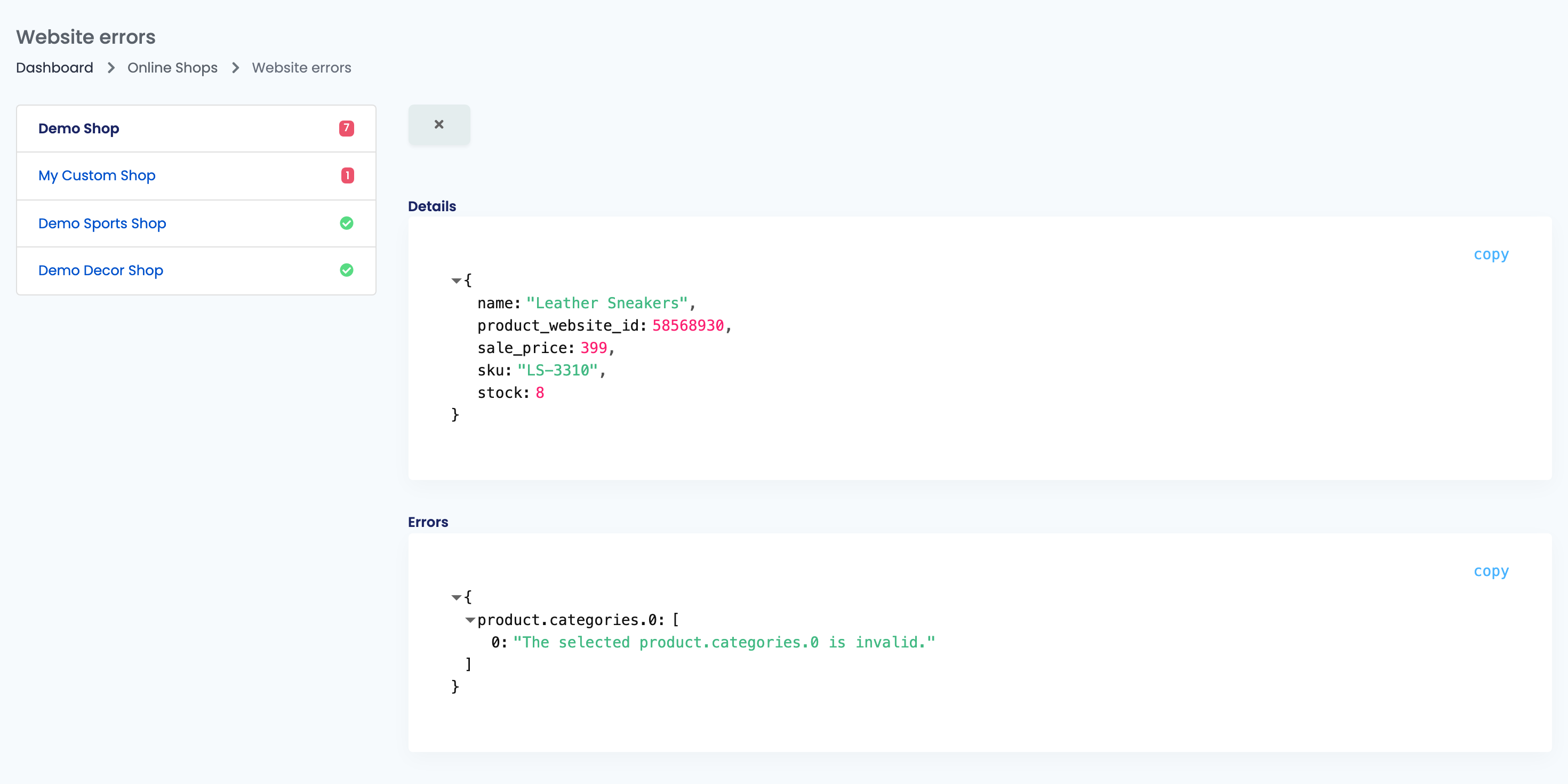
When a card only says Unknown error, press the i button. Details shows the data your shop sent, and Errors shows the reason — for example the field that was missing.
Products that cannot be imported
A product with an error on Fetching products is not imported, and a product already in easySales is not updated, until the error is fixed. Every product needs a unique SKU and a numeric stock.
| Message | What to do |
|---|---|
| The product.sku field is required. | The product or one of its variants has no SKU in your shop. Add a unique SKU. |
| The selected product.categories.0 is invalid. | The product's category is not in easySales yet. It usually clears by itself once your shop's categories sync. |
| Invalid tax rate. Valid values for given website: … | The product's VAT rate is not one of the rates of your shop's country. Set a valid rate in your shop. |
| Duplicate SKU detected. Product updates blocked. | Several products in your shop share one SKU — see the box below. |
Orders that cannot be imported
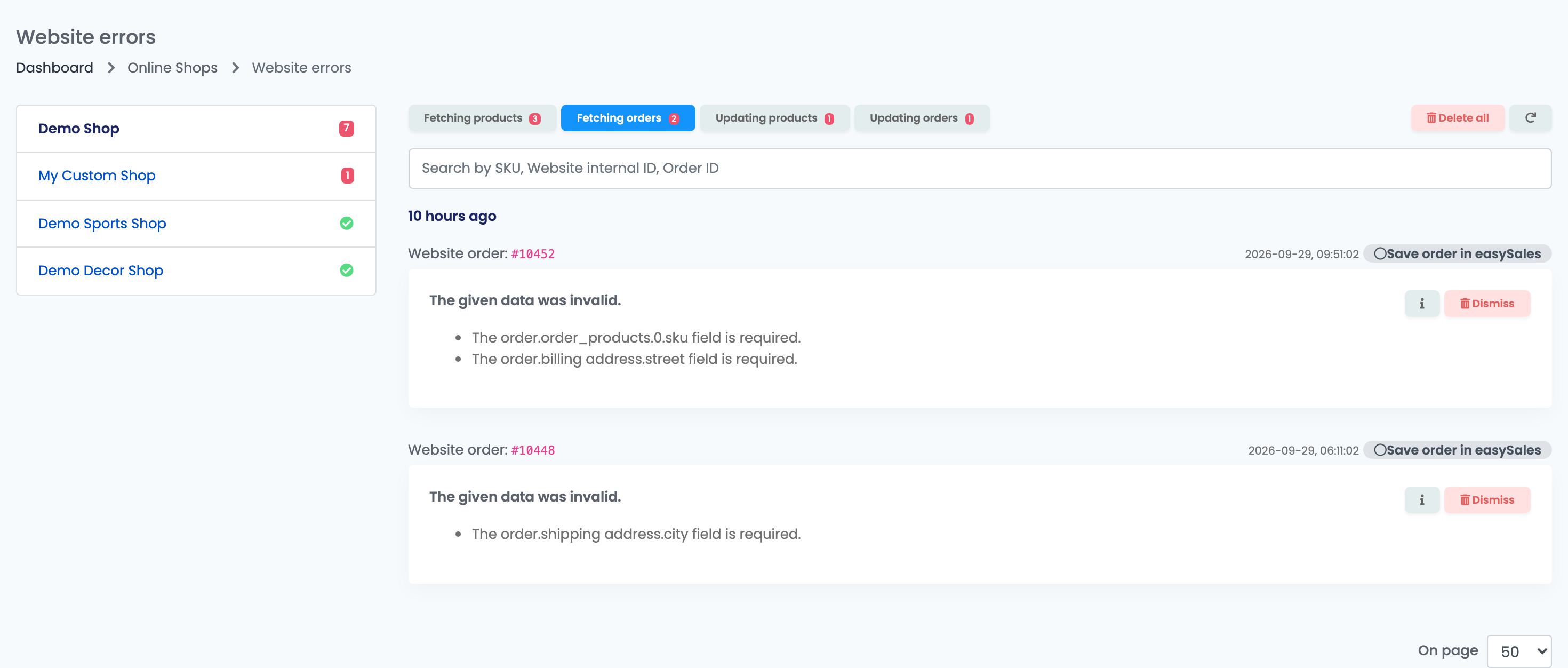
An order with an error on Fetching orders is not created in easySales. Once you complete the missing data in your shop, the order is imported at the next sync. Every order needs:
Order number, date, total, status and payment method
As your shop sends them.
A billing address
With country, city and street.
A delivery address
With country, city and street — unless the connection uses the billing address as the delivery address.
At least one product
Each with a SKU, a name, a quantity and a price.
A shipping cost
Even when it is 0.
The customer's name, phone and e-mail are not required.
| Message | What to do |
|---|---|
| The given data was invalid. — with the missing fields listed | Complete the listed fields on the order in your shop, for example the billing street or a product's SKU. |
| The order.order_products.0.sku field is required. | A product on the order has no SKU in your shop. Add the SKU to the product. |
| Orders limit exceeded. | Your easySales plan's order limit is reached. Upgrade your plan to import more orders. |
| The website has been deactivated | The shop's connection is switched off in easySales. Switch it back on to import orders again. |
Updates your shop refused
Updating products and Updating orders list what easySales could not send to your shop: stock, prices, product changes, order statuses. The message comes from your shop, in its own words.
| What the message says | What to do |
|---|---|
| Invalid product ID., Invalid product reference, or the product does not exist | Your shop no longer has that product under that ID — it was deleted, re-created or its SKU changed. Align the SKU in your shop with the one in easySales. |
| A web page instead of a message (for example "Just a moment…", 500 or 503) | Your shop was down or blocked easySales. Check that your shop is up and that its firewall or security plugin lets easySales through. |
| Invalid order ID. | The order no longer exists in your shop under that ID. Check the order in your shop. |
| Not enough product in stock | Your shop refused the status change because of its own stock. Correct the stock in your shop. |
Dismiss, Delete all and Retry
Dismiss takes one error off the list, Delete all takes off every error on the tab, and Retry takes the error off the list as well. None of them changes your shop or your products: if the cause is still there, the next attempt fails the same way.
Use them to clear errors you have already fixed, or ones that no longer matter — for example for a product you have deleted from your shop.