How to fix blocked and duplicate products in easySales

What the Blocked products and Duplicate products labels mean, how to find them, how to unblock a product, how to move offers off a duplicate and how to let easySales archive the old copy.
Two labels, two different problems
In Products → Online Shops → Products, a product can carry one of two labels under its row:
- Blocked products (grey) — your shop keeps sending this SKU under a different product ID. easySales has stopped taking stock and price updates for it from the shop.
- Duplicate products: SKU (orange) — the SKU was changed in your shop, so the product came in again as a new product with the SKU the label names. The one with the label is the old copy.
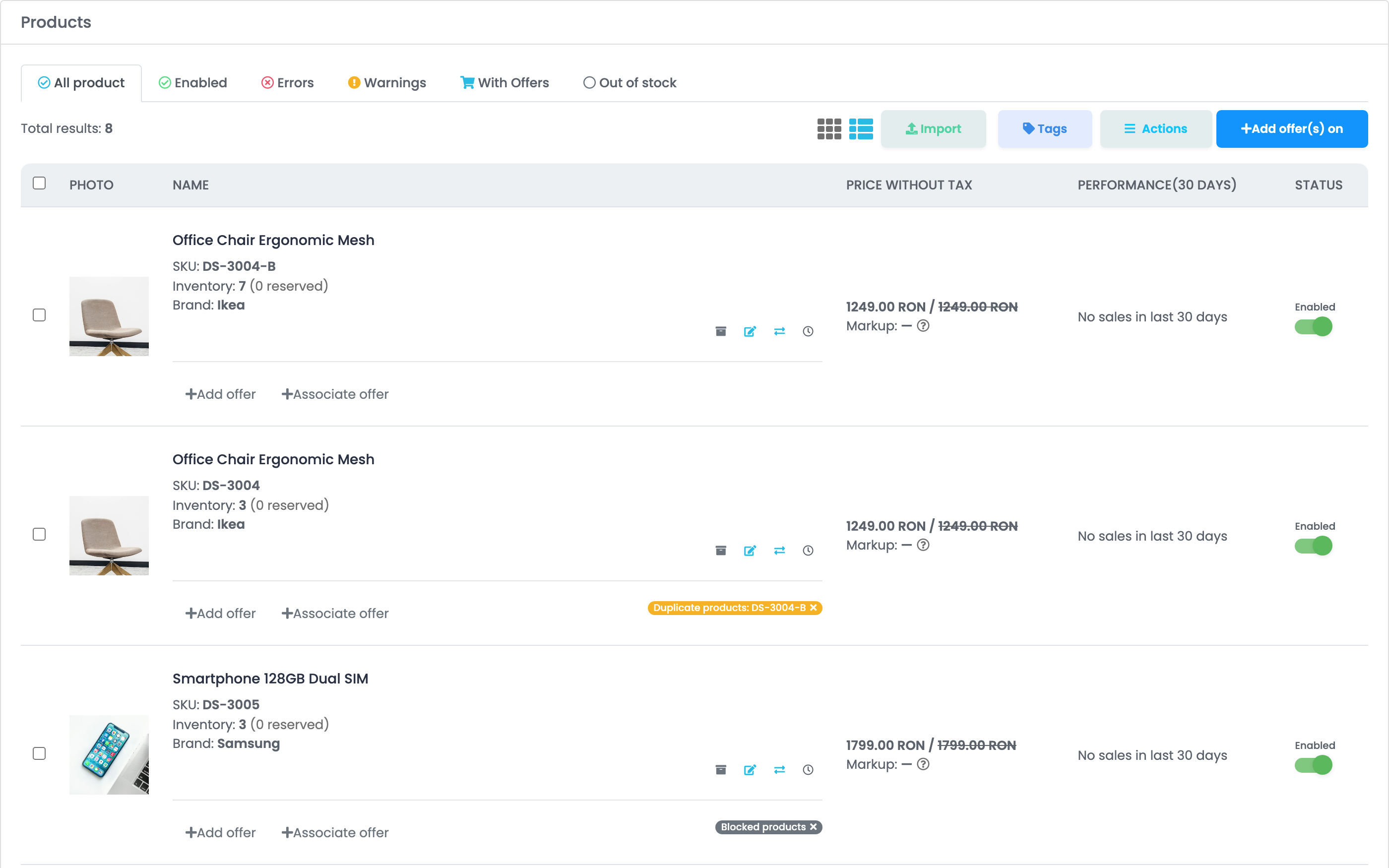
Both are fixed the same way: first in your shop or in your products, then on the label. Pressing × on its own does not fix either.
Find them all
Open Advanced filters above the product list, and set Blocked products or Duplicate products to Yes.
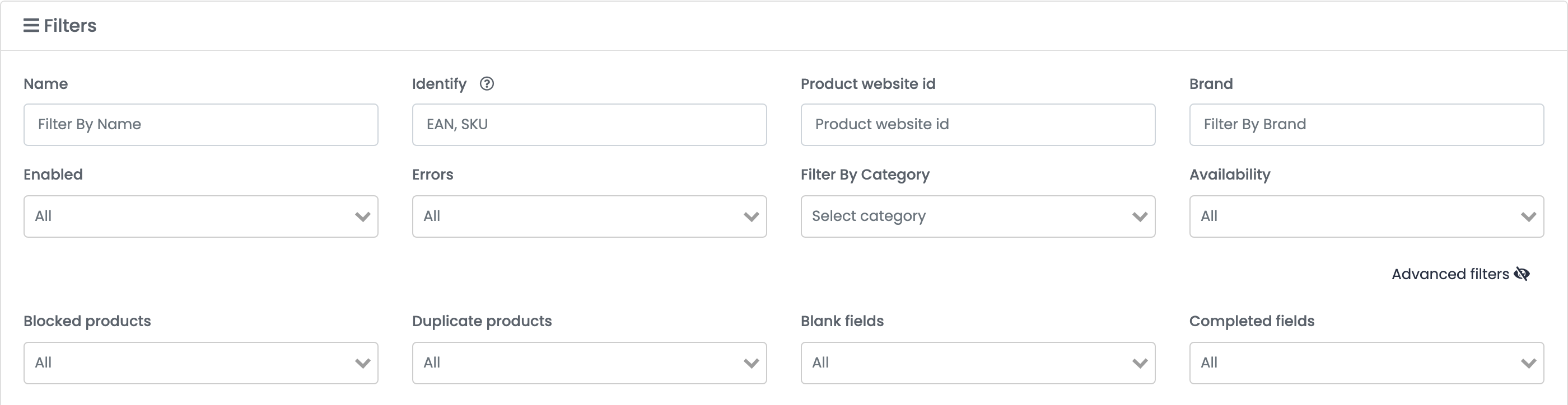
Blocked products
easySales recognises a shop product by its SKU. When the same SKU keeps arriving with a different product ID, easySales blocks the product instead of switching between the two. It usually means:
- Two products in your shop share this SKU — their IDs alternate at every sync.
- The product was deleted and created again in your shop instead of being edited.
While a product is blocked, the stock and price from your shop no longer reach it — nor the marketplace offers linked to it, which keep selling at the old stock.
To unblock it:
- In your shop, give every product its own SKU — or keep only one of the two products.
- In easySales, press the × on the grey Blocked products label.
The next sync then updates the product as usual.
Duplicate products
When you change a SKU in your shop, easySales cannot tell it is the same product: it imports it as a new product with the new SKU. The old product stays, with the old SKU, and gets the orange label naming the new one.
The old product is no longer updated from your shop. If its offers are still live on the marketplaces, they keep selling at its last stock — so move them before you remove it:
- Press the move-offers icon (⇄, Move offers) on the old product.
- Search for the new product by name or SKU, choose it, keep the offers ticked and press Update.
- Archive the old product.
If the two products really are different — the label is out of date — press the × on the orange label to remove it.
Let easySales tidy up by itself
In the shop's settings — Integrations → Websites, edit the shop, Preferences, Synchronization — two options handle a changed SKU for you:
| Option | What it does |
|---|---|
| Auto-archive superseded products | Archives the old product when the shop sends the same product under a new SKU. |
| Move the old product's offers to the new SKU | Moves the old product's marketplace offers to the new product at the same time. Turn on the first option to use it. |
The old product is archived at the moment the new SKU arrives, if it has no stock and no open orders at that time. Otherwise it stays, and you archive it yourself. Products that were duplicated before you turned the option on are not touched.
A list of shared product IDs
Actions → Download → Export duplicated downloads an Excel file with every shop product ID that more than one of your products uses, and their SKUs. On shops where variants carry their parent product's ID, the variants appear in it too — they are not duplicates.