How scheduled flows work in easySales: run actions on your products at set times
Run actions on the products that match a selection, every day or on chosen days, and follow each run in its history.
Scheduled flows in short
A scheduled flow runs at the times you choose and works through your products: every day or on some days of the week, it takes the products that match a selection and applies the same actions to each of them. Use it for tasks that do not wait for an event, such as turning off the offers of products that are out of stock, or tagging products that meet a condition.
Open them from Automatic flows & rules → Scheduled flows.
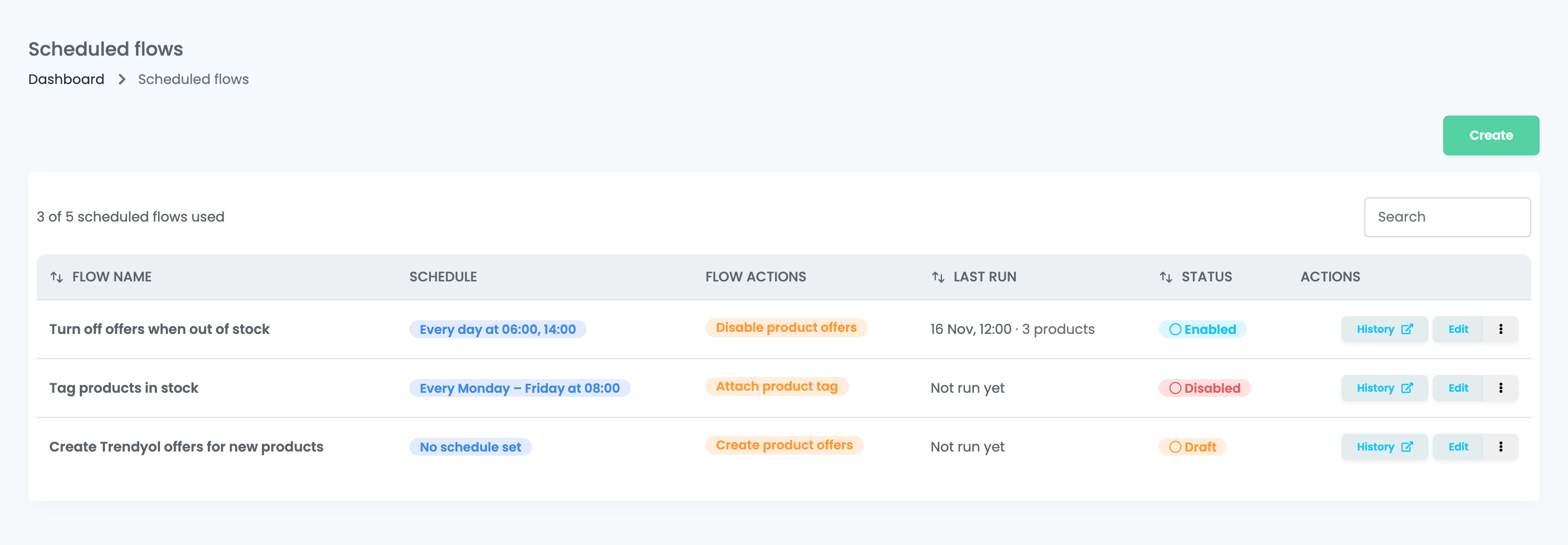
| Column | What it shows |
|---|---|
| Flow name | The name you gave the flow. |
| Schedule | The days and times it runs. |
| Flow actions | What it does to each product. |
| Last run | When it last ran and how many products it handled. |
| Status | Enabled, Disabled or Draft. Only enabled flows run. |
Create a scheduled flow
- Press Create, give the flow a name and, if you like, a description, and save. The flow is created as a draft.
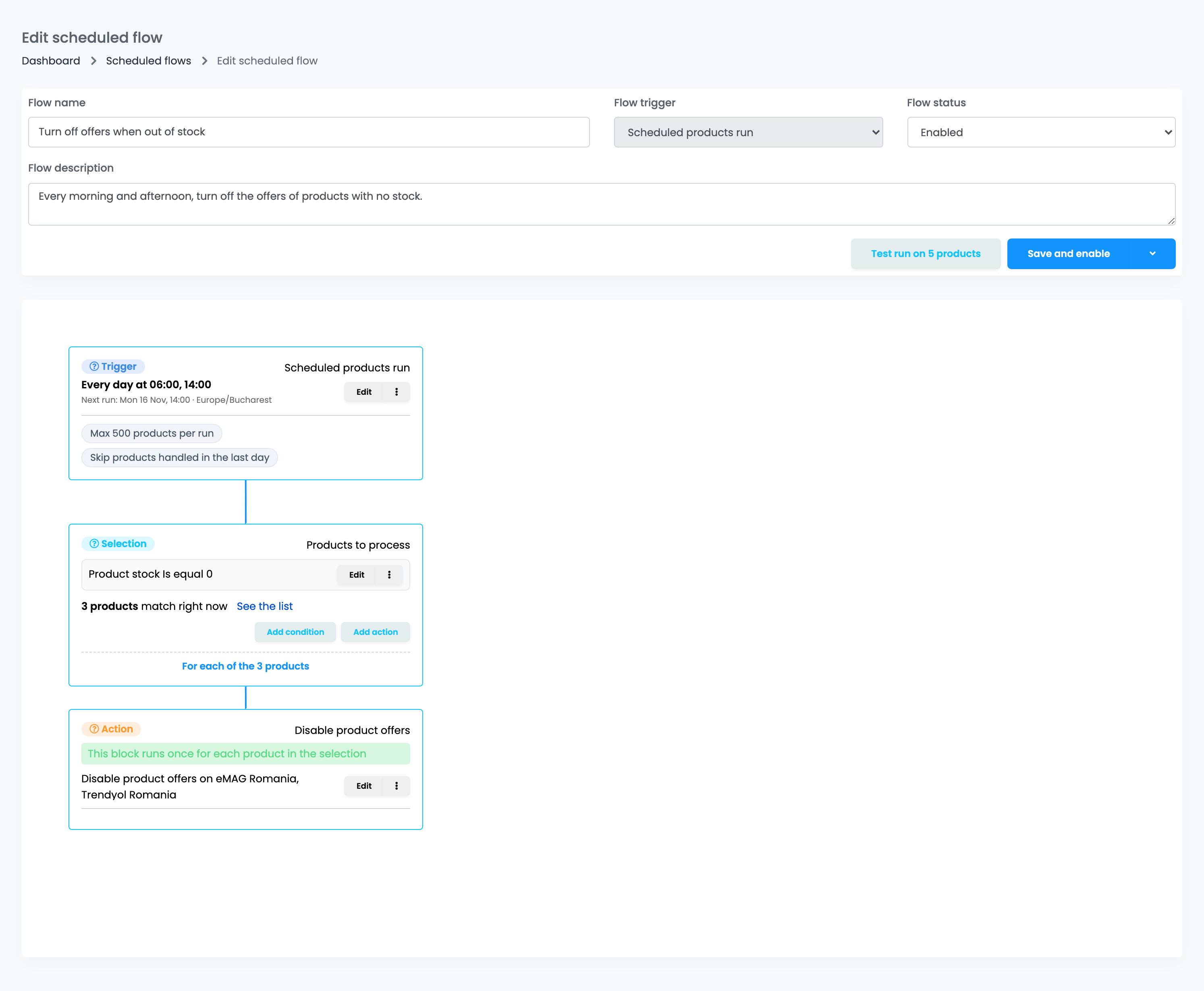
- Open it with Edit. The editor shows three blocks: when it runs, which products it takes, and what it does to them.
- Set the schedule, the selection and the actions, then press Save and enable. The arrow next to it holds Save and Save as draft.
You can have up to 5 scheduled flows, drafts and disabled flows included.
When it runs
Edit on the first block opens the schedule.
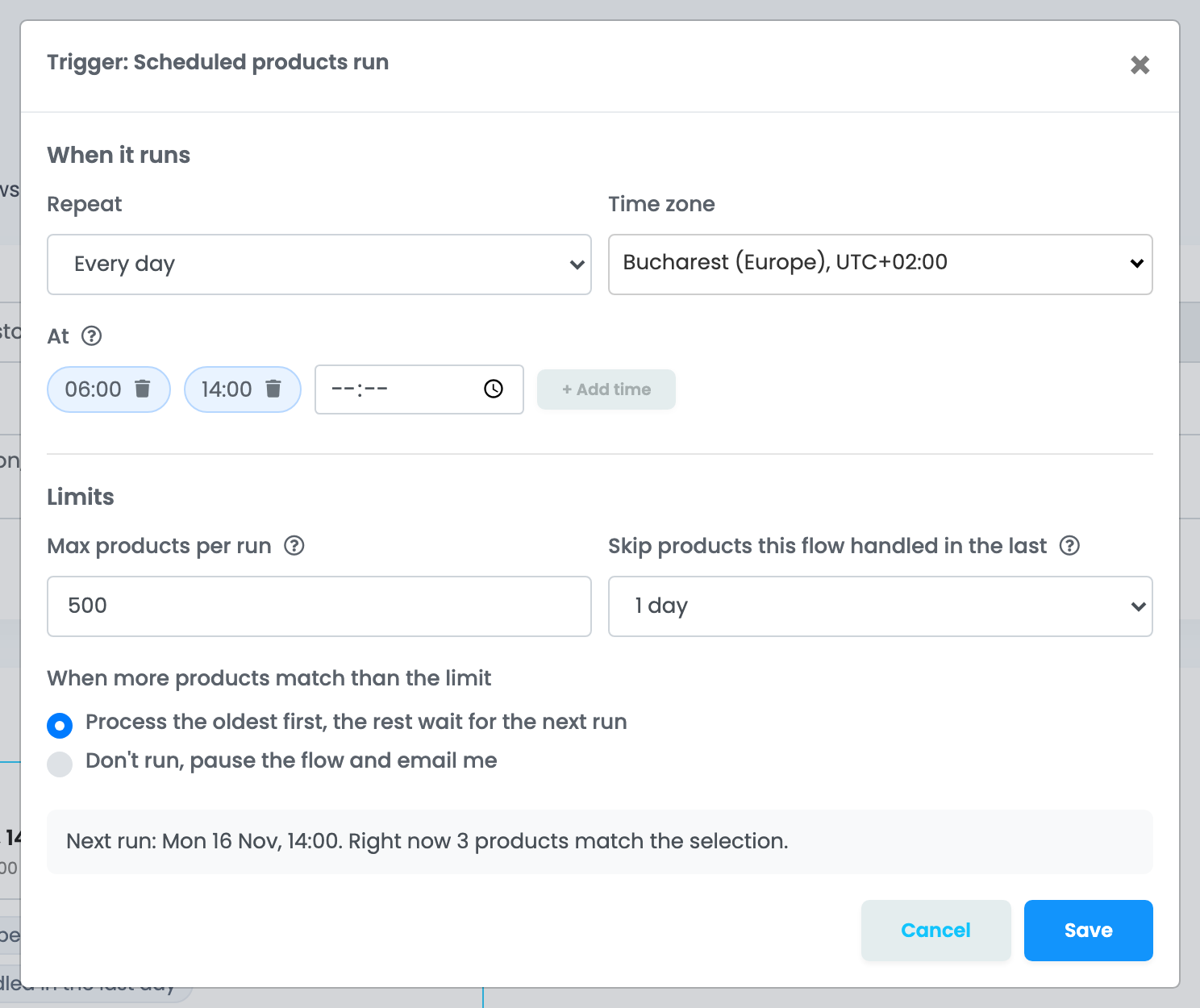
- Repeat: every day, or every week on the days you tick.
- At: up to 4 times a day, at least 3 hours apart.
- Time zone: the times are read in this time zone.
- Max products per run: from 1 to 1,000; 500 by default.
- Skip products this flow handled in the last: never, 1 day, 7 days (the default) or 30 days.
- When more products match than the limit: process the oldest first and leave the rest for the next run, or do not run at all, pause the flow and e-mail you.
The schedule is saved together with the flow: press Save in the window, then save the flow. When you enable a flow, its next run is the next time on the schedule from that moment, so a time that has already passed today runs tomorrow.
Which products it takes
The middle block, Products to process, holds the selection. Add condition adds a condition on the product: its stock, EAN, category, brand, tags, website, whether it has an offer on a connection, or how long its eMAG offer has been approved.
- A product must meet every condition. Inside one condition, you can add alternatives, any of which is enough.
- With no condition at all, every product of your account is taken, up to the limit.
- The block shows how many products match right now; See the list shows them.
- Each product is checked again just before its actions run. A product that no longer matches is skipped.
What it does
The actions run once for each product in the selection:
Offers
Create product offers, enable product offers, disable product offers, and auto-link an offer to the product.
Tags and labels
Attach a product tag, or print product labels.
Product fields
Set a product field from a characteristic or from metadata.
Internal characteristics
Save product fields or metadata as internal characteristics, or create internal characteristics from characteristics.
Actions cannot be delayed in a scheduled flow: they run during the run.
Test before you enable
Test run on 5 products runs the saved flow right away on the first 5 matching products.
Follow the runs
History, on the list or in the editor, shows every run of the flow: when it ran, how many products matched, how many actions were done, skipped or failed, and the result.
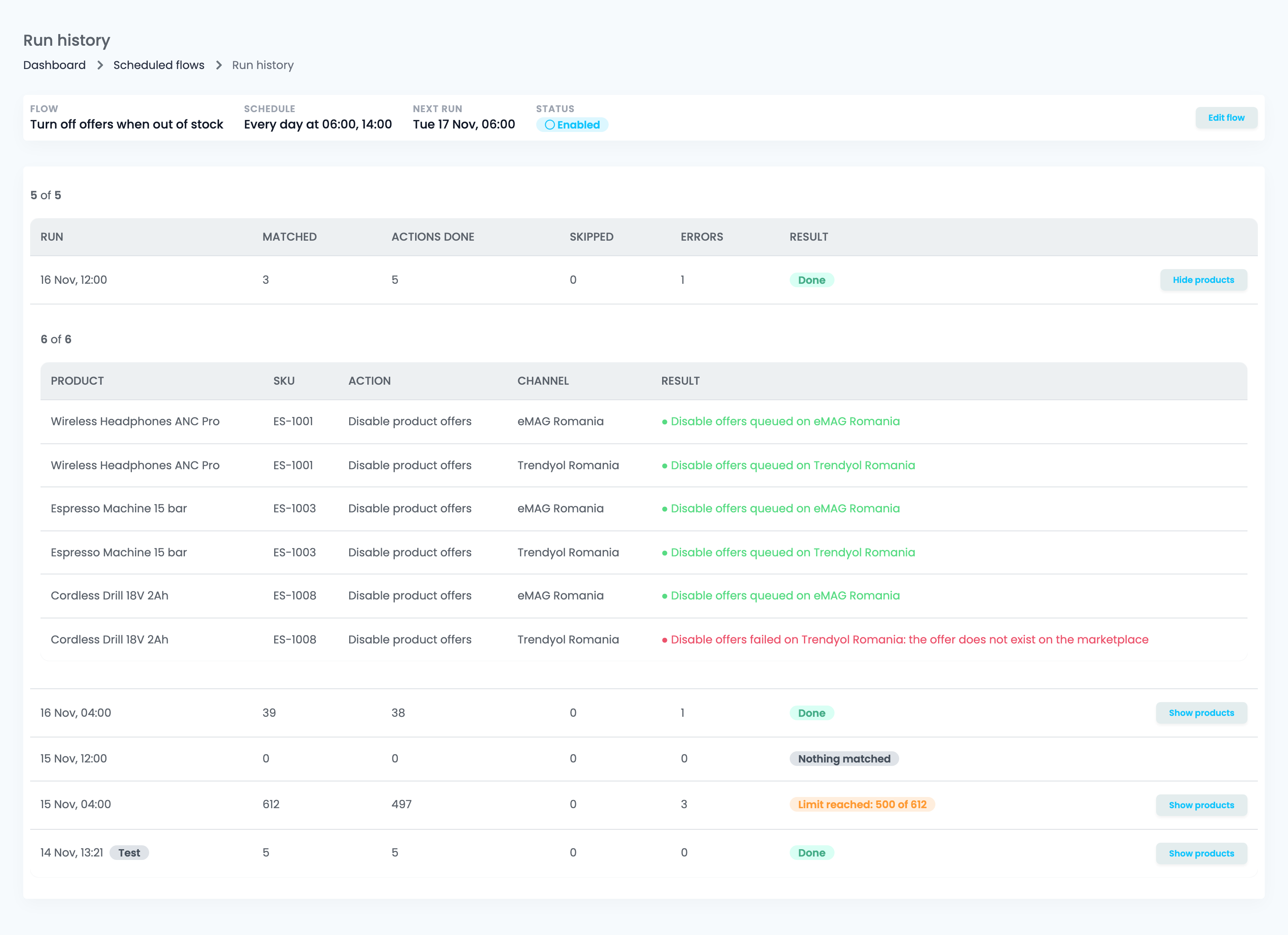
| Result | What it means |
|---|---|
| Done | Every matching product was processed. |
| Limit reached | More products matched than the limit; the rest are left for the next runs. |
| Nothing matched | No product matched the selection at that time. |
| Paused | More products matched than the limit and the flow is set to pause: it was disabled. |
| Skipped: previous run still running | The previous run had not finished, so this one did not start. |
| Stopped | The flow was disabled during the run. |
| Failed | The run could not finish. The message under the result says why. |
Show products opens the run's products, with the action, the marketplace or channel and the result for each one.
Large catalogues
- Each run takes at most Max products per run products. The next run carries on after the last product of the previous one, and starts again from the beginning when it reaches the end.
- A product counts as handled as soon as one of its actions has run, even if the action failed. With a skip period, that product is left out until the period ends, so a product that keeps failing is not retried at every run.
- With Never skip, the same products are processed at every run. Some actions, such as attaching a tag or turning offers on, then repeat on products they already changed: add a condition that leaves those out.
- With the pause option, a run that matches more products than the limit does not start: the flow is disabled, and you get an e-mail and a notification. Narrow the selection or raise the limit, then enable it again.
While your subscription is inactive, scheduled flows do not run, and runs missed in that time are not made up.
Manage your scheduled flows
- Edit opens the flow; the menu next to it can Enable, Disable, Copy or Delete it.
- A copy starts disabled and goes through your products from the beginning.
- Scheduled flows work on products. To react to orders, returns or offers as things happen, use automation flows.
When something does not look right
| Symptom | What to do |
|---|---|
| The flow did not run at the time I set | Check that it is Enabled, that the time and time zone are right, and that you saved the flow after changing the schedule. |
| Not all matching products were processed | Each run takes at most the limit per run. The next runs continue with the rest; raise the limit if you need more per run. |
| A product with an error is not tried again | It counts as handled for the skip period. Fix the product; it is taken again when the period ends, or set the skip to a shorter period. |
| The flow was disabled on its own | It is set to pause when more products match than the limit. Narrow the selection or raise the limit, then enable it again. |
| Create is not available | You have 5 scheduled flows already. Delete one you no longer use, drafts included. |
| The same tag or action is applied again at every run | The flow never skips handled products. Add a condition that leaves out the products it already changed. |