How auto white background works in easySales: clean product images for marketplaces

Replace a product photo's background with clean white in a couple of clicks — so your images pass the white-background rules marketplaces like eMAG enforce. Your original is never overwritten.
Most marketplaces want product photos on a clean white background — eMAG, for example, rejects or down-ranks listings with busy or coloured backdrops. Re-shooting or editing every photo in an external tool is slow. easySales does it for you: point it at an image and it removes the background and replaces it with white, ready to send to the marketplace.
This guide covers what the feature does, how to use it image by image, how it's metered, and what happens to your original photo.
What auto white background does
The feature takes a product image, cuts out the product, and drops it onto a clean white background. The result is a new, marketplace-ready image — your original photo is never touched. easySales stores the white-background version alongside the original, and uses it automatically when it sends the product to a marketplace.
It runs on demand, one image at a time, so you stay in control of which photos get processed and can check each result before it goes anywhere.
When you need a white background
Reach for this whenever a channel's image rules are stricter than the photos you have:
- Marketplace requirements. eMAG and several others require the main product image to sit on a plain white background. Listings that don't comply get rejected or pushed down in search.
- Mixed-source catalogs. Photos imported from a supplier feed or an older website are often shot on grey, wood, or lifestyle backdrops. White-background them before you list.
- A consistent storefront. Even where it isn't mandatory, a uniform white background makes your catalog look tidier and more professional.
How to use it
Open the product and click Auto white background (labelled Remove Backgrounds in the English interface) by its images — in the Media section for Virtual Shop products, or on the Images tab for products from a connected Online Shop.
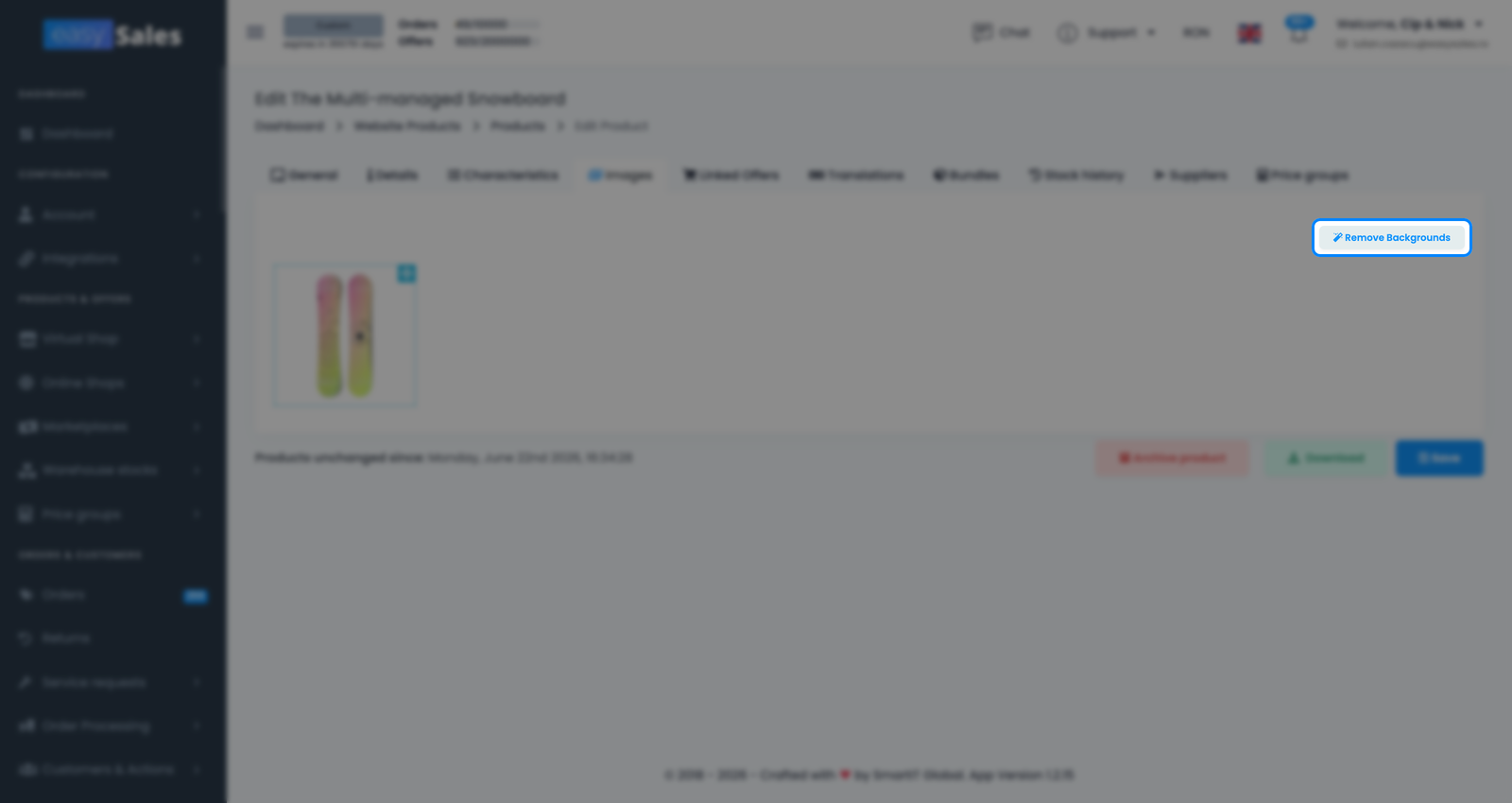
You'll see the product's images as thumbnails. Pick the one you want to clean up — easySales opens a side-by-side of the original and the result so you can judge it before committing. Click Start to generate the white-background version of that image.
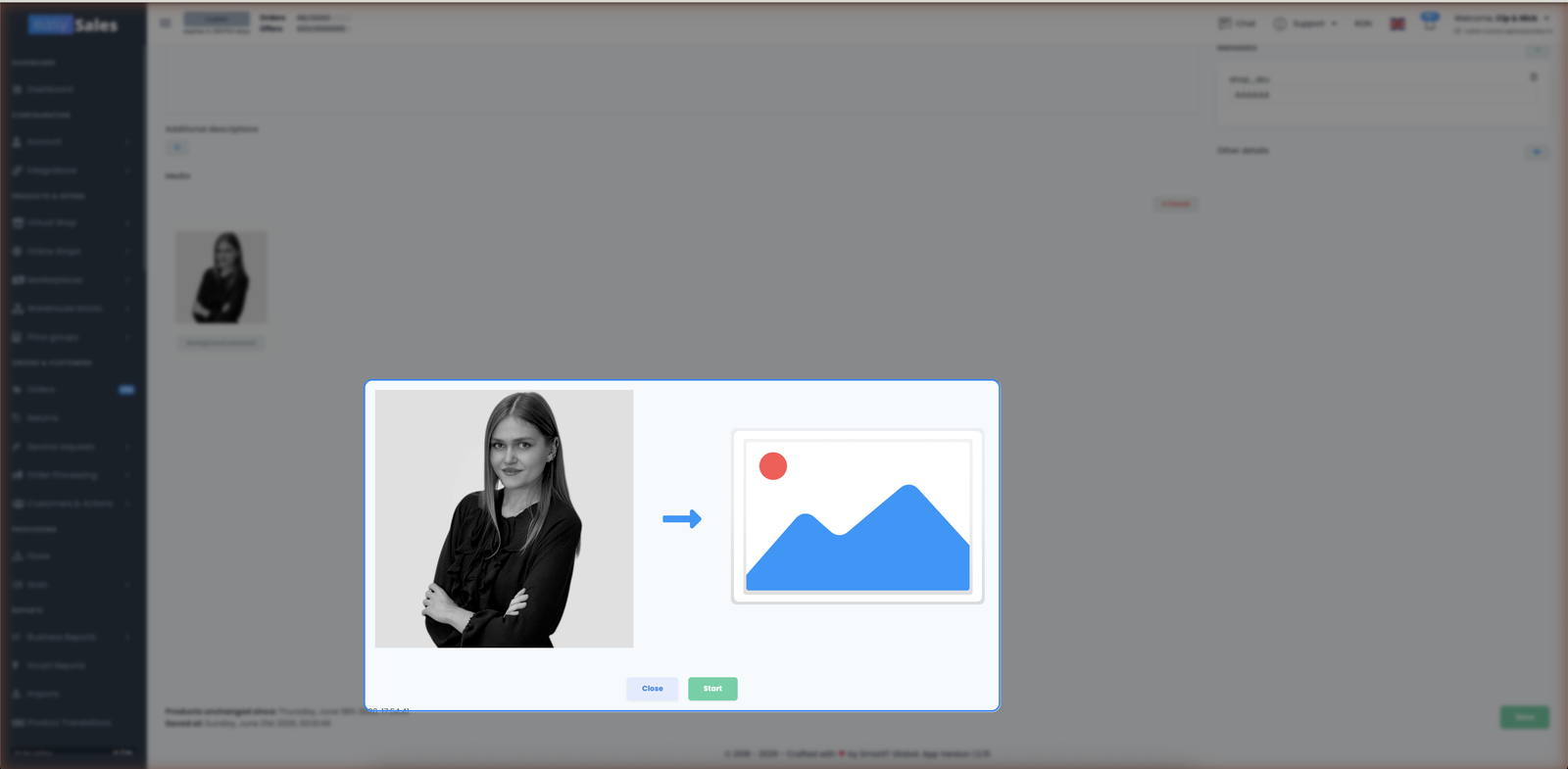
Each image is processed individually, which means you decide exactly which photos to convert — usually the main image, sometimes a few more. If a result isn't clean, you can retry, and if you don't want a processed version you can delete it and fall back to the original.
How it's metered — image tokens
Auto white background runs on image tokens: one image processed uses one token. You see your current balance and top up by buying more tokens under Account → Subscriptions, in the Services section. If your balance is zero, the feature is disabled until you add tokens.
Getting the cleanest result
Background removal works best when the product stands out clearly from its current backdrop. A few things that improve the cut-out:
One product in frame
A single, clearly defined product cuts out far better than a scene with several objects or props competing for attention.
Good contrast with the backdrop
The product should stand out from its current background. A dark product on a dark surface is the hardest case.
Product in sharp focus
Sharp, well-lit edges give a clean cut-out. Blurry or low-light photos leave rough edges.
Avoid heavy shadows
Strong cast shadows can be read as part of the product. Even, diffuse lighting works best.
If the photo is too busy — the product blends into the background, or there are several objects competing for attention — easySales may not be able to identify the product and will tell you so instead of producing a bad cut-out. Start from the clearest photo you have.
Your original is safe — and what gets sent to the marketplace
A processed image never replaces your original. easySales keeps both: the original stays in your image gallery, and the white-background version is stored next to it. When you send the product to a marketplace, easySales prefers the white-background version automatically — so the channel gets the compliant image while your catalog keeps the untouched original.
If you ever change your mind, delete the processed image and easySales falls back to the original for that photo. Nothing about the change is permanent or destructive.