How to list products on marketplaces from easySales
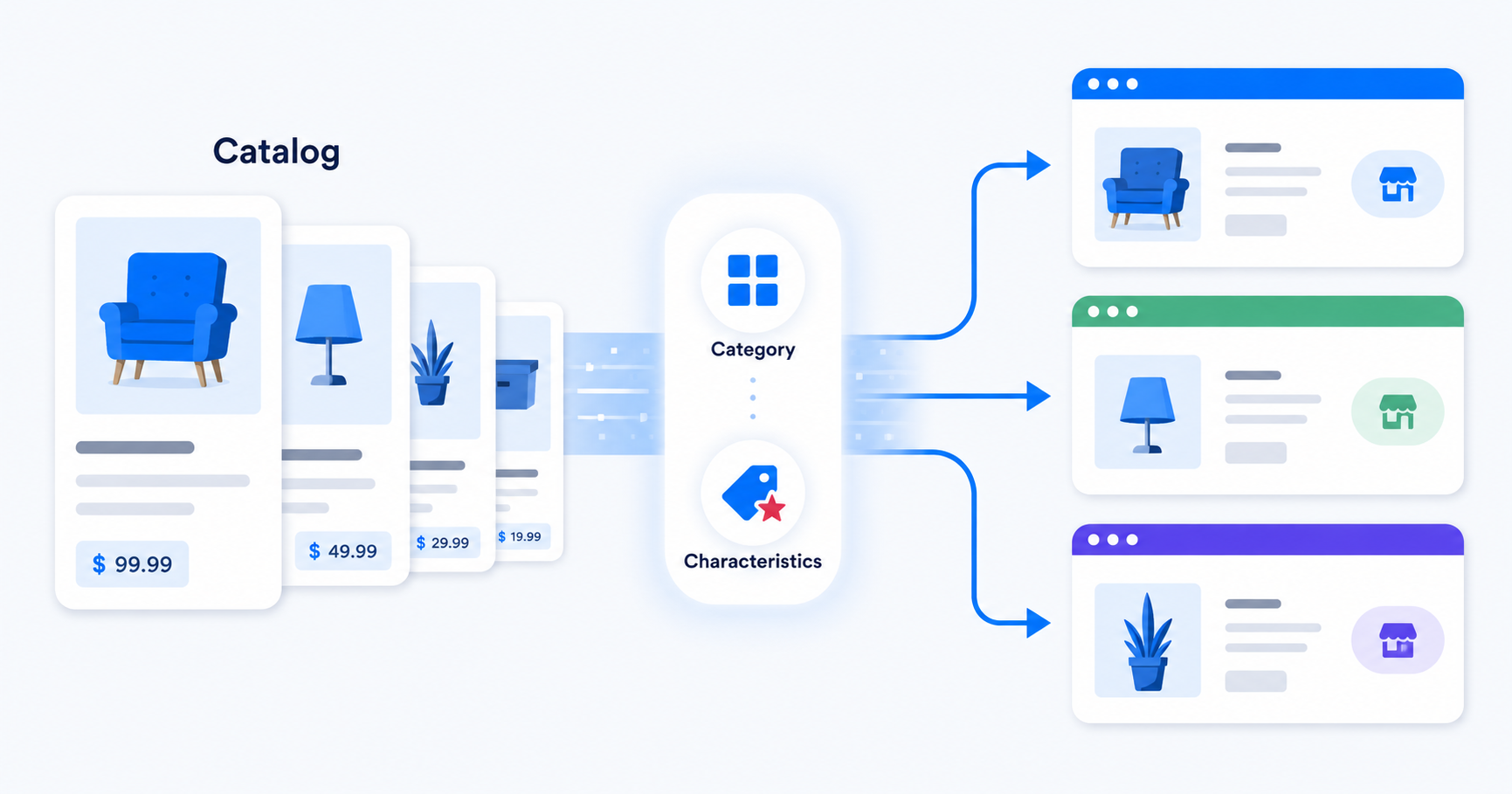
Two paths for listing your catalog on a marketplace from easySales — map everything upfront, or send offers first and fill characteristics after using mass-edit tools.
Before you start
Listing products on a marketplace from easySales is a one-time setup per product category, then a near-instant process for the rest of your catalog. To make sure that's actually true on your account, two things need to be in place before you list anything:
- The marketplace is connected. You can see it in Integrations → Marketplaces. If you can't, finish the connection guide for that marketplace first.
- Auto-link has run. This is the step that links your shop's products to existing marketplace offers (where the marketplace already has the same product listed by another seller). The Without offers on <marketplace> filter you'll use to find products that still need to be listed depends on this — if auto-link hasn't completed, the filter shows nothing because nothing is linked yet.
Once both are true, decide which of the two listing paths fits your catalog best.
Two paths to listing — which one fits you
easySales lets you list products in two ways. The right choice depends on whether you already have all the marketplace's mandatory characteristics filled in your easySales catalog.
| Path 1 — Full mapping upfront | Path 2 — Categories only, fill after | |
|---|---|---|
| When to use | You already have brand, size, color, and the rest of the required characteristics on your products. | Your product data is incomplete or freshly imported from a site or supplier. |
| Effort upfront | Higher — map category AND characteristics per category. | Lower — map only the category. |
| Effort after sending | Minimal. Offers usually validate on the first send. | Higher — fill missing characteristics on the Marketplace Offers screen using Mass Edit. |
| Best for | Mature catalogs with consistent characteristic data. | New catalogs, partial data, supplier imports. |
| Time to first offer | Slower per category, fast at scale. | Faster per category, slower overall when many characteristics are missing. |
The short version:
- Path 1 — Map everything upfront. Use when you already have brand, size, color, weight, and the rest of the marketplace's required characteristics on your products. You'll do the mapping once per category, then bulk-send offers in seconds.
- Path 2 — Map categories only, fill characteristics after. Use when your product data isn't complete yet, a common situation when you're newly importing from a website or supplier. You send the offer with what you have, then fill in the missing pieces directly on the Marketplace Offers screen using mass-edit.
Both paths end at the same place: published offers on the marketplace. Most merchants end up using a mix — Path 1 for categories where their data is clean, Path 2 for everything else.
Path 1 — Map categories and characteristics first
Open Online Shops → Categories. You'll see the categories imported from your product source on the left and a Map category button next to each one. Click it on the category you want to list.
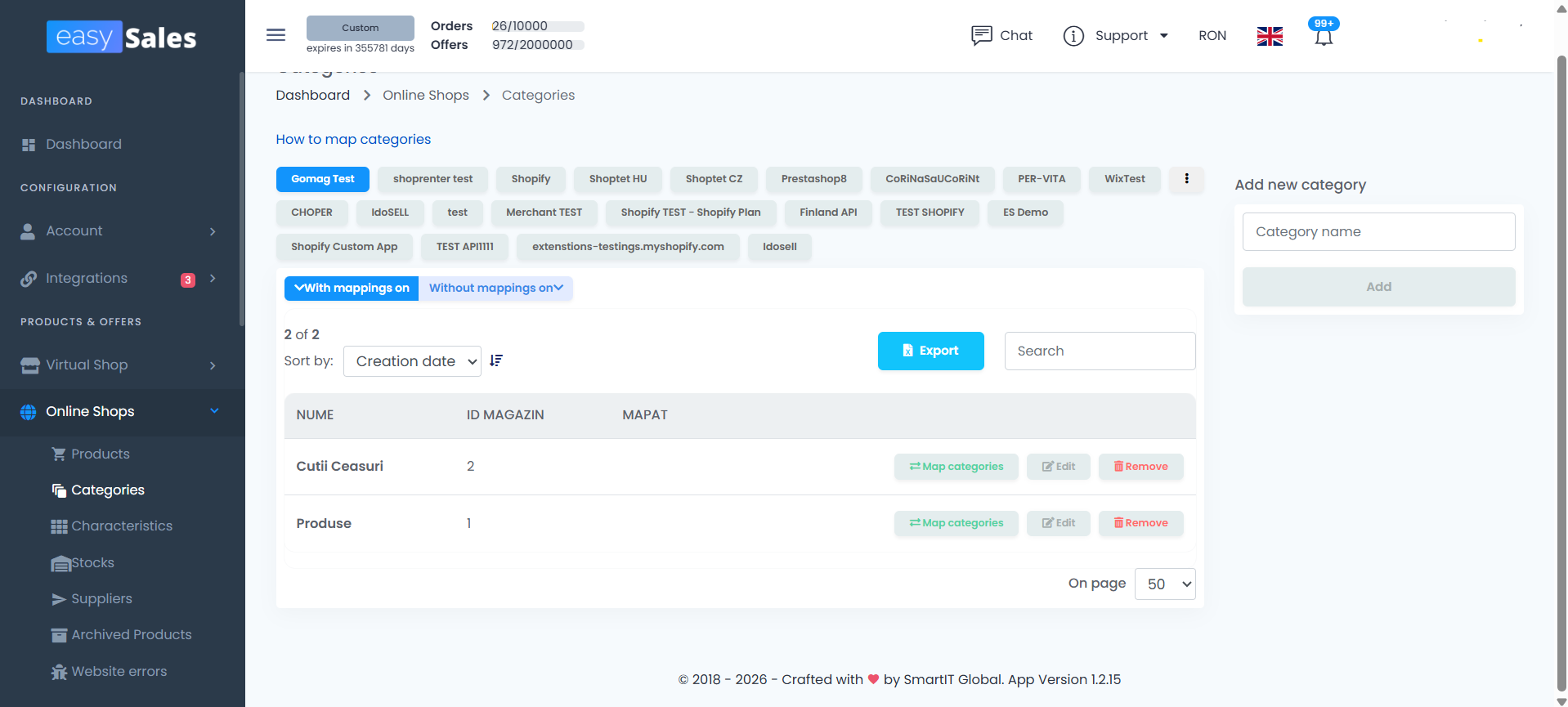
In the modal that opens:
- Pick the marketplace you want to map to.
- Find the matching marketplace category. Most marketplaces have deep category trees — pick the one that best describes your products, not the broadest one. A more specific category usually means fewer required characteristics and better visibility on the marketplace's product pages.
- The marketplace's characteristics list loads. Map your shop characteristics to the marketplace characteristics.
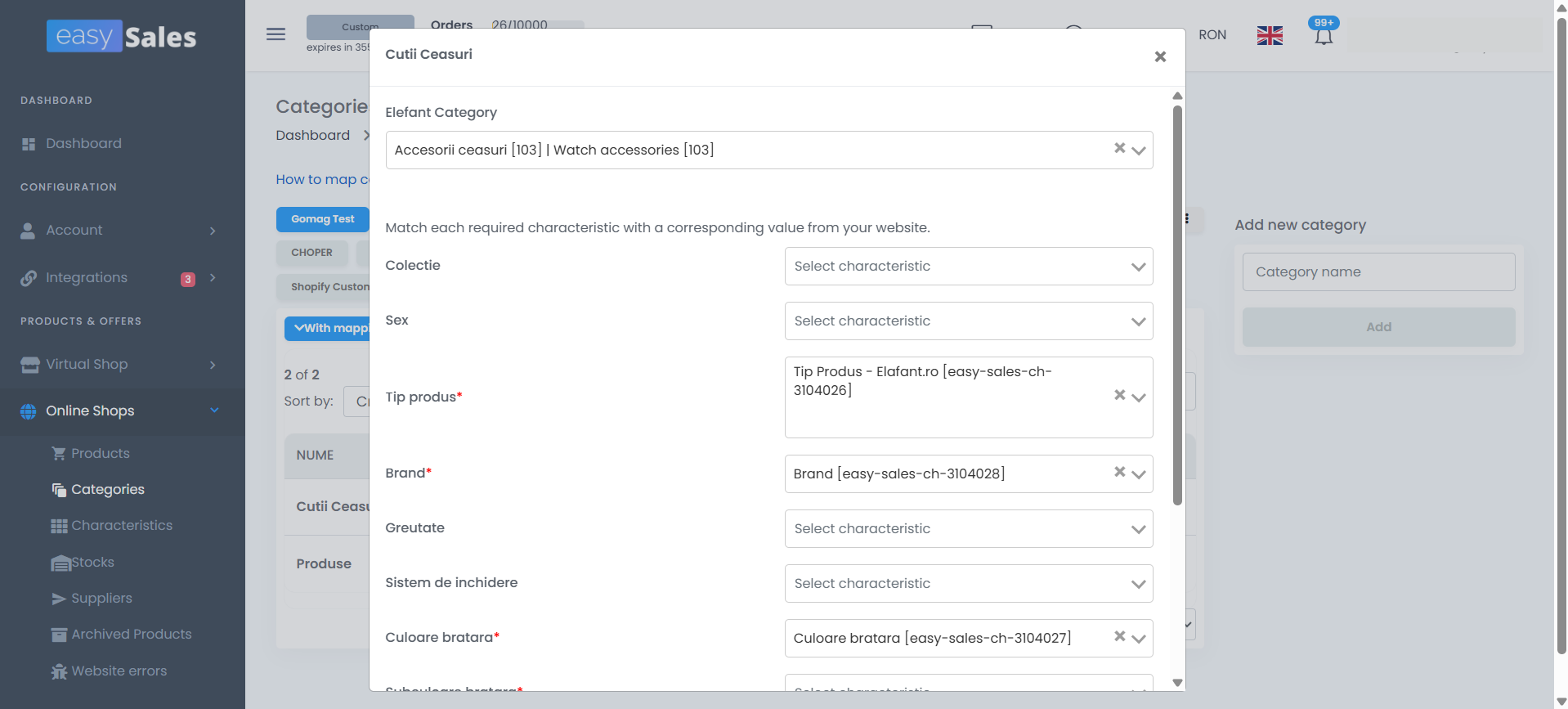
Two things worth knowing about characteristic mapping:
- Required characteristics are marked with a red asterisk (
*) on the marketplace side. The asterisk reflects what the marketplace itself requires, not what easySales requires. easySales lets you save the category mapping even if you skip the characteristic mapping entirely — more on that in Path 2. - Each marketplace can accept different values for the same characteristic. Color may accept any free-text value on one marketplace and only a fixed list on another. The mapping screen shows the accepted values per marketplace, so you can route your shop's values to the marketplace's allowed list.
Once you save the mapping, go to Online Shops → Products and apply two filters:
- Category = the category you just mapped.
- Without offers on <marketplace> = the marketplace you're listing on.
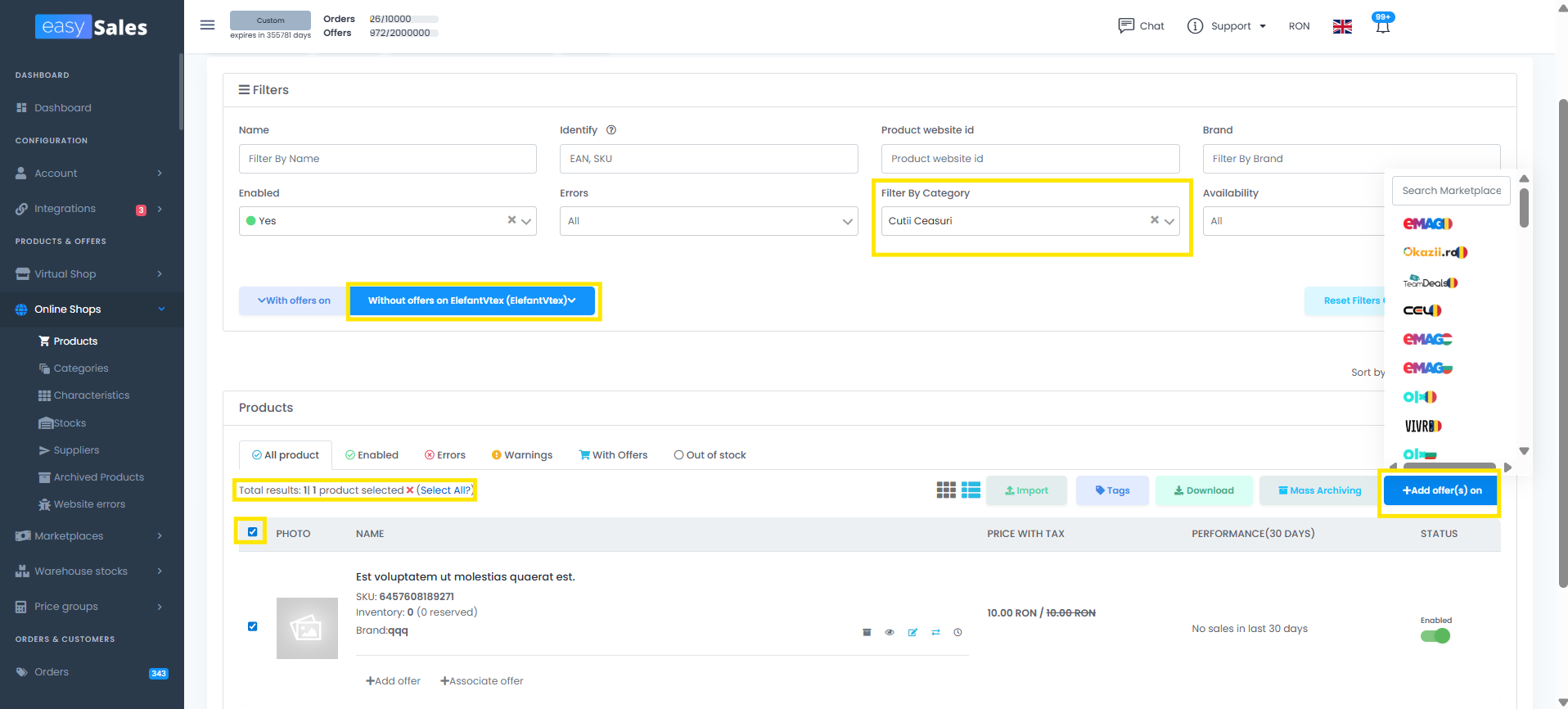
Select all the filtered products and click Add offers on <marketplace>. easySales generates an offer for each selected product, applying the mapping you set up. If the marketplace's language differs from your products' language, easySales translates the title, description, and characteristics automatically — included free with your subscription.
That's the full Path 1 flow. The category mapping is a one-time cost per category; sending offers afterwards is bulk and fast.
Path 2 — Map categories only, fill characteristics after
If you don't have all the required characteristics on your products yet, you can still list — you just push the data-completion step to after the offer is created.
Open Online Shops → Categories and map the category exactly like in Path 1, but skip the characteristic mapping. Save just the category. Then send the offers from Online Shops → Products using the same Without offers on <marketplace> filter and the Add offers on button.
The offers are created on the marketplace side, but they'll typically come back with errors flagging the missing required characteristics. That's expected — you handle them next.
Go to Marketplace Offers, filter to the marketplace you just listed on, and use Mass Edit to fill in the missing characteristics across many offers at once.
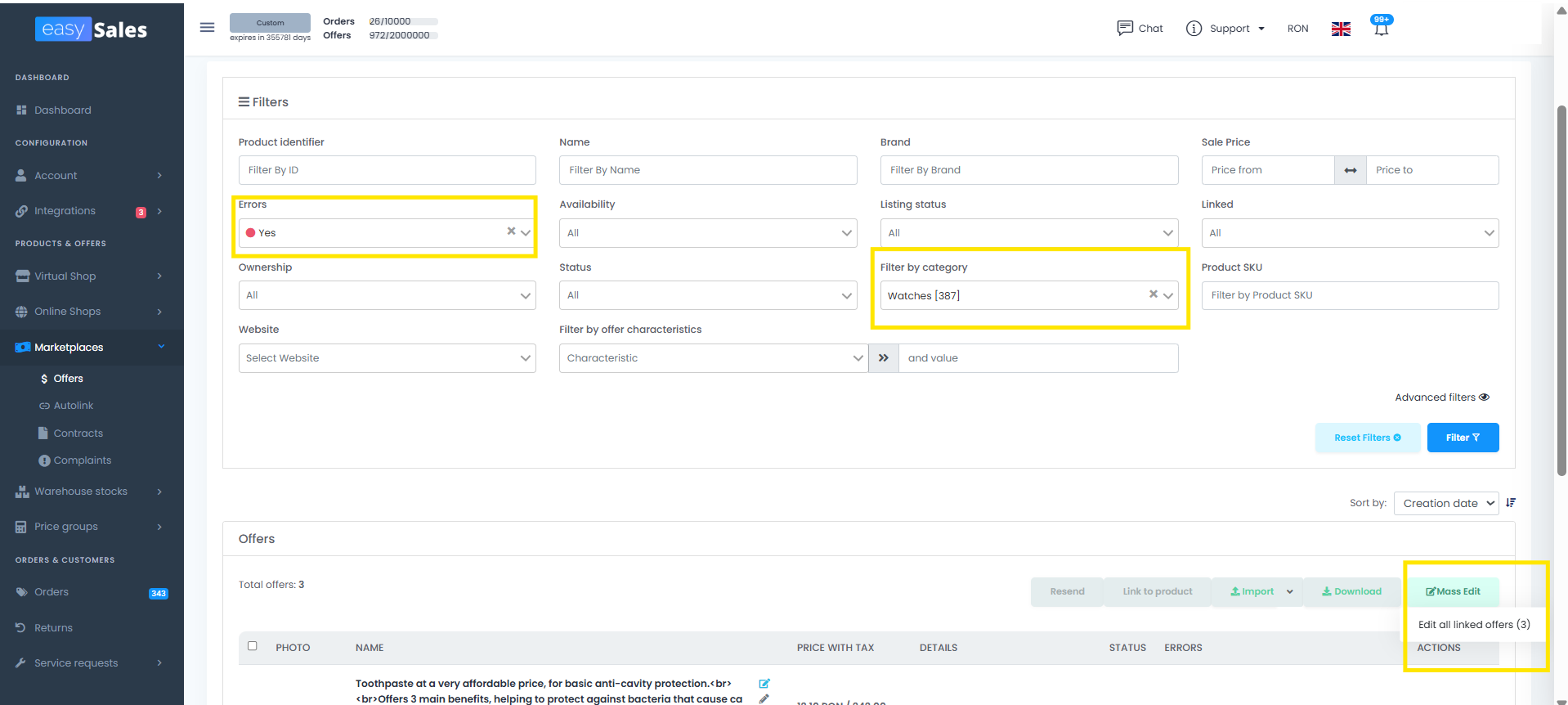
The single most important thing about bulk-adding characteristics: filter by category first. Characteristics are tied to categories — a characteristic that exists on Mobile phones doesn't exist on Garden furniture. If you bulk-add a characteristic to offers from mixed categories, easySales can only apply it where the characteristic is actually defined. Filtering by category first prevents partial updates and saves you the second pass.
The flow looks like this:
- Filter by Category = the marketplace category you want to work on.
- Optionally narrow further. For example, in Tables, filter by name containing "red" if you're adding the Color: Red characteristic to the red ones.
- Open Mass Edit and choose Edit category and characteristics.
- Add the characteristic and the value. Save.
- easySales applies the value to every offer in the filter.
Repeat for each missing characteristic. If many offers share different values — for example, Color differs per product — add the characteristics in bulk without values first, then export the offers to Excel, fill the values in the spreadsheet, and import the file back. Either approach is fine; pick whichever moves faster for the data you have.
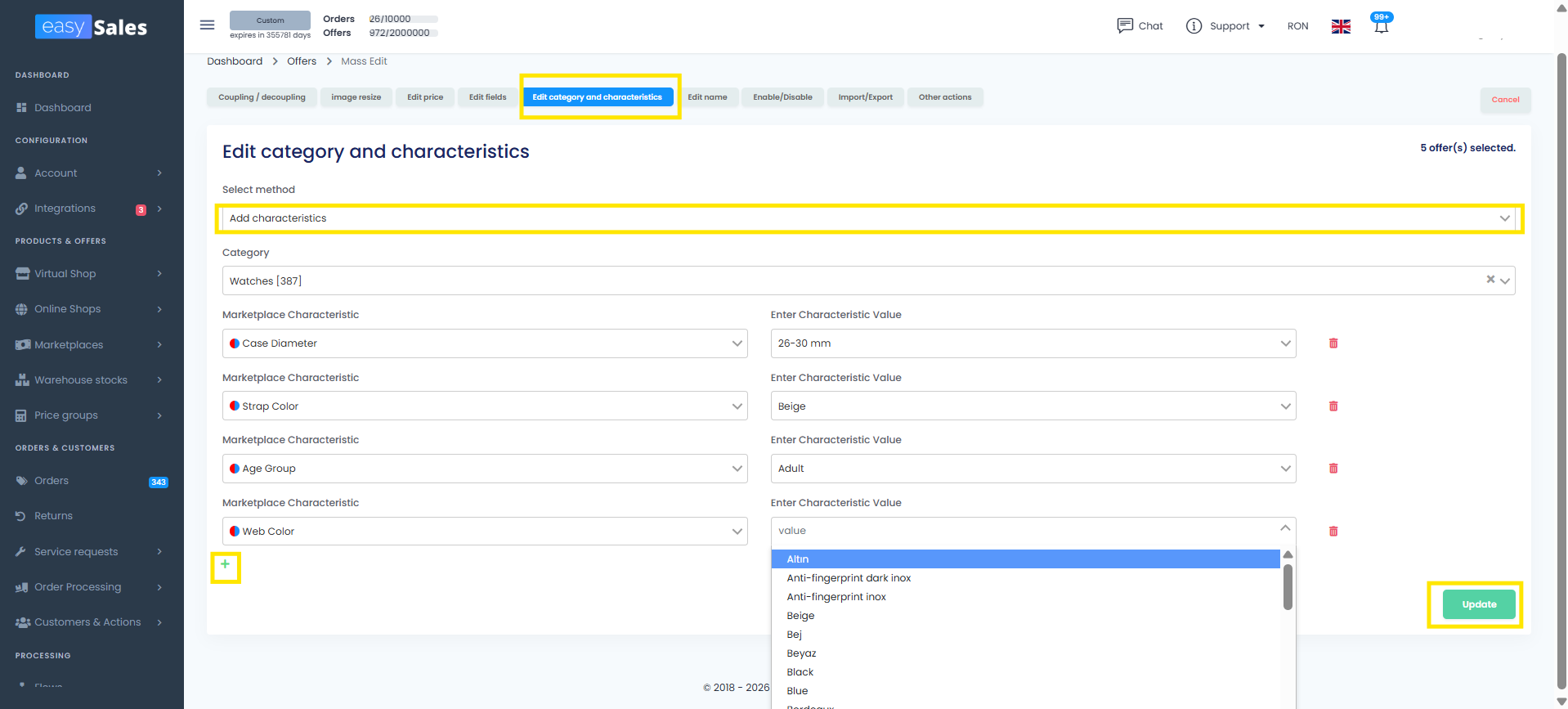
Inside Mass Edit — Edit category and characteristics → Add characteristics
When you choose Edit category and characteristics as the Mass Edit method and pick Add characteristics as the sub-method, the modal asks you to confirm the category. This is the reason filtering by category before opening Mass Edit matters — every selected offer needs to share the same category so the characteristic list lines up.
After you confirm the category, click the + button to add a characteristic. easySales colour-codes each one so you can see at a glance what the marketplace expects:
- Red bullet — required by the marketplace. The offer won't validate without this characteristic and a value.
- Blue bullet — the marketplace defines a fixed list of allowed values for this characteristic. Whatever you set here must match one of those values exactly.
- Red and blue together — both required AND limited to a predefined list.
- Blue only — recommended but not required, with a predefined list of allowed values.
Add every characteristic you want to fill, then set the value next to each one. When you save, the value applies to every offer in the current filter.
A few patterns merchants use here:
- Same value across the filter. Fill the value next to the characteristic. Common case: a category-wide attribute like Country of origin that doesn't vary across the selection.
- Value differs per offer. Add the characteristic but leave the value empty. After save, export the offers to Excel, fill the values in the spreadsheet (see the callout below about the Internal offer ID column), and re-import.
- Subsets share the same value. Narrow the filter further before opening Mass Edit. On Watches, for example, you could filter by name contains "leather" and bulk-set Strap material: Leather, then do another pass for metal, then another for silicone. Each pass is one Mass Edit operation.
Listing one product at a time
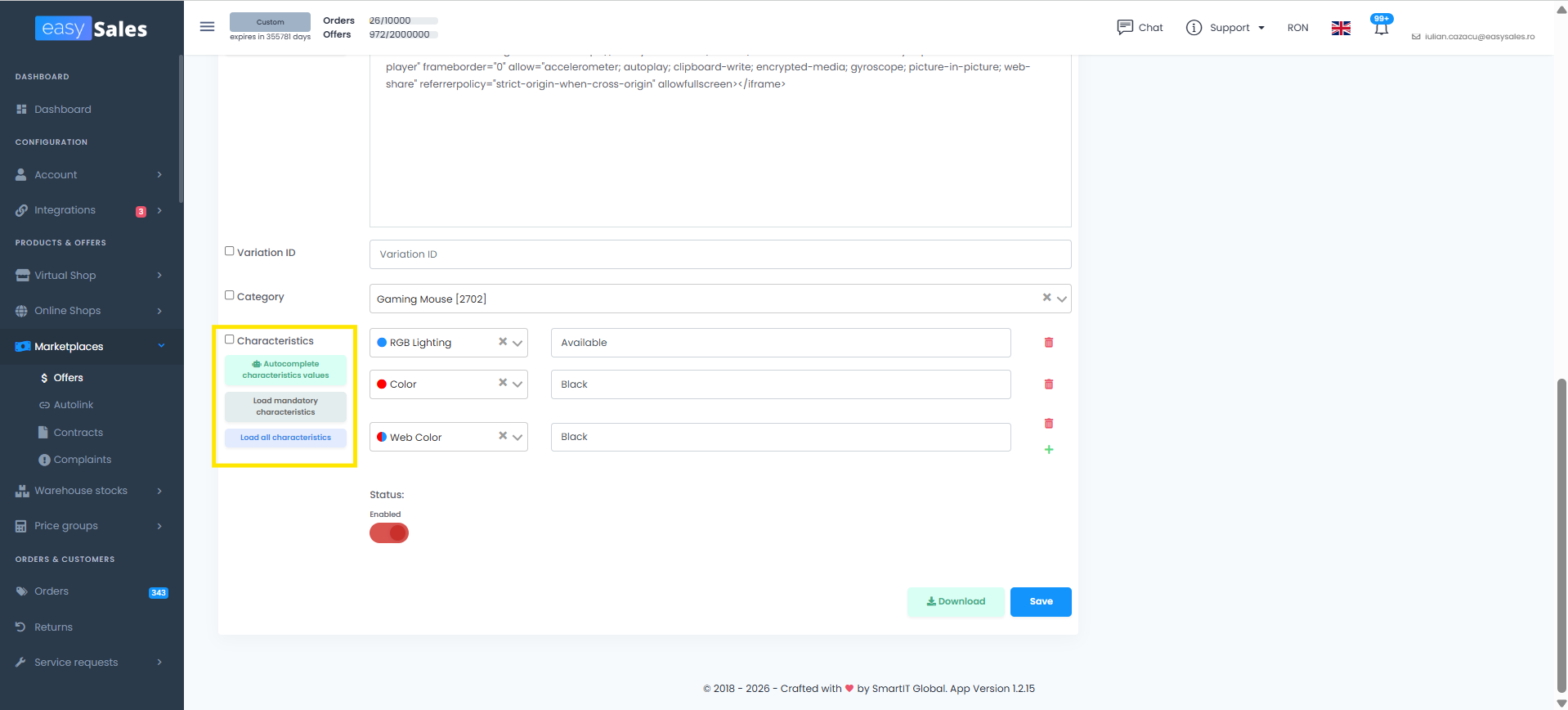
If you're listing a small number of products and want full control over each offer, you don't have to send them in bulk. After you map the category (see Path 1 or Path 2 above), you can list one product at a time:
- In Online Shops → Products, find the product you want to list.
- Click the Add offer button below the product row. Pick the destination marketplace.
- easySales creates the offer on that marketplace.
- Open the offer to edit it.
- Scroll to the characteristics section at the bottom. Click Load mandatory characteristics to add every required characteristic in one click, or Load all characteristics to add every available characteristic (required + recommended).
- Set a value for each characteristic. Save.
The end result is the same as Path 1 or Path 2 — just one offer at a time. Use it when you only have a few products to list, or when each offer needs hand-tuned characteristics that don't fit a bulk pattern.
Filters that make bulk listing fast
The Products screen and the Marketplace Offers screen share many filters. The ones most useful during listing:
- Filter by Category — the marketplace category mapped to the offer (or the imported source category on the Products screen). The foundation; most other filters work in conjunction with it.
- Filter by product category — the source product's category in easySales, distinct from the marketplace category the offer is mapped to. Useful when your shop's category tree differs from the marketplace's.
- Filter by product characteristic — narrow offers based on a characteristic on the source product (for example, all offers whose source product has Brand = Apple).
- Without offers on <marketplace> — products that don't yet have an offer on that marketplace. Lets you list incrementally without re-checking what's already done.
- Website — the source online shop the product came from. Useful if you have multiple shops connected and want to act on offers from a specific one.
- Name contains — useful when you have a few thousand products in a category and want to act on a subset, like all red lamps.
- Property is empty — find offers where a specific field or characteristic has no value yet. The fastest way to spot what's missing across many offers.
- Status / availability — list only products you actually have in stock.
- Has errors — on the Offers screen, narrows to offers that the marketplace returned an error for.
- Offer error message — narrow by the exact error text returned by the marketplace. Lets you handle errors in batches — all "EAN missing" errors at once, all "image too small" errors at once.
- Coupled / Not coupled — distinguishes offers that are linked to an existing marketplace product from those listed as new.
Filters combine freely. A common combination during a backfill: Category = Mobile phones + Without offers on eMAG RO + Status = Active — that's exactly the set of products that need to be listed on eMAG RO.
Mass Edit tools on the Marketplace Offers screen
When you open Mass Edit on the Marketplace Offers screen, the modal has several action tabs. Each one is a different bulk operation you can apply to the selected offers.
Couple / Decouple
Link or unlink an offer from an existing marketplace product. Useful when auto-link matched the wrong product.
Resize
Adjust offer images to the marketplace's required dimensions across many offers at once.
Edit price
Change price across offers — set a fixed value, a percentage change, or a margin rule.
Edit fields
Update marketplace-specific fields like brand, EAN, condition, or warranty period on many offers.
Edit category and characteristics
Change the marketplace category or add and edit characteristics. The most-used action for fixing missing required characteristics.
Edit name
Apply a name pattern or text replacement across offers — useful for SEO consistency on the marketplace side.
Enable / Disable
Pause or resume offers in bulk without deleting them.
Import / Export
Export the filtered offers to Excel, fill values in the spreadsheet, and re-import — the fastest path when adding many characteristic values.
Other actions
Marketplace-specific operations grouped here — re-send, force-update, and similar.
Two patterns worth holding onto:
- Always filter before opening Mass Edit. The actions apply to everything in your current filtered view. Spend the ten seconds to get the filter right and the bulk action will too.
- For characteristics specifically — filter by category first. This is worth repeating because it's the single most common cause of partial mass-edit results.
Resolving marketplace-reported errors
Marketplaces validate offers after you send them and may reject some with specific errors — missing characteristic, invalid value, image too small, EAN or barcode mismatch, and so on. easySales surfaces these errors per offer.
To resolve them in bulk:
- On Marketplace Offers, apply the Has errors filter. Optionally narrow by error type if the marketplace returns categorized errors.
- Read what the marketplace is asking for. The error text comes from the marketplace itself — it tells you exactly what's wrong.
- Filter further by category and pick the Mass Edit action that fixes the error. Most often it's Edit category and characteristics to add a missing required characteristic.
- Apply, then re-send the affected offers.
The full Mass Edit toolkit applies here too. If many offers fail for the same reason, fix them in one operation rather than offer by offer.
Automatic translation between languages
If you list on a marketplace whose language differs from your products' language — for example, a Romanian merchant listing on Allegro PL — easySales detects the mismatch and translates the offer title, description, and free-text characteristic values into the marketplace's language automatically.
Translation runs as part of the offer generation. You don't trigger it manually. You don't pay for it separately — it's included with your easySales subscription. The translation respects your existing offer mapping, so if you already mapped a brand or color to a specific marketplace value, that mapped value is preserved and only the natural-language fields are translated.
A few practical notes:
- Translation runs once when the offer is created. If you later change the source product's description, the next sync regenerates the translated content on the marketplace side.
- Marketplaces with their own translation layer (Allegro's multi-country dispatch is the classic example) work on top of this. List in one language, accept the marketplace's auto-translate offer, and it propagates your listing to the sister markets.
Tips for an efficient listing process
A few patterns that consistently save merchants time:
- Work category by category, not product by product. The mapping cost is per category. Once a category is mapped, every product in it lists in seconds.
- Finish auto-link before listing. Without it, the Without offers filter underestimates how much is left to do.
- Use Path 2 deliberately, not as a fallback. It's faster than Path 1 when your product data is incomplete because filling characteristics on offers is bulk-friendly. Don't feel bad about creating offers with errors — fixing them is part of the workflow, not a setback.
- Export to Excel only for the data you need to enrich. The export is fast, but it's a separate trip through a spreadsheet. Inline mass-edit is usually faster for one or two characteristics; Excel makes sense when you're adding five or more characteristics or transcribing values from supplier documents.
Ready to list your catalog on more marketplaces?
Open Online Shops → Categories in your easySales account and start mapping. Prefer a walkthrough? Book a 30-minute call and we'll do it together.