How AI Translations work in easySales: automatic product translation for marketplaces
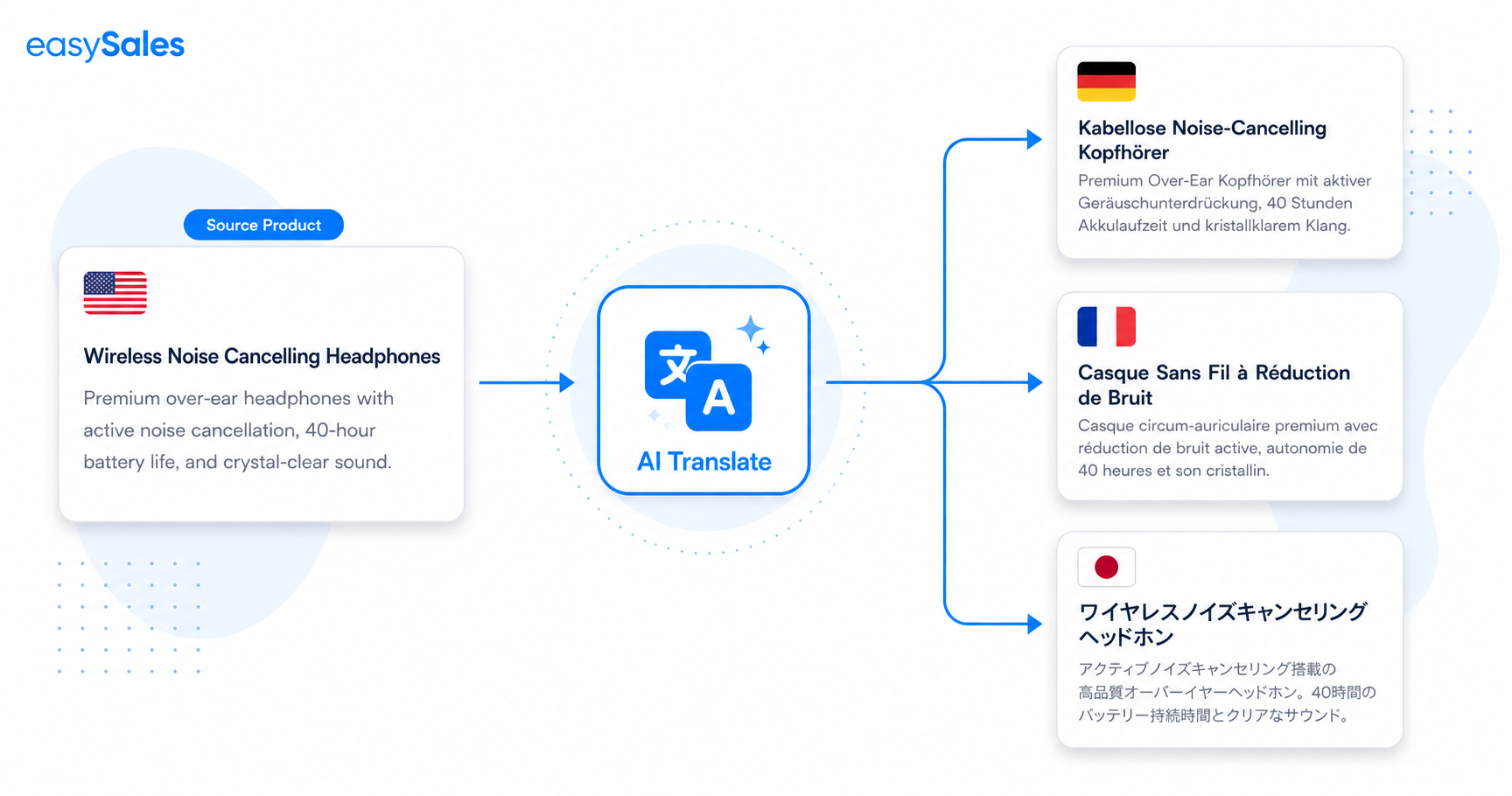
Selling on an international marketplace means your product content has to be in that market's language. easySales AI Translations do it for you — when you list a product on a foreign marketplace, the name, description, category and characteristics are translated automatically before the offer is sent. This guide explains how it works, where to review and edit translations, and how your edits reach the marketplace.
Selling across borders runs into one obvious wall: a buyer in Budapest or Sofia wants to read the product in their own language, not yours. Translating every product by hand doesn't scale. easySales AI Translations remove that wall — your catalog stays in one language, and each international offer goes out translated automatically.
What AI Translations do
When you list a product on a marketplace in another language, easySales translates your product content from your catalog language into the marketplace's language automatically, before the offer is sent. There's nothing to set up first — listing the offer is what triggers it.
Name & description
Your product name and description, translated for the target market.
Categories
Category names translated into the marketplace language.
Characteristics & values
Characteristic names and their values are translated too.
Automatic on listing
Triggered when you add the offer — no separate step to run.
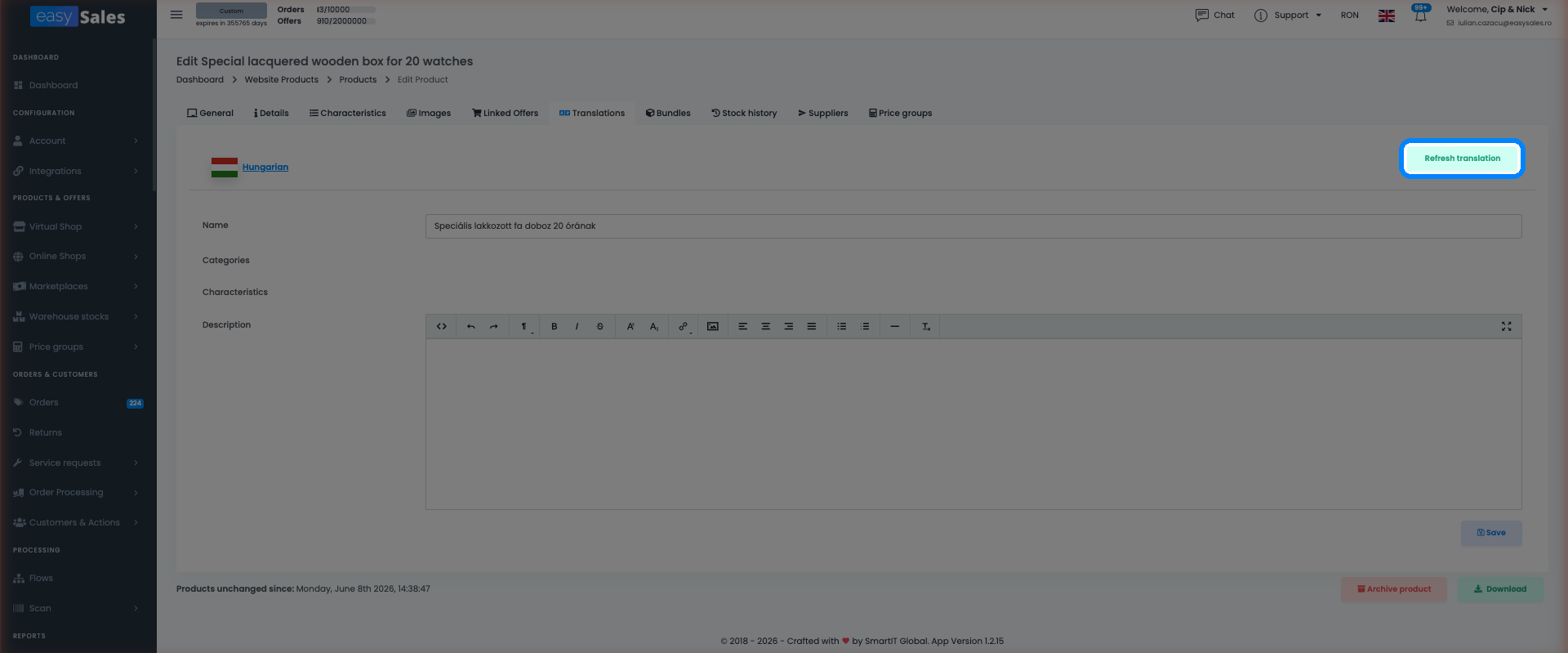
Refresh translation
Regenerate a translation from scratch with one button.
When translations happen
You don't run translations as a separate step. Add an offer on the marketplace you want to sell on, and the translation is generated from your product's documentation and attached to the offer on its way out.
View and edit your translations
To see and change the translations generated for a product:
- Go to Online / Virtual Shop → Products and open the product for editing.
- Click the Translations tab.
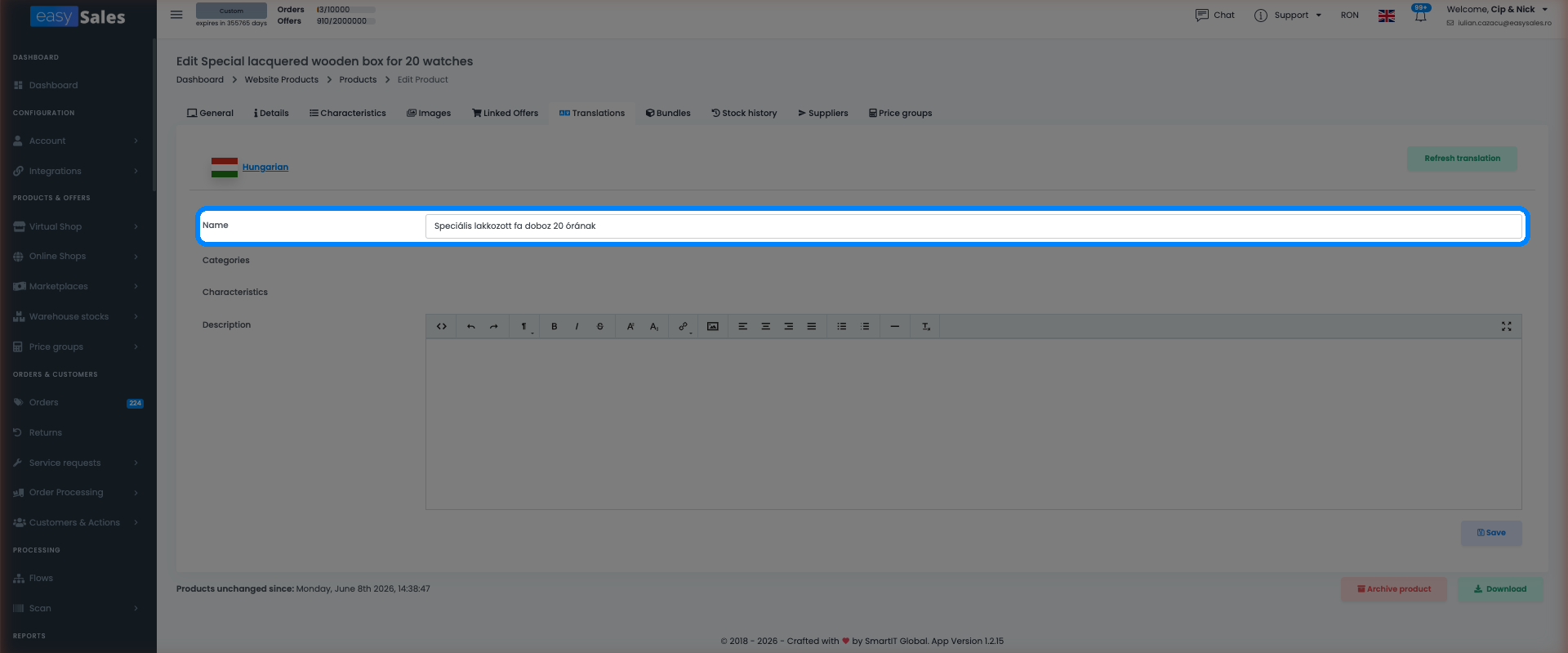
Each language is listed in its own section, where you can review every translated field — name, description, categories, characteristics and their values — and correct anything that doesn't read right. To regenerate a translation from scratch, use the Refresh translation button.
Push your edits to the marketplace
What gets translated — and what doesn't
A note on quality
Because translations are generated automatically, we recommend reviewing and correcting the generated content before you rely on it — especially product names, which carry the most weight in marketplace search. Your corrections are saved on the product, so the text you fixed is the text that gets sent.
Sell across borders in every language
Try easySales free for 14 days — list on international marketplaces and let AI Translations handle the language for you. No credit card required.