How to connect Twilio SMS with easySales: a complete setup guide

Send your customers order SMS through Twilio: the Account SID and Auth Token, the Messaging Service and sender, testing the connection, notification rules and SMS length.
What connecting Twilio gives you
Twilio is an SMS provider. Connected to easySales, it sends your customers text messages about their orders: an order confirmation, the AWB, an invoice, a cancellation, a return. The messages go out automatically when the event happens, or from an automation flow, or by hand from the order page.
Two things to know before you begin:
- The third value is a Messaging Service, not a phone number. easySales sends every SMS through a Messaging Service in your Twilio account, and the sender your customers see comes from that service. The Messaging service ID field takes the service's ID — it starts with
MG— not a phone number or a sender name. - Saving checks nothing. Save stores what you typed; Test connection is what tells you the values work. Connecting also sends nothing to customers yet: messages go out from a notification rule, an automation flow or the order page.
Before you start
A Twilio account
Upgraded from the trial, so it can send to any number.
A Messaging Service
With the sender your customers will see in its Sender Pool.
Your phone at hand
To receive the test SMS.
Step 1 — Copy the Account SID and Auth Token
Log in to the Twilio Console. On its home page, the Account Info panel shows the Account SID — it starts with AC — and the Auth Token, hidden until you press Show. Copy both.
Step 2 — Create a Messaging Service and add your sender
- In the Twilio Console, open Messaging → Services and press Create Messaging Service.
- Name it — for example
easySales— and continue to Sender Pool. - Press Add Senders and add the sender your customers will see: a Twilio phone number, an alphanumeric sender ID such as your shop's name, or a short code.
- Finish the setup and copy the service's Messaging Service SID, which starts with
MG.
Step 3 — Connect Twilio in easySales
Go to Integrations → SMS Services and press Connect on the Twilio card — or Edit, if you have connected it before.
Fill in the form and press Save:
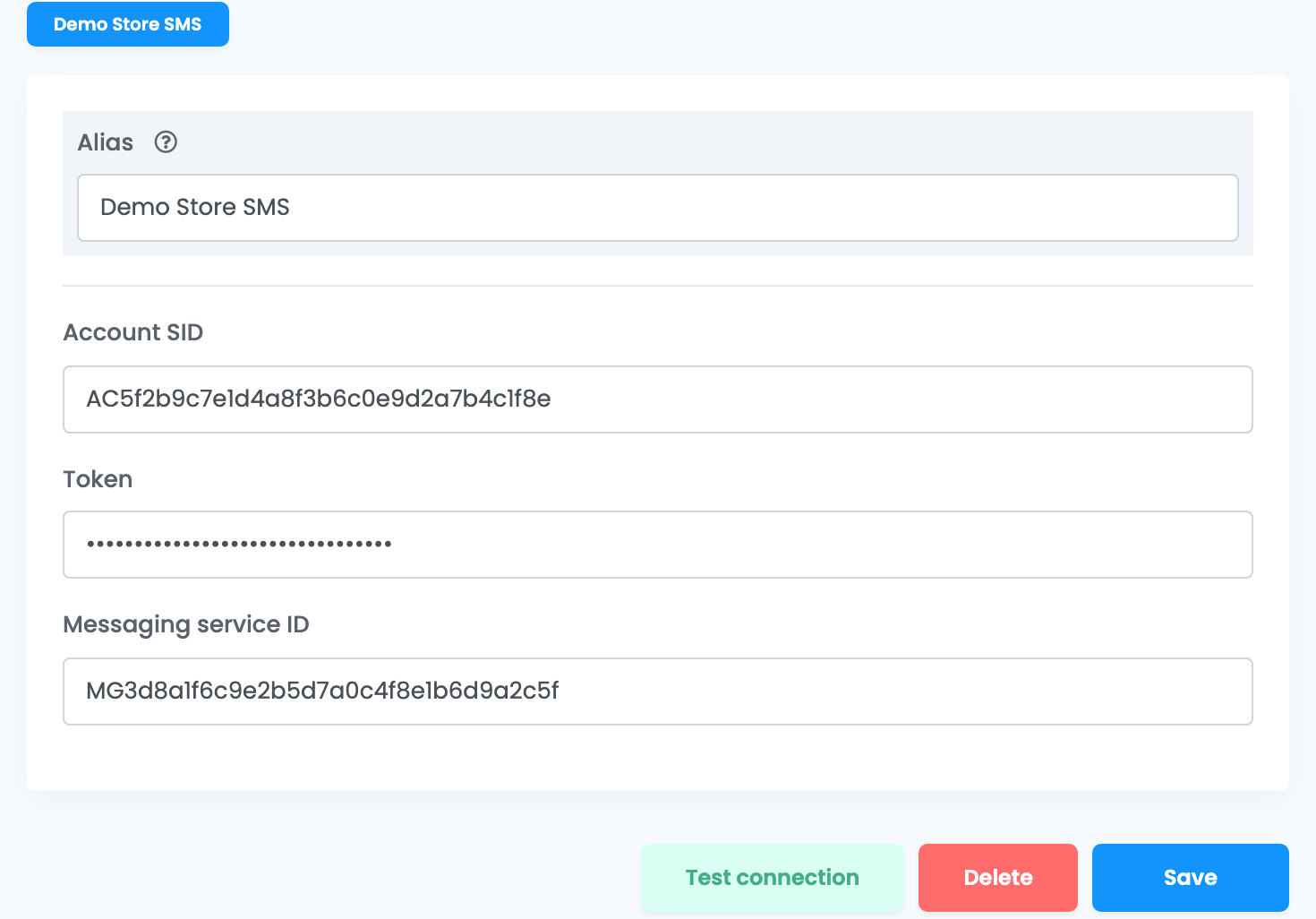
| Field | What goes in it |
|---|---|
| Alias |
A name you will recognise when choosing the service in a rule, for example Shop SMS.
|
| Account SID |
The Account SID from Account Info, starting with AC.
|
| Token | The Auth Token from Account Info. |
| Messaging service ID |
The Messaging Service SID from step 2, starting with MG.
|
Step 4 — Test the connection
Open the saved connection and press Test connection. Enter your own mobile number starting with + and the country code — for example +40722123456 — and press Continue. easySales sends a real SMS through Twilio, which is charged like any other: when it arrives, the connection works. If Twilio refuses, its reason is shown instead.
Twilio also keeps its own record: Monitor → Logs → Messaging in the Twilio Console lists every message sent through your account, with Twilio's reason for any that failed. Look there first when a customer did not get an SMS.
| What Twilio says | What to do |
|---|---|
| The Messaging Service Sid … is invalid |
The Messaging service ID field holds something else — often a phone number. Paste the MG… SID of your Messaging Service.
|
| Authenticate | The Account SID or the Token is wrong. Copy both again from Account Info. |
| account … is not active | The Twilio account is suspended or closed. Reactivate it in Twilio, or connect another account. |
| Please provide a valid number starting with + |
Enter the test number with + and the country code.
|
Step 5 — Choose which messages go out
Notification rules send an SMS when something happens to an order: an AWB is created, the order is created, invoiced, cancelled or finished, the delivery status changes, a return is created. First write the message in Customers → Templates, on the SMS tab, then create the rule in Customers → Notifications, under the event you want.
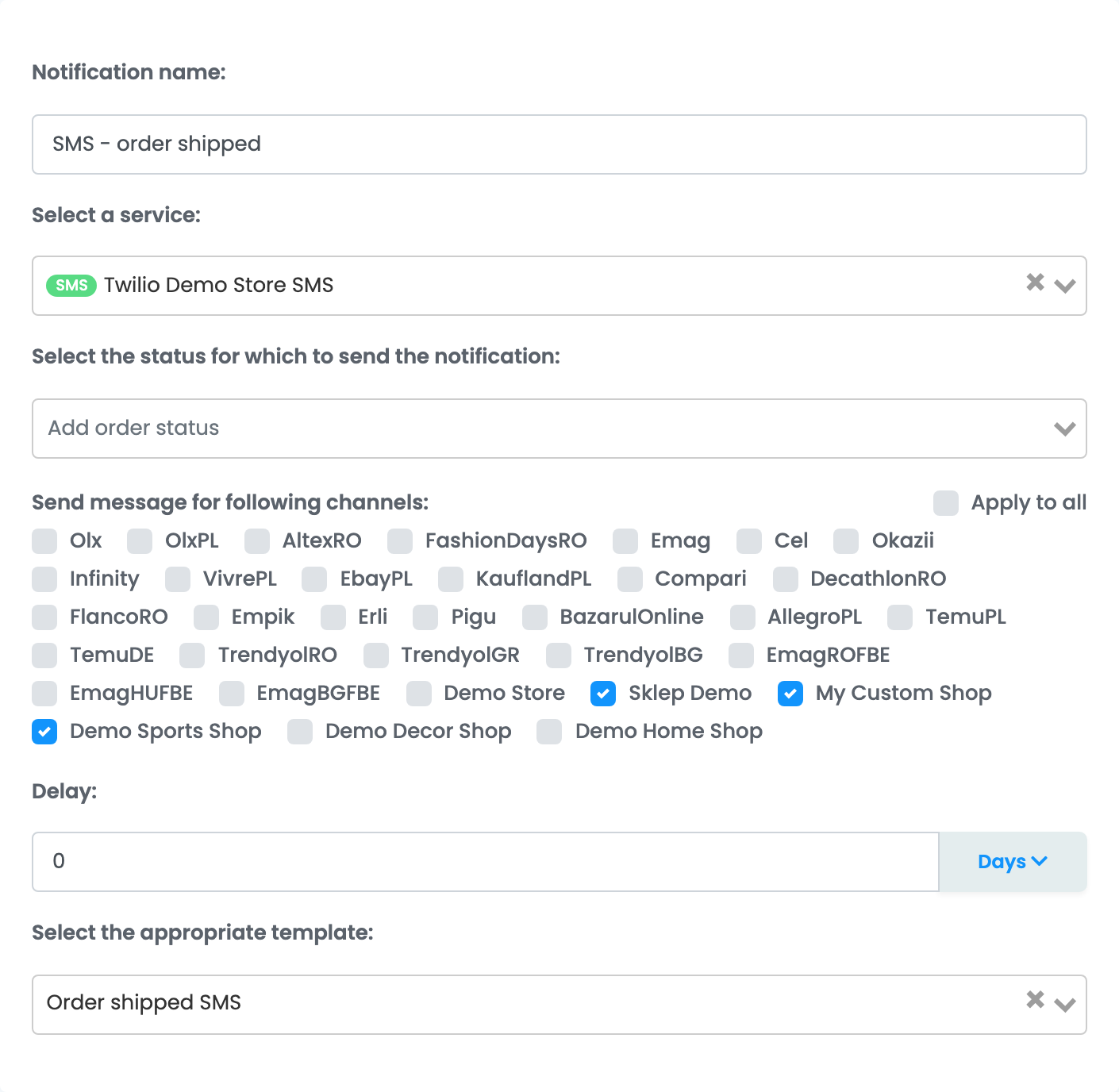
- Select a service — the SMS service the rule sends through: Twilio, and the connection's Alias.
- Send message for following channels — tick every marketplace and shop whose orders should get the SMS. Orders from a channel that is not ticked get nothing.
- Select the appropriate template — the text of the SMS.
Messages can also go out from an automation flow, with the action Send order sms notification, or by hand from the order page, with Notify user.
The SMS goes to the customer's phone number, written in international format from the country of the shipping address.