How to connect Trendyol with easySales: a complete integration guide
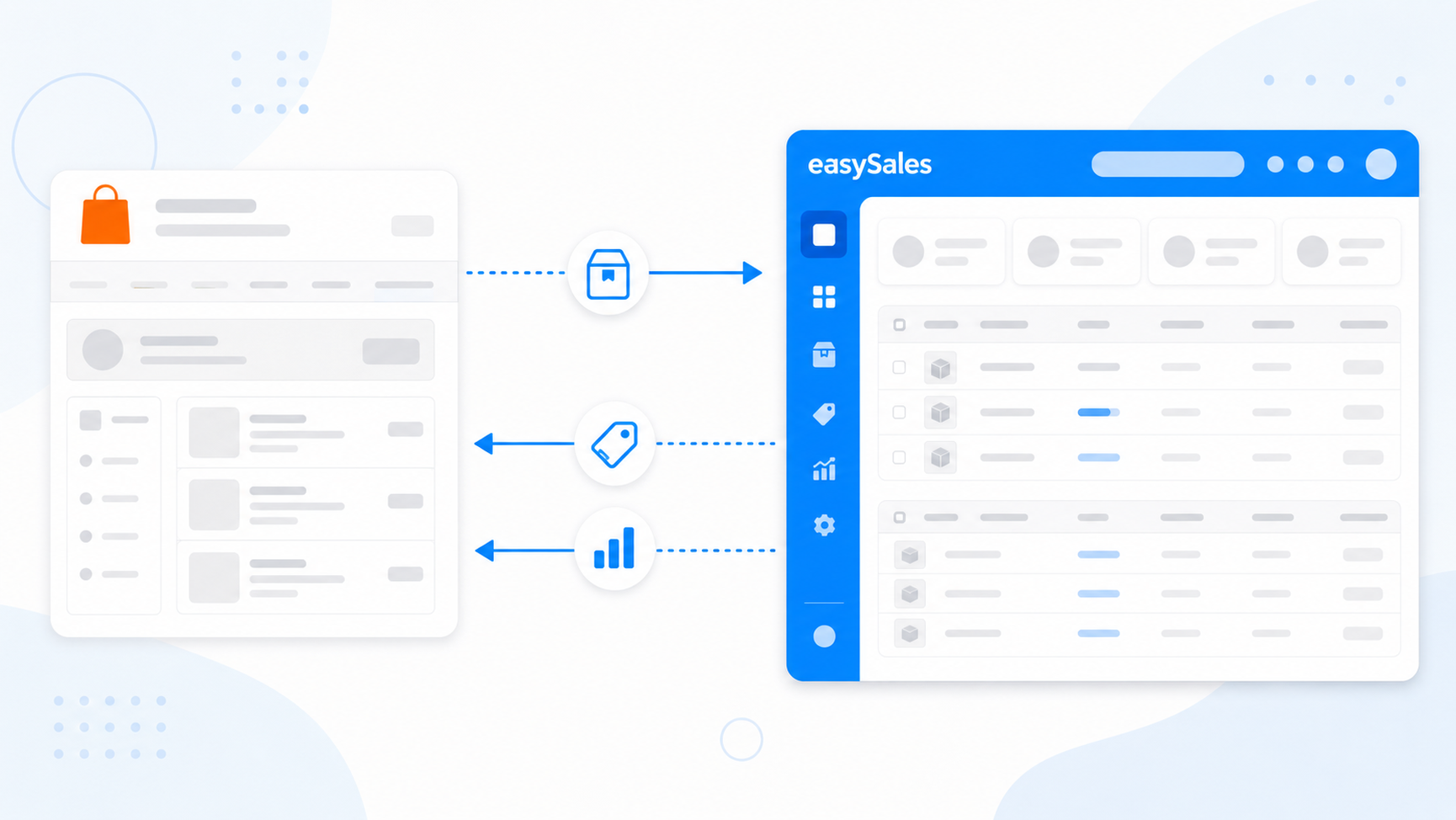
Connect your Trendyol seller account with easySales in three steps — copy your API Key, API Secret, and Seller ID from Trendyol, open the connect form in easySales, then enter your credentials and account settings. Centralize Trendyol orders from Romania, Czechia, Slovakia, Greece, and Bulgaria, generate invoices, and publish your catalog as offers with stock and prices kept in sync.
Why connect Trendyol with easySales
Selling on Trendyol and want one place to manage orders, generate invoices, and keep your listings in sync? easySales brings your Trendyol marketplaces — Romania, Czechia, Slovakia, Greece, and Bulgaria — into a single dashboard alongside the rest of your sales channels.
Once connected, Trendyol orders flow into easySales so you can invoice them, process them with automation flows, and track their fulfillment. Your catalog goes the other way: easySales publishes your products as Trendyol offers and keeps their stock and prices updated, so you maintain one catalog instead of editing each listing by hand.
You connect with API credentials from your Trendyol account — there's no plugin to install and no IP whitelisting to configure. The whole flow is: copy your API Key, API Secret, and Seller ID from Trendyol, open the connect form in easySales, paste the credentials, and save.
How the Trendyol connector works
easySales talks to Trendyol through Trendyol's Marketplace API, authenticated with your API Key, API Secret, and Seller ID. Unlike some marketplaces there's no IP address to whitelist and no separate authorization handshake to renew — the three credentials are all easySales needs to identify your account.
It helps to understand the split before you start:
- Orders come in. easySales imports your new and updated Trendyol orders so they land in your Orders screen ready for invoicing and flows. The status of your offers — whether Trendyol approved or rejected them, and the rejection reason when it did — is read back in as well.
- Offers, stock, and prices go out — once offers are linked. easySales is the source of truth for your listings, but syncing is not automatic the moment you connect: each Trendyol offer must be linked to a product in your easySales catalog, and its category mapped, before it publishes. After that, easySales pushes the offer and keeps its stock and price updated on a recurring schedule.
Prerequisites — what to prepare before you start
A few requirements keep the connection from failing at the first sync.
An active Trendyol seller account
You need a live Trendyol Marketplace seller account with API access for the country you want to connect (RO, CZ, SK, GR, or BG).
The easySales integrator created in Trendyol
In Trendyol (Account details → Integration details) add easySales as an integrator, then copy its API Key, API Secret, and Seller ID (Entity ID). You paste all three into easySales.
An invoice series ready
A billing series that matches your invoicing software, so imported Trendyol orders are numbered correctly from the start.
Clean identifiers and recognized brands
easySales matches offers to Trendyol by SKU and barcode, and Trendyol only accepts brands that exist in its catalog. Verify your codes and brands before publishing offers.
Step 1 — Create the easySales integrator in Trendyol
Start on the Trendyol side. Sign in to your Trendyol seller account, open Account details, and go to the Integration details tab.
Turn on Do you work with a marketplace integrator?, then click Add new integrator. Name the integrator easySales and grant it the integration roles it needs — there's no single "all roles" option, so tick each role individually.
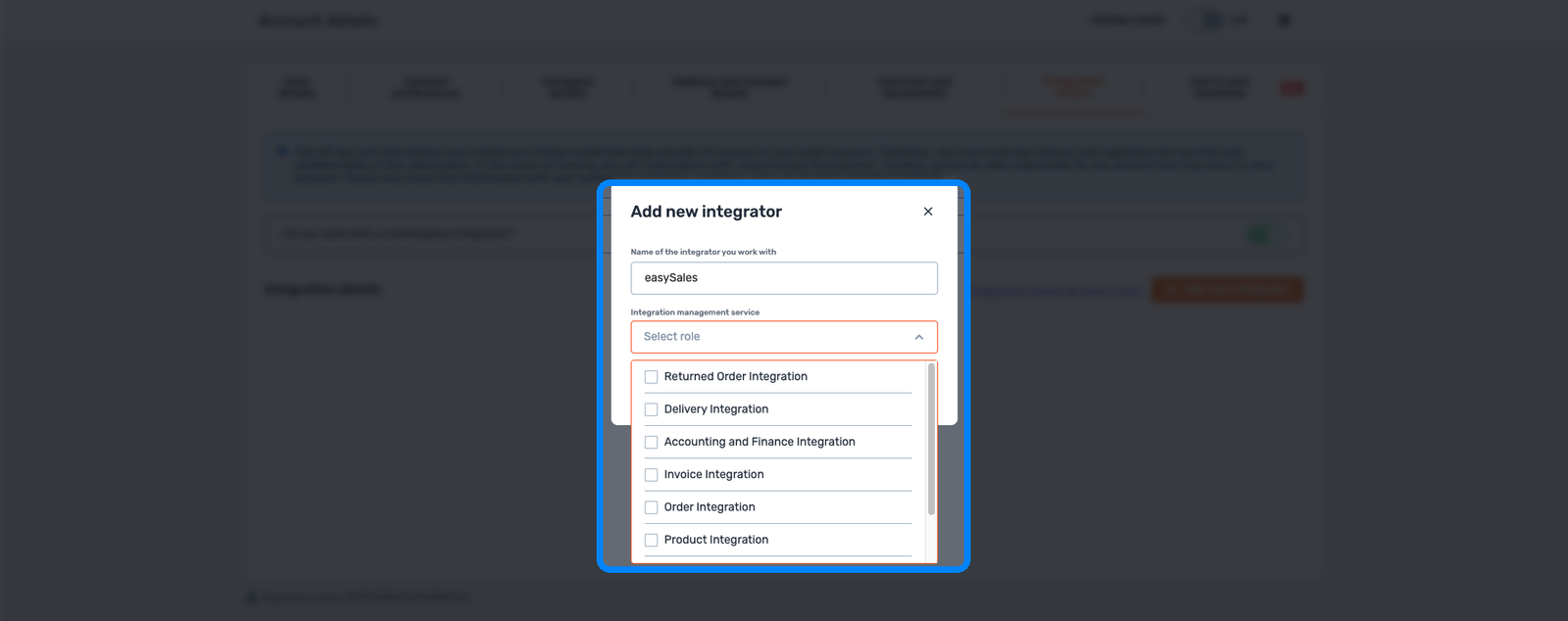
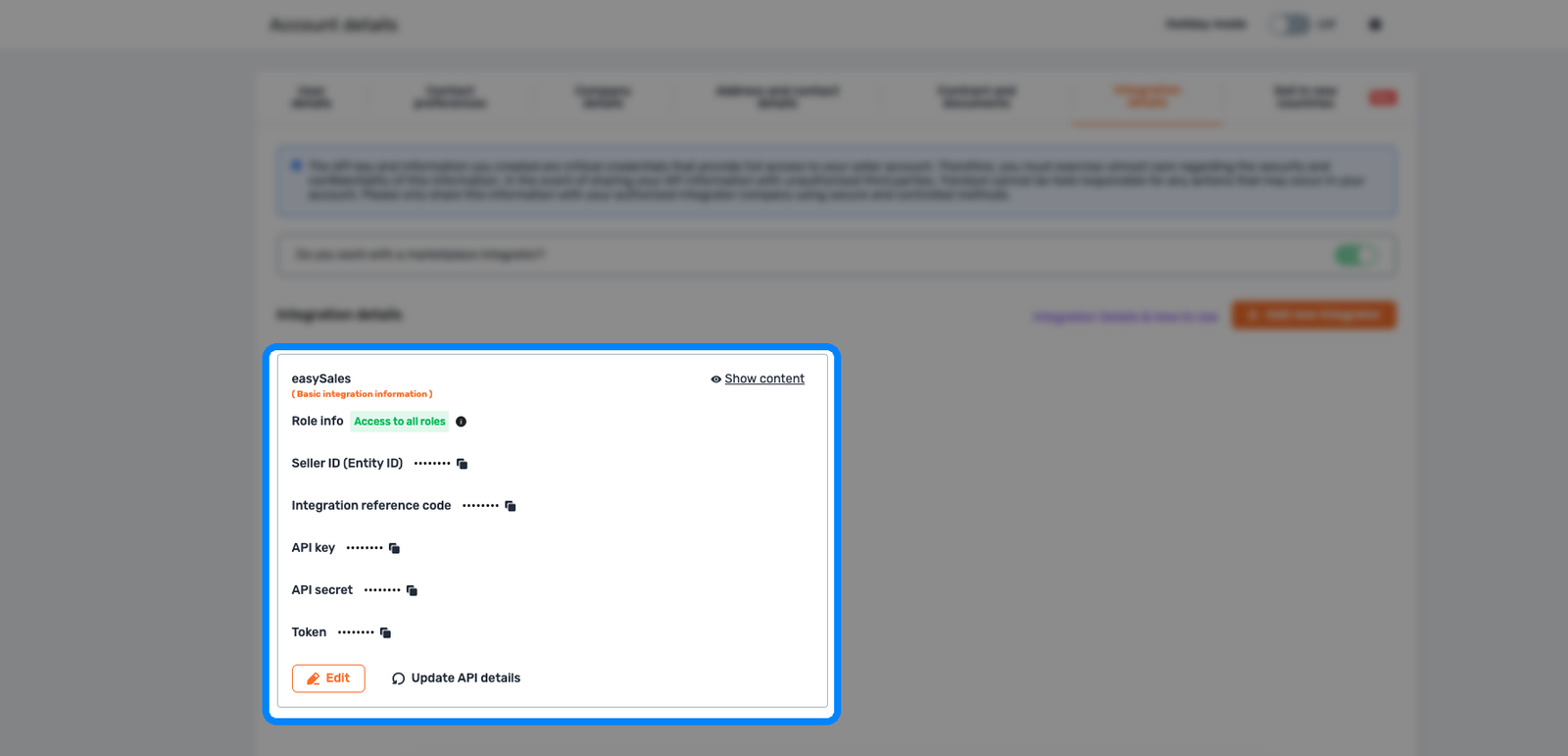
Once the integrator is created, its card shows the credentials. Click Show content and copy the three values easySales needs:
- Seller ID (Entity ID)
- API key
- API secret
The same card also lists an Integration reference code and a Token — easySales doesn't need those. You'll paste the three values into easySales in Step 3.
Step 2 — Open the connect form in easySales
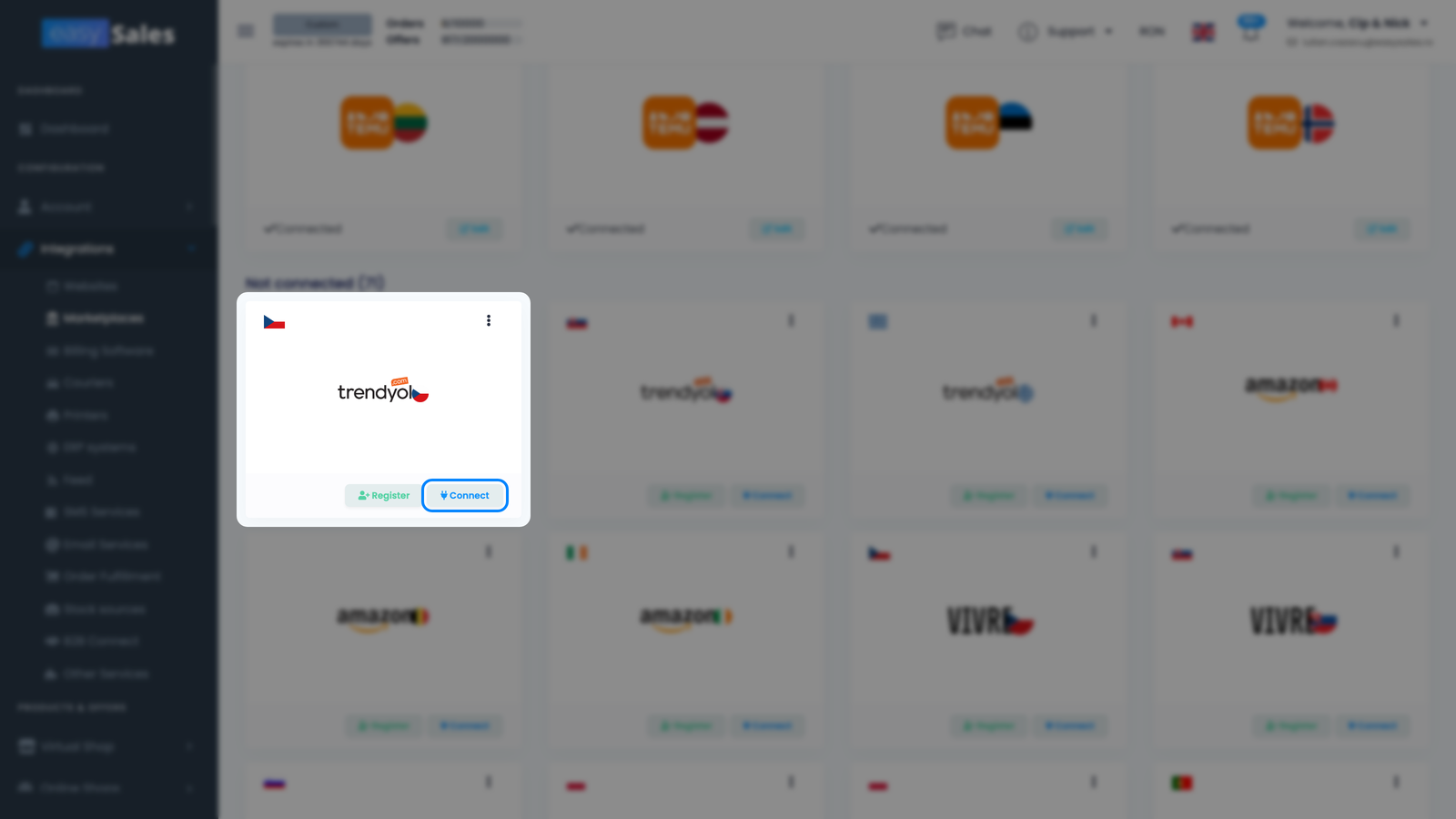
In easySales, go to Integrations → Marketplaces. Each Trendyol country has its own card — Romania, Czechia, Slovakia, Greece, and Bulgaria. Find the card for the country you're connecting and click Connect on it.
The Trendyol settings form opens with two tabs: Main settings (credentials and the core configuration) and Additional settings (sync behavior). You'll work in Main settings first.
Step 3 — Enter your credentials and account settings
On the Main settings tab, fill in the credentials and the configuration easySales needs to drive the integration.
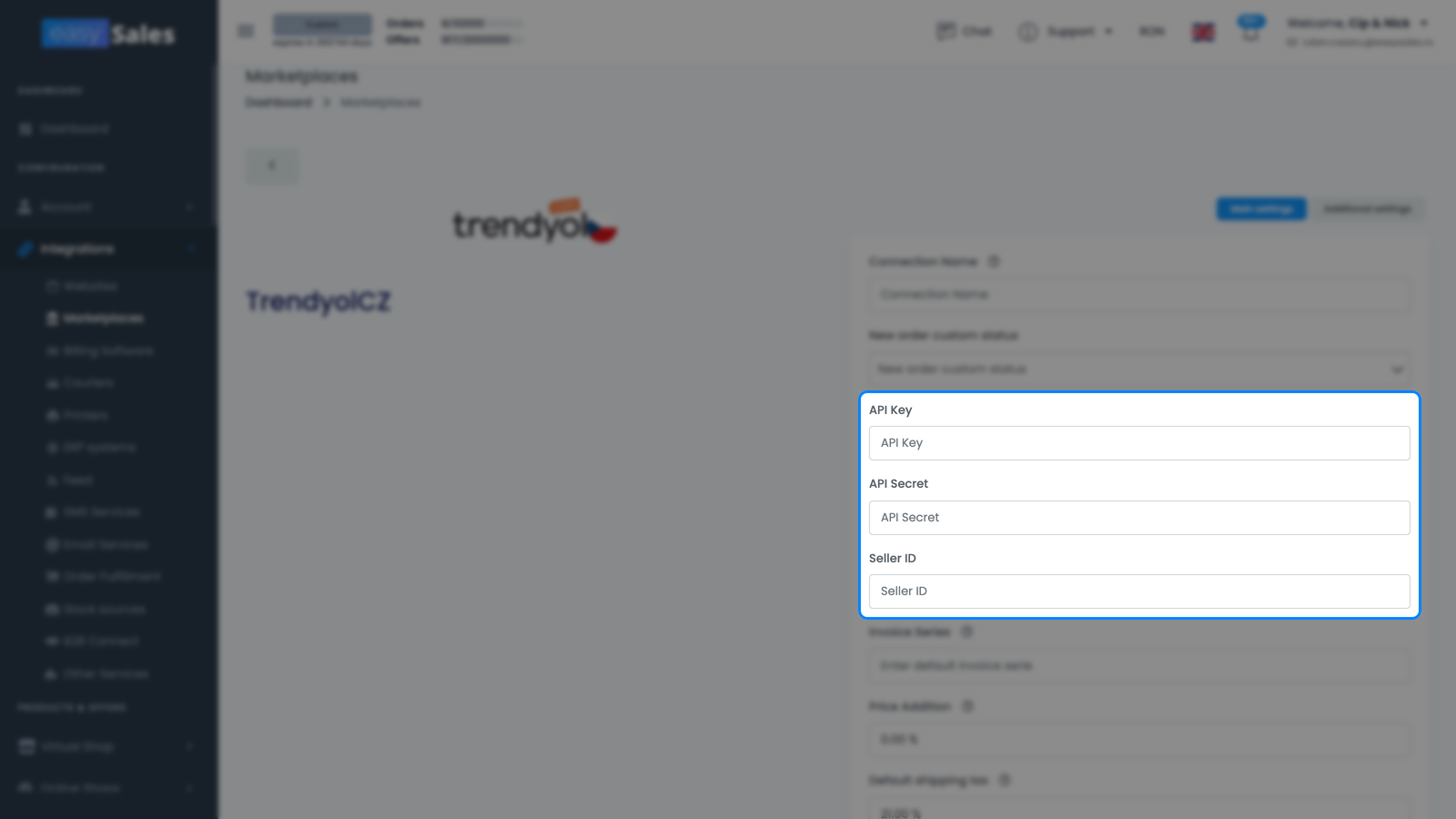
Credentials
- API Key and API Secret — the two values from your Trendyol account details. Both are required, and the secret is stored encrypted.
- Seller ID — the Seller ID (Entity ID) from your Trendyol integrator. Required, and easySales uses it on every call to address the right seller account.
Account configuration
- Connection Name — a label you choose (for example "Trendyol RO"). Only visible inside easySales, handy when you run several Trendyol connections.
- Invoice Series — the default billing series imported Trendyol orders are assigned, matching the series you use in your invoicing software. You can override it per order.
- Default Tax Rate — the default VAT percentage applied to your offers and orders. Set it to 0 if you're not a VAT payer.
- Default shipping tax — the VAT rate applied to the shipping line on your orders.
- Price Addition — an optional percentage added on top of your product price when publishing offers to Trendyol.
- Delivery method — who covers shipping: Seller pays or Trendyol pays. Pick the model that matches your Trendyol agreement.
- Delivery Days — the handling time published with your offers.
- Finalize order on AWB generation — when set to Yes, easySales marks the Trendyol order as finalized once you generate its AWB.
Click Save to finish.
What happens automatically after you save
Once the connection test passes, easySales sets up the integration without any further action from you.
- An initial synchronization is scheduled — easySales begins importing your recent Trendyol orders so you have something to work with right away.
- New Trendyol orders arrive in your Orders screen from then on, ready for invoices and automation flows.
- Any offers you already sell on Trendyol are imported into Marketplaces → Offers (the Trendyol tab) — but they are not synced yet. Each imported offer has to be linked to the matching product in your easySales catalog first; only linked, category-mapped offers send stock, price, and content updates to Trendyol.
Orders are the only thing that flows in on its own. Your listings are a deliberate second step: link your imported Trendyol offers to your catalog, map their categories, and publish them. Once an offer is linked and mapped, easySales keeps its stock and price updated on a recurring schedule from then on.
| From Trendyol → easySales | From easySales → Trendyol |
|---|---|
| Orders (new and updated) | Offers / listings |
| Order status changes from Trendyol | Stock levels |
| Offer approval status and rejection reason | Prices |
| Returns and claims | Invoices (when generated) |
| — | Order status — finalized when you generate the AWB |
RO, CZ, SK, GR & BG — connect each country once
The connection procedure is identical for all five Trendyol marketplaces. What differs is per-country, and easySales handles it once you pick the right marketplace:
- The marketplace endpoint (Trendyol Romania, Czechia, Slovakia, Greece, or Bulgaria).
- The currency follows the country — RON for RO, CZK for CZ, EUR for SK and GR, BGN for BG.
- The available VAT rates follow each country's tax rules.
- The credentials stay the same — you do not create a separate integrator per country in Trendyol. Create the easySales integrator once and reuse the same API Key, API Secret, and Seller ID for every country; in easySales you simply add each country as its own connection with those same credentials.
Getting your catalog onto Trendyol
To publish products as Trendyol offers, two things have to be in place. First, link each offer to the matching product in your easySales catalog — only linked offers sync. Second, map your categories to Trendyol's under Categories: offers can't be published until your products are matched to the right Trendyol category and its required attributes.
Brands matter here too. Trendyol only accepts offers whose brand exists in its own brand catalog, so a product with an unrecognized brand is rejected with a "Brand not found" message until the brand is corrected.
Fine-tuning your Trendyol connection
The Additional settings tab controls how easySales syncs with Trendyol after the connection is live.
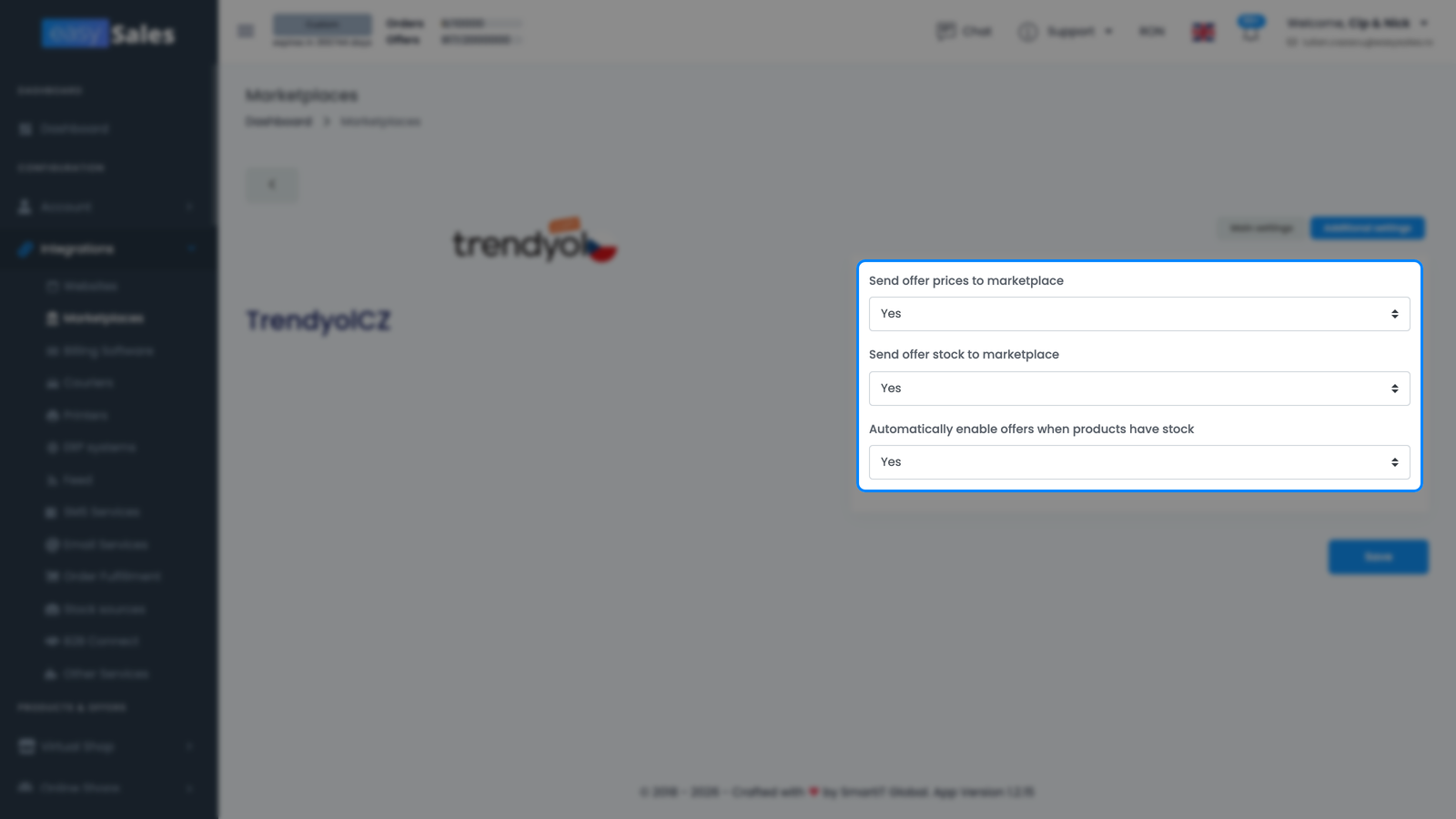
The options that matter most day-to-day:
- Send offer prices to marketplace — push price changes from easySales to your Trendyol offers. Turn off if you manage prices directly in Trendyol.
- Send offer stock to marketplace — push stock levels to Trendyol. Turn off if Trendyol isn't reading stock from easySales.
- Automatically enable offers when products have stock — reactivate offers automatically once a product is back in stock above zero.
You're connected — what's next
With orders arriving, the next step is automation: set up flows to generate invoices and process orders as they come in.
To get your catalog onto Trendyol, map your categories first, link your offers, and let easySales publish and maintain them. After your first batch of offers, keep an eye on the Errors page and reach out to support if anything looks off.
Connect your Trendyol account in minutes
Try easySales free for 14 days. No plugin, no credit card, no code.