How to connect Helpship with easySales: a complete setup guide
Work with Helpship from easySales: the API token Helpship reads your orders with, the fulfilment rule that marks orders for Helpship, and the Helpship stock source.
What connecting Helpship gives you
Helpship is a fulfilment company: it keeps your products in its warehouse, then picks, packs and ships your orders. With easySales, Helpship takes the orders you mark for it, and the Helpship stock source brings the stock from its warehouse into easySales.
Three things to know before you begin:
- Helpship reads your orders from easySales. easySales does not send orders to Helpship. Helpship's system reads them through the easySales API, with an API token you create in easySales and give to Helpship.
- A fulfilment rule marks the orders for Helpship. New orders from the channels in the rule are marked HelpShip when they arrive in easySales. Ask Helpship to read only the orders marked HelpShip — otherwise it reads all the orders in your account.
- The stock source needs separate API details from Helpship. Its Username and Password are an API client Helpship creates for you, not your login to Helpship's platform.
Before you start
A Helpship contract
With your products stored in Helpship's warehouse.
Access to API Settings
To create the token Helpship reads your orders with.
For the stock: Helpship's API details
The client ID and client secret Helpship gives you for the stock integration.
Step 1 — Create an API token for Helpship
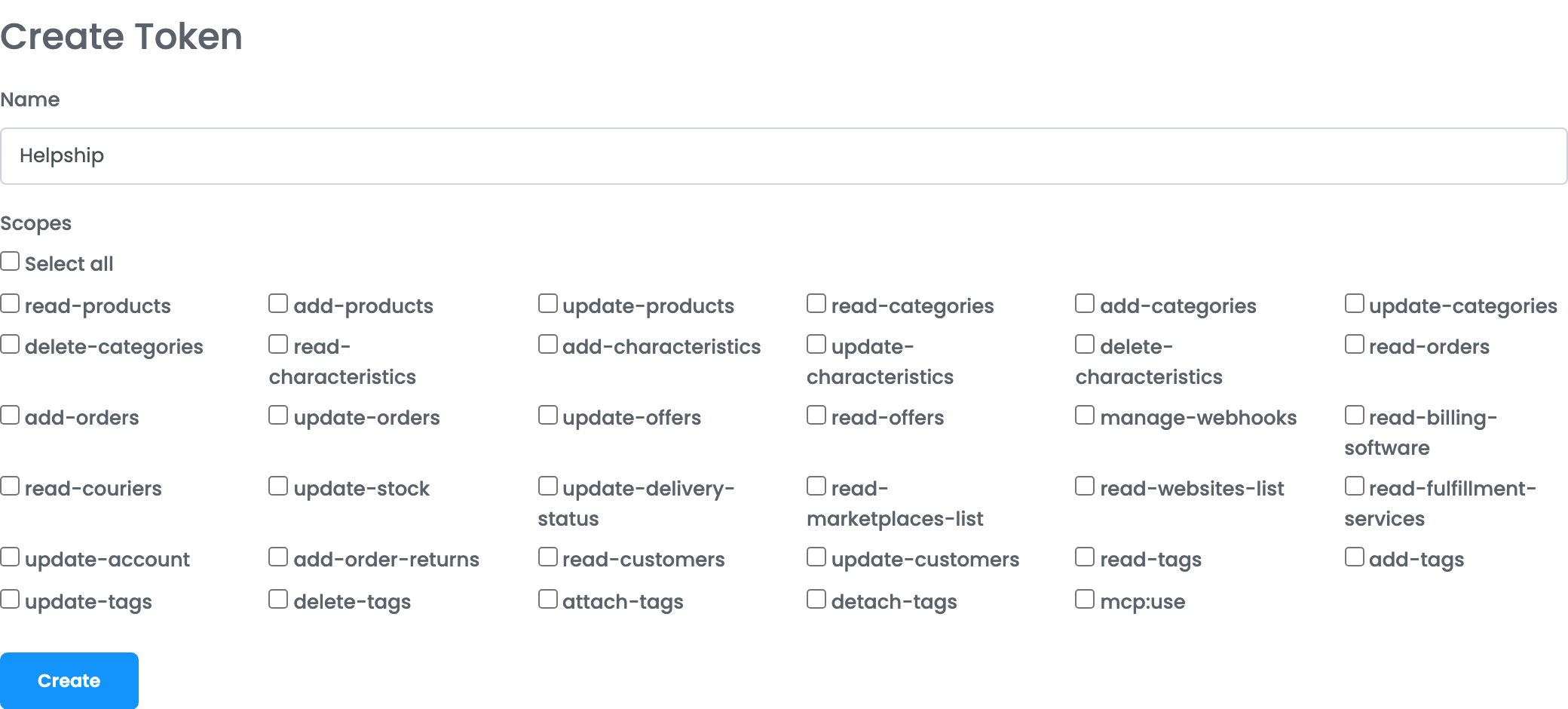
- Go to Settings → API Settings and, under Personal Access Tokens, press Create new token.
- Enter a Name you will recognise, for example
Helpship. - Under Scopes, tick the permissions Helpship asks for.
- Press Create and copy the token that appears. Send it to Helpship.
Step 2 — Connect HelpShip
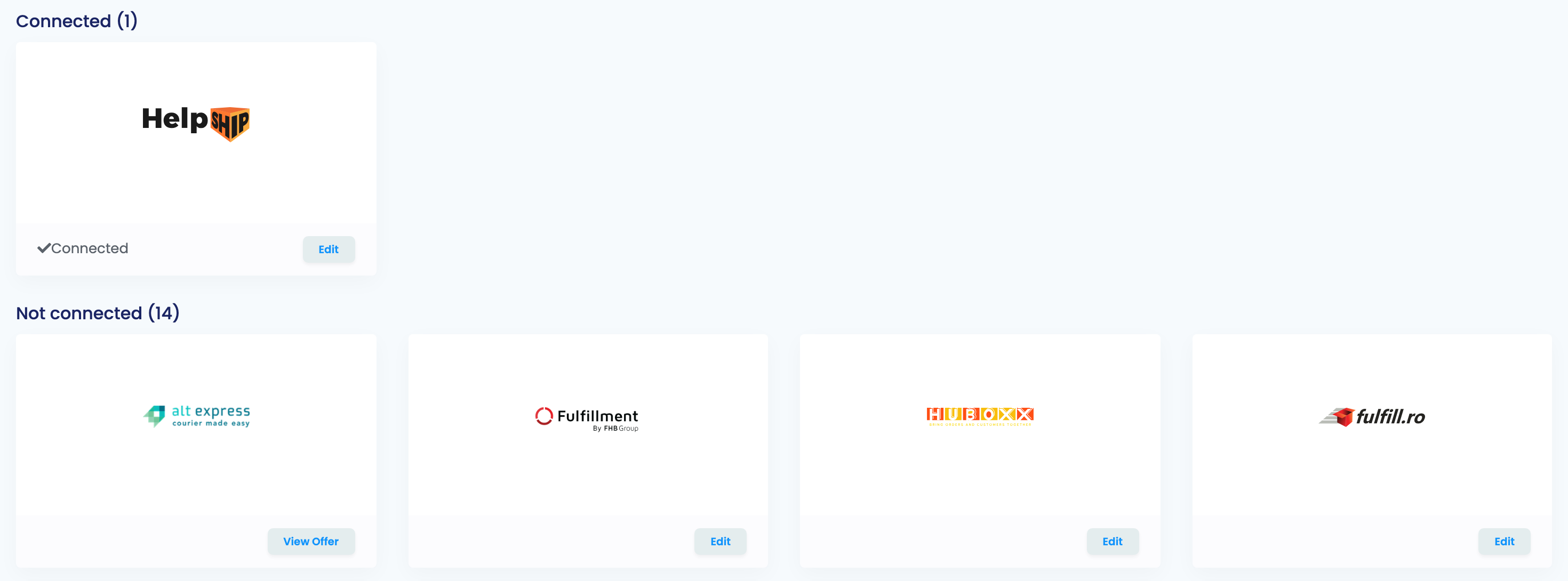
Go to Integrations → Order Fulfillment, on the Fulfillment services tab. Press Edit on the HelpShip card, then Connect. HelpShip now appears under Connected.
Step 3 — Mark the orders for Helpship
Open the Fulfillment Rules tab:
- Under Fulfillment Service, choose HelpShip.
- Under Channels, tick every marketplace and shop whose orders Helpship ships — or Apply to all.
- Press Save.
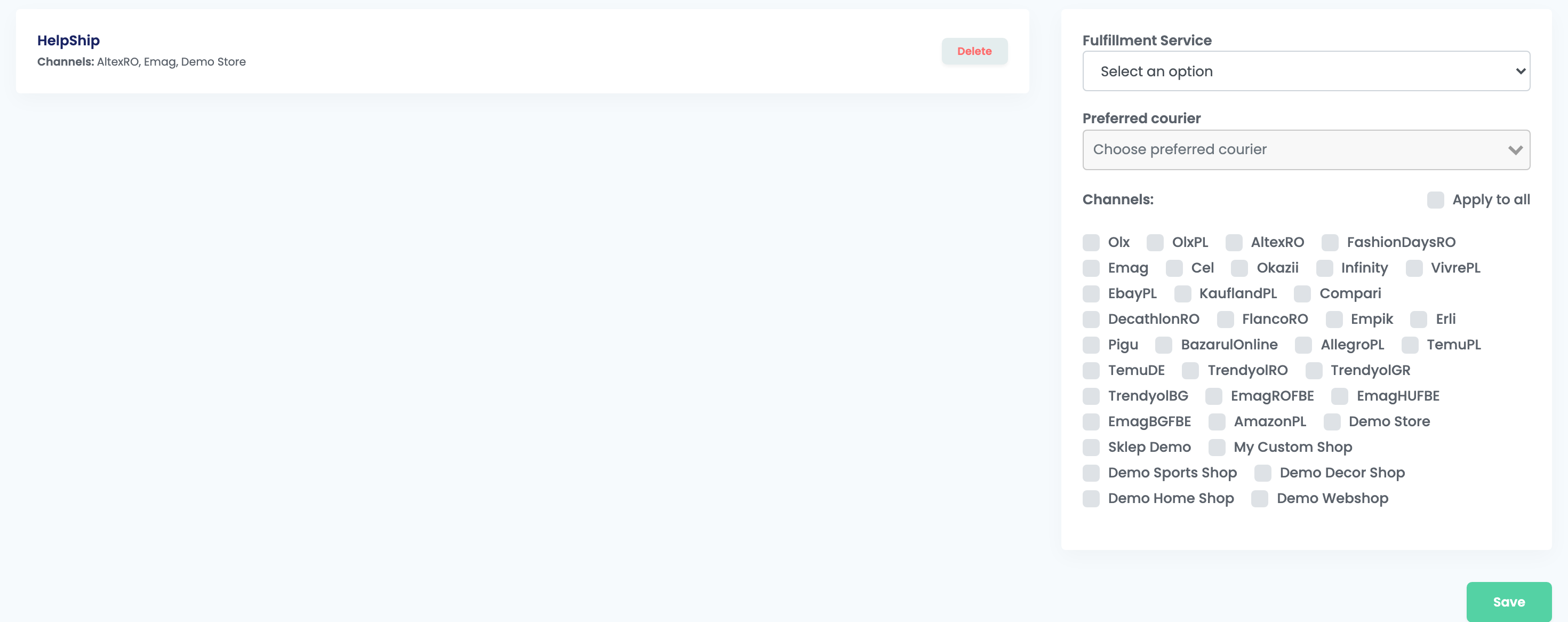
From now on, each new order from these channels is marked HelpShip when it arrives in easySales, and its status changes to Processing. Orders that are cancelled, completed or returned are not marked.
To mark orders with other conditions — a product, a country, a payment method — use an automation flow with the action Send order to fulfillment and HelpShip.
Step 4 — Bring Helpship's stock into easySales
This step is optional: it makes easySales sell from the stock in Helpship's warehouse.
- Ask Helpship for the API details of the stock integration: a client ID and a client secret.
- Go to Integrations → Stock sources and press Connect on the Helpship card.
- Enter a Warehouse name, the client ID in Username and the client secret in Password, and press Save.
- In Advanced warehouses, add a warehouse that takes its stock from the Helpship connection, and use it for the channels you sell on.
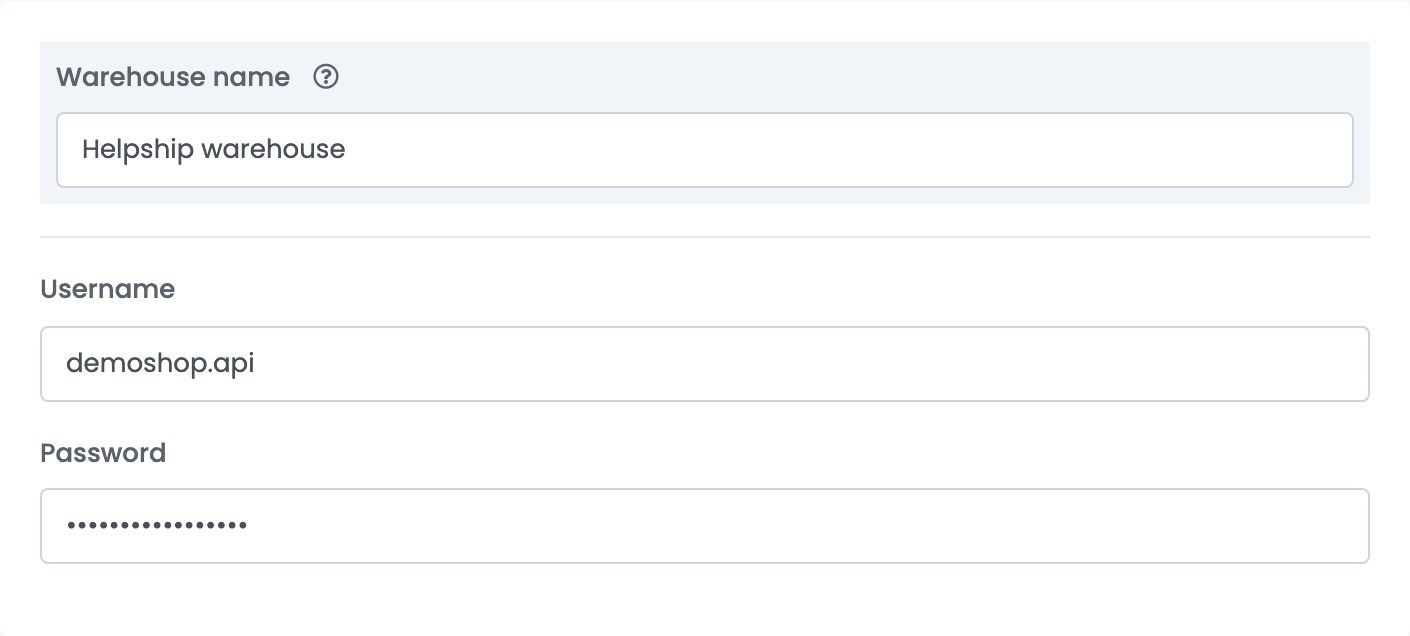
easySales matches each Helpship product to the easySales product whose SKU is the same as the product's code at Helpship.
When something does not work
| Problem | What to do |
|---|---|
| Helpship ships orders that are not meant for it. | Ask Helpship to read only the orders marked HelpShip, and check the channels in your fulfilment rule. |
| Orders do not reach Helpship. | Check that the orders are marked HelpShip — their channel must be in the fulfilment rule — and that Helpship has a valid token. |
| Unable to connect. Reason: invalid_client | Shown when you save the stock source. The Username and Password are not Helpship's API details. Ask Helpship for the client ID and client secret of the stock integration. |
| A product's stock does not change. | Its SKU in easySales must be the same as its code at Helpship, and the product's channel must use the advanced warehouse with the Helpship connection. |