How to connect FAN Courier fulfilment with easySales: a complete setup guide

Send your orders to FAN Courier's warehouse from easySales: the FAN login and Client ID, one connection per service, sending orders, the AWB that comes back and common refusals.
What connecting FAN Courier fulfilment gives you
FAN Courier's fulfilment service keeps your products in FAN's warehouse, picks and packs each order and hands it to the courier. Connected to easySales, it receives the orders you send it from easySales. When FAN ships an order, easySales puts the AWB and its PDF on the order.
Three things to know before you begin:
- Orders go to FAN only when you send them. You send each order to a FAN connection from the order page, or with an automation flow. Fulfillment rules and the orders list's fulfilment action do not send orders to FAN.
- One connection is one way of shipping. The carrier, the service and the delivery options belong to the connection. Add one connection for cash-on-delivery orders and one for orders paid by card, and choose the right one for each order.
- Your products must already exist at FAN with the same code. easySales sends every order line with the product's SKU and does not create products at FAN.
This guide is about the fulfilment service. To create FAN Courier AWBs yourself, from your own warehouse, connect FAN Courier under Couriers instead.
Before you start
A FAN Courier fulfilment contract
With your products stored in FAN's warehouse.
Your FAN login and Client ID
The username, password and client number FAN sent you for the fulfilment account.
The same product codes
Each product's SKU in easySales must match its code at FAN.
Step 1 — Add the FAN connection
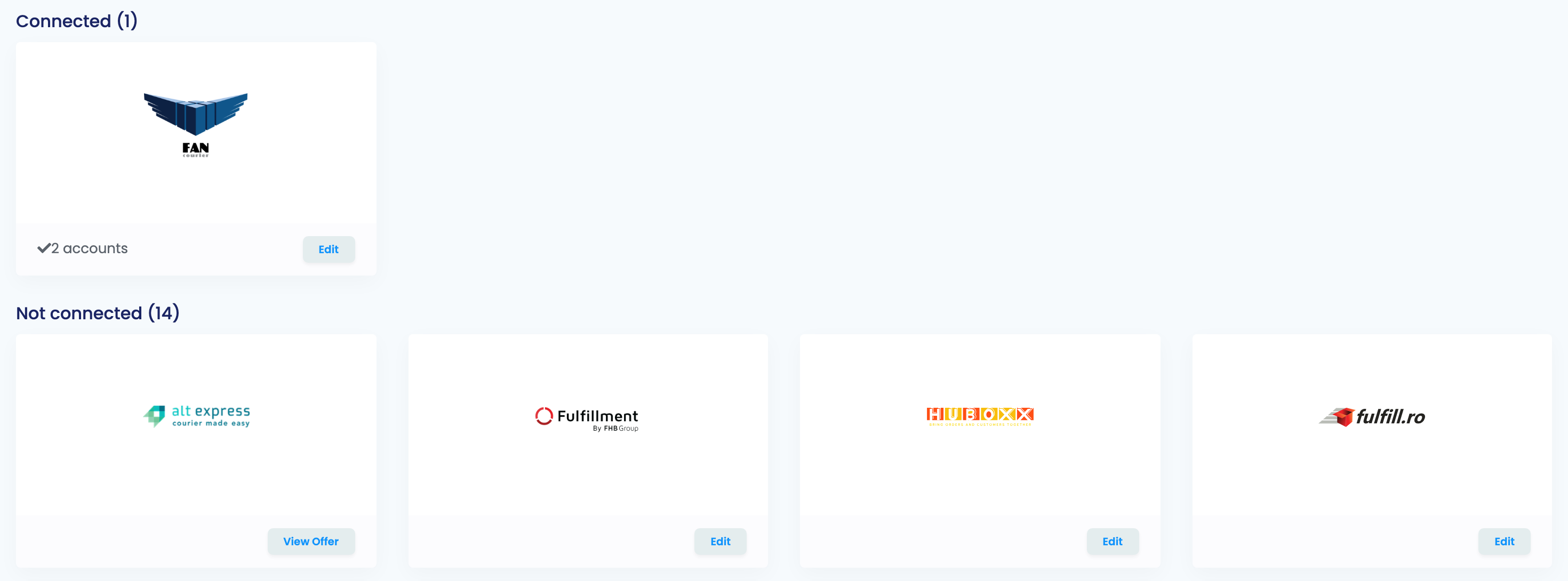
- Go to Integrations → Order Fulfillment, on the Fulfillment services tab.
- Press Edit on the FanCourier card.
- Fill in the form and press Save. easySales signs in to FAN with your details before it saves the connection.
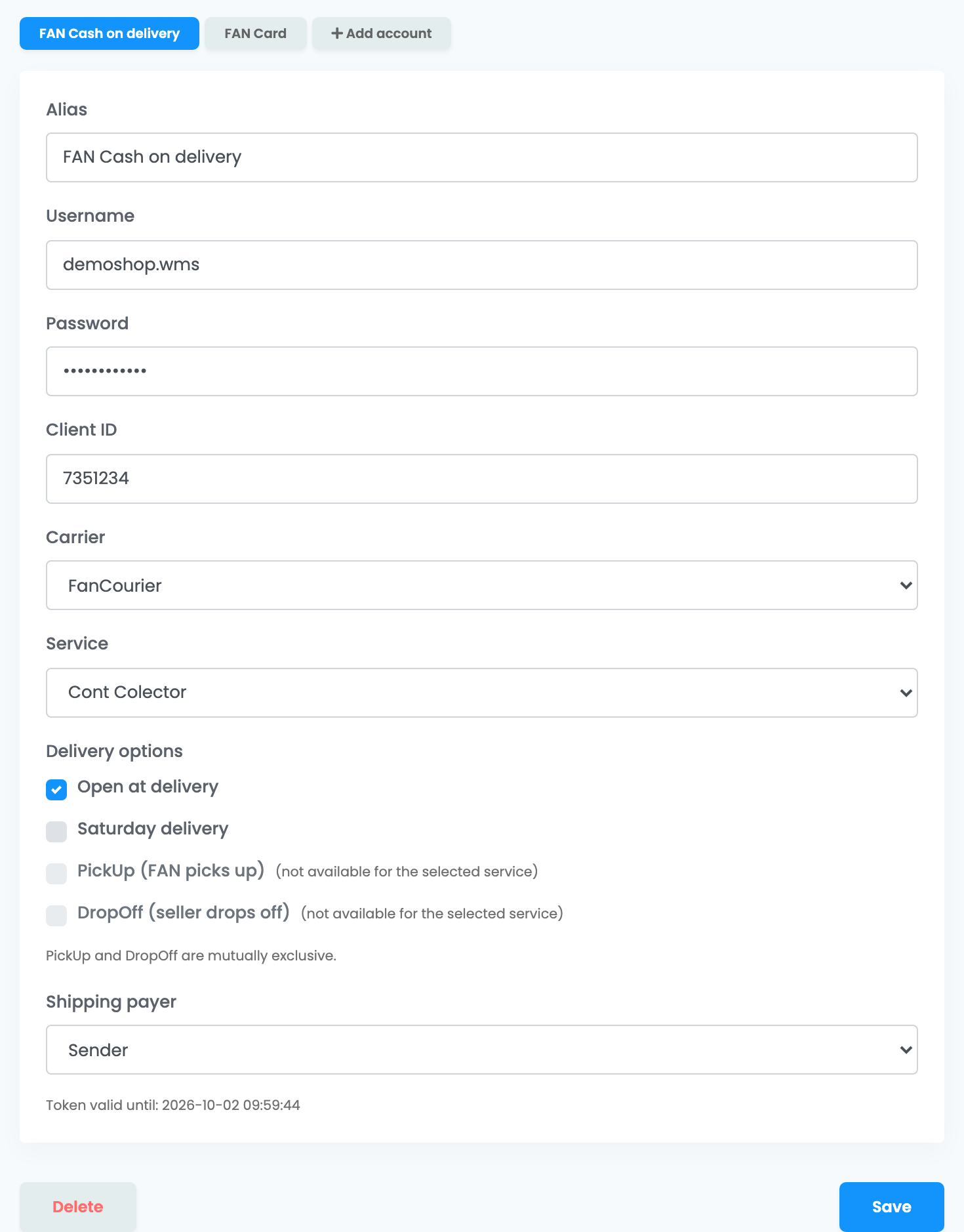
| Field | What goes in it |
|---|---|
| Alias |
A name you will recognise, for example FAN Cash on delivery. You choose the connection by it when you send an order.
|
| Username, Password | The FAN Courier username and password FAN gave you for your fulfilment contract. |
| Client ID | The client number of your fulfilment account, digits only. It can differ from the client number of your FAN courier account. |
| Carrier | Who delivers the orders FAN packs: FanCourier, or another carrier FAN works with, such as Sameday, DPD Romania or Packeta Romania. |
| Service | With FanCourier as the carrier: the FAN service of every order sent through this connection — Cont Colector for cash on delivery, Standard for paid orders, FANbox for FANbox lockers. |
| Shipping payer | Sender if you pay the shipping, Recipient if the customer pays it to the courier. |
Delivery options appear once the connection is saved: open it again to tick them.
- Open at delivery and Saturday delivery — for services that allow them. An option the selected service does not allow is greyed out.
- PickUp (FAN picks up) and DropOff (seller drops off) — only for FANbox services, and only one of the two.
Step 2 — Add a connection for each way of shipping
Press + Add account to add another connection, with its own Alias, service and options. The usual pair is a Cont Colector connection for cash-on-delivery orders and a Standard connection for orders already paid. easySales sends the order total as cash on delivery only for orders paid on delivery.
The Alias is the name you choose when you send an order, so make it say what the connection is for.
Step 3 — Send orders to FAN
On the order page, open Order submissions and press Send order. Choose FanCourier, then the connection.
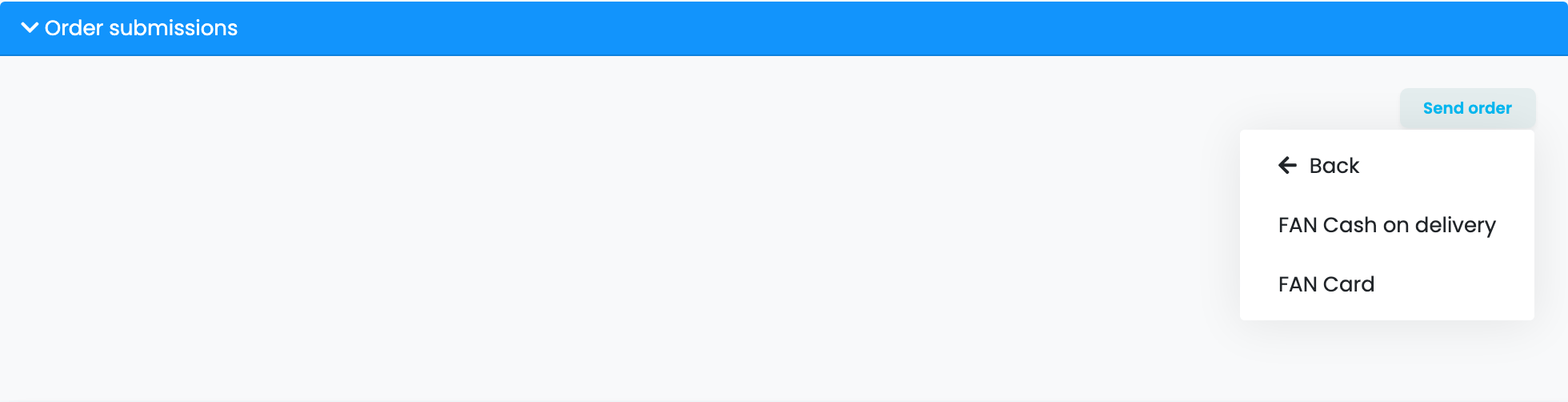
To send orders without opening them, use the paper-plane icon on the order's row in the orders list, or an automation flow with the action Send order and the FAN connection chosen. Give each flow conditions that match only the orders for its connection — for example, one flow for cash-on-delivery orders and one for the rest — so no order goes to FAN twice.
Before you send an order:
- Issue the invoice first. easySales attaches the order's documents when it sends the order. A flow started by Order invoice created does this in the right order.
- If the connection's Carrier is not FAN Courier, create the AWB first with that carrier in easySales. easySales sends the AWB to FAN with the order.
Step 4 — Follow the order at FAN
The Order submissions table shows each order you sent, with FAN's order number and its status:
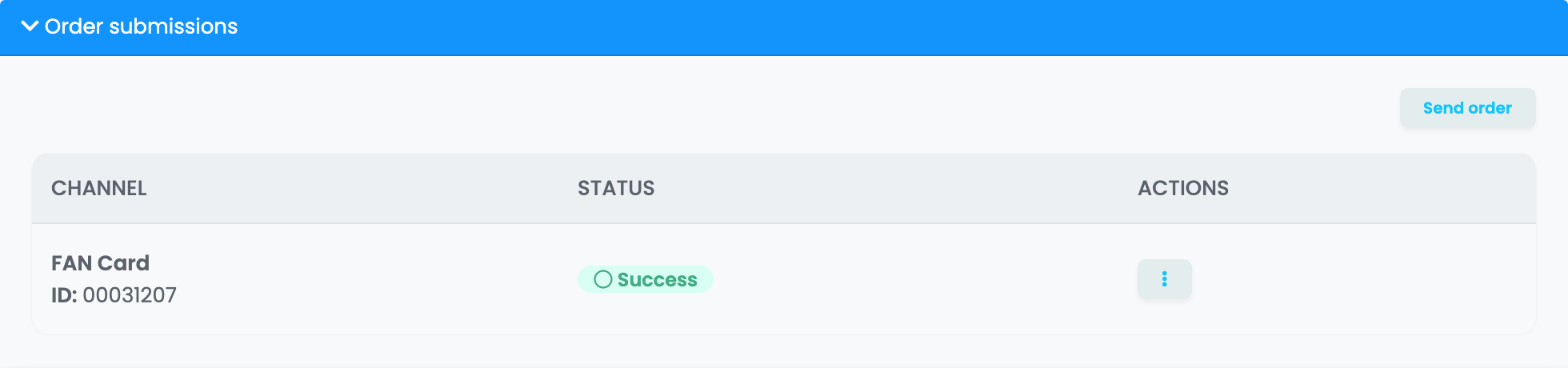
- Pending — FAN has the order and is preparing it. Its steps at FAN are under More information.
- Success — FAN has shipped it. With FAN Courier as the carrier, the AWB and its PDF are now on the order, under Awbs.
- Failed — FAN refused the order. The reason is shown under the status. Correct the order, then press Resend in the row's menu.
To withdraw an order FAN has not shipped yet, choose Cancel submission in the row's menu. Cancelling the order in easySales cancels it at FAN too. An order FAN has accepted cannot be changed: cancel it, correct it and send it again.
The Order submission status updated trigger in automation flows lets you change the order's status when FAN ships it.
Stock
The fulfilment connection does not bring FAN's stock into easySales. To sell from the stock in FAN's warehouse, also add FAN Courier under Integrations → Stock sources, with the same username, password and Client ID, then use it in an advanced warehouse.
When FAN refuses an order
| Message | What to do |
|---|---|
| The locality … does not exist for the specified county. |
FAN does not recognise the delivery city as written. Correct the city on the order's shipping address — without diacritics or a sector number, for example Bucuresti, Iasi — check the county, then press Resend.
|
| Item "…" with company "…" does not exist. | FAN has no product with this code. Check that the product's SKU in easySales matches the code at FAN, then press Resend. |
| Too Many Attempts. | FAN received too many requests at once. Press Resend a little later. |
| Service … requires a locker, but the order has none. | A FANbox connection only ships orders delivered to a FANbox. Send the order through another connection. |