How to connect Decathlon with easySales: a complete setup guide
Connect Decathlon to easySales across fifteen storefronts: Shop ID and API key, the two-step form, logistic class and condition, offer defaults, sending offers, the product safety details, PulseAI offer generation and the checks before sending.
What connecting Decathlon gives you
Decathlon sells other brands' sports equipment alongside its own, and it does so through a separate storefront in each country it operates. Connecting it to easySales means your catalogue reaches those storefronts and their orders come back into the same list as everything else, ready for an invoice and an AWB.
On every Decathlon storefront, PulseAI can also complete new offers for you to review before they are sent, and the Autofill values with PulseAI button fills an offer's characteristics on demand.
Sixteen storefronts, one form
The connection form is the same everywhere; what changes is which storefront card you press Connect on. Fifteen are open to sellers today.
| Region | Storefronts |
|---|---|
| Central and Eastern Europe | Romania, Hungary, Czechia, Poland, Bulgaria |
| Western Europe | France, Germany, Italy, Spain, Portugal, Belgium, the Netherlands, Luxembourg |
| Rest | United Kingdom, Switzerland |
Each is its own connection with its own credentials, its own catalogue and its own prices. Connecting Romania does not connect Hungary.
Before you start
A Decathlon seller account on the storefront you are connecting.
Its Shop ID, from the home page of the Decathlon seller dashboard.
An API key, generated under My account → API Key in the same dashboard.
Products in easySales, either from a connected shop or from the Virtual Shop.
Step 1 — Find the Decathlon card
Go to Integrations → Marketplaces and search for decathlon.
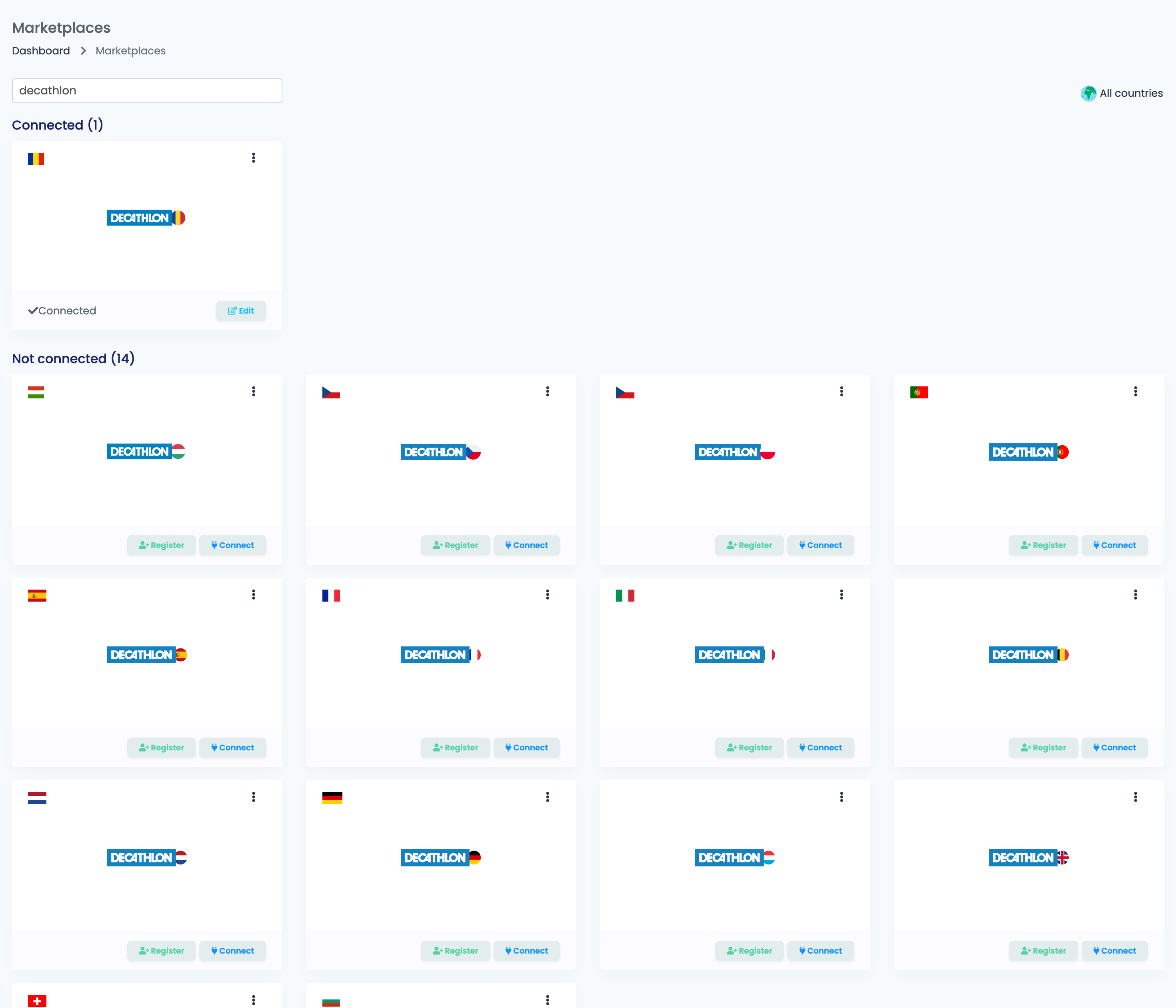
Press Connect on the storefront you sell on.
Step 2 — Identify the shop
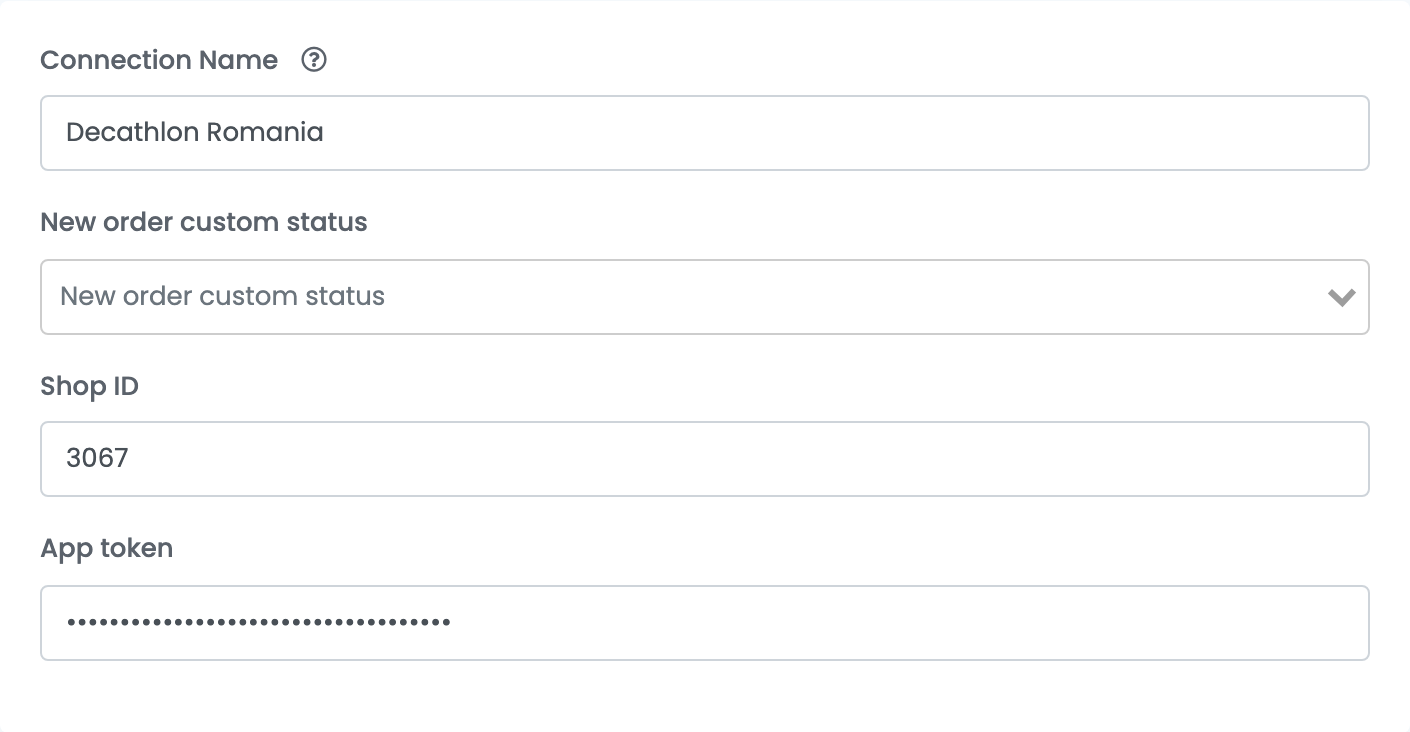
The form opens with four fields, and only these four. The rest of it does not exist yet.
| Field | What goes in it |
|---|---|
| Connection Name | What you will see inside easySales when you pick between connections. Name it after the storefront. |
| New order custom status | Optional. A status of your own that every order from this storefront starts in, if you sort orders that way. |
| Shop ID | The numeric id of your shop, shown on the home page of your Decathlon seller dashboard. |
| App token | Generated in your Decathlon account under My account → API Key. |
Then press Continue. easySales signs in to Decathlon with what you entered and asks it for two lists — the logistic classes and the offer conditions your shop is allowed to use. The rest of the form appears with those lists filled in.
Step 3 — The offer defaults
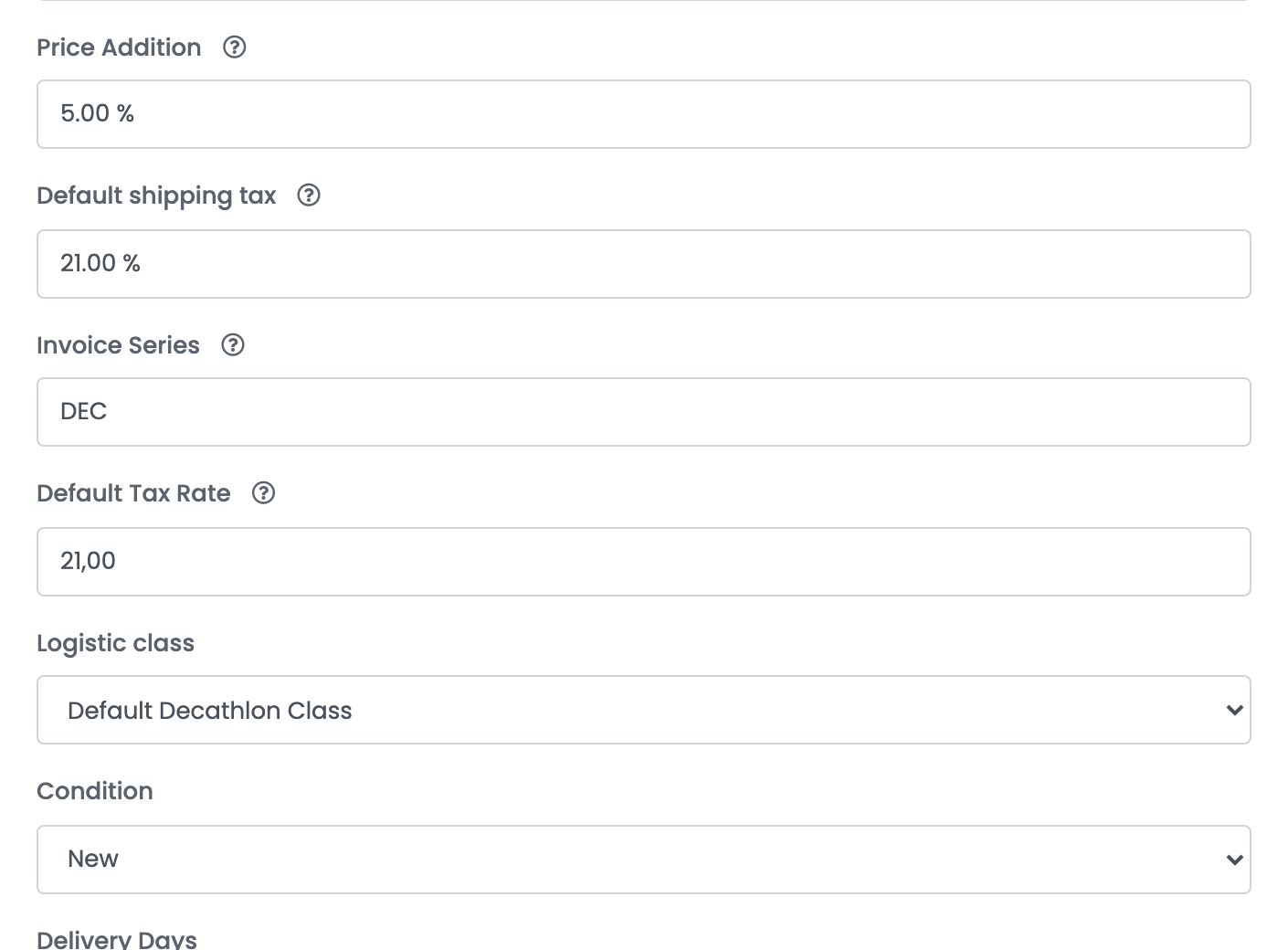
These four decide what a new offer looks like before you touch it.
| Field | What it does |
|---|---|
| Price Addition | A percentage added to the sale price on new offers only. At 10%, a product priced 100 goes to Decathlon at 110. It does not touch offers that already exist, and price rules you build later override it. |
| Default shipping tax | The VAT rate applied to the delivery charge on imported orders. |
| Invoice Series | The billing series orders from this storefront are invoiced on. |
| Default Tax Rate | The VAT rate used when an order arrives without one. |
Step 4 — Logistic class, condition and delivery time
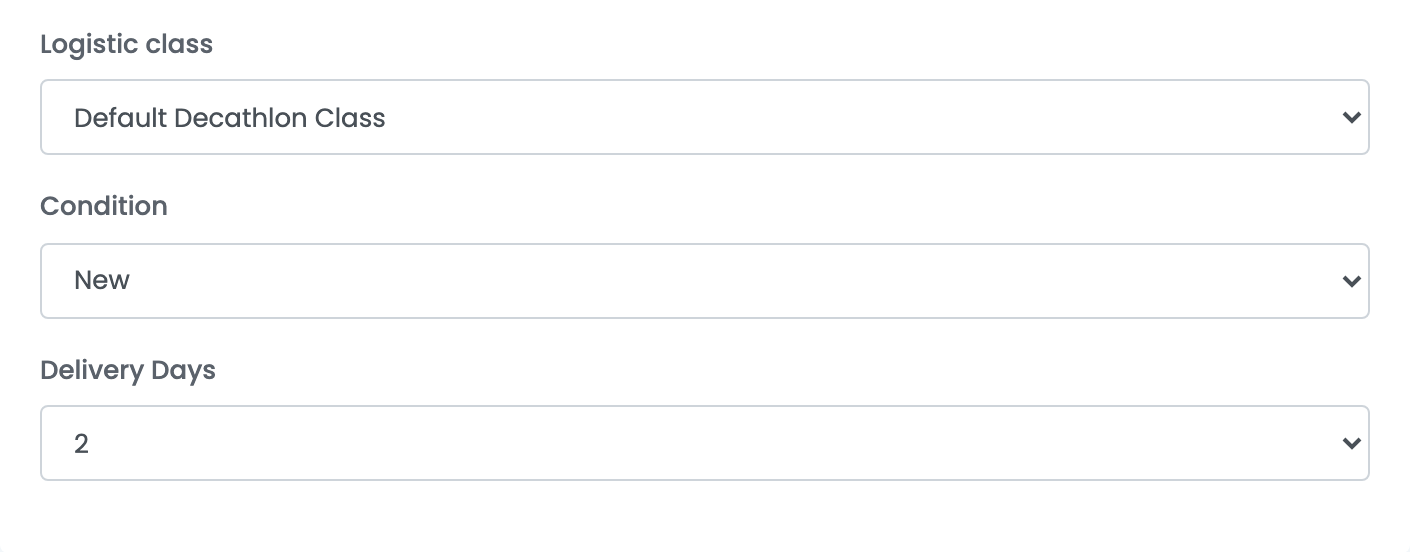
| Field | What it does |
|---|---|
| Logistic class | Decathlon's own shipping band for the offer — it decides what the buyer is charged for delivery. The list is your shop's; Default Decathlon Class is there if you have not set any of your own. |
| Condition | Whether the offer is listed as new, used or refurbished. The options come from Decathlon. |
| Delivery Days | How long you take to hand the parcel over, in days, shown to the buyer as the dispatch time. Choose from 0 to 10, or 15, 21, 27, 30, 45, 60 and 90. |
The options in the first two lists come from Decathlon, not from easySales — they are your shop's own, fetched when you pressed Continue. Press Save when you are done.
Step 5 — What gets sent, and when
Open Additional settings at the top of the form. Once the connection is saved, a third tab, AI offer generation, holds the PulseAI settings described further down.
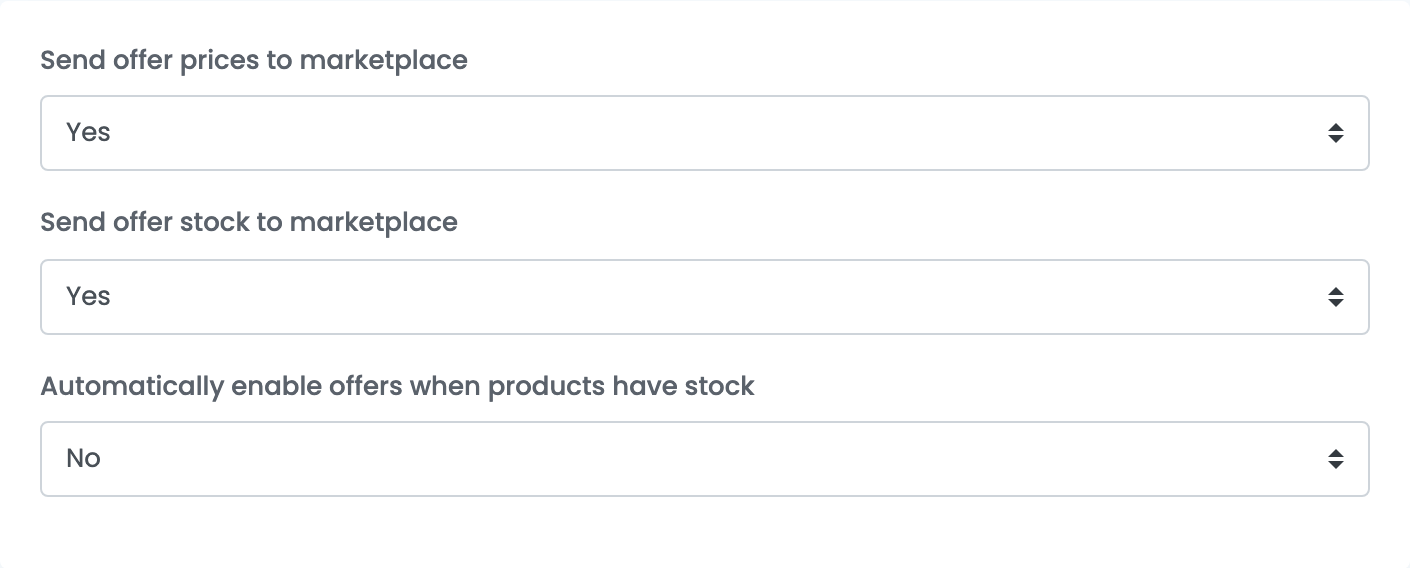
| Setting | What happens when it is on |
|---|---|
| Send offer prices to marketplace | A price change in easySales is pushed to Decathlon. Turn it off if you set prices on Decathlon itself. |
| Send offer stock to marketplace | A stock change in easySales is pushed to Decathlon. Turn it off if the stock on Decathlon is managed elsewhere. |
| Automatically enable offers when products have stock | An offer that ran out of stock is put back on sale by itself when stock arrives, instead of waiting for you. |
Sending your first offers
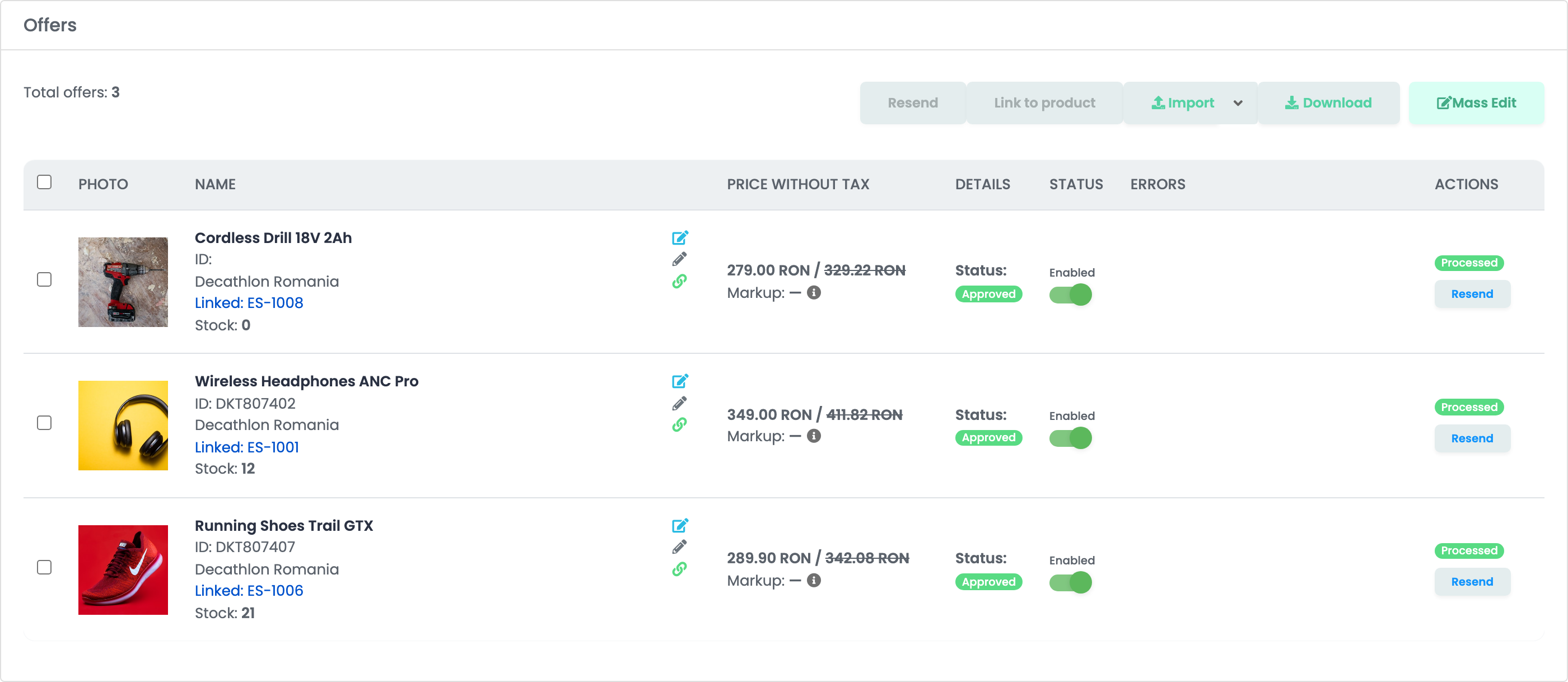
Once the connection is saved, go to Online / Virtual Shop → Products, filter to the products without an offer on Decathlon, and use Add offer to Decathlon. Filtering first is what stops you creating a second offer for a product that already has one.
If your shop was already selling on Decathlon before you connected it, those offers are pulled in on their own and appear under Marketplace → Offers on the Decathlon tab.
PulseAI on Decathlon: automatic offer generation
PulseAI can complete new Decathlon offers for you — category, characteristics and, if you choose, title and description — and then hold them for your review. It is available on every Decathlon storefront, on every connection, and it is off by default.
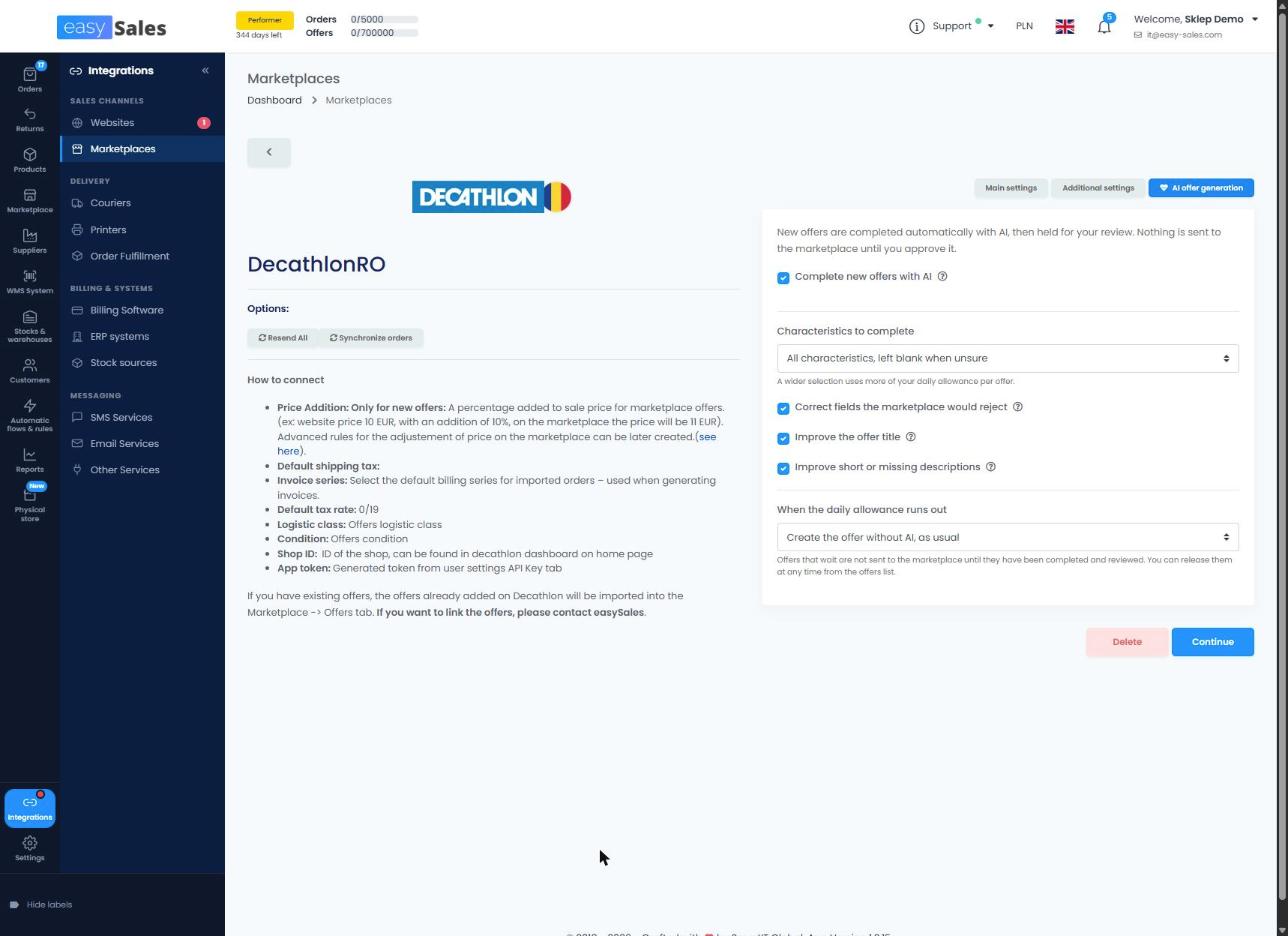
The settings live on the connection's AI offer generation tab, which appears once the connection is saved and sums it up: "New offers are completed automatically with AI, then held for your review. Nothing is sent to the marketplace until you approve it."
The AI offer generation settings
- Complete new offers with AI — turns the automatic pass on. It applies only to newly created offers; offers already on Decathlon are not changed.
- Characteristics to complete — how far PulseAI goes: Only the ones that block publishing, All characteristics, left blank when unsure (the default) or All characteristics, always with a best guess. A wider selection uses more of your daily allowance per offer.
- Correct fields the marketplace would reject — on by default. On Decathlon, a title over 80 characters is shortened at a word.
- Improve the offer title — rewrites the title of every new offer within Decathlon's 80-character limit. The new title is held for review with the rest of the offer.
- Improve short or missing descriptions — rewrites only descriptions that are empty or very short. Decathlon shows the description as plain text, so PulseAI writes one paragraph per line, puts each list item on its own line, and stays within 5,000 characters.
- When the daily allowance runs out — Create the offer without AI, as usual, or Wait for tomorrow's allowance. Offers that wait are not sent until they have been completed and reviewed, and you can release them at any time from the offers list.
What PulseAI fills on a new offer
- Category — the category from your category mapping is kept. Without one, PulseAI picks a last-level category from that storefront's catalogue, and never one Decathlon has marked as no longer in use.
- Characteristics — at the level you chose. Where Decathlon accepts several values, such as sport or gender, PulseAI can give more than one, and all of them are sent. Sizes and colours get the value of that particular variant of the product.
- Composition — filled only from what the product data states about the materials, and written in the storefront's language. Legal mentions, storage advice, use restrictions, guarantee and nutrition tables are never filled by PulseAI; they stay yours to add.
- Title and description — only when the matching settings are on.
Reviewing AI-completed offers
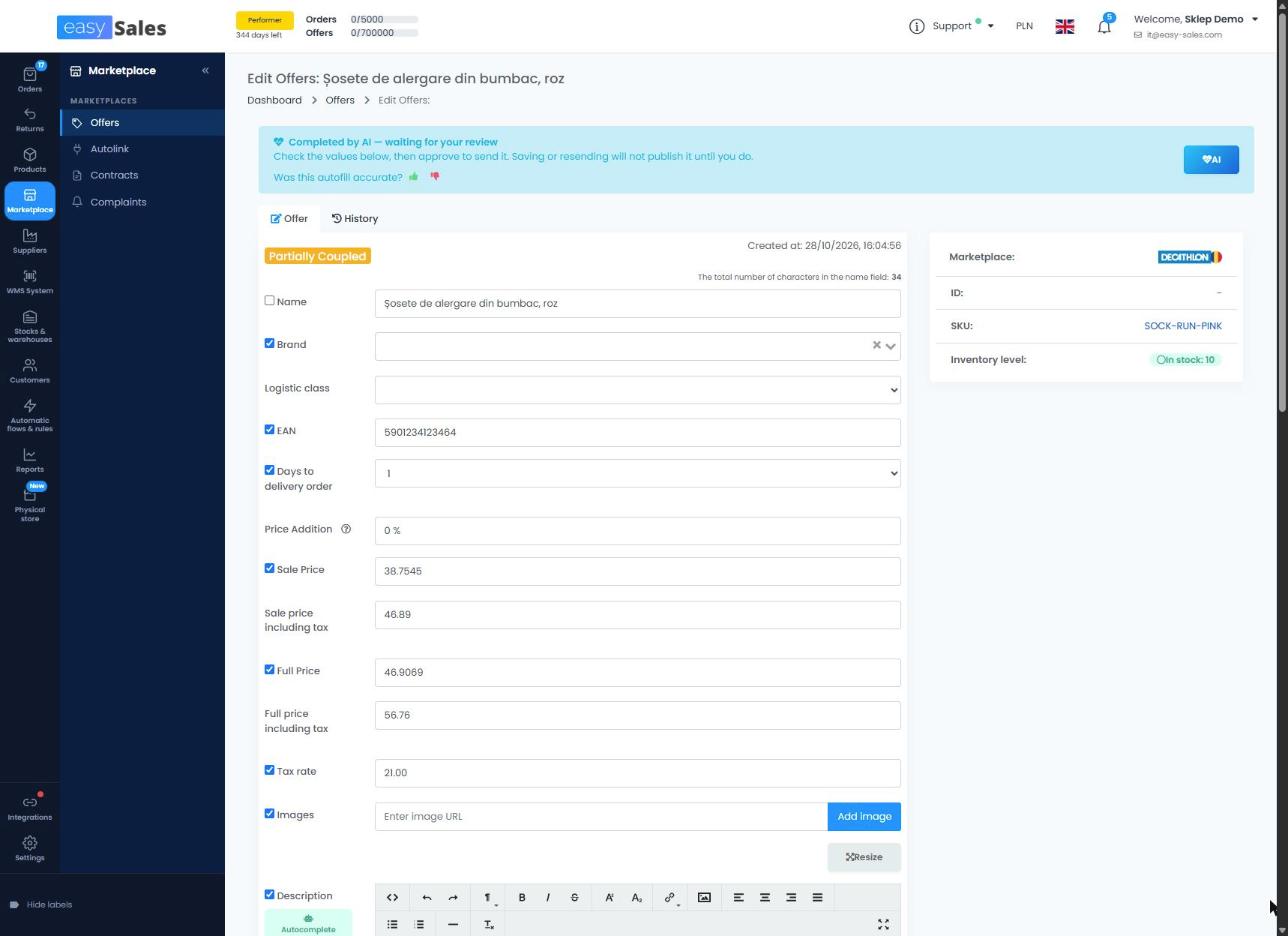
An offer PulseAI has completed shows a banner on its page: Completed by AI — waiting for your review, with the note "Check the values below, then approve to send it. Saving or resending will not publish it until you do."
An offer still in the queue shows Waiting to be completed by AI: "This offer is not on the marketplace yet. Remove it from the AI queue to list it as it is."
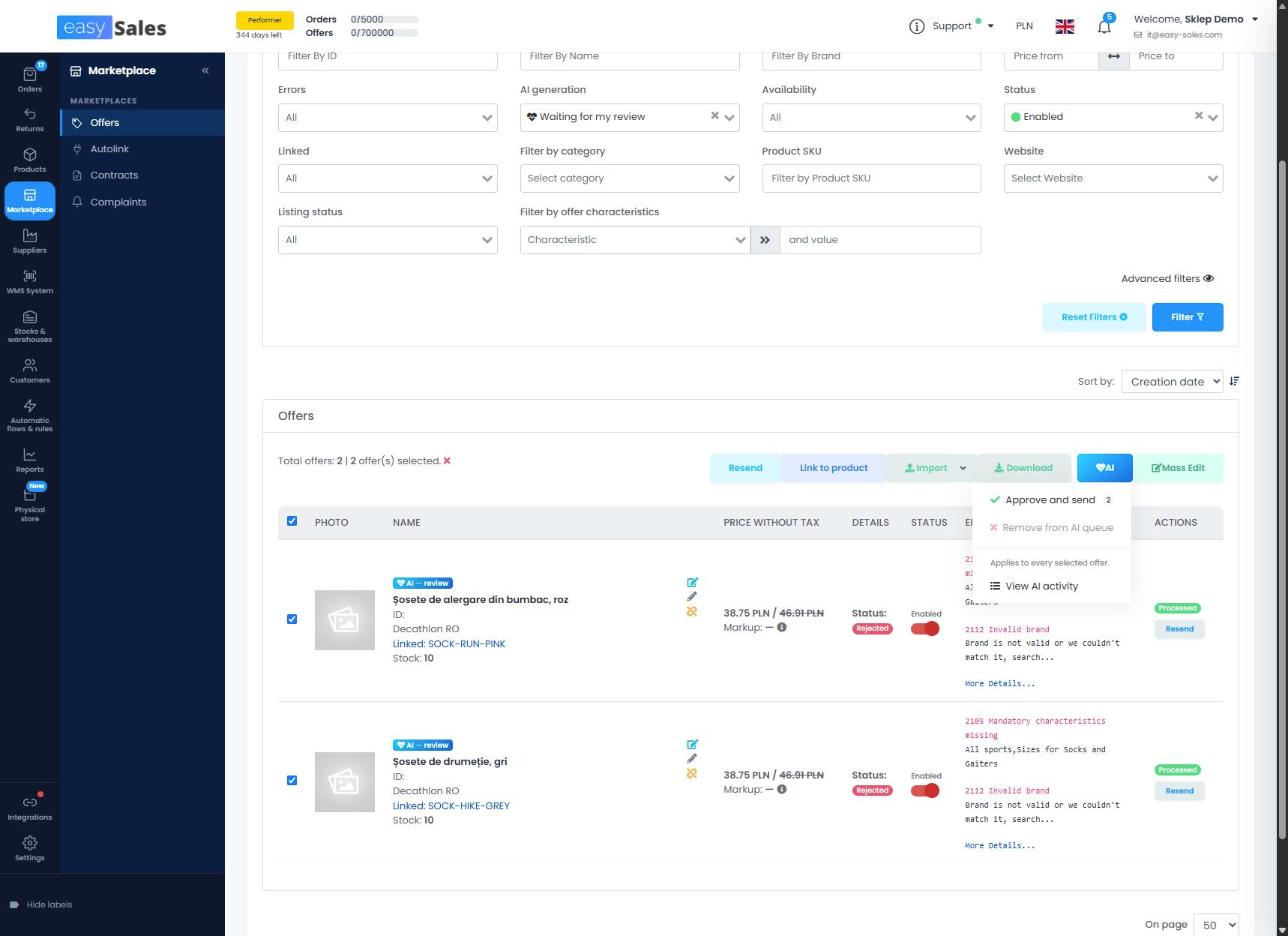
On the Decathlon offers lists, the AI generation filter shows Waiting for my review, Waiting to be completed or Auto-disabled: no AI review, and offers carry an AI — review or AI — queued badge. The AI actions menu holds Approve and send, Remove from AI queue and View AI activity.
Review within 60 days. An offer not reviewed within 60 days is switched off without ever having been sent, and shows as Auto-disabled: no AI review. Enabling it approves it and sends it to Decathlon.
Autofill values with PulseAI, on demand
On any Decathlon offer, the Autofill values with PulseAI button picks a category when the offer has none and fills the characteristics in the form. Nothing is saved until you save, and values you have already set are kept. Filled values are marked "Filled by AI - review before saving.", and a value PulseAI could not settle is marked "PulseAI was not sure about this value. Please fill it in." A short prompt then asks: "Was this autofill accurate?"
Daily allowance
The automatic pass uses your account's daily AI allowance; the Autofill values with PulseAI button does not. What happens when the allowance runs out is your choice, through When the daily allowance runs out.
Checks every Decathlon offer passes before it is sent
These apply to every Decathlon offer, whether PulseAI completed it or not. easySales stops an offer before it reaches Decathlon, and shows the reason on the offer, when:
- it has no category, or its category no longer exists on Decathlon;
- for an offer Decathlon does not have yet: its category is not a last-level category, or Decathlon no longer accepts new products in it (shown as Unsupported category) — choose another category and send the offer again;
- a required characteristic is missing, or a value chosen from a list is not one Decathlon accepts;
- the brand is not in Decathlon's brand list, or the EAN is missing;
- the title is longer than 80 characters, or the description longer than 5,000;
- a product safety warning is not one Decathlon accepts.
An offer already on Decathlon keeps receiving its price and stock updates whatever its category: Decathlon ruled on the category when it accepted the product.
Product safety information is part of the offer
Decathlon asks for the General Product Safety Regulation details on every offer, and easySales carries them on the offer itself rather than on the product. Open any Decathlon offer and the block is there.
| Field | What goes in it |
|---|---|
| Manufacturer name | Who made the product, or the responsible person inside the European Union if the maker is outside it. |
| Manufacturer e-mail and postal address | How a buyer or an authority reaches them. |
| Trademark | The brand the product is sold under. |
| Safety information | The warnings and instructions that have to travel with the product. |
| Warnings | Pick from the standard hazard statements. Leave it empty for a product that carries none. |
| Safety document | Upload the declaration or instruction sheet when the product needs one. |
VAT on company orders
There is nothing to switch on for this. Whenever a Decathlon order arrives from a company that has a VAT number, easySales checks that number against VIES by itself and records the answer on the order. What your invoice then does with that answer is decided on your invoicing connection, not here.