How to connect Compari with easySales: a complete integration guide

Connect Compari to easySales: the API token, VAT and invoice settings, the two addresses Compari calls for orders and stock, category mapping, and what every offer error means.
What connecting Compari gives you
Compari is a Romanian price-comparison marketplace. Connected to easySales, your products are listed there from the same catalogue you already sell from, prices and stock stay in step, and the orders Compari sends you land in Orders beside every other channel.
The connection itself takes a few minutes. What takes a little care is the category mapping — the step between a connected account and offers that actually appear.
Before you start
A Compari merchant account
Registered and active on compari.ro. The connection is made from your side with a token that account issues.
Your API token
Generated in the Compari platform. It is the only credential the connection asks for.
Products in easySales
Compari offers are built from the products already in your catalogue, with their images, brand, EAN and categories.
Step 1 — Find the Compari card
Go to Integrations → Marketplace and search for compari.
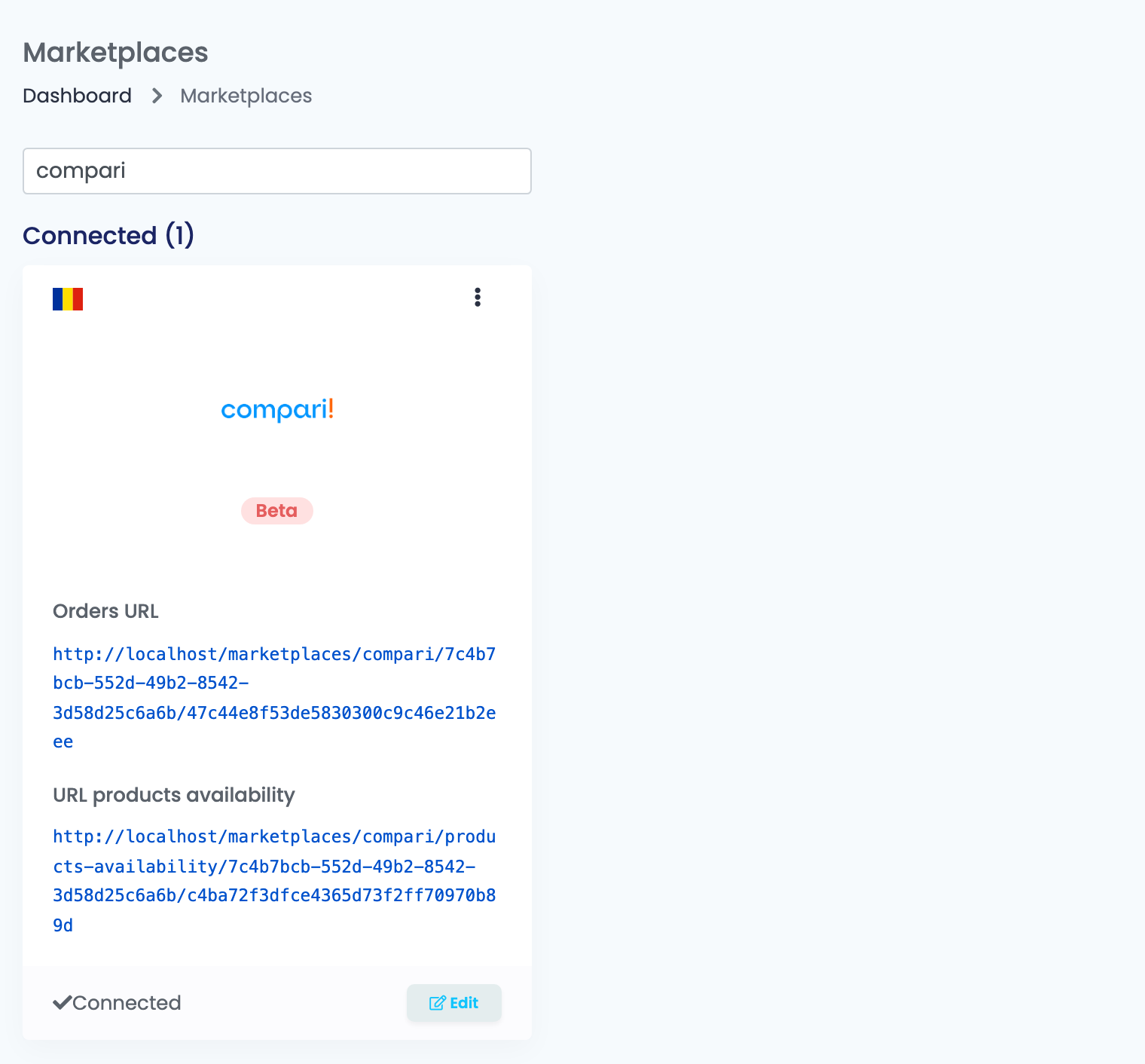
Press Connect on the card, or Edit if you have connected it before.
Step 2 — Name the connection and set the markup
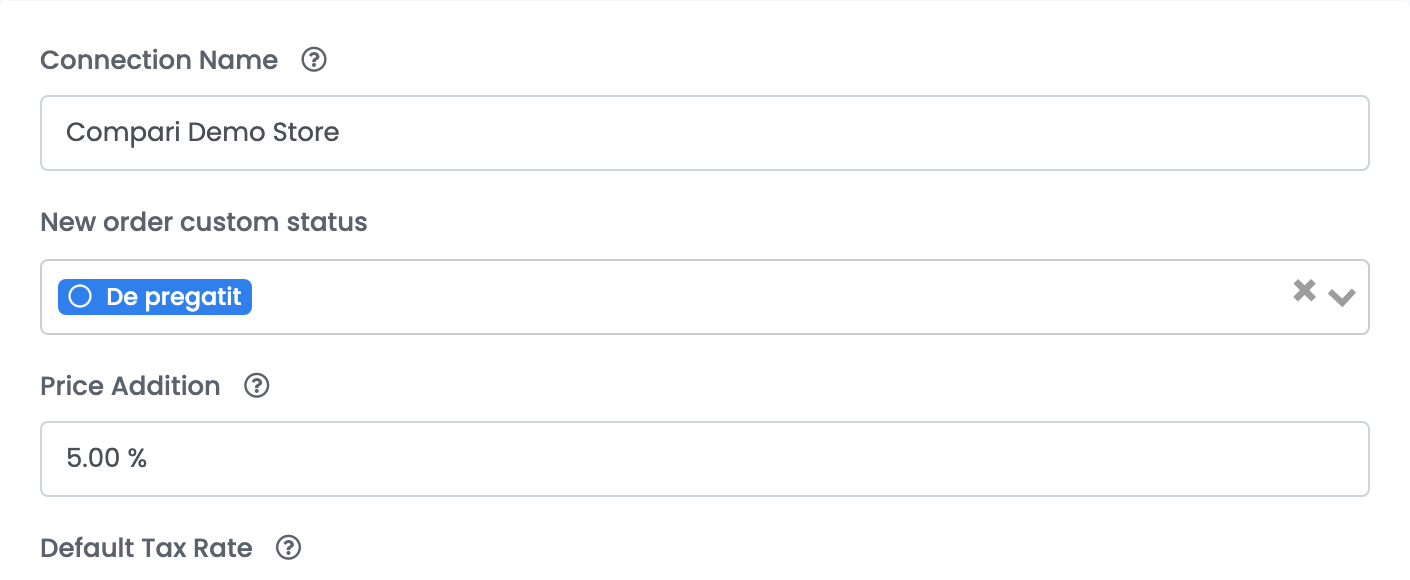
| Field | What it does |
|---|---|
| Connection Name | Used only inside easySales, to tell connections apart. |
| New order custom status | The status new Compari orders are given when they arrive. It is optional, and the list holds the custom statuses you have defined under Orders → Settings. |
| Price Addition | A percentage added on top of your product price when the offer is created — 10% on a 100 RON product lists it at 110 RON. It applies to newly added offers; prices of offers already listed are not rewritten by changing it. |
Step 3 — VAT
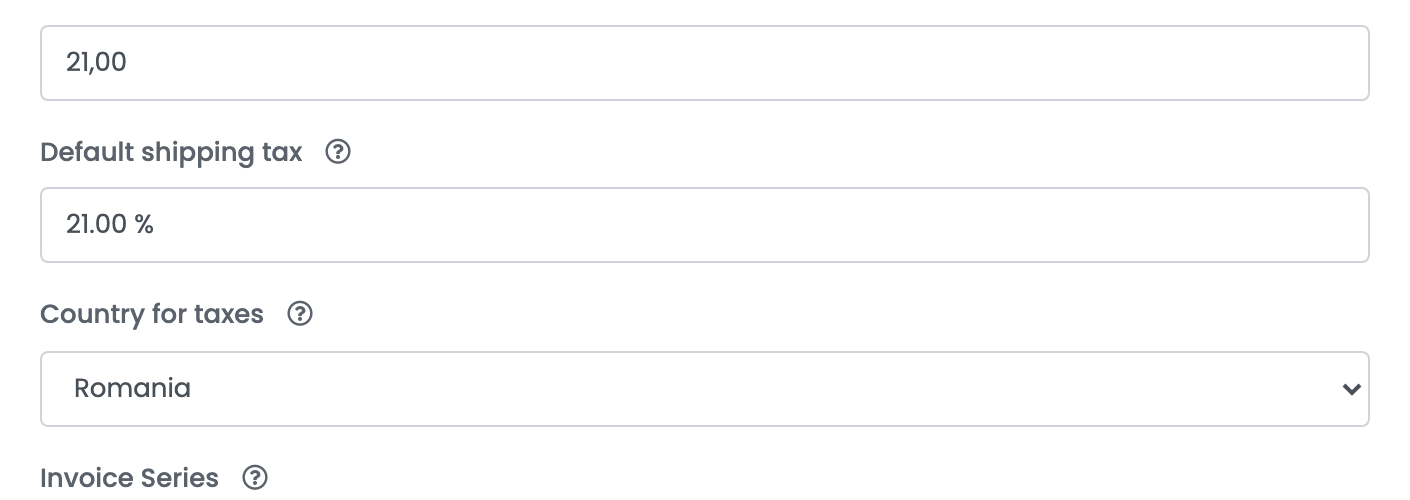
| Field | What it does |
|---|---|
| Default Tax Rate | The VAT percentage applied to the offers. Set it to 0 if you are not registered for VAT. |
| Default shipping tax | The VAT percentage applied to the shipping charge on an order. |
| Country for taxes | Which country's VAT rules the listing follows. Compari's own set is Romania, Hungary, Bulgaria, Greece and Slovakia. |
Step 4 — Invoice series, API token and stock behaviour
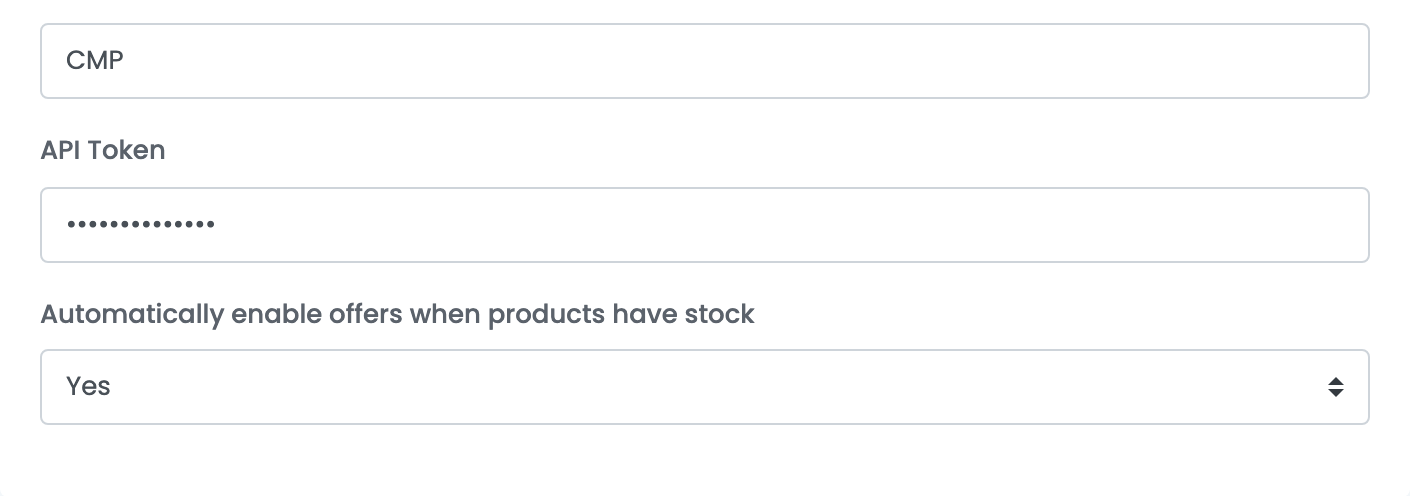
| Field | What it does |
|---|---|
| Invoice Series | The series invoices for Compari orders are issued in. It is the default; you can still change it on an individual order. |
| API Token | From your Compari account. It is stored encrypted and is what authorises everything easySales sends. |
| Automatically enable offers when products have stock | With Yes, an offer that was switched off because the product ran out is put back on sale by itself when stock returns. |
Step 5 — Give Compari your two addresses
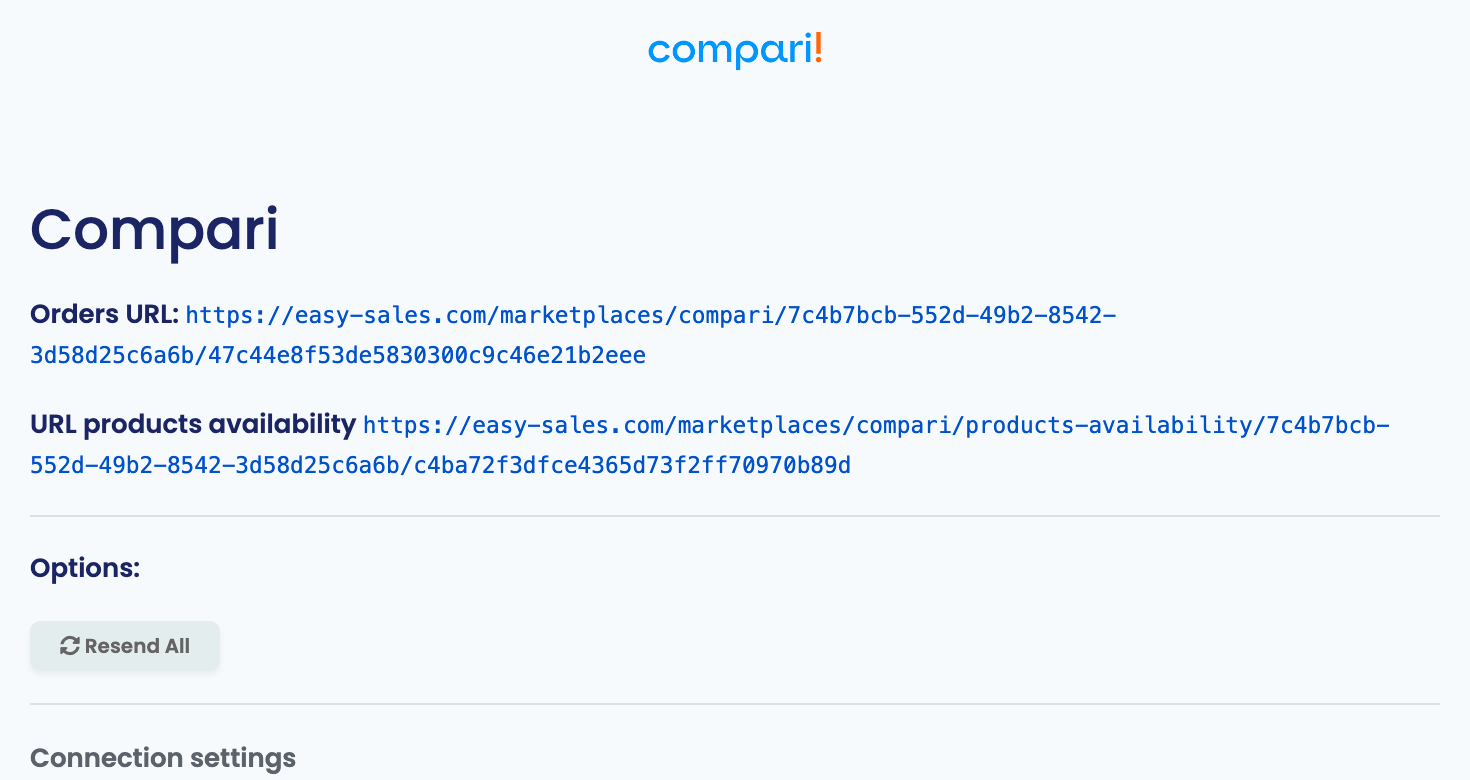
Saving the connection generates two addresses, shown on the Compari card. They are not files you upload anywhere — they are addresses Compari calls, and each carries a key unique to your connection. Copy both into Compari once.
| Address | Which way it runs |
|---|---|
| Orders URL | Compari sends you each new order through it. This is the only route a Compari order takes into easySales. |
| URL products availability | Compari asks it for current stock, product by product, so what it shows a shopper matches what you actually hold. |
Step 6 — Map your categories
This is the step that decides whether anything is listed at all.
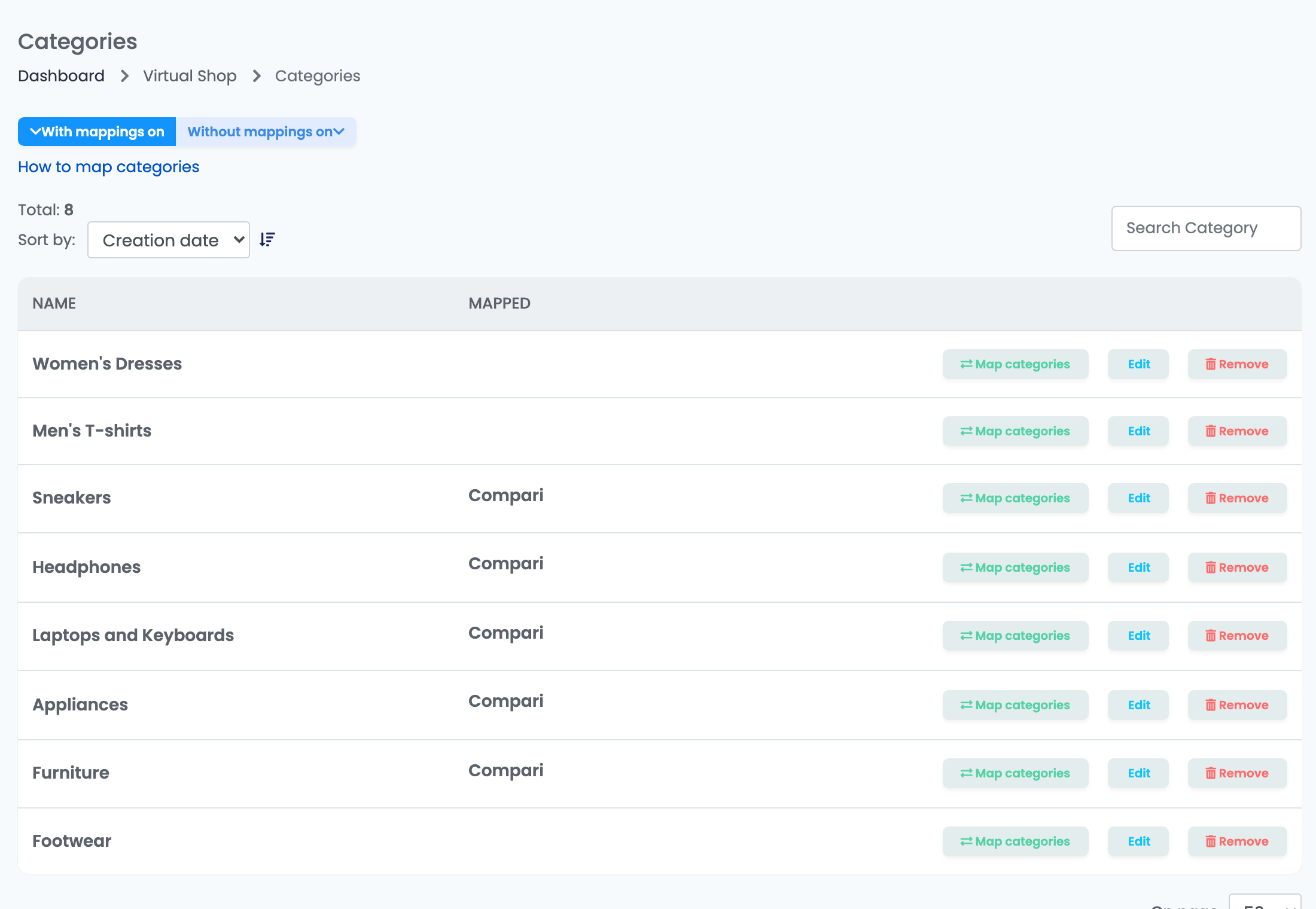
Go to Virtual Shop → Categories. Each of your own categories gets mapped to a Compari category; the Mapped column shows which marketplaces a category has been mapped for. Press Map categories on a row to set or change it.
Step 7 — Add offers
Open Virtual Shop → Products, use the Without offers on filter to find products that are not yet listed on Compari, and add them from there. Each product becomes a Compari offer carrying its name, description, brand, images, price, EAN, warranty and category.
Watching the offers
Offers → Compari is where the listing lives after that: what went out, what Compari accepted, and what is being held back.
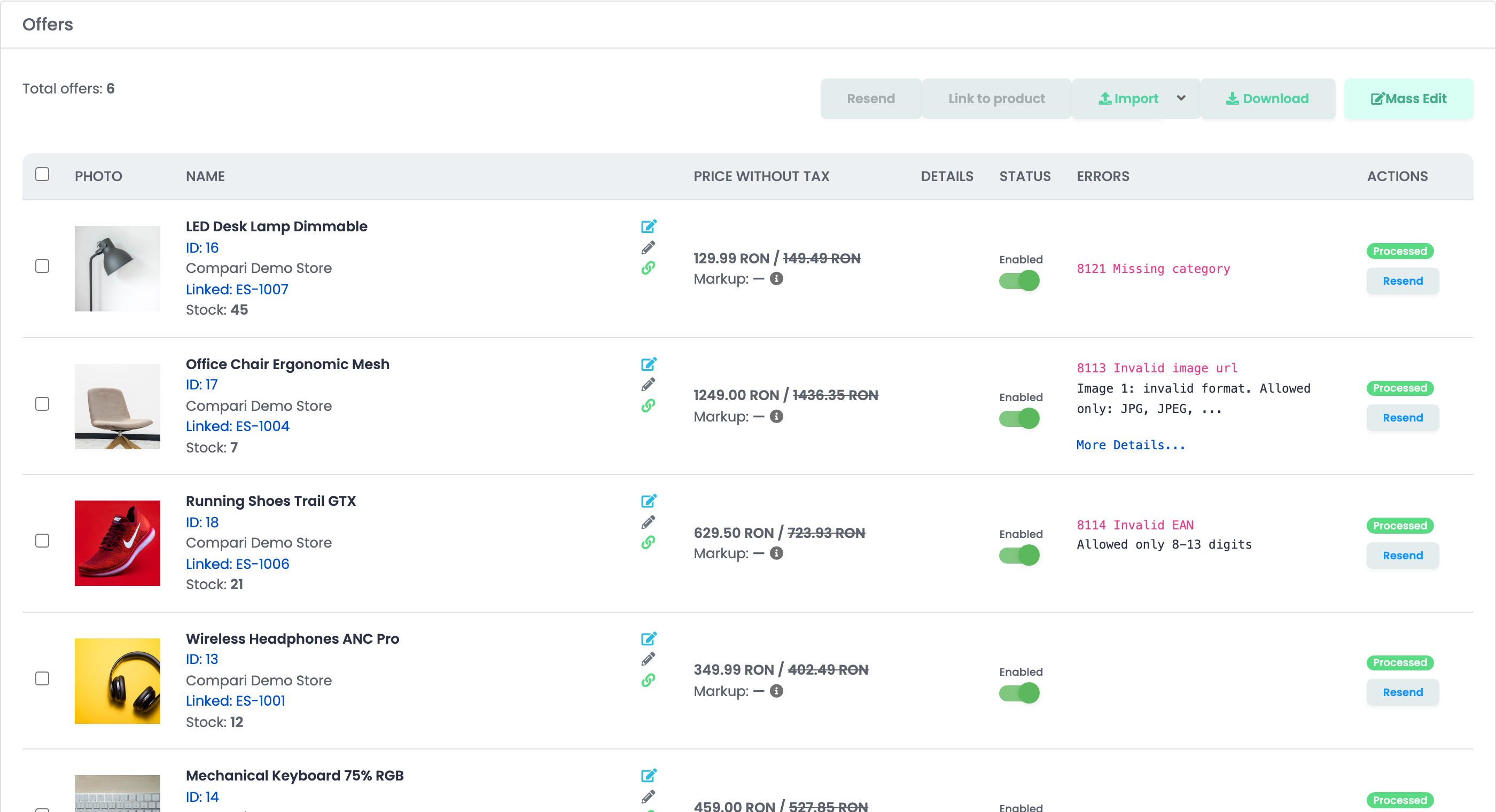
The Errors column is the useful one. Everything in it is checked before the offer leaves easySales, so a product with an error there was never sent:
| Error | What to fix |
|---|---|
| 8121 Missing category | The product's category has no Compari category mapped to it. Map it under Virtual Shop → Categories. |
| 8113 Invalid image url |
An image address that is not HTTPS, or does not end in .jpg, .jpeg, .png or .webp. The message names which image.
|
| 8112 Missing images | The product has no images at all. |
| 8114 Invalid EAN | The EAN is not between 8 and 13 digits. |
| 8118 Missing brand / 8120 Missing product name / 8119 Missing SKU | The product is missing that field. Fill it on the product, not on the offer. |
| 8111 Invalid price | The price works out below 0.1. |
| 8110 Product rejected by compari.ro |
Compari itself refused it, and its own words are underneath. Invalid ApiKey! here means the token in the connection is no longer valid.
|
What the integration does not do
| How it works | |
|---|---|
| Existing Compari listings | Offers you already have on Compari are not imported into easySales. The catalogue easySales manages is the one it creates from your own products. |
| Prices | One price is sent per offer — the selling price. There is no separate crossed-out price. |
| Invoices and AWBs | They are not sent to Compari. You issue invoices and create shipments in easySales as usual; what travels back to Compari is the order's status. |
| Mandatory attributes | Compari asks for none, so there are no per-category characteristics to fill in before an offer can be listed. |