How to connect CloudCart with easySales: a complete setup guide
Connect a CloudCart shop to easySales: create the API key, set VAT and inventory source, and learn what travels each way — products, stock and orders — and what stops a sync.
What connecting CloudCart gives you
easySales reads your CloudCart catalogue and turns it into offers it can send to marketplaces, and it reads your CloudCart orders so you can invoice them, print AWBs and pack them next to every other order you take. It also sends stock back to your shop, so a product sold on a marketplace goes down in CloudCart too. Nothing is installed in the shop: the connection runs on one API key from your CloudCart admin.
What travels in each direction
| From CloudCart to easySales | From easySales to CloudCart | |
|---|---|---|
| Products | Name, description, prices, images, category, characteristics, brand, barcode, weight | — |
| Stock | The quantity of every variant | The stock in easySales, when it changes |
| Orders | New and changed orders, with customer, addresses, products, shipping and discounts | Completed and cancelled orders |
| Prices, AWBs and invoices | — | Not sent |
Before you start
A CloudCart shop with API access
On a CloudCart plan that includes the API, with the subscription paid.
An API key
Created under Settings → API Keys in your CloudCart admin, with a rate limit your shop can live with.
A SKU on every variant
Different for every product and every variant.
Step 1 — Create the API key in CloudCart
- In your CloudCart admin, open Settings → API Keys.
- Create a key for easySales, make sure it is active, and copy it. You will paste it into easySales in step 4.
- On the same page, raise the rate limit — the number of requests per minute the key may make. The default is 100 requests per minute, and it can go up to 800. The more products and orders your shop has, the more it needs.
Step 2 — Describe the shop
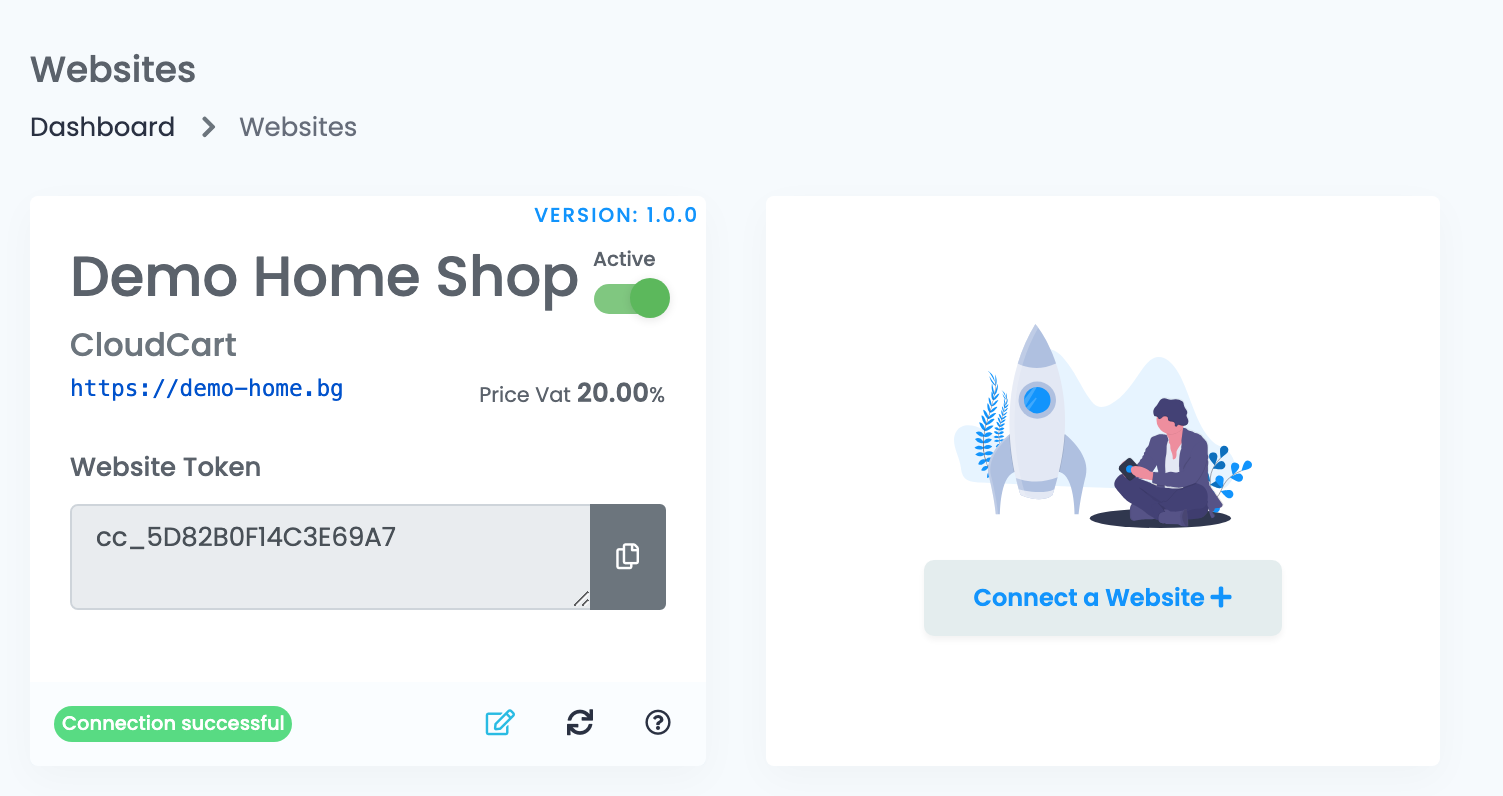
In easySales, go to Integrations → Websites and press Connect a Website.
The form opens on the shop's details. The values in the screenshots belong to a demo shop; yours describe your own.
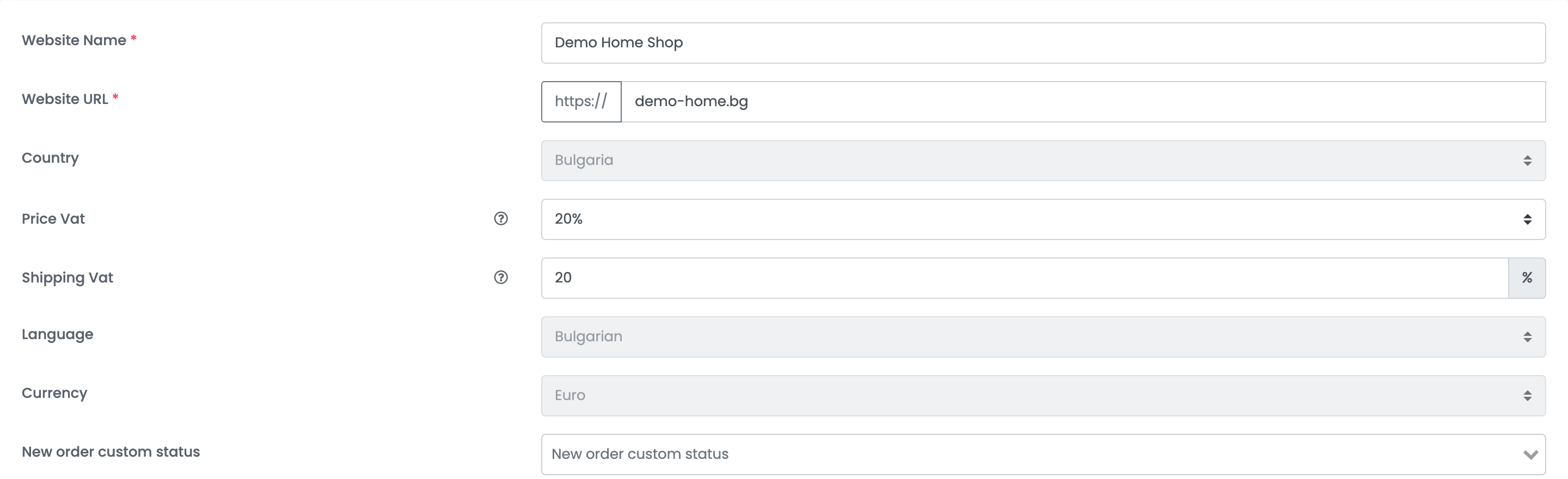
| Field | What goes in it |
|---|---|
| Website Name | Whatever you want to call this shop inside easySales. |
| Website URL | Your shop's address, as described below. |
| Country | The shop's country. It cannot be changed after the connection is saved. |
| Price Vat and Shipping Vat | The VAT rates your prices and your delivery charges already include. |
| Language and Currency | What the shop sells in. Both are fixed once saved. |
| New order custom status | Optional. A status of your own that every order from this shop starts in. |
Step 3 — Stock and invoicing

| Field | What it does |
|---|---|
| Inventory source — Clasic warehouse | One stock figure per product, from the source chosen beside it. With EasySales, easySales keeps the stock and sends it to CloudCart; with Website, the stock is read from CloudCart. |
| Inventory source — Advanced warehouse | Stock split across several locations, with rules deciding which one an order draws from. |
| Implicit package type | The package type orders from this shop are imported with, used when an AWB is generated. |
| Invoice Series | The billing series orders from this shop are invoiced on. |
Step 4 — Choose CloudCart and paste the key
Press the CloudCart tile, then the CloudCart version below it. The Details step opens under them.
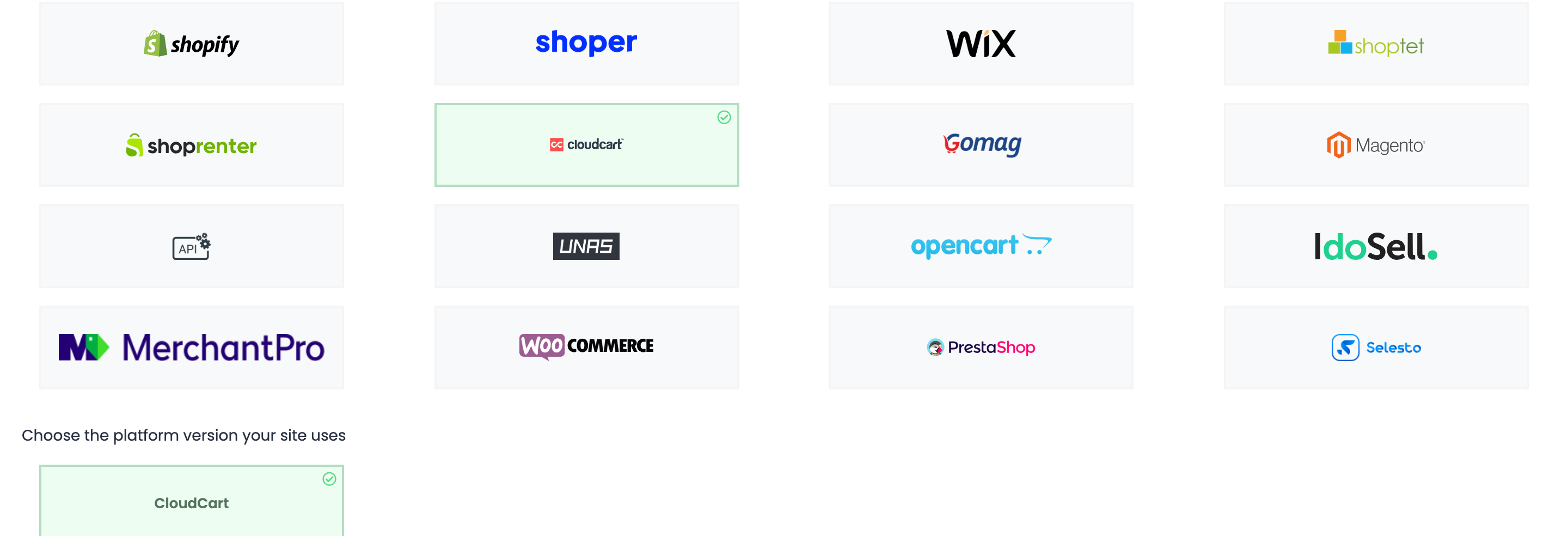
Paste the key from step 1 into API Key and press Save.
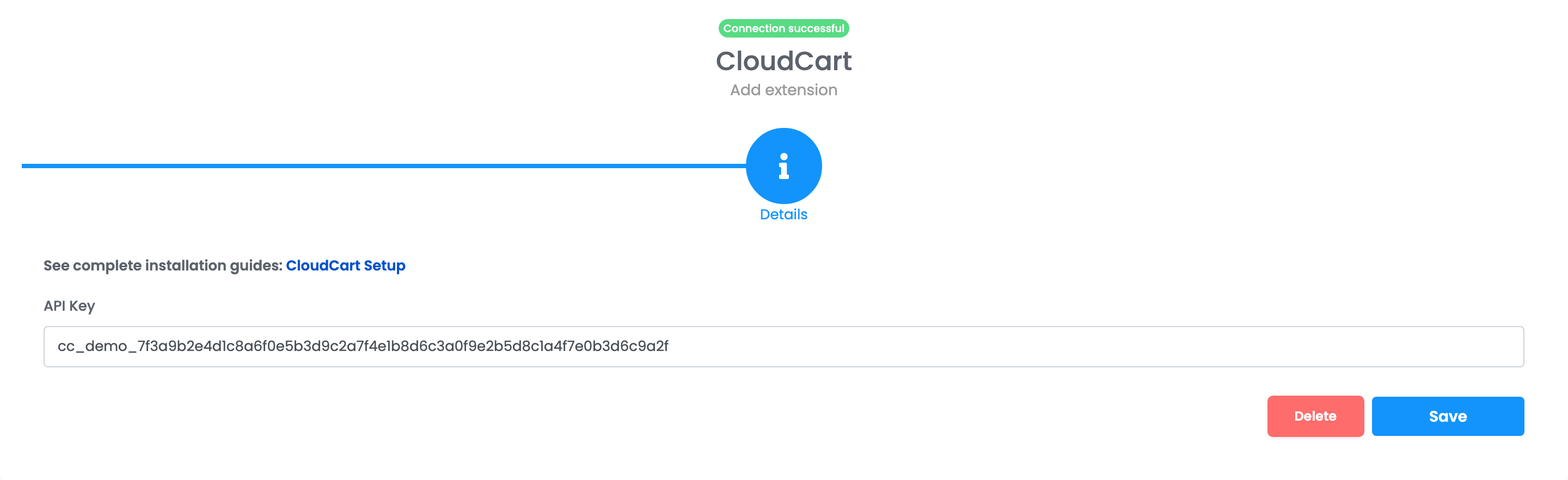
The shop now has a card of its own on Integrations → Websites, with a badge saying the connection works. Products start appearing under Online Shop → Products once the first sync has run.
How products come across
Every variant in CloudCart becomes one product in easySales, identified by its SKU.
| From CloudCart | Into easySales |
|---|---|
| Name and description | Name and description |
| Variant SKU | SKU |
| Barcode | EAN |
| Vendor | Brand |
| Price, and an active discount | Full price and sale price |
| Quantity | Stock |
| Category and properties | Category and characteristics |
| Images and weight | The same — the variant's images, or the product's when the variant has none |
Product changes you make in CloudCart reach easySales within a few hours, not instantly — products, categories and characteristics are read every six hours, and discounted prices every hour.
How orders come across
Orders arrive within about a minute of being placed or changed in CloudCart, with the customer, the billing and delivery addresses, the products, shipping and discounts. The first sync brings in the orders from the last day. Four times a day, easySales also reads again every order of the last four weeks, so an order you correct in CloudCart comes across without you doing anything.
| In CloudCart | In easySales |
|---|---|
| Pending | New |
| Paid | Received |
| Completed | Completed |
| Cancelled | Canceled |
| Refunded | Return |
| Cash on delivery / bank transfer / other payments | Payment method Cash on delivery / Bank transfer / Online |
| Delivery to a Speedy or Econt office, or a Sameday locker | Delivered to that office or locker |
Fine-tuning the connection
Edit the shop on Integrations → Websites and open its Preferences. Under Synchronization you choose whether easySales fetches orders from CloudCart, and whether it sends order statuses and product stock back to it.
When the shop stops syncing
| What you see | What to do |
|---|---|
| You do not have API access on your current plan | Move to a CloudCart plan that includes API access. |
| Your plan allows 100 requests per minute | Raise the rate limit on Settings → API Keys in CloudCart. |
| You have failed payments | Pay the CloudCart subscription. |
| An order is missing because it has no city or street | Fill in the address on the order in CloudCart; it comes across on the next pass. |
| A product in a new category is missing | Wait for the next category sync; the product follows it. |
| Only paid and/or fulfilled orders can be marked as Completed | Mark the order as paid or fulfilled in CloudCart, then complete it again. |
When CloudCart keeps refusing easySales for about an hour, easySales switches the shop off and its card on Integrations → Websites says so. Fix the cause, then press Restore connection on the card.