How to connect Bringo with easySales: a complete setup guide
Send your catalogue to Bringo from easySales: the FTP details, vendor code and store ID from Bringo, category priority, EANs and shop categories, and how Bringo is kept up to date.
What connecting Bringo gives you
Bringo is a Romanian delivery app: its shoppers order from partner shops, and Bringo's couriers collect and deliver the orders. Connected to easySales, Bringo receives your catalogue from easySales — products, categories, images, prices and whether each product is in stock. easySales builds the file and uploads it to Bringo's server for you.
Three things to know before you begin:
- Orders stay in Bringo. Bringo sends you each order by e-mail and its courier collects it from your shop. Bringo orders do not come into easySales, so handle them in Bringo and adjust your stock in easySales yourself.
- Only products with an EAN and a shop category reach Bringo. easySales sends an offer only when its product has an EAN and sits in at least one category of your online shop. Your shop categories become the categories shoppers see on Bringo.
- Bringo gives you the connection details. The FTP details, the vendor code and the store ID come from Bringo — ask your Bringo account manager for them.
Before you start
A Bringo partner agreement
Your shop must be a partner on Bringo.
Your Bringo connection details
FTP host, username and password, vendor code and store ID — from your Bringo account manager.
EANs and shop categories
Every product you sell on Bringo needs an EAN and a category in your online shop.
Step 1 — Connect Bringo in easySales
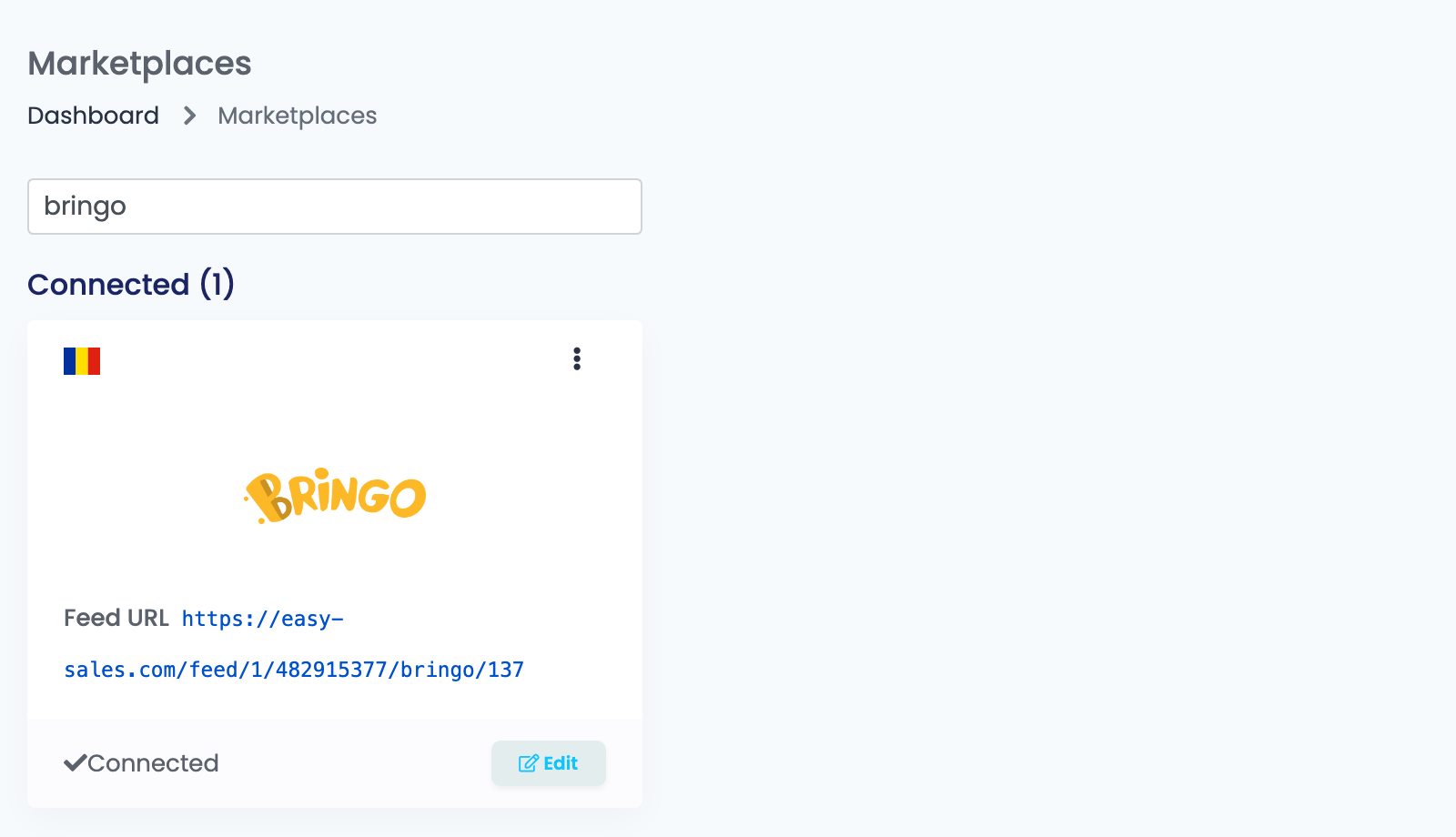
Go to Integrations → Marketplaces, search for bringo and press Connect on the Bringo card — or Edit, if you have connected it before.
Fill in the Main settings tab:
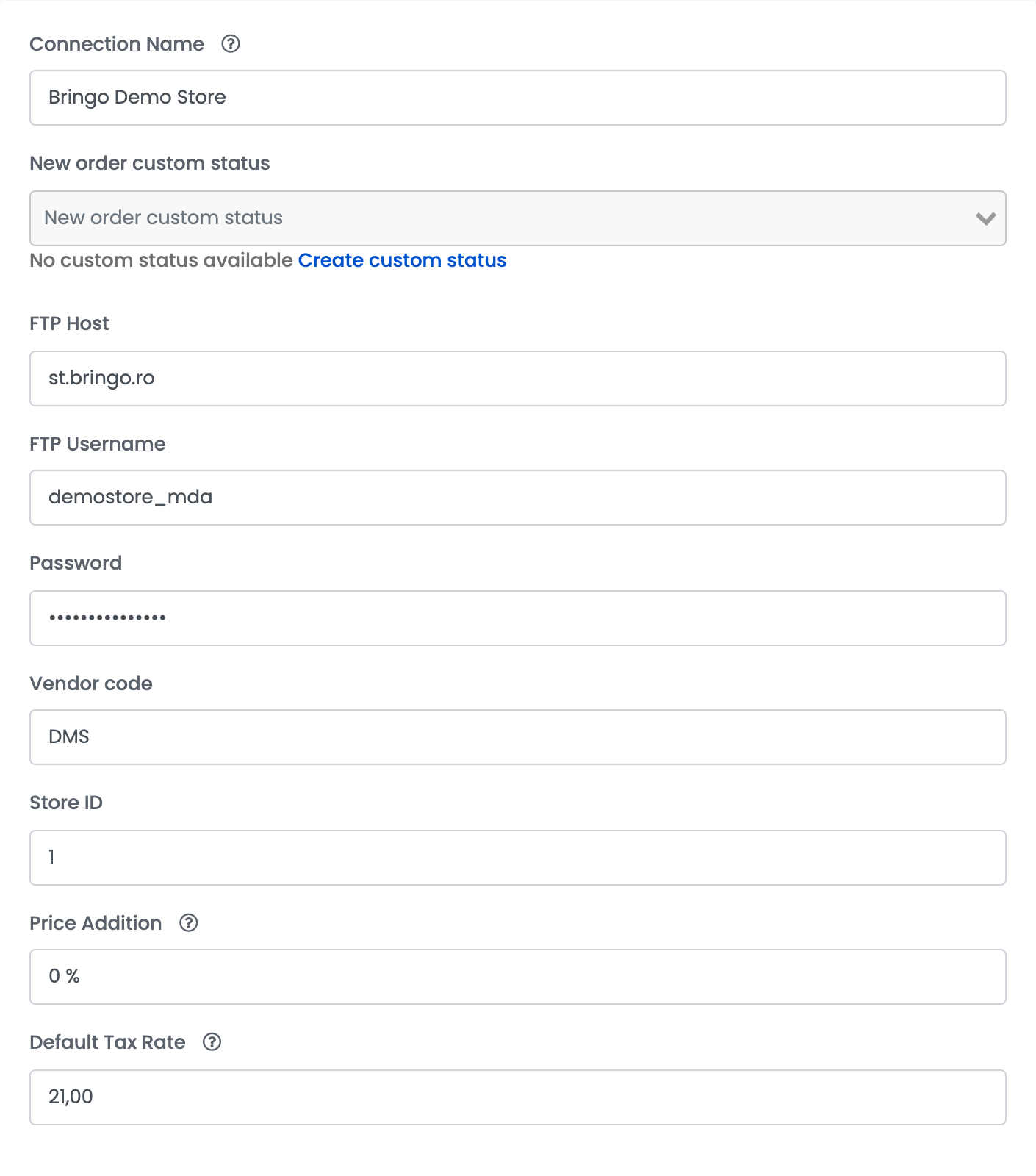
| Field | What goes in it |
|---|---|
| Connection Name |
A name you will recognise, for example Bringo Demo Store.
|
| FTP Host, FTP Username, Password | The FTP details Bringo gives you for your shop. |
| Vendor code | The short code Bringo gives your shop. |
| Store ID | The ID of your shop at Bringo. Fill it in: Bringo needs it to match your prices and stock to your shop. |
| Price Addition | A percentage added to your product prices on Bringo. Leave 0 to sell at your easySales prices. |
| Default Tax Rate |
Your VAT rate, for example 21. Set 0 if you are not a VAT payer: prices then go to Bringo as they are.
|
Step 2 — Additional settings
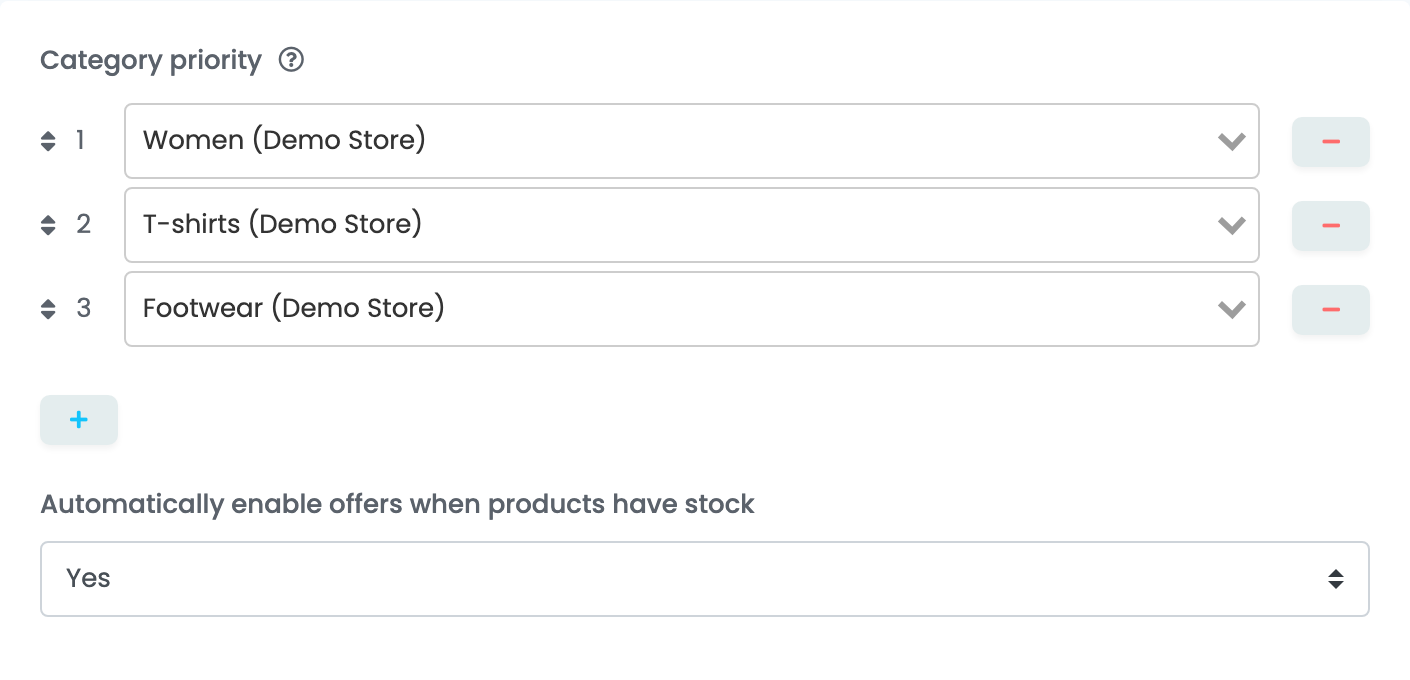
- Category priority sets the order of your categories on Bringo. Press +, choose a category of your shop, and drag the rows into the order you want: the first one appears first on Bringo. Categories you do not list follow after them.
- Automatically enable offers when products have stock turns your Bringo offers back on by itself when their product is in stock again.
Press Save. easySales signs in to Bringo's FTP server with your details: with the right ones you see Marketplace Connected. Wrong FTP details are refused with Invalid credentials.
Step 3 — Send your products to Bringo
- Go to Products, select the products you sell on Bringo and choose Add offer(s) on → Bringo.
- Check that each product has an EAN and is in at least one category of your online shop.
- Follow the offers in Marketplaces → Offers, on the Bringo tab.
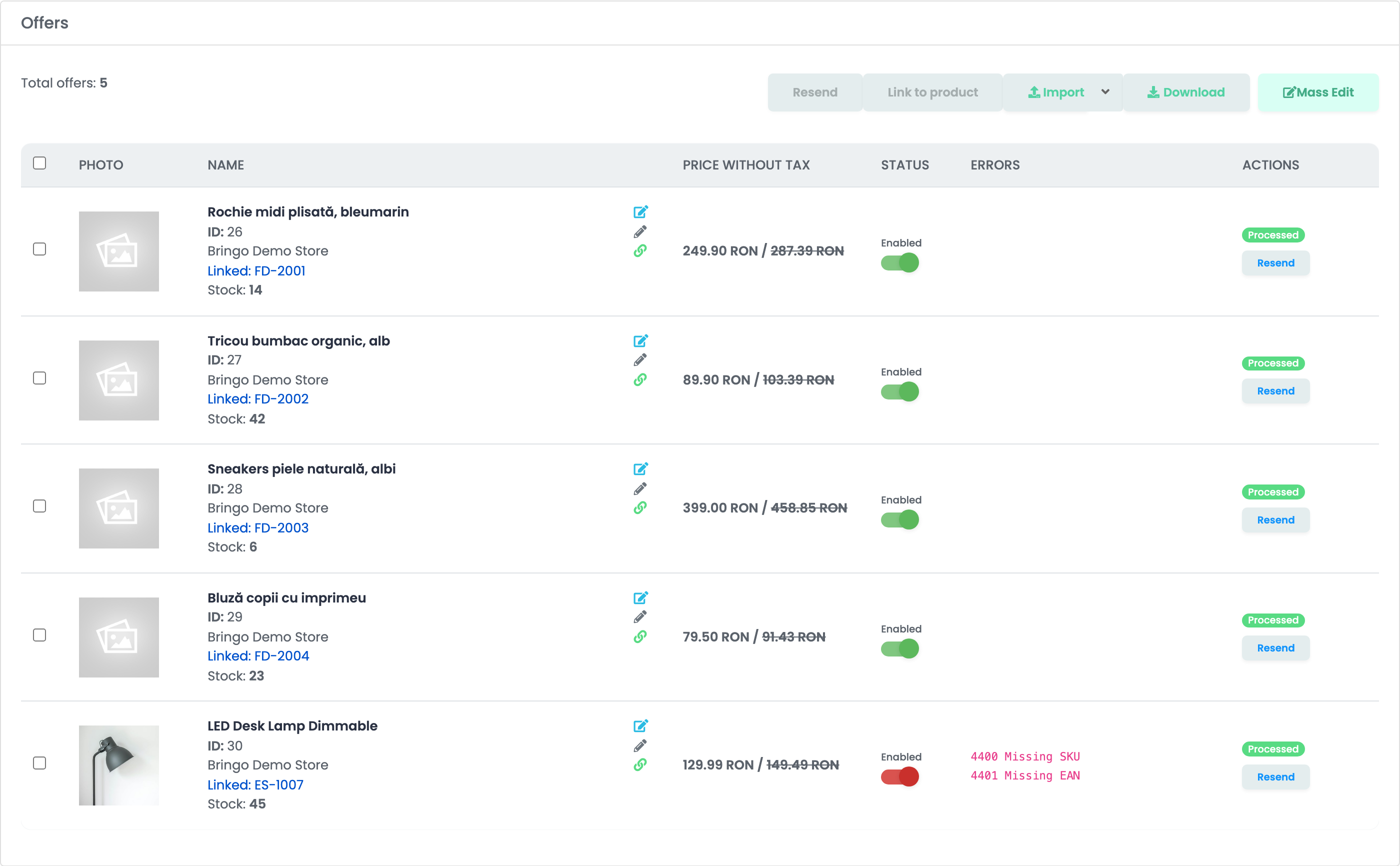
An offer whose product has no EAN is marked with the errors 4400 Missing SKU and 4401 Missing EAN. Add the EAN to the product, then press Resend on the offer's row.
How Bringo is kept up to date
easySales sends Bringo a new file once a day, with every eligible offer:
- Prices: the offer's price and its full price. With a Default Tax Rate above 0, the prices include VAT.
- Stock: whether the product is in stock. Bringo receives no quantities, only in stock or out of stock.
- Products: name, description, brand, EAN, weight, images and categories, from easySales.
A disabled offer is left out of the next file. The Feed URL on the Bringo card opens the latest file easySales has built, so you can check what Bringo receives.
When something does not work
| Problem | What to do |
|---|---|
| Invalid credentials. | Shown when you save. Check the FTP Host, FTP Username and Password with Bringo. |
| A product does not appear on Bringo. | Check that it has an offer on the Bringo tab, that the offer is enabled, and that the product has an EAN and is in a category of your online shop. |
| 4400 Missing SKU, 4401 Missing EAN | The product has no EAN. Add it, then press Resend on the offer's row. |
| Categories appear in the wrong order on Bringo. | Set the order in Additional settings → Category priority and press Save. |
| A Bringo order is not in easySales. | Bringo orders stay in Bringo. Handle the order there and adjust the product's stock in easySales. |