How to connect BooKurier with easySales: a complete setup guide
Connect BooKurier to easySales: the client code that is not your user name, the notes template, printing settings, how AWBs are created from the order and what each BooKurier refusal means.
What connecting BooKurier gives you
BooKurier is a Romanian courier with a same-day and next-day network. With it connected, easySales creates the AWB from the order, brings the label back as a PDF, follows the parcel through BooKurier's own statuses and cancels an AWB you no longer need.
The connection itself is four fields. Three of them are credentials, and they are three different things — that is where most of the setup goes wrong.
Before you start
A BooKurier contract
BooKurier delivers in Romania. Open an account at bookurier.ro; the integration uses the same account you ship on.
Your client code
BooKurier issues a numeric client code for the company. It is what goes in Account ID, and it is what the shipments are billed against.
API credentials
A user name and a password for BooKurier's service. Ask BooKurier for them if you have only ever used the website.
Step 1 — Find the BooKurier card
Go to Integrations → Couriers and search for bookurier.
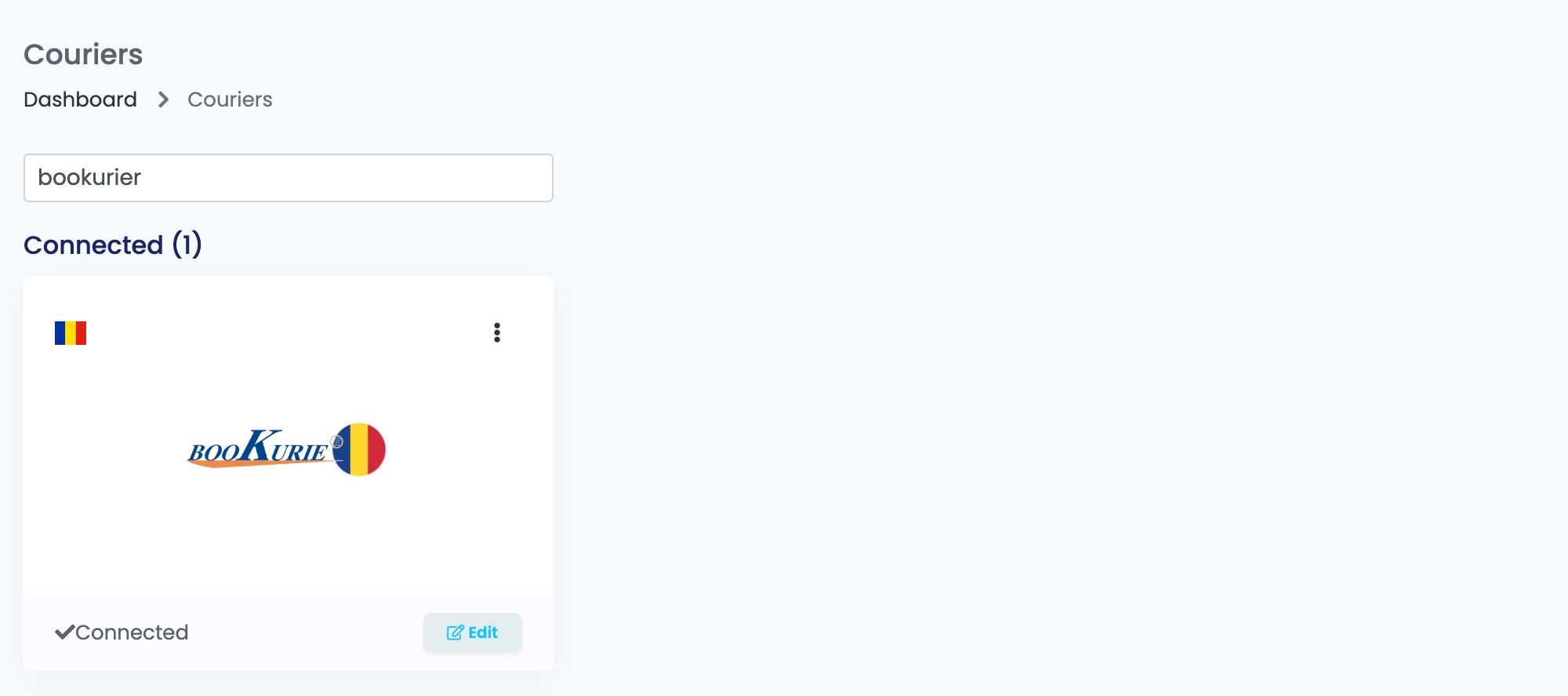
Press Connect on the card, or Edit if you have connected it before.
Step 2 — The four fields
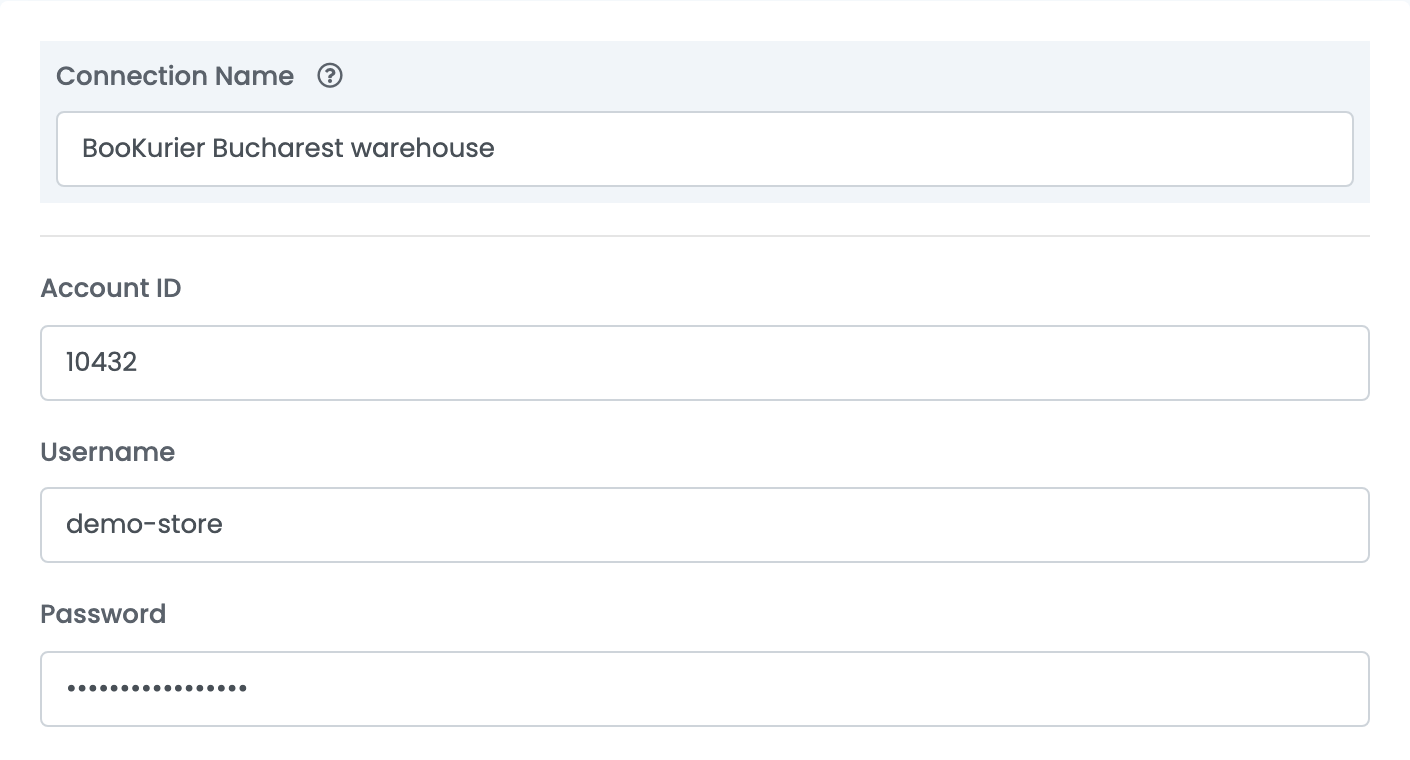
| Field | What it is |
|---|---|
| Connection Name | What you see inside easySales when you choose between connections. Name it after the warehouse or the company it ships for. |
| Account ID | Your BooKurier client code. It is sent with every AWB as the account the shipment belongs to. |
| Username | The user BooKurier issued for the interface. |
| Password | That user's password. It is stored encrypted and is never shown again. |
Press Save. There is no separate verification step: the credentials are used the first time you create an AWB, and that is when a wrong one shows.
Step 3 — The notes template
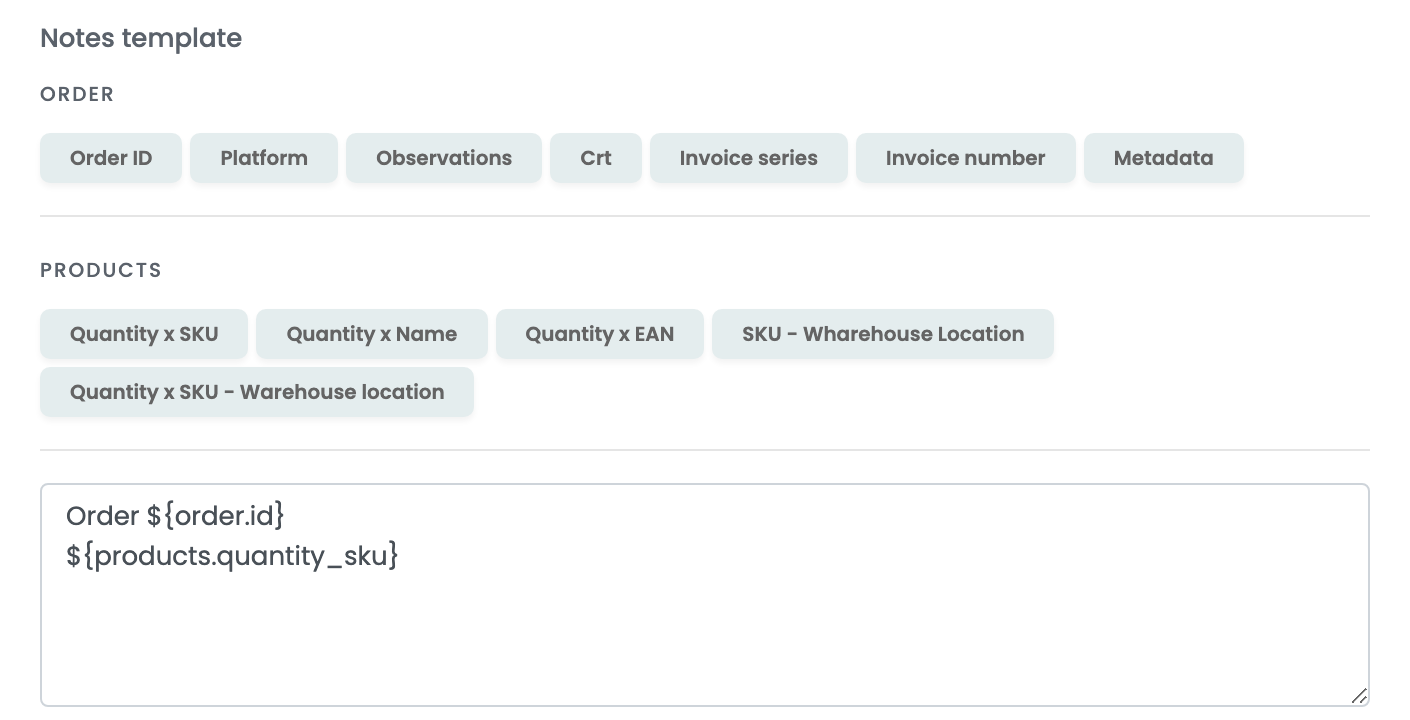
Whatever the template produces travels with the parcel and is printed on the label, so keep it to what a driver or a warehouse needs to read. The buttons above the box insert values from the order and from its products — order number, invoice series, quantity and SKU, warehouse location.
Step 4 — Printing settings and advanced options
Both sections are collapsed, and BooKurier has exactly one advanced option.
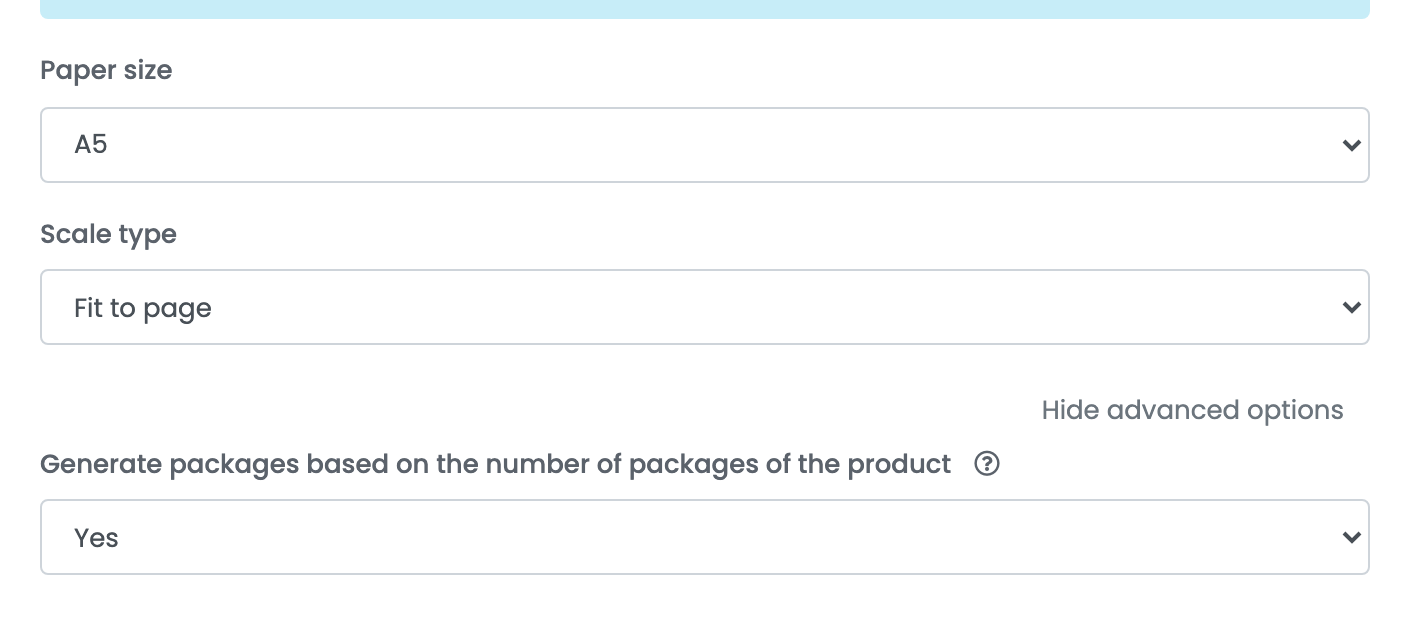
| Setting | What it does |
|---|---|
| Paper size and Scale type | Used only when you print through the easySales Printer connection, and only for BooKurier. They override your printer's own defaults; leave them on Use printer default if you print by hand. |
| Generate packages based on the number of packages of the product | Counts the parcels on the AWB from the package count set on each product, instead of sending one. |
Creating AWBs
From Orders, the quick AWB button creates one AWB for the order using this connection. Everything the courier needs comes off the order itself:
| On the AWB | Taken from |
|---|---|
| Recipient | The shipping address name, or the company name when the order is to a company. |
| Address | The shipping address: country, county, city, postal code and street. |
| Amount to collect | The order total, automatically, when the order is paid on delivery. There is no setting for it. |
| Weight | The products' weights, or 1 kg when they carry none. |
| Parcels | One, unless the order has packing boxes or the package-count option is on. |
| Notes | The notes template, or the order's own observations. |
For anything more than that — several parcels, several envelopes, a different amount to collect — create the AWB from the order edit page instead, where each of those is a field.
A second client code
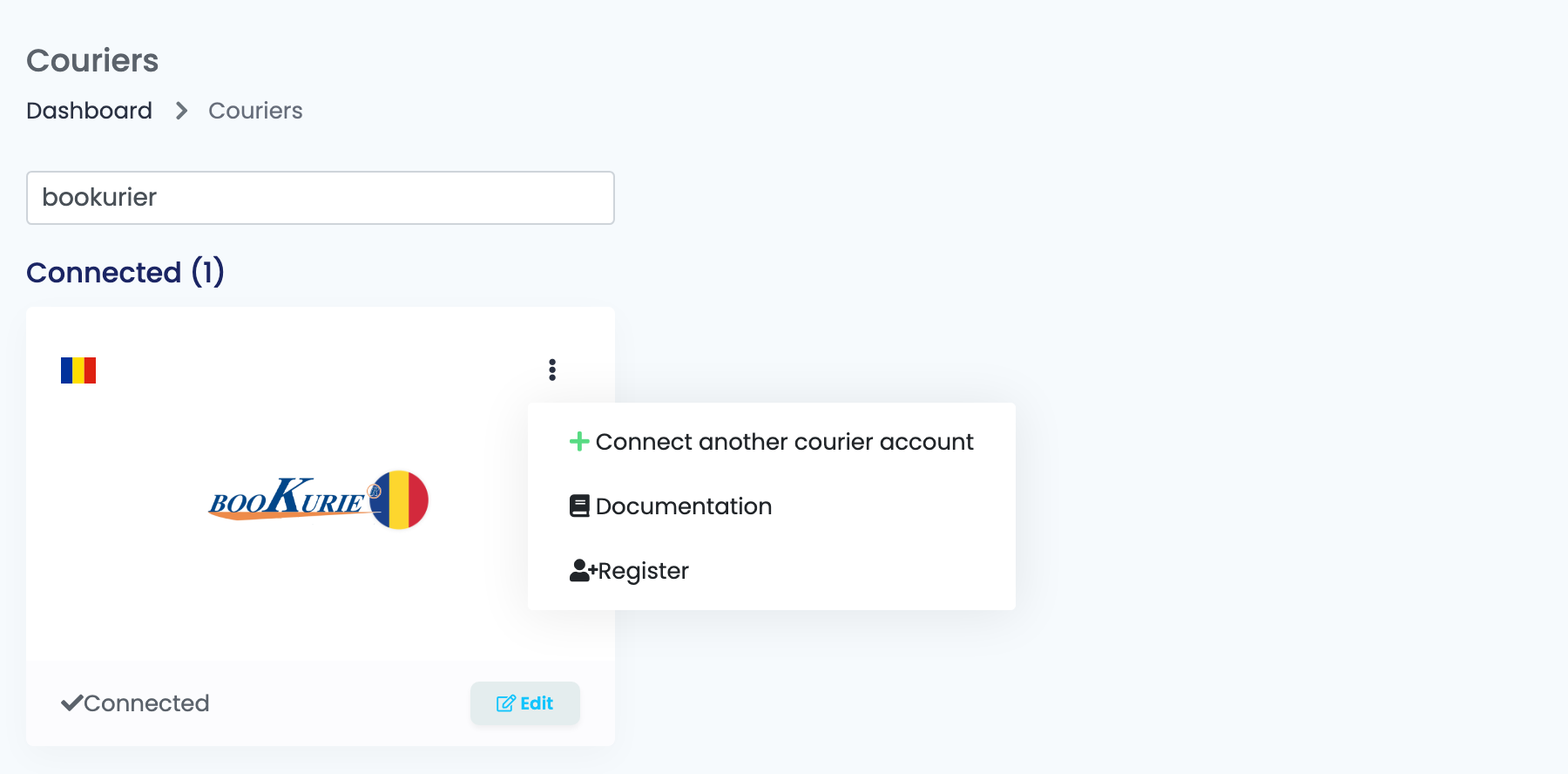
If you ship on more than one BooKurier client code — a second warehouse, a second company — add a second connection rather than editing the first. Open the ⋮ menu on the BooKurier card and choose Connect another courier account, or open an existing connection and press Clone to copy its settings and change only the code.
You then choose between them by Connection Name when you create the AWB.
What BooKurier refuses
| Message | What it means |
|---|---|
Cod postal invalid
|
The postal code on the order's shipping address is not one BooKurier recognises for that locality. It is by far the most common refusal. Correct the code on the order and create the AWB again. |
Unknown error
|
BooKurier rejected the request without saying why. Check that the Account ID, Username and Password on the connection are the ones BooKurier issued, and that the account is still active. |
Judetul sau localitatea sunt incorecte.
|
From the order edit page: the county or the city chosen there is not one BooKurier serves. Pick another from the lists on that page. |
Following the parcel
easySales asks BooKurier for the status of each AWB and records what comes back. Every new description is added to the order's delivery history with its date, so the order carries the whole journey rather than only the latest line, and the delivery status on the order moves with it.