How to mark invoices as paid in bulk in easySales
Mark many invoices as paid at once from a marketplace, courier or Netopia payout file, or your own Excel: formats, how lines are matched, checking the list and what Mark as paid changes.
What Invoice payments does
Invoice payments marks many invoices as paid at once, from the payout file a marketplace, a courier or Netopia sends you, or from your own Excel file. easySales finds the order behind each line of the file, shows you what it found, and — once you confirm — records each payment in your billing software.
Open it from Customers → Documents → Invoice payments.
Three things to know before you start:
- Nothing is paid until you press Mark as paid. Importing the file only matches its lines to your orders. You check the list, change what needs changing, and only the ticked lines are paid.
- The payment goes to your billing software. easySales records it on the invoice in FGO, SmartBill, Oblio or whichever program issued it — not only in easySales.
- A fully paid invoice finishes its order. When a payment covers the whole invoice, the order becomes Completed, and the new status is sent to the marketplace or shop the order came from.
Before you start
Invoices issued through your billing software
Such as FGO, SmartBill, Oblio, Facturis Online, Billingo, Számlázz.hu, Fakturownia, iFirma, wFirma, InFakt, Nexus ERP, NeoManager, NeoSys or QuickBooks.
The payout file
As the marketplace, the courier or Netopia sends it, unchanged — or your own Excel file.
Step 1 — Choose the format and import the file
Pick the format of your file in Choose format, choose the file and press Import.

Choose the format that matches where the file comes from — each one reads the file its own way:
| Format | Each line is matched by |
|---|---|
| Emag/FashionDays, Pepita HU, Skroutz, Trendyol | The marketplace's order number, among your orders from that marketplace. |
| SameDay, DPD, DPD HU, Packeta, Urgent Cargus, PTT, FedEx | The AWB number on the order. |
| Netopia | The order number written after "ID:" in the payment description. |
| Excel | The easySales order number in column A. |
Model appears next to the description once a format is chosen: it downloads an example of that file, with the columns easySales reads.
Step 2 — Check the orders that were found
After a few moments, easySales lists every line of the file it matched to an order, with the order, its invoice, the customer, the payment date and the amount.
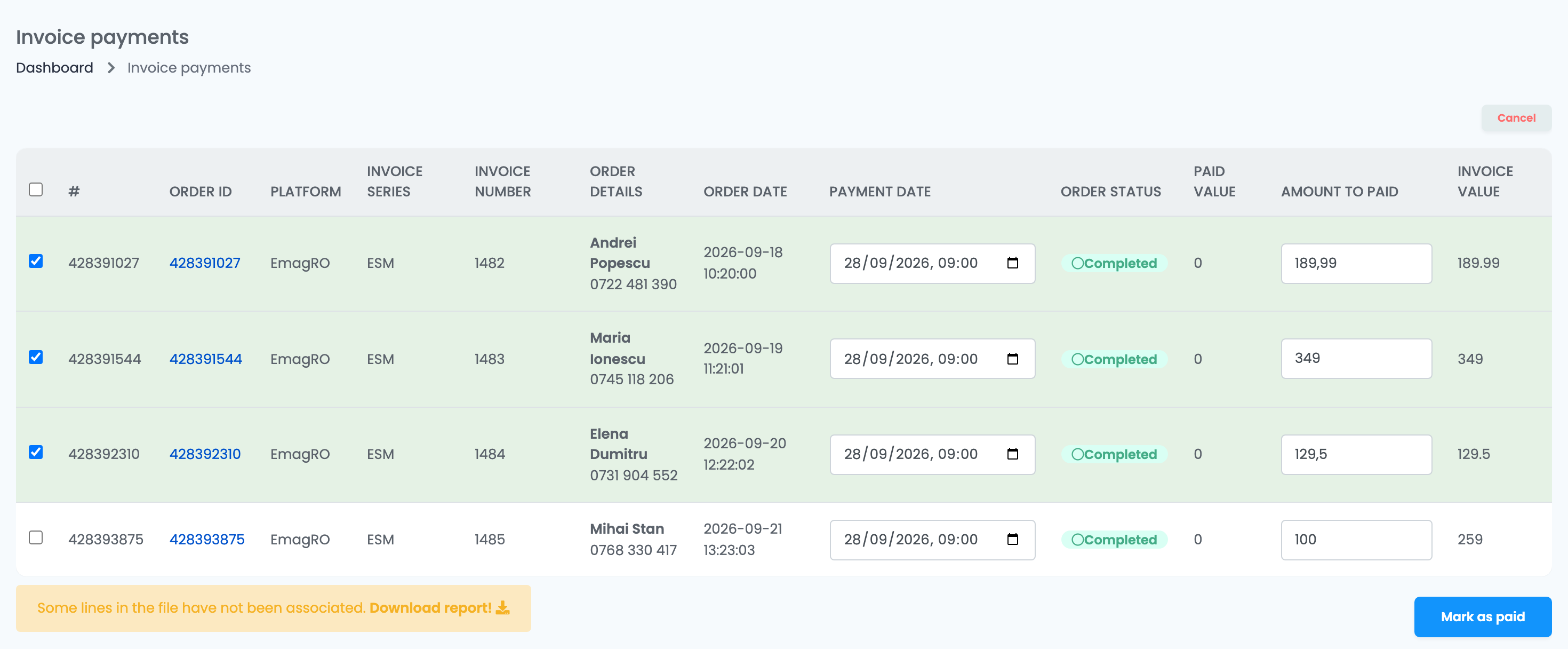
- Green, ticked: the amount pays exactly what is left on the invoice.
- Not ticked: the amount is lower than what is left — a partial payment. Tick it yourself if you want to record it.
- Red: the amount is higher than the invoice. Lower it to the unpaid amount before you pay.
- Amount to paid and Payment date can be changed on each line before you pay. Formats that carry no payout date — SameDay, DPD, DPD HU, Packeta and Pepita HU — start with the time of the import.
Lines that could not be matched are not in the list. Some lines in the file have not been associated. appears under it: press Download report! for the lines and the reason for each.
| Reason in the report | What it means |
|---|---|
| Order not found! | No order of yours has that order number or AWB. Check that you chose the right format. |
| Order has no invoice. | The order has not been invoiced yet. Issue the invoice, then import the file again. |
| Invoice fully paid. | The invoice is already paid in easySales. |
| This order is a return. | The line has a negative amount. |
| Payout date is empty. | The file has no payment date on that line. |
Step 3 — Mark as paid
Press Mark as paid. easySales records a payment for each ticked line in the billing software that issued its invoice:
- A payment that covers the whole invoice marks it Paid, and its order becomes Completed.
- A lower amount marks the invoice Partially paid; the order keeps its status.
With a long file, some payments may be applied a little later — the message on screen says so, and you do not need to press the button again. If some lines could not be paid, Some orders could not be paid. appears with its own report.
Paying a single invoice
For one invoice, you do not need a file. Open the order, go to its invoices, and choose Mark as paid on the invoice. In Pay invoice, enter the amount and the date, and press Continue.
When a line cannot be paid
| Message | What to do |
|---|---|
| Order already paid | The invoice was paid in the meantime. Nothing to do. |
| Invalid to pay value | The amount is more than what is left on the invoice. Lower it to the unpaid amount. |
| Factura este incasata sau stornata in totalitate. | SmartBill: the invoice is already collected or cancelled in SmartBill. Check it there. |
| Unsupported method or Not implemented | The billing software that issued this invoice does not take payments from easySales. Record the payment in that program. |