How to issue invoices with easySales billing: setup and numbering
Issue invoices with easySales itself: your company details, the invoice layout, series and starting numbers, monthly numbering, issuing from orders or flows, storno and other document types.
What easySales billing does
easySales can issue invoices itself, without an external invoicing program. You fill in your company's details once on the easySales billing connection, choose a series and its starting number, and easySales creates the invoice PDF for an order — numbered, with the order's products, prices and VAT — and keeps it on the order. On marketplaces that accept invoices, such as eMAG, Allegro or Kaufland, the invoice is also sent to the marketplace.
Three things to know before you begin:
- The series an order gets depends on its sales channel. Every marketplace and shop connection has an Invoice Series field. When an invoice is issued, easySales looks for that exact series on the easySales billing connection. If it finds no match, it issues the invoice from the connection's first series. Type each channel's series exactly as on the billing connection — same letters, same capitals.
- Your details on the invoice come only from this connection. Company name, VAT ID, address, bank account and logo are printed as you fill them in here, not from your account settings.
- Nothing is issued until you ask for it. Invoices are created from the order, in bulk from the orders list, or automatically by an automation flow you set up.
Before you start
Your company's details
As registered: name, VAT ID, registration number, address and bank account.
Your series and their next numbers
If you are moving from another program, the number each series has reached.
The same series on your sales channels
In the Invoice Series field of each marketplace and shop connection.
Step 1 — Open the easySales card
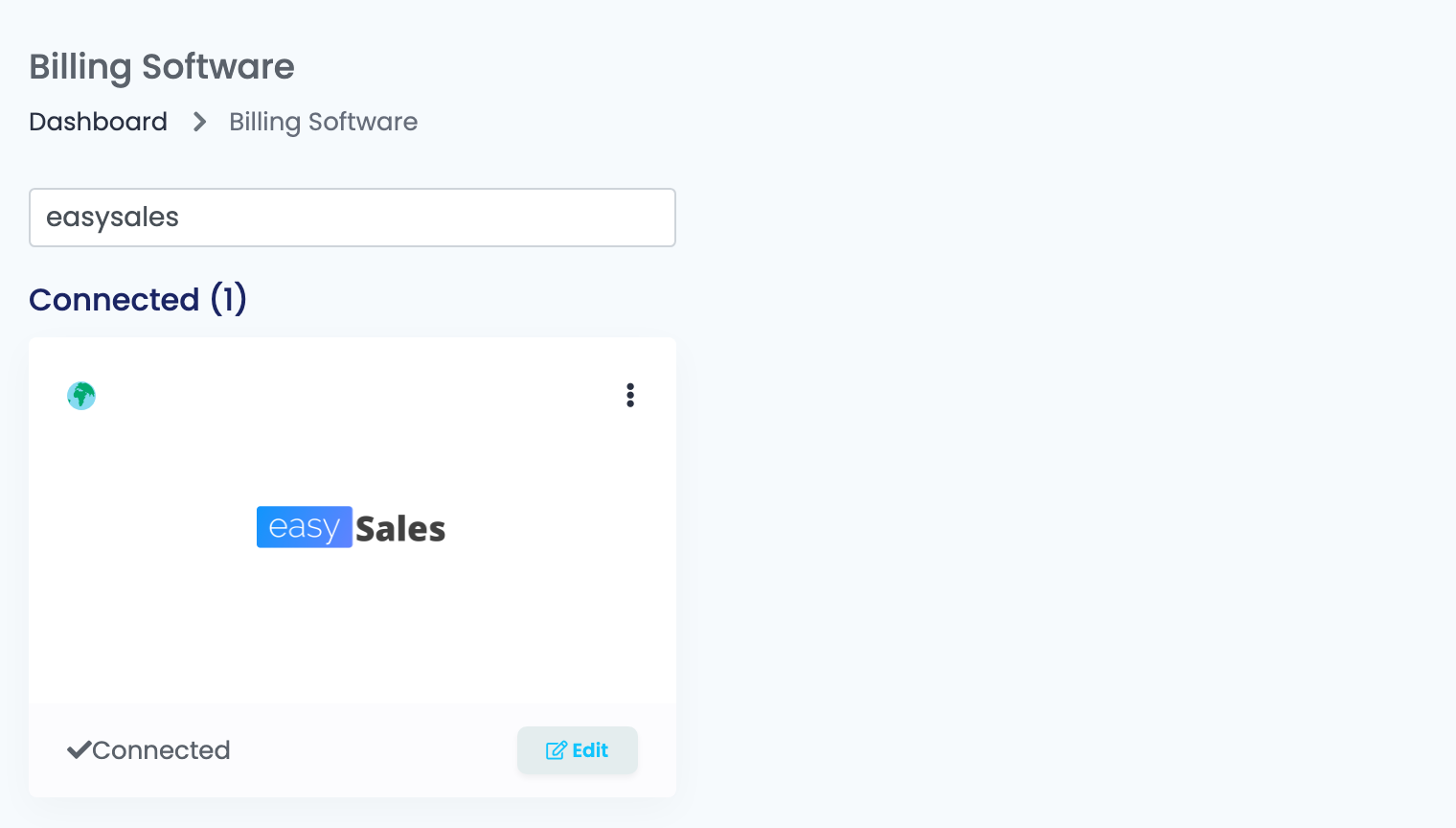
Go to Integrations → Billing Software, search for easysales and press Connect on the easySales card — or Edit, if you have connected it before.
Step 2 — Your company details
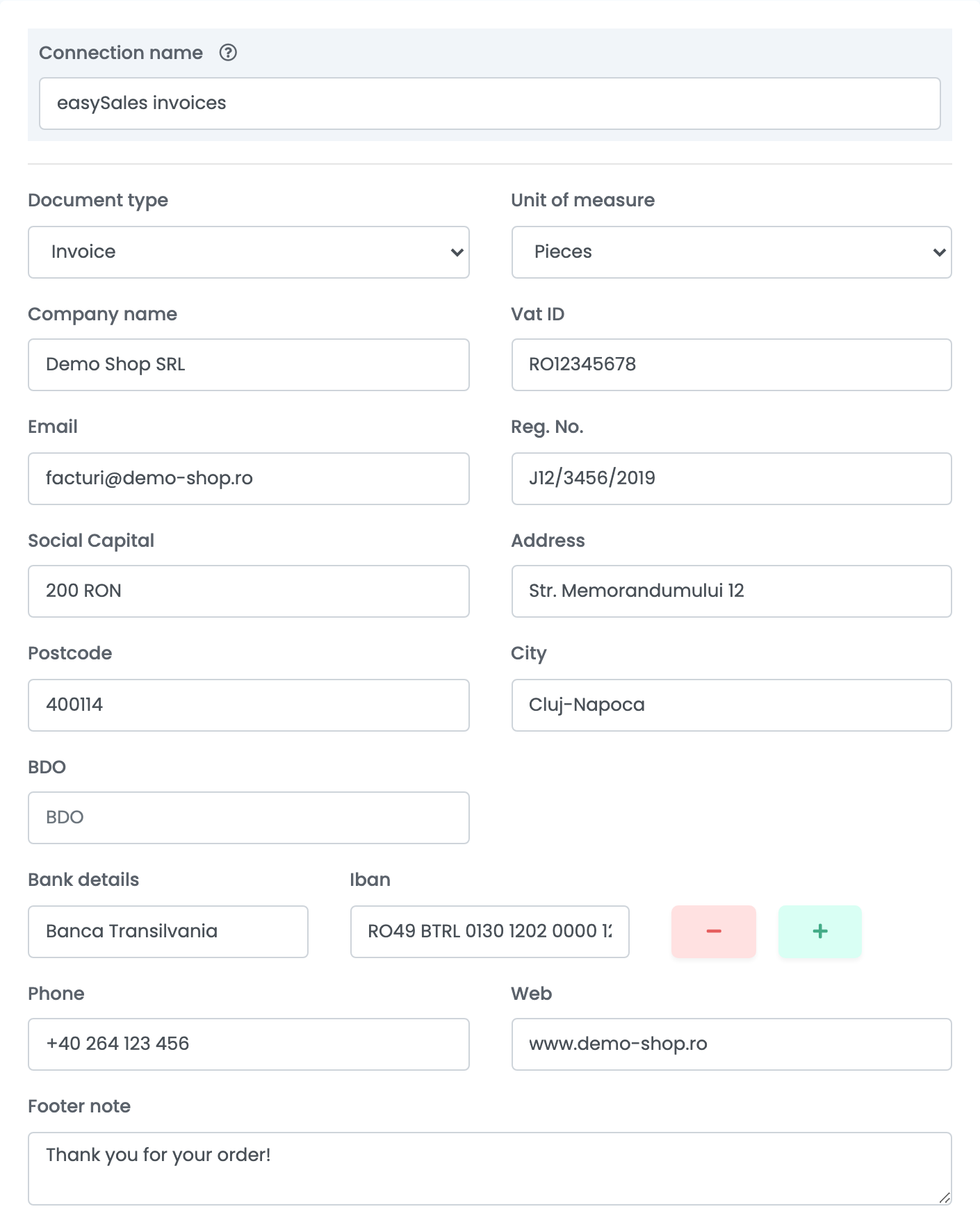
The top of the form is what your invoices print as the seller.
| Field | What goes in it |
|---|---|
| Connection name |
A name you will recognise when you choose the connection, for example easySales invoices.
|
| Document type | Invoice for invoices. Receipts, proformas and storno invoices each take a connection of their own. |
| Unit of measure | The unit printed on every line: pieces, grams, kilograms or square metres. |
| Company name, Vat ID, Reg. No., Social Capital | Your company as it is registered. |
| Email, Phone, Web | Your contact details, printed on the invoice. |
| Address, Postcode, City | Your registered address. |
| BDO | For Poland: your BDO number. Leave it empty elsewhere. |
| Bank details | Bank name and IBAN. Use + for another account. |
Step 3 — How the invoice looks
| Field | What it does |
|---|---|
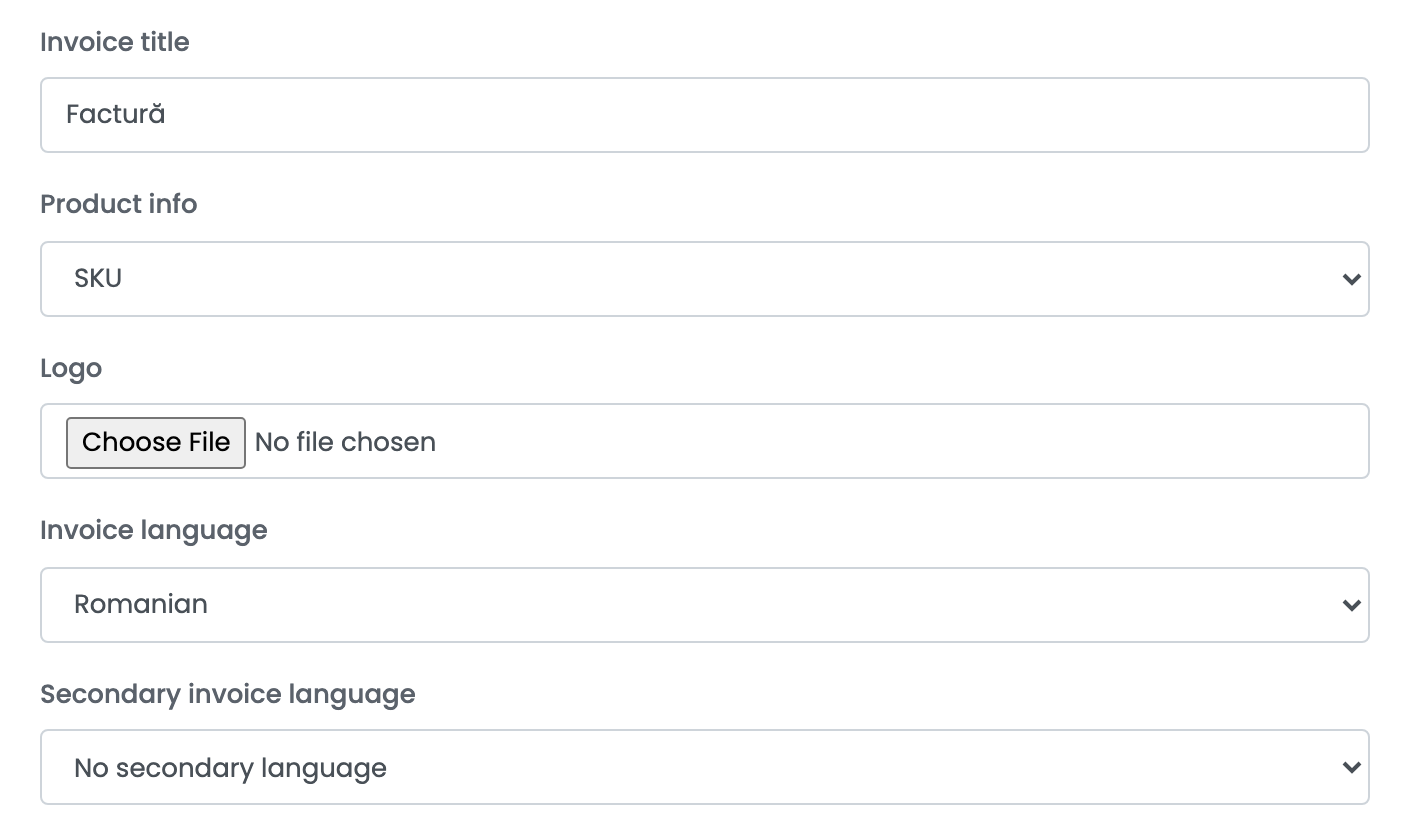
| Footer note | A line printed at the bottom of every invoice. |
| Invoice title |
The document's title, for example Invoice or Faktura VAT.
|
| Product info | The code printed under each product name: SKU, EAN or the product's location. |
| Logo | A JPG or PNG image, at most 1 MB. |
| Invoice language | The language of the invoice's labels. |
| Secondary invoice language | A second language printed next to the first, with its own Invoice title in secondary language. Choose No secondary language for one language only. |
Step 4 — Series and numbering
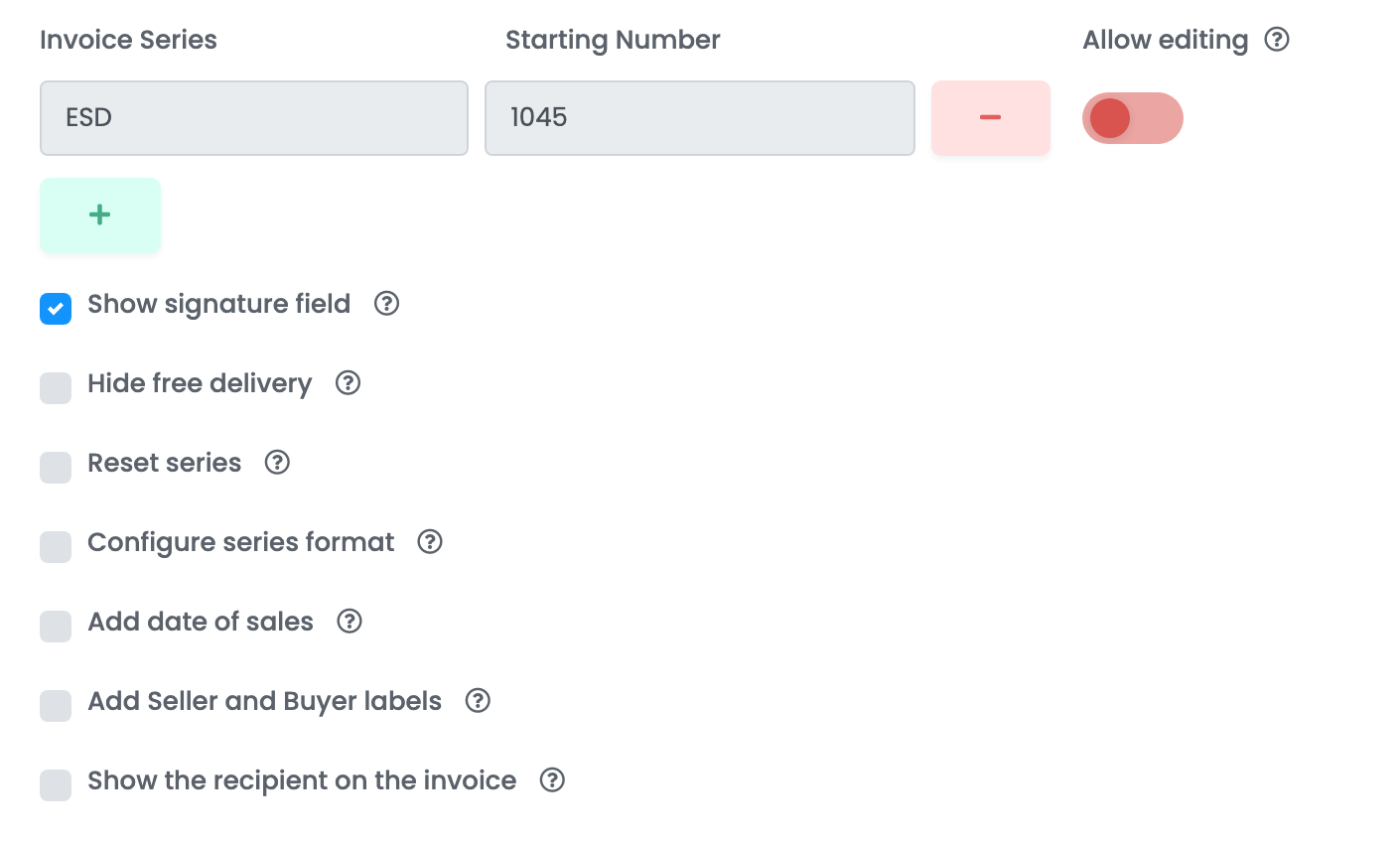
Add a row for every series you issue from: Invoice Series is the series' name and Starting Number is the number the next invoice in it will get. Leading zeros are kept — after 0047 comes 0048. Use + for another series, for example one per marketplace.
Once the connection is saved, the series and its number are locked, so a typing mistake cannot change your numbering. To change them, switch on Allow editing on that row. If invoices were already issued from that series recently, easySales warns you before saving, because a lower number would produce duplicates.
Then set the same series name in the Invoice Series field of every marketplace and shop connection whose orders you invoice from here.
Press Save.
Step 5 — The options under the series
| Option | What it does |
|---|---|
| Show signature field | Prints a space for signatures. |
| Hide free delivery | Leaves free shipping off the invoice. |
| Reset series | Restarts every series at 1 on the first day of each month. |
| Configure series format | Builds the invoice number from Series Template. |
| Add date of sales | Prints the date of sale when it differs from the issue date. |
| Add Seller and Buyer labels | Prints the Seller and Buyer labels above your details and the customer's. |
| Show the recipient on the invoice | When the order is delivered to someone other than the buyer, prints them as the recipient under the buyer. |
| Notes template | The text written in the invoice's notes, built from order details such as the order ID, the AWB number or the payment method. |
Show advanced options opens a few more choices: gift products shown as a separate discount, a warranty issued with each invoice, a second currency for the totals, leaving discounts off the invoice, and — for Poland — the KSeF validation QR code on the PDF and VAT-exempt (ZW) sales with their legal basis.
Issuing invoices
- From the order: in its Invoices section, press Create Invoice and choose your easySales billing connection.
- In bulk: select orders in the orders list, open Actions, choose Generate invoice and then your easySales billing connection.
- Automatically: in Flows, add the action Create invoice with your easySales billing connection to a flow — for example one that starts when an order reaches a given status.
When Decrease stock on new invoice is on, in the Orders settings on the Stocks tab, every new invoice takes the ordered products out of stock.
What goes on the invoice
- Seller: your details from this connection, and your logo, if you added one.
- Buyer: the customer and the billing address from the order — for a company, its name and VAT ID.
- Lines: every product with its quantity, the unit of measure, its price and its own VAT rate from the order; shipping, discounts and fees as lines of their own.
- Currency: the order's currency.
- Language: the labels in the invoice language, with the secondary language next to them when you chose one. Product names are printed as they are on the order.
Storno, delete and another document type
- Storno: Create Storno Invoice on the order issues a negative invoice. You choose whether it reverses the sale — negative amounts, the products back in stock, the order set to returned — or only restates corrected details.
- Delete invoice removes the invoice and its PDF from easySales. Its number is not given to the next invoice.
- Receipts, proformas and storno invoices with their own series: add another easySales billing connection with Document type set to Receipt, Proforma or Storno. A storno connection asks which invoice series it is Linked to invoice series.
- Download invoice archive, in the card's ⋮ menu, emails you a ZIP of a month's invoices.