How packaging boxes work in easySales: box templates, weight, dimensions and couriers
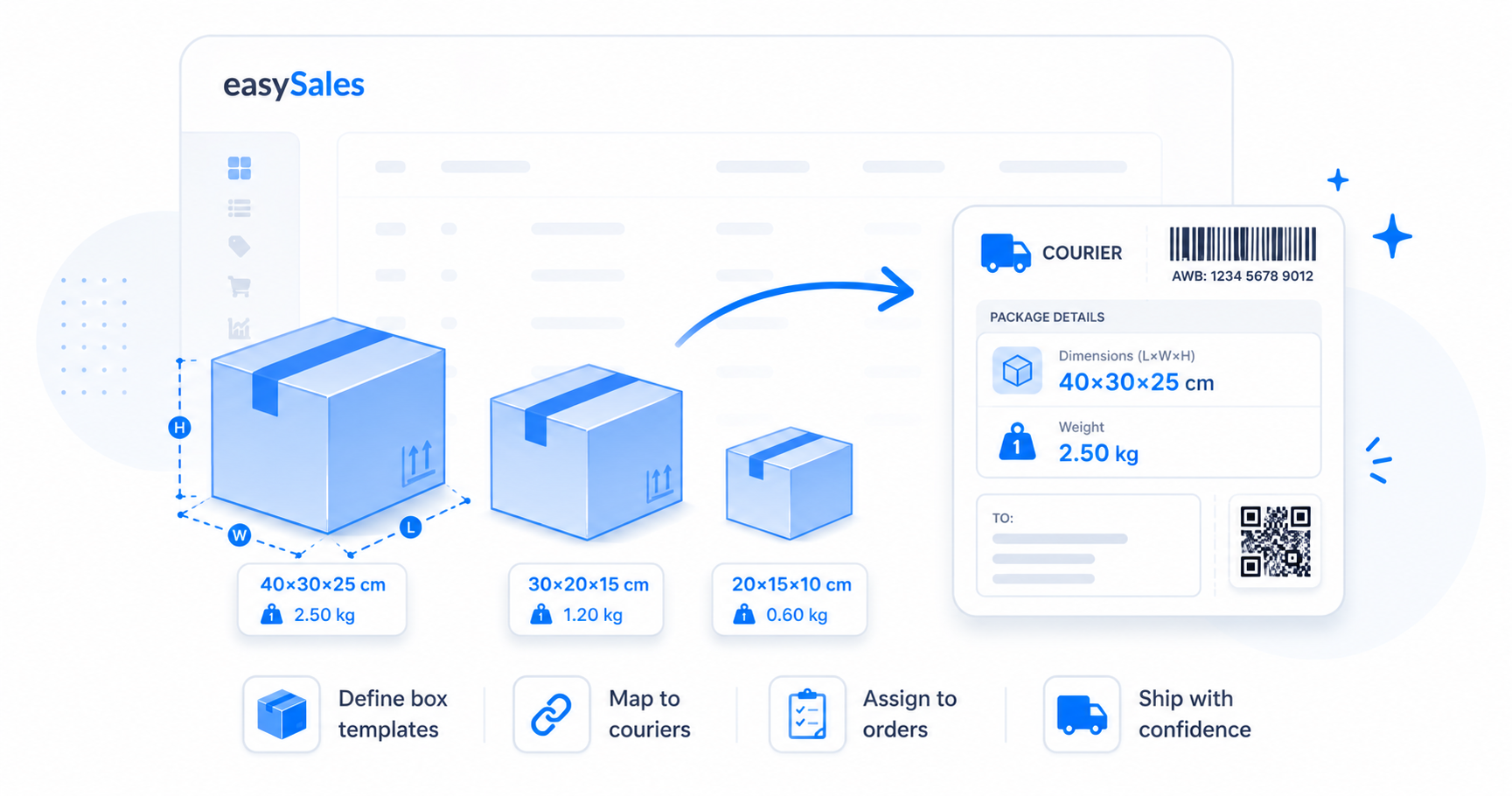
Set up reusable box templates in easySales — dimensions, weight and per-courier mapping — so every AWB carries the right parcel size and weight, and you generate labels in one click.
Couriers price and route a parcel by its size and weight — so every AWB you generate needs those numbers. Typing them in by hand on every order is slow and error-prone. Packaging boxes fix that: you define your real boxes once, then attach a box to an order and easySales fills the parcel's dimensions and weight automatically when it generates the label.
This guide covers what a packaging box is, how to create one, how its weight is calculated, how it maps to your couriers, and how it flows into the AWB.
What packaging boxes are
A packaging box (also called a size template) is a reusable definition of a real box you ship in — its dimensions, its weight rule, and which couriers it applies to. Create as many as you have box sizes; from then on, attaching one to an order is a single click, and the AWB picks up the right numbers.
Name
A label you recognise — "Small box", "Large box", "Pallet" — so the right one is easy to pick on an order.
Dimensions
Length, width and height in centimetres. These are what the courier uses for routing and volumetric pricing.
Weight rule
Either a fixed static weight, or the summed product weight plus the empty box weight — with an optional maximum.
Colour
An optional colour tag so a box stands out at a glance in lists and selectors.
Courier mappings
Which couriers the box applies to, mapped to each courier's own package-size type. One box can serve every courier you use.
Create a packaging box
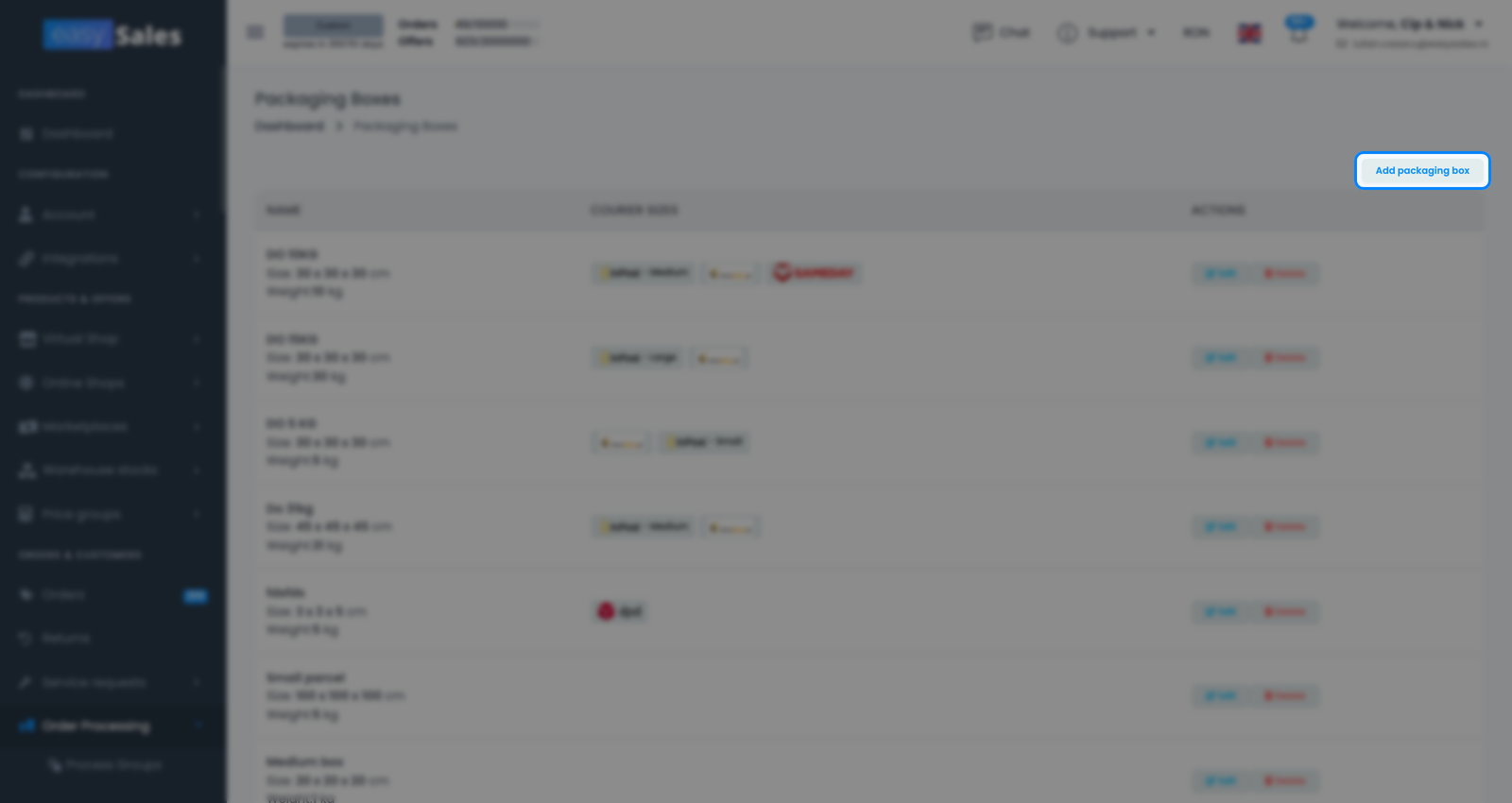
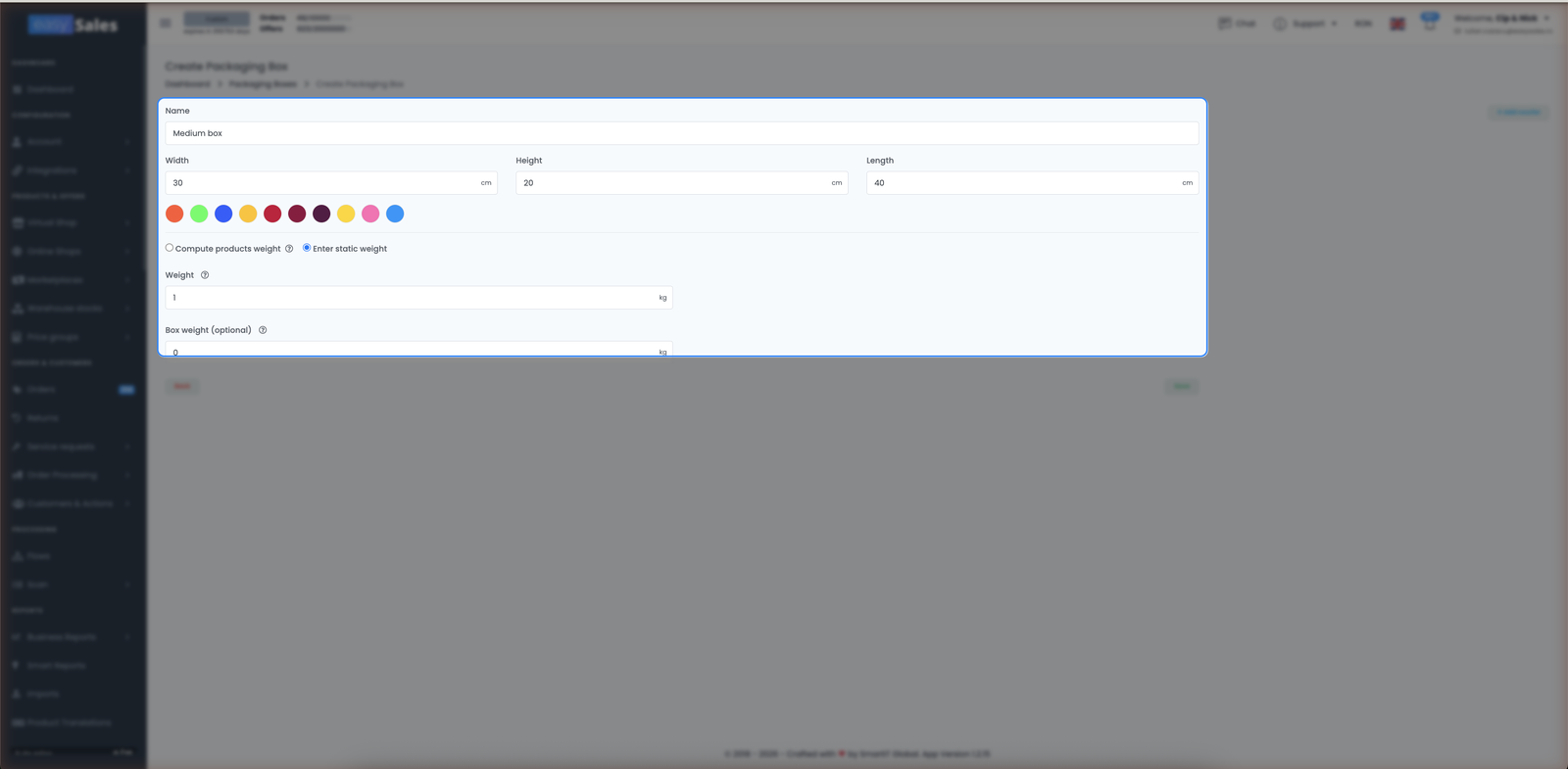
Open Order Processing → Packaging boxes and click Add packaging box. Give it a clear name (e.g. "Small box" or "Pallet"), enter its dimensions — width, height and length in centimetres — and optionally pick a colour so it's easy to spot in lists.
Static weight vs product weight
The weight a box reports to the courier can work two ways — choose the one that matches how you pack:
| Static weight | Products weight |
|---|---|
| Box always reports a fixed weight | Sums the order's product weights + empty box weight |
| Best for predictable, uniform contents | Best when the same box carries varied items |
| One number, set on the box | Adapts per order; optional maximum products weight |
- Static weight — the box always reports a fixed weight. Best when a box ships with predictable contents, or when you just want a flat figure.
- Products weight — easySales adds up the weight of the products in the order and adds the empty box's weight on top. Best when the same box carries different items. You can also set a maximum products weight so the box never exceeds what it can safely hold.
Map couriers to a box
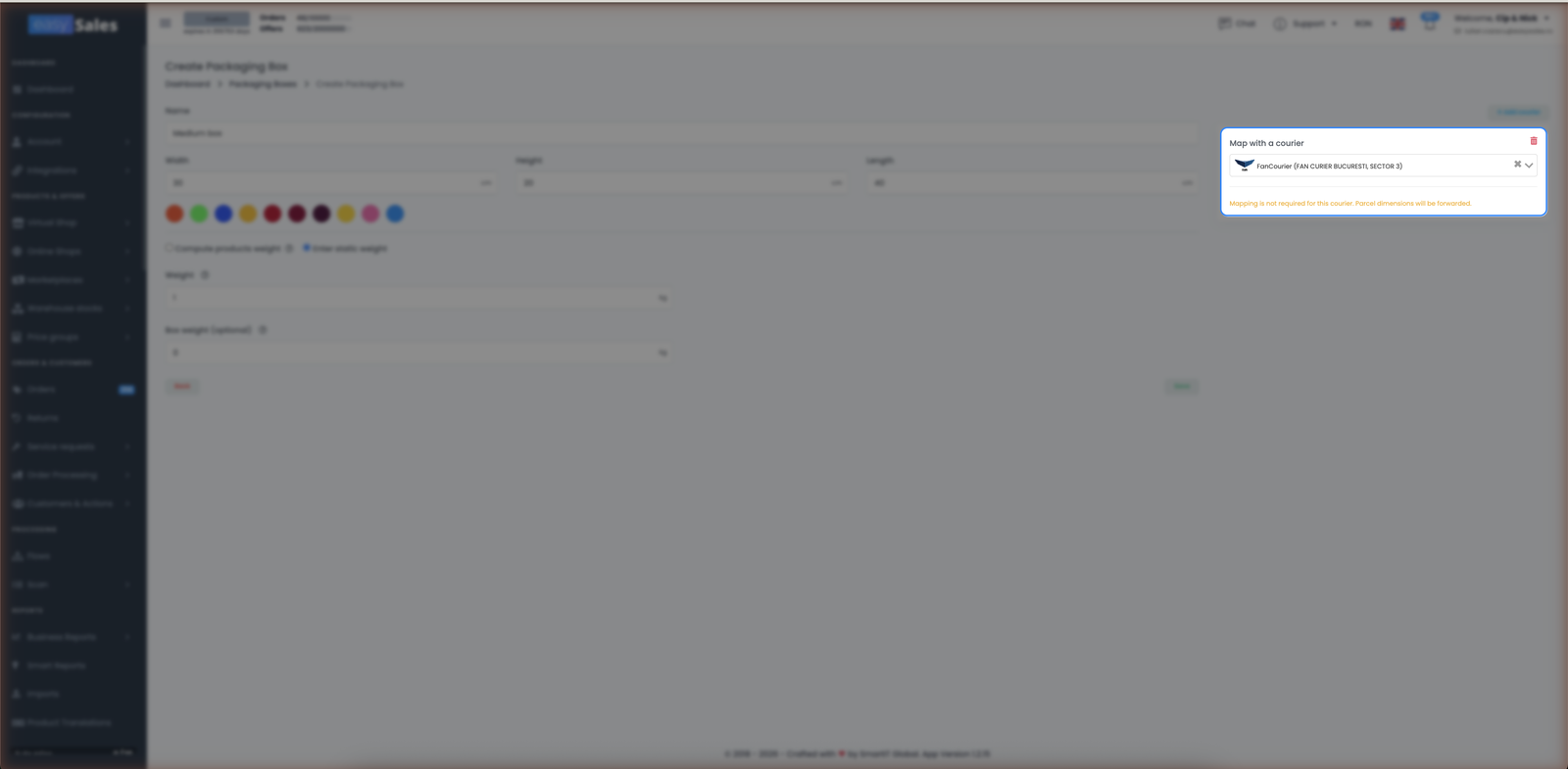
On the box, click Add courier and pick the couriers it applies to. Some couriers ship in fixed package sizes — for those, map the box to the matching package type so the courier accepts it. Others don't need a mapping at all; they simply receive the dimensions you entered. Add as many couriers as you use — one box can serve all of them.
Assign a box to an order
With your boxes defined, attach one to an order from the order screen (and from the packing screen during dispatch). Pick the box that fits, and easySales is ready to put its dimensions and weight on the AWB.
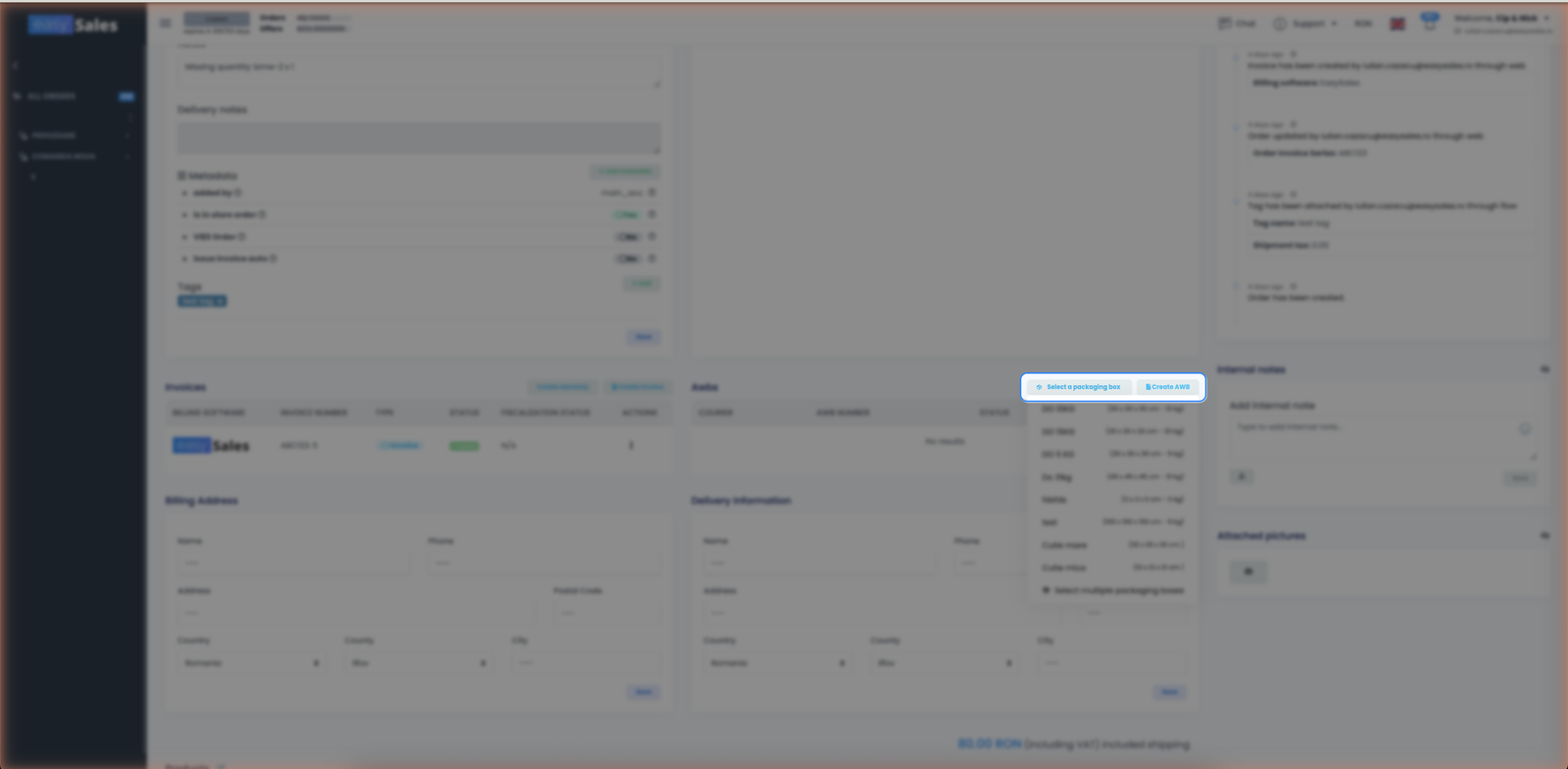
A single order can use more than one box — add the same template twice, or different ones, and each becomes its own parcel on a multi-package shipment. And if a box has a maximum products weight set, easySales handles the split for you (see above).
How boxes reach the courier
When you generate the AWB, easySales sends the box's dimensions and calculated weight to the courier as the parcel's package data — so the label, the price and any volumetric calculation are based on the real box, not a guess. For multi-box orders, each box is sent as a separate package on the shipment.
Assign boxes automatically with Flows
You don't have to attach a box by hand on every order. With Automation Flows, an action can assign a packaging box to matching orders automatically — for example, attach your standard box to every order from a given channel — and a flow can react when a box is assigned. Set it once and the right box is on the order before you ever open it.