How to connect wFirma with easySales: a complete setup guide
Issue invoices in wFirma from easySales and read stock from a wFirma warehouse: API keys, invoice type and series, products matched by SKU, advanced options and the messages wFirma returns.
What connecting wFirma gives you
With wFirma connected as billing software, easySales issues the invoice for an order directly in your wFirma account — buyer, products, shipping and discounts included — and links it to the order. From the order you can open the invoice PDF and record its payment. wFirma can also be your stock source: easySales then reads the stock of a wFirma warehouse into your products.
Two things to know before you begin:
- By default, every product must exist in wFirma, with its code equal to the SKU. easySales books each invoice line to the matching product in wFirma, so wFirma takes it out of stock. A product wFirma does not have stops the whole invoice. If you do not keep your products and stock in wFirma, turn on Issue invoice without decreasing stock — see step 4.
- wFirma numbers the invoice. easySales sends no number: wFirma gives each invoice the next number of the series you choose in the connection.
Before you start
A wFirma account
With the invoice series you want to use.
An access key and a secret key
Created in wFirma — see step 1.
Your products in wFirma
With the code equal to the SKU in easySales — unless you issue invoices without decreasing stock.
Step 1 — Create your API keys in wFirma
- Log in to wFirma and open Ustawienia » Bezpieczeństwo » Aplikacje » Klucze API.
- Add a new API key for easySales.
- Copy the access key and the secret key. wFirma shows the secret key only once — keep it until you have saved the connection.
Step 2 — Connect wFirma in easySales
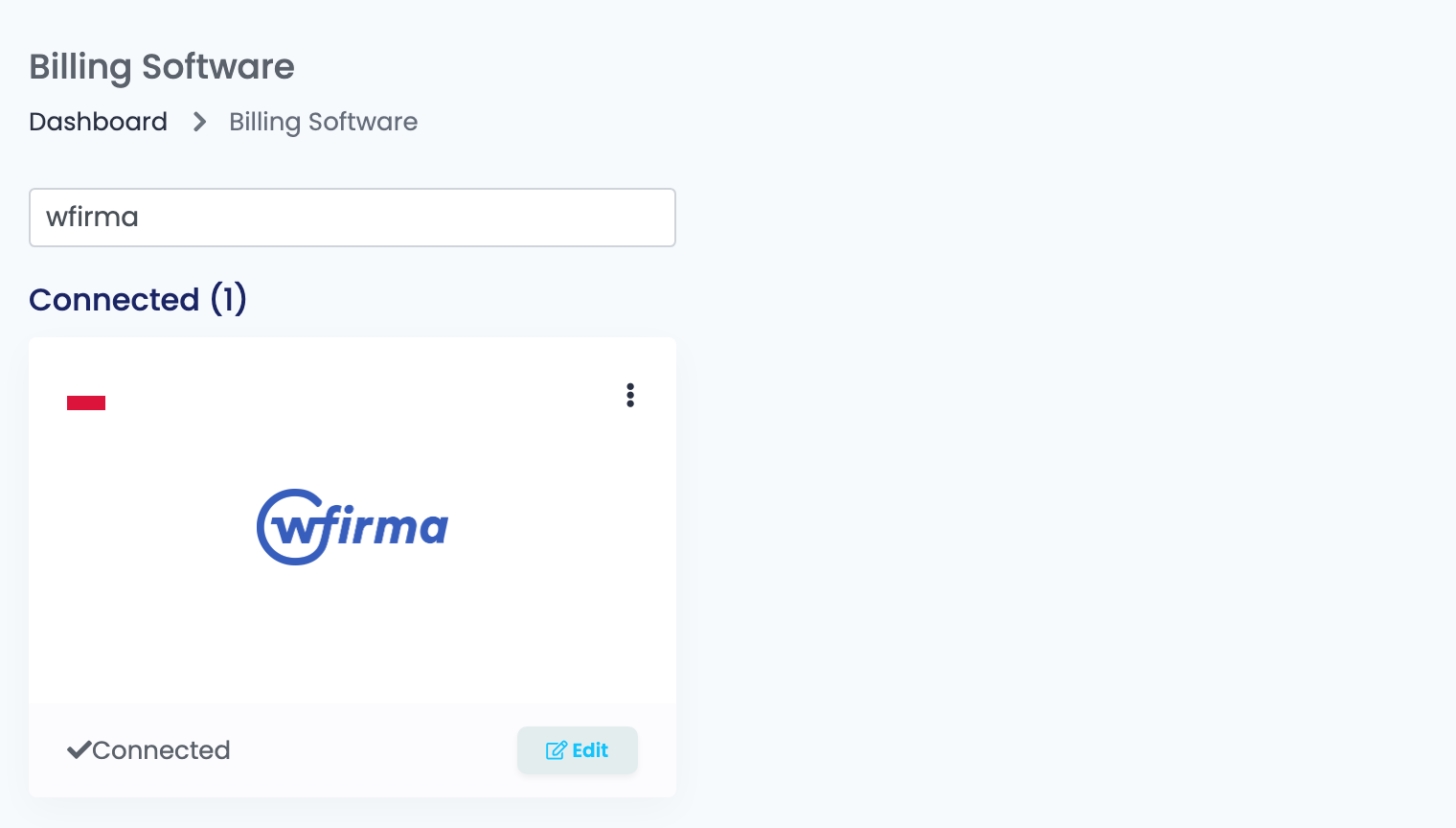
Go to Integrations → Billing Software, search for wfirma and press Connect on the WFirma card — or Edit, if you have connected it before.
Fill in the form, choose the Invoice Type, and press Get Details. The Invoice Series field then appears with your wFirma series of that type: choose one and press Save.
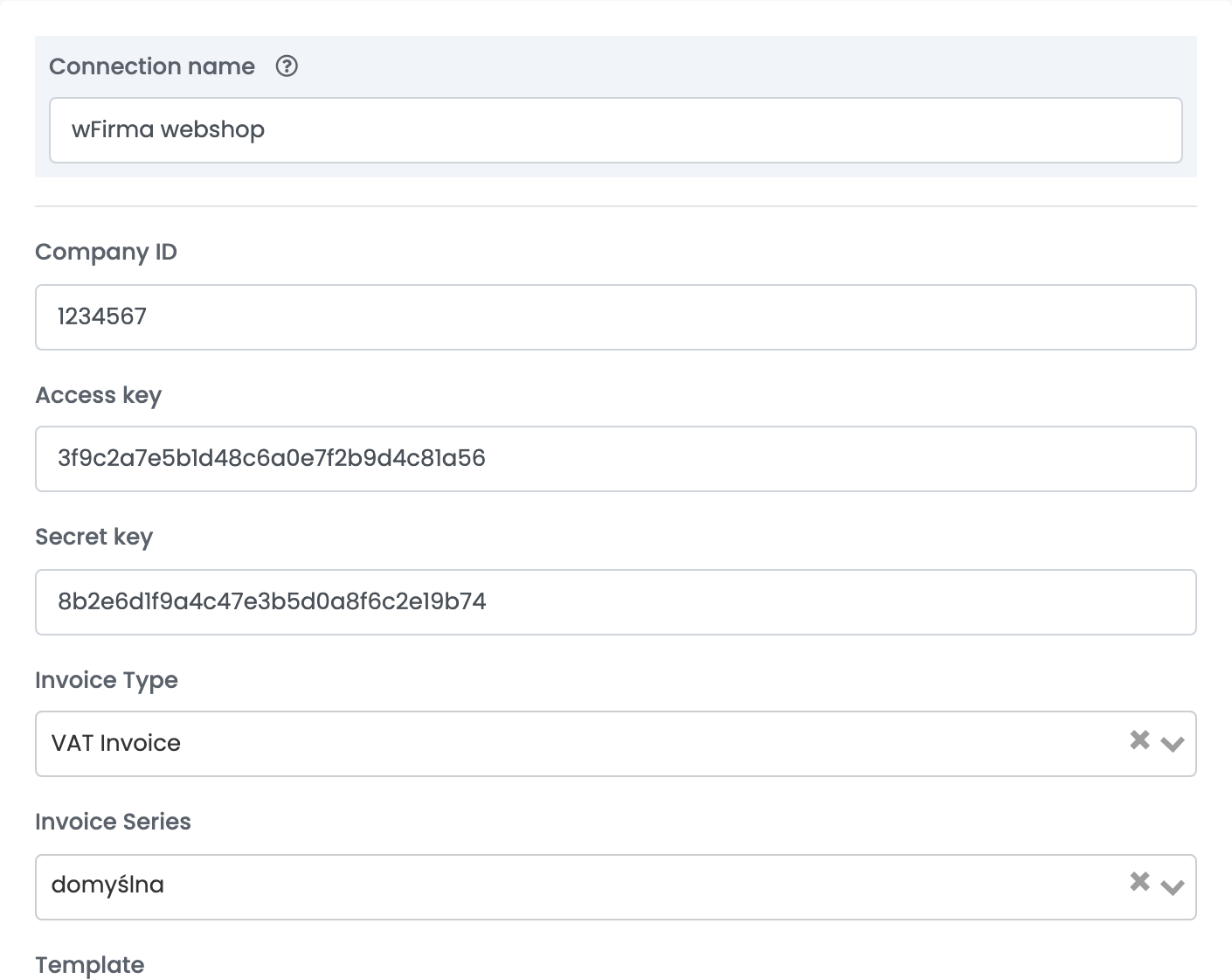
| Field | What goes in it |
|---|---|
| Connection name |
A name you will recognise, for example wFirma – Faktura VAT.
|
| Company ID | The ID of your company in wFirma. |
| Access key | The access key from step 1. |
| Secret key | The secret key from step 1. |
| Invoice Type | The document easySales issues: VAT Invoice, Cash register receipt, Pro forma, Proof of sale / Non-fiscal receipt, the margin and without-VAT variants, and others. |
| Invoice Series | After Get Details: the wFirma series the invoices are numbered from. |
When you reopen a saved connection, press Get Details again to see and change the series.
Step 3 — One connection per document type
A connection issues one type of document. If you issue invoices for some orders and receipts or pro formas for others, make one connection per type: open the connection, press Get Details, then Clone, and choose the other Invoice Type and its series in the copy. Name each connection after its document, for example wFirma – Faktura VAT and wFirma – Paragon.
Below the series is the template — the text written into the invoice's description, built from order details such as the order ID or the AWB number.
Step 4 — Advanced options
Press Show advanced options under the template. You can leave most of them as they are, but decide on the first one before your first invoice.
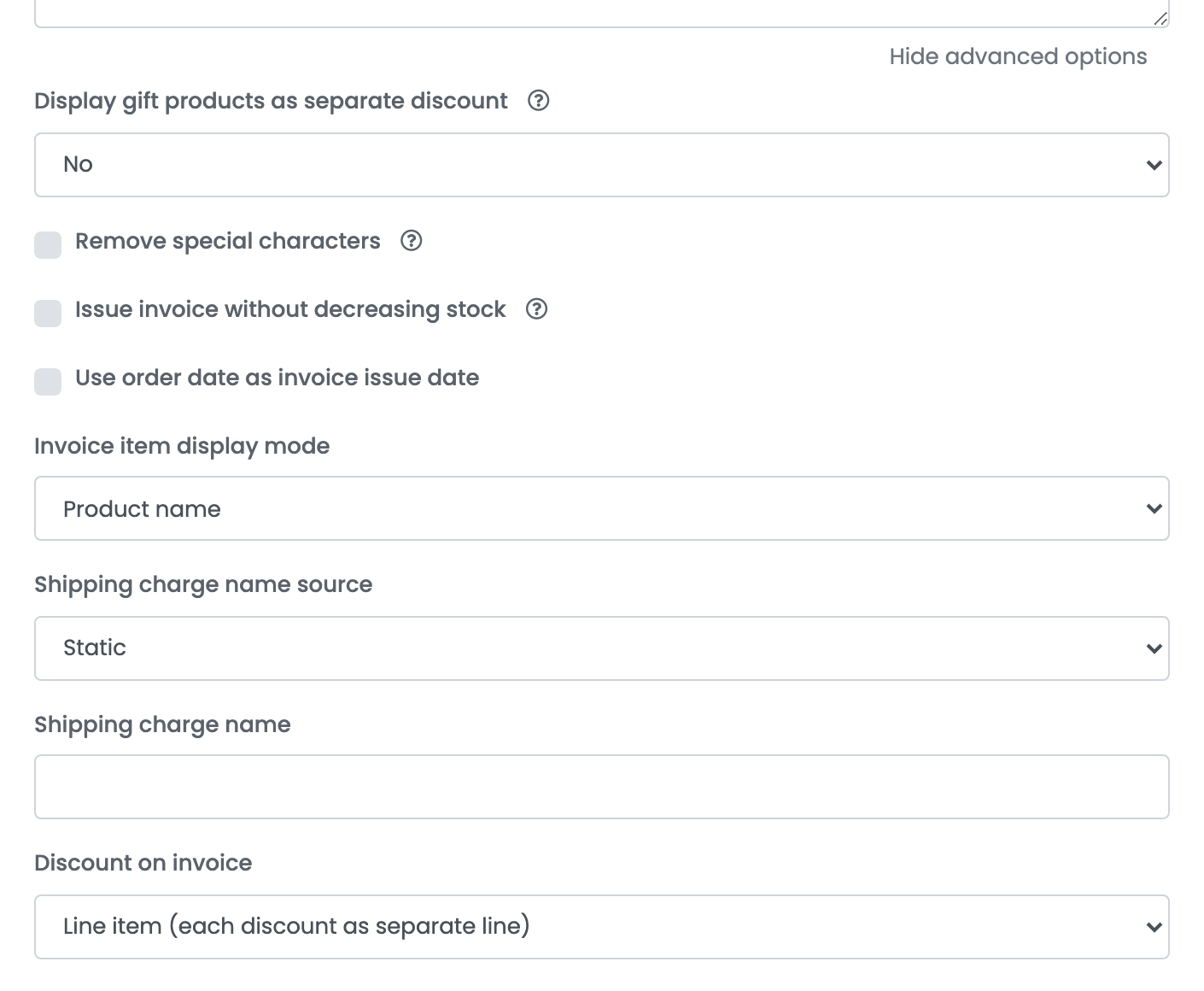
| Option | What it does |
|---|---|
| Issue invoice without decreasing stock | Off: each line is booked to the wFirma product whose code equals the SKU, and wFirma takes it out of stock. On: the lines are sent as plain text and wFirma's stock does not change — use it if your products are not all in wFirma. |
| Use order date as invoice issue date | Issues the invoice with the order's date instead of today's. |
| Invoice item display mode | Product name or SKU as the text of each line. |
| Shipping charge name source |
Static uses the name you enter in Shipping charge name — Transport if you leave it empty; Delivery notes uses the order's delivery notes, and the static name when an order has none.
|
| Discount on invoice | Line item adds each discount as its own line; Proportional spreads it across the products. |
| Display gift products as separate discount | Shows a product with a price of 0 on two lines: its full price, then a matching discount. |
| Remove special characters | Strips special characters from the buyer's name and address. |
| Generate a warranty upon invoicing | Issues a warranty certificate with the invoice, from the template you choose. |
What goes on the invoice
- Buyer: the customer's VAT number decides the buyer type. A Polish NIP, or a number without a country prefix, is sent as a NIP; a number with an EU country prefix as an EU VAT number; no number means a private buyer. A buyer already in wFirma with the same NIP is reused.
- Lines: every product with its gross price, VAT rate and quantity, then shipping — when it costs more than 0 — and the order's discounts.
- Currency: the order's currency.
- Paid orders: an order that is already paid is invoiced as paid. Marking an invoice as paid later records the payment in wFirma.
- PDF: opening the invoice from the order downloads it from wFirma.
wFirma as your stock source
To read stock from a wFirma warehouse, first save the billing connection above. Then go to Integrations → Stock sources, and press Connect on the WFirma card.
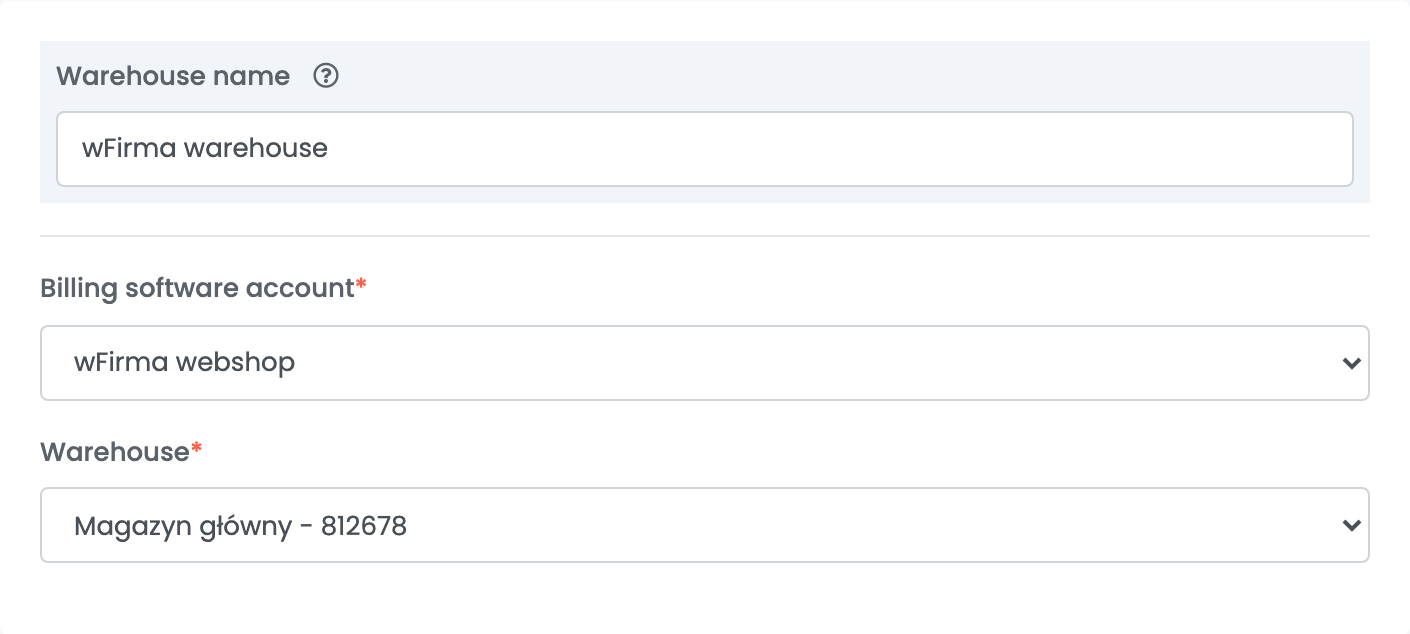
- Enter a Warehouse name you will recognise.
- In Billing software account, choose your wFirma billing connection — the stock source uses its keys.
- Press Get Details, choose the wFirma Warehouse to read and press Save.
easySales reads the stock of every product in that wFirma warehouse about every half hour and matches it to your products by code: a wFirma product whose code equals a product's SKU gives that product its stock. The stock is only read — easySales never changes stock in wFirma. To use it, set this source as the stock source of an advanced warehouse.
When an invoice is refused
The messages you are most likely to see on an order:
| Message | What to do |
|---|---|
| No good id found for product: … | wFirma has no product whose code equals the product's SKU. Add the product in wFirma with that code, or turn on Issue invoice without decreasing stock. |
| WFirma Error: ERROR, Stan magazynowy nie może być ujemny. | wFirma has not enough stock of a product on the order. Receive the stock in wFirma, or turn on Issue invoice without decreasing stock. |
| WFirma Error: ERROR, Nieprawidłowy NIP. … | The customer's VAT number is not a valid Polish NIP. Correct it on the order and issue the invoice again. |
| WFirma Error: Authentication error. Please check your access key, secret key, and app key. | The keys or the Company ID are wrong. Create new keys in wFirma and enter them in the connection. |
| The Invoice Series field is required. | Press Get Details, choose an Invoice Series and save. |