How to connect Unas with easySales: a complete integration guide
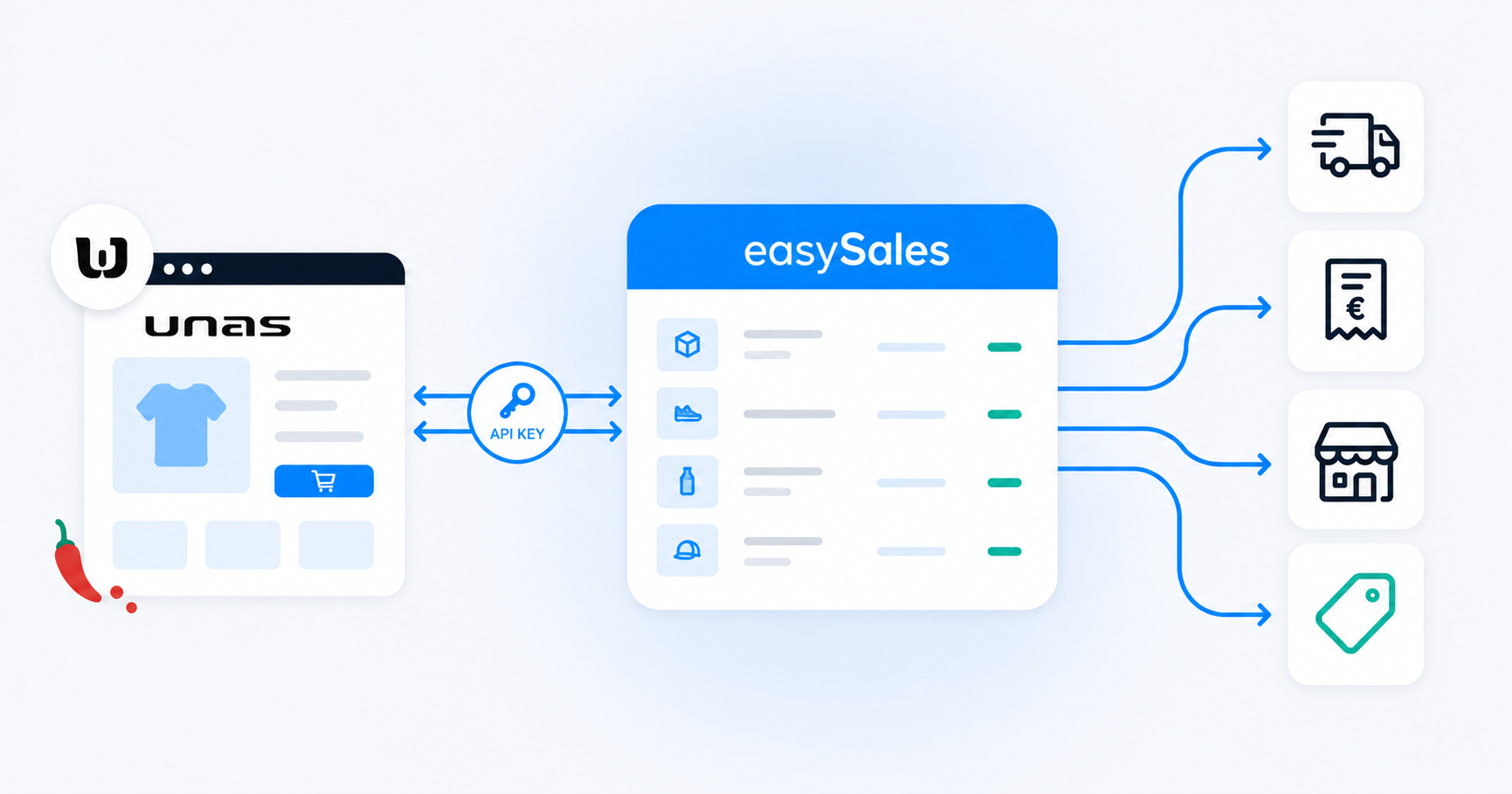
Connect your Unas shop with easySales in a few steps — enable API access in your Unas admin, paste the API key into easySales, then pick which order statuses, product statuses, fees, and warehouse to sync. Centralize orders, sync stock, and re-list the same products on every marketplace you sell on.
Why connect Unas with easySales
Sell on Unas and want one place to manage orders, generate invoices, push AWBs to couriers, and re-list the same products as offers on eMAG HU, Allegro, Vivre HU, or any other marketplace? easySales handles all of it.
Once connected, easySales pulls products from your Unas shop and centralizes incoming orders. From there, you generate invoices, create AWBs with any supported courier, and turn the same catalog into marketplace offers. Order status changes you make in easySales push back to Unas through the mapping you define at setup, and stock changes propagate to Unas continuously.
The setup is a one-time flow inside easySales. You map which Unas order statuses mean "ready to ship" and "cancelled", enter your Unas API key, then choose which product statuses to import, map your shipping and payment fees to SKUs, and pick the Unas warehouse easySales should read stock from.
Interactive tour
Don't feel like reading? Take the interactive tour.
Before you start
Prepare these before opening the connection form.
Unas API access
API access is included on paid Unas plans. If your tier does not include it, ask Unas support to enable it before connecting.
Unique SKU per product
easySales tracks products by SKU. Two products with the same SKU collide and only one is imported — audit before connecting.
Unas admin access
You need admin rights in your Unas shop to generate the API key.
Step 1 — Generate your Unas API key
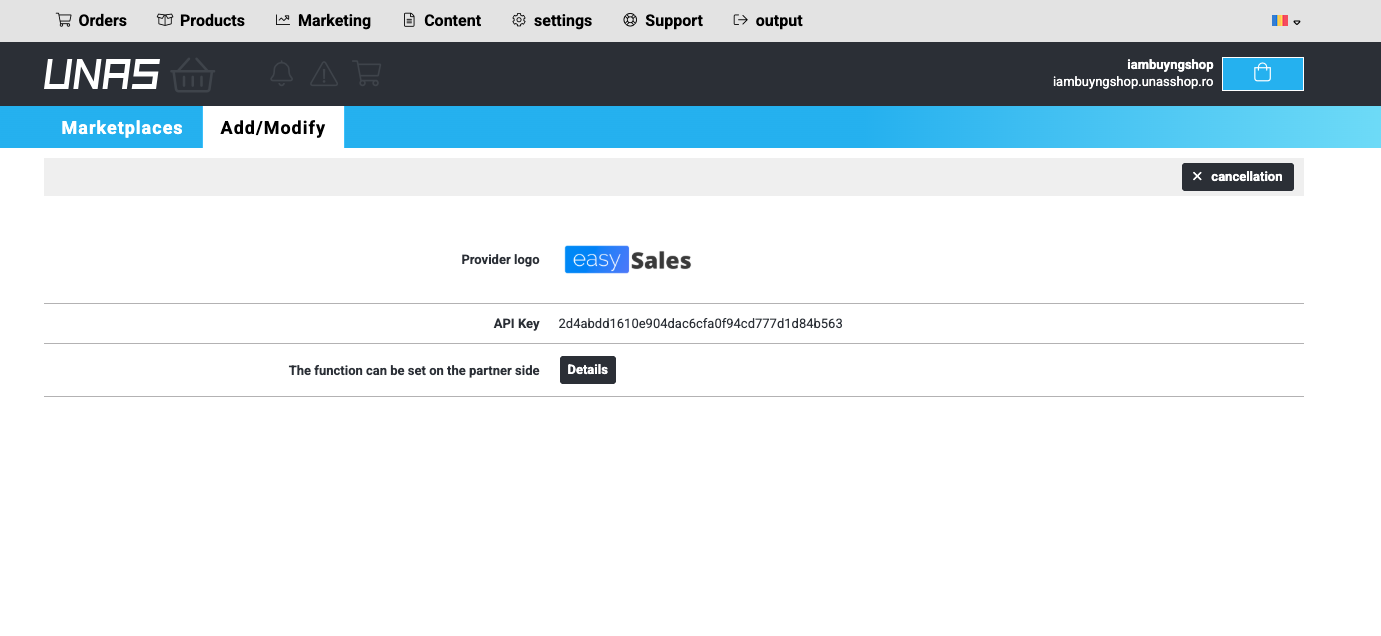
In your Unas admin, go to Settings → External connections → Marketplaces and find easySales in the list of providers. Click Add next to it — Unas generates an API key for the easySales connection and shows it on the provider screen.
Copy the API key, then head back to easySales to paste it into the connection form in the next step. If you ever need it again, return to the same screen in Unas to retrieve or regenerate the key.
Step 2 — Connect your Unas shop
In your easySales account, go to Integrations → Online Shops → Connect Website and pick Unas from the platform list. The connection wizard has two short steps: first you map your order statuses, then you enter the API key.
On the first step (Details), set two statuses:
- Finalized status — the Unas status that means "the order is confirmed and ready to ship". easySales only pulls Unas orders that reach this status, so it's how you scope what gets imported.
- Cancelled status — the Unas status that means "the order is cancelled". When easySales sees this status on a Unas order, it marks the matching order in easySales as cancelled and stops further actions on it.
Enter each status exactly as it appears in your Unas shop ("Lezárva", "Teljesítve", "Visszamondva", and so on) — easySales uses these names to recognize which orders are ready to ship and which are cancelled.
On the second step (Configuration), paste the API key you generated in Step 1 into the API key field and save.
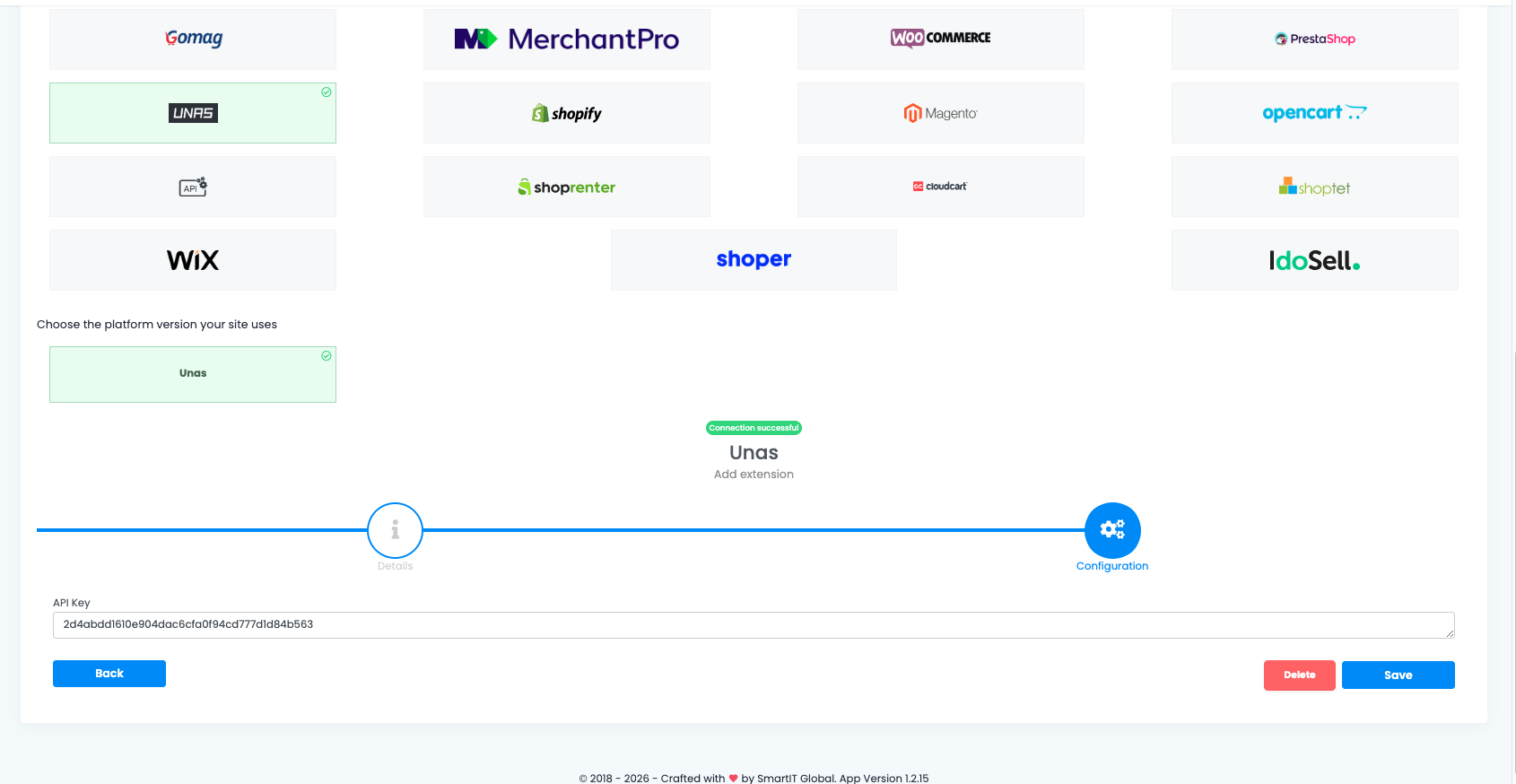
easySales uses the key to reach your Unas shop, validate the connection, and start the import. If you see a connection error after saving, double-check that the key was copied in full and that API access is enabled on your Unas plan.
Fine-tune the connection in Preferences
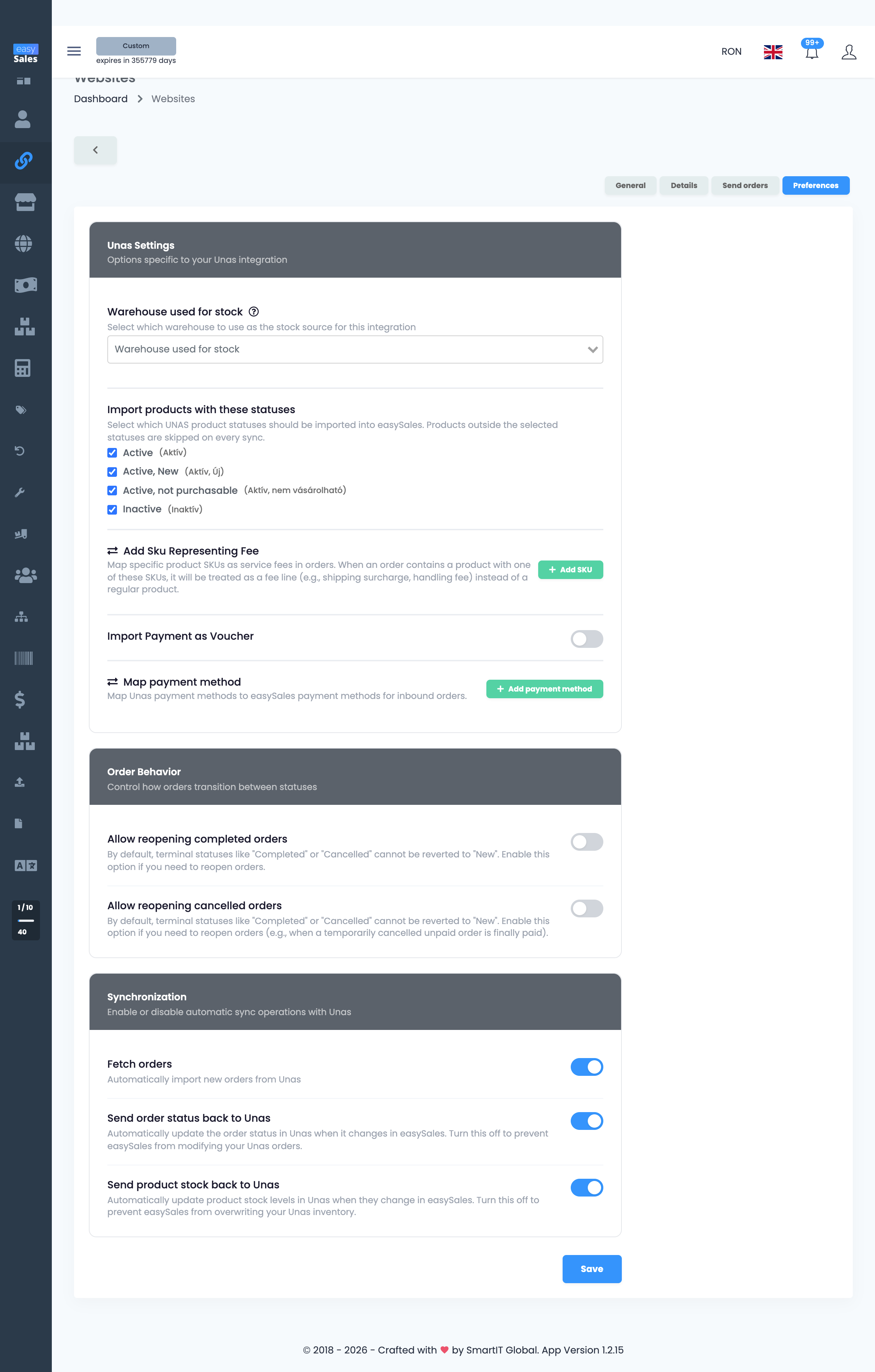
Steps 3 to 5 below are configured from the website's Preferences tab, not the connection wizard. After the shop is connected, open it from Integrations → Online Shops, then switch to the Preferences tab. The Unas Settings panel there holds the warehouse, product status filter, fee SKUs, and payment options all in one place.
Step 3 — Set the product status filter
Under Import products with these statuses, Unas tags every product with one of four native statuses. Tick which of those easySales should import; products outside the selected statuses are skipped on every sync.
- Active (Aktív) — active and purchasable. Always import.
- Active, New (Aktív, Új) — active and flagged as new. Always import.
- Active, not purchasable (Aktív, nem vásárolható) — active but not purchasable. Import if you want these visible in easySales for catalog work; skip if you don't.
- Inactive (Inaktív) — inactive. Usually skip.
At least one status must be ticked. The default is all four — most sellers narrow it down to just the two Active variants so inactive products don't clutter the catalog. You can revisit this filter from the same Preferences tab whenever you need to.
Step 4 — Flag your fee SKUs
In Unas, charges like shipping, handling, or cash-on-delivery often arrive on the order as products with their own SKU. The Add SKU Representing Fee section is where you tell easySales which of those SKUs are actually fees — when an order contains a line with one of them, easySales treats it as a fee line instead of a regular product.
Click Add SKU and add one row per fee SKU, entering it exactly as it appears on the Unas product — for example SHIPPING-GLS, SHIPPING-FOXPOST, or COD-FEE.
Any fee SKU you don't list here is imported as an ordinary product line, so list every SKU you use for shipping, handling, or COD charges.
Step 5 — Pick your warehouse
The last setting in the Preferences tab is the warehouse. If your Unas shop manages stock across more than one warehouse, pick which one is the authoritative source.
The picked Unas warehouse is the one easySales reads stock from, and — once marketplaces are connected — the one easySales pushes consolidated stock back to. Single-warehouse Unas shops can skip this; the only warehouse is selected automatically.
Optional preferences
Two more settings in the same Preferences tab are worth a quick look. Both are optional and you can change them later.
- Import Payment as Voucher — turn this on if some of your Unas payment types are prepaid or voucher-style and should be imported as a voucher rather than a regular payment. You pick which Unas payment types qualify; the rest are imported as standard payments.
- Map payment method — match each Unas payment method to the corresponding easySales payment method, so inbound orders carry the right payment type from the start.
Save your preferences. easySales applies them and keeps the initial import and live sync running.
What happens after you connect
easySales handles live sync and the initial import for you.
- Live sync covers orders, products, and stock. New Unas orders reach easySales within seconds of moving to your finalized status. Product and stock changes follow the same path.
- Your product catalog is imported — products appear in Online Shops → Products, where you can browse, edit, and turn them into offers for marketplaces.
- Incoming Unas orders appear in your Orders screen, where you generate invoices, AWBs, and run automation flows.
- Stock pushes from easySales back to Unas keep your Unas shop in sync with the central inventory once marketplaces are connected.
Because your Unas products now live in easySales, you can also list them as offers on the marketplaces easySales supports for Hungary — eMAG HU, Vivre HU, Allegro HU, Pepita HU, and more. You build the offers once in easySales instead of re-entering your catalog on each marketplace separately.
Connect your Unas shop in minutes
Try easySales free for 14 days. No credit card and no module to install on the Unas side.