How to connect Számlázz.hu with easySales: a complete setup guide
Connect Számlázz.hu to easySales: generate the Számla Agent key, set the invoice prefix on each sales channel, choose paper or e-invoice, and fix the messages Számlázz.hu returns.
What connecting Számlázz.hu gives you
With Számlázz.hu connected as billing software, easySales issues the invoice for an order directly in your Számlázz.hu account — customer, products, shipping and discounts included — and links it to the order. From the order you can open the invoice, mark it as paid and issue a storno invoice. Számlázz.hu gives every invoice its number, so your numbering stays in one place.
The connection needs one value from Számlázz.hu, the Számla Agent key, and one setting on each of your sales channels: the invoice prefix.
Before you start
A Számlázz.hu subscription with Számla Agent
easySales issues invoices through Számla Agent, Számlázz.hu's interface for invoicing from other systems. For electronic invoices, e-invoicing has to be part of your subscription too.
Your invoice prefixes
The prefixes you will invoice on, created in Számlázz.hu under Beállítások → Előtagok — one per sales channel if you want them numbered separately.
Your bank details
The bank name and account number to print on your invoices.
Step 1 — Generate the Számla Agent key
- Log in to Számlázz.hu and open the home page (dashboard).
- At the bottom of the page, in the Számla Agent kulcsok section, create a new key with the key icon.
- Copy the key. You will paste it into easySales in the next step.
Step 2 — Connect Számlázz.hu in easySales
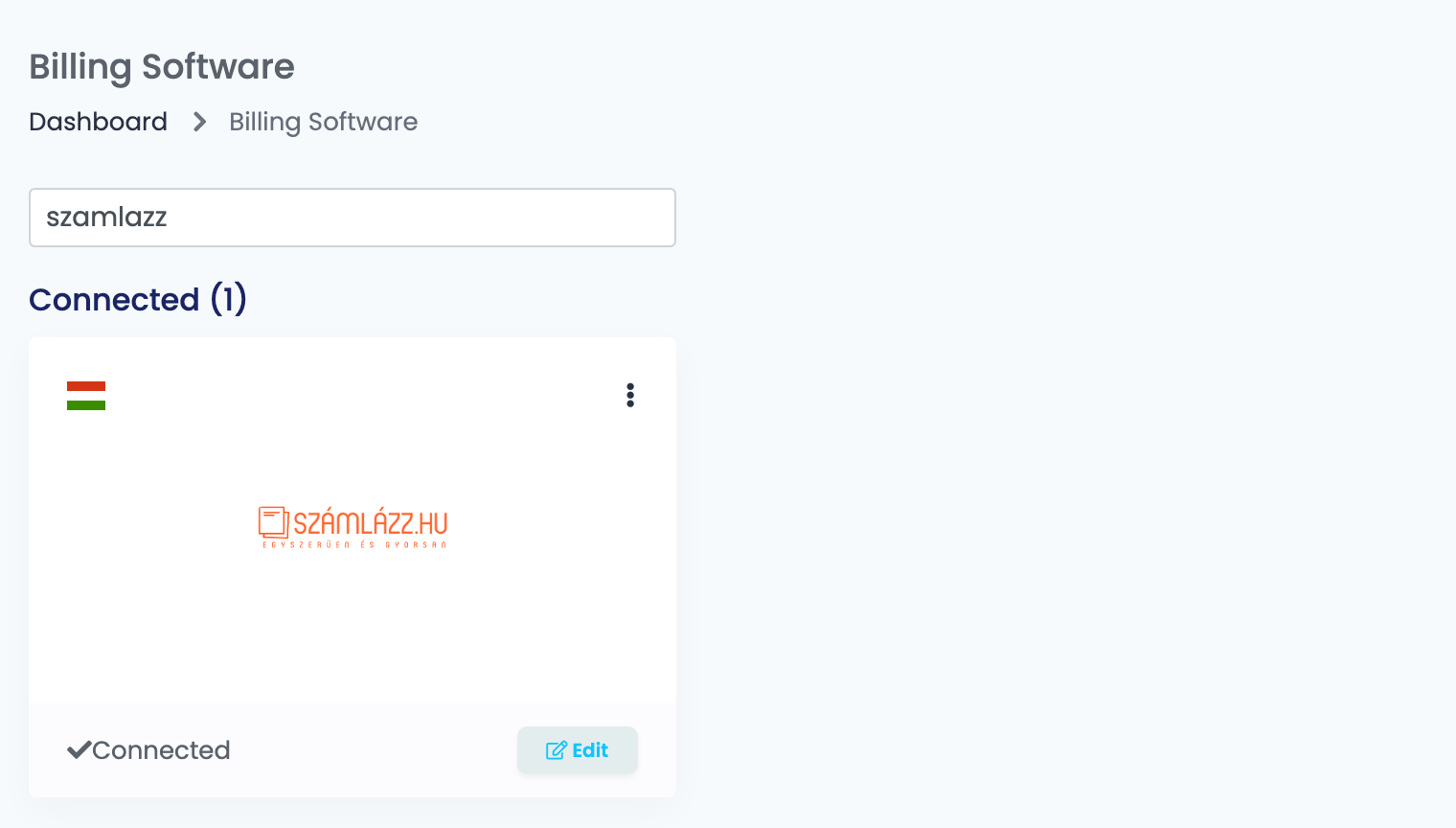
Go to Integrations → Billing Software, search for szamlazz and press Connect on the Számlázz.hu card — or Edit, if you have connected it before.
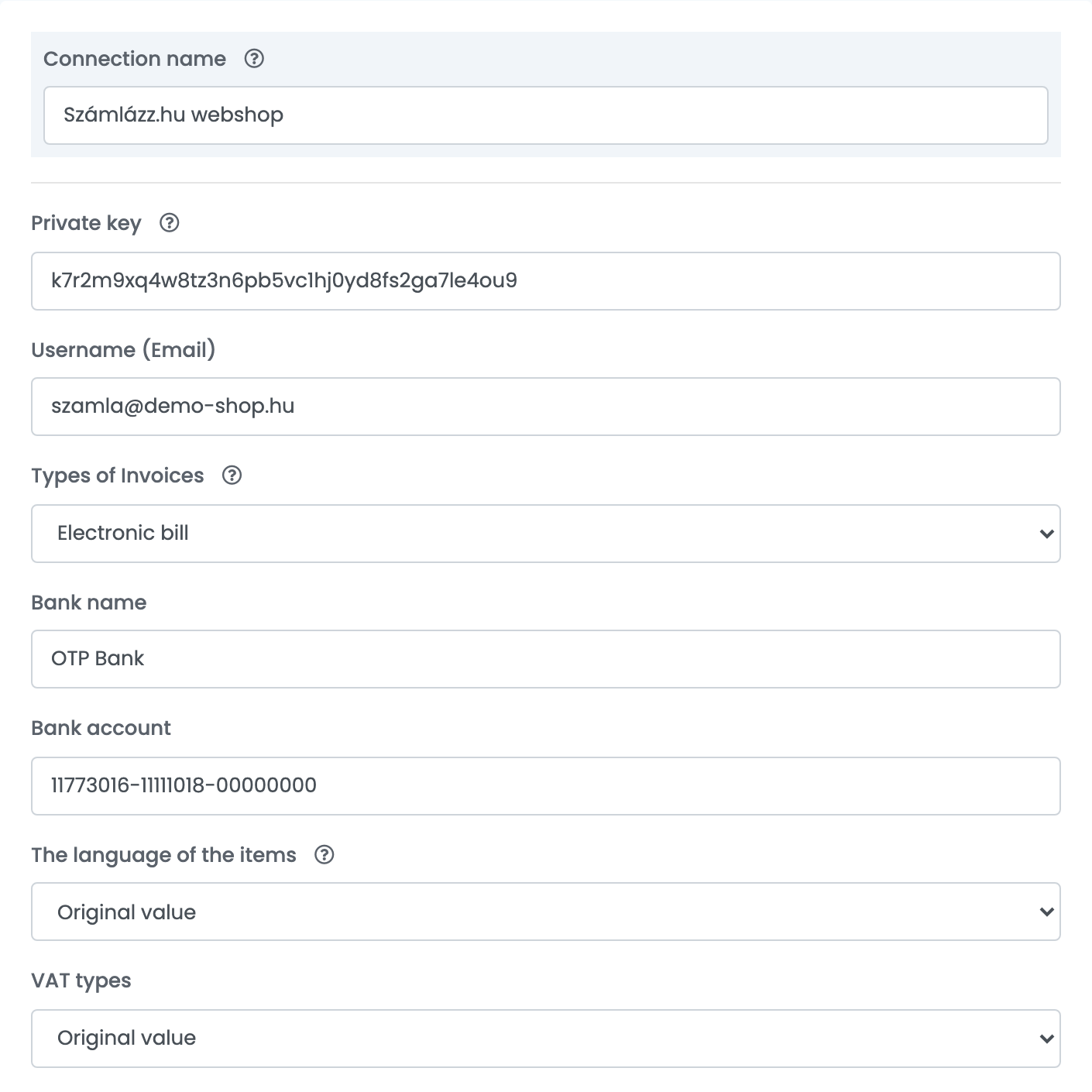
| Field | What goes in it |
|---|---|
| Connection name | A name you will recognise inside easySales. |
| Private key | The Számla Agent key from step 1. |
| Username (Email) | The reply address on the invoice e-mails your customers receive. |
| Types of Invoices | Paper invoice or Electronic bill. Electronic invoices need e-invoicing in your Számlázz.hu subscription. |
| Bank name, Bank account | The bank and account number printed on the invoice for payment. |
| The language of the items | Original value keeps the product names as they are on the order. A language replaces them with the product's name in that language, where the product has one, and sets the words used for the shipping and discount lines. |
| VAT types | Original value uses each product's VAT rate. A code — such as AAM, TAM, EUT or F.AFA — replaces the rate on every line of every invoice from this connection. Use it only if your accountant tells you to. |
| Template | The text printed in the invoice's comment. Click a variable to insert the order number, the platform, the AWB number and more. |
Press Save. The connection is saved as it is; the key is used for the first time when you issue an invoice.
Step 3 — Set the invoice prefix on each sales channel
The invoice number is not set on this form. Számlázz.hu numbers the invoice itself, in the form PREFIX-YEAR-NUMBER — for example WEB-2026-15 — and easySales sends it only the prefix. That prefix is the Invoice Series of the marketplace connection or online shop the order came from.
- In Számlázz.hu, open Beállítások → Előtagok and create a prefix for each channel you want numbered separately, for example
WEBfor your online shop andEMAGfor eMAG. - In easySales, open each marketplace connection and online shop that you invoice with Számlázz.hu, and type the prefix into its Invoice Series field exactly as it is in Számlázz.hu.
Step 4 — Advanced options
Press Show advanced options under the template to open the rest of the settings. You can leave them as they are and change them later.
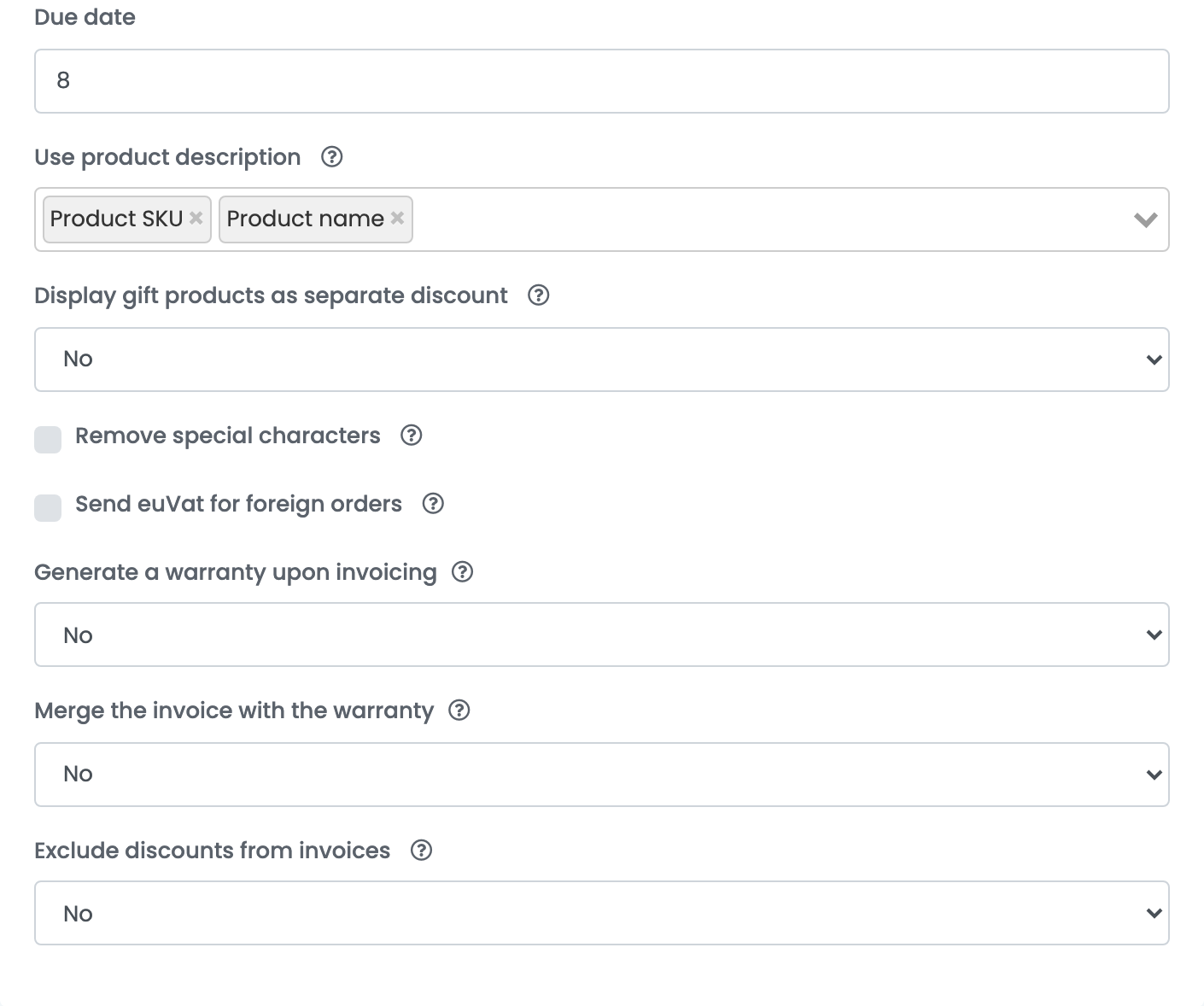
| Field | What it does |
|---|---|
| Due date | The number of days until payment is due, counted from the invoice date. Empty means 30 days. |
| Use product description | What is printed under each product line: the product SKU, the product name, the product properties, or several of them. The SKU is the product's Stock code when it has one. |
| Remove special characters | Removes special characters from the customer's name and address before the invoice is sent. |
| Send euVat for foreign orders | Marks every invoice from this connection as an EU VAT invoice: it carries no Hungarian VAT and is not reported to NAV. Only for sellers registered for OSS or with a non-Hungarian tax number — keep a separate connection for it, and check with your accountant first. |
| Generate a warranty upon invoicing | Creates a warranty document together with the invoice, from the warranty template you choose. |
| Merge the invoice with the warranty | Downloads the invoice and the warranty as one file. |
| Exclude discounts from invoices | Leaves the order's discount lines off the invoice. |
What goes on the invoice
- Customer: the company name for a company, otherwise the billing name, with the billing and delivery addresses, phone and VAT number.
- Lines: every product with its net price and VAT rate, then shipping and the order's discounts. The words used for the shipping and discount lines follow The language of the items.
- Payment method: card for orders paid online, utánvét for cash on delivery and átutalás for bank transfer.
- Dates: the invoice and fulfilment date are the day the invoice is issued; the due date is that day plus Due date days (30 when empty).
- Currency: the order's currency. An invoice in a currency other than HUF carries the exchange rate to HUF automatically.
- Language: the language of the shop or marketplace the order came from — German, English, French, Croatian, Bulgarian, Hungarian, Italian, Romanian or Slovak (Czech orders get Slovak). Orders in any other language are invoiced in Hungarian.
- Order number: the order's number on the platform it came from.
Storno, payments and the invoice PDF
- Storno: from the order you can issue a storno invoice, which reverses the whole invoice in Számlázz.hu. An invoice cannot be cancelled or deleted from easySales; a storno is the way to reverse it.
- Marking as paid: recording a payment on the order records it on the invoice in Számlázz.hu, with the date, the payment method and the amount.
- PDF: opening the invoice from the order downloads it from Számlázz.hu, so you always see the document as Számlázz.hu holds it.
When an invoice is refused
Számlázz.hu's answer is shown on the order, in Hungarian. The ones you are most likely to see:
| Message | What it means and what to do |
|---|---|
| Ez a számlaszám előtag nem létezik vagy nincs engedélyezve | The prefix does not exist in Számlázz.hu. Create it in Beállítások → Előtagok, or set the channel's Invoice Series to a prefix you have — then correct the series on the orders already imported. |
| Bejelentkezési hiba (lejárt a díjcsomag | lejárt a fizetési határidő) | Your Számlázz.hu subscription has expired or is unpaid. Log in to Számlázz.hu in a browser, renew it and issue the invoice again. |
| Már létező rendelésszám | Számlázz.hu already has an invoice with this order number — usually because the order is being invoiced again after a storno. Számlázz.hu can allow repeated order numbers on its Beállítások page, as the message says. |
| A tétel áfa értéke nem megfelelő | Számlázz.hu does not accept the VAT amount on a line. Contact easySales support with the order number. |