How to connect Subiekt nexo PRO with easySales: a complete setup guide
Connect Subiekt nexo PRO to easySales: the Windows connector for your Nexo version, the database connection and token, orders as ZK, invoices and stock.
What connecting Subiekt nexo PRO gives you
Subiekt nexo PRO is InsERT's sales and warehouse program for Polish companies. With it connected, easySales sends your orders to Subiekt nexo PRO as customer orders (ZK), issues your invoices and receipts there, and reads your Subiekt nexo PRO stock into easySales.
Three things to know before you begin:
- A small connector app does the work. Subiekt nexo PRO runs on your own computer or server, so easySales cannot reach it over the internet. You install the easySales connector on a Windows computer that can reach your Subiekt nexo PRO database; it collects the jobs from easySales and carries them out in Subiekt nexo PRO.
- The connector must match your Subiekt nexo PRO version. Each connector build works with one Subiekt nexo PRO version. Download the build made for yours.
- One ERP connection, then the rest. You connect Subiekt nexo PRO once under ERP systems; the invoicing account and the stock source both point to that connection.
Before you start
Subiekt nexo PRO
The PRO edition, with your company's database.
A Windows computer for the connector
64-bit Windows, able to reach your Subiekt nexo PRO database, kept on while you work.
Your database details
The SQL Server name and instance, a SQL login, and your company's database name.
A Subiekt nexo PRO operator
The user name and password you log in to Subiekt nexo PRO with.
Step 1 — Download the connector
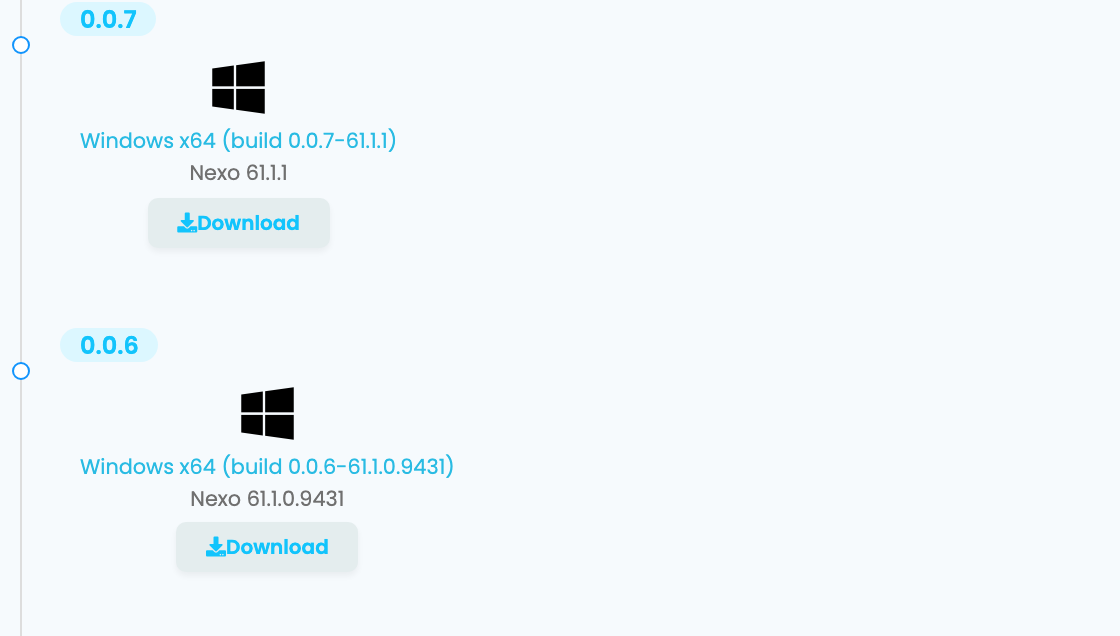
Go to Integrations → ERP systems and open Subiekt nexo PRO. The list on the left holds the connector builds, newest first. Each one shows the Subiekt nexo PRO version it works with — download the build for your version and install it on the Windows computer.
Step 2 — Connect your Subiekt nexo PRO database
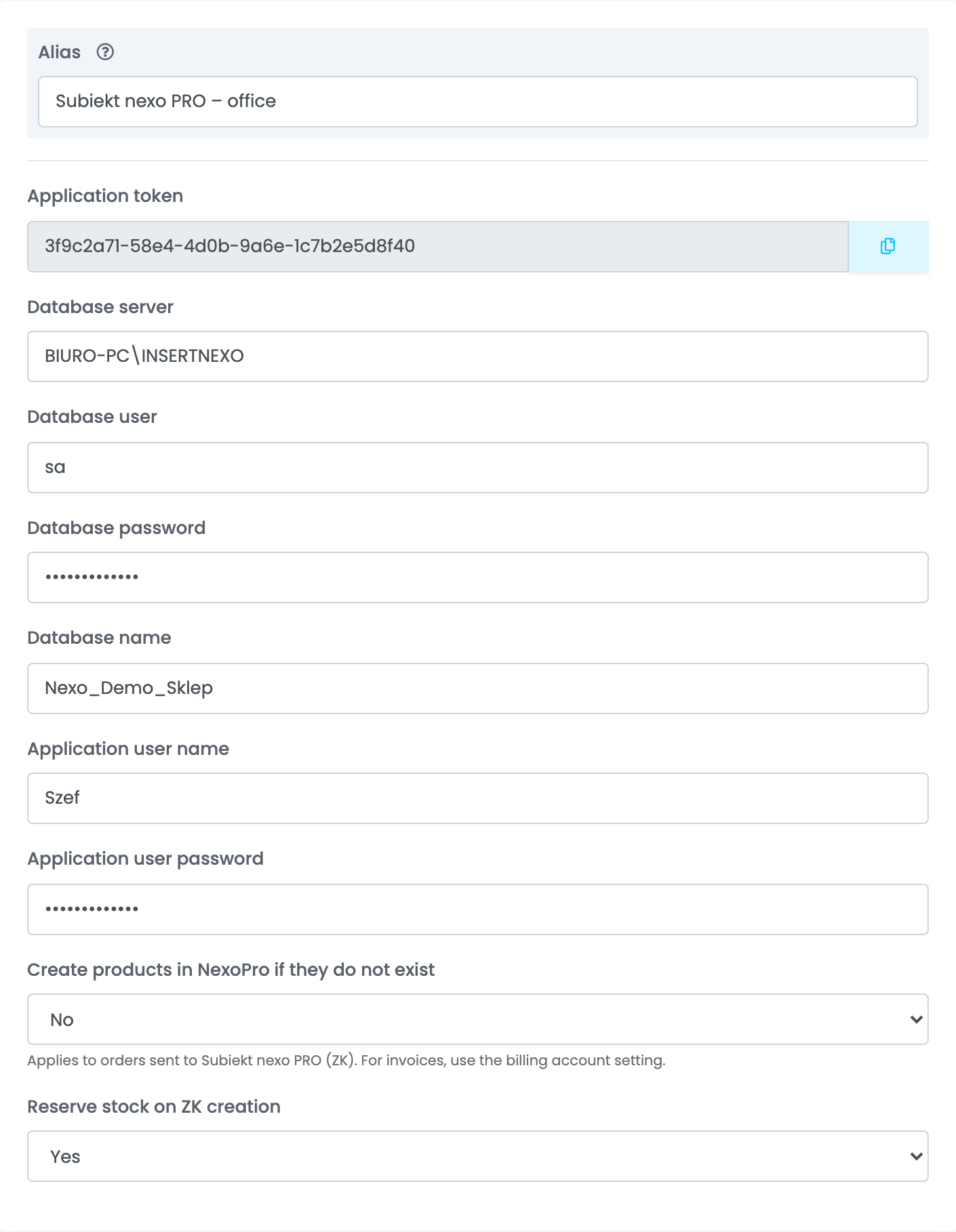
On the right, fill in the connection and press Connect. The Application token appears once the connection is saved.
| Field | What goes in it |
|---|---|
| Alias | A name you will recognise. |
| Database server |
Your SQL Server and its instance, as COMPUTER\INSERTNEXO — INSERTNEXO is the instance Subiekt nexo PRO installs by default.
|
| Database user, Database password |
A SQL Server login for that server, for example sa. The password can be empty if the login has none.
|
| Database name |
The name of your company's database, usually starting with Nexo_ — for example Nexo_Demo_1.
|
| Application user name, Application user password |
The operator you log in to Subiekt nexo PRO with, for example Szef.
|
| Create products in NexoPro if they do not exist | Yes adds a product missing from Subiekt nexo PRO when an order is sent. No refuses the order instead. |
| Reserve stock on ZK creation | Yes reserves the products of each order sent to Subiekt nexo PRO. |
Step 3 — Pair the connector
Copy the Application token with the button next to it. Open the connector on the Windows computer, paste the token into Enter App Token and press Add & Connect. The connection shows as Connected in the connector; from then on it starts by itself whenever you open the connector.
Keep the computer on and the connector open: the connector is what carries out the jobs. While it is closed, nothing is lost — orders, invoices and stock updates wait in easySales until it is back.
Step 4 — Send orders to Subiekt nexo PRO
Orders go to Subiekt nexo PRO when you send them:
- From the order: on the order page, open Order submissions, press Send order and choose your Subiekt nexo PRO connection.
- Automatically: add the Send order to ERP system action to an automation flow under Flows, with conditions that pick the orders you want in Subiekt nexo PRO.
Each order becomes a customer order (ZK) in Subiekt nexo PRO, and a new buyer is added as a customer. Every product line is matched to a Subiekt nexo PRO product by its SKU against the product's symbol, then by EAN. When no product matches, the order is refused — unless Create products in NexoPro if they do not exist is set to Yes. The submission then shows Success with the ZK number, or Failed with the reason; correct the order and press Resend.
Step 5 — Invoices
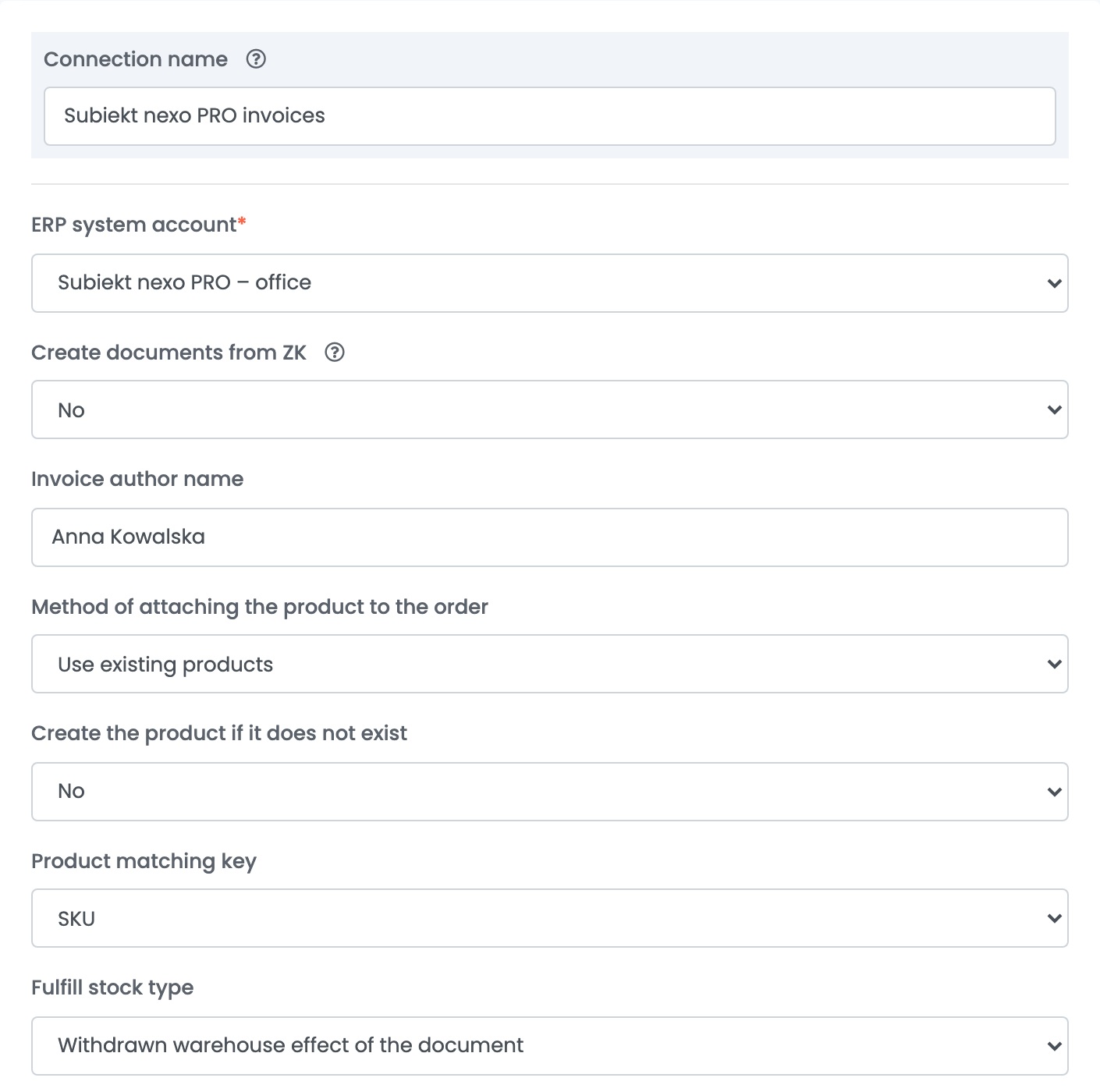
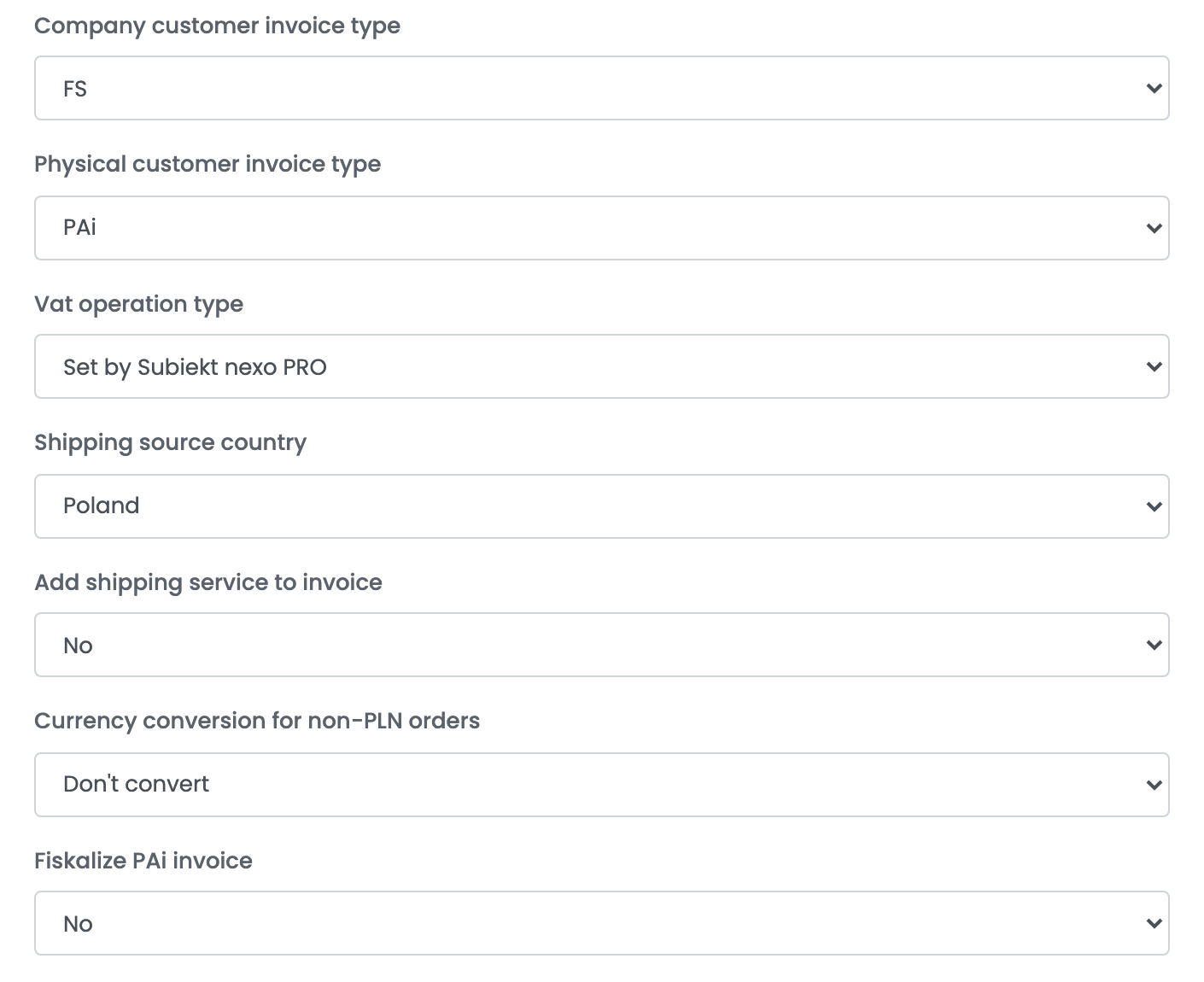
Go to Integrations → Billing Software, connect Subiekt nexo PRO and choose your ERP connection in ERP system account. The invoices you issue in easySales with this account are created in Subiekt nexo PRO, and their number and PDF come back to the order.
| Field | What goes in it |
|---|---|
| Create documents from ZK | Yes creates the invoice from the order's ZK, so the order must be sent to Subiekt nexo PRO first. The invoice then takes its products, prices and stock effect from the ZK. |
| Invoice author name | The name printed as the invoice's author. |
| Method of attaching the product to the order | Use existing products puts Subiekt nexo PRO's own products on the invoice, matched by the Product matching key — SKU, EAN or supplier SKU. Create one time products adds the lines as one-off items. |
| Create the product if it does not exist | With existing products: Yes adds a product missing from Subiekt nexo PRO instead of refusing the invoice. |
| Company customer invoice type, Physical customer invoice type | The document issued for companies and for private buyers: FS (VAT invoice) or PAi (named receipt). |
| Vat operation type | Leave Set by Subiekt nexo PRO, or choose the VAT treatment for every document of this account. |
| Currency conversion for non-PLN orders | Convert to NBP rate from easySales issues orders in another currency in PLN. |
| Fiskalize PAi invoice | Yes fiscalises receipts on the fiscal printer you choose. |
Step 6 — Stock from Subiekt nexo PRO
Go to Integrations → Stock sources, add Subiekt nexo PRO, choose your ERP connection in ERP system account and pick where the stock comes from: All warehouses, or Specific warehouse with the warehouse's symbol in Warehouse ID — for example MAG.
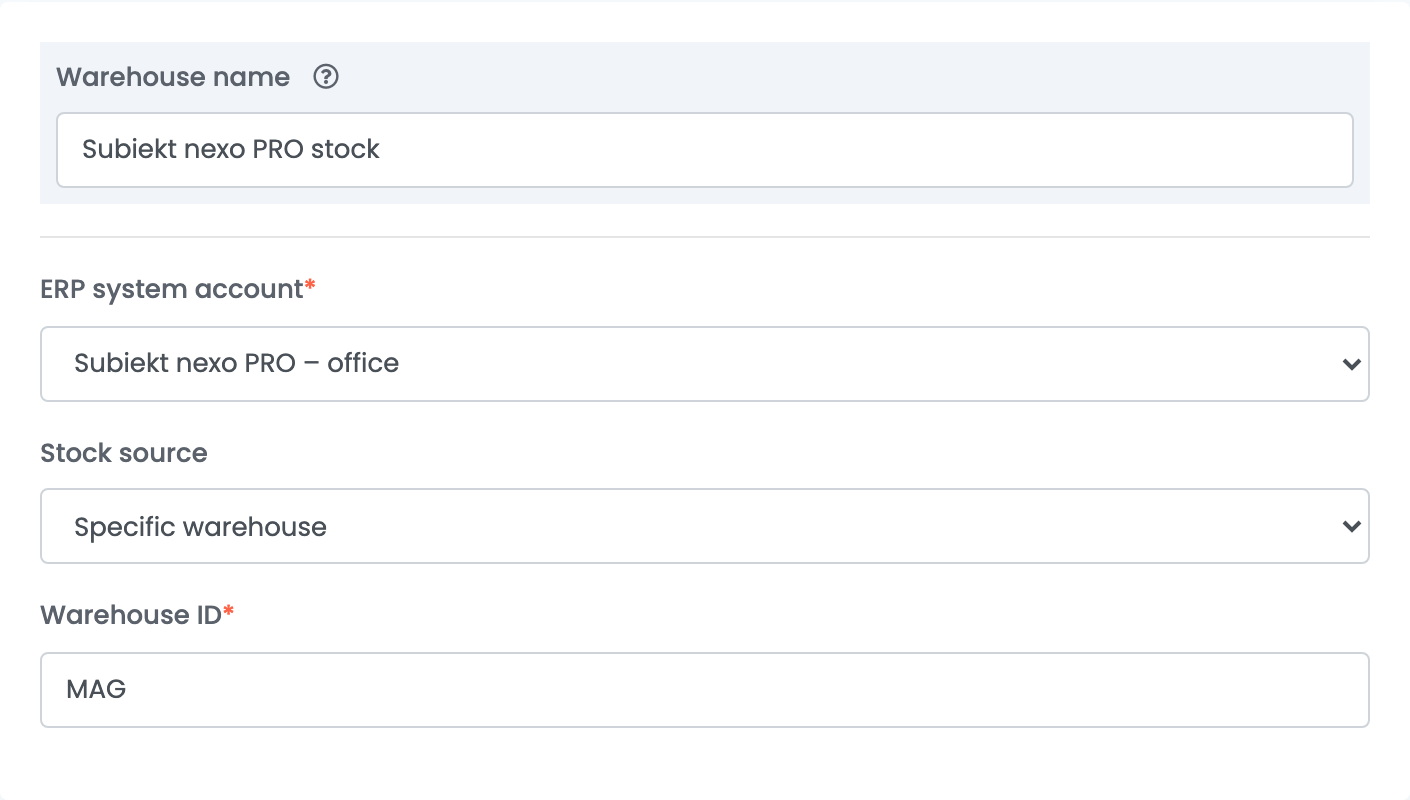
Then choose this stock source for a shop or an advanced warehouse. easySales reads the available quantity of each product, matched by the product's Stock code, or its SKU when it has none. Only products that already exist in easySales receive stock.
When something does not work
| Message or symptom | What to do |
|---|---|
| Orders and invoices stay pending | The connector is not running or not connected. Open it on the Windows computer and check that the connection shows Connected. |
| The connector does not connect | Check that its build matches your Subiekt nexo PRO version, and the Database server, Database name and both logins on the ERP connection. |
| Product not found: … Unable to create documents for missing products when product auto creation is disabled. | Give the product the same SKU as its symbol in Subiekt nexo PRO, or set Create products in NexoPro if they do not exist to Yes. Then press Resend. |
| Do podmiotu można dodać tylko jeden adres główny. (Podmiot -> Adresy) | Install the newest connector build for your Subiekt nexo PRO version, then press Resend. |
| Unable to create documents when "Create documents from ZK" is enabled and ZK does not exist. | Send the order to Subiekt nexo PRO first, or set Create documents from ZK to No. |