How to connect Shein with easySales: a complete integration guide
Connect your Shein store with easySales in a few steps — authorize easySales on the Shein Open Platform, then configure the connection in easySales. There are no API keys to copy. Once connected, manage Shein orders, sync stock and prices, generate invoices, and reuse the same catalog you already sell on other marketplaces.
Why connect Shein with easySales
Sell on Shein and want one place to manage orders, sync stock and prices, generate invoices, and reuse the same products you already sell on other channels? easySales handles it from a single dashboard.
Once connected, easySales pulls your Shein orders in and keeps your stock and prices in step with the rest of your catalog. The connection runs through the Shein Open Platform: you authorize easySales once, and easySales stores the credentials securely — there are no API keys to copy by hand.
In your easySales marketplace list, Shein appears as SheinRO. That is the channel you connect.
What the Shein integration does
Orders
Pull Shein orders into easySales and process them alongside your other channels.
Stock
Keep Shein availability in step with the rest of your catalog.
Prices
Push your prices to Shein and keep them up to date.
One catalog
Reuse the same products you already sell on your other marketplaces.
Prerequisites — what to prepare before you start
A few things keep the connection and your listings working smoothly.
- An active Shein seller account on the Shein Open Platform, with permission to authorize external applications.
- The ability to log in to that Shein seller account during the connection — the authorization happens on Shein's side.
- Your VAT and tax details to hand, so you can fill the connection settings in one go.
Step 1 — Start the connection in easySales
Open Integrations → Marketplaces in easySales and select Shein (listed as SheinRO). On the Main settings tab, click the authorize button to begin.
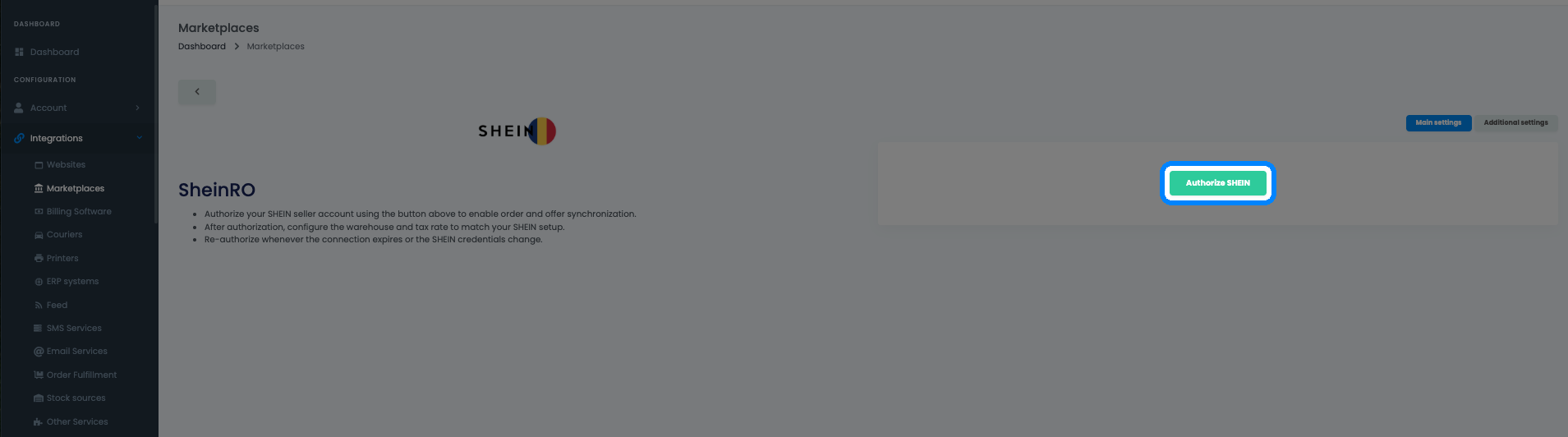
Step 2 — Authorize on the Shein Open Platform
easySales sends you to the Shein Open Platform to approve the link. Log in to your Shein seller account and grant easySales the access it requests. Shein then sends you back to easySales, which stores your connection securely and completes the setup automatically — no token to copy.
Step 3 — Configure your Shein connection in easySales
Back in easySales, the Main settings tab now shows the connection form. Fill it in and click Save.
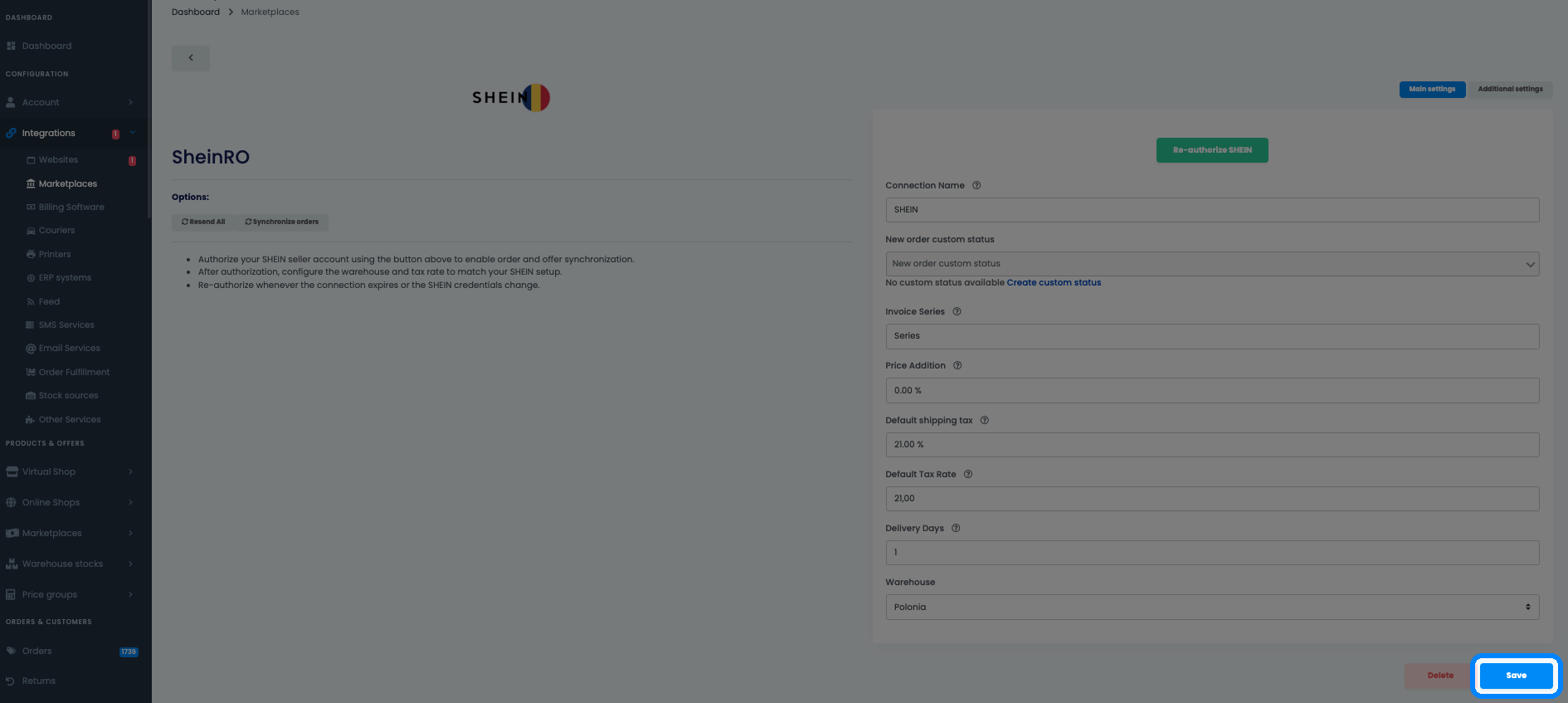
- Connection Name — a label you choose for this connection. Only visible inside easySales.
- New order custom status — optional: a custom status applied to new Shein orders. Leave it as is if you don't use custom statuses, or create one from the same field.
- Invoice Series — the series easySales uses for invoices on Shein orders.
- Price Addition — an optional percentage added on top of your offer price for Shein.
- Default shipping tax and Default Tax Rate — the VAT rates easySales applies to shipping and to products. Enter the rates that apply to you.
- Delivery Days — the handling/delivery time communicated for your Shein offers.
- Warehouse — the warehouse easySales uses as the stock source for this connection.
Fine-tuning your Shein connection
The Additional settings tab controls how easySales pushes data to Shein:
- Send offer prices to marketplace — whether easySales pushes your prices to Shein.
- Send offer stock to marketplace — whether easySales pushes your stock to Shein.
- Automatically enable offers when products have stock — whether an offer is enabled automatically once the product is back in stock.
You can change any of these later — reopen the connection, adjust, and save.
What happens automatically after you connect
Once connected and configured, easySales pulls in your Shein orders so you can process them alongside your other channels — generating invoices and AWBs — and keeps stock and prices in step with Shein according to your Additional settings. The connection screen also gives you Synchronize orders and Resend all actions if you ever need to trigger a sync manually.
Listing your products on Shein: categories, attributes and responsible person
Before products can go live on Shein, they need to be matched to Shein categories and carry the attributes Shein expects for each category. Products missing required attributes are rejected by Shein as incomplete.
You're connected — what's next
With Shein connected, your orders flow into the same workflow as the rest of your marketplaces. Map your products to Shein categories, complete the required attributes, and let easySales keep stock, prices and orders in sync. If your authorization ever expires, reconnect from the same screen using the re-authorize button — your settings and mappings stay intact.
Run Shein alongside all your other marketplaces
Try easySales free for 14 days — connect Shein and manage orders, stock, prices and invoices from one place. No credit card required.