How to connect PrestaShop with easySales: a complete integration guide
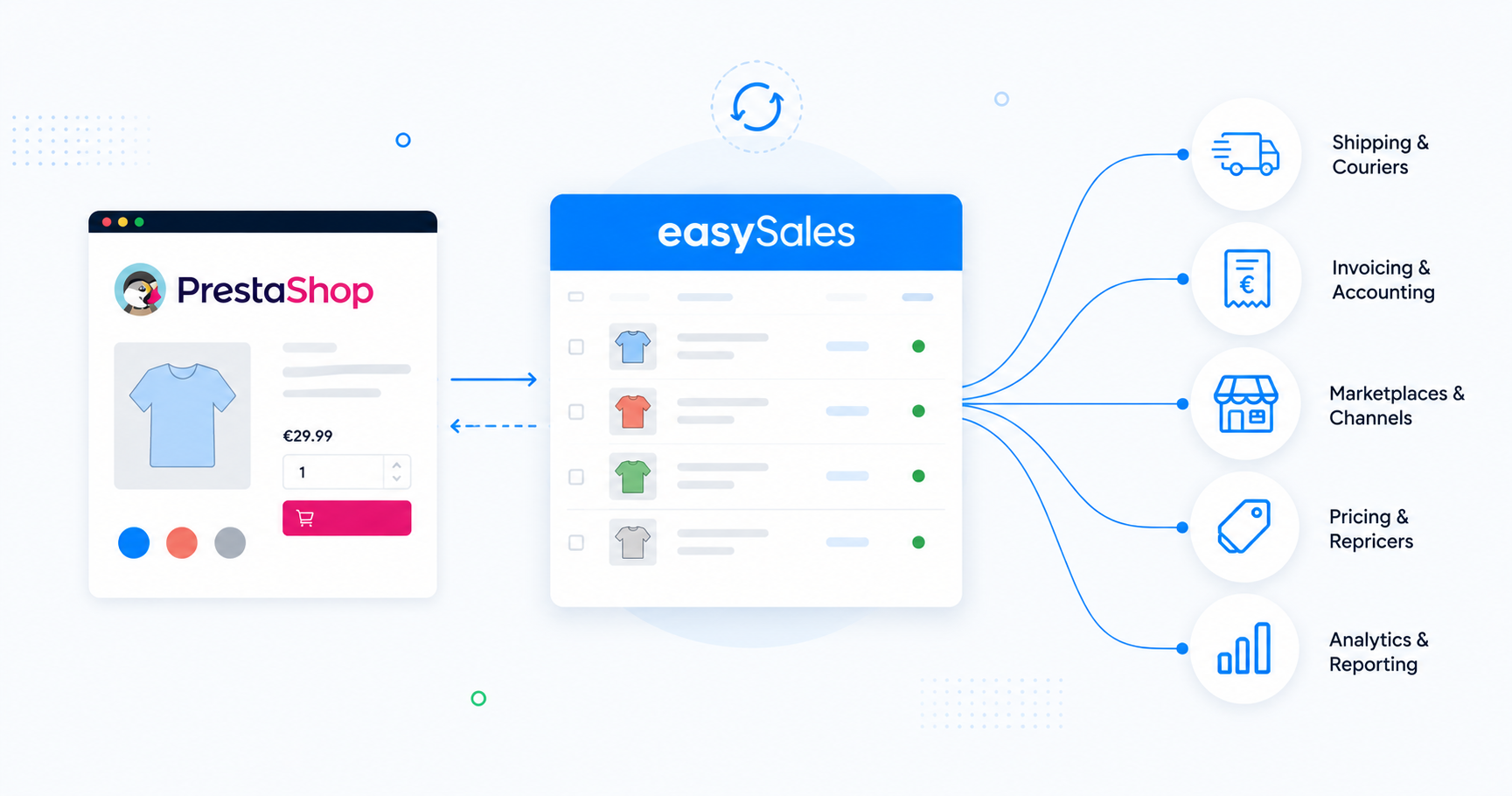
Connect your PrestaShop store with easySales in three steps — start the wizard in easySales and download the module, install it in the PrestaShop back-office, then paste the token back into easySales to finish. Centralize orders, sync stock and combinations, generate AWBs and invoices, and reuse the same catalog as offers on every marketplace you sell on.
Why connect PrestaShop with easySales
Sell on PrestaShop and want one place to manage orders, generate invoices, push AWBs to couriers, and reuse the same products as offers on marketplaces? easySales handles all of it from a single dashboard.
Once connected, easySales pulls products and combinations from PrestaShop and centralizes incoming orders. From there you generate invoices, create AWBs with any supported courier, and turn the same products into offers on eMAG, Allegro, Kaufland, Trendyol, and 80+ other channels. Stock, combinations, and order status stay in sync in both directions.
You'll start the wizard in easySales, download the easySales module, install it in your PrestaShop back-office, then paste the token from easySales back into the module — no code, no developer access, no theme overrides.
Interactive tour
Don't feel like reading? Take the interactive tour.
How the PrestaShop connector works
easySales connects to PrestaShop through a small native module you download from your easySales account and install in your PrestaShop back-office. The module exposes a private endpoint that easySales calls to read your catalog and orders, and hooks into PrestaShop's order, stock, and product events so changes reach easySales in near real time.
The module never connects out. easySales talks to it, authenticated with a per-website token that easySales generates for you. PrestaShop database credentials, employee logins, and Web Service keys stay inside your PrestaShop install.
Two PrestaShop quirks shape how the connection is configured. First, PrestaShop renames the admin folder during install with a random suffix (e.g. admin427xyz/) — easySales needs that path so it can reach the module's controllers. Second, products in PrestaShop carry combinations (size, colour, and other attribute permutations), each with its own reference and stock — easySales imports each combination as a separate entry.
Prerequisites — what to prepare before you start
These requirements keep the module communicating reliably and prevent products from being skipped at import.
PrestaShop back-office admin access
You need an employee account with rights to install modules and read the module configuration page.
PrestaShop 1.7 or newer
The connector targets the modern Module Manager. Older 1.6 installs are not supported by the current module.
HTTPS and public reachability
The PrestaShop module communicates with easySales over HTTPS only, and the site must be reachable from the public internet — not behind HTTP basic auth, IP allow-lists, or maintenance mode.
Unique reference per product and combination
Two products (or two combinations) with the same reference collide — only one is imported. Audit and de-duplicate before connecting.
Admin folder path
PrestaShop renames its admin folder at install with a random suffix (e.g. admin427xyz). easySales needs this exact path to reach the module.
A couple of things worth knowing about how the import behaves:
- easySales uses PrestaShop's Reference field as the SKU and tracks every product by it. Each product and each combination needs a unique reference — combinations without one are skipped at import.
- Renaming a reference in PrestaShop creates a fresh product in easySales. To spot duplicates before they pile up, use the export button in Online Shops → Products.
Step 1 — Start the wizard in easySales and download the module
In easySales, go to Integrations → Online Shops → Connect Website, then select PrestaShop. The wizard opens on the Download Module step.
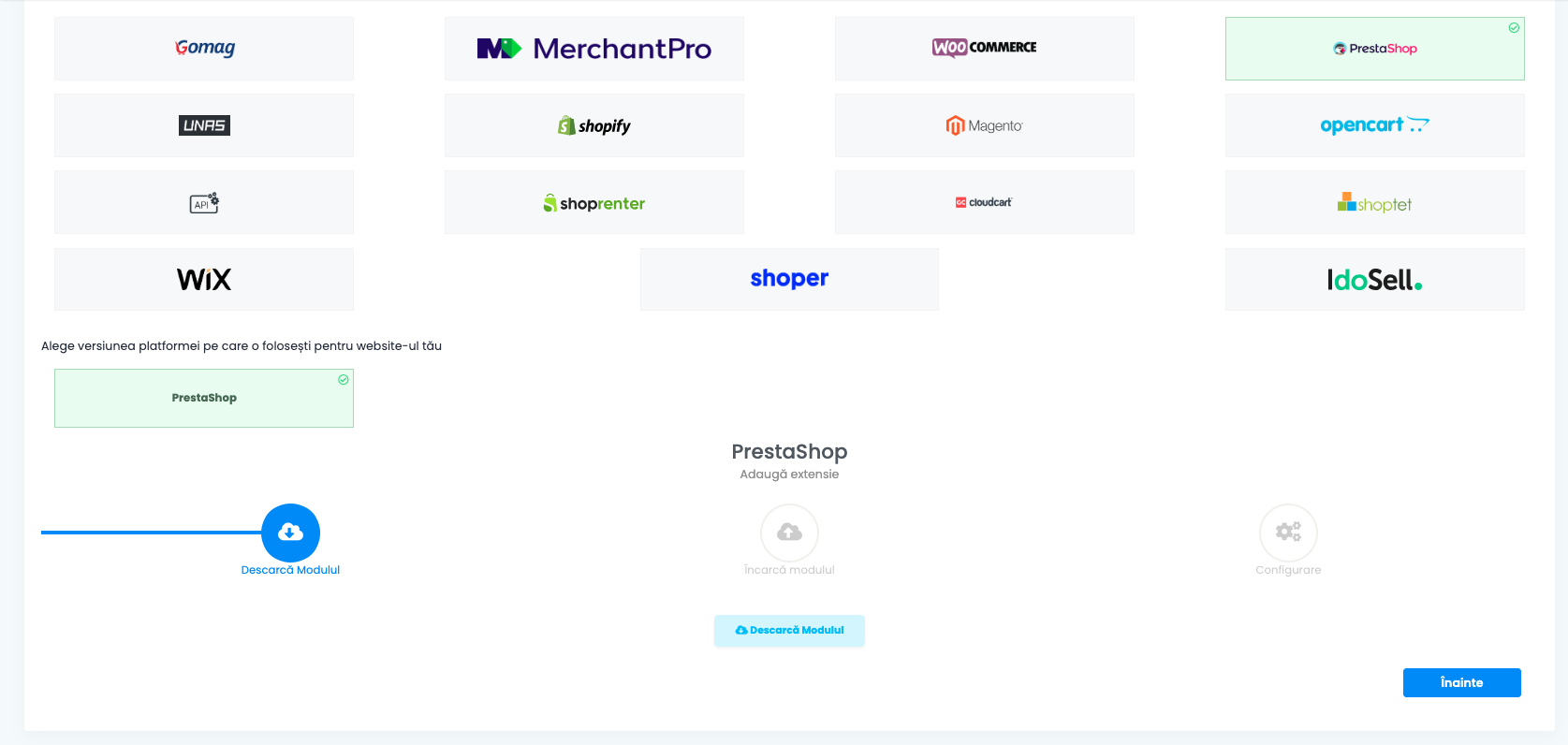
Click the download button to grab the module archive (easysales.zip). Keep this tab open — you'll come back to it in Step 3 to finish the configuration.
Step 2 — Upload and install the module in PrestaShop
In your PrestaShop back-office, go to Modules → Module Manager → Upload a module. Drop in the easysales.zip archive you just downloaded.
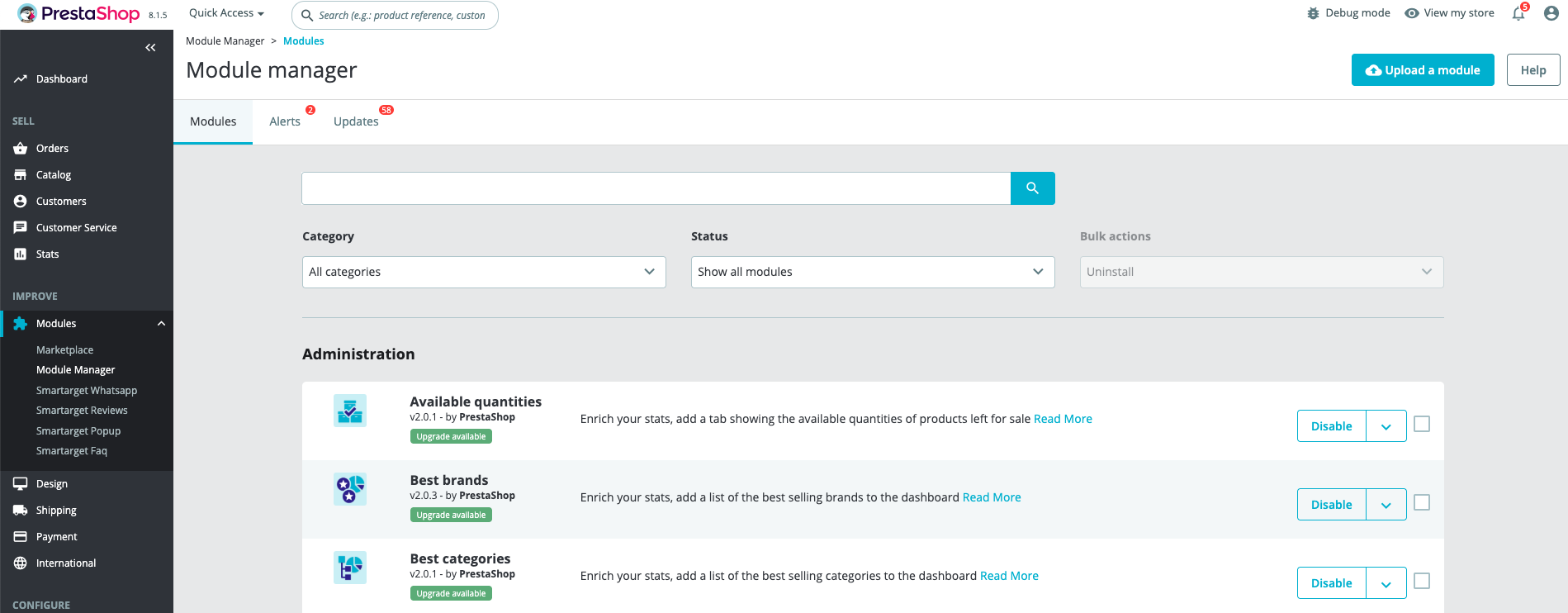
PrestaShop installs the module and runs its setup hooks. When it finishes, the module appears in your Module Manager under Installed Modules. Click Configure on the easySales row — you'll land on the module's settings page with a Token field at the top. Leave the tab open; you'll paste the token from easySales here in the next step.
Step 3 — Configure the website in easySales and paste the token in the module
Return to your easySales tab. The wizard is now on the Configuration step and displays your generated token.
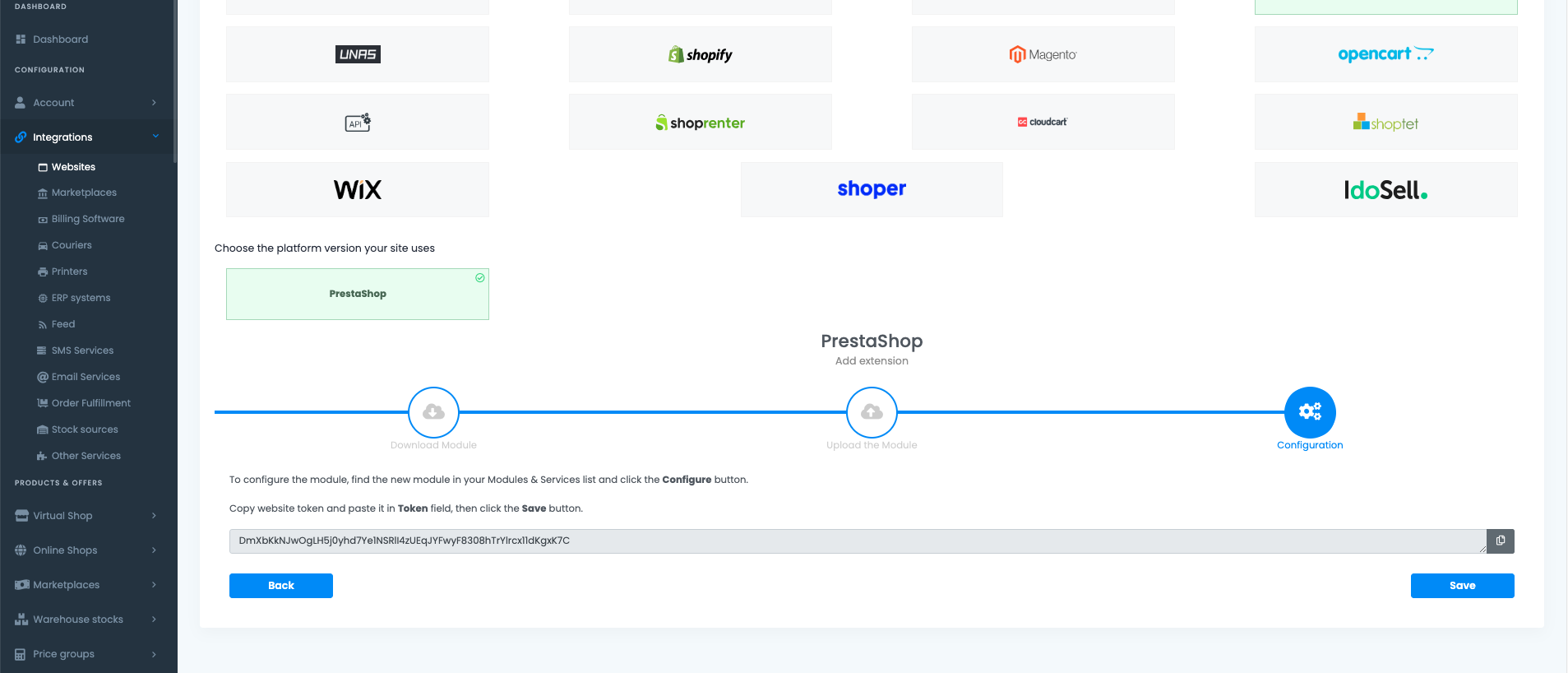
Copy the token shown in easySales, switch to your PrestaShop tab, paste it into the Token field in the easySales module settings, then click Save in PrestaShop.
Back in easySales, finish configuring the site. The form below the wizard collects everything easySales needs to drive the integration.
Website name, URL, and admin path
- Website name — a label you choose. Only visible inside easySales.
- Website URL — your PrestaShop storefront. Use the exact URL where PrestaShop runs, including
https://and thewwwprefix if your domain uses it. - Admin path — the renamed admin folder PrestaShop created at install (e.g.
admin427xyz). easySales appends this to your URL to reach the module's controllers. Without it, the connection fails on save.
VAT and VAT for shipping
If you're a VAT payer, enter the rate for your products and a separate rate for shipping (e.g. 21 for 21%). Leave blank if you're not. PrestaShop's own tax rules apply per zone and per group — easySales reads the line totals PrestaShop sends, so this field is the fallback when the order doesn't carry a tax breakdown.
Language and currency
Pick the storefront language (Romanian, Bulgarian, Hungarian, Polish, or English) and currency (RON, BGN, HUF, PLN, or EUR). These act as defaults for imported products and as a fallback when an order doesn't carry an explicit currency. They never override individual orders — each order keeps the currency PrestaShop reported.
Product stock source
The most important decision on the form. It declares where the authoritative stock value lives:
- Website — PrestaShop is the source of truth. easySales reads stock from PrestaShop and never overwrites it.
- easySales — easySales is the source of truth. Stock changes inside easySales (sales, manual edits, marketplace deductions) are pushed to PrestaShop.
- Connected integration — your stock lives in a third-party system already wired to easySales (billing software like SmartBill, Oblio, Fakturownia or FacturisOnline; an ERP such as NexusERP or Sedona; a fulfilment partner like Fulfillro or Huboxx; and many others). easySales reads stock from that integration and pushes it to PrestaShop. Connect the integration and declare its warehouse first — you can't pick this option otherwise.
Running a multi-warehouse operation? Switch to Advanced warehouse mode. Instead of binding the store to one stock source, pick one or more easySales warehouses and define how their stock is aggregated, prioritized, or split per channel.
Default package type
Used at AWB generation when the order doesn't specify one. Pick the type that fits most of your orders.
Click Save. easySales tests the connection, registers the module hooks on your PrestaShop site, and starts importing your catalog.
What happens automatically after you save
easySales handles the wiring and the initial import for you.
- The module's order, stock, and product hooks are activated on your PrestaShop site. Every order created, updated, cancelled, or paid in PrestaShop reaches easySales in near real time, and the same applies to stock and product updates.
- Your product catalog is imported — products and each of their combinations appear in Online Shops → Products, where you can browse, edit, and turn them into offers for marketplaces.
- Incoming PrestaShop orders appear in your Orders screen, where you generate invoices, AWBs, and run automation flows.
- Stock syncs according to the source you picked. If you chose easySales, stock pushes start running continuously and your PrestaShop storefront reflects centralized inventory.
| From PrestaShop → easySales | From easySales → PrestaShop |
|---|---|
| Orders (create, update, cancel, paid) | Stock updates |
| Products and combinations | Order status changes |
| Stock levels per combination | Fulfillment status from AWB generation |
| Product prices | — |
| Categories and features | — |
| Carrier and payment method per order | — |
| Customer details and addresses | — |
| Locker IDs (any supported locker module) | — |
You're connected — what's next
Once orders start arriving, the next step is automation. Set up flows to generate invoices, create AWBs, and send tracking notifications. If you also sell on marketplaces, turn your PrestaShop catalog into offers and let easySales push them out.
Connect your PrestaShop store in minutes
Try easySales free for 14 days. No credit card and no code changes.