How to connect neoSys with easySales: a complete setup guide
Issue your order invoices in neoSys from easySales: the API token, working point and management, matching products by code, shipping and discount articles.
What connecting neoSys gives you
neoSys is a Romanian ERP for accounting, stock and invoicing. With neoSys connected, the invoices you issue for your orders in easySales are created in neoSys, in the management (gestiune) you choose, and the invoice opens from the order.
Three things to know before you begin:
- Every invoice line must match an article in neoSys. easySales does not create articles in neoSys. Each product, the shipping line and the discount line must already exist there.
- The login is a neoSys API token. The username and password come from the API token you generate in neoSys — not your usual neoSys login.
- Save appears after Get Details. easySales first reads your working points and managements from neoSys, then shows the rest of the form.
Before you start
neoSys with invoicing
With the working point and management you invoice from.
A neoSys API token
Generated under Fisier → Integrare website / aplicatii externe (API), with its username and password.
Your articles in neoSys
Every product you sell, plus a shipping article and a discount article.
The neoSys codes in easySales
Each product's neoSys article code in its Stock code.
Step 1 — Generate an API token in neoSys
In neoSys, open Fisier → Integrare website / aplicatii externe (API) and generate a token. Note the username and password that come with it. The token has the rights of the neoSys user it belongs to, so a dedicated neoSys user for easySales is a good choice. neoSys numbers your invoices in the series assigned to that user.
Step 2 — Connect neoSys in easySales
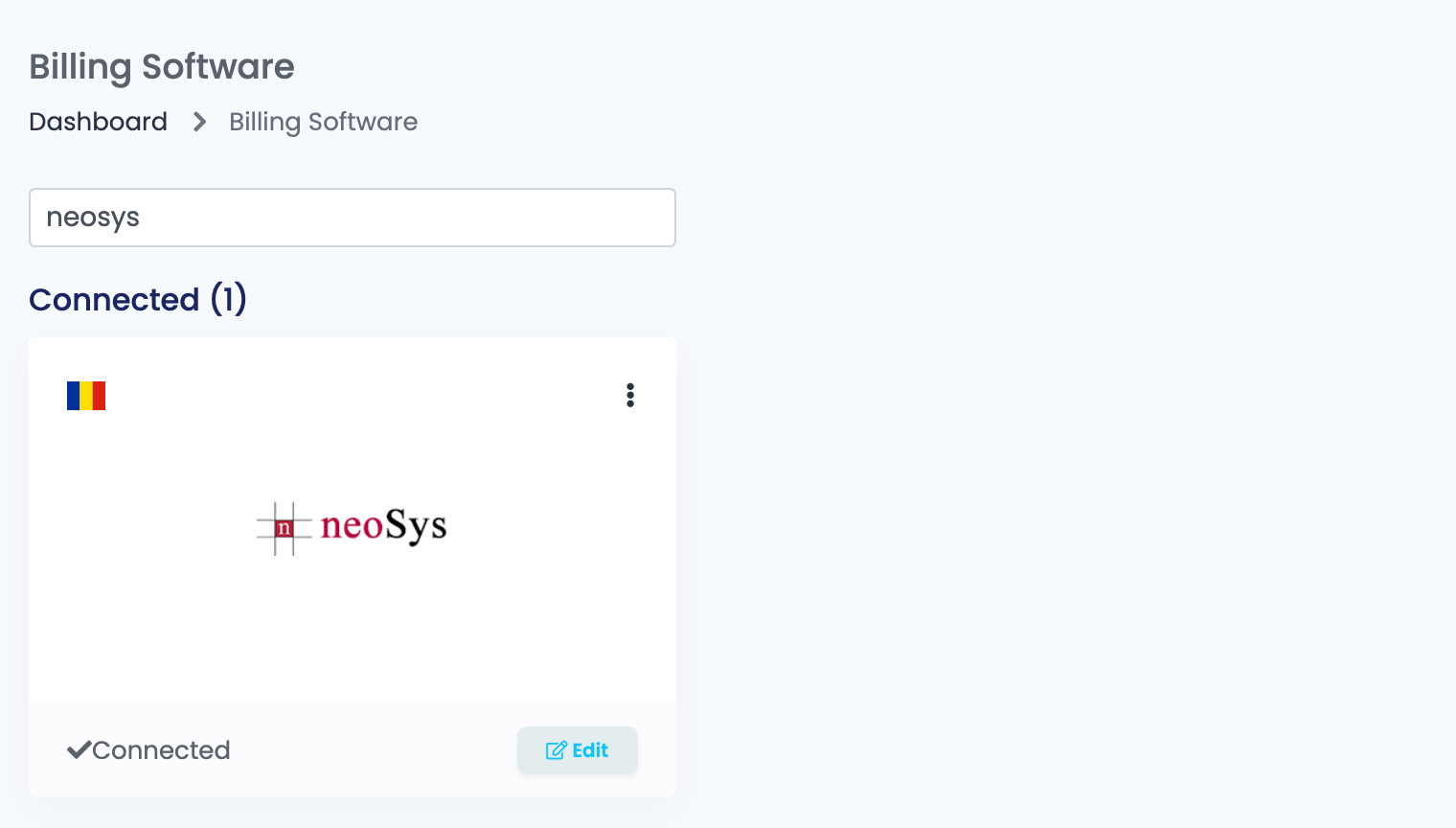
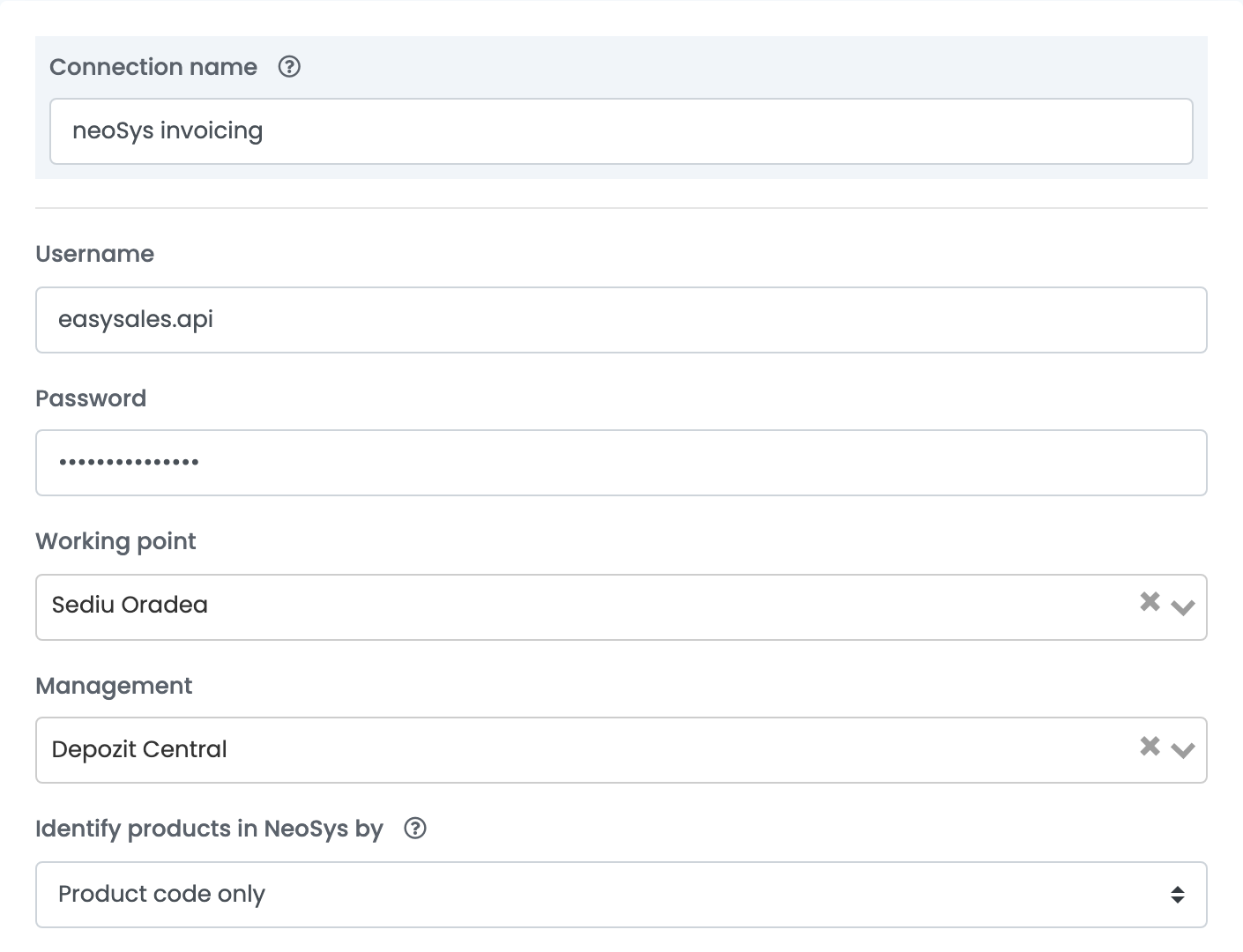
Go to Integrations → Billing Software, search for neosys and connect it. Enter a Connection name, the token's Username and Password, and press Get Details. Then choose the Working point and the Management your invoices are issued from.
Step 3 — How products are matched
Each invoice line is sent to neoSys with the product's Stock code — or its SKU when the Stock code is empty. With Identify products in NeoSys by set to Name, code and barcode, the line's name and EAN must match the neoSys article too.
The simplest setup: put each article's neoSys code into the product's Stock code, and set Identify products in NeoSys by to Product code only. The invoice then prints the article name from neoSys.
Step 4 — Shipping, discounts and options
| Field | What goes in it |
|---|---|
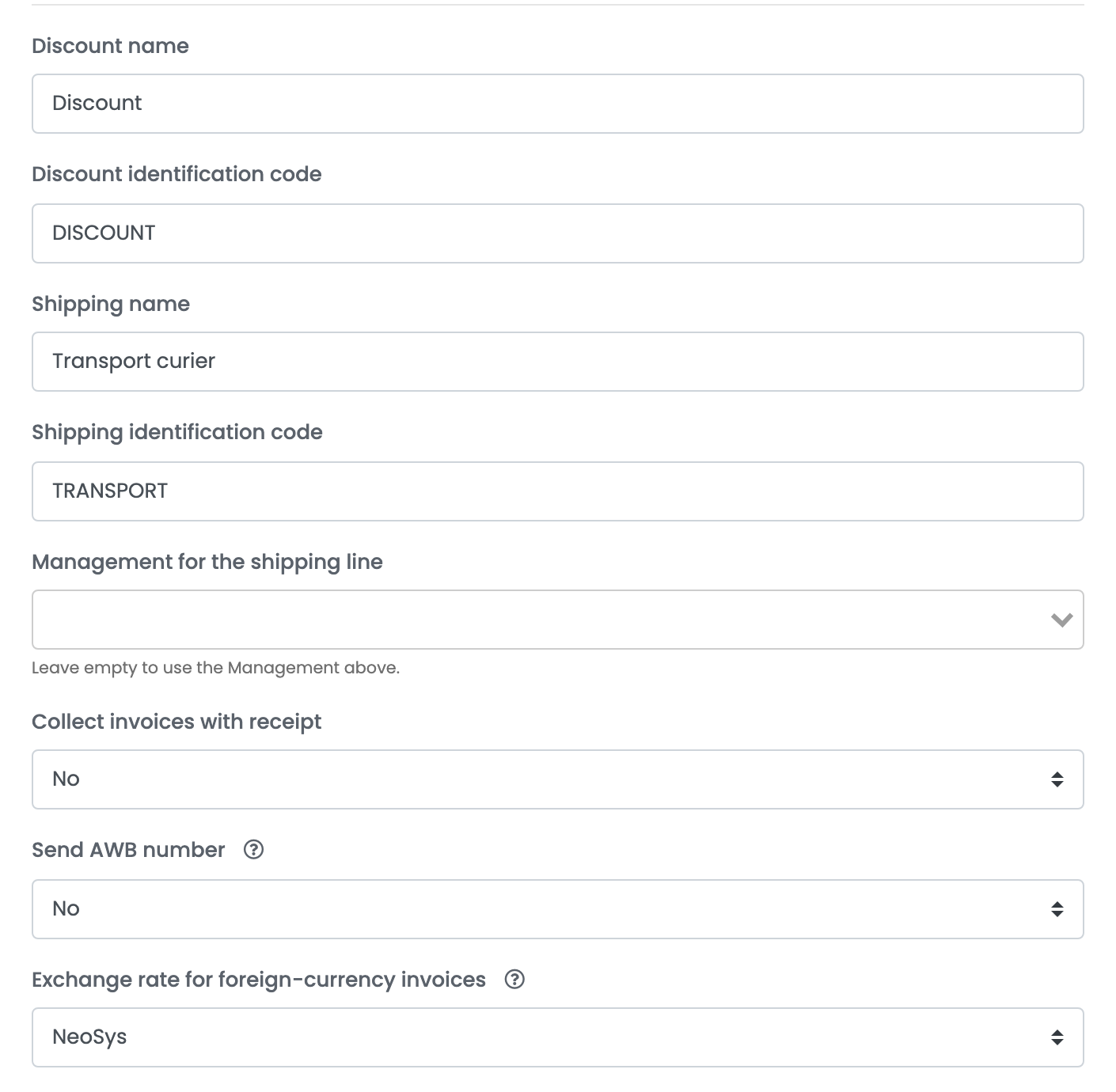
| Discount name, Discount identification code | The name and code of the neoSys article used for discounts, for example Discount / DISCOUNT. |
| Shipping name, Shipping identification code | The name and code of the neoSys article used for shipping, for example Transport curier / TRANSPORT. |
| Management for the shipping line | Optional. The management the shipping article sits in, when it is not the one above. |
| Collect invoices with receipt | Yes records every payment of an invoice marked as paid as a receipt (chitanță). |
| Send AWB number | Yes prints the order's AWB on the invoice, when the order already has one. |
| Exchange rate for foreign-currency invoices | For orders in a currency other than RON: the exchange rate from NeoSys or from easySales. |
Press Save. When you open the connection later, press Get Details again to see and change its settings.
Issuing invoices
Issue invoices from the order page, in bulk from the orders list, or with an automation flow. neoSys creates the invoice in the chosen management and checks the stock there; the invoice is in the order's currency, due 30 days after its date. The PDF opens from neoSys on the order, and goes to the marketplace the order came from.
A storno cancels the whole invoice in neoSys. Deleting the invoice in easySales deletes it in neoSys too.
If neoSys also sends your invoices to e-Factura, do not send them through easySales' e-Factura connection as well — ANAF refuses the second copy.
To read your stock from neoSys as well, add neoSys under Integrations → Stock sources with the same username and password; products are matched by their Stock code, or SKU.
When something does not work
| Message | What to do |
|---|---|
| Nu s-a gasit niciun articol cu [denumire: …],[cod: …],[cod bare: …] | No neoSys article matches the line. Put the neoSys code into the product's Stock code and set Identify products in NeoSys by to Product code only — or create the shipping or discount article named in the message. |
| Nu exista pe stoc articolul … | The article has no stock in the chosen management. Receive it in neoSys, or choose another Management. |
| Request body: element invalid Nume (lungime maxima: 50) [1]! | The buyer's billing contact name is longer than 50 characters. Shorten it on the order and issue the invoice again. |
| Get Details shows an error | Check the Username and Password of the neoSys API token. |