How to connect Leroy Merlin with easySales: a step-by-step guide
Sell on the Leroy Merlin marketplace and manage it from the same dashboard as your other channels. This guide walks you through finding your Shop ID and App token in your Leroy Merlin seller account, connecting the channel in easySales, and setting the defaults that apply to your offers and orders.
Why connect Leroy Merlin with easySales
Leroy Merlin is one of Europe's largest home-improvement retailers, and its marketplace opens that storefront to outside sellers in several countries. Selling there means one more catalog to keep current and one more order stream to watch. easySales brings Leroy Merlin in alongside the rest of your sales channels, so your products, stock and orders stay in one place.
The whole Leroy Merlin group runs on a single Mirakl marketplace — the same platform behind Decathlon, Empik and Modivo — so if you already sell on one of those, this connection will feel familiar.
How the Leroy Merlin connection works
Because it is one shared marketplace, you don't connect to a different address per country. Two values identify you instead:
- Shop ID — the numeric identifier of your shop on the marketplace. It decides which country channel this connection belongs to.
- App token — the API key generated in your seller account. It authenticates every call easySales makes on your behalf.
easySales checks both the moment you connect, and the two ways this can fail look quite different. If Leroy Merlin turns the credentials down outright, what comes back tells you very little — sometimes a generic authentication message, sometimes Leroy Merlin's own wording passed straight through. If the credentials are accepted but the shop does not carry the country channel you picked, or the Shop ID does not match the account, the message is far more useful: it names the Shop ID it actually found, which usually points straight at the fix.
The form comes in two stages. You enter your credentials first and click Continue. Only once Leroy Merlin accepts them does easySales fetch your shop's logistic classes and offer conditions from the marketplace and show the remaining settings. That is why those two dropdowns are empty until your token has been validated — they are filled with your own shop's values, not a fixed list.
Before you start
An active Leroy Merlin seller account
Don't have one yet? Send an onboarding request to marketplace@leroymerlin.ro. The Leroy Merlin team reviews it and opens your seller account, and from there you connect it to easySales yourself.
The Shop ID of every country you plan to sell in
You read it yourself in the seller back office, as in Step 1. Each country has its own, and each connection needs the one that belongs to it.
Access to the seller back office
You generate the API key there yourself in Step 2, so you need an account that can reach Personal settings.
An invoice series ready
A billing series matching your invoicing software, so imported orders are numbered correctly from the first one.
Step 1 — Find your Shop ID
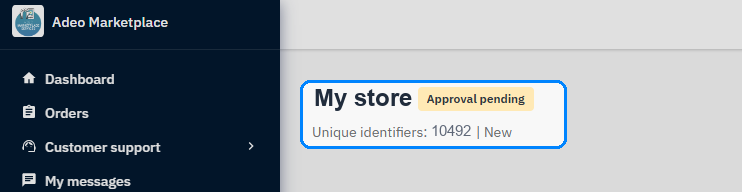
Sign in to your Leroy Merlin seller account — the Adeo Marketplace back office. The store header at the top of your dashboard carries the number on the Unique identifiers line, just under your store name.
Step 2 — Generate your App token
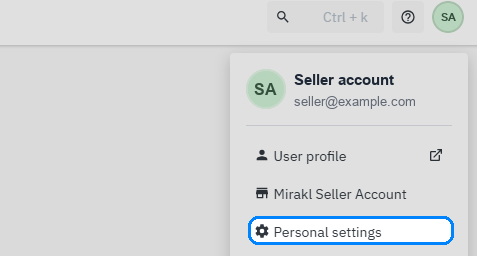
Still in the seller backend, open the account menu in the top-right corner and choose Personal settings.
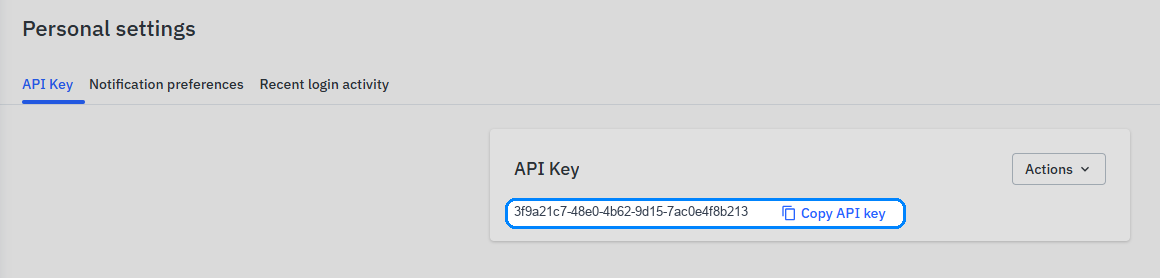
On the API Key tab you'll find the key, with a Copy API key button beside it. This is the value easySales calls the App token — copy it now, you'll paste it in the next step.
Step 3 — Connect the channel in easySales
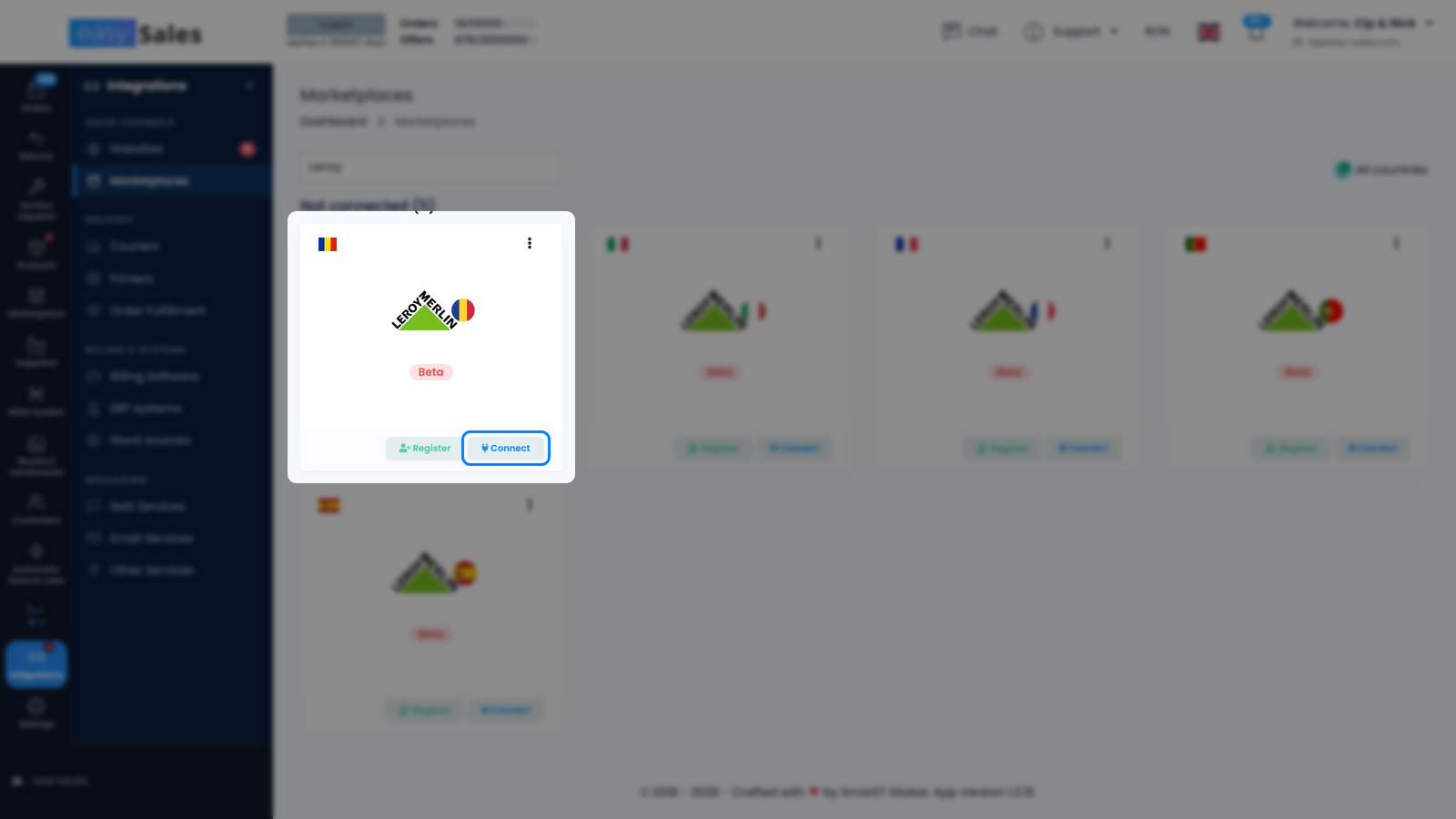
In easySales, from the sidebar go to Integrations → Marketplaces. Each Leroy Merlin country has its own card. Find the card for the country you're connecting and click Connect on it.
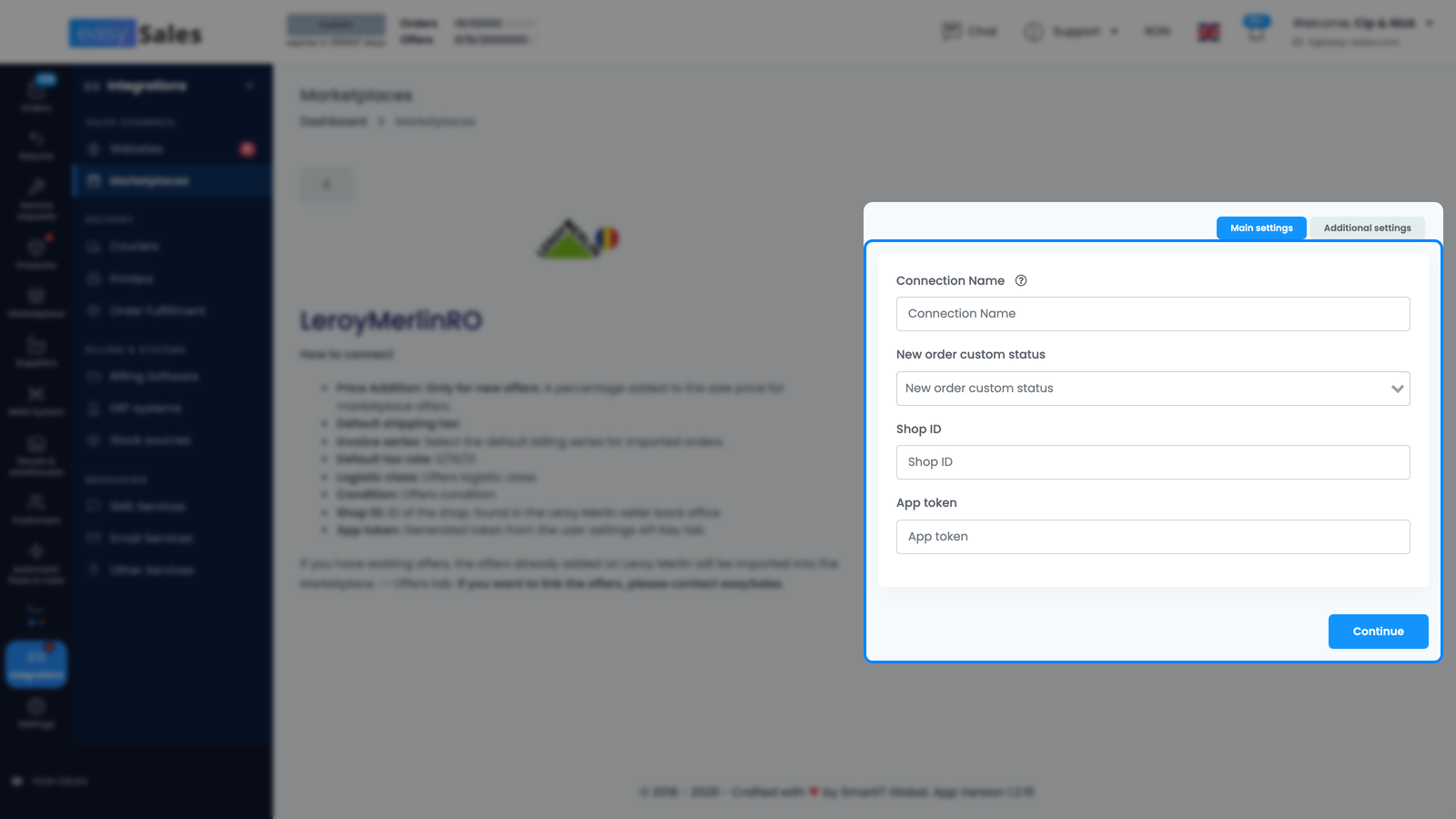
The settings form opens on the Main settings tab, which is one of its two tabs alongside Additional settings. Fill in:
- Connection Name — a label you choose for this connection. It's only ever shown inside easySales, so name it for the country if you plan to connect more than one.
- New order custom status — optional. Pick one of your custom statuses and every order imported through this connection starts there instead of on the default status.
- Shop ID — the number from Step 1.
- App token — the key from Step 2.
Click Continue. easySales validates the pair against Leroy Merlin straight away, so an error here means the credentials or the country didn't check out rather than something failing later. Once they are accepted, the connection is created and easySales queues its first synchronisation of offers and orders for the channel.
Step 4 — Set the offer and order defaults
With the token accepted, the rest of Main settings appears. These values become the defaults for the offers and orders on this channel:
- Price Addition — an optional percentage added on top of your product price when an offer is published to this channel.
- Default shipping tax — the VAT rate applied to the shipping line on orders from this channel.
- Invoice Series — the billing series assigned to imported orders. Match it to the series you use in your invoicing software.
- Default Tax Rate — the default VAT percentage for your offers and orders. Set it to 0 if you're not a VAT payer.
- Logistic class — the shipping class sent with your offers, read from your own shop on the marketplace. Leave it on Default LeroyMerlin Class if you don't use a specific one.
- Condition — the state your offers are published in, also read from your shop's own list.
- Delivery Days — the handling time published with your offers. A product's own handling time overrides this when one is set.
Click Save to store these settings.
Step 5 — Choose what easySales keeps in sync
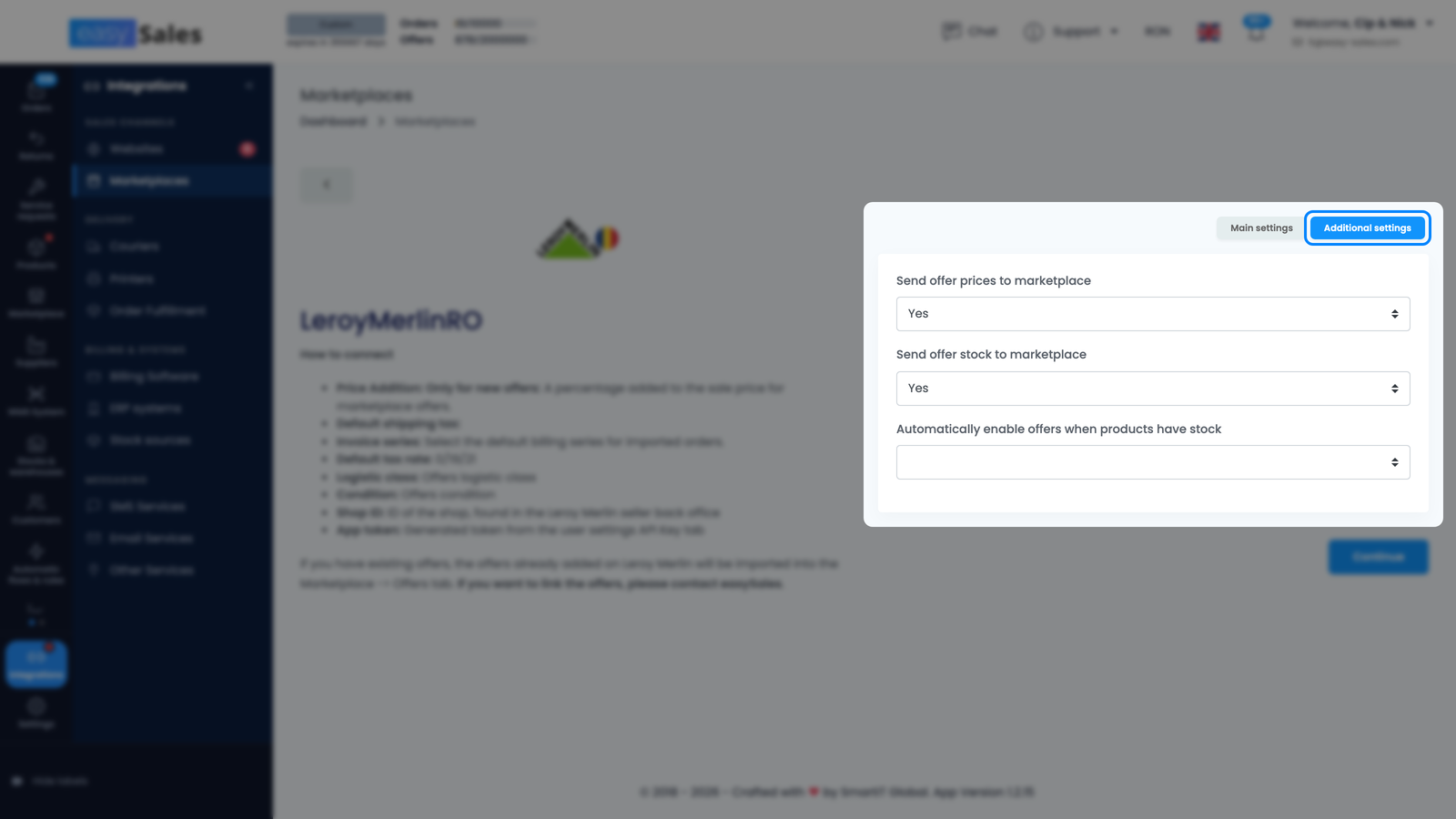
The Additional settings tab sits next to Main settings on the same form, so you can switch to it before you save. If you have already saved and left the form, reopen the connection from its card in Integrations → Marketplaces. These three settings control what easySales sends on an ongoing basis; all are optional and the first two are on by default:
- Send offer prices to marketplace — keep your Leroy Merlin prices tied to your catalog prices.
- Send offer stock to marketplace — keep availability tied to your stock.
- Automatically enable offers when products have stock — bring an offer back automatically once its product is back above zero stock.
Save again after you change any of them.
What syncs between easySales and Leroy Merlin
| From Leroy Merlin → easySales | From easySales → Leroy Merlin |
|---|---|
| Orders, with customer and delivery details, and their status as it changes on the marketplace | Product listings — name, description, images, brand, EAN, category and characteristics |
| Existing listings not yet matched to your catalog — title, description, EAN, category, SKU and price | Offer price with VAT included, available stock, condition and logistic class |
| The publishing result for each offer you send, including why it was refused | Handling time, and offer deactivation when you disable an offer |
| — | Invoices and credit notes, uploaded to the order |
You're connected — what's next
Connecting the channel doesn't put your catalog on it. Your products reach Leroy Merlin only once you create offers for them and each offer is linked to a product in your catalog — an unlinked offer stays in easySales and is never sent. You'll also want to map your categories, since Leroy Merlin's home-improvement tree is its own and each category carries its own required attributes.
From here, publish your first offers from Online Shops → Products, review them under Marketplaces → Offers on the Leroy Merlin tab, and set up flows under Processing → Flows to invoice and process orders as they arrive.
Add Leroy Merlin to the channels you already run from easySales
Try easySales free for 14 days. No credit card required.