How to connect InPost with easySales: a complete setup guide
Connect InPost to easySales with a ShipX token: choose one service per connection, set the sending method, package size, courier collection and sender, and fix the messages InPost returns.
What connecting InPost gives you
InPost is Poland's parcel-locker and courier network. Connected to easySales through InPost's ShipX API, it creates the shipping label for an order in one click — from the order list or from the order page — puts the tracking number on the order, follows the delivery status and, if you want, books the courier to collect your parcels.
Two things to know before you begin:
- One connection is one service. Every label from a connection uses the InPost service chosen on it — a locker service, a courier service, an Allegro service. To ship in more than one way, you make one connection per service.
- The service must match how the order is delivered. An order going to a Paczkomat needs a locker connection; an order going to an address needs a courier connection.
Before you start
An InPost account in Manager Paczek
With your company's address data and invoice data filled in under Moje Konto.
A courier contract, if you ship by courier
Its customer number unlocks InPost's courier services. Without it you can ship to lockers.
The ways you ship
Decide which services you use — for example lockers and courier, or Allegro services for Allegro orders — because each needs its own connection.
Step 1 — Generate the ShipX token in Manager Paczek
- Log in to InPost's Manager Paczek at manager.paczkomaty.pl.
- Open Moje Konto and check that your company's address data and invoice data are both filled in — InPost only generates API access when they are.
- Open the API tab, expand API ShipX and press Generuj.
- InPost asks for the customer number from your courier contract. Enter it if you have one, then press Generuj.
- The token appears in the API ShipX tab. Press Pokaż token and copy it — you paste it into easySales in the next step.
Step 2 — Connect InPost in easySales
Go to Integrations → Couriers, search for inpost and press Connect on the InPost card — or Edit, if you have connected it before.
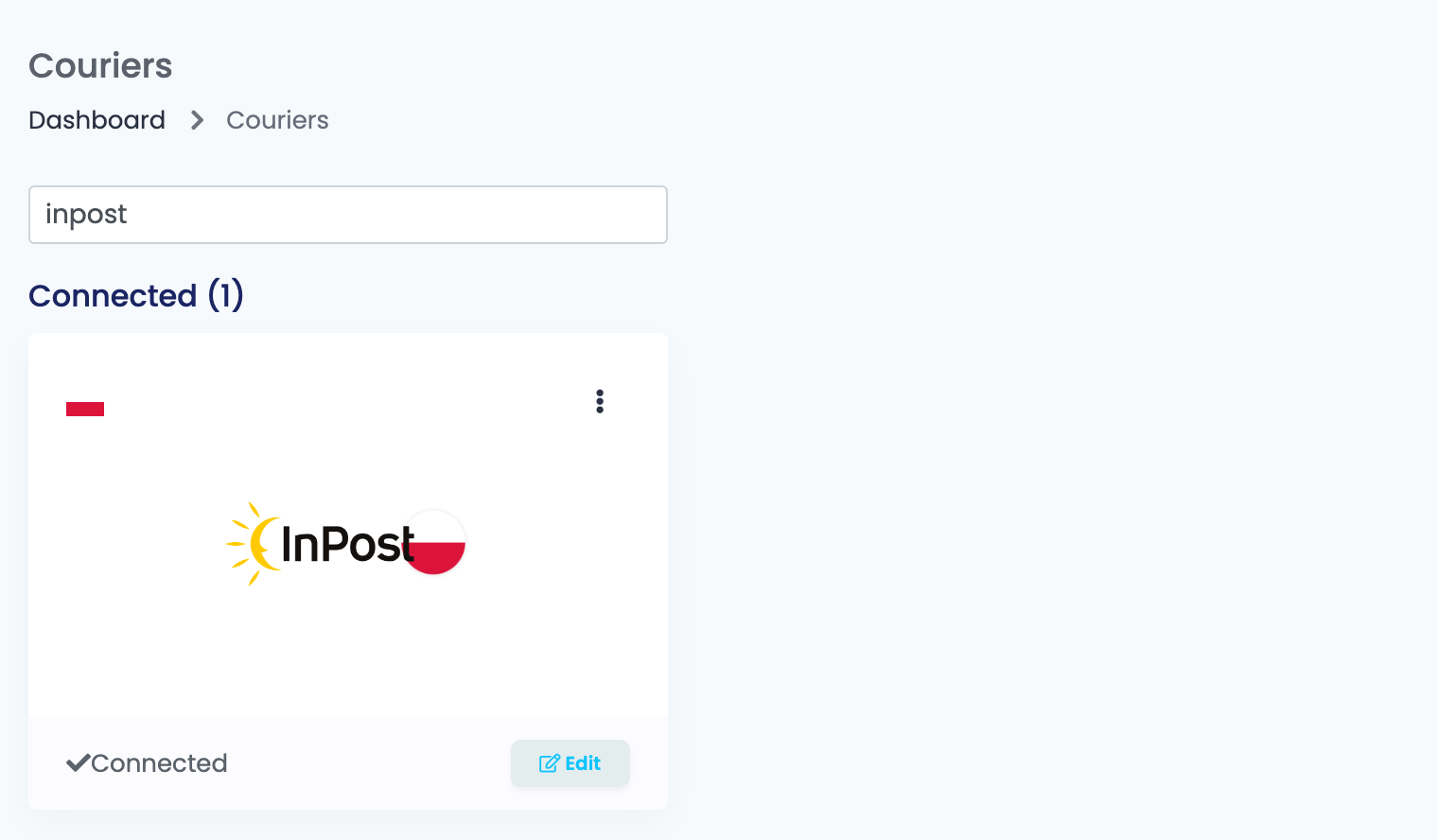
Enter a Connection Name and paste the token into API key, then press Get Details. easySales checks the token with InPost and opens the rest of the form.
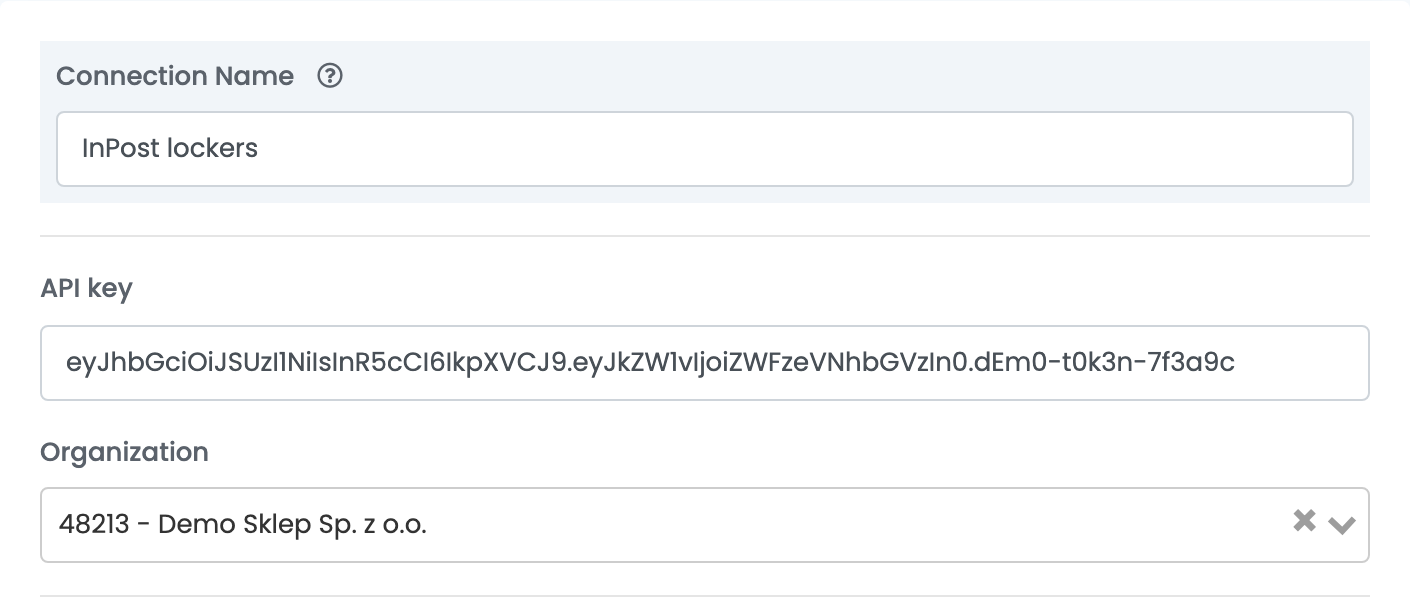
| Field | What goes in it |
|---|---|
| Connection Name |
A name you will recognise when choosing between connections — the service is a good one, for example InPost lockers.
|
| API key | The ShipX token from Manager Paczek. |
| Organization | Your InPost organization. It appears after Get Details; picking it fills in the sender and decides which services you can choose. |
Save appears only after Get Details. The button is there every time you open the connection, and you press it each time before saving a change.
Step 3 — Choose the service
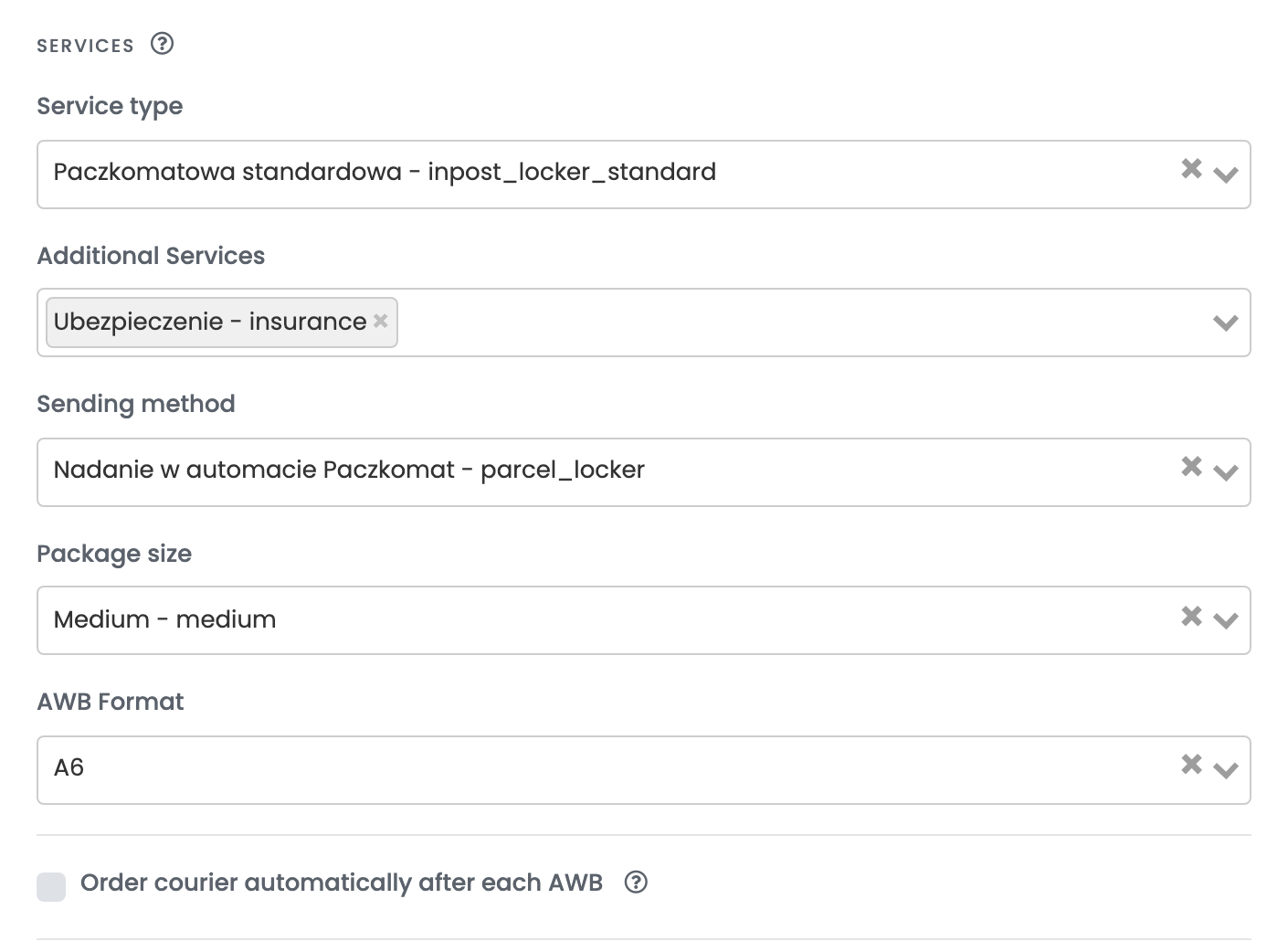
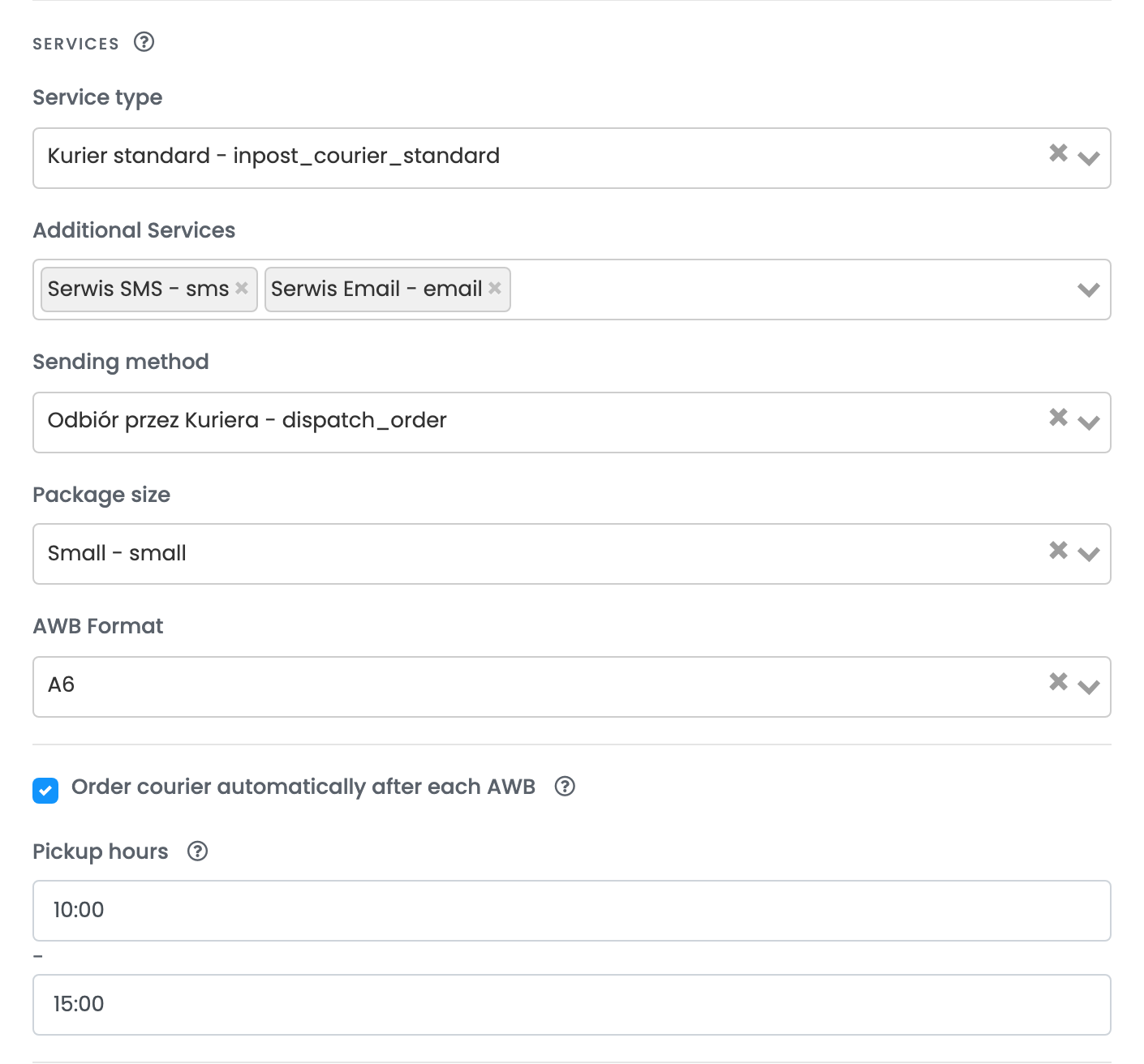
Service type lists the services of the organization you picked — the ones your InPost account can use. Pick the one this connection will ship with. Its Additional Services, such as insurance (Ubezpieczenie) or cash on delivery (Pobranie), become available once the service is chosen, and the ones you select are added to every label from this connection.
| Order delivered to | Choose a service such as |
|---|---|
| A Paczkomat | Paczkomatowa standardowa — or Allegro Paczkomaty24/7 InPost for Allegro orders |
| The customer's address | Kurier standard — or Allegro Kurier24 InPost for Allegro orders |
| A small Allegro parcel | Allegro miniKurier24 InPost |
Step 4 — Sending method, package size and label format
| Field | What it does |
|---|---|
| Service type | The one InPost service this connection ships with. |
| Additional Services | Extras added to every label from this connection, such as insurance, cash on delivery or SMS and e-mail notifications. The list depends on the service. |
| Sending method | How your parcels reach InPost — see the next table. |
| Package size | The size sent when an order has no size template. |
| AWB Format | A4 for an office printer, A6 for a thermal label printer. |
Sending method tells InPost how the parcels reach it. The names are InPost's own:
| Sending method | What it means |
|---|---|
| Nadanie w automacie Paczkomat | You drop the parcel into a Paczkomat. Choose it in Drop-off point. |
| Nadanie w POK | You hand the parcel in at an InPost customer service point. Choose it in Drop-off point. |
| Nadanie w POP | You hand the parcel in at an InPost PaczkoPunkt. |
| Nadanie w Oddziale | You bring the parcel to an InPost branch. |
| Odbiór przez Kuriera | An InPost courier collects the parcel from you. |
| Nadanie w dowolnym punkcie | You hand the parcel in at any InPost point. |
Package size is the size sent for an order that has no size template. The sizes offered depend on the service:
| Service | Sizes offered |
|---|---|
| Locker services | Small, Medium and Large — InPost's locker sizes A (8 × 38 × 64 cm), B (19 × 38 × 64 cm) and C (41 × 38 × 64 cm) |
| Courier services | Small, Medium, Large and Extra Large (50 × 50 × 80 cm) |
| Letter services (miniKurier) | Letter A, Letter B and Letter C |
Step 5 — Courier collection
Step 6 — Sender and drop-off point
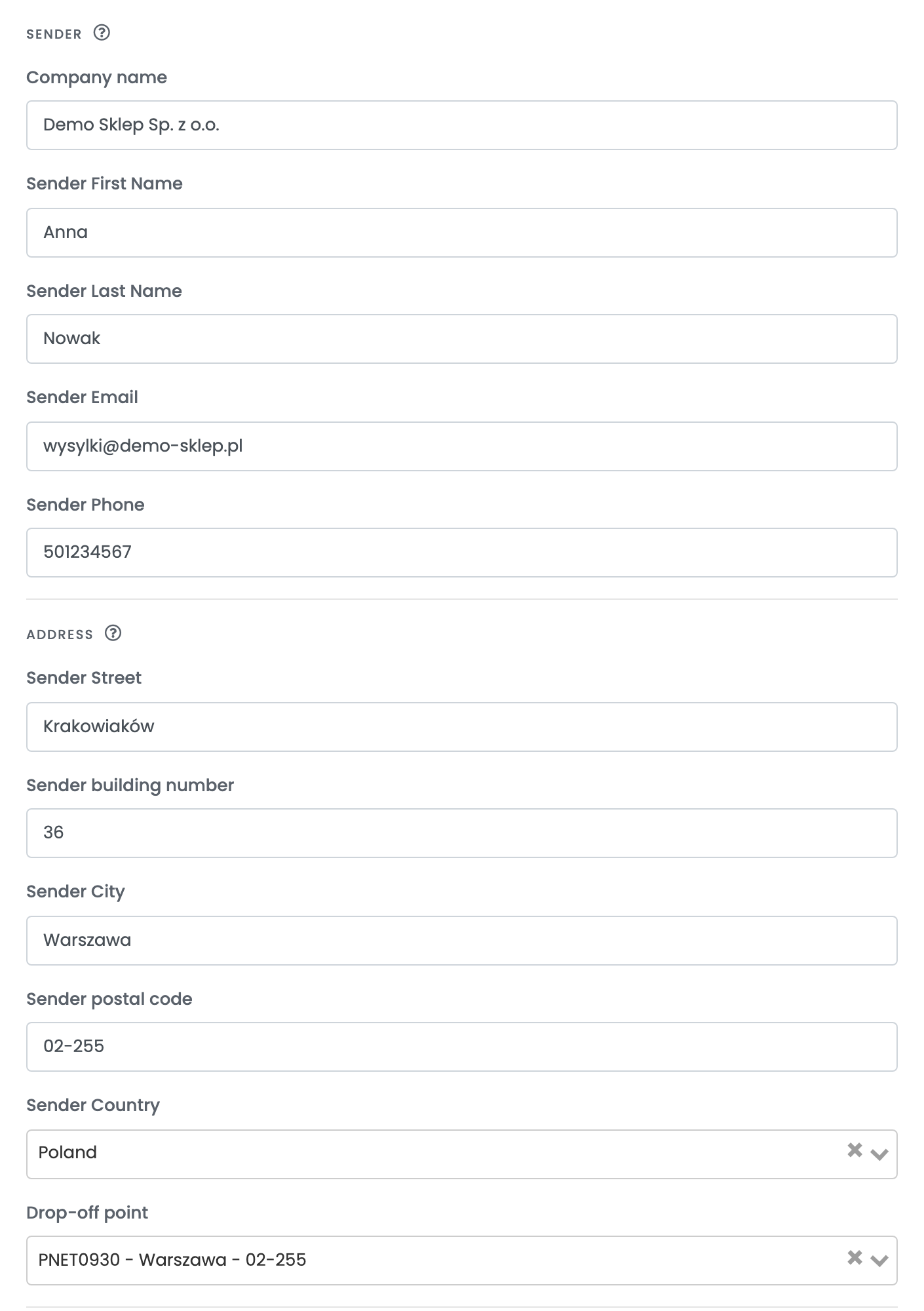
When you pick the Organization, easySales fills in the sender with the company and contact details InPost has for it. Check them and correct anything that is missing.
| Field | What goes in it |
|---|---|
| Company name, Sender First Name, Sender Last Name | Who sends the parcels, as printed on the label. |
| Sender Email, Sender Phone | Where InPost and the courier can reach you. Type the phone number as digits only. |
| Sender Street, Sender building number, Sender City, Sender postal code | The address the parcels leave from — and where the courier comes to collect them. |
| Sender Country | Poland. |
| Drop-off point | The Paczkomat or point where you hand in your parcels, for the sending methods that start at one. Type part of its name or town to search. |
| Send shipment to marketplace/website | Yes sends the tracking number to the marketplace or shop the order came from. No keeps it in easySales only. |
Below them are the notes template — the text sent to InPost as the parcel's comment — the printing settings and Show advanced options. There, Fallback email is the address used for a customer who has no e-mail on the order, and Generate packages based on the number of packages of the product makes one parcel per package of every product in the order. Press Save when you are done.
Step 7 — Add a connection for each service
To ship with a second service, open the connection and press Clone. easySales saves a copy with the same token and sender details, and every connection gets its own button above the form. Open the copy, press Get Details, give it its own name, choose the other service and save. Each connection appears as a separate choice when you create a label.
Creating labels
- Quick create, from the order list, uses everything saved on the connection. The weight is the order's weight, at least 1 kg; the parcel sizes come from the order's size templates or, without them, from Package size. An order the customer asked to have delivered to an InPost Paczkomat is addressed to the locker they chose.
- From the order page you can change the address or the locker, the weight, the number and size of parcels and the cash-on-delivery amount, see the estimated cost and decide with Order courier pickup whether to book a collection for this parcel.
Cash on delivery is added when the order is paid on delivery: the amount is the order total, and the parcel is insured for the same amount. The order then carries InPost's tracking number, and its delivery status follows InPost's tracking.
When a label is refused
The reason is shown on the order. The ones you are most likely to see:
| Message | What to do |
|---|---|
| Invalid box machine function | A locker order was sent with a courier or letter service. Create the label with a locker connection. |
| Pickup Point is required | A locker service was used for an order that has no locker. Choose a locker on the order page, or use a courier connection. |
| Receiver email should have allegro domain | An Allegro service was used for an order that is not from Allegro. Use a connection with a standard service. |
| Receiver phone is invalid | InPost needs a valid Polish mobile number. Correct the customer's phone on the order. |
| Receiver Post Code is invalid | Correct the postal code in the order's delivery address. |
| Drop-Off Point is required | The sending method starts at a Paczkomat or a point. Choose one in Drop-off point on the connection. |
| Sending method is unavailable for selected service | The service cannot be handed over that way. Choose another Sending method. |
| Cash On Delivery is unavailable for target point | The customer's locker or point does not accept cash on delivery. Create the label from the order page with another point or without cash on delivery. |