How to connect inFakt with easySales: a complete setup guide
Issue your order invoices in inFakt from easySales: the API key, checking the connection, numbering, KSeF, document markings and what to do when inFakt refuses.
What connecting inFakt gives you
inFakt is an online invoicing and accounting service for Polish companies. With inFakt connected, the invoices you issue for your orders in easySales are created in your inFakt account, and their PDF comes back to the order — and goes on to the marketplace when the order came from one.
Three things to know before you begin:
- Saving does not check the API key. Reopen the connection after you save it: when the Document markings (JPK_V7) list loads from inFakt, the key works.
- Invoices take a moment. easySales sends each invoice to inFakt and the order shows Invoice is processing until inFakt has created it; the number and PDF appear shortly after.
- inFakt numbers your invoices unless you turn on easySales numbering on the connection.
Before you start
An inFakt account
For your company in Poland.
An inFakt API key
Generated under Ustawienia → API, allowed to read and write invoices.
Your inFakt login e-mail
The e-mail you sign in to inFakt with.
KSeF in inFakt, if you use it
An active KSeF integration on your inFakt account, before you tick the KSeF box.
Step 1 — Generate an API key in inFakt
In inFakt, open Ustawienia → API and add a new key: give it a description, enter your inFakt password and choose its scope (zakres uprawnień) — easySales needs permission to read and write invoices. Press Wygeneruj and copy the key.
Step 2 — Connect inFakt in easySales
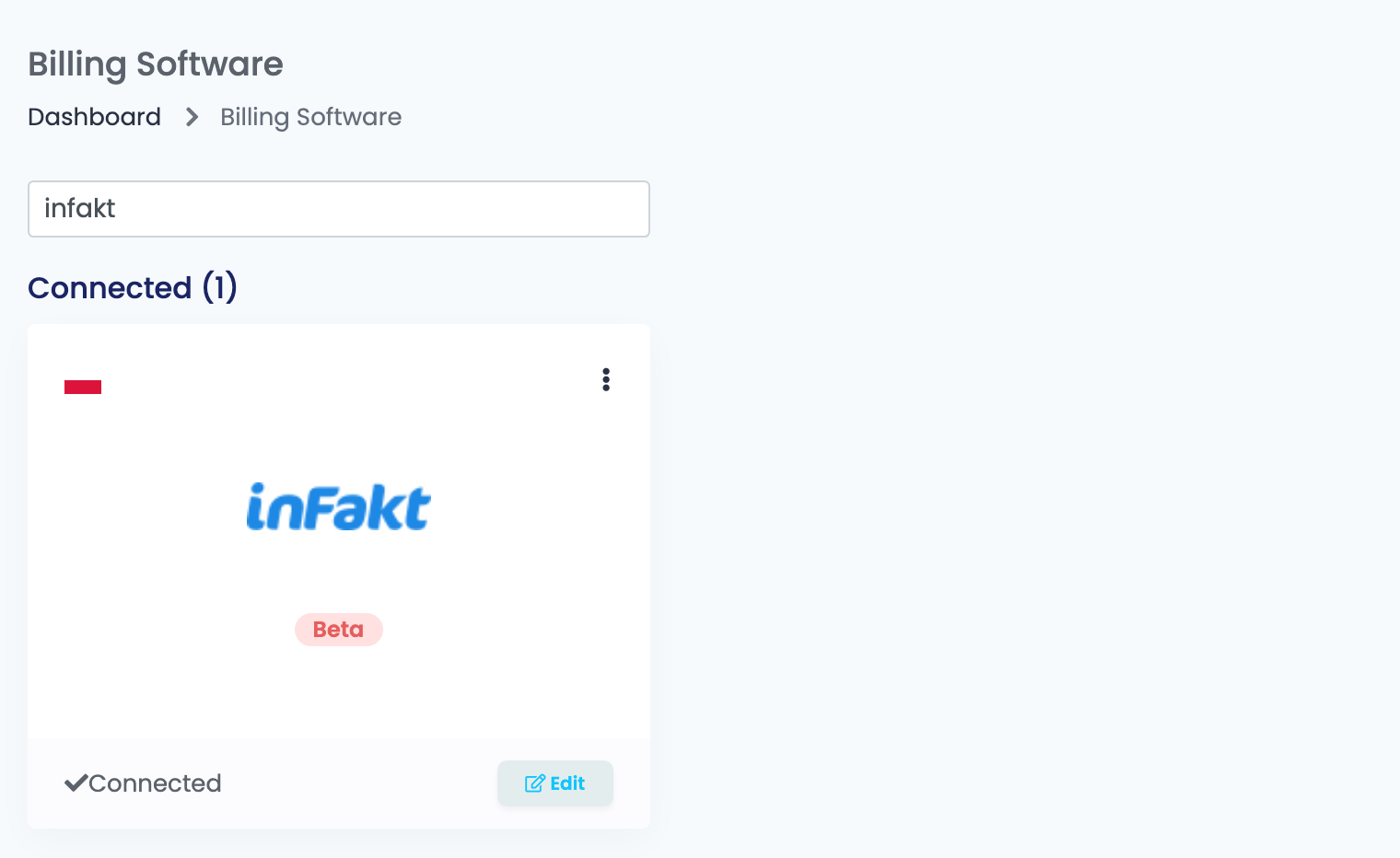
Go to Integrations → Billing Software, search for infakt and connect it.
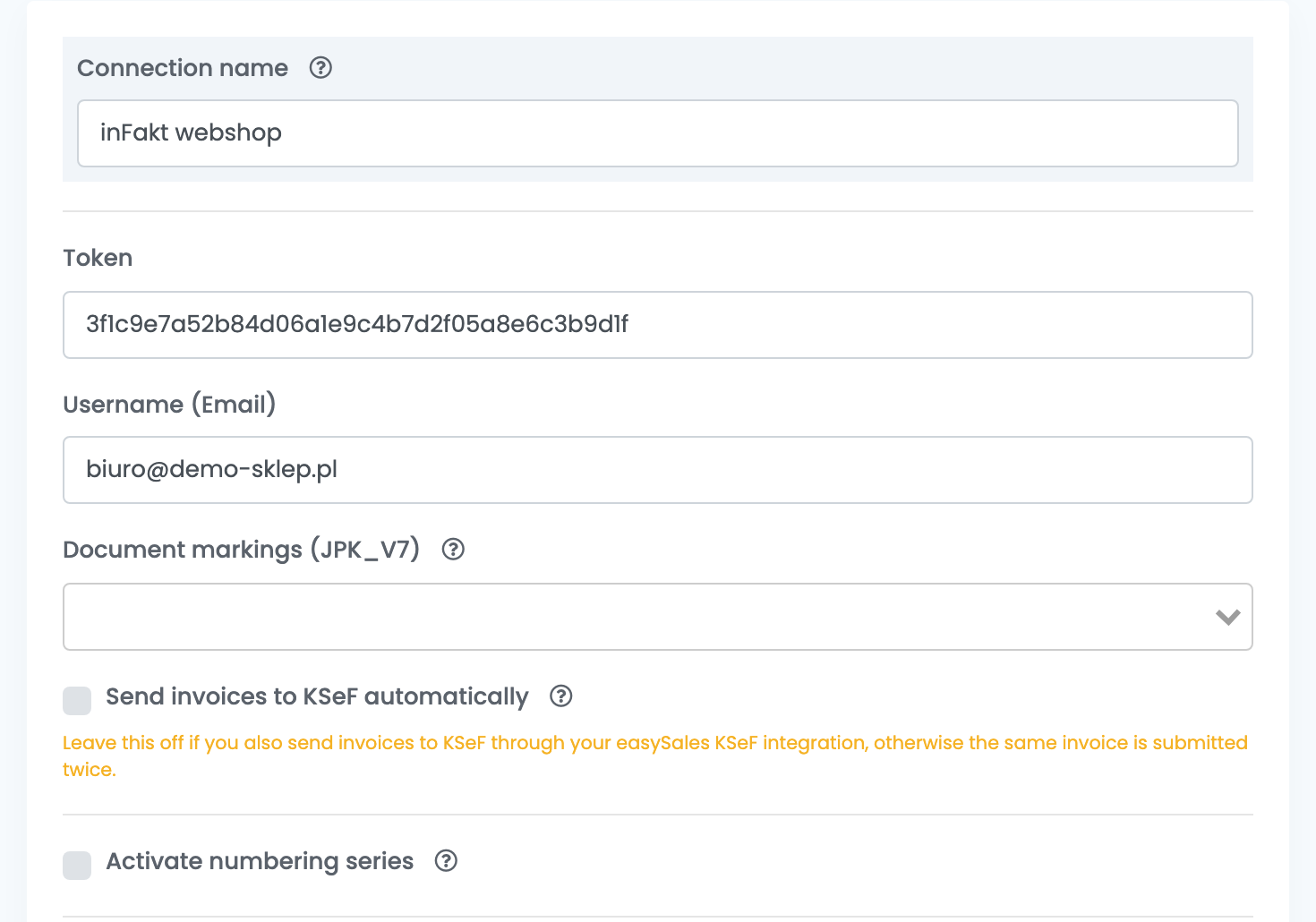
| Field | What goes in it |
|---|---|
| Connection name | A name you will recognise. |
| Token | The API key you generated in inFakt. |
| Username (Email) | The e-mail you log in to inFakt with. |
| Document markings (JPK_V7) | Markings added to every invoice of this connection, for example WSTO_EE for foreign B2C sales. Leave it empty if none apply to all your invoices; for different markings, clone the connection. |
| Send invoices to KSeF automatically | Ticked, inFakt forwards each invoice to KSeF right after creating it. |
| Activate numbering series | Off, inFakt numbers each invoice with its own format (Ustawienia → Faktury → Numeracja). On, easySales assigns the series and number from the series you add here — then issue invoices only from easySales, so the numbers do not collide. |
| Template | The note printed on each invoice, built from order details such as the order ID or the AWB number. |
Press Save, close the connection and open it again. If the Document markings (JPK_V7) list loads, easySales can talk to inFakt; if the field shows InFakt Error: The API key you provided is invalid., generate a new key and save it again.
Issuing invoices
Issue invoices from the order page with Create Invoice and the inFakt connection, or automatically with an automation flow. Each invoice is issued one order at a time.
- The invoice is in the order's currency, dated today, with the order date as the sale date.
- Each order line becomes an invoice line with its name, net price and VAT rate; shipping becomes a separate line.
- Lines are not matched to products in inFakt, and stock in inFakt does not change.
- An order that is already paid is issued as paid.
A buyer marked as a company must have a tax number (NIP) on the order, otherwise inFakt refuses the invoice. To correct an invoice, issue the corrective invoice in inFakt.
When something does not work
| Message | What to do |
|---|---|
| InFakt Error: The API key you provided is invalid. | Generate a new key in inFakt (Ustawienia → API), paste it into Token and save. |
| InFakt Error: Please select a client. | The buyer is marked as a company but has no tax number. Add the NIP on the order, or mark the buyer as a private person, then issue the invoice again. |
| The invoice series … is not configured on this inFakt connection… | With Activate numbering series on, add the series to the connection, or turn easySales numbering off. |
| Bulk invoice not available for inFakt. | Issue inFakt invoices one order at a time, from the order page or with an automation flow. |