How to connect GLS Poland with easySales: a complete setup guide
Connect GLS Poland to easySales: the ADE Plus login with WebAPI access, the label format, the sender address, services, the pickup confirmation and common refusals.
What connecting GLS Poland gives you
With GLS Poland connected, easySales creates GLS shipments for your orders from Poland: it sends the sender and the recipient to GLS Poland, receives the label in the format you chose, puts the AWB on the order and follows the parcel's status.
Three things to know before you begin:
- You sign in with your ADE Plus user. The Username and Password are those of your user in ADE Plus, the GLS Poland sender portal. GLS Poland must enable WebAPI access for that user — ask your GLS account manager if it is not enabled.
- easySales does not order the courier. Each label is confirmed to GLS for dispatch, but the courier comes on your regular pickup with GLS, or when you order it in ADE Plus.
- Services go on every label of a connection. The services you choose on the connection are added to each shipment it creates. Use them for shipments within Poland.
This guide is about the GLS Poland card, the one with the Polish flag. GLS Romania, GLS Hungary and the other GLS countries use their own cards, with a different form.
Before you start
A GLS Poland contract
With a user in ADE Plus, the GLS Poland sender portal.
WebAPI access for that user
Enabled by GLS Poland — your account manager can turn it on.
A pickup arrangement
A regular pickup with GLS, or ordering the courier in ADE Plus.
Step 1 — Your ADE Plus login and the label format
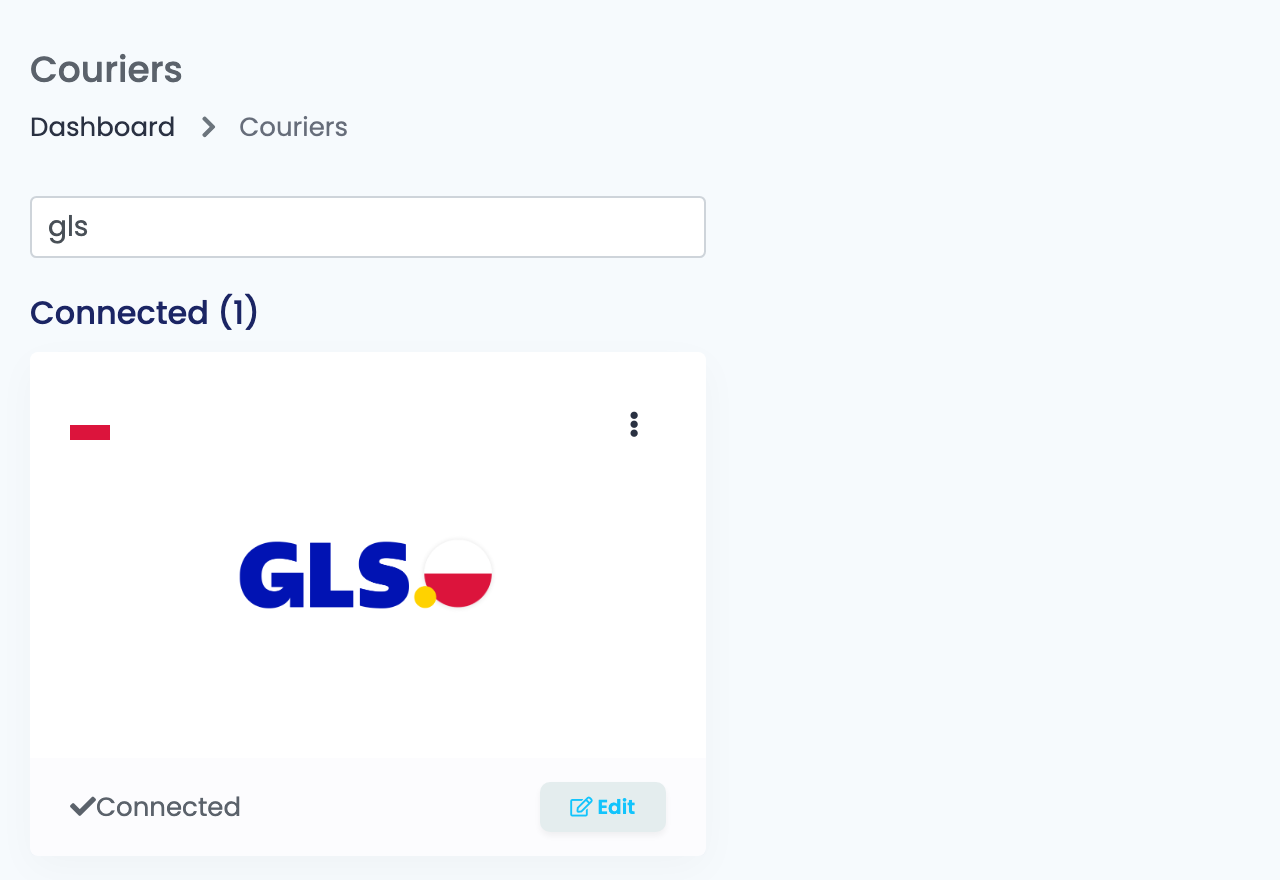
Go to Integrations → Couriers, search for gls and press Connect on the GLS card with the Polish flag. Enter a Connection Name you will recognise, your ADE Plus Username and Password, and choose the AWB Format.
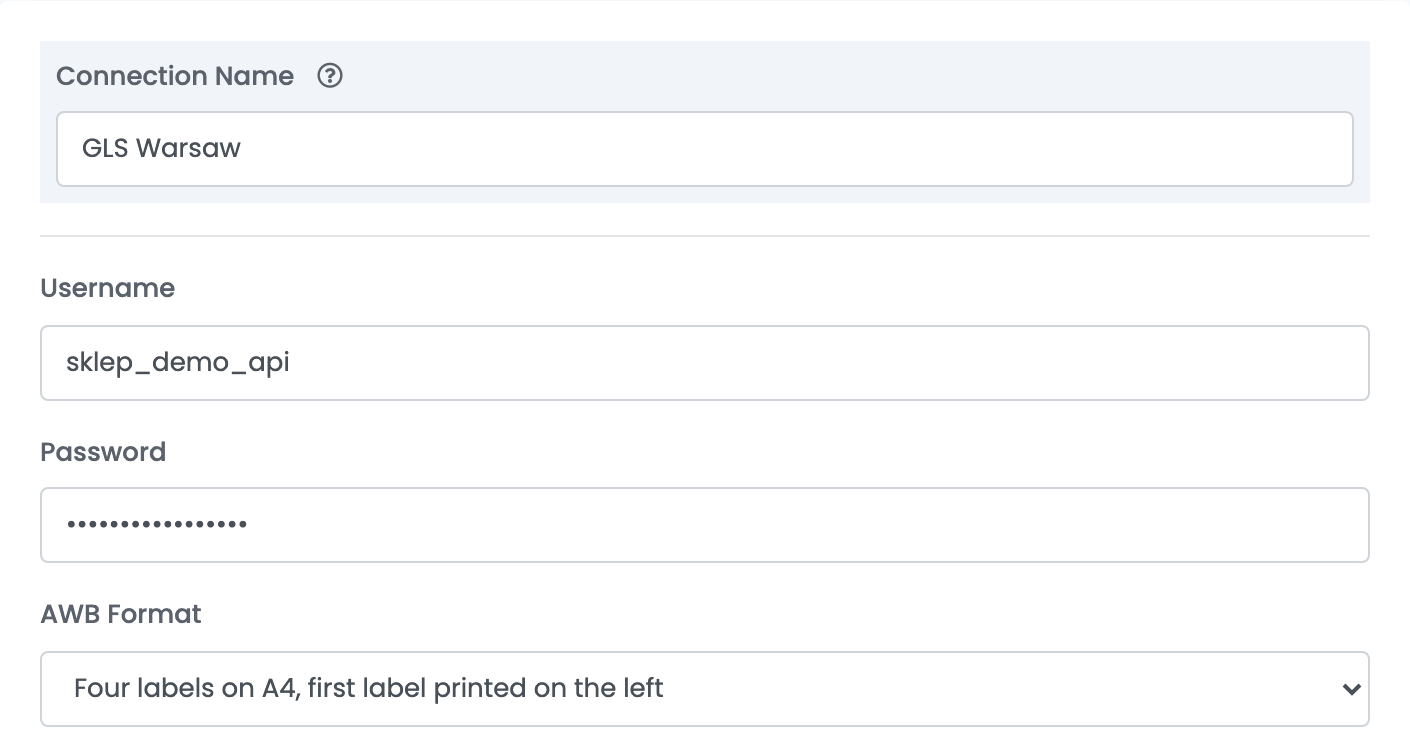
AWB Format decides the layout of the label file GLS returns:
- One label on A4, or one label in a corner of an A4 page, or four labels on A4 — for an office printer.
- Roll label (160x100) as a PDF file, horizontal or vertical — for a label printer that prints PDF.
- Roll label (160x100) in DPL, ZPL or EPL — for a thermal printer that uses that language.
Step 2 — Sender address
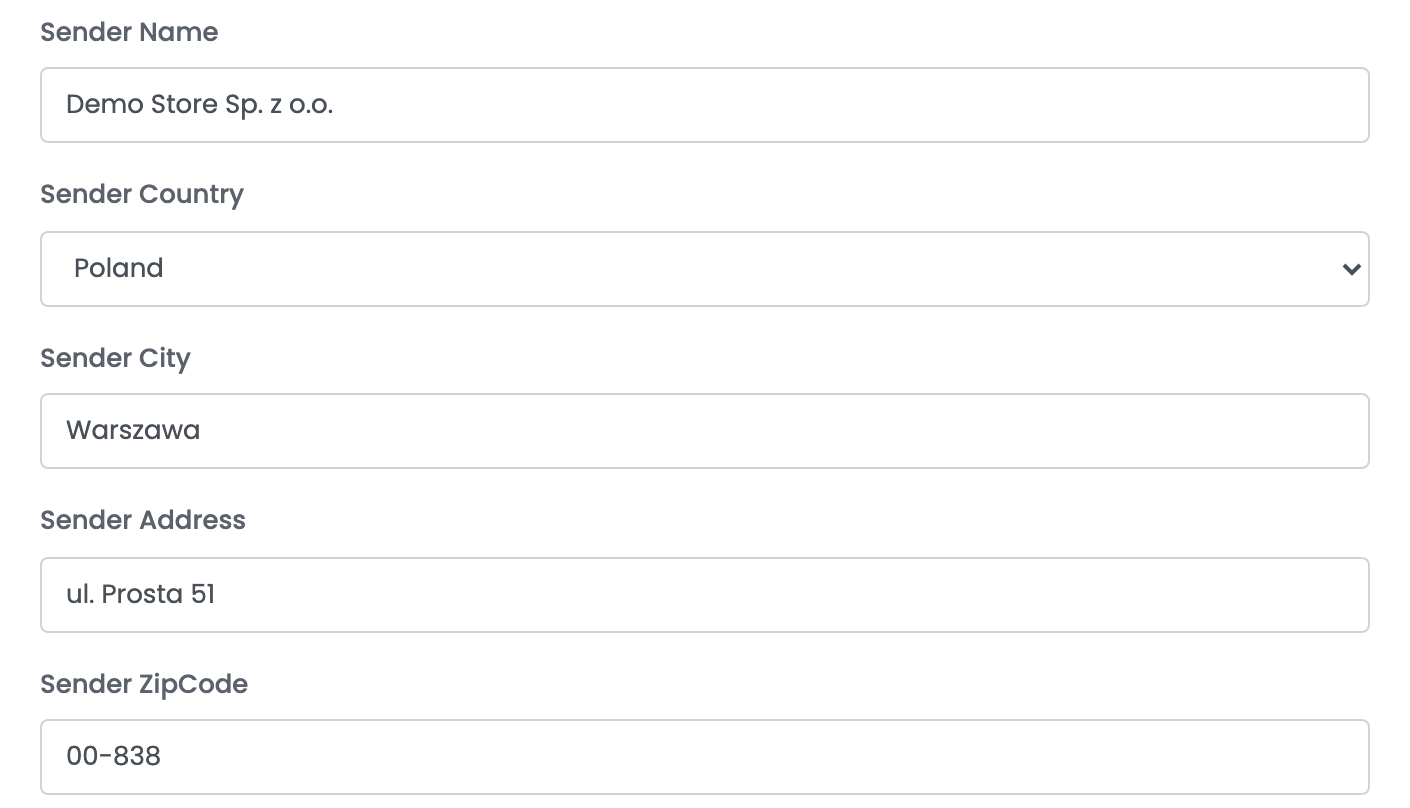
Fill in Sender Name, Sender Country, Sender City, Sender Address and Sender ZipCode of the address GLS collects from. It goes on every label from this connection.
Step 3 — Services and the pickup confirmation

| Service | What it does |
|---|---|
| 10:00-Service | Delivery by 10:00, where GLS offers it for the recipient's postal code. |
| 12:00-Service | Delivery by 12:00, where GLS offers it for the recipient's postal code. |
| Saturday-Service | Delivery on Saturday. |
| No service selected | Standard GLS delivery. Use a connection without services for shipments abroad. |
Disable automatic pickup confirmation decides what happens to each label in ADE Plus:
- Unticked (the default): easySales confirms each shipment to GLS for dispatch as soon as the label is created. The parcels are ready to hand over to the courier, and the confirmation cannot be undone.
- Ticked: the parcels stay in the preparing area of ADE Plus, and you confirm them there yourself — for example, once a day, all together.
Either way, have a regular pickup agreed with GLS Poland, or order the courier in ADE Plus.
Step 4 — Notes template
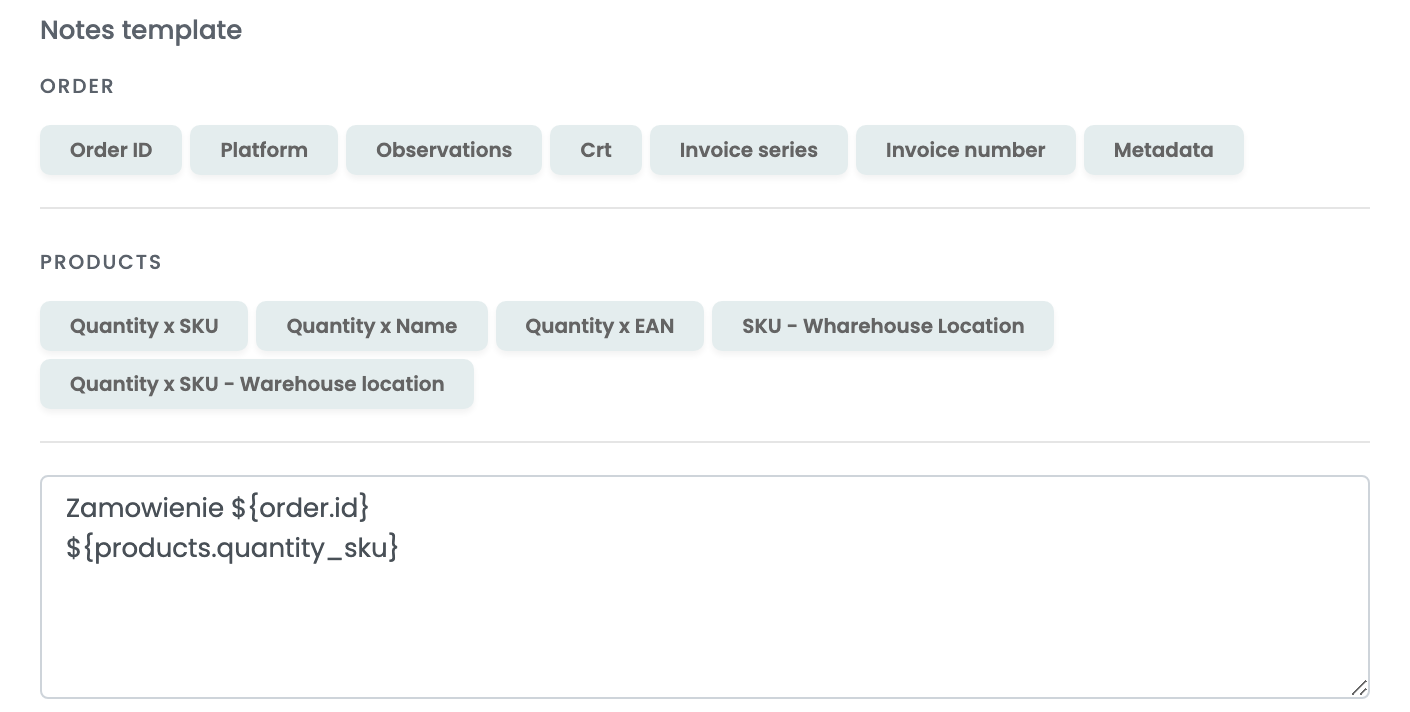
The text the template produces is sent to GLS with each shipment. The buttons above the field insert values from the order and its products — the order number, the invoice number, the quantity and SKU of each product.
Press Save. easySales signs in to GLS Poland with your login, and shows the reason if GLS refuses it.
For a second pickup address or a different set of services, choose Connect another courier account in the card's ⋮ menu, or open the connection and press Clone.
Creating labels
- Quick create: in the orders list, choose Quick Create → GLS Poland in the AWB column. The label is created with the connection's services and the order's weight.
- From the order: in the order's Awbs section, press Create AWB and choose GLS Poland. You can change the recipient, set the parcels and their weight, and change the services for this shipment.
For an order paid on delivery within Poland, the order total is sent to GLS as cash on delivery. The label arrives on the order, and easySales updates the order's delivery status from GLS.
When GLS Poland refuses a label
The reason is shown on the order:
| Message | What to do |
|---|---|
| Authentication failed due to invalid credentials | Shown when you save the connection. Check the Username and Password in ADE Plus, and ask GLS Poland to enable WebAPI access for the user. |
| err_cons_receiver_zipcode_is_invalid | The recipient's postal code is wrong. Correct it on the order's shipping address. |
| err_cons_srv_10_unavailable_for_given_country_and_postal_code | GLS does not offer the 10:00 service for this postal code. Create the label with a connection without that service, or remove the service on the order page. |
| err_cons_srv_for_countries_other_than_pl_are_not_available | Services work only within Poland. Create labels for other countries with a connection without services. |