How to connect GLAMI with easySales: product feed setup

List your fashion products on glami.ro with an easySales feed: size and material, GLAMI's category paths with feed rules, stock, the Feed URL and fixes.
What the Glami feed does
GLAMI is a fashion search site: shoppers find clothes, shoes and accessories there and click through to your online shop to buy. easySales builds the product file GLAMI reads — names, categories, sizes, prices, images and links from your online shop — and keeps it at a fixed address, the Feed URL.
Three things to know before you begin:
- GLAMI needs its own category path, starting with the gender. easySales sends one category name from your shop, so you turn it into GLAMI's path with a feed rule — see Step 4.
- Sizes come from one characteristic. GLAMI needs a size on almost every item, and you choose which of your characteristics holds it.
- The feed is for glami.ro. Prices are sent in RON.
Before you start
A GLAMI partner account
Your shop registered with glami.ro.
Your online shop connected to easySales
The feed takes its products, links and images from it.
Sizes and colours as characteristics
One characteristic for the size, one for the colour, on every variant.
Step 1 — Connect the feed
Go to Products → Online Shops → Feed and choose the tab of your online shop — not Virtual Shop, whose products have no link to your shop. Press Connect on the Glami card. The Connection tab has four fields:
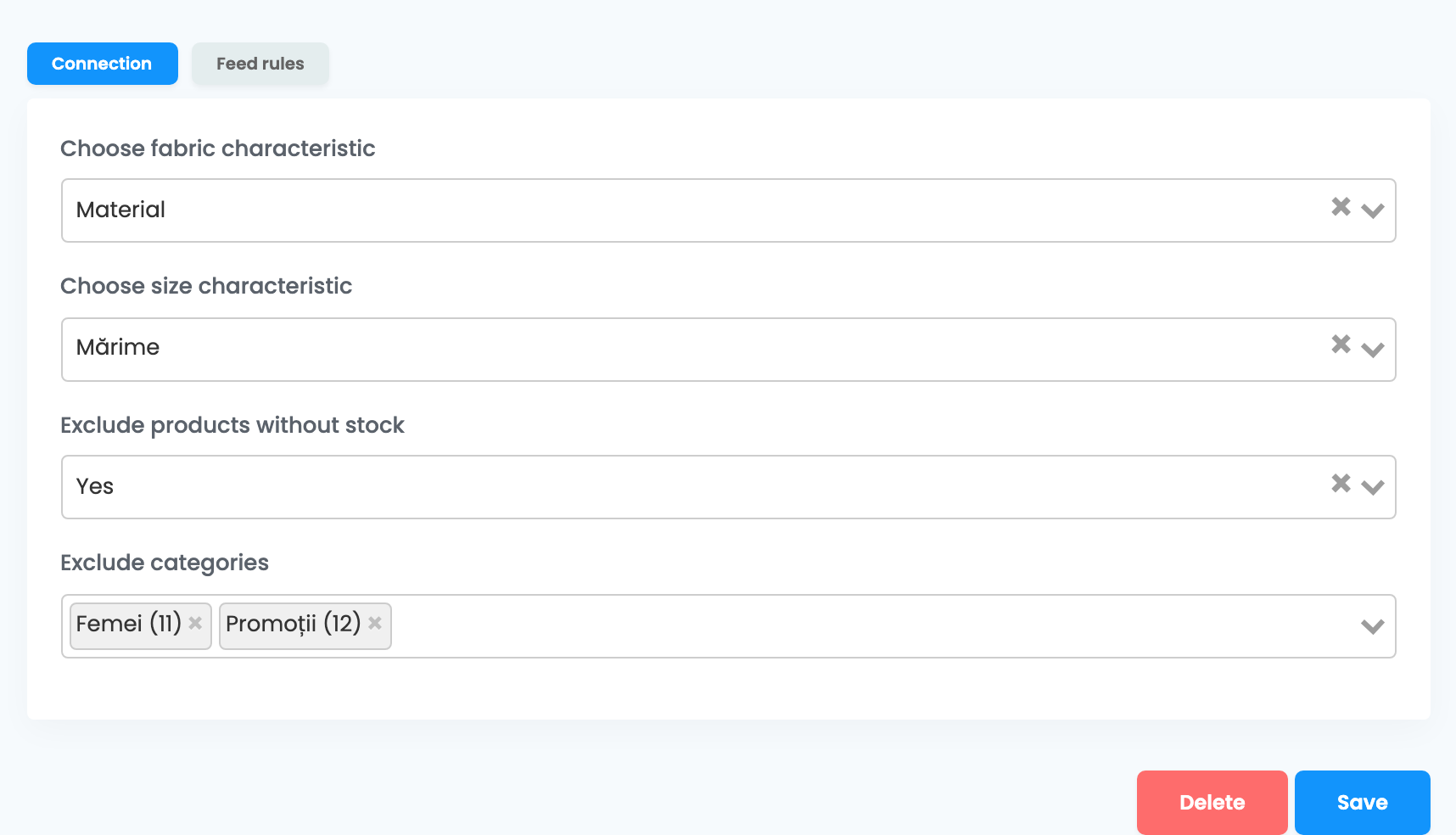
| Field | What goes in it |
|---|---|
| Choose fabric characteristic |
The characteristic that holds the material, for example Material. Required.
|
| Choose size characteristic |
The characteristic that holds the size, for example Mărime. Required.
|
| Exclude products without stock | Yes. GLAMI does not accept products that are out of stock. |
| Exclude categories | Optional. Exclude broad parent or promotional categories, such as Women or Promotions, so the more specific category is the one sent. |
Press Save.
Step 2 — Give GLAMI your Feed URL
Back on the Feed page, the card shows the Feed URL and, once the file is ready, Last generated with its date and time. The first file is ready within the hour after you save.
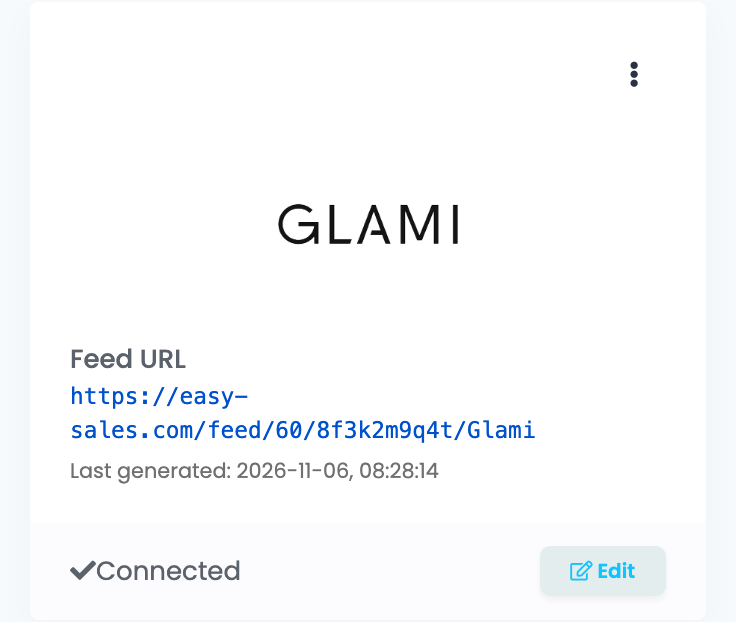
When Last generated appears, copy the Feed URL and add it as your XML feed when you register your shop in the GLAMI partner admin. GLAMI checks the feed before it lists your products.
Step 3 — Sizes, colours and variants
- Size: the characteristic you choose in Choose size characteristic is sent as the size. Each variant must hold one size —
M, notS, M, L. - Material: the characteristic you choose in Choose fabric characteristic.
- Colour and the rest: every other characteristic of the product is sent under its own name. Keep the colour in a characteristic named
Culoare. - Variants: each size or colour is its own item in the file, with its own SKU, grouped under the parent product's name.
Step 4 — Send GLAMI's category path
GLAMI files each item by a path from its own category list, with the gender first — for example GLAMI.ro | Îmbrăcăminte și încălțăminte femei | Îmbrăcăminte femei | Rochii. easySales sends one category name from your shop, such as Rochii. A feed rule turns one into the other.
Open the feed with Edit, then Feed rules → Create a new rule: If category is equal with Rochii → set category to the GLAMI path. Write one rule for each of your categories, using the paths from GLAMI's category list.
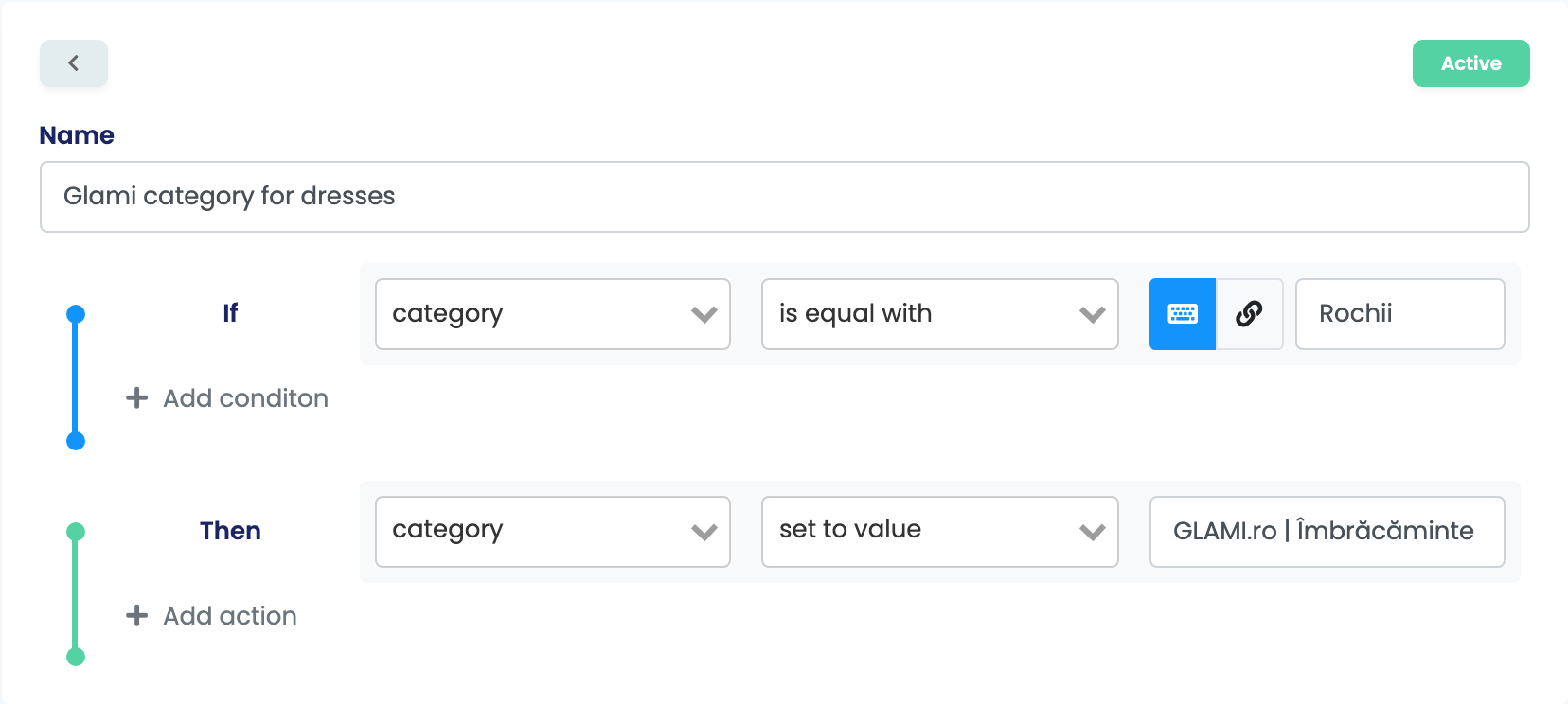
If one of your categories holds both women's and men's items, split it in your shop, so each category leads to one GLAMI path.
What goes into the file
Each active product of the shop with at least one image is one item in the file, with:
| In the file | Taken from |
|---|---|
| Item ID | The product's SKU |
| Product name and group | The parent product, for variants |
| Category | The first category that is not excluded, or the path a rule sets |
| Size and material | The two characteristics you chose |
| Other parameters | The product's other characteristics, under their own names |
| Manufacturer | The product's brand |
| Link, description and images | The product, its page in your shop and its images |
| Price | The sale price with VAT, in RON — the product's own VAT rate if it has one |
| EAN | The product's EAN, when it has one |
Every item in the file is listed as in stock, so keep Exclude products without stock on Yes. The file is updated every hour while GLAMI reads it, and at least once a day — as long as the shop connection stays enabled.
When something does not look right
| Symptom | What to do |
|---|---|
| The Feed URL answers "Feed generation in progress..." | The first file is not ready yet. Wait until Last generated appears on the card. |
| GLAMI says the category has no gender | Send GLAMI's category path with a feed rule — see Step 4. |
| GLAMI says items have no size | Check Choose size characteristic, and that each variant holds its size in that characteristic. |
| GLAMI lists products that are out of stock | Open the feed, set Exclude products without stock to Yes and press Save. |
| A product is missing from the feed | Check that it is active, has stock and has at least one image, and that no rule excludes it. |
| Products have no link on GLAMI | The feed was created on the Virtual Shop tab. Delete it and connect it on your online shop's tab. |