How to connect Flanco with easySales: a complete setup guide
Connect Flanco to easySales: why every order is addressed to Flanco, the connection fields, category mapping, brand and EAN rules, what stays locked once an offer is live, and what each Flanco error means.
What connecting Flanco gives you
With Flanco connected, easySales sends your products to Flanco as offers, keeps their price and stock in step with your catalogue, and imports every Flanco order next to the orders from your other channels.
Flanco is a customer, not a marketplace of customers
This is the one thing to understand before anything else. On most marketplaces an order belongs to a shopper. On Flanco it does not: every Flanco order arrives in easySales with Flanco itself as the customer — Flanco's company name, its fiscal details, and Flanco's address as both the billing and the delivery address.
Two consequences follow, and both surprise sellers who expect Flanco to behave like other marketplaces:
- Nothing about an order goes back to Flanco from easySales. No invoice is uploaded, no AWB is sent and no status is pushed. The order's status in easySales follows Flanco's own.
- Flanco arranges the delivery document. You do not generate a courier AWB in easySales for a Flanco order.
Before you start
A Flanco supplier account
The integration signs in with the user name and password of your Flanco supplier account.
Products with an EAN and a brand
Flanco identifies products by a 13-character EAN and accepts only brands on its own list.
Your categories in easySales
They are what you map to Flanco's categories before sending offers.
A way to invoice Flanco
A billing software connected to easySales, if you want to invoice Flanco orders from here.
Step 1 — Connect Flanco in easySales
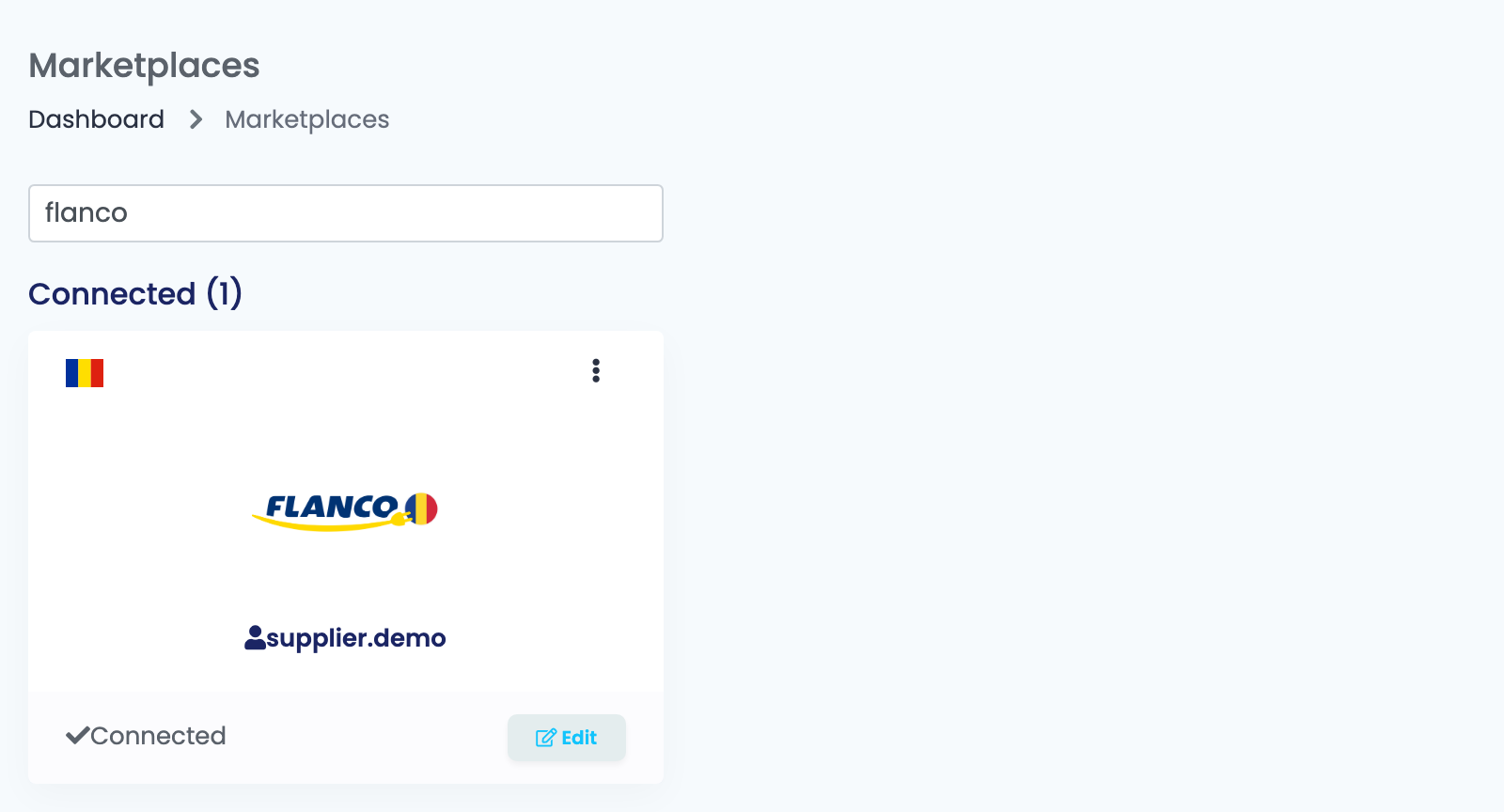
Go to Integrations → Marketplaces and search for flanco. Press Connect on the Flanco card; once the connection is saved, the card moves under Connected and shows the user name it signs in with.
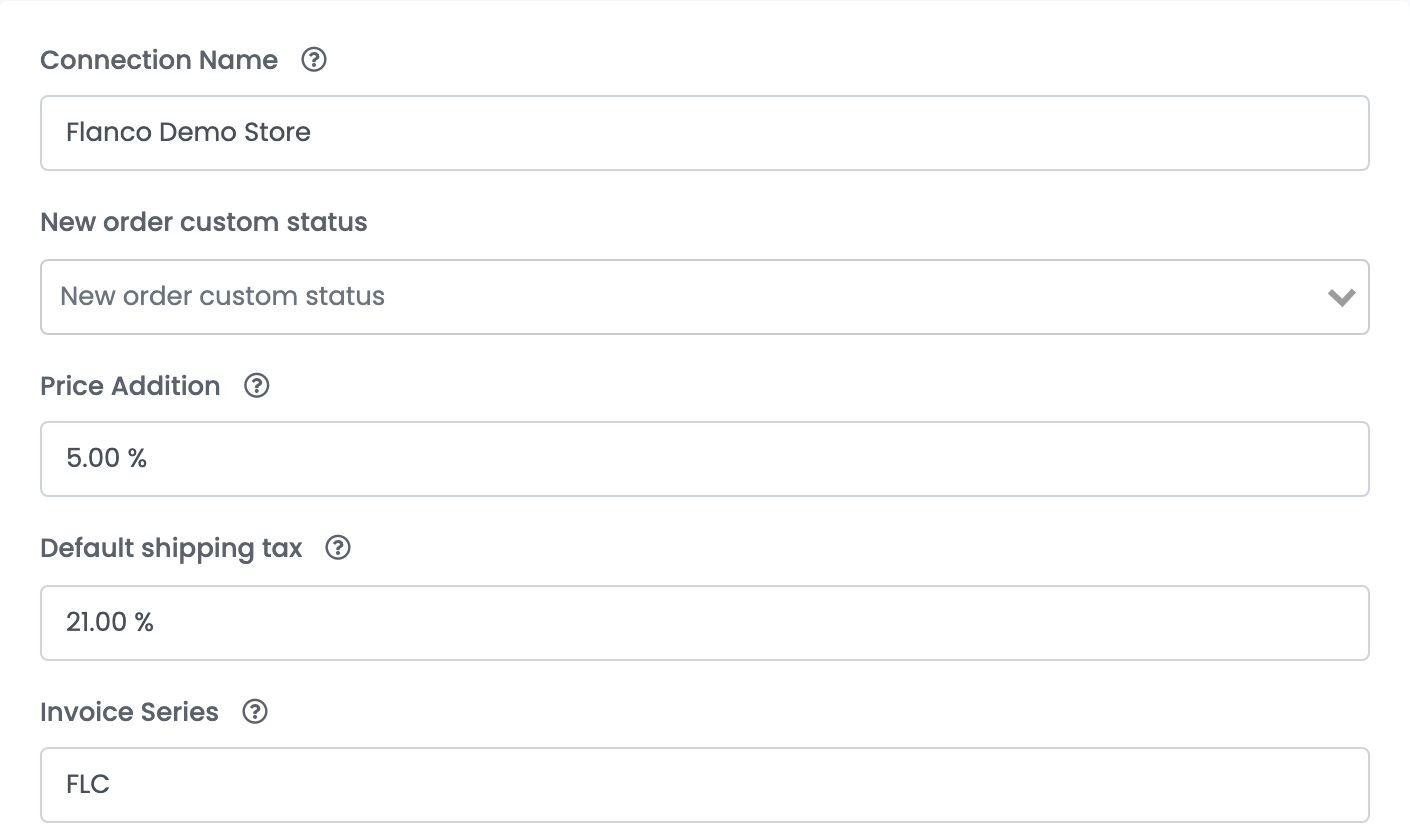
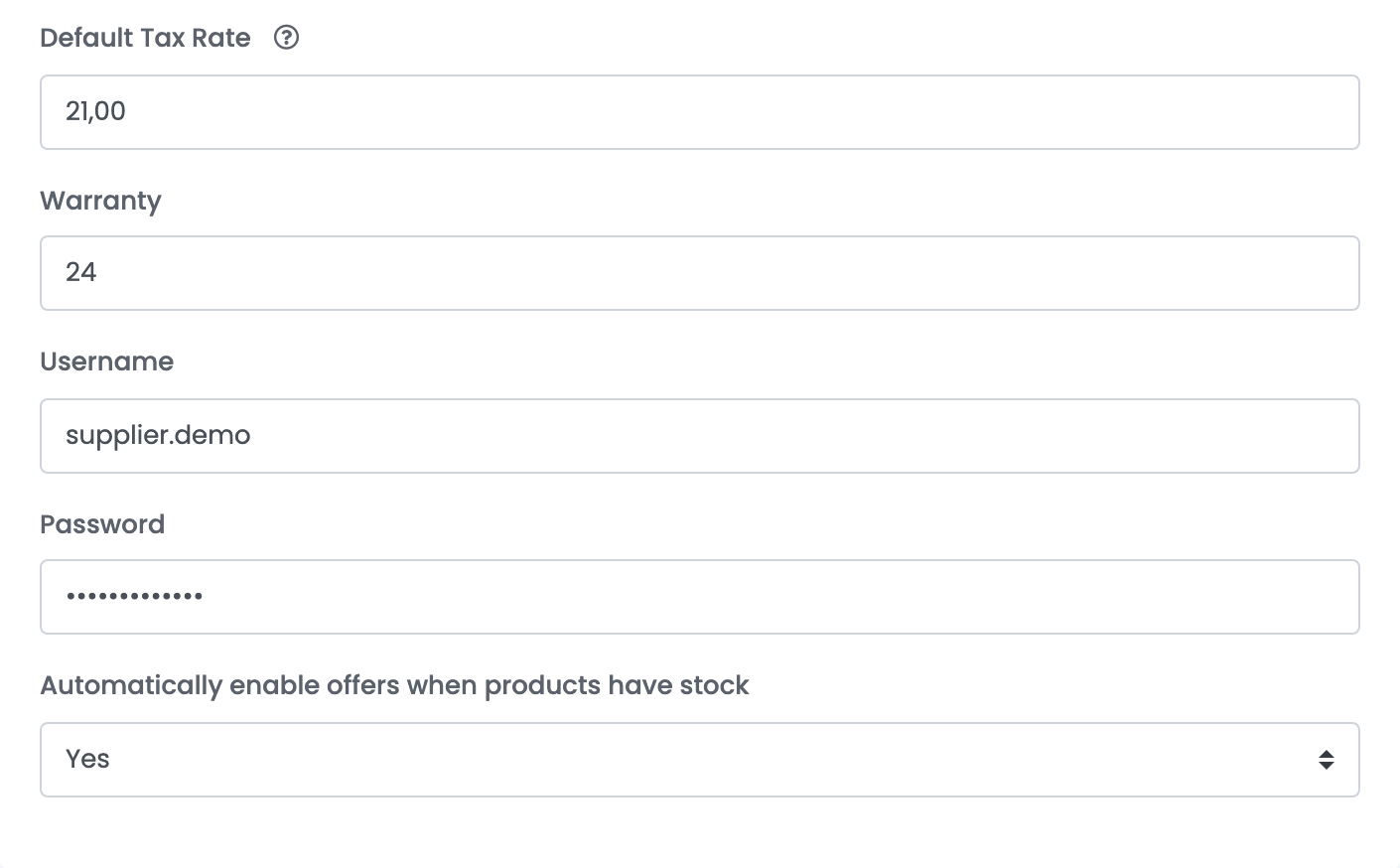
The form is a single page.
| Field | What it does |
|---|---|
| Connection Name | Your own name for this connection. Flanco never sees it. |
| New order custom status | Optional. Lands imported Flanco orders on a status you created instead of the default one. |
| Price Addition | A percentage added to your product's price for the Flanco offer: 10% on a 100 RON product sends 110 RON. It is copied onto each offer when the offer is created, so changing it later affects new offers only — an existing offer keeps its own, and you can change that on the offer. |
| Default shipping tax | The VAT rate for a shipping line on an imported order. Flanco orders arrive without one, so it rarely matters here. |
| Invoice Series | The invoice series stored on every Flanco order, used when you invoice it. |
| Default Tax Rate | Leave it at 0 only if you are not a VAT payer: every offer is then sent without VAT. Any other value means products from a Romanian shop keep their own VAT rate, and products from a shop in another country are sent with this one. |
| Warranty | The warranty, in months, for products that have none of their own. It is sent when the offer is created. |
| Username and Password | The user name and password of your Flanco supplier account. |
| Automatically enable offers when products have stock | With Yes, an offer that went inactive because it ran out of stock is switched back on as soon as the product has stock again. |
Step 2 — Map your categories to Flanco's
An offer only leaves easySales once it has a Flanco category, and missing categories are by far the most common reason a Flanco offer is stuck. Map them before you send anything.
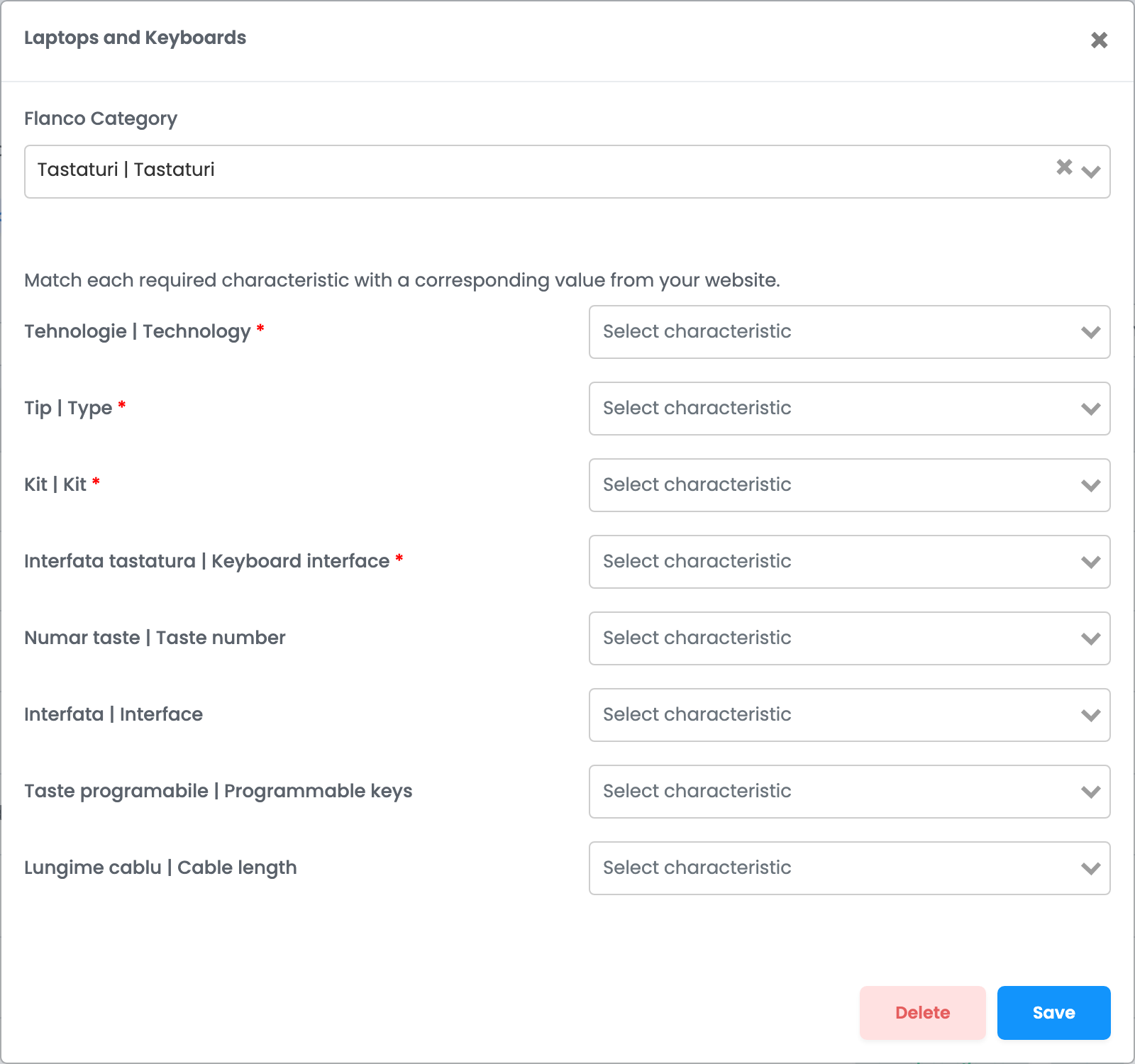
Open Products → Virtual Shop → Categories, press Map categories next to one of your categories and pick Flanco. Choose the Flanco category that describes the products in it, then match Flanco's characteristics to your own.
Step 3 — Check the brand and the EAN
Flanco refuses an offer whose brand it does not know, and it identifies a product by its EAN. Both are checked on the first send, and both are hard to fix afterwards, so look at them now.
Step 4 — Send your products
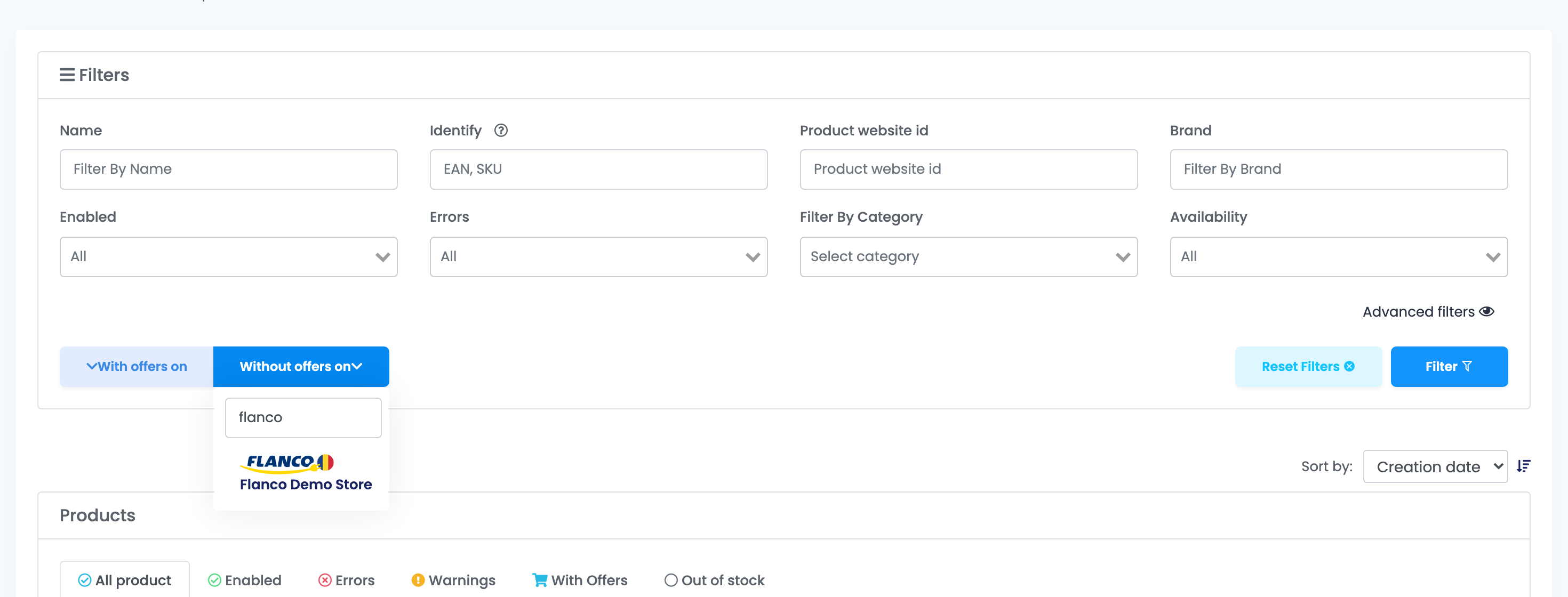
Open Products → Virtual Shop → Products and filter by Without offers on → Flanco, so you only see products that are not on Flanco yet. Then either press Add offer under a single product, or select several and use Add offer(s) on.
Offers you already have on Flanco
If you were selling on Flanco before connecting, your existing offers are imported into Marketplace → Offers, on the FlancoRO tab. They arrive not linked to any product in easySales, and an unlinked offer has nothing to take a price or a stock level from.
Link each one with Link to product. Do that before sending new products, or the filter above will not know those products are already on Flanco.
Get the content right before the first send
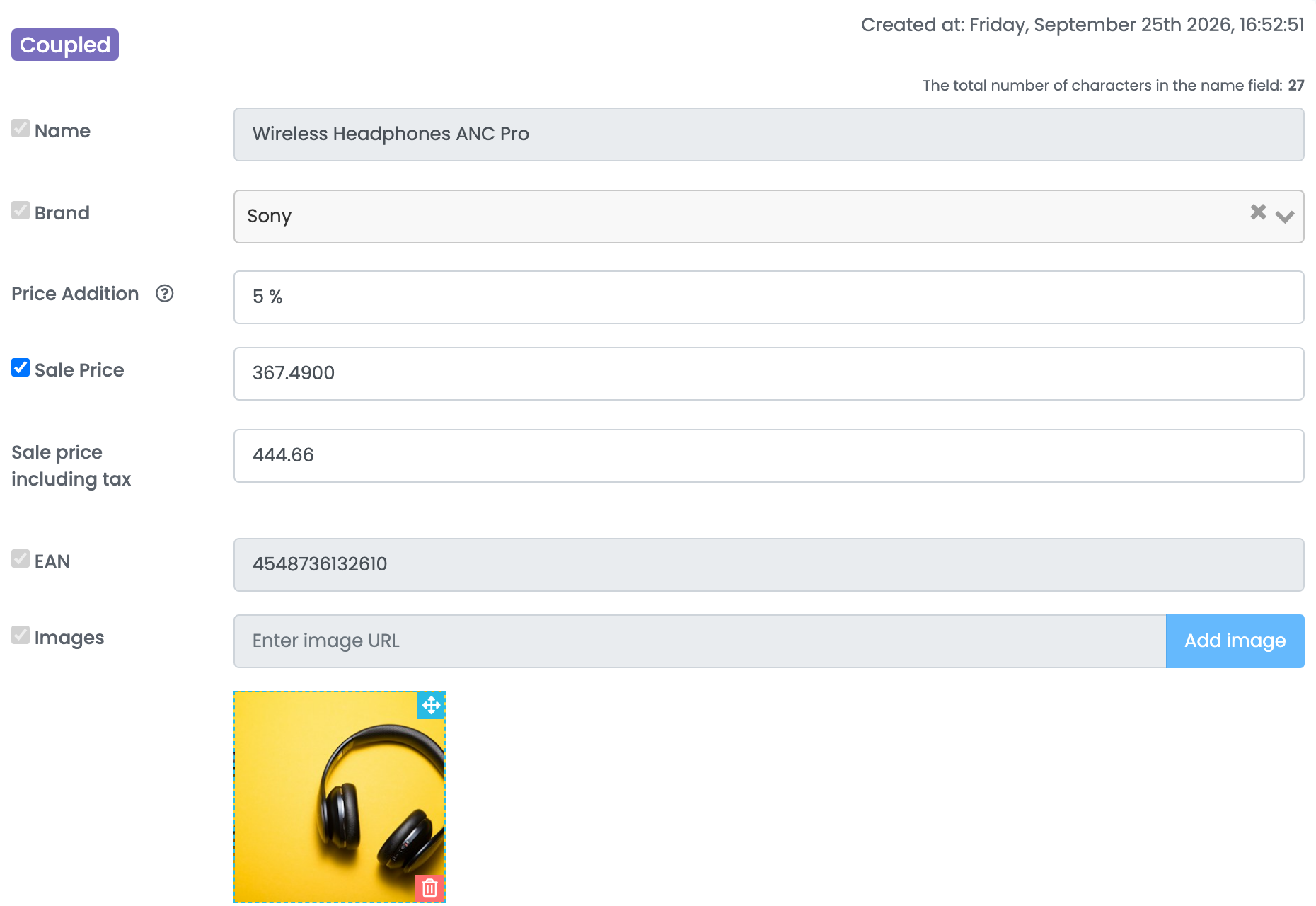
Flanco receives the whole offer once — name, description, images, brand, EAN, weight, category and characteristics — when the offer is created. After that, easySales sends Flanco only the price and the stock. The content fields are locked on the offer screen to show it.
Price and stock after the offer is live
Price and stock keep flowing for as long as the offer is linked. The stock easySales sends is the product's stock minus what is already reserved by open orders.
| Sent after the offer is live? | |
|---|---|
| Price | Yes, whenever it changes in easySales. |
| Stock | Yes. At zero stock the offer is sent to Flanco as inactive. |
| Name, description, images | No. |
| Brand, EAN, weight, warranty | No. |
| Category and characteristics | No. |
Orders
Flanco orders appear in Orders within minutes of Flanco making them available, carrying the invoice series you set on the connection. Their status follows Flanco: a new order arrives as New, and moves to Completed, Canceled or Return when it changes on Flanco.
If an order is missing, open the Flanco connection from its card and use Synchronize orders under Options. It re-reads a date range from Flanco — up to 30 days per request.
When an offer is refused
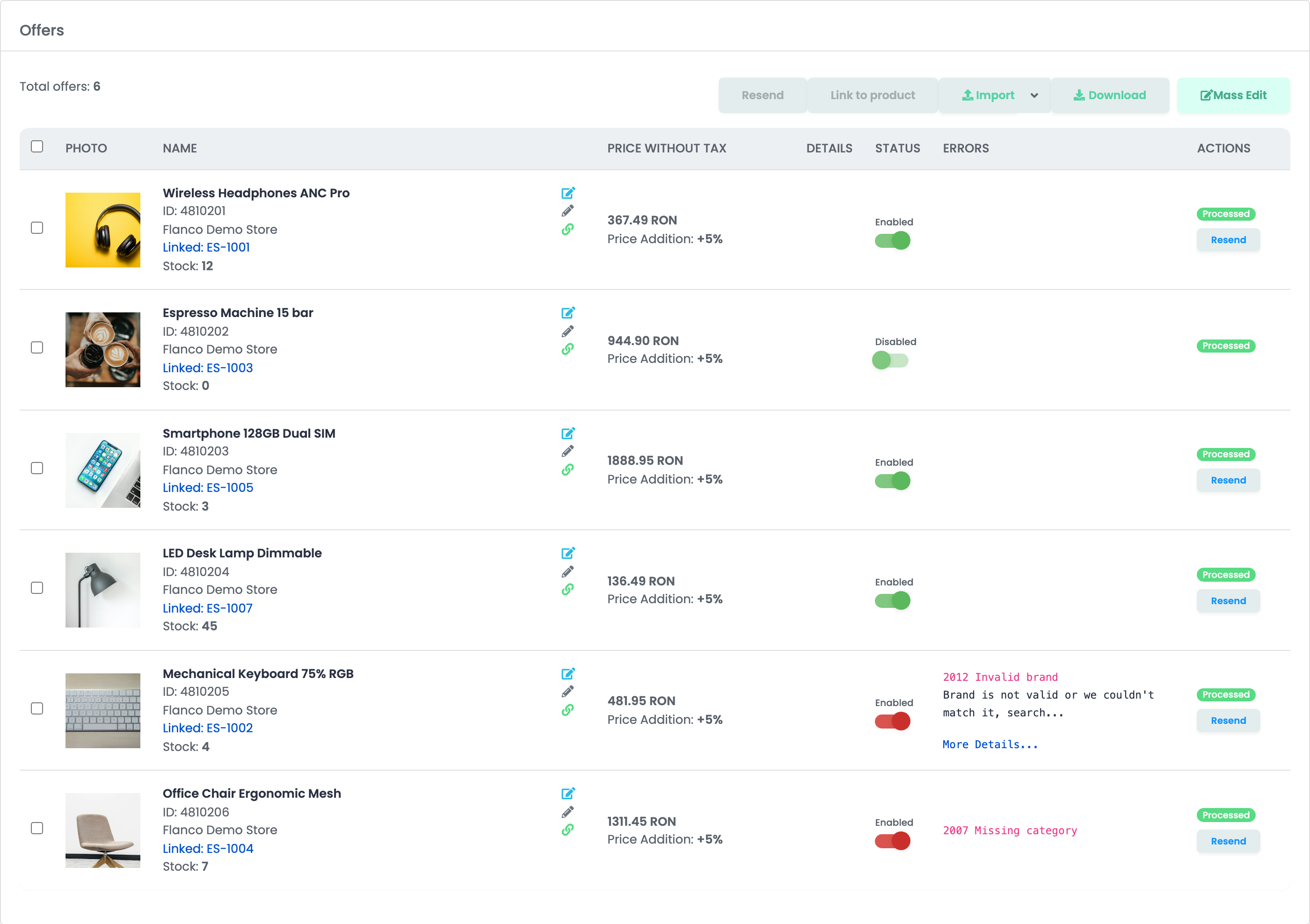
Every offer that cannot be sent carries its reason in the Errors column of the Offers list. Fix the product, press Resend, and the offer goes out again — nothing has to be recreated.
| What you see | What to do |
|---|---|
| Missing category / Missing category mapping | The product has no Flanco category, or its category has not been mapped. Map it under Products → Virtual Shop → Categories. This is the most common reason by far. |
| Invalid brand | Flanco does not know the brand. Pick Flanco's spelling in the offer's Brand field. |
| Mandatory characteristics missing | The Flanco category requires characteristics the product does not have. Map them on the category, or fill them in on the offer. |
Product reject by Flanco with Check field: … ean - (13 characters)
|
Flanco refused the offer's data. The message lists the fields it checks; the EAN is the usual culprit. |
Product already exists and has another supplier
|
Flanco already sells that EAN through another supplier. Check the EAN on your product. |
| Missing product images / Invalid product price | The product has no images, or no usable price. Fix the product and resend. |