How to connect Fakturownia with easySales: a complete setup guide
Connect Fakturownia to easySales: domain and API token, department and warehouse, invoice type and language, advanced options, corrections and the messages Fakturownia returns.
What connecting Fakturownia gives you
With Fakturownia connected as billing software, easySales issues the invoice for an order directly in your Fakturownia account — customer, products, shipping and discounts included — and links it to the order. From the order you can open the invoice, record its payment, issue a correction invoice, and cancel or delete it. If you want, every invoice also creates a WZ warehouse document in Fakturownia.
Two things to know before you begin:
- Fakturownia numbers the invoices. easySales sends no number and no series; Fakturownia gives each invoice the next number of the department it is issued for, following your numbering settings in Fakturownia.
- The form opens in two stages. You enter the domain and the token and press Get Details; only then do Department, Warehouse, the invoice settings and Save appear.
Before you start
A Fakturownia account
With access to Ustawienia, where you create the API token.
Warehouses in Fakturownia
Warehouse is a required field. Warehouses belong to Obsługa magazynów, which you turn on under Ustawienia → Ustawienia konta → Twoje konto.
Your numbering set up in Fakturownia
Fakturownia numbers every invoice, so check its numbering settings before the first one.
Step 1 — Find your domain and create an API token
- Log in to Fakturownia. Your domain is the name in the address bar: in
https://mojsklep.fakturownia.plit ismojsklep. - Open Ustawienia → Ustawienia konta → Integracja, and under Kod autoryzacyjny API press Zobacz APITokeny.
- Press Dodaj nowy token, give it a description such as
easySalesand save. - Copy the token. You paste it into easySales in the next step.
Step 2 — Connect Fakturownia in easySales
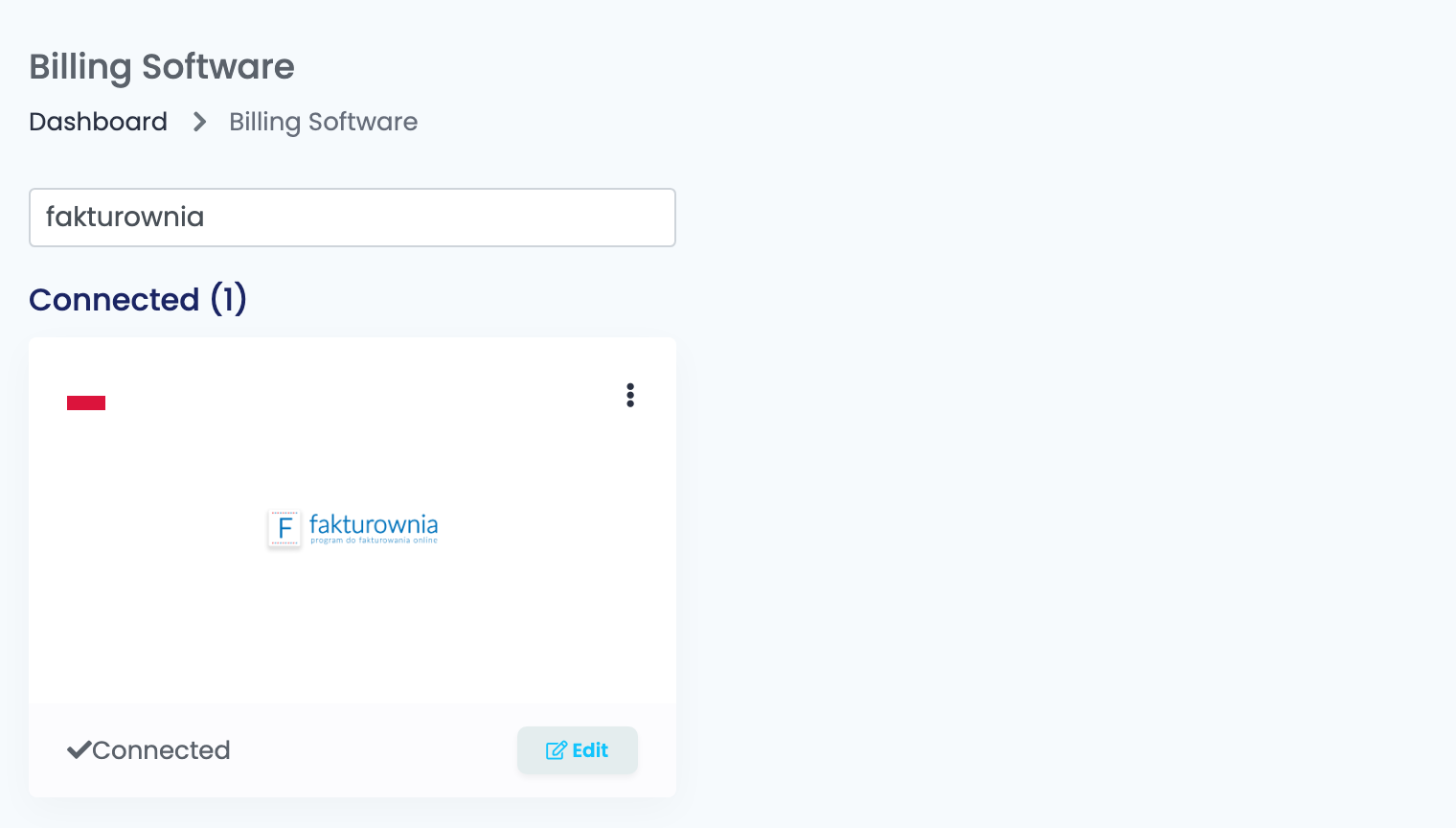
Go to Integrations → Billing Software, search for fakturownia and press Connect on the Fakturownia card — or Edit, if you have connected it before.
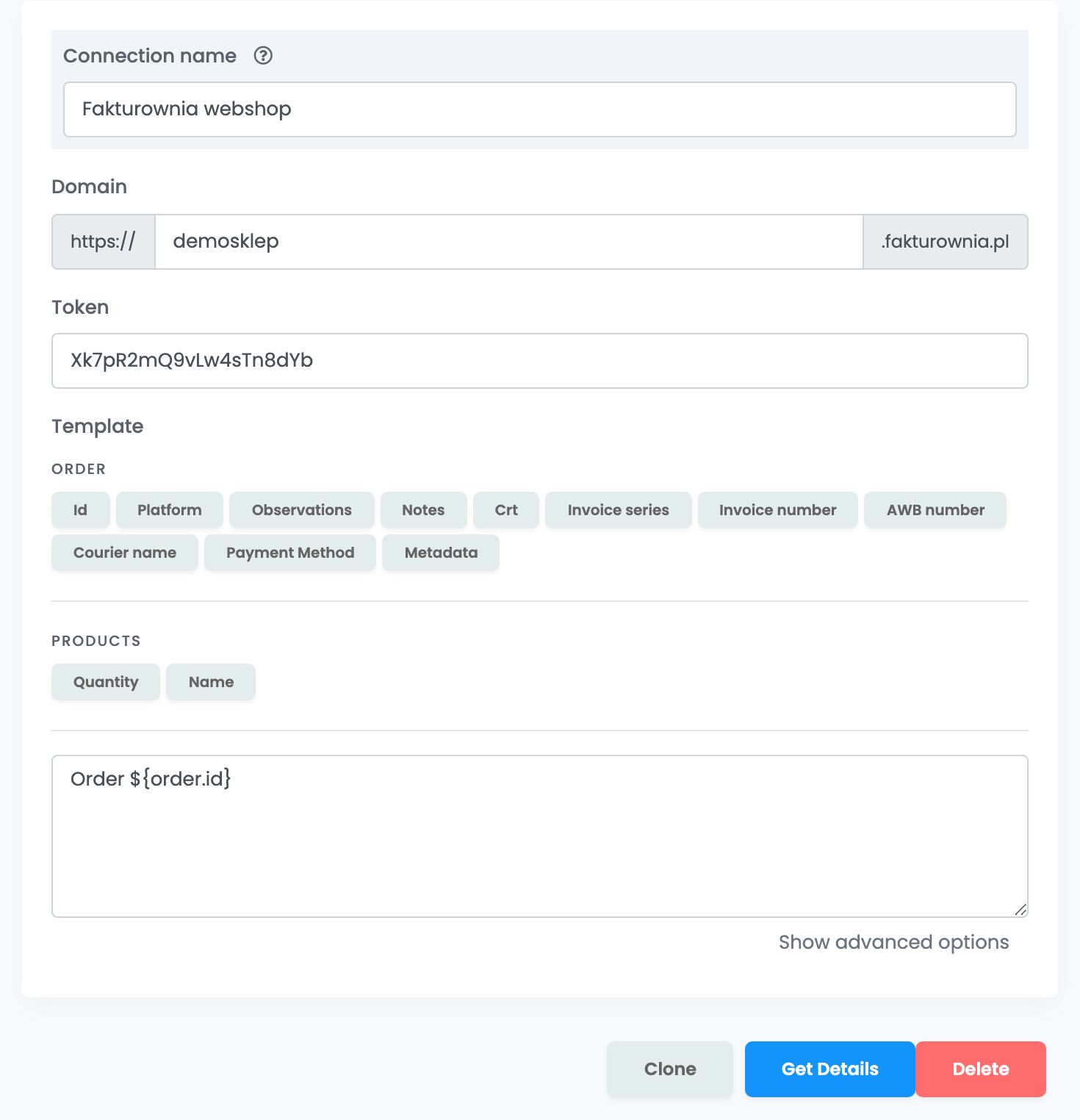
Fill in the first three fields and press Get Details:
| Field | What goes in it |
|---|---|
| Connection name |
A name you will recognise when choosing between connections, for example Fakturownia webshop.
|
| Domain |
Your Fakturownia account name only — mojsklep, not https://mojsklep.fakturownia.pl.
|
| Token | The API token from step 1. |
Get Details checks the token with Fakturownia and reads your departments, warehouses and categories from it. When you reopen a saved connection, the form shows the first three fields again: press Get Details to see and change the rest.
Step 3 — Department, warehouse and invoice settings
| Field | What it does |
|---|---|
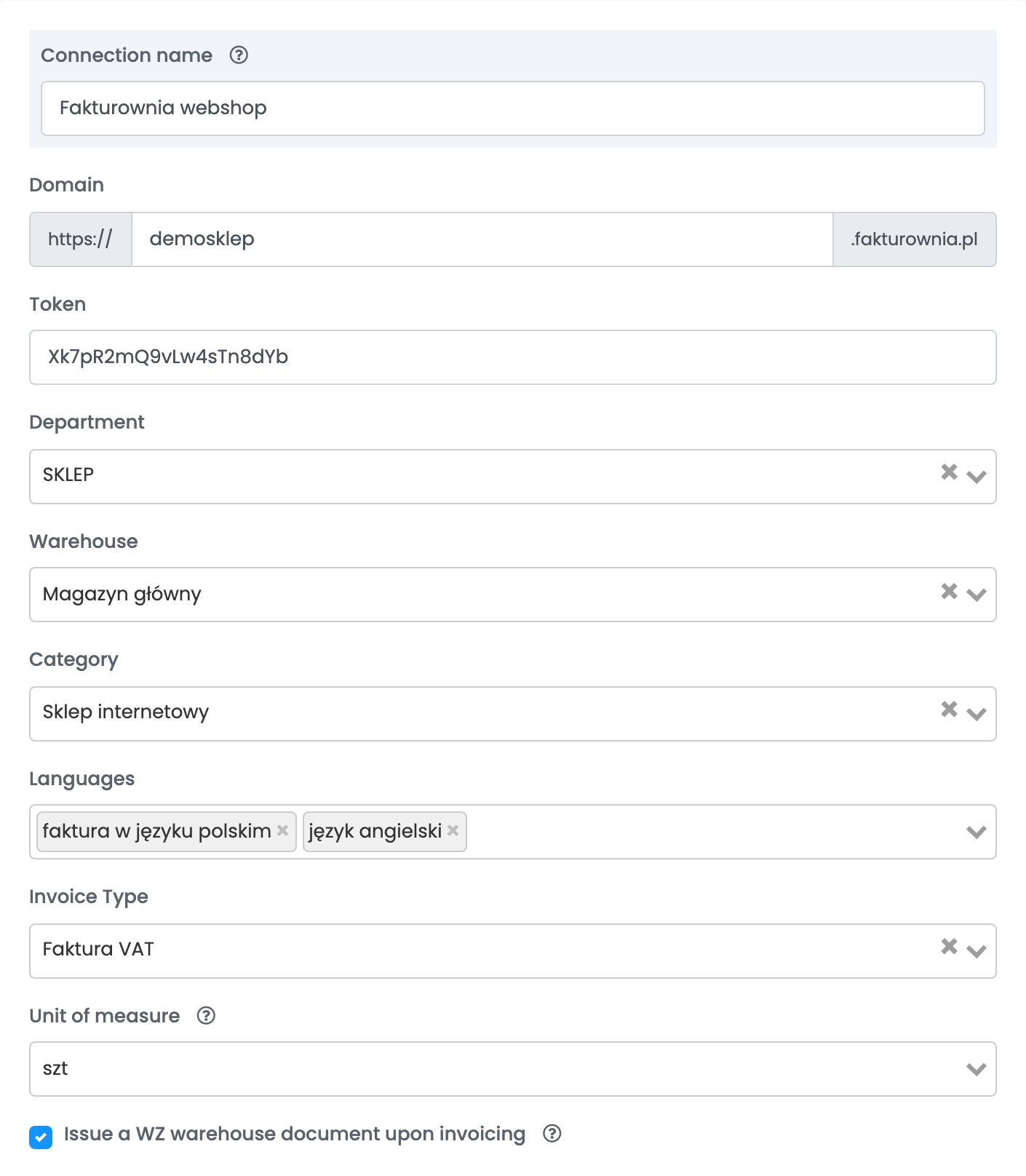
| Department | The Fakturownia department (company) the invoices are issued for. Required. |
| Warehouse | The Fakturownia warehouse the invoices use. Required. |
| Category | The Fakturownia category the invoices are filed under. Optional. |
| Languages | The language of the invoice. Choose two for a bilingual invoice; empty means Polish. |
| Invoice Type | The kind of document issued for every order — Faktura VAT by default, or another kind such as Paragon or Rachunek. |
| Unit of measure |
The unit written on every line, szt (pieces) by default. A product's own unit takes its place.
|
| Issue a WZ warehouse document upon invoicing | Also creates a WZ warehouse release document in Fakturownia, in the chosen warehouse, with every invoice. |
Below them is the template — the text written into the invoice's notes, built from order details such as the order ID or the platform. Press Save when you are done.
To invoice for a second company or department, open the connection, press Get Details and then Clone. easySales saves a copy with "(cloned)" after its name. Open the copy, press Get Details, rename it, choose the other department and save.
Step 4 — Advanced options
Press Show advanced options under the template to open the rest of the settings. You can leave them as they are and change them later.
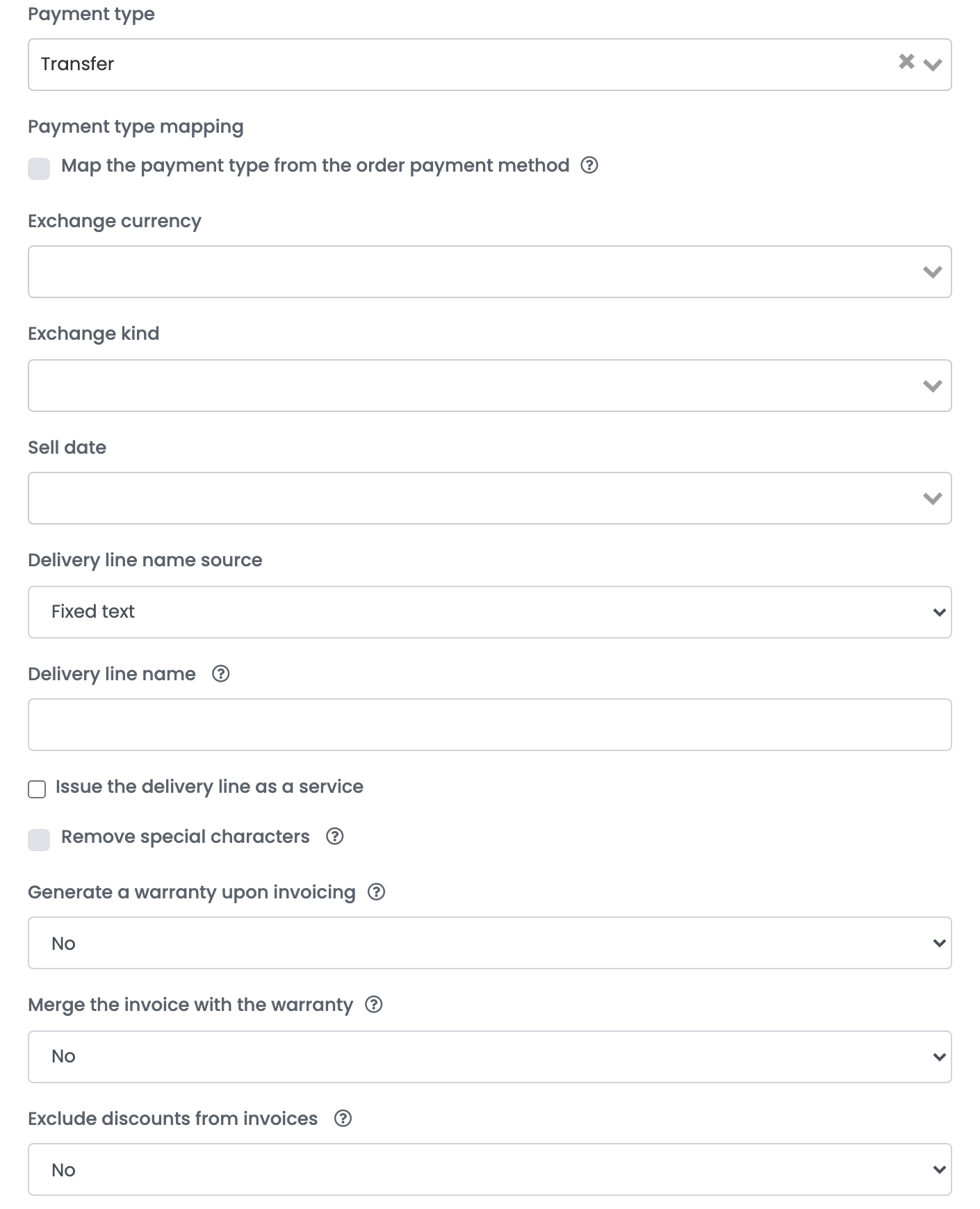
| Option | What it does |
|---|---|
| Payment type | The payment type written on every invoice, such as Transfer or Card. Empty leaves Fakturownia's own default. |
| Map the payment type from the order payment method | Sets the payment type per order payment method instead, with rules you add; an order that matches no rule gets Payment type. |
| Exchange currency, Exchange kind | Adds the amounts converted into another currency, at the exchange rate of the bank you choose, such as NBP or ECB. |
| Sell date | Whether the sell date is the order date or the invoice issue date. |
| Delivery line name source, Delivery line name | What the shipping line is called: a fixed text, or the order's delivery notes. Empty keeps the name the marketplace sends. |
| Issue the delivery line as a service | Links the shipping line to a Fakturownia service product you choose or create. |
| Remove special characters | Removes special characters from the customer's name and address on the invoice. |
| Generate a warranty upon invoicing, Merge the invoice with the warranty | Creates a warranty document with each invoice, and downloads the two together. |
| Exclude discounts from invoices | Leaves the order's discount lines off the invoice. |
What goes on the invoice
- Customer: the company name and VAT number for a company; for a private customer, the billing name split into first name and surname. The billing address and e-mail go with it.
- Lines: every product with its gross price, VAT rate, quantity and SKU as the product code, then shipping and the order's discounts.
- Dates: the issue date is the day the invoice is issued; the sell date is the order date, unless you change it with Sell date.
- Currency: the order's currency.
- Paid orders: an order that is already paid is invoiced as paid.
Payments, corrections and the invoice PDF
- Recording a payment: marking the order's invoice as paid records the payment in Fakturownia.
- Correction invoice: the storno action on the order issues a Faktura korekta that reverses the whole invoice; from a return, it corrects only the returned products.
- Cancel and delete: cancelling marks the invoice as rejected in Fakturownia, deleting removes it. Either way, a WZ document issued with it is removed too.
- PDF: opening the invoice from the order downloads it from Fakturownia, so you always see the document as Fakturownia holds it.
When an invoice is refused
Fakturownia's answer is shown on the order, in Polish. The ones you are most likely to see:
| Message | What to do |
|---|---|
| Invalid Credentials | Shown by Get Details: the token is wrong or belongs to another Fakturownia account. Create a new token in the account of the domain you entered. |
| Department is required | The Department list was empty. Check the Domain and press Get Details again. |
| {"buyer_last_name":["- nie może być puste"]} | A private customer's billing name has only one word. Add the surname to the billing name on the order and issue the invoice again. |
| {"buyer_tax_no":["- błędna cyfra kontrolna NIP"]} | The customer's VAT number is not a valid NIP. Correct it on the order. |