How to connect Facturis Online with easySales: invoicing setup guide

Connect Facturis Online to easySales: the API key, CUI and login, invoice series per sales channel, the warehouse, advanced options, storno invoices and the refusals Facturis sends back.
What connecting Facturis Online gives you
With Facturis Online connected as billing software, easySales issues the invoice for an order directly in your Facturis Online account — customer, products, shipping and discounts included — and links it to the order. From the order you can open the invoice, issue a storno invoice, and cancel or delete it.
Three things to know before you begin:
- The connection takes four values, and all four must belong to the same Facturis user. The API key, the company's CUI, and the username and password you log in to Facturis Online with. easySales does not check them when you save: a wrong one shows only when the first invoice is refused. Issue one test invoice right after connecting.
- Facturis Online numbers the invoices. easySales sends the series and no number; Facturis gives the invoice the next number in that series. The series must already exist in your Facturis account.
- Your Facturis package must include the API. Without it, Facturis refuses every invoice easySales sends.
Before you start
A Facturis Online account with API access
On a Facturis Online package that includes the API.
The administrator's login
The username and password of the Facturis user who generates the API key.
Your invoice series in Facturis Online
One for every sales channel you invoice, created in Facturis before you connect.
Step 1 — Generate the API key in Facturis Online
- Log in to Facturis Online with the account's administrator user.
- Open Setări → Integrări → API and press Genereaza Cheia.
- Copy the key. You paste it into easySales in the next step.
Step 2 — Connect Facturis Online in easySales
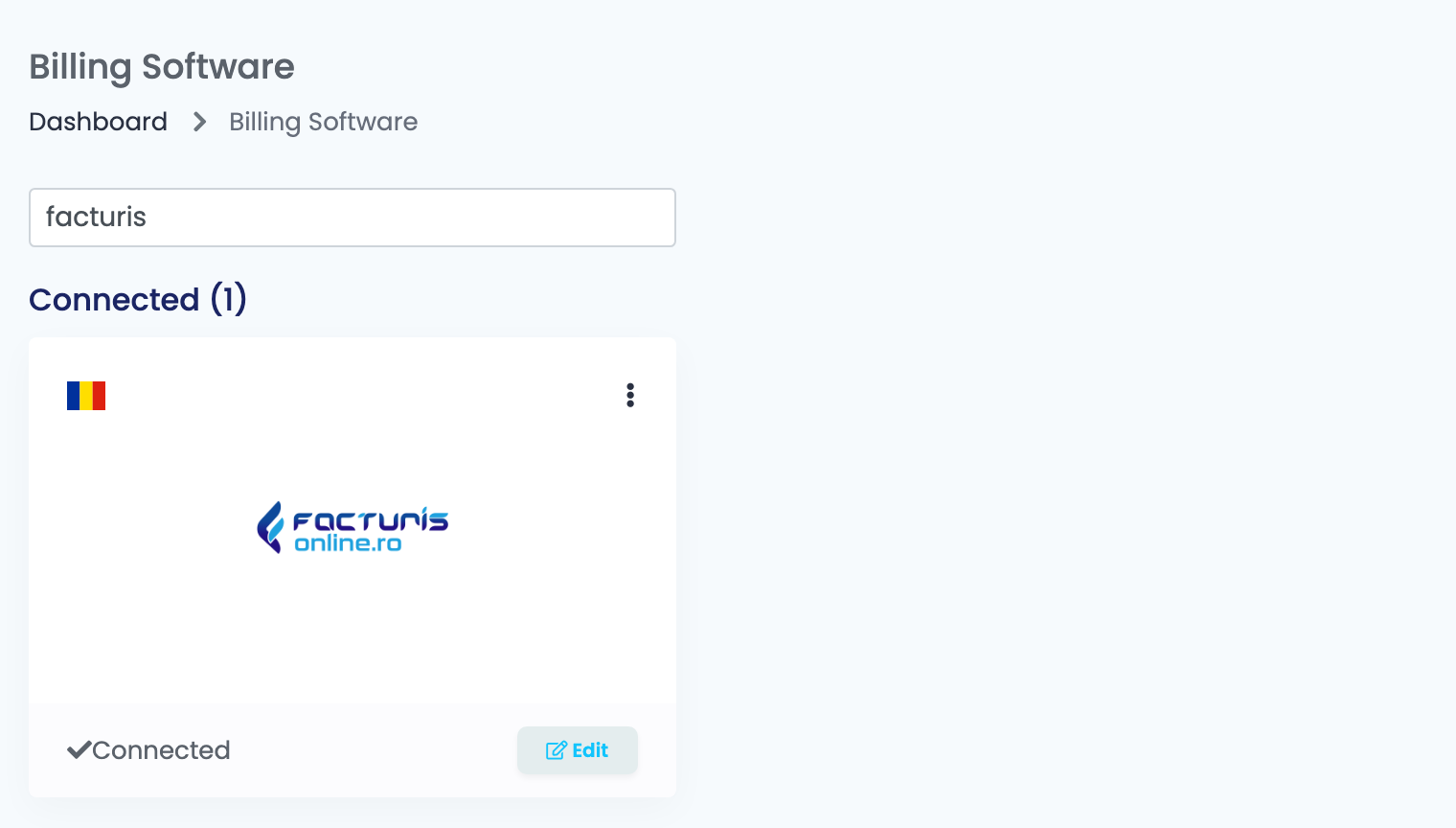
Go to Integrations → Billing Software, search for facturis and press Connect on the Facturis Online card — or Edit, if you have connected it before.
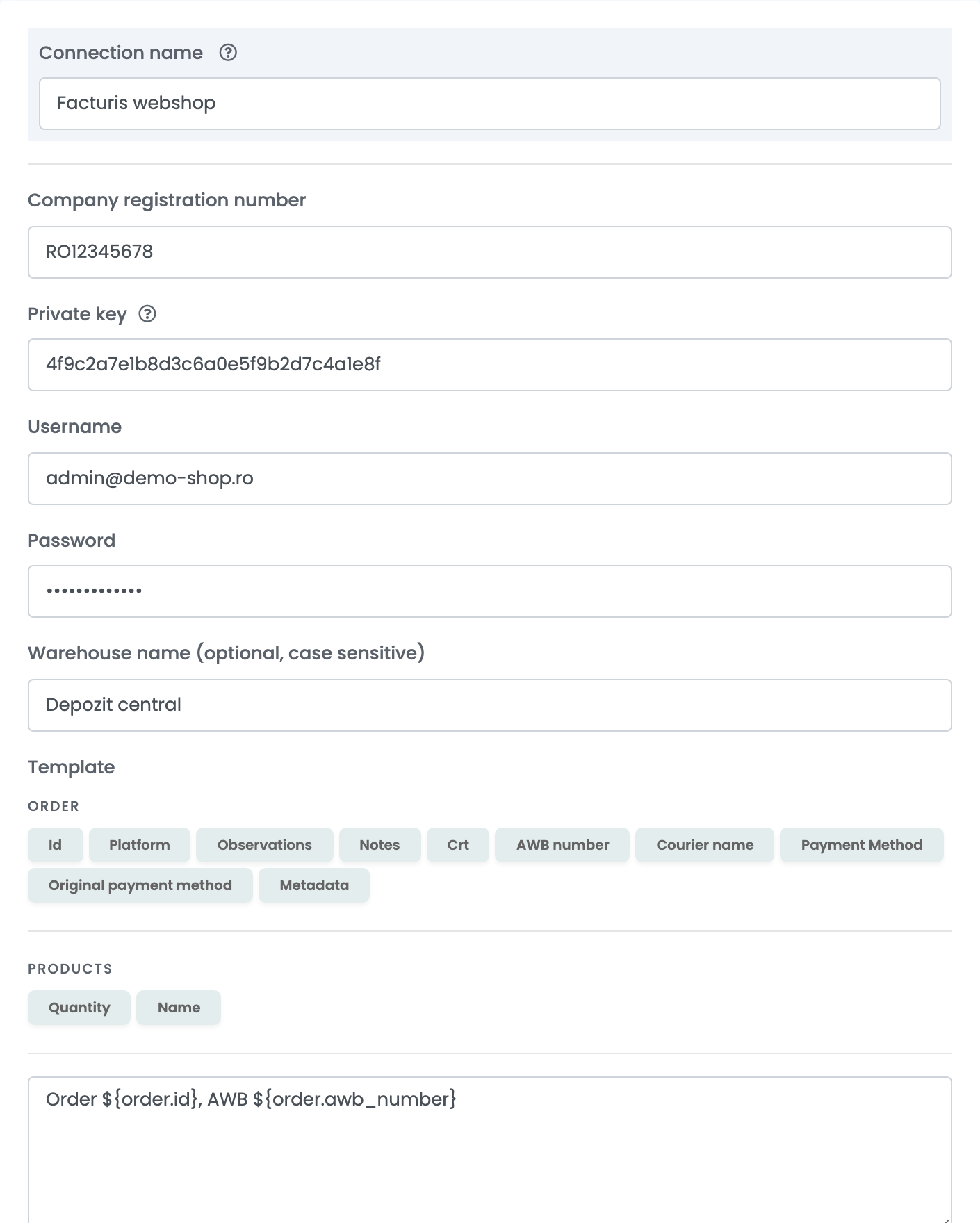
| Field | What goes in it |
|---|---|
| Connection name | A name for this connection, used only inside easySales. |
| Company registration number | The CUI of the company that issues the invoices, as in Facturis Online. |
| Private key | The API key from step 1. |
| Username and Password | The login of the Facturis Online user you generated the key with — the account's administrator. |
| Warehouse name (optional, case sensitive) | The Facturis warehouse the invoiced products are taken out of. Leave it empty if you do not keep stock in Facturis. |
| Template | The text written in the invoice's notes, built from order details such as the order ID, the AWB number, the courier or the payment method. |
Press Save. Then open the connection again to fill in Warehouse name, Template and the advanced options, and press Save once more.
To invoice for a second company, or from a second warehouse, open the connection and press Clone. easySales saves a copy with "(cloned)" after its name; open it, rename it, change what differs and save.
Step 3 — Choose the invoice series
The series is not set on the Facturis connection but on each sales channel: in the Invoice Series field of every marketplace and online-shop connection whose orders you invoice through Facturis Online. Use a series you have already created in Facturis Online — for example one for eMAG and one for your website.
Step 4 — Advanced options
Press Show advanced options under the template. You can leave them as they are and change them later.
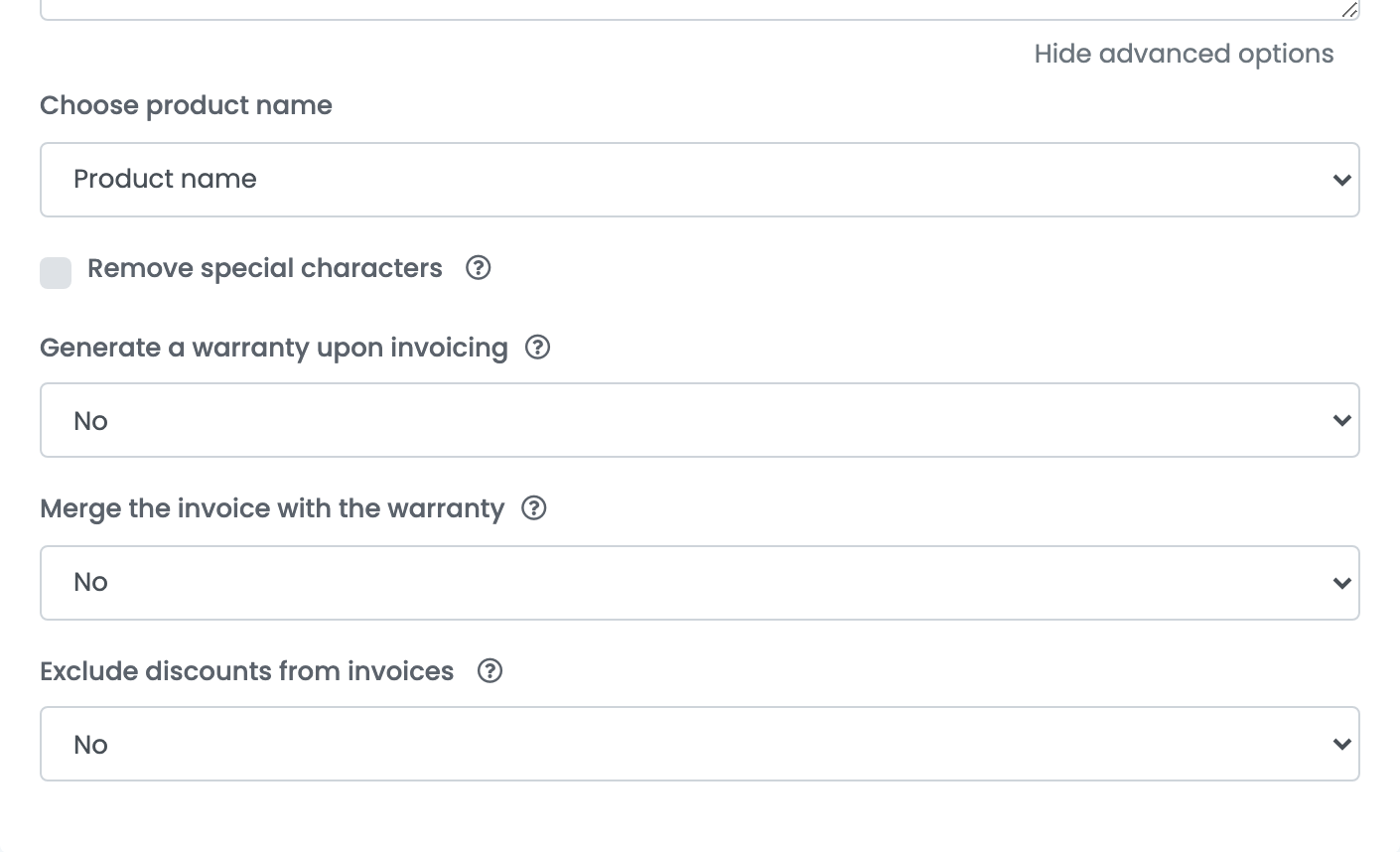
| Option | What it does |
|---|---|
| Choose product name | Which name the invoice lines carry: the product's, the offer's, or the one from your warehouse. |
| Remove special characters | Takes special characters out of the invoice text. |
| Generate a warranty upon invoicing | Issues a warranty certificate with each invoice, from the Warranty template you choose. Merge the invoice with the warranty puts both in one document. |
| Exclude discounts from invoices | Leaves the order's discounts off the invoice. |
What goes on the invoice
- Customer: for a company, its name, CUI and registration number; for a private customer, the billing name. Facturis Online finds the customer in your account, or adds it.
- Lines: every product with its price and quantity, identified by its Stock code — or its SKU, when it has no stock code — with the EAN as the product code. Shipping comes as a Transport line, and discounts and vouchers as lines of their own.
- VAT: the rate set on the sales channel the order comes from.
- Dates: the invoice is dated the day it is issued, and is due 30 days later.
- Currency: the order's currency.
Storno, cancel, delete and the PDF
- Storno: the storno action on the order issues a negative invoice for the whole order, in the same series; started from a return, it covers only the returned products. An order gets one storno invoice.
- Cancel and delete: cancelling marks the invoice as cancelled in Facturis Online; deleting removes it.
- PDF: opening the invoice from the order shows it as Facturis Online holds it.
- e-Factura: sending the invoice to e-Factura is done from your Facturis Online account, not from easySales.
When an invoice is refused
The reason is shown on the order, in Facturis Online's own words:
| Message from Facturis Online | What to do |
|---|---|
| Datele de autentificare sunt gresite | The username, the password or the CUI is wrong. Enter the administrator's login and the company's CUI exactly as in Facturis Online. |
| Cheia API este invalida | The API key is wrong or no longer valid. Generate a new one and paste it into the connection. |
| Pentru activare … activati pachetul Complet++ | Your Facturis Online package does not include the API. Activate the package Facturis names, in your Facturis account. |
| Seria nu a fost gasita! Folositi o serie creata in contul de cloud. | The sales channel's invoice series does not exist in Facturis Online. Create it there, or change the series on the channel. |
| Campul 'Serie' este obligatoriu. | The sales channel has no invoice series. Fill in Invoice Series on its connection. |
| Nu aveti permisiuni pentru operatia solicitata | The Facturis user in the connection lacks the rights for it. Use the administrator's login. |