How to connect e-Factura (ANAF) with easySales: send invoices automatically
Send your invoices to ANAF e-Factura from easySales: authorize with your digital certificate, the automation flow that sends every invoice, statuses on the order, ANAF's refusals and resending.
What connecting e-Factura gives you
In Romania, invoices have to be sent to ANAF's e-Factura system. With e-Factura connected, easySales sends your invoices to ANAF for you, keeps the answer ANAF gives for each one, and shows it on the order: accepted, or refused with ANAF's reasons.
Three things to know before you begin:
- Connecting sends nothing on its own. An invoice goes to ANAF when an automation flow sends it — usually every invoice, as soon as it is issued — or when you send it by hand from the order. Set up the flow in step 4, or no invoice is filed.
- You authorize easySales with your company's digital certificate. There is no password to type: ANAF asks for the qualified digital certificate of a company registered in SPV with access to e-Factura.
- Only one program should send your invoices to ANAF. If your invoicing software already sends them, do not send the same invoices from easySales too — ANAF refuses the second copy.
Before you start
A company registered in SPV
With access to e-Factura.
A qualified digital certificate
The company's, installed in the browser you connect from.
Your account details up to date
Company name, street and county in Settings → Account, as registered with ANAF.
Step 1 — Open e-Factura in easySales
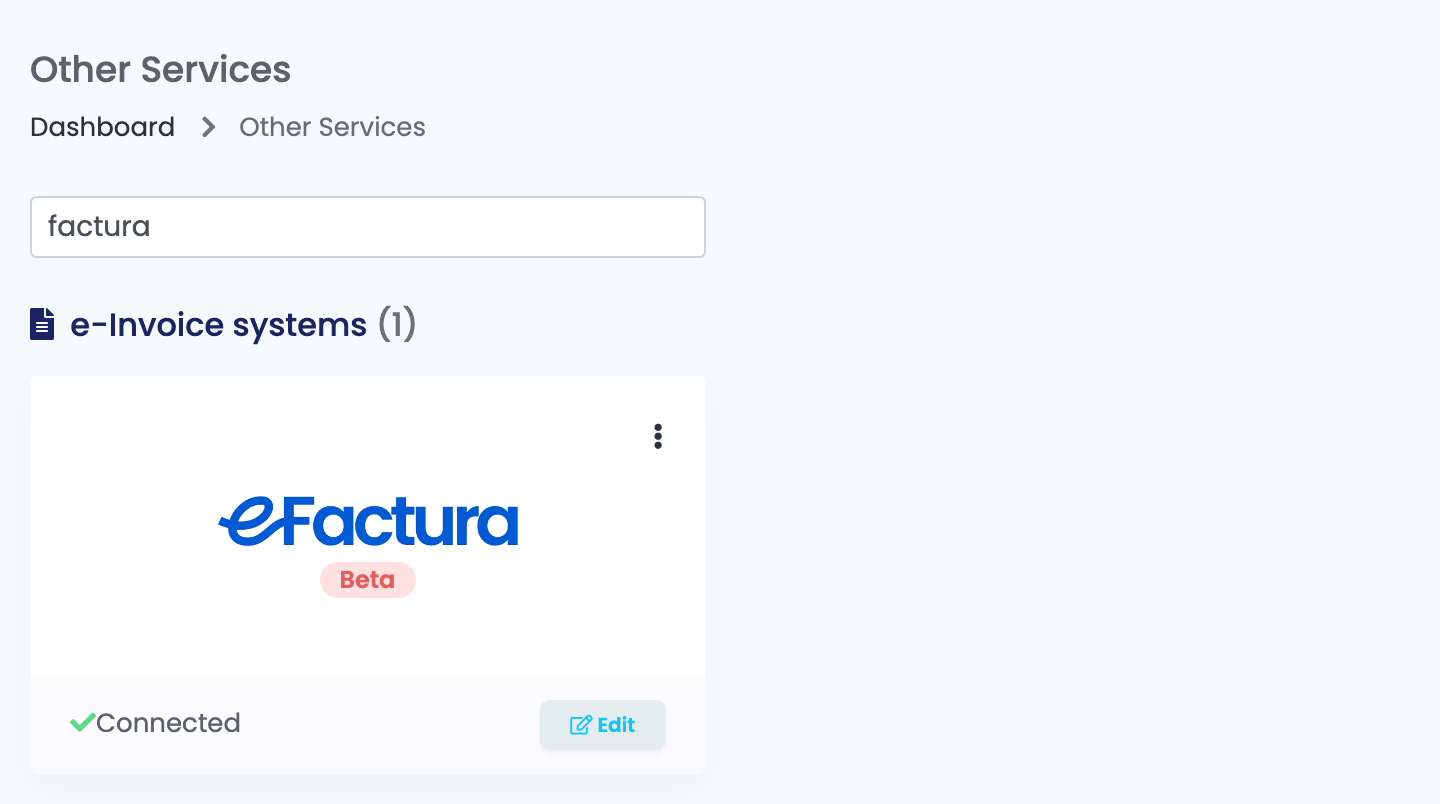
Go to Integrations → Other Services. Under e-Invoice systems, press Connect on the e-Factura card — or Edit, if you have connected it before.
Step 2 — Authorize easySales with ANAF
Press Connect with Anaf. ANAF's login page opens and asks for a digital certificate: choose your company's qualified certificate, installed in the browser you are using. ANAF then sends you back to easySales, and the connection now has two more fields.
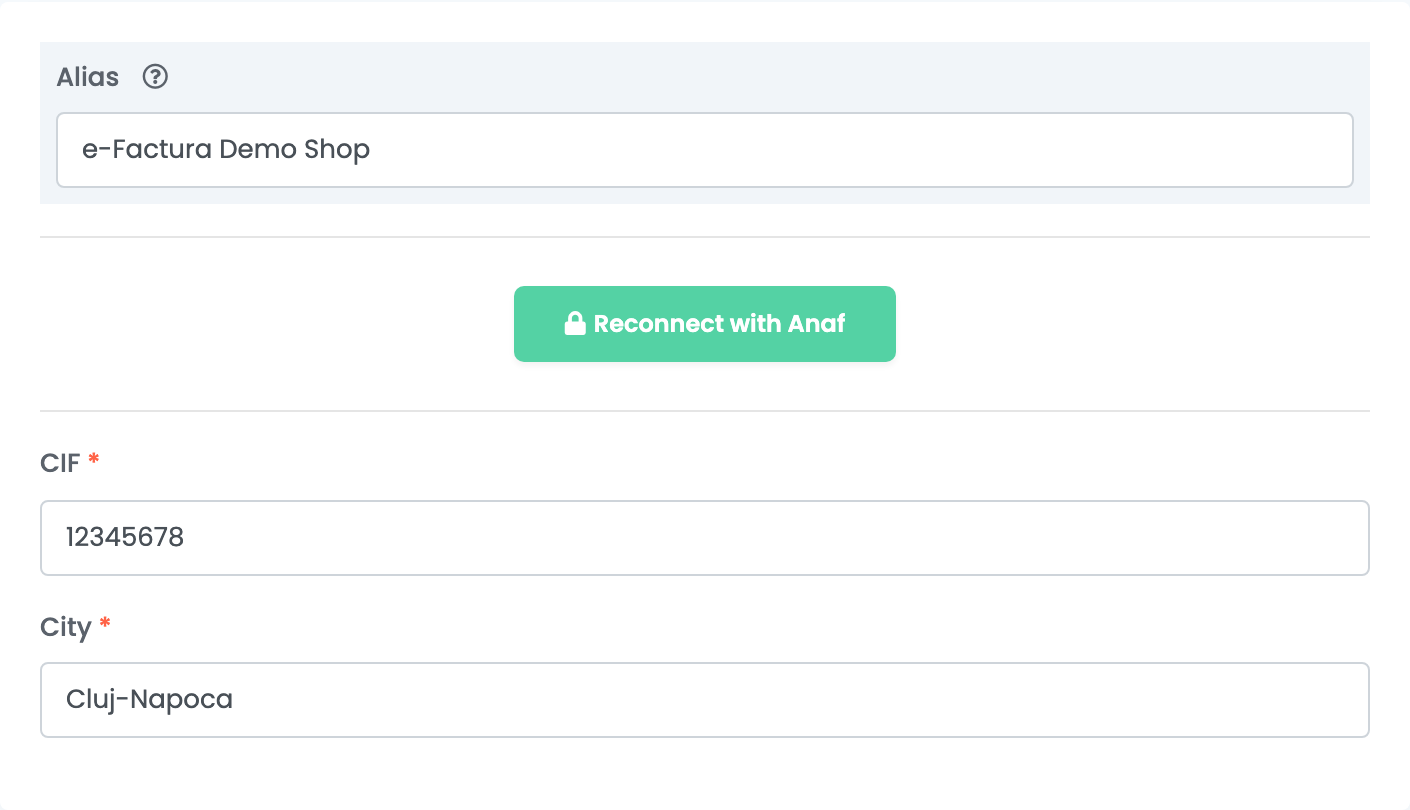
Step 3 — Fill in the company's details
| Field | What goes in it |
|---|---|
| Alias | A name for this connection, used only inside easySales. |
| CIF | The fiscal code of the company that issues the invoices — the company of the digital certificate. |
| City | The city of the company's registered office. |
Press Save.
The rest of your details as the seller on the invoice — the company name, the street and the county — are taken from Settings → Account. Check that they are the ones registered with ANAF before you send the first invoice.
Step 4 — Send your invoices automatically
Create an automation flow in Flows:
- Trigger: Order invoice created.
- Action: Send order, with Connection type eInvoice and your e-Factura connection under Connection.
Every invoice issued from then on is sent to ANAF as soon as it exists. Add a second flow with the trigger Correction invoice created and the same action, so storno invoices are sent too.
To send one invoice by hand, open the order and press Send order in its Order submissions section, then choose the e-Factura connection.
Step 5 — Follow each invoice on the order
Every order sent to ANAF gets a line in its Order submissions section, with the connection and the status:
| Status | What it means |
|---|---|
| Not sent | The invoice is waiting to be sent. |
| Pending | ANAF has received the invoice and is checking it. |
| Success | ANAF accepted the invoice. |
| Failed | ANAF refused it; its reasons are shown on the line. |
| Cancelled | The document was not sent — for example a fiscal receipt, which is not an invoice. |
The ⋮ menu on the line has More information: the date of ANAF's answer, the Upload Index ANAF gave the invoice, and View document, which opens the ZIP ANAF sent back — the invoice's XML with ANAF's signature when it was accepted, or ANAF's error message when it was not. The invoice PDF is still the one issued by your invoicing program.
When ANAF refuses an invoice
ANAF checks every invoice against its rules and gives the reason in its own words. The most common ones:
| What ANAF says | What to do |
|---|---|
| [BR-RO-110] … Subdiviziunea tarii Cumparatorului (BT-54) trebuie sa fie codificata … | The buyer's county is missing or not a Romanian county. Correct the county on the billing address — or, for a buyer abroad, do not send the invoice to e-Factura. |
| [BR-RO-100] … Localitatea Cumparatorului (BT-52) trebuie sa fie codificata folosind lista de coduri SECTOR-RO … | For a buyer in Bucharest, write the city as the sector — for example Sector 3. |
| nu a fost identificat cui cumparator | ANAF does not know the buyer's fiscal code. Correct the VAT number, or treat the buyer as a private customer. |
| CUI-ul identificat in factura … este radiat | The buyer's company has been struck off. Check the fiscal code with the customer. |
| Factura a mai fost transmisa anterior cu index=… | The invoice is already in e-Factura — sent before, or by your invoicing program. Nothing more to do for it. |
After you fix the data on the order — or on the invoice itself, if you edited the invoice in easySales — press Resend in the ⋮ menu of the failed line. Resending the same data gets the same refusal.