How to connect Colete Online with easySales: a complete setup guide
Connect Colete Online to easySales: API credentials, Get Details, choosing the service, drop-off lockers, sender and cash-on-delivery settings, and the messages you may see on a label.
What connecting Colete Online gives you
Colete Online is a Romanian shipping platform that gives you the services of several couriers — Sameday, FAN Courier, DPD, Cargus, GLS, Poșta Română and more — through a single account. Connected to easySales, it creates the shipping label for an order from the order list or the order page, puts the courier's tracking number on the order and follows the delivery status.
Two things to know before you begin:
- Each connection ships with one service. The Service type you choose on a connection is used for every label from it. To ship with more than one courier or service, you make one connection per service.
- Labels are paid from your Colete Online account. Every label is charged to your Colete Online account, so keep money in it — a label your account cannot cover is refused.
Before you start
A Colete Online account
At colete-online.ro, with money in it — every label is charged to it.
API credentials
A Client ID and a Client Secret, which Colete Online issues on request.
The services you ship with
Decide which couriers and services you use, because each needs its own connection.
Step 1 — Get your API credentials from Colete Online
easySales connects with a Client ID and a Client Secret. Colete Online issues them on request: log in to colete-online.ro, open the integration page of your profile (colete-online.ro/profile/integration) and ask for API credentials there. Colete Online sends you the Client ID and the Client Secret.
Step 2 — Connect Colete Online in easySales
Go to Integrations → Couriers, search for colete and press Connect on the ColeteOnline card — or Edit, if you have connected it before.
Enter a Connection Name, the Client ID and the Client Secret, then press Get Details. easySales checks the credentials with Colete Online and opens the rest of the form.
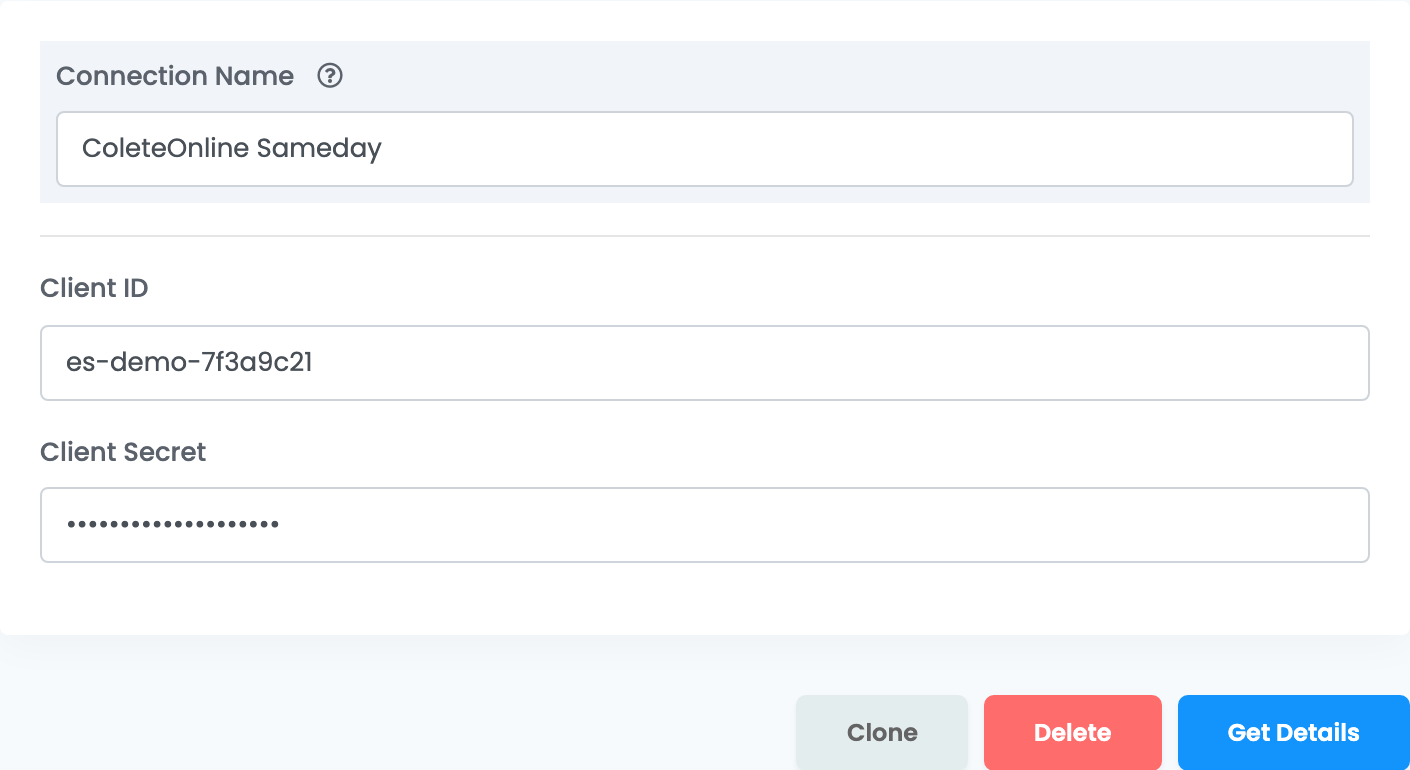
| Field | What goes in it |
|---|---|
| Connection Name |
A name you will recognise when choosing between connections — the courier and the service is a good one, for example ColeteOnline Sameday.
|
| Client ID | The Client ID Colete Online sent you. |
| Client Secret | The Client Secret Colete Online sent you. |
Save appears only after Get Details. The button is there every time you open the connection, and you press it each time before saving a change.
Step 3 — Choose the service
Service type lists the services Colete Online offers you, each shown as courier and service — for example SameDay — 24H or FanCourier — Standard. Pick the one this connection ships with.
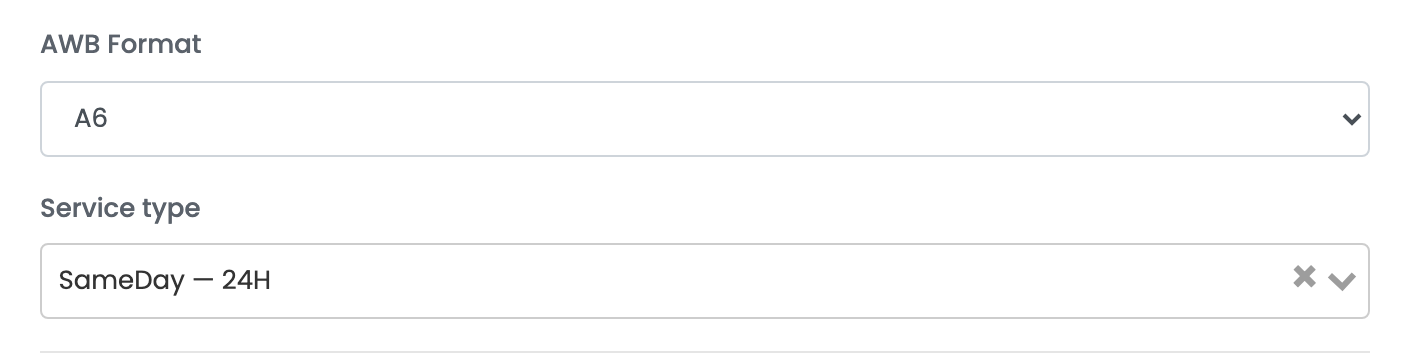
| Field | What it does |
|---|---|
| AWB Format | A4 for an office printer, A6 for a thermal label printer. |
| Service type | The service every label from this connection ships with. Auto lets Colete Online pick the cheapest home-delivery service available to you for each parcel. |
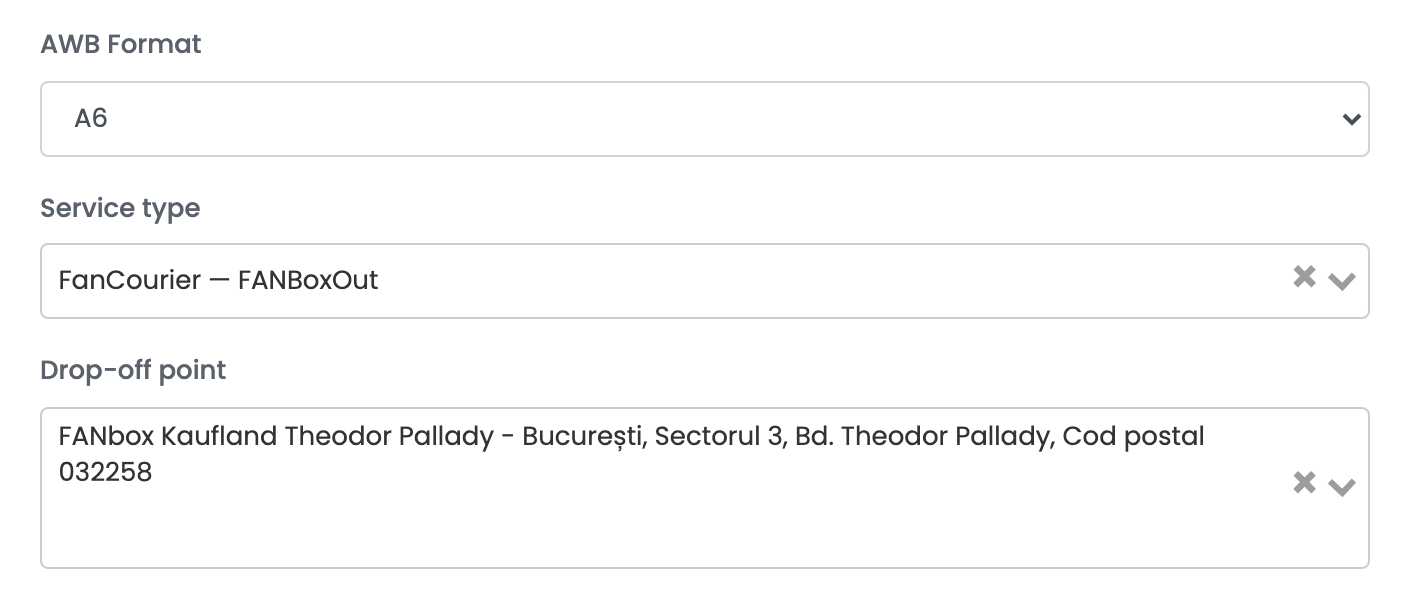
| Drop-off point | Only for services where you drop the parcel at a locker: the locker where you hand your parcels in. |
When you choose a service where you hand the parcel in at a locker yourself — such as FanCourier — FANBoxOut or Sameday — EasyBox DropOff — a Drop-off point field appears. Type part of the locker's name, street or town and choose the locker where you will drop your parcels.
Step 4 — Sender and cash on delivery
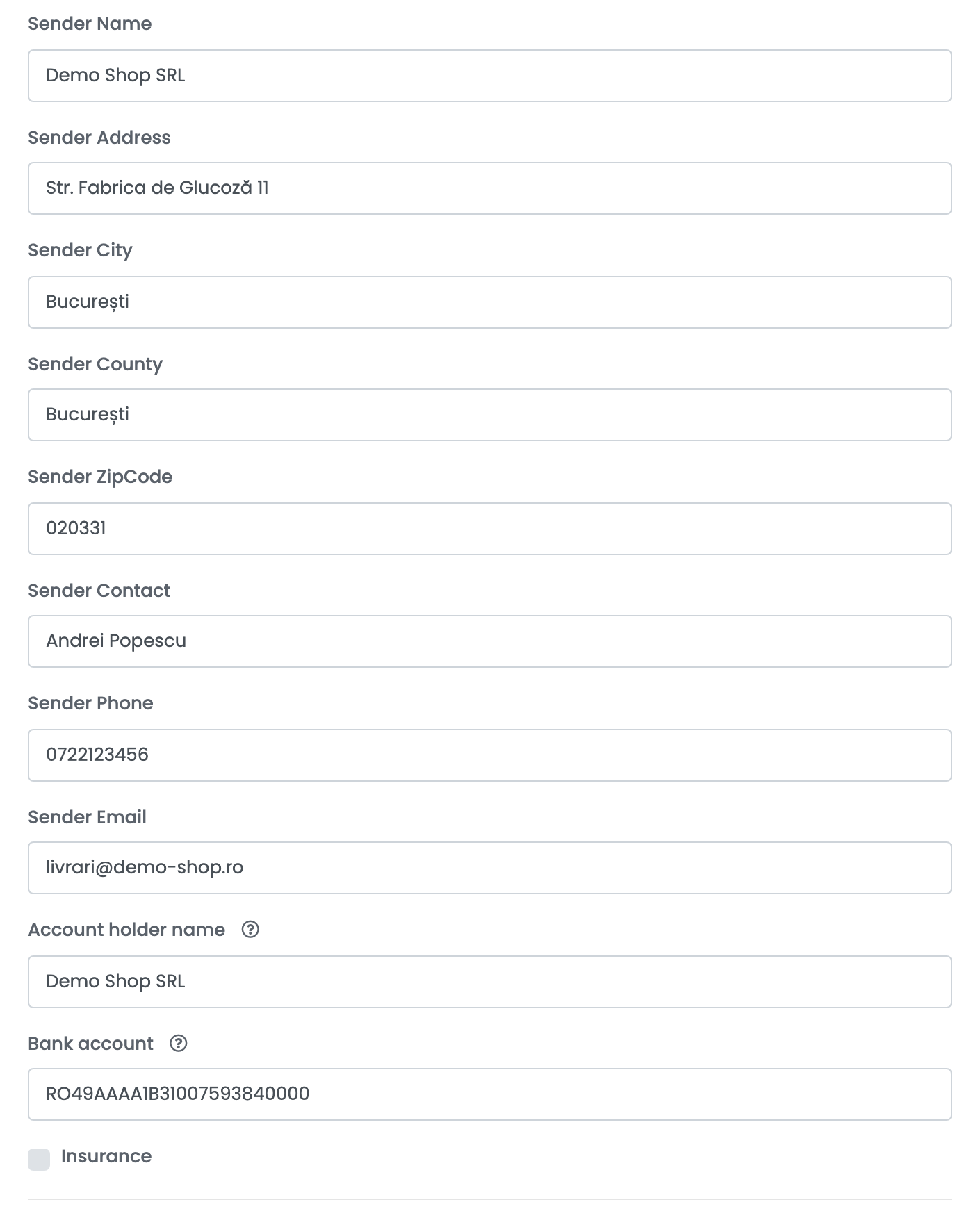
| Field | What goes in it |
|---|---|
| Sender Name | Who sends the parcels, as printed on the label — usually your company. |
| Sender Address, Sender City, Sender County, Sender ZipCode | The address the parcels leave from, in Romania — where the courier collects them. |
| Sender Contact, Sender Phone, Sender Email | Who the courier can reach about a parcel. Sender Contact is optional. |
| Account holder name, Bank account | Where the cash-on-delivery money is paid. Leave both empty to use the bank account saved in your Colete Online account. |
| Insurance | Insures every parcel from this connection for the value of its products, VAT included. |
Below them are the notes template — the text sent to Colete Online as the parcel's content, between 2 and 50 characters — the printing settings and Show advanced options. Press Save when you are done.
Step 5 — Add a connection for each service
To ship with a second service, open the connection and press Clone. easySales saves a copy with the same credentials and sender details. Open the copy, press Get Details, give it its own name, choose the other service and save. Every connection appears as a separate choice when you create a label, so a clear name — the courier and the service — makes the choice easy.
Creating labels
- Quick create, from the order list, uses everything saved on the connection. The weight is the weight of the order's products, at least 1 kg; the number of parcels comes from the order.
- From the order page you can change the address, the weight, the parcels and the cash-on-delivery amount before you create the label. To send the parcel to a locker, choose Lockers under Choose delivery type and pick the customer's locker — the label then goes with that locker's network.
Cash on delivery is added when the order is paid on delivery; the amount is the order total. The order then carries the courier's tracking number, which is also sent to the marketplace or shop the order came from, and its delivery status follows the courier's tracking.
When a label is refused
The reason is shown on the order. The ones you are most likely to see:
| Message | What to do |
|---|---|
| Insufficient funds | Your Colete Online account does not have enough money for the label. Top it up on colete-online.ro, then create the label again. |
| No service matches the selection | The connection's service cannot ship this parcel — for example a locker service for an order going to an address. Use a connection with a home-delivery service, or pick a locker on the order page. |
| Invalid Credentials | Shown by Get Details: the Client ID or the Client Secret is wrong. Copy both again from what Colete Online sent you. |
| Length should be between 3 and 60 characters | The recipient's name is too short or too long. Correct it on the order page. |
| Length should be between 2 and 50 characters | The parcel content — the connection's notes template — is too long. Shorten the template. |
| Invalid phone number | Correct the customer's phone number on the order. |
| The postal code is required | The delivery address has no postal code. Add it on the order. |