How to connect bol with easySales
Sell on bol in the Netherlands and Belgium with easySales: Retailer API credentials, VAT, fulfilment and delivery settings, both countries on one account, linking your existing offers and bol's messages.
What the bol connection does
bol is the largest online marketplace in the Netherlands and Belgium. Connecting your bol seller account lets easySales send your offers to bol, keep their price and stock up to date, bring bol orders in with the rest of your orders, and confirm each shipment on bol when you create its AWB.
easySales has two bol cards, bol.com NL and bol.com BE. Both use the same bol seller account; connect one, or both if you sell in both countries.
Three things to know before you begin:
- easySales connects to a bol seller account you already have. It uses the Retailer API credentials you create in your bol Seller Dashboard, not your bol login.
- bol matches your products by EAN. An offer without an EAN never leaves easySales, and your offer appears on the product page bol has for that EAN.
- Set Default Tax Rate to 21. bol receives prices with VAT included, and easySales adds this rate to your price. Left at 0, bol receives your price without VAT.
Before you start
A bol seller account
With access to the bol Seller Dashboard.
Retailer API credentials
A Client ID and Client Secret, created in Step 1.
Products with an EAN
bol matches every offer to its product by EAN.
Prices in EUR
bol sells in euros, in the Netherlands and Belgium.
Step 1 — Create your Retailer API credentials in bol
In your bol Seller Dashboard, open your account menu and go to Instellingen → Diensten → API Instellingen.
- Fill in the technical contact details, if they are not there yet.
- Under Client credentials voor de Retailer API, press Aanmaken.
- Give the credentials a name, for example
easySales, and press Aanmaken again. - Press Toon secret and copy the Client ID and the Client Secret.
Step 2 — Connect bol in easySales
Go to Integrations → Marketplaces, search for bol and press Connect on the bol.com NL card (or bol.com BE, if you sell only in Belgium).
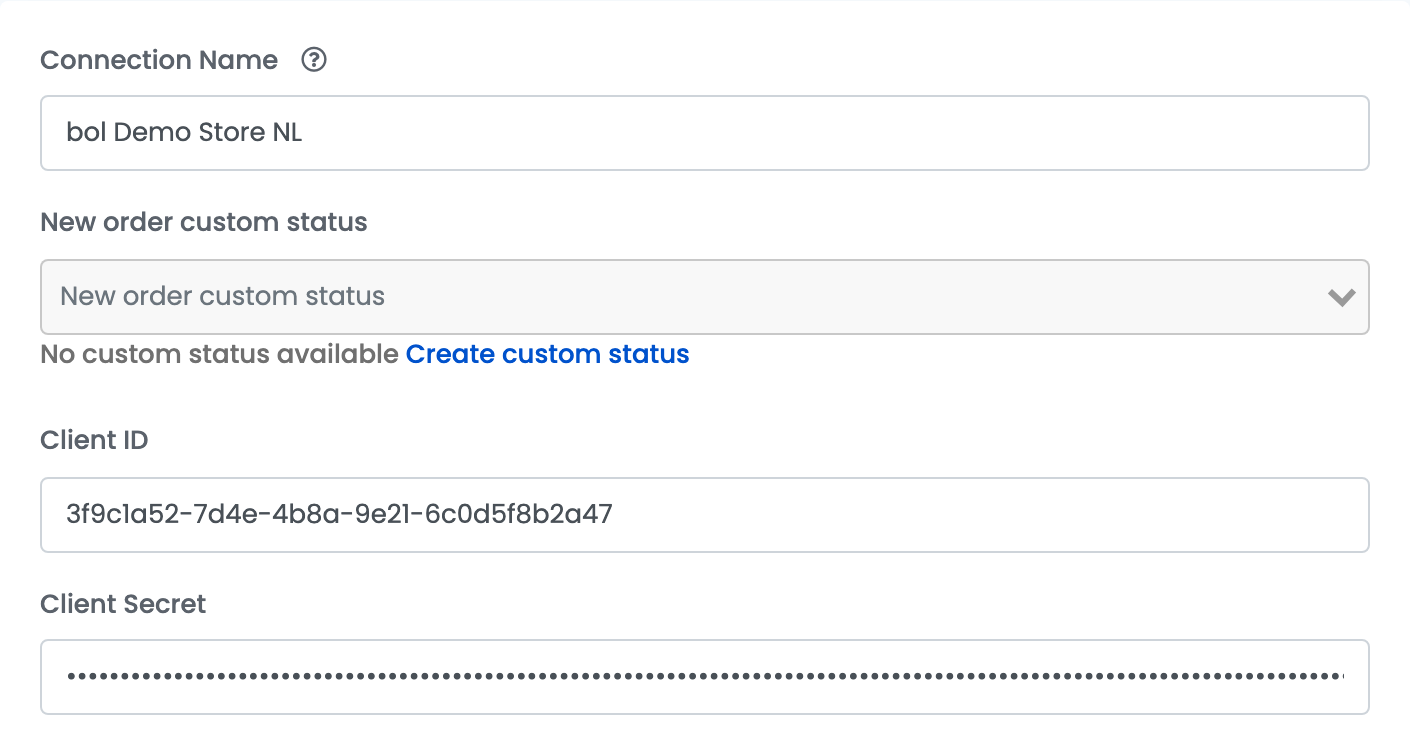
| Field | What goes in it |
|---|---|
| Connection Name |
A name you will recognise, for example bol NL.
|
| New order custom status | Optional. The status new bol orders get in easySales. |
| Client ID | The Client ID from Step 1. |
| Client Secret | The Client Secret from Step 1. |
Press Continue. easySales checks the credentials with bol, then shows the rest of the settings.
Step 3 — Prices and VAT
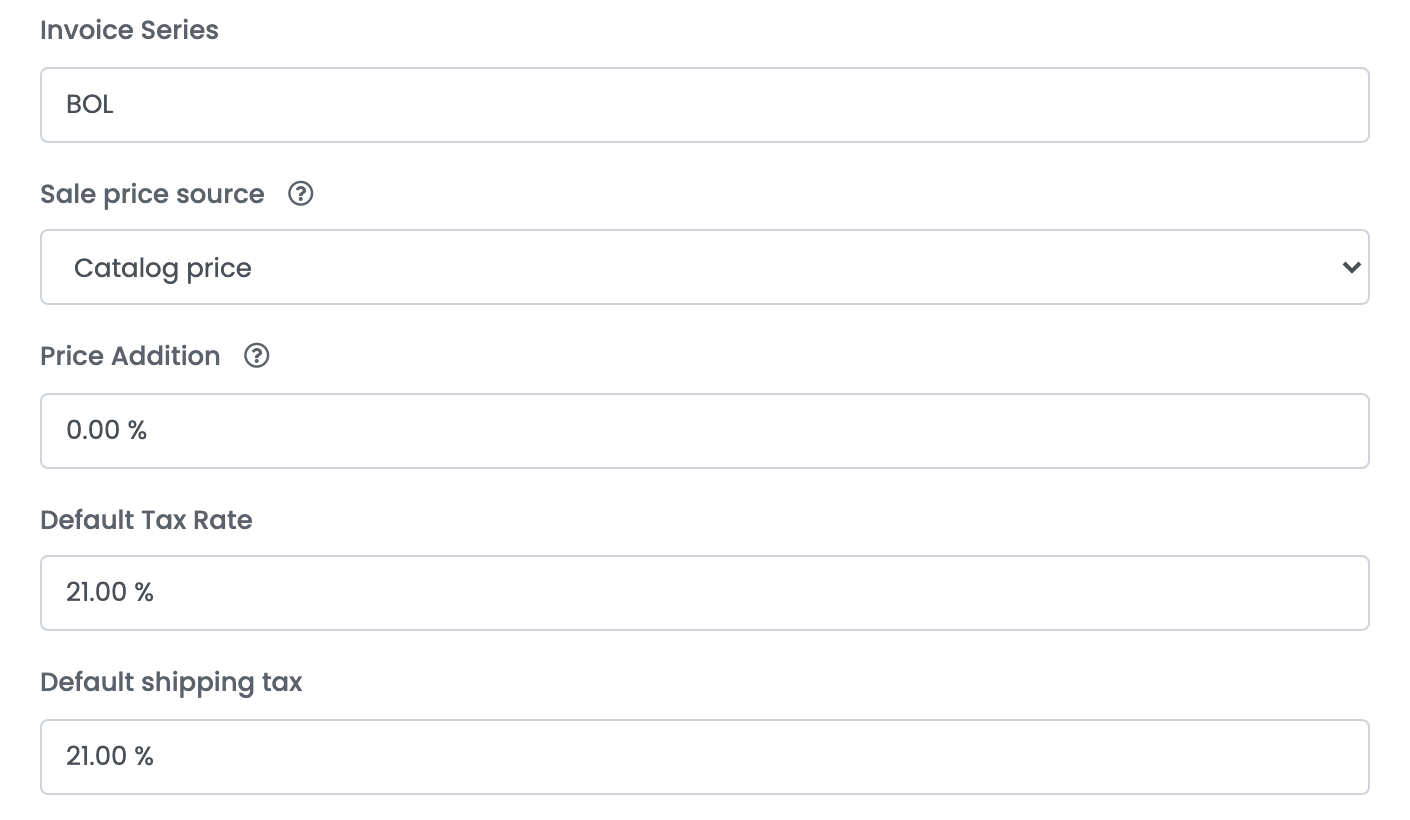
| Field | What goes in it |
|---|---|
| Invoice Series | Optional. The invoice series for bol orders. |
| Sale price source | Where the price sent to bol comes from — your catalog price or a price group. |
| Price Addition | A percentage added to the price of new offers. |
| Default Tax Rate | Your VAT: 21. Added to the price sent to bol. bol accepts prices from 1 to 9,999 EUR, VAT included. |
| Default shipping tax | The VAT rate of the shipping cost on bol orders: 21. |
Step 4 — Fulfilment, delivery and shipping
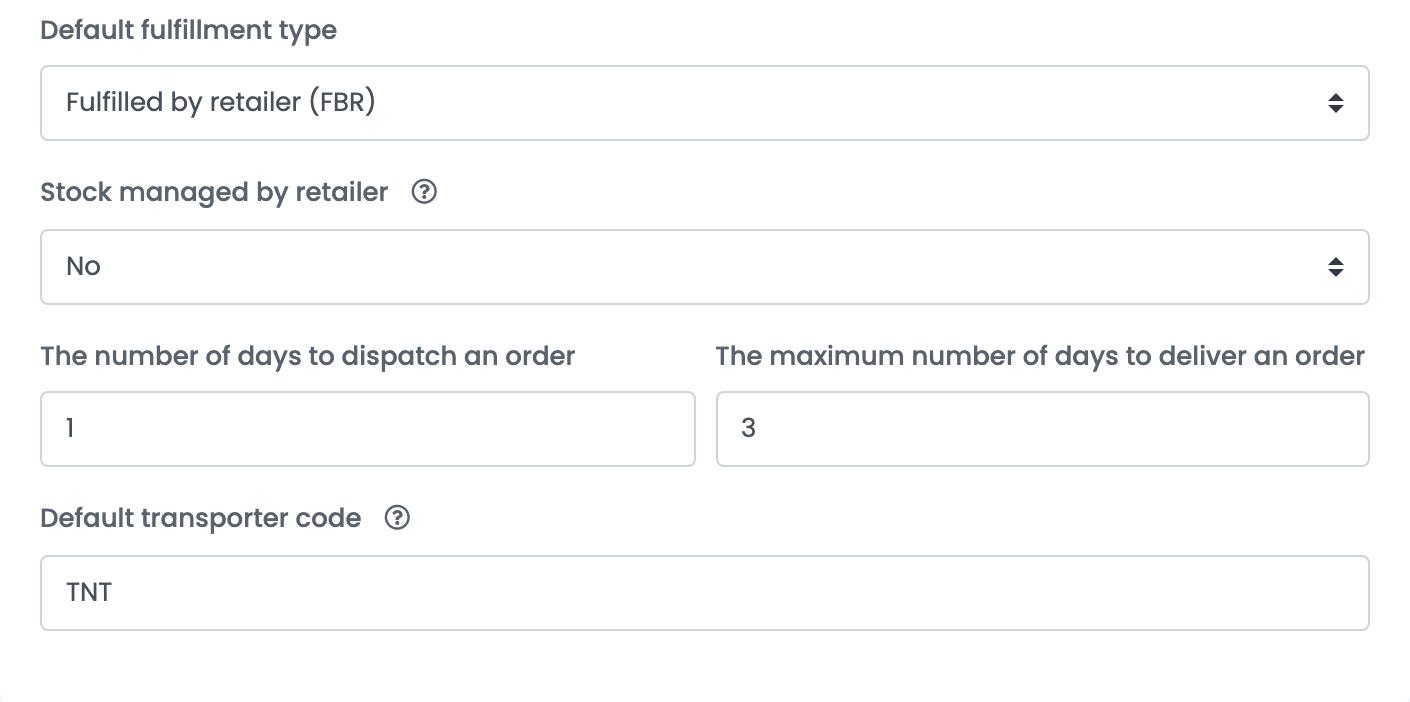
| Field | What goes in it |
|---|---|
| Default fulfillment type | Fulfilled by retailer (FBR) if you ship the orders, Fulfilled by bol (FBB) if bol ships them from its warehouse. New offers get this type, and easySales imports the orders of this type. |
| Stock managed by retailer | No: bol subtracts every open order from the stock you send. Yes: only orders placed after the last stock update count. |
| The number of days to dispatch an order and The maximum number of days to deliver an order | The delivery promise bol shows the buyer, from the first number of days to the second. Used on FBR offers. |
| Default transporter code |
bol's code for the carrier you ship with, for example TNT for PostNL. It goes to bol with the tracking number. Without it, shipments are confirmed on bol without tracking.
|
Press Save.
Step 5 — Prices, stock and invoices
Open the Additional settings tab:
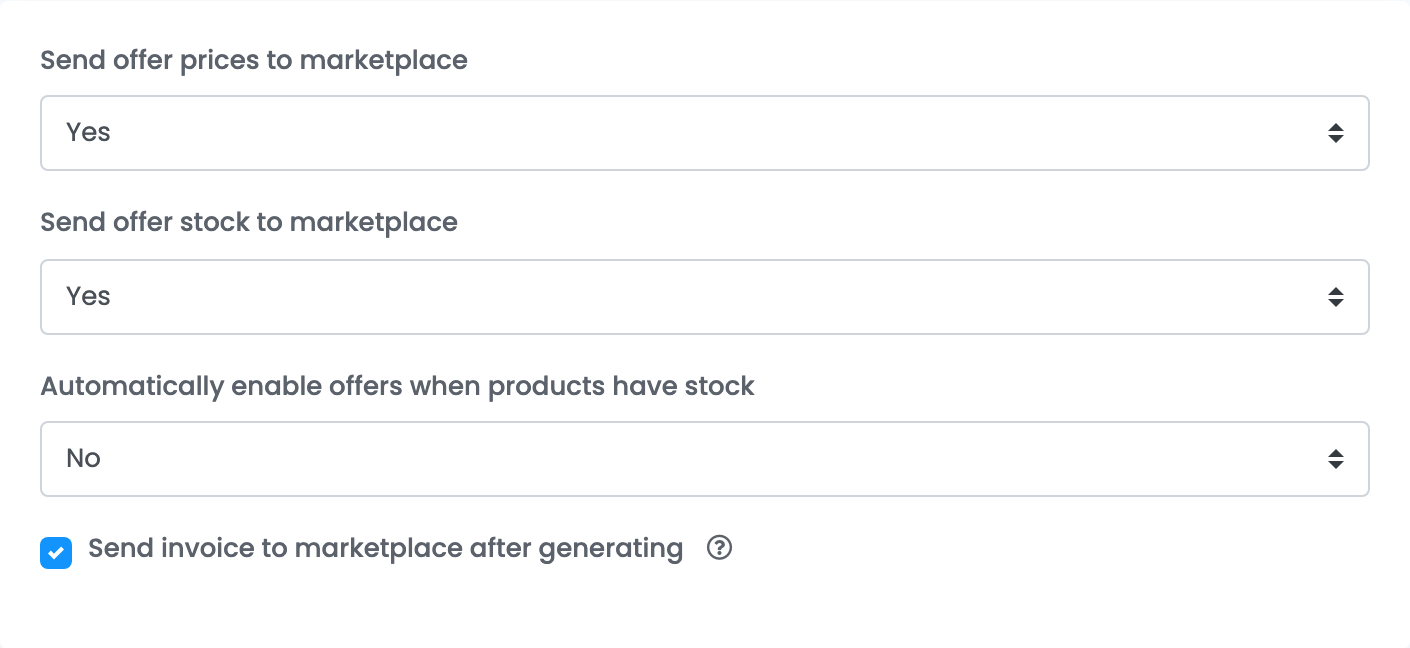
- Send offer prices to marketplace and Send offer stock to marketplace: keep Yes. With No, later price and stock changes in easySales never reach bol.
- Automatically enable offers when products have stock: with Yes, an offer switched off for lack of stock is switched back on when the product has stock again.
- Send invoice to marketplace after generating: keep it ticked. easySales uploads the invoice you create for a bol order to bol once its shipment is confirmed.
Selling in both the Netherlands and Belgium
bol keeps one offer per product for both countries. To sell in both, connect bol.com BE as well, with the same Client ID and Client Secret. Credentials from another bol account are refused.
The channel you connected first sends the price and stock for both countries. On the second one, the price and stock settings are locked and point you to the first:
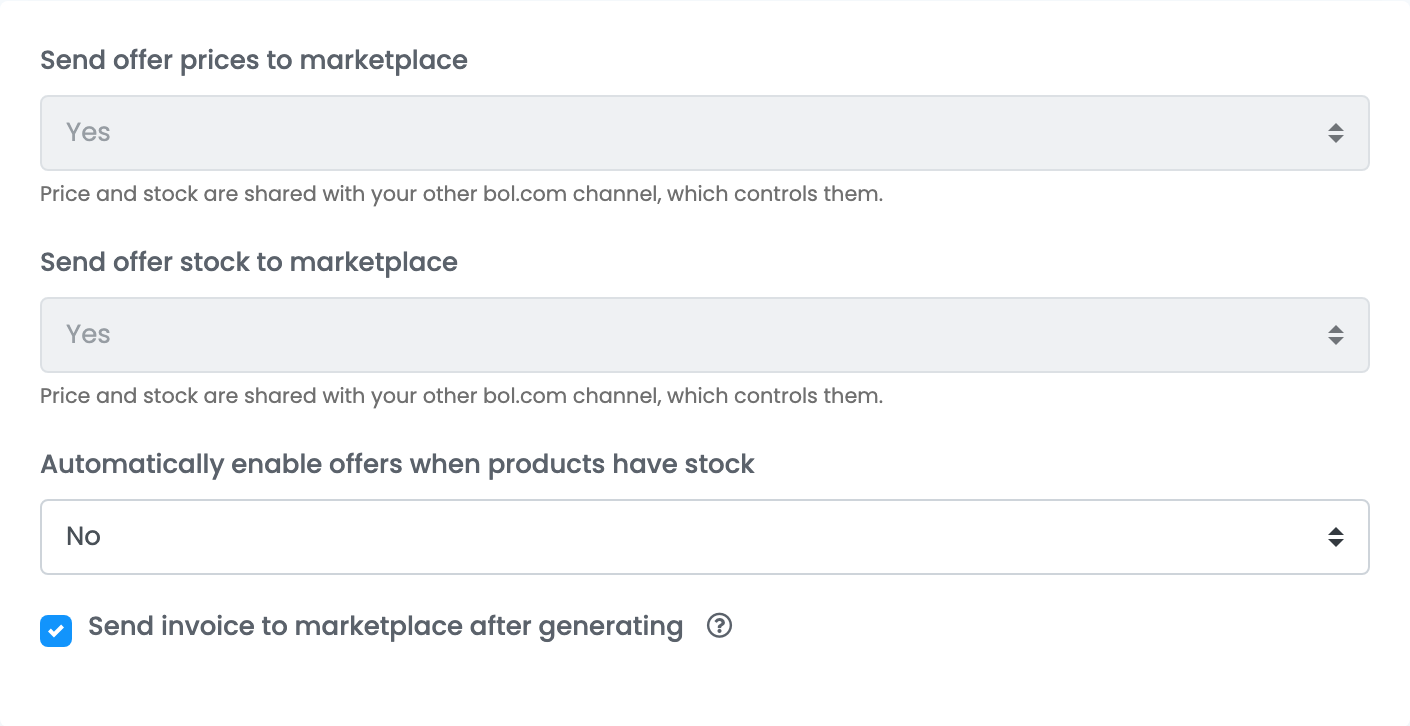
Change prices, stock, fulfilment and delivery settings on the first channel; they apply in both countries.
Step 6 — Check your offers
Your offers are on Marketplaces → Offers, on the bol.com NL or bol.com BE tab.
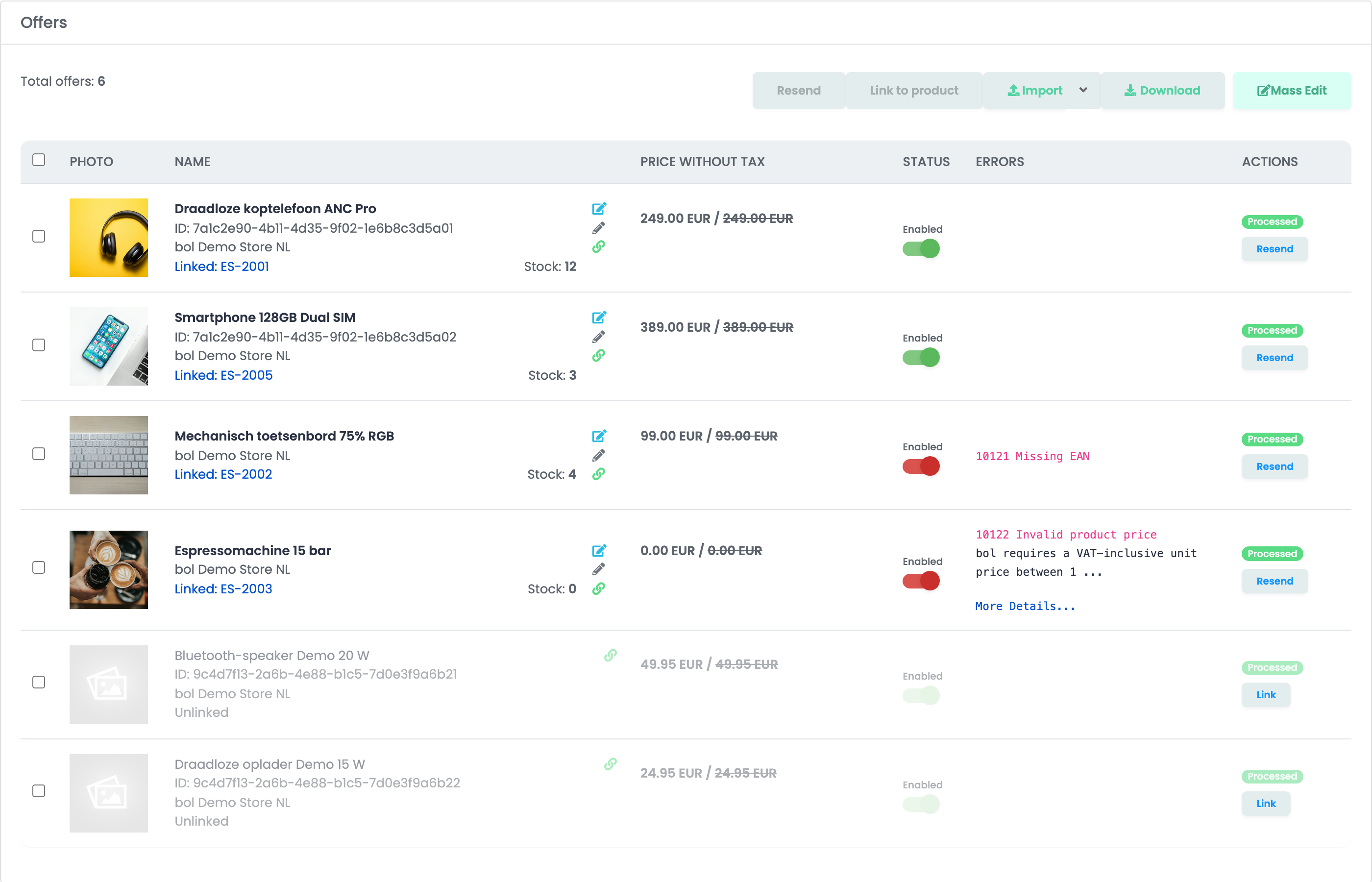
- easySales sends your price, stock, condition and delivery promise. The title, description and images come from bol's own product page for that EAN.
- An offer that cannot go out shows the reason on its row, in red. Fix it and press Resend — see the table at the end of this guide.
- Offers you already had on bol are imported greyed out and Unlinked. Use Link on the row, or Link to product for a selection, to attach each one to a product in easySales. Once linked, it gets the product's price and stock.
Orders
easySales imports your bol orders every few minutes, for the fulfilment type set on the connection. bol orders arrive paid. An order is New until it ships, Processing while only part of it has shipped, Completed once every item has shipped, and Canceled when every item is cancelled.
- Shipping. Create the AWB in easySales with any of your couriers. easySales confirms the shipment on bol and sends the tracking number with your Default transporter code.
- Invoices. With Send invoice to marketplace after generating ticked, the invoice goes to bol after the shipment is confirmed.
- Cancelling. Cancelling the order in easySales cancels it on bol.
When something does not work
| Message | What to do |
|---|---|
| Continue shows an error and the settings do not appear | Copy the Client ID and the Client Secret again from API Instellingen. Your bol e-mail address and password do not work here. |
| These credentials belong to a different bol account than your other bol.com connection. Both channels have to use the same bol seller account. | Use the same Client ID and Client Secret on bol.com NL and bol.com BE. |
| 10121 Missing EAN | Add the product's EAN in easySales, then resend the offer. |
| 10122 Invalid product price | bol needs a price from 1 to 9,999 EUR, VAT included. Check the product price and Default Tax Rate. |
| 10123 Invalid stock quantity | The stock must be between 0 and 999,999. |
| 10125 Incomplete condition | A second-hand offer needs a state, and a refurbished offer needs a grade and a margin. Complete them on the offer. |
| 10120 Offer rejected by bol | bol refused the offer; its reason is on the row. Fix it and resend the offer. |