How to connect Billingo with easySales: a complete setup guide
Connect Billingo to easySales: create the API key, choose the document block and payment method, set invoice type, currency and NAV options, and fix the messages Billingo returns.
What connecting Billingo gives you
With Billingo connected as billing software, easySales issues the invoice for an order directly in your Billingo account — customer, products, shipping and discounts included — and attaches it to the order. From the order you can then download the invoice, mark it as paid, cancel it or issue a credit invoice. The invoice number comes from Billingo, so your Billingo numbering stays unbroken.
The connection needs one value from Billingo: an API key.
Before you start
A Billingo package with API access
easySales connects through Billingo's API, so your Billingo subscription has to include it. Check it in Billingo before you start.
A document block in Billingo
The invoices are issued on one of your Billingo document blocks. Create one for your online sales first if you want them numbered separately.
Complete billing addresses
Billingo expects a postal code on every customer. Orders without one cannot be invoiced until it is added.
Step 1 — Create the API key in Billingo
- In Billingo, open Beállítások → API kulcsok (Settings → API keys).
- Press ÚJ API kulcs (New API key) and give the key a name you will recognise, such as
easySales. - Choose Olvasás és írás (read and write). easySales creates invoices and customers in your account, so a read-only key is not enough.
- Save the key and copy it. You will paste it into easySales in the next step.
Step 2 — Connect Billingo in easySales
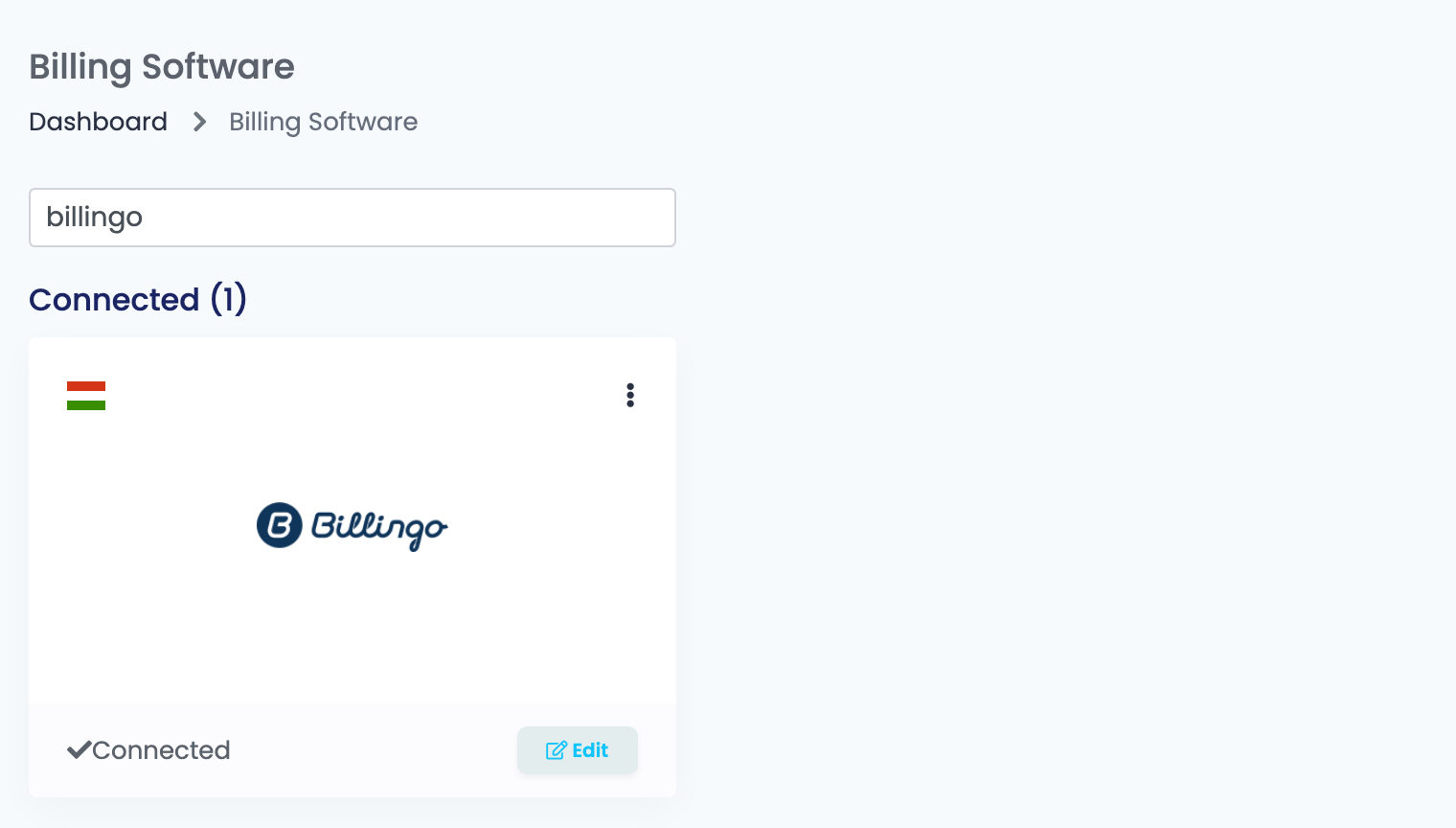
Go to Integrations → Billing Software, search for billingo and press Connect on the Billingo card — or Edit, if you have connected it before.
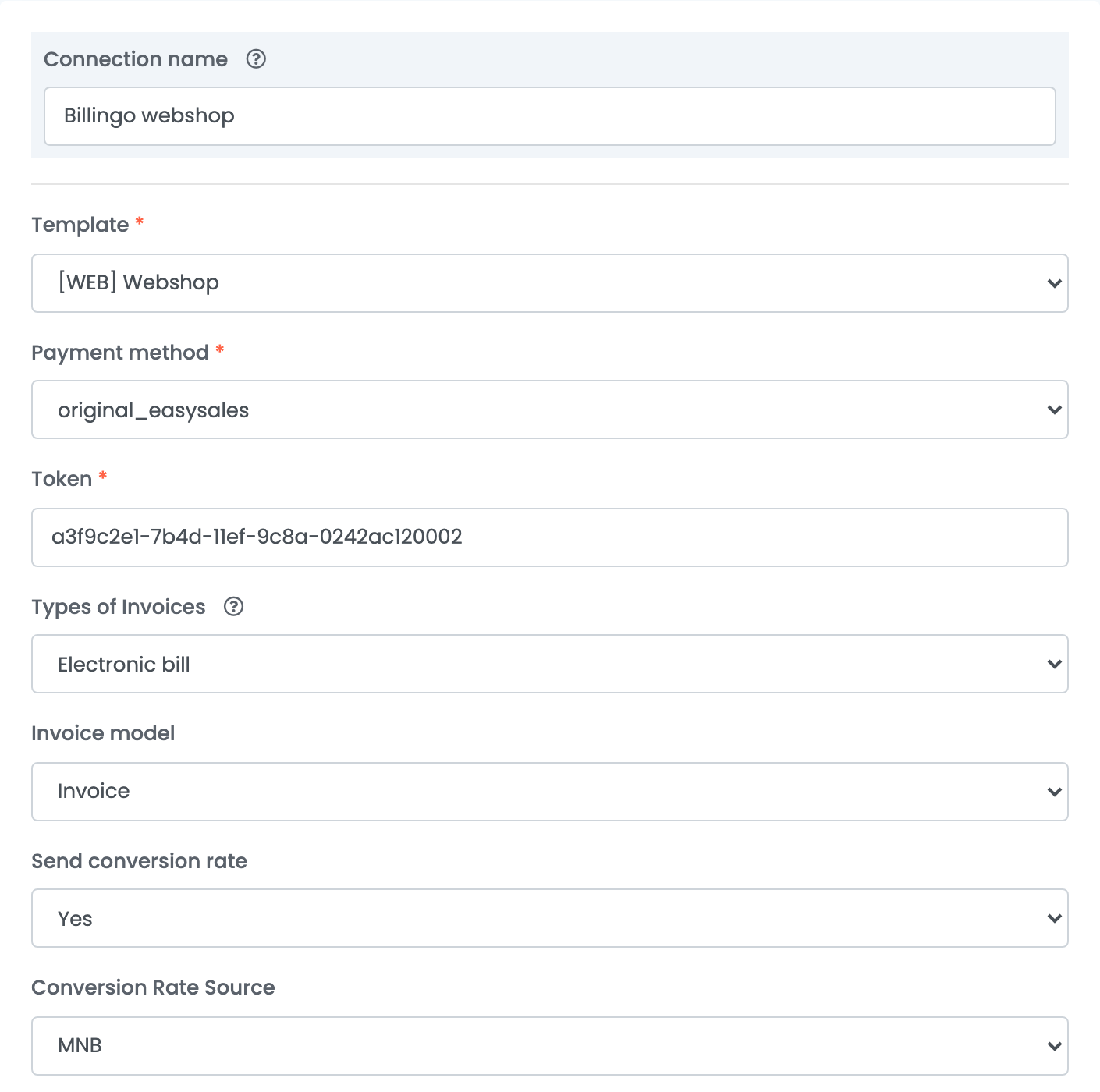
Type a Connection name — it is what you see inside easySales when you choose between connections — paste the key into Token and press Save.
Step 3 — Document block, payment method and invoice type
| Field | What it does |
|---|---|
| Template (the first one) | The Billingo document block the invoices are issued on. The list comes from your Billingo account; the block decides the prefix and the numbering. Required. |
| Payment method | The payment method written on the invoice. Required — see the table below. |
| Token | The API key from step 1. |
| Types of Invoices | Paper invoice or Electronic bill. |
| Invoice model | The kind of document easySales creates: Invoice (the default), Proforma, Payment in advance or Draft. A draft is saved in Billingo without being issued. |
| Send conversion rate | Yes sends an exchange rate with the invoice — needed for any currency other than HUF. |
| Conversion Rate Source | Where the rate comes from: MNB, BNR or Billingo. Shown only when Send conversion rate is Yes. |
Payment method
| Choose | What goes on the invoice |
|---|---|
original_easysales
|
The order's own payment method: cash on delivery becomes cash_on_delivery, online card payment online_bankcard, bank transfer elore_utalas. The usual choice when orders are paid in different ways.
|
| Any other value |
That Billingo payment method on every invoice from this connection — for example wire_transfer, bankcard, cash or szep_card.
|
Step 4 — The note on the invoice
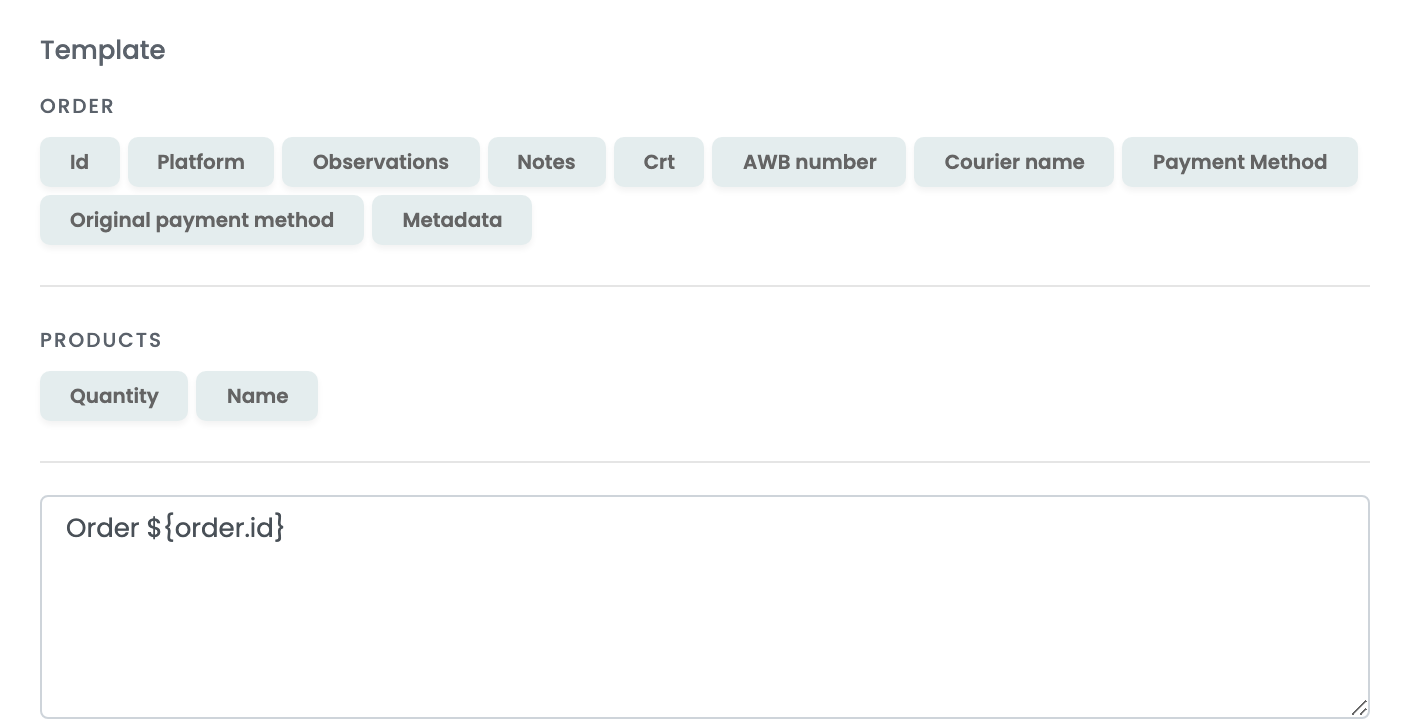
The Template box at the bottom of the form is the text printed in the invoice's comment. Click a variable to insert it — the order number, the platform, the AWB number, the courier, the payment method — or type your own text around it.
Step 5 — Advanced options
Press Show advanced options under the template to open the rest of the settings. You can leave all of them as they are and change them later.
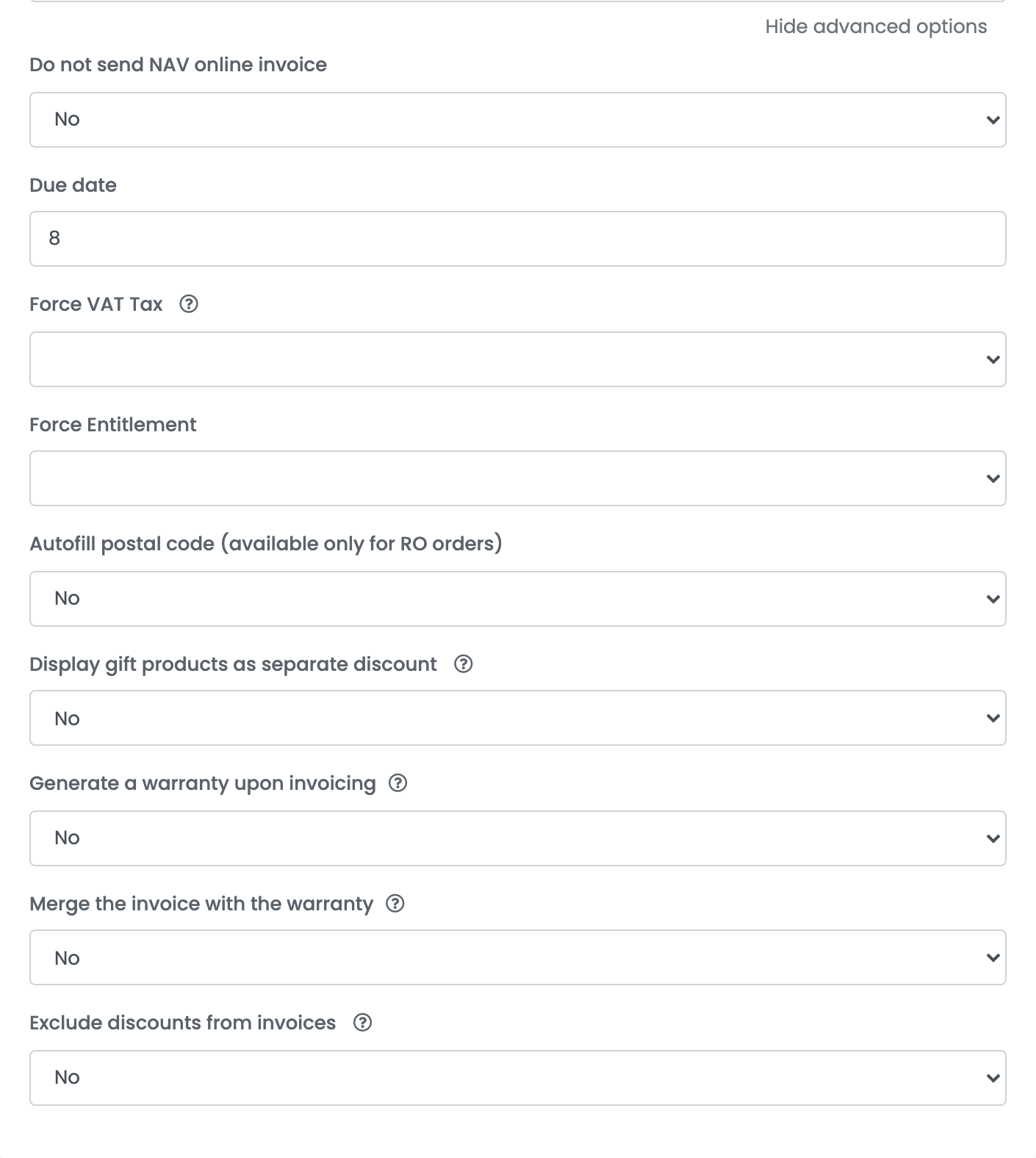
| Field | What it does |
|---|---|
| Do not send NAV online invoice | Yes tells Billingo not to report these invoices to NAV Online Számla. Leave it on No unless your accountant says otherwise. |
| Due date | The number of days until payment is due, counted from the invoice date. Empty means 30 days. |
| Force VAT Tax | Puts one VAT code on every line of every invoice from this connection — for example AAM for tax-exempt sellers. Leave it empty to use each product's own VAT rate. |
| Force Entitlement | The VAT exemption reason written on every line, such as AAM or EUE. Use it together with Force VAT Tax. |
| Autofill postal code (available only for RO orders) | Fills in a missing postal code for billing addresses in Romania. It does not apply to Hungarian addresses. |
| Display gift products as separate discount | A product with price 0 appears on two lines: once at full price and once as an equal discount. |
| Generate a warranty upon invoicing | Creates a warranty document together with the invoice. |
| Merge the invoice with the warranty | Downloads the invoice and the warranty as one file. |
| Exclude discounts from invoices | Leaves the order's discount lines off the invoice. |
How customers are created in Billingo
For every invoice, easySales looks for the customer among your Billingo partners — by company name for a company, by the billing name for a private person — and uses the partner it finds only when the phone number, e-mail address and the whole billing address match the order exactly (and, for a company, the tax number and IBAN too). Otherwise it creates a new partner. A customer who orders twice with a slightly different address therefore appears twice in your partner list, which is expected.
Products with a Stock code
Invoices in another currency, and the invoice language
The invoice is written in the language of the shop or marketplace the order came from — German, English, French, Croatian, Hungarian, Italian, Romanian or Slovak. Orders from any other language get an English invoice.
When an invoice is refused
When Billingo refuses an invoice, the reason is shown on the order, in Billingo's own words. The ones you are most likely to see:
| Message | What to do |
|---|---|
| The address.post code field is required. | Add the postal code to the billing address and issue the invoice again. |
| The emails.0 must be a valid email address. | Correct the customer's e-mail address, or remove it. |
| The phone must be a string. | The order has no phone number. Add one to the billing details. |
| The conversion rate field is required unless currency is in HUF. | Set Send conversion rate to Yes on the connection. |
| Document block is required | Open the connection and choose a document block in the first Template field. |
| Payment method is required | Open the connection and choose a Payment method. |