How to connect Bazarul Online with easySales: a complete setup guide
Connect Bazarul Online to easySales: e-mail and API key, Default Tax Rate and VAT, linking the offers you already have, category mapping, orders and offer errors.
What connecting Bazarul Online gives you
bazarulonline.ro is a Romanian online marketplace for wholesale sales. Connected to easySales, it brings your Bazarul Online orders into easySales, sends your products to Bazarul Online as offers and keeps their stock and prices up to date from easySales.
Two things to know before you begin:
- Offers you already have on Bazarul Online must be linked to your products. easySales imports them unlinked. Until you link them, they receive no stock or price from easySales, and orders for them arrive without a product, so no stock is reserved.
- Every offer needs a Bazarul Online subcategory and a VAT rate Bazarul Online accepts. Map your categories to Bazarul Online's before you send products, and make sure every offer's VAT rate is 5%, 11%, 20% or 21%.
Before you start
An active Bazarul Online vendor account
Approved by Bazarul Online, at bazarulonline.ro.
Your API key
Generated in your vendor account or requested from Bazarul Online.
SKUs or EANs that match
Autolink finds your existing Bazarul Online offers among your products by SKU, EAN or name.
Step 1 — Get your API key from Bazarul Online
- Log in to your vendor account on bazarulonline.ro.
- Generate an API key for your account — or ask Bazarul Online for one at api.support@bazarulonline.ro.
- Copy the key as soon as it appears: it is shown only once.
Step 2 — Connect Bazarul Online in easySales
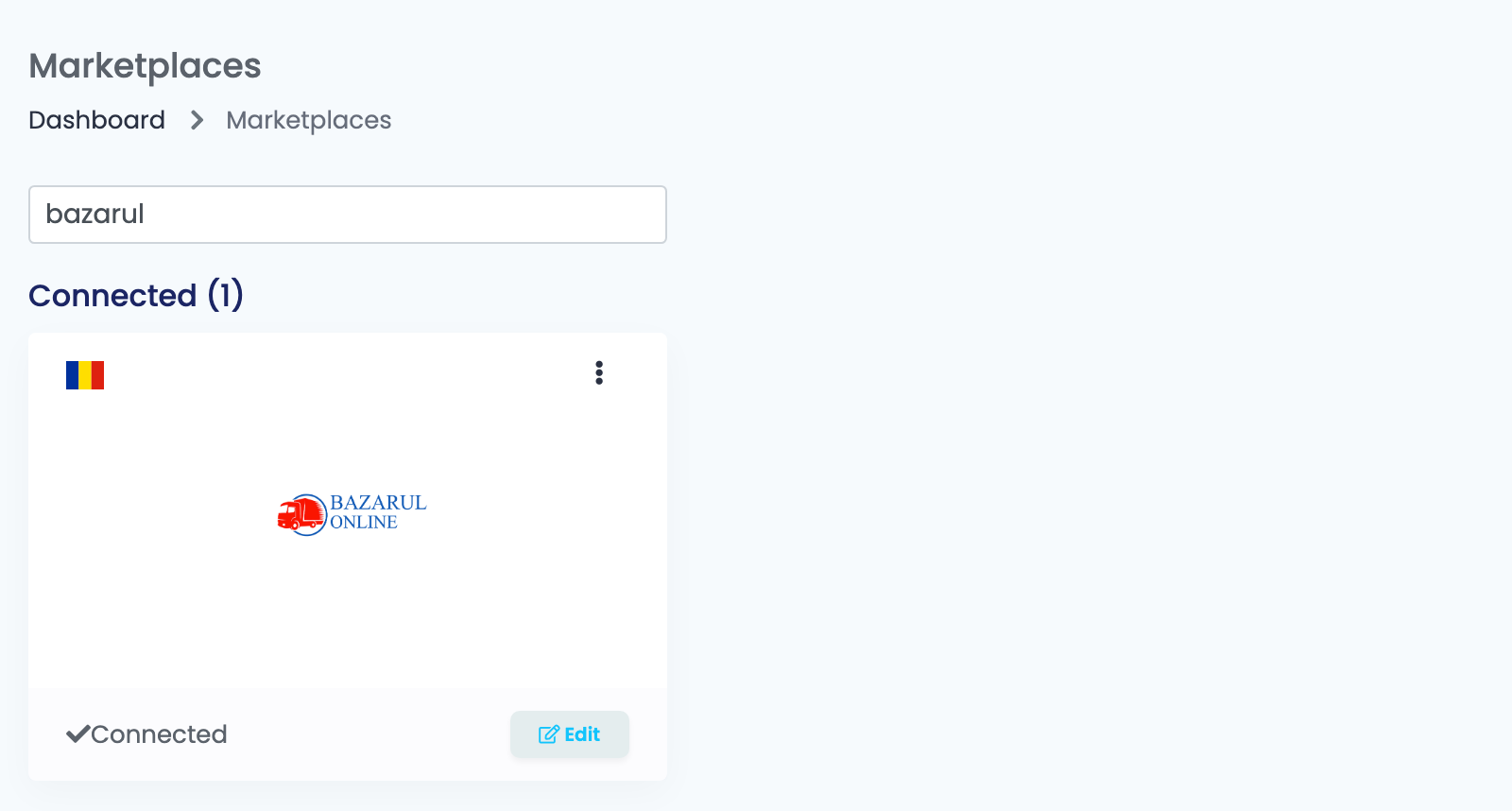
Go to Integrations → Marketplaces, search for bazarul and press Connect on the Bazarul Online card — or Edit, if you have connected it before.
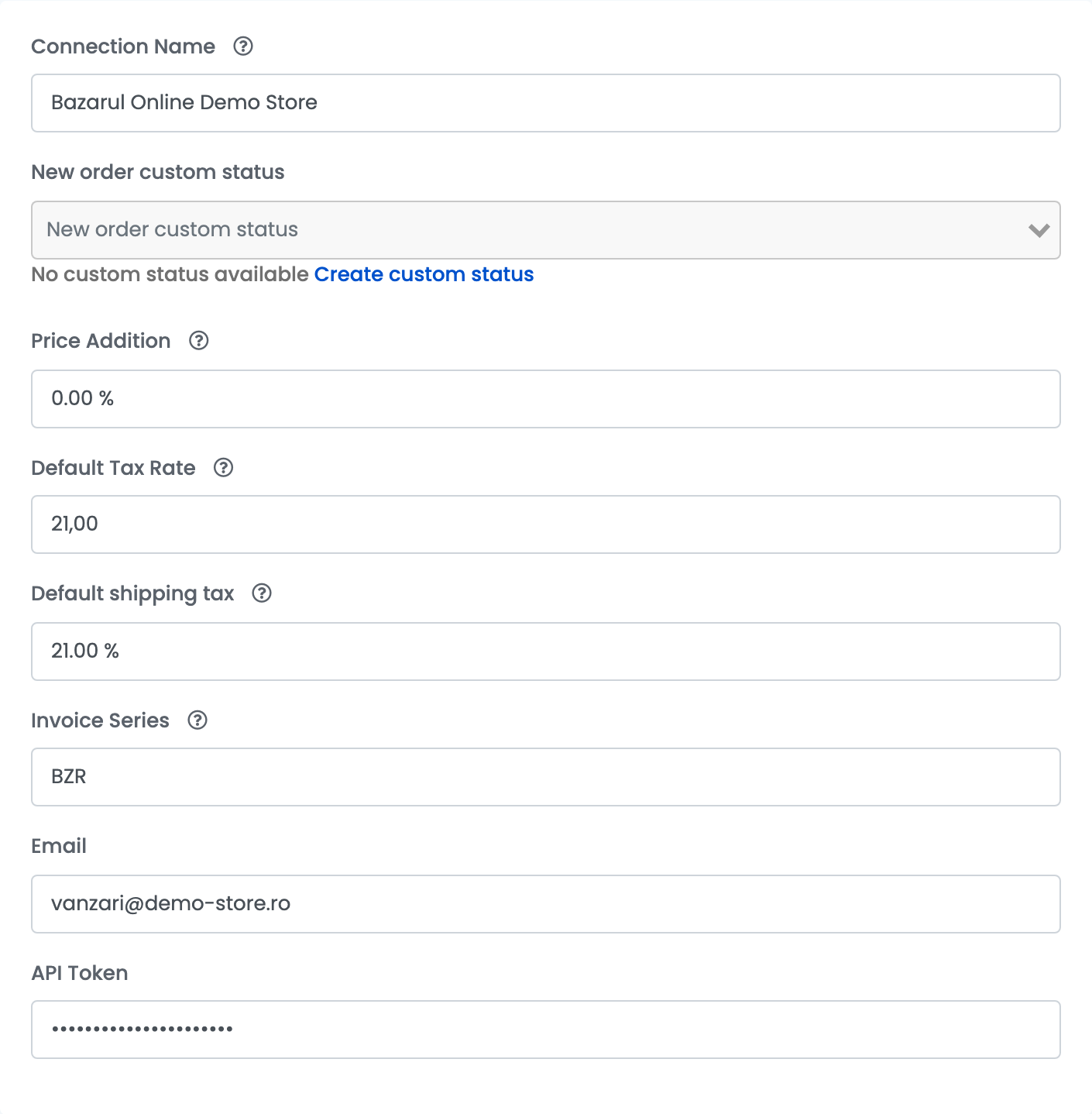
Fill in the Main settings tab:
| Field | What goes in it |
|---|---|
| Connection Name |
A name you will recognise, for example Bazarul Online Demo Store.
|
| New order custom status | Optional: a custom status given to every new order imported from Bazarul Online. |
| Price Addition | A percentage added to the product's price for Bazarul Online. It is saved on each offer when the offer is created, so a change applies to new offers only. |
| Default Tax Rate | Your VAT rate, for example 21. It is also the VAT rate of the lines on imported orders. |
| Default shipping tax | The VAT rate of the shipping on imported orders. |
| Invoice Series | The invoice series used for Bazarul Online orders when you issue invoices. |
| The e-mail address of your bazarulonline.ro vendor account. | |
| API Token | The API key from Bazarul Online. |
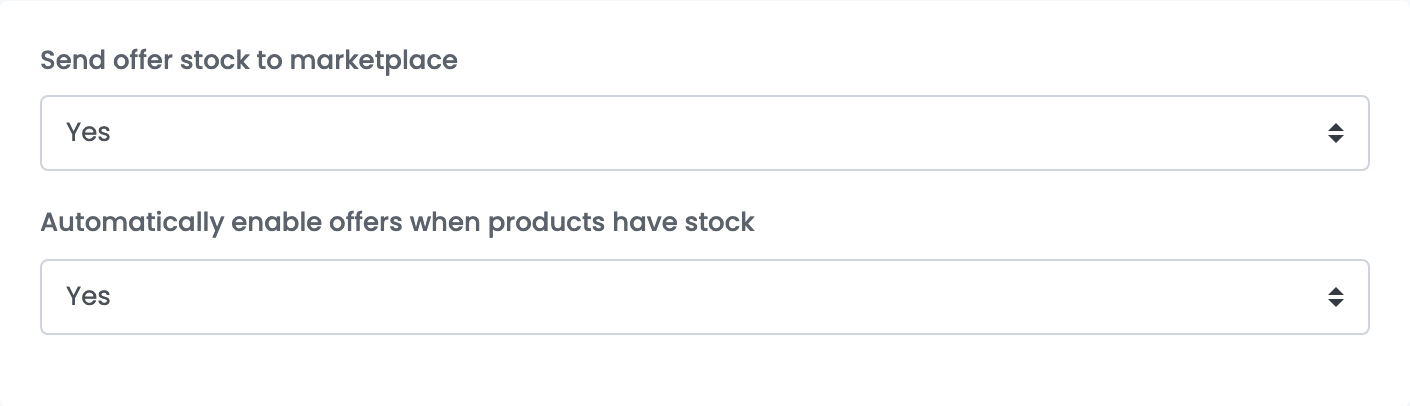
Step 3 — Additional settings
| Field | What it does |
|---|---|
| Send offer stock to marketplace | Yes keeps your offers' stock on Bazarul Online equal to easySales. Prices are always sent. |
| Automatically enable offers when products have stock | Yes switches an offer back on when its product is in stock again. |
Press Save. easySales checks the Email and the API Token with Bazarul Online; with the right ones you see Marketplace Connected, and easySales starts importing your orders and your existing offers. A wrong Email or API Token, or a vendor account that is not active, is refused with Unauthorized.
Step 4 — Link the offers you already have on Bazarul Online
Your existing Bazarul Online offers appear in Marketplaces → Offers, on the BazarulOnline tab, greyed out and marked Unlinked.
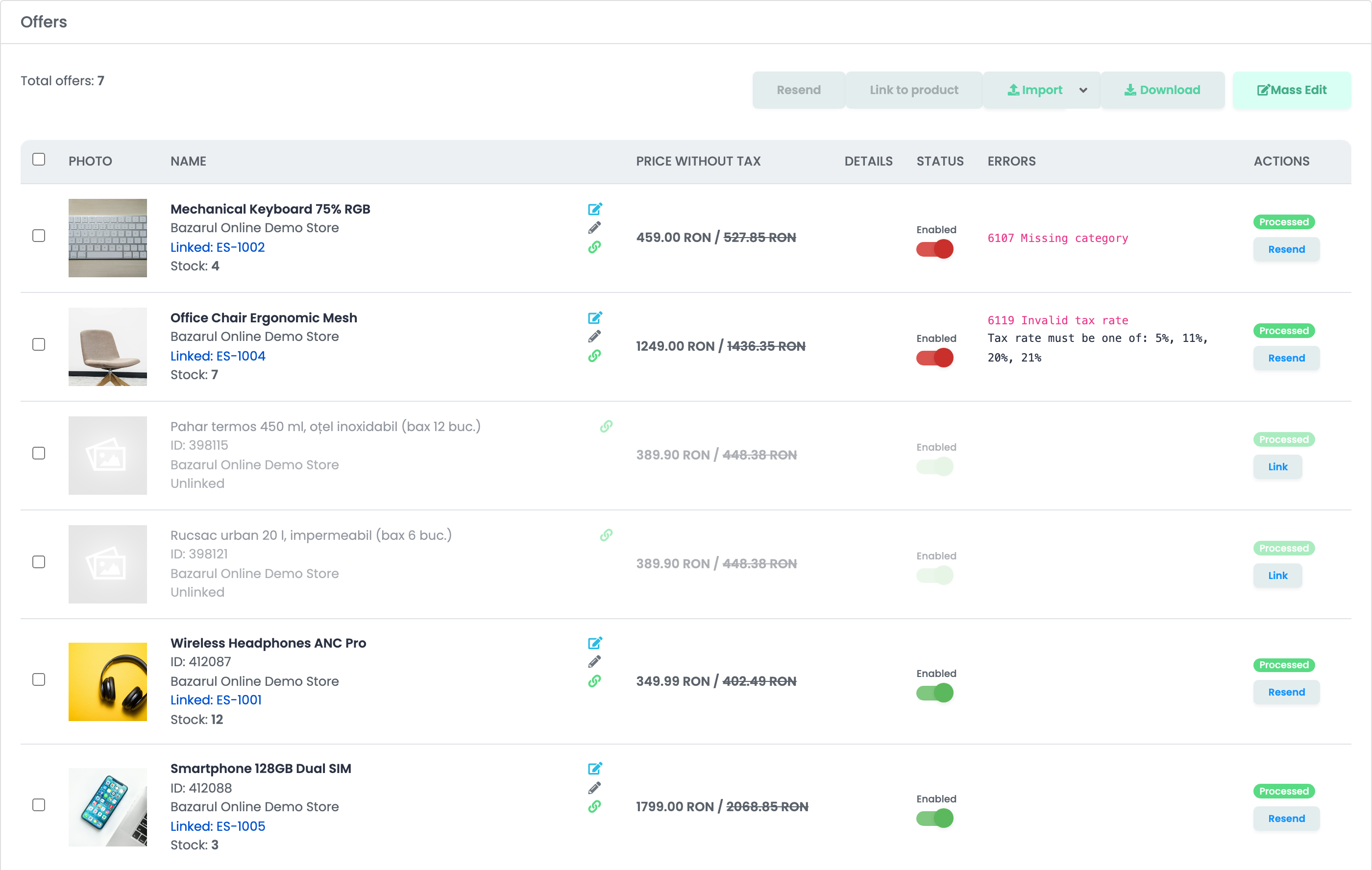
- Link, on the offer's row, attaches that one offer to a product you choose.
- Link to product does the same for the offers you have selected.
- Marketplaces → Autolink matches your Bazarul Online offers to your products in bulk, by SKU, EAN or name.
Once linked, an offer receives stock and price from its product, and new orders for it carry the product.
Sending your products to Bazarul Online
easySales sends the product with its name, description, images, SKU, EAN, brand, price, stock and characteristics, in the Bazarul Online category mapped for it. Map your categories under Categories, with Map categories, and choose a subcategory each time: Bazarul Online does not accept products in a parent category. A new product is accepted only with stock greater than 0.
easySales sends prices without VAT, together with the offer's VAT rate. Price Addition is added to the product's price when the offer is created.
Orders
easySales imports your Bazarul Online orders every minute, in every status, with the company details when the buyer is a company. Cash on delivery (ramburs) and bank transfer are recognised as the payment method. When you cancel an order in easySales, the cancellation is sent to Bazarul Online.
When an offer is refused
The reason is shown in the Errors column of the offer. The ones you are most likely to see:
| Error | What to do |
|---|---|
| 6107 Missing category | The offer has no Bazarul Online category. Map the product's category under Categories, or choose a Bazarul Online category on the offer, then resend it. |
| 6119 Invalid tax rate — Tax rate must be one of: 5%, 11%, 20%, 21% | Set the product's VAT rate to one of these and resend the offer. |
| 6110 Product reject by bazarulonline.ro — Bad Request: Nu este permis sa adaugati produse in aceasta Categorie. Pentru a continua, va rugam adaugati produsul intr-o subcategorie! | The category is a parent category. Choose one of its subcategories and resend the offer. |
| 6110 Product reject by bazarulonline.ro — Product rejected: stock must be greater than 0 and status must be active. | Send the product when it is in stock, with the offer enabled. |
| 6101 Invalid product price | The offer has no valid price. Set the product's price and resend. |
| 6102 Invalid images data | An image of the product cannot be read. Replace it and resend. |