How to connect Apaczka with easySales: a complete setup guide
Connect Apaczka to easySales: create the WEB API integration, choose one service per connection, set the sender, collection and label format, and fix the messages Apaczka returns.
What connecting Apaczka gives you
Apaczka is a Polish shipping platform: one Apaczka account gives you InPost, DPD, DHL, Orlen Paczka, Poczta Polska and other carriers. Connected to easySales, it creates the shipping label for an order in one click — from the order list or from the order page — and puts the tracking number on the order.
Two things to know before you begin:
- Each label is paid from your Apaczka account. Apaczka charges the shipment to your apaczka.pl balance when the label is created, so the account needs enough funds before you start shipping.
- One connection is one service. A connection sends every label with the service you choose on it — InPost Paczkomat, DPD Kurier and so on. To ship with several, you make one connection per service.
Before you start
An apaczka.pl account with funds
Labels are paid from your Apaczka balance, so top it up before your first shipment.
Access to WEB API in Apaczka
That is where you create the integration that gives you the App ID and App Secret.
The services you ship with
Decide which carriers you use — for example InPost lockers and a courier for home delivery — because each needs its own connection.
Step 1 — Create the integration in Apaczka
- Log in to your account at apaczka.pl.
- Open WEB API in the menu and press Dodaj integrację (Add integration).
- Enter a source name, such as
easySales, and save. - Apaczka shows the integration's App ID and App Secret. Keep the page open — you paste both into easySales in the next step.
Step 2 — Connect Apaczka in easySales
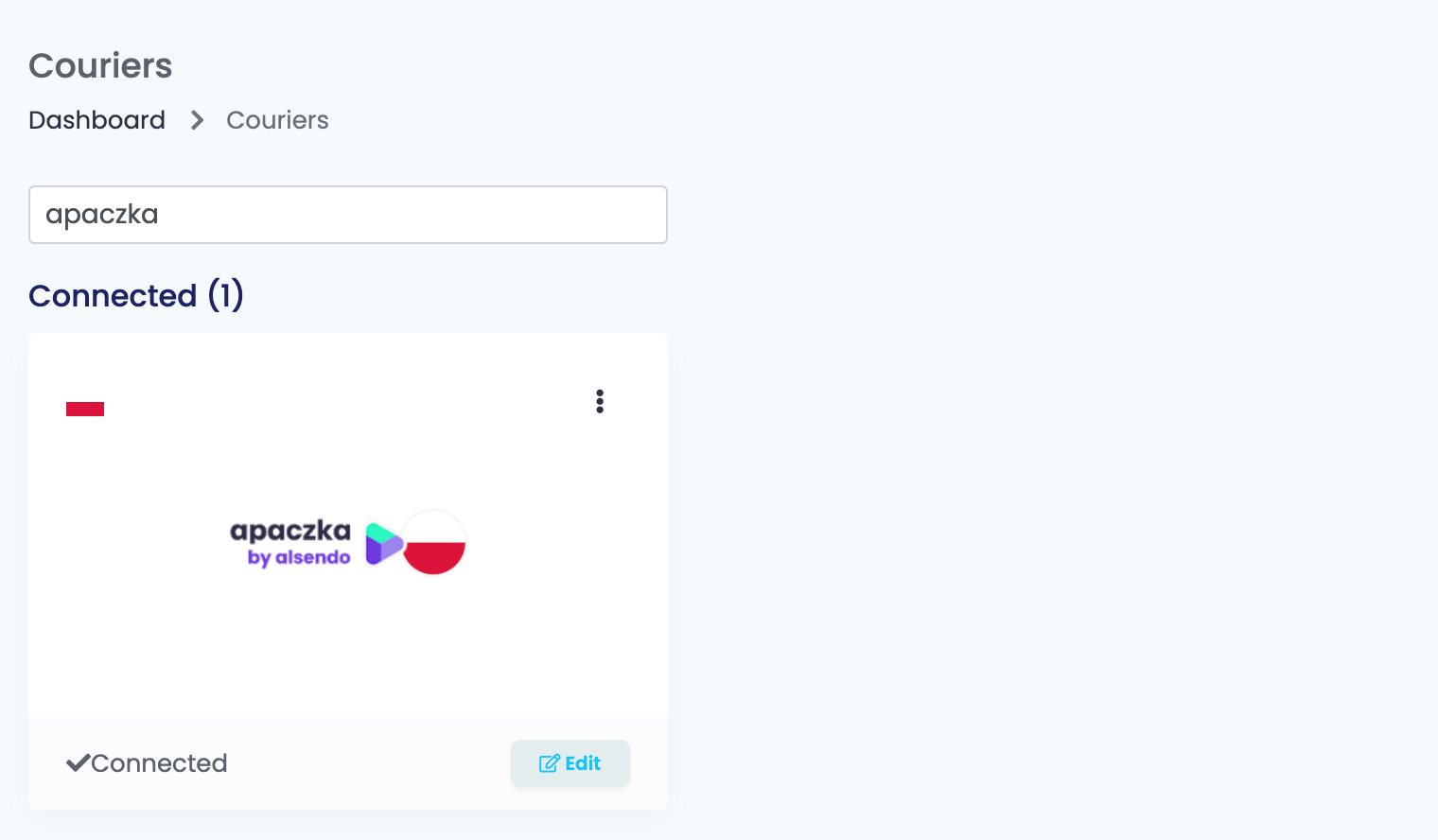
Go to Integrations → Couriers, search for apaczka and press Connect on the Apaczka card — or Edit, if you have connected it before.
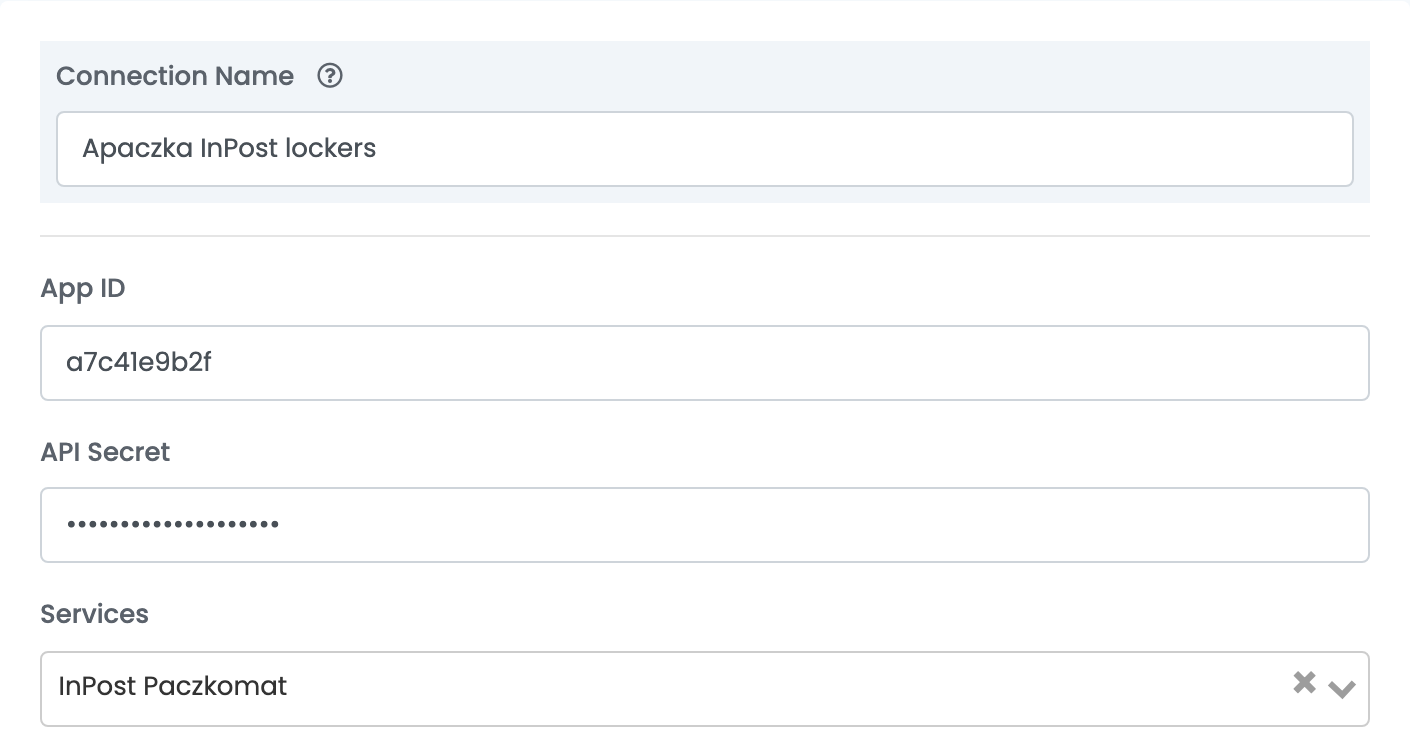
Fill in the first fields and press Get Details:
| Field | What goes in it |
|---|---|
| Connection Name |
A name you will recognise when choosing between connections — the service is a good one, for example Apaczka InPost lockers.
|
| App ID | The App ID of the integration from step 1. |
| API Secret | The App Secret of the same integration. |
| Services | The service this connection ships with. It becomes available after Get Details. |
Get Details checks the two keys with Apaczka and unlocks the rest of the form, including Save. The button is there every time you open the connection, and you press it each time before saving.
Step 3 — Choose the service
Services lists every service Apaczka offers. Pick the one this connection will ship with, and make sure it is one you can use on your Apaczka account.
| Order delivered to | Choose a service such as |
|---|---|
| An InPost locker (Paczkomat) | InPost Paczkomat — or Allegro SMART Paczkomat InPost for Allegro Smart orders |
| An Orlen Paczka point | Orlen Paczka Punkt-Punkt |
| A DPD Pickup point | DPD Pickup Punkt-Punkt |
| The customer's address | InPost Kurier, DPD Kurier or another courier service |
Step 4 — Sender, collection and label format
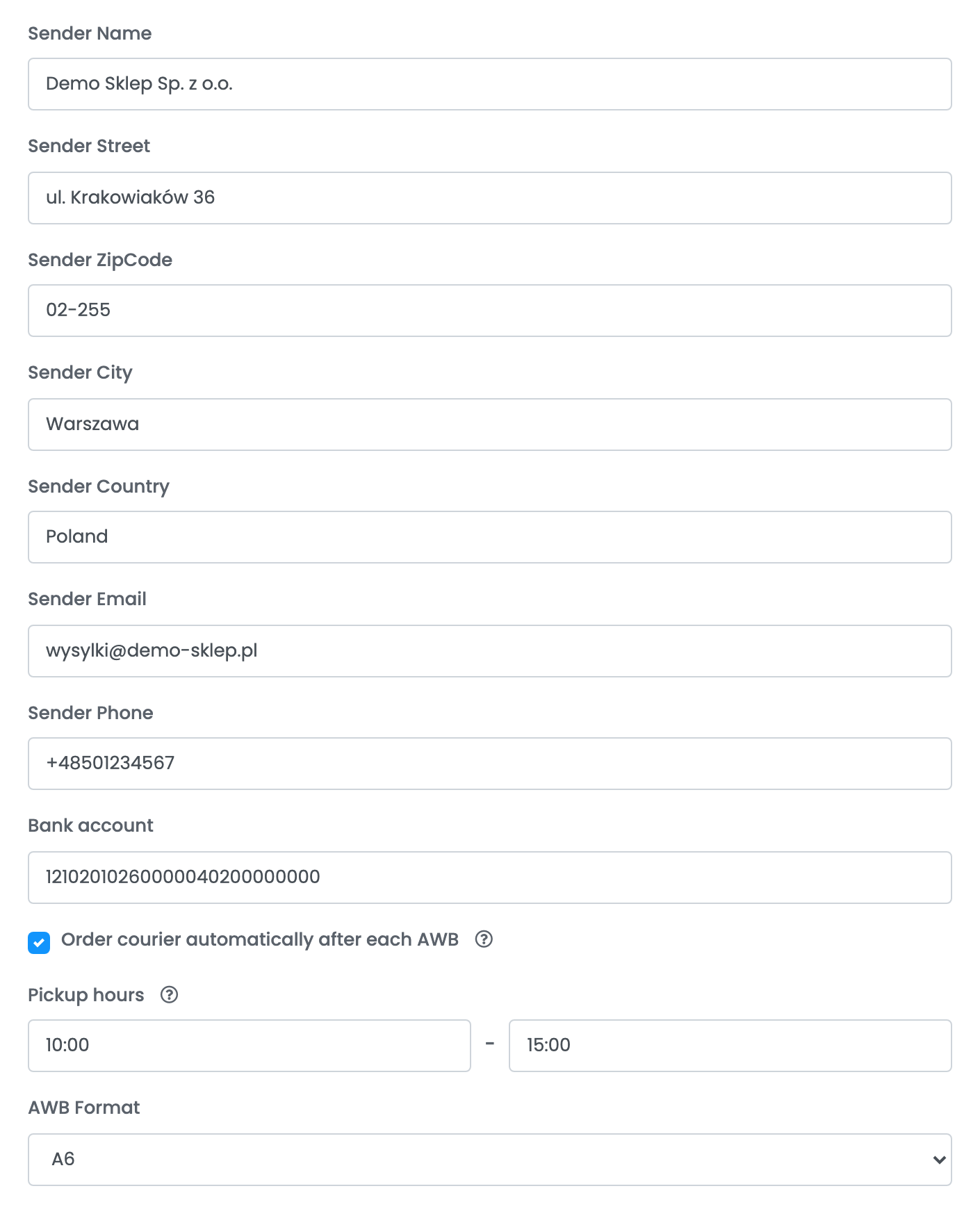
| Field | What goes in it |
|---|---|
| Sender Name, Sender Street, Sender ZipCode, Sender City | The address the parcels leave from. Apaczka collects in Poland. |
| Sender Country |
Type Poland.
|
| Sender Email, Sender Phone | Where Apaczka and the courier can reach you. |
| Bank account | The account cash-on-delivery payments are paid into, as the 26-digit account number. Without it, every cash-on-delivery label is refused. |
| Order courier automatically after each AWB | Books a courier collection with every label. Ticked by default. |
| Pickup hours | When the courier may come, between 09:00 and 16:00 and at least two hours apart. Empty means 09:00–16:00. |
| AWB Format | A4 for an office printer, A6 for a thermal label printer. |
Step 5 — Options, package type and drop-off point
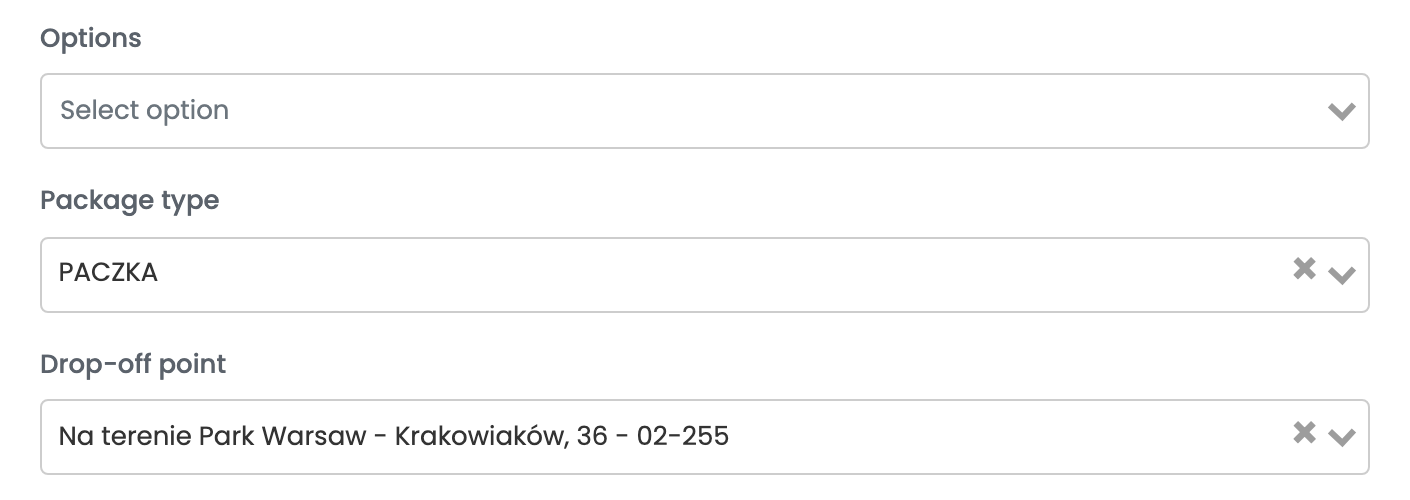
| Field | What it does |
|---|---|
| Options | Apaczka's additional services added to every label from this connection, such as Saturday delivery. |
| Package type | The kind of shipment. PACZKA (parcel) is used when you leave it empty. |
| Drop-off point | Shown for services that start at a point. Search for the locker or point where you hand in your parcels. Its address is sent as the sender address. |
Below them are the notes template — the text sent to Apaczka as the parcel's description, cut to 50 characters — the printing settings and Show advanced options, where Generate packages based on the number of packages of the product makes one parcel per package of every product in the order. Press Save when you are done.
Step 6 — Add a connection for each service
To ship with a second service, open the connection and press Clone. easySales saves a copy with the same keys and sender details and "(cloned)" after its name. Open the copy, press Get Details, rename it, choose the other service and save.
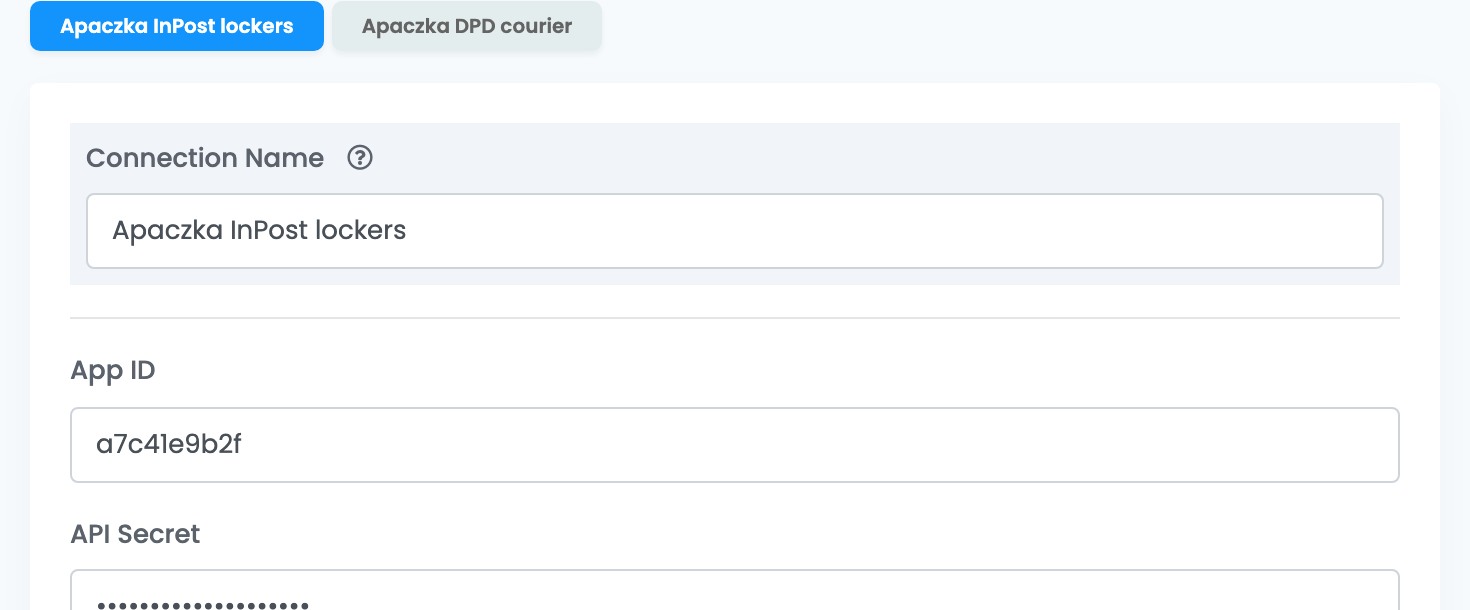
Every connection has its own button above the form, and each one appears as a separate choice when you create a label.
Creating labels
- Quick create, from the order list, uses everything saved on the connection. The weight is the order's weight rounded up, at least 1 kg; the parcel sizes come from the order's size templates, and an order without them ships as one 30 × 30 × 30 cm parcel.
- From the order page you can change the address or the locker, the weight, the number and size of parcels and the cash-on-delivery amount, choose Apaczka's additional services, see the estimated cost and decide whether to book a collection for this parcel.
The order then carries the carrier's tracking number and a link to Apaczka's tracking page. Deleting the label in easySales cancels the shipment in Apaczka.
When a label is refused
Apaczka's answer is shown on the order after Apaczka error:, in Apaczka's own words. The ones you are most likely to see:
| Message | What to do |
|---|---|
| Brak wystarczających środków na koncie | Your Apaczka balance is too low. Top it up in apaczka.pl. |
| Wprowadzono niepoprawny numer konta bankowego w usłudze pobranie | A cash-on-delivery order with no Bank account on the connection. Add the 26-digit account number. |
| Doręczenie do punktu nie jest realizowane | A locker order on a courier service. Create the label with a locker connection. |
| Nie wybrano paczkomatu doręczenia | A locker service on an order that has no locker. Choose a locker on the order page, or use a courier connection. |
| Nieprawidłowy punkt odbiorczy | The order's point belongs to another carrier. Use that carrier's connection. |
| Opcja [Przesyłka wieloelementowa] jest niedostępna | Locker services take one parcel per label. Create the label with a single parcel. |
| Liczba znaków … nie może przekraczać 50 znaków | A name or street is longer than 50 characters. Shorten it on the order page. |
| Numer telefonu … niepoprawny | Lockers need a Polish mobile number. Correct the customer's phone on the order. |
| App not found. | The App ID is wrong. Copy it again from WEB API in apaczka.pl. |