How to start with KSeF: access, permissions, first invoice
How to start with KSeF step by step: choosing a credential, ZAW-FA, permissions, and a test send before the first real invoice.
Starting with KSeF means settling four things: the company's legal form, the authentication method, who gets access, and the tool you will work in. The first invoice is the last step, not the first.
The order is not arbitrary. Your login method depends on the company's legal form, and what your staff can do depends on who authenticated first.
The Ministry of Finance publishes the schedule and the scope of the obligation. This guide does not answer when KSeF applies to your company. It describes the path from nothing to a first sent invoice.
How to start with KSeF: four decisions before the first invoice
Each of those settles a question that otherwise comes back at the worst possible moment, namely at the first real invoice.
- Legal form. A sole trader and a company enter the system differently and with different tools.
- Authentication method. Free, qualified or automated. The choice also depends on where you log in.
- People and permissions. Who issues invoices, who reads incoming ones, who manages permissions.
- The tool. The Ministry's free application, an invoicing program, or an integration with the system you already work in.
The Ministry publishes its own step list for sole traders and SMEs and a separate one for large companies. It is worth reading alongside this text.
One decision stays outside this guide. When and to what extent the obligation covers your sales, check on the Ministry's page and with your own accounting office.
How to log in to KSeF for the first time
KSeF has no logins and you do not create an account. Every entry into the system requires authentication with one of the permitted credentials.
That is the first surprise. There is no registration screen, so there is no way to "set up a KSeF account" in advance to get it out of the way.
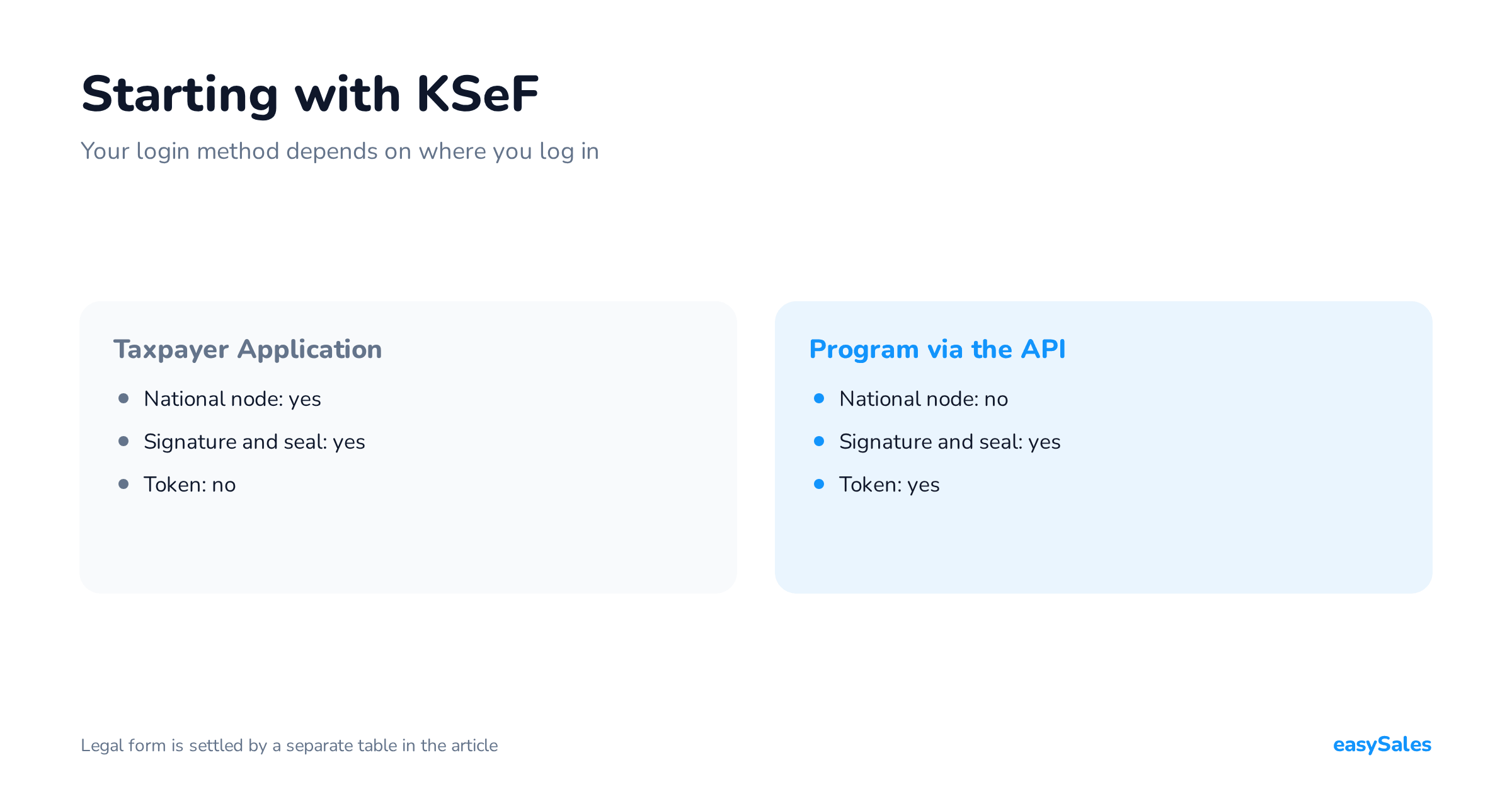
The Ministry permits five credentials: the national identification node, a qualified electronic signature, a qualified electronic seal, a token, and a KSeF certificate.
Not every one of them works everywhere. This is the most common misunderstanding at the start, and the easiest thing to check up front.

The national node only works in the Ministry's own tools
The national identification node is the free login familiar from public services. It covers Profil Zaufany, the mObywatel app, electronic banking and the e-ID card.
It is used in the Ministry's free tools, including the KSeF Taxpayer Application. In a commercial program you will authenticate with something else.
If your plan is "I will log in with Profil Zaufany inside my invoicing program", the plan will not work. An integration needs a signature, a seal, a token or a KSeF certificate.
A qualified signature and a qualified seal
These are two different instruments, not two names for one thing. A signature is always issued to a specific natural person, while a seal represents the entity.
The consequence is visible in the system. When an employee acts with the company's seal, KSeF records the company's data, not that person's.
Some certificates on the market carry no tax number and no personal number. You can still authenticate with such a signature, but you must first report its unique data, the so-called fingerprint.
The login context, or whose name you are acting in
At every entry you state the identifier of the entity you will act for. Usually that is the tax number.
The same person may hold different permissions in different contexts. An accountant serving three companies logs in three times, each time giving a different company's tax number.
If you hold no permissions in a given context, authentication in it will fail. So an access-denied message is sometimes simply a typo in the tax number.
How to obtain access: sole trader versus company
This is the fork everyone reaches. The answer depends only on the legal form and on one question: does the entity hold a qualified electronic seal.

Sole trader: you file nothing
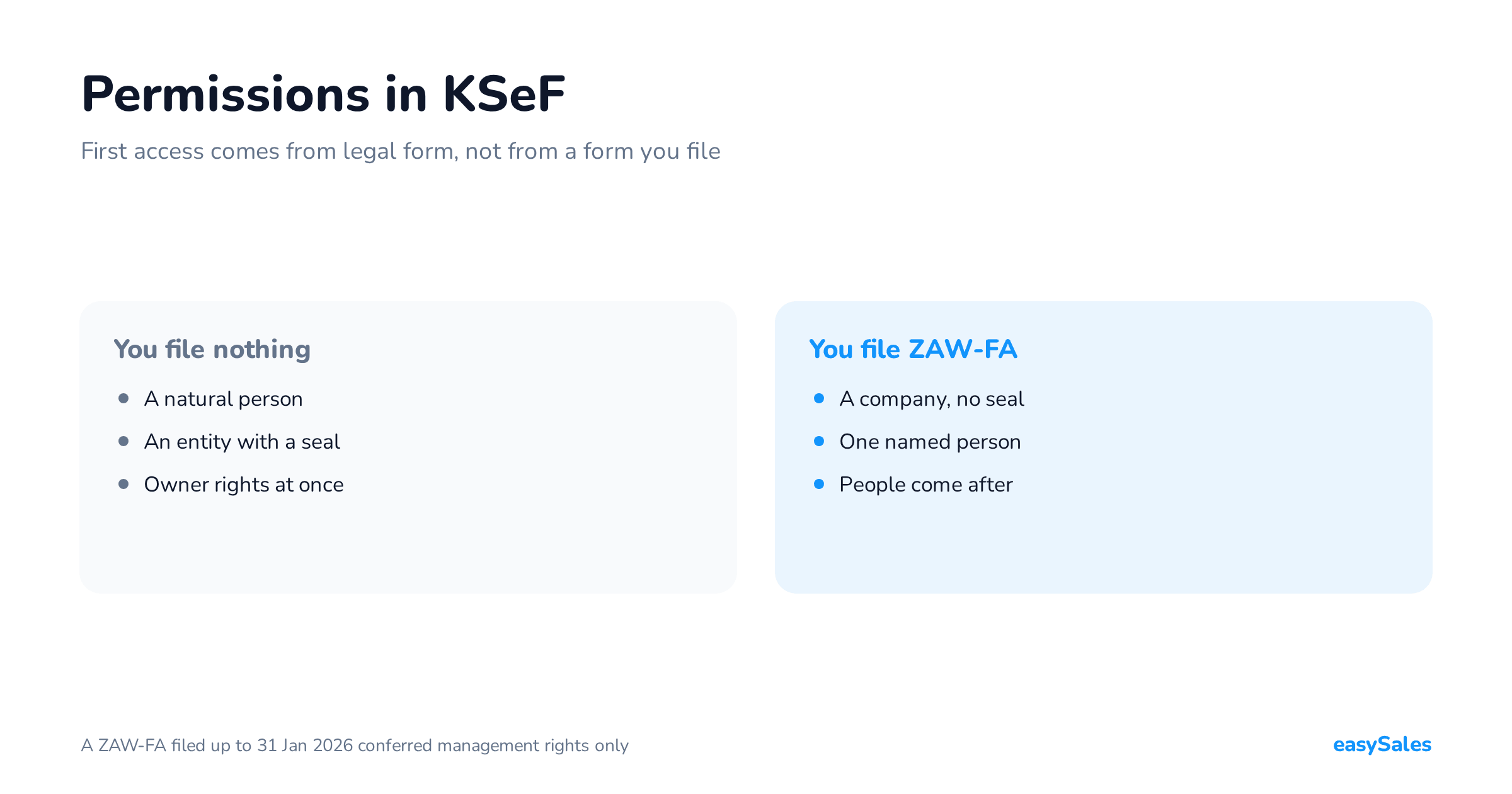
A natural person running a business files nothing at the tax office. The system assigns owner permissions automatically, to the tax number.
Owner permissions cover issuing invoices, access to invoices, managing permissions and the technical views. They cannot be revoked.
In practice that means you simply log in and you can work.
A company with a qualified seal: you also file nothing
An entity other than a natural person that holds a qualified electronic seal carrying its tax number uses KSeF straight away, also on owner permissions.
Designated employees may use the seal. The company then answers for who received it, because the system sees only the company's data.
A company without a seal: the ZAW-FA notification
If the entity has no seal, the tax office grants the first permission. It does so on the basis of a ZAW-FA notification naming one natural person.
That person receives the full scope: managing permissions, issuing invoices, access to invoices and managing subordinate units. Any further permissions they grant electronically.
ZAW-FA: when it is needed and when it is not
The ZAW-FA notification is the only stage where you leave the system and go to the tax office. That is why it belongs on day one, not in the week of the first invoice.
You need it in one case: the entity is not a natural person and has no qualified electronic seal. An enforcement authority files it in every case.
There is an exception on the other side too. A natural person files ZAW-FA only to report the unique data of their own signature that carries no tax or personal number.
Where and how to file the notification
On paper at the office or by post, electronically through the interactive form in the e-Tax Office, or through e-Delivery. Notifications sent through ePUAP are not treated as effectively delivered.
The form is filled in capital block letters and must be signed by the number of people required for representation. Two e-mail address fields are mandatory.
Those addresses receive a notice once an officer enters the data into the system. Until then the permissions do not work, so posting the form stretches the start.
One person per notification
In ZAW-FA you name exactly one natural person. It does not have to be a board member or the person representing the entity in the commercial register.
Further administrators are added by that person, electronically, with no visit to any office. A second notification is not needed for that.
Replacing the named person works differently from what most people assume. It is two notifications in a set order, not one.

In the "purpose of the form" field, the option that revokes all granted permissions wipes every permission in your company. After it, permissions are rebuilt from scratch.
Choosing the tool: Ministry app, program or integration
A paid program is not required. The Ministry provides the free KSeF Taxpayer Application, a mobile app, and e-mikrofirma inside the e-Tax Office.
The decision comes down to invoice volume and to where the data already exists. If you sell on marketplaces, your order data already sits in another system.

If you already issue invoices in some program, one question to the vendor settles it: is the tool integrated with the KSeF 2.0 API, and does it give you a test environment.
Check offline-mode support at the same time. That is a separate procedure for a lost connection, maintenance windows and outages, not a feature you switch on later.
Granting permissions: who, to whom and where
Permissions are granted to people and entities, never to "systems". You do that in the KSeF Taxpayer Application or in a program integrated through the API.
An accounting office can be granted a permission as a whole entity, without naming its staff. The office then designates the individuals on its own side.
Scopes, roles and edge cases are a subject of their own. Here one rule is enough: the entity's access first, then the people.
Automated work uses a token, a string of characters with a fixed permission scope recorded in it. How to generate one, and how it differs from a certificate, we cover separately.
The test environment: how to test before the first invoice
The Ministry runs two environments outside production. They are not the same thing, and confusing them is the most common way to lose a day of testing.

The test version versus the pre-production (Demo) version
In the test version you use fictitious data, credentials included. You can act in the context of any tax number, because credentials are simulated.
In the pre-production version you log in with real credentials and use the permissions actually granted to you. On the invoices you still use fictitious data.
Neither environment produces legal effects. Data in both is deleted periodically, so keep nothing there that you want to come back to.
Tests do not carry over to production
Permissions granted and certificates downloaded in the test or pre-production environment work only there. Production will not see them.
The relationship also runs the other way. Permissions from production are not visible in the pre-production version.
Production permissions therefore have to be granted separately, once testing is done. Plan time for that before the first real invoice.
The first invoice: what happens after you send it
Sending the file does not end the process. The system first accepts the transmission, then verifies the document, and settles the outcome only after that verification.
After successful verification the invoice receives a KSeF number, and the UPO is the receipt. Exactly what each of those proves is unpacked in our text on the KSeF number and the UPO.
Issuing the structured invoice itself, including what the file must contain, is covered in our guide to the structured invoice.
The most common stumbles at the start
Is KSeF hard? The honest answer: the system itself is not, but setting up access has several places where it is easy to lose a day or two.
Almost every stumble shares one trait. You fix it once, in a setting or at the tax office, and not on every invoice.

The three highlighted items cost the most time: logging in with the wrong credential, a company without a seal discovering ZAW-FA at the last minute, and permissions granted in Demo.
A launch checklist for KSeF
The order below is robust against the most common mistakes, because each item closes the precondition for the next.
Eight steps from nothing to the first invoice
- Establish the legal form and check whether the entity holds a qualified electronic seal.
- If it does not, file ZAW-FA naming one natural person. Do not wait on this.
- Pick the authentication method that fits the tool you will actually work in.
- Log in and confirm that you are entering in the context of the right tax number.
- Grant permissions to people and to the accounting office, following the real invoice flow.
- Download a KSeF certificate if you want cover for the offline modes.
- Issue a test invoice and confirm that a KSeF number and a UPO come back.
- Repeat the permission grants in production, and only then issue the first real invoice.
The first four items are a single afternoon if you already hold Profil Zaufany or a signature. Item two is the only one whose timing you do not control.
Source material for each of these steps, including the KSeF 2.0 handbook, is collected by the Ministry on its downloads page.
One caveat to close on. This text describes the procedure for getting access to the system, not your tax position. Settle the scope of the obligation, the exclusions and the deadlines with your accounting office.