How to see who is calling in easySales: caller ID and call history
See the caller's name, orders and returns when a customer phones you, and look back at every call, with the easySales app for Android.
What Call history does
When a customer calls your phone, easySales can show who is calling before you answer: their name, their latest orders and returns, and how much they have spent. Every call is also kept in a list, so you can see later who called and when.
Open it from Customers → Communication → Calls history.
Three things to know first:
- It works through the easySales app for Android. The app on the phone that rings sends the caller's number to easySales. easySales does not make or record calls.
- The app's login decides who sees the call. A call received on a phone signed in as a team member shows only on that team member's screen.
- The caller card appears only on the open Calls history page. Keep the page open in a browser tab while you work.
Set up the phone
- Install the easySales app from Google Play on the Android phone that receives your customers' calls.
- Sign in to the app with the same login you use on the computer: your own account, or the team member's login if the phone belongs to a team member.
- When the app asks for access to your phone calls, allow it.
- Keep the app open and signed in.
See who is calling
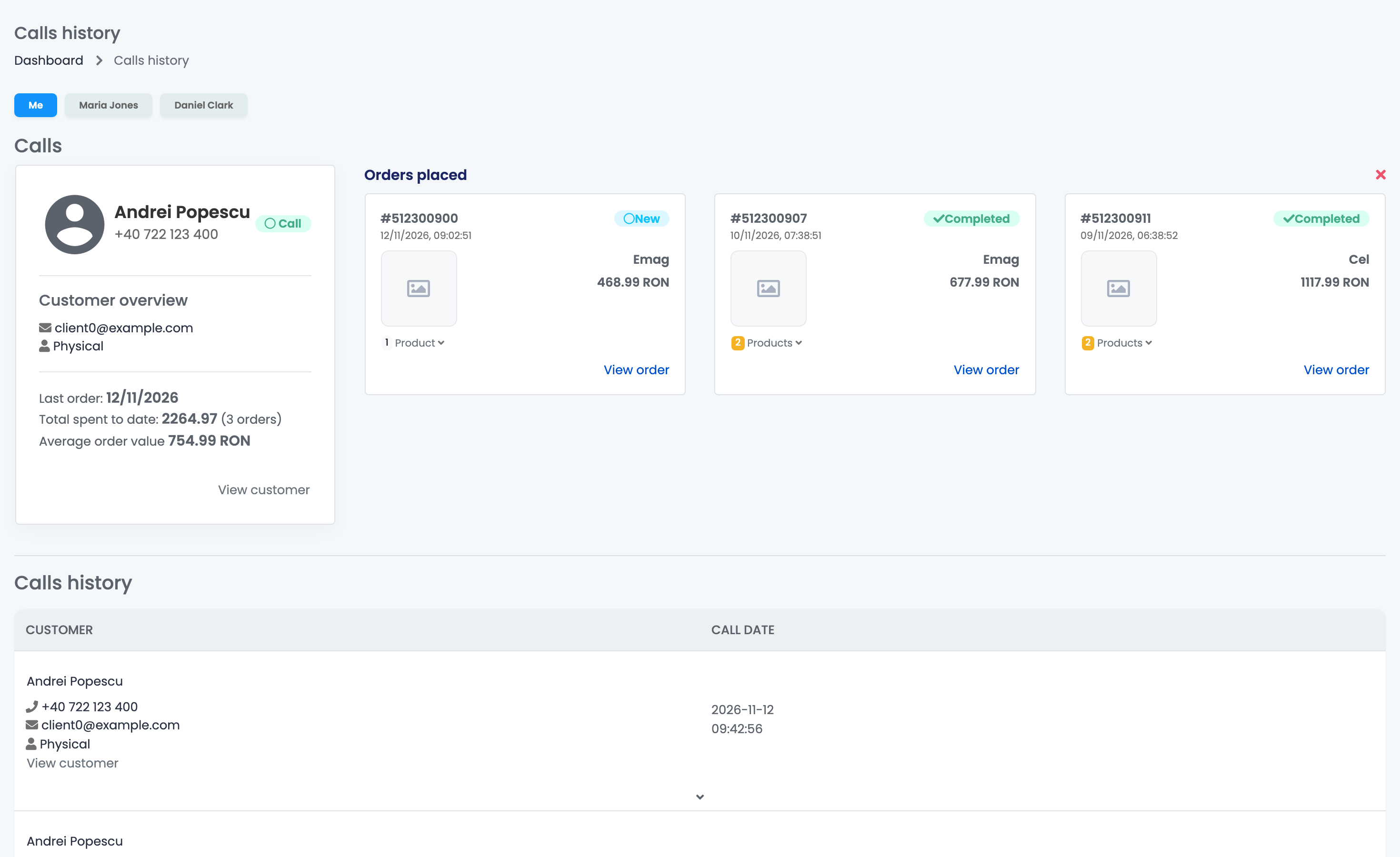
When a call comes in, the caller's card appears under Calls:
- the caller's name and number, with the Call badge;
- Customer overview: e-mail, physical person or company, and for companies the VAT ID and registration number;
- Last order, Total spent to date with the number of orders, and Average order value;
- Orders placed: the last three orders, each with its status, channel and total, and View order;
- Returns: the last three returns.
View customer opens the customer's page in a new tab. The × closes the card; the call stays in the history.
| Situation | What you see |
|---|---|
| The number matches the phone saved on a customer | The customer's card, with orders and returns. |
| The number is written differently, for example with or without the country code | The customer is still found. |
| The number is only on an order's billing or delivery address | The caller shows as unknown. Save the number on the customer to have it recognised. |
| The number belongs to nobody in easySales | The caller shows as unknown, with the number. |
Look back at earlier calls
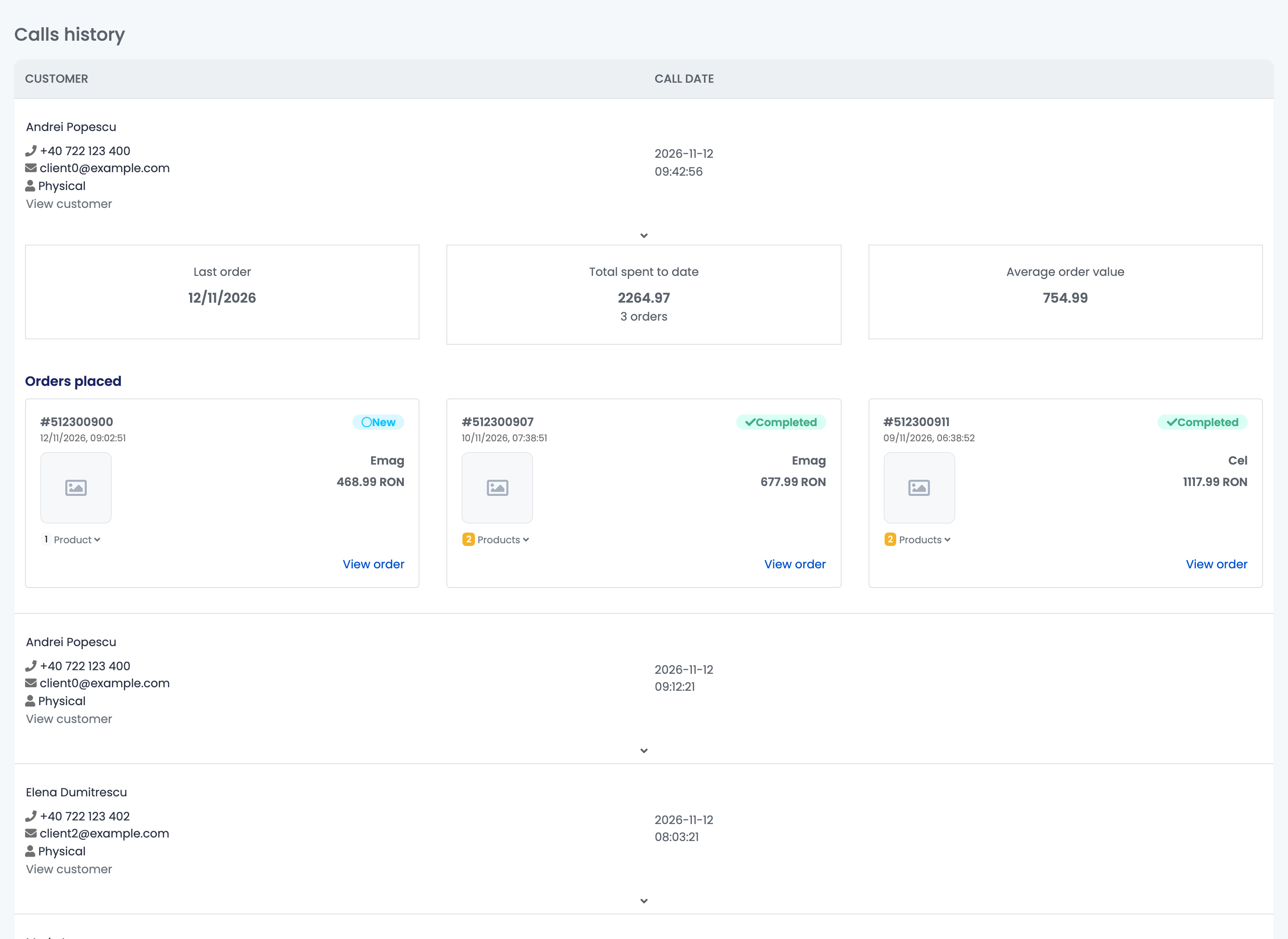
Calls history lists every call, newest first, with the caller and the Call date. Press the arrow under a known caller to see their last order, totals, orders and returns. The list shows 10 calls per page and keeps all your calls.
Your team and Call history
| The app on the phone is signed in as | The call appears for |
|---|---|
| The account owner | The owner, on the Me tab. |
| A team member | That team member. The owner sees it too, under the team member's name. |
A team member needs the View calls history permission to open the page. Give it in My team.
When something does not look right
| Symptom | What to do |
|---|---|
| Calls are not recorded any more | Open the app on the phone and check that it is still signed in. Sign out and in again, and update the app if needed. |
| The card does not pop up during a call | Keep Calls history open in a browser tab. The card appears only there. |
| A team member sees no calls | The app on their phone must be signed in with their own login, not the owner's. |
| I use an iPhone | Caller identification needs the Android app. |
| A known customer shows as unknown | Their number is not saved on the customer. Add it on the customer's page. |
| A team member cannot open the page | Give them the View calls history permission in My team. |