How to move marketplace offers between products in easySales
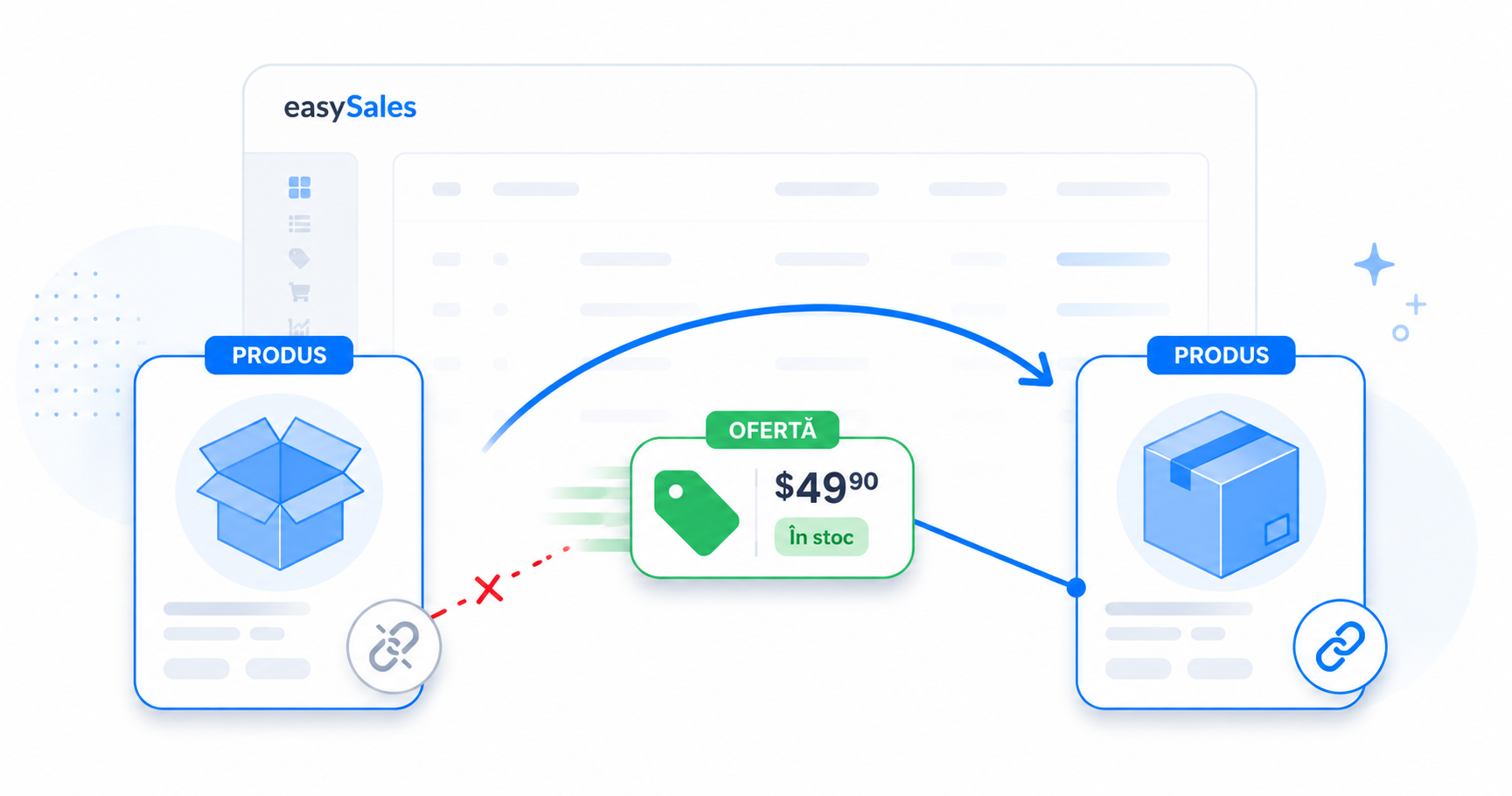
Move a marketplace offer from one catalog product to another in easySales — without touching its live listing. Move offers one at a time, in bulk from the Products list, or by Excel import.
Sometimes an offer ends up linked to the wrong catalog product. A re-import created a duplicate product, you built a cleaner product in your Virtual Shop and want the live listing to follow it, or two products should really have been one. Moving the offer fixes the link without you having to delist and rebuild anything on the marketplace.
This guide covers what moving an offer actually changes, the three ways to do it, and what happens to price, stock, and the listing afterwards.
What moving an offer actually does
In easySales, every marketplace offer is tied to one product in your catalog — a Virtual Shop product (an internal catalog you build inside easySales) or an Online Shop product (one synced from a connected store). The catalog product holds the master data; the offer is how that product appears on one marketplace.
Moving an offer re-links it to a different catalog product. That's the whole operation: the offer now reads its master data from the product you moved it to. What it does not do is touch the marketplace side — the listing stays live, and its marketplace ID (eMAG PNK, Amazon ASIN, and so on), price, stock, title, and description all stay exactly as they were. Buyers see no interruption.
When you'd move an offer
The common cases all come down to the offer pointing at the wrong product:
- A re-import created a duplicate. You imported the same product again from a website or supplier feed and it landed as a new catalog entry. The offer is on the old product; you want it on the clean one. Once the offer is on the clean product, archive the now-empty old one so it no longer clutters your catalog.
- You rebuilt the product in your Virtual Shop. You want the live offer to draw from the new internal product instead of the original Online Shop product.
- You're consolidating duplicates. Two catalog products are really the same item — move the offers onto the one you're keeping, then archive the other.
Three ways to move offers
Pick the method by how many offers you're moving and where you are when you decide to move them:
| Method | Best for |
|---|---|
| Products list | Moving one product's offers — single or several at once |
| From an order or return | Fixing a single wrong link the moment you spot it |
| Excel import | Re-linking long lists of offers, matched by SKU or EAN |
Method 1 — Move offers from the Products list
This is the main path, and it handles one offer or many in a single action.
Open Online Shops → Products, find the product whose offers you want to move, and click the move offers button on its row (the two-arrows / exchange icon).
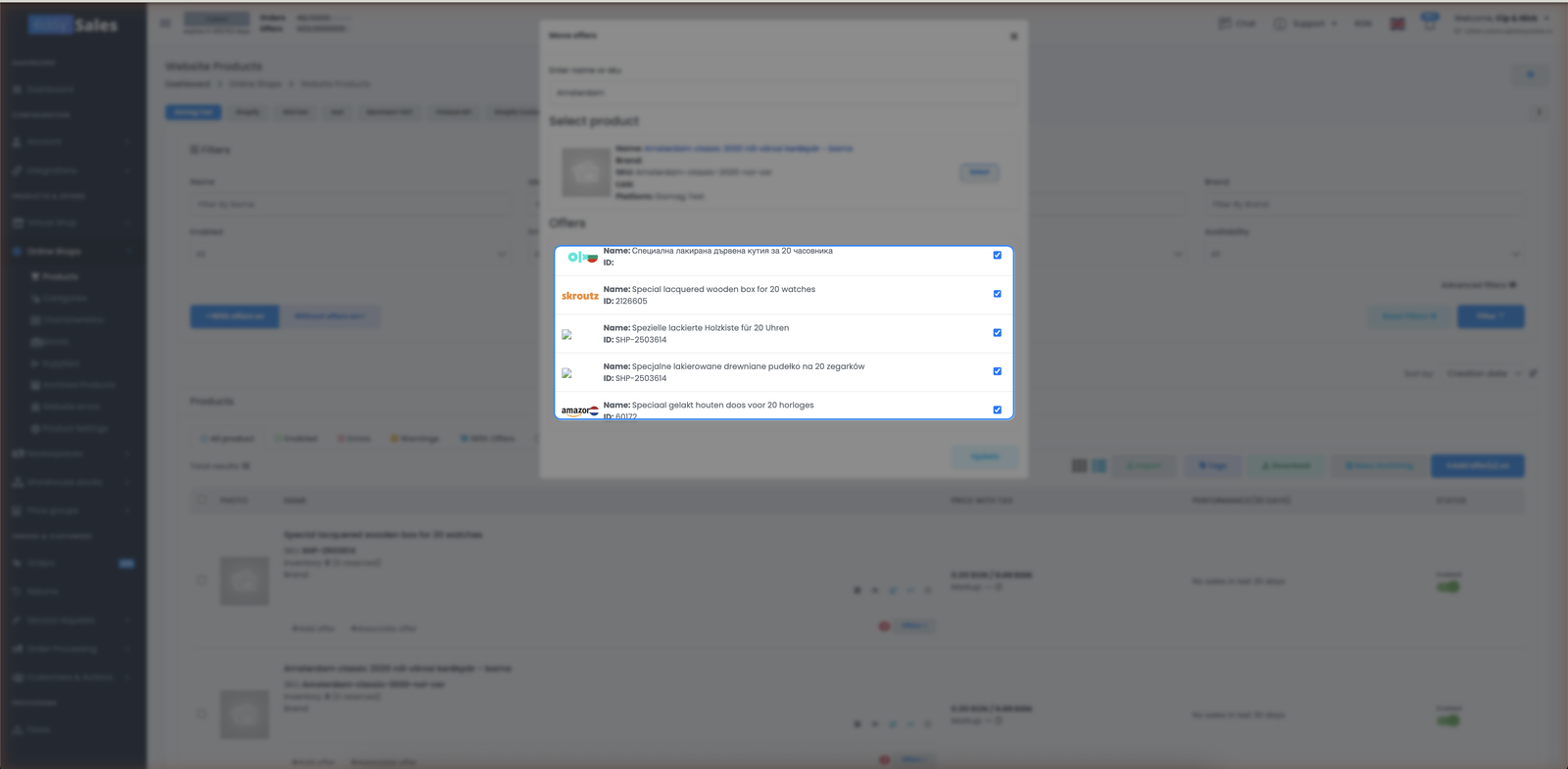
A window opens listing every offer currently linked to that product, across all marketplaces. Search for the target product by name or SKU, then tick the offers you want to move — they're all selected by default, so untick any that should stay. Confirm, and easySales re-links the selected offers to the target product.
Moving a single offer runs immediately. Moving several queues the work in the background, so a large batch returns right away and finishes processing over the next moments rather than making you wait.
Method 2 — Move a single offer from an order or return
You don't always notice the wrong link until you're looking at an order or a return. When you open one, you can move the offer on a line straight from that screen — search for the correct product and confirm, the same way as the modal above. It's the single-offer version of Method 1, available where you actually spot the problem.
Method 3 — Bulk move by Excel import
When you have a long list of offers to re-link, drive the move from a spreadsheet instead of clicking through products one by one.
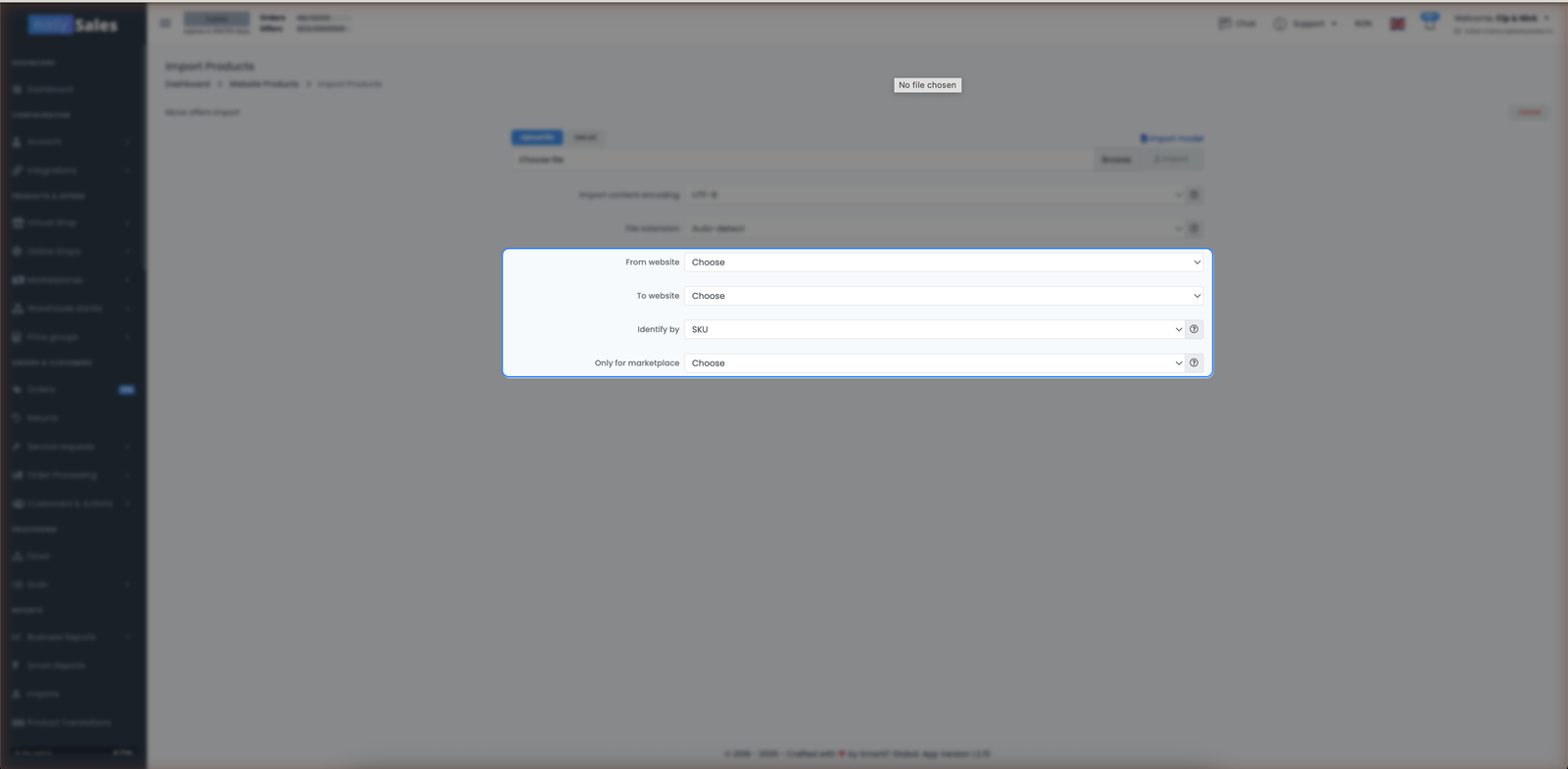
Go to Online Shops → Products → Import and choose the Move offers import. You set where you're moving from and to, whether offers are matched by SKU or EAN, and optionally a specific marketplace to limit the move. Upload the file (XLSX or CSV), and easySales re-links every matched offer in one run.
What happens after a move
A move is more than a quiet database change — easySales tidies up both products and re-publishes the offer's data:
- The listing stays live and unchanged. Marketplace ID, price, stock, title, description — all preserved. Nothing is delisted or recreated.
- Offers are re-sent to the marketplace. Once an offer lands on the target product, easySales re-syncs that product's offers so the marketplace reflects the new master data. This is normal — don't be alarmed by a sync running right after a move.
- Coupled fields now read from the new product. If price or stock are coupled, the offer follows the target product's values going forward.
- Missing translations are copied over. Any product-content languages the target product was missing are copied from the original, so you don't lose translated names or descriptions in the move.
- Both products' status flags refresh. The original product drops the marketplace it no longer has an offer on; the target product picks it up. Error and warning indicators recalculate on both.
A move only ever affects the offers you selected. The original product isn't deleted — it simply has fewer offers afterwards. If you moved everything off it on purpose, you can archive it once it's empty.