How to connect Speedy with easySales: a complete setup guide
Connect Speedy to easySales: API credentials and Get Details, the contract and pickup site, the three service codes, extra services and insurance, labels abroad, and Speedy's error messages.
What connecting Speedy gives you
With Speedy connected, easySales creates Speedy labels for your orders — one at a time or in bulk — prints them, follows each parcel and cancels a label you no longer need, without you opening Speedy's own application. Speedy collects in Bulgaria, so this integration is for parcels you send from a Bulgarian address, to Bulgaria or abroad.
Two things decide whether a label is produced at all: the Contract you choose after Get Details, and the three service codes. Most of this guide is about those.
Before you start
A Speedy contract with API access
API access is requested from Speedy at telesales@speedy.bg and gives you an API user and password, separate from your ordinary Speedy login.
Your service codes
Speedy's numeric service ids for the services on your contract — one for the same locality, one between localities and one international. You find them in your Speedy account, or ask Speedy.
A phone number on your Speedy site
Every site you ship from needs one in Speedy, or it will not appear in the Contract list.
Step 1 — Open the Speedy card
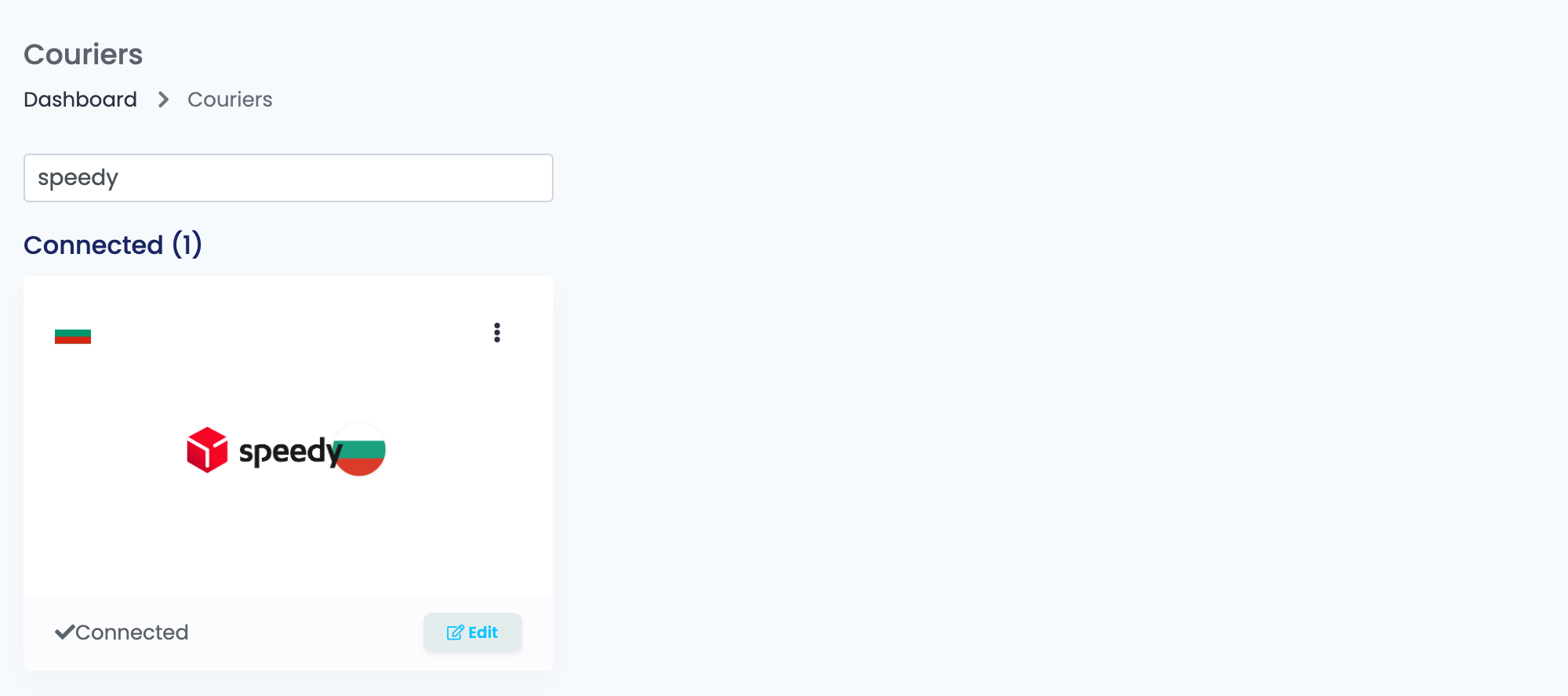
Go to Integrations → Couriers, search for speedy and press Connect on the Speedy card — or Edit, if you have connected it before.
Step 2 — Credentials, and the Get Details button
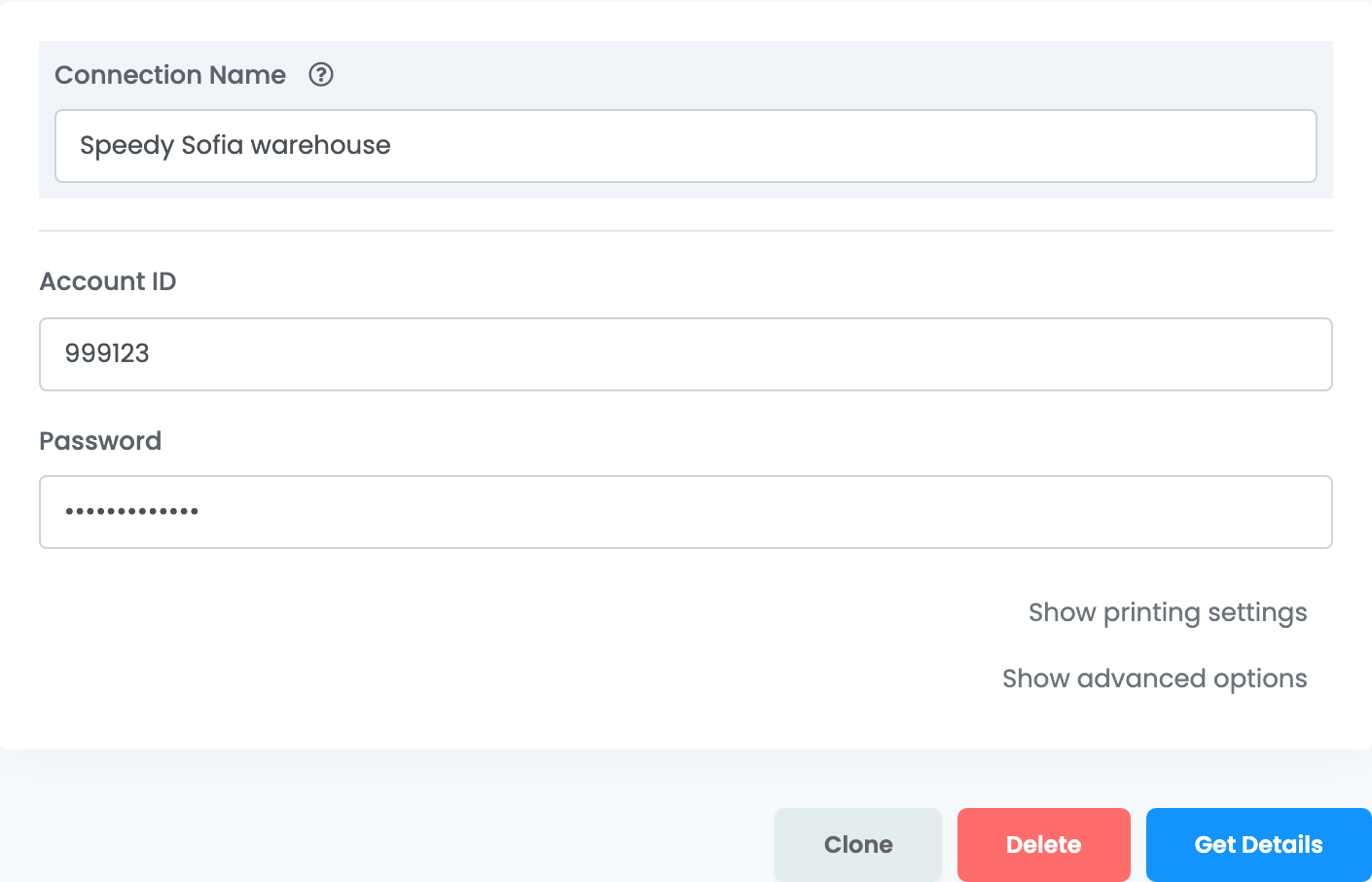
Account ID and Password are the API credentials Speedy gives you — not your login for Speedy's website. Connection Name is what you will see inside easySales when you pick between connections.
Step 3 — Label format, payer and the three service codes
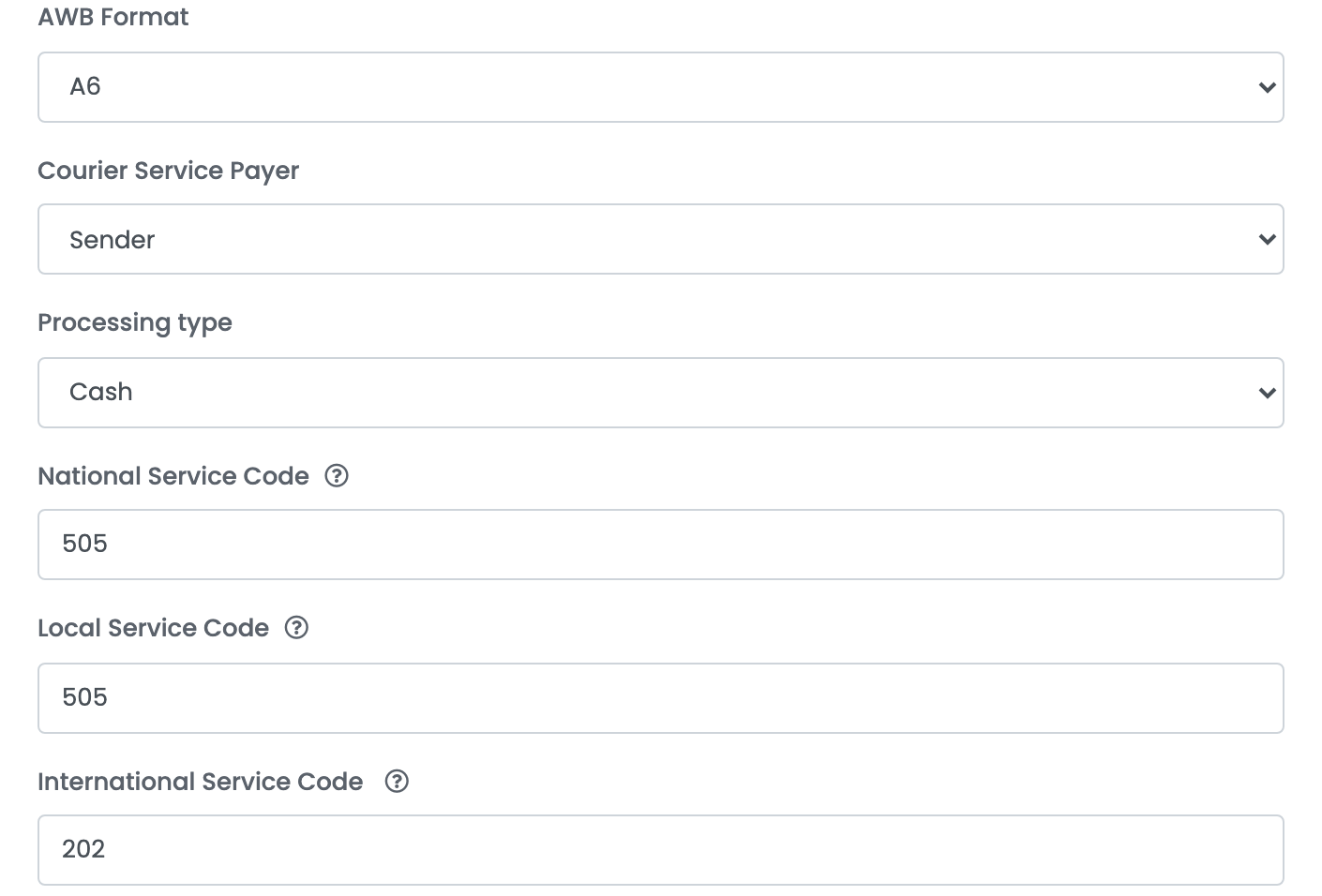
| Field | What it does |
|---|---|
| AWB Format |
The layout Speedy renders the label in: A4 (a full page), A6 (a single label for a thermal printer) or A4_4xA6 (four labels on one A4 sheet).
|
| Courier Service Payer | Who Speedy invoices for the shipment — Sender, Recipient or Third Party. |
| Processing type | How Speedy hands you the cash it collects on delivery: Cash, or Postal money transfer. |
| National Service Code |
The Speedy service id for a parcel travelling between localities — the tooltip gives 505 as an example.
|
| Local Service Code | The Speedy service id for delivery in the same locality. |
| International Service Code |
The Speedy service id for a parcel leaving Bulgaria — the tooltip gives 202 as an example.
|
Step 4 — Contract, extra services and insurance
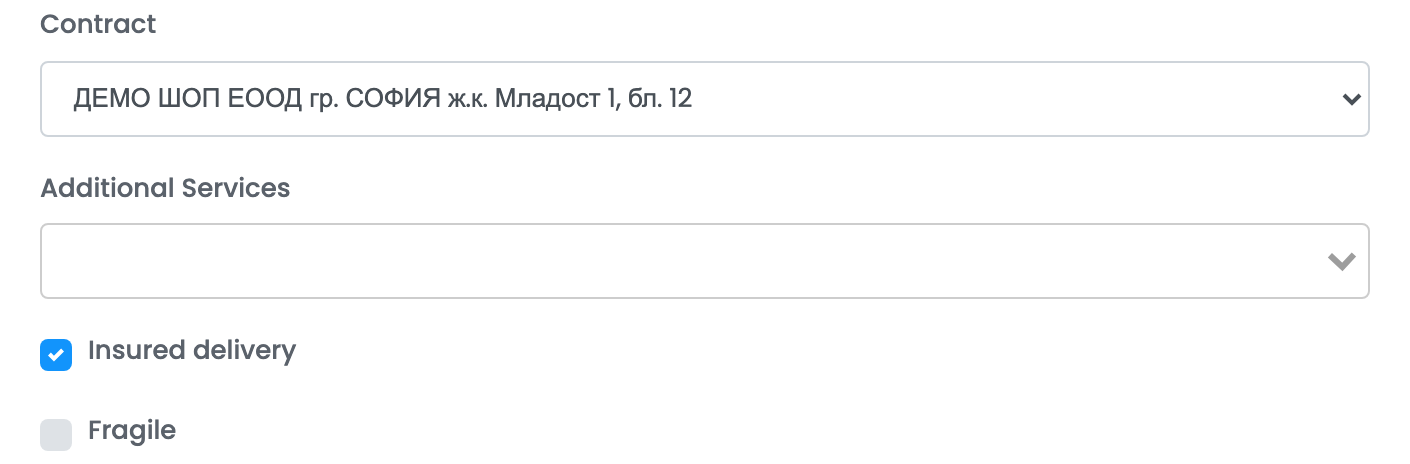
Contract is the list Speedy returned for your account. Each entry is one of your Speedy sites, and choosing it fixes where Speedy collects from and the sender phone on the label — which is why a second pickup point is a second connection rather than a setting.
| Setting | What it does |
|---|---|
| Additional Services |
Three options, listed under their Romanian names: Livrare sambata (Saturday delivery), Deschidere la livrare (the customer may open the parcel before paying; a refused parcel comes back at your cost) and Paletizat (the shipment travels as a pallet). Whatever you choose is added to every label made on this connection.
|
| Insured delivery | Declares the value of the products, VAT included, to Speedy. With it on, a second option appears — Fragile — which declares the contents as fragile as well. |
| Cash on delivery | Not a field on this form. easySales adds the amount to collect by itself when the order is paid on delivery. |
Step 5 — The notes template
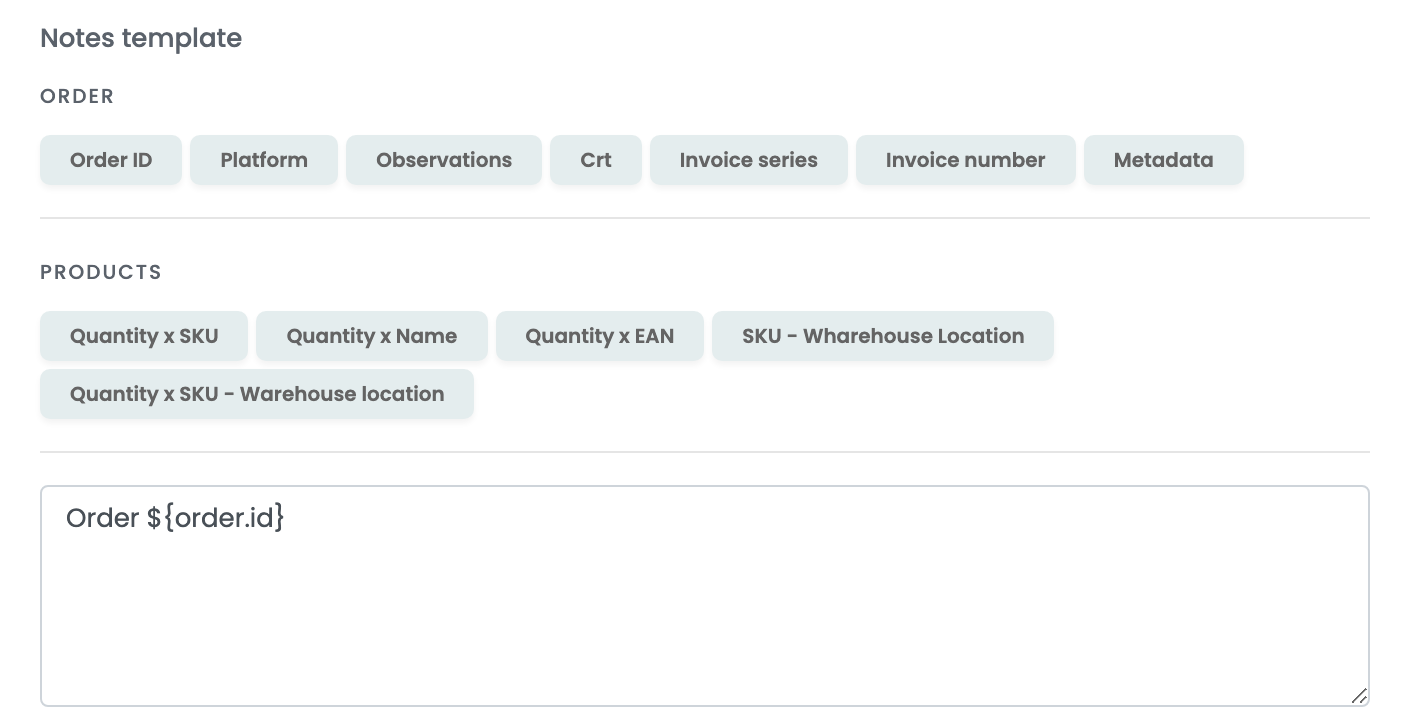
Whatever the template produces travels with the parcel and is printed on the label, so keep it to what a driver or a warehouse needs to read. The buttons above the box insert values from the order and from its products. Speedy takes up to 97 characters; anything longer is cut.
Step 6 — Printing settings and advanced options
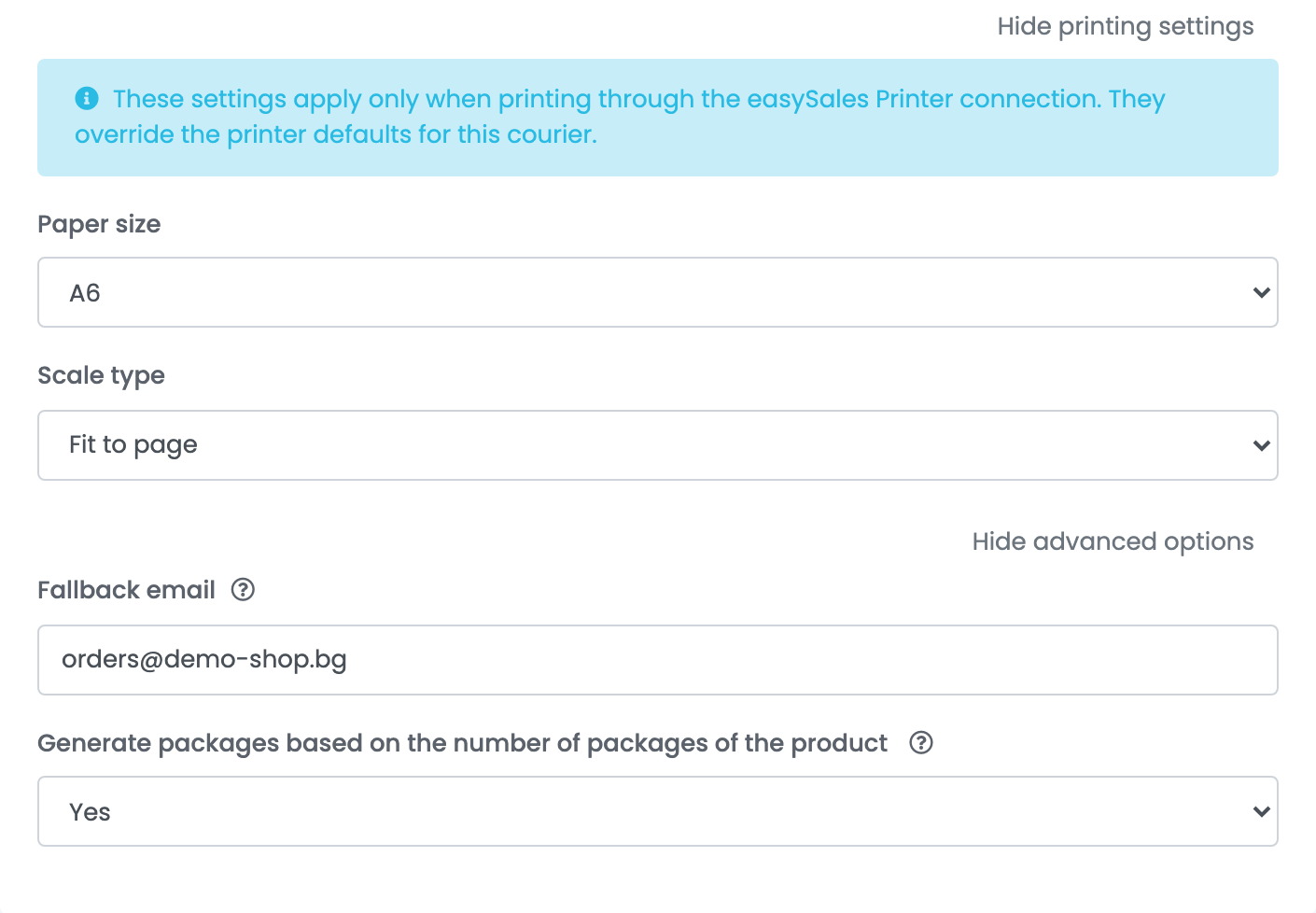
Both sections are collapsed and neither is required.
| Setting | What it does |
|---|---|
| Printing settings | Paper size and scale, used only when you print through the easySales Printer connection, and only for this courier. This is not AWB Format: Speedy decides what the label looks like, these decide how it lands on paper. |
| Fallback email | Sent as the recipient's e-mail when the order has none. |
| Generate packages based on the number of packages of the product | Counts the parcels on the label from the package count set on each product, instead of always sending one. |
Press Save. The Speedy card now shows Connected.
More than one pickup point
Open the ⋮ menu on the Speedy card and choose Connect another courier account, or open an existing connection and press Clone to copy all of its settings. Each connection has its own contract, service codes and extra services, and you choose between them by Connection Name when you create a label. Delete, in the same place, removes a connection you no longer use.
Creating labels
Open Orders, select the orders and use Generate AWB, or open a single order and generate its label there. A few things are taken care of for you:
- Cash on delivery is added automatically when the order is paid on delivery, for the order's value. Processing type decides how Speedy pays it out to you.
- Speedy offices and automats. When the customer chose a Speedy office or automat, the label goes there instead of the home address, with no change to the connection.
- Weight. An order with no weight is sent as 0.25 kg.
- Destinations. Speedy labels can be made for Bulgaria, Romania, Greece, Poland, Hungary, the Czech Republic, Slovakia, Austria, Germany, Italy and France. For any other country the order shows
The selected courier does not support shipping to this country.
Shipping abroad: parcel dimensions
Give the order a packaging box — define your boxes under Packaging Boxes, then select the order in Orders and use Select packaging boxes — and generate the AWB from the order page. Each box on the order becomes a parcel, and its length, width, height and weight go to Speedy with the label. The order page is also where you create a label with several parcels or envelopes.
When Speedy refuses a label
Speedy answers in Bulgarian, and its message is shown on the order as it arrives. These are the ones worth recognising.
| Message | What it means |
|---|---|
Пакети: Изискват се описани размери на пакета
|
Parcel dimensions are required. Usual on international services — give the order a packaging box and generate the label from the order page. |
Услуга: Услугата не е позволена
|
The service is not allowed: the code sent is not one your contract may use for that destination. Check the three service codes with Speedy. |
Получател Адрес: Попълнете номер на улица/блок …
|
The delivery address has no street number or block. Complete the address on the order and generate the label again. |
Получател Телефон 1: Невалидна стойност
|
The recipient's phone number is missing or not one Speedy accepts. |
Получател Лице за контакт: …
|
The order is for a company, and the contact person must be a person's name, different from the company name. Correct the name on the shipping address. |
Обявена стойност: … е по-голяма от максималната …
|
With Insured delivery on, the declared value is higher than the service allows. The limit is Speedy's, per service. |
Пакети: Броят пакети е извън допустимия интервал …
|
The number of parcels is outside what the service accepts. |
Получател Адрес 2: Максималната позволена дължина е 35
|
The second address line is longer than 35 characters. Shorten it on the order. |