How to connect Sedona with easySales: orders and stock
Send your orders to Sedona Retail and read its stock in easySales: the API server details, your Sedona IDs, sending orders with a flow and matching barcodes.
What the Sedona connection does
Sedona Retail is retail and management software that runs on your own server. The connection sends your orders to Sedona as customer orders — with the customer, the products and the payment method — and reads your product stock back from Sedona into easySales.
Three things to know before you begin:
- easySales must reach the Sedona Retail API from the internet. Your Sedona server needs the API module running and published on a public IP address and port. The address, port, user and password come from whoever administers your Sedona — not your database login, and not a Sedona Cloud key.
- Products are matched by barcode. The barcode of each Sedona product must be the product's EAN in easySales — and its Stock code, or SKU, for the stock.
- Orders go to Sedona through an automation flow. Each send creates a new order in Sedona, so send each order once.
Before you start
Sedona Retail with its API module
Published on a public IP address and port.
The API user and your Sedona IDs
From your Sedona administrator: operator, warehouse, and the products for shipping and discounts.
Matching barcodes
The EAN in easySales equal to the barcode in Sedona.
Step 1 — Connect the server
Go to Integrations → ERP systems and open the Sedona card.
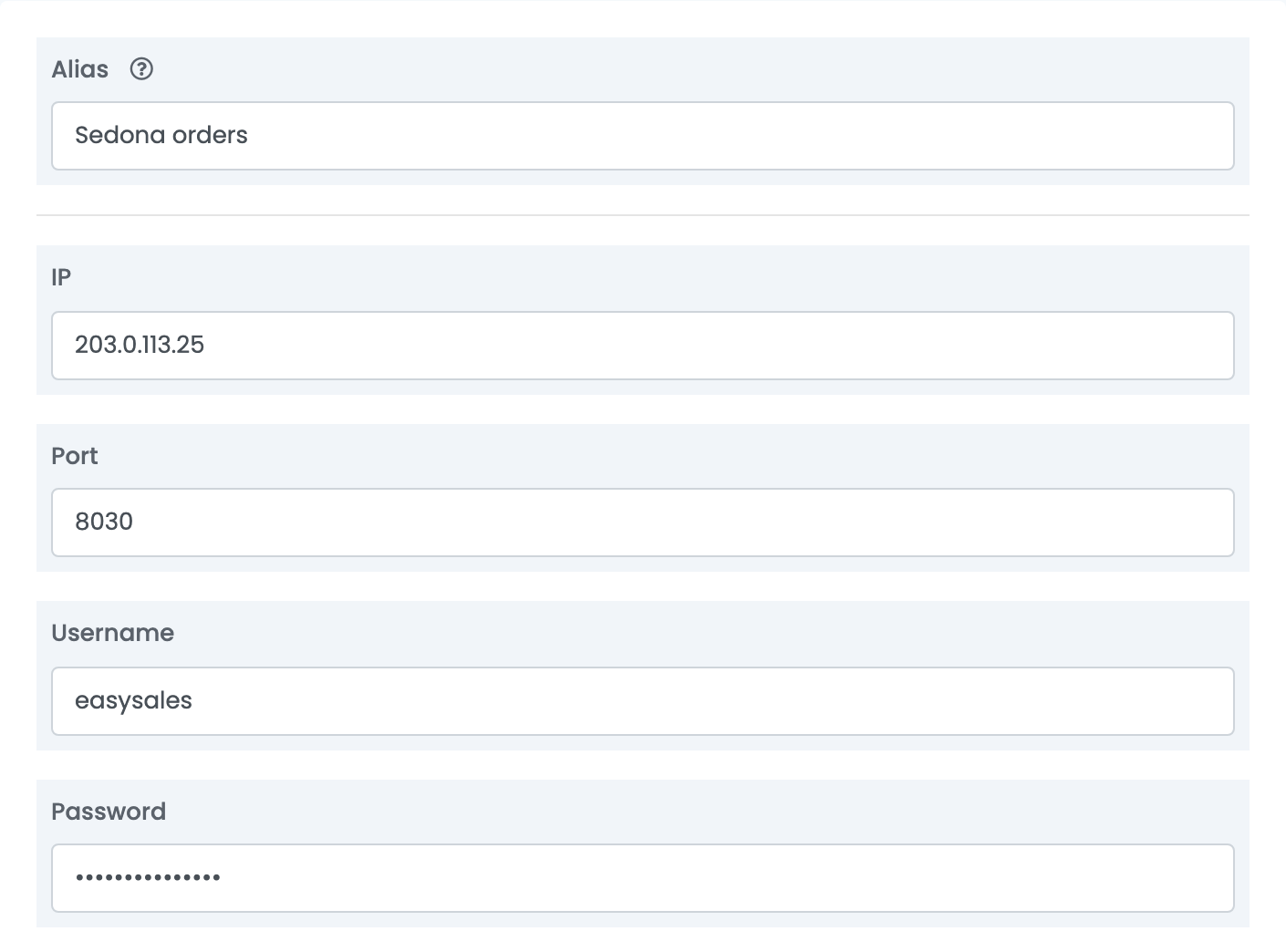
| Field | What goes in it |
|---|---|
| Alias |
A name you will recognise, for example Sedona orders.
|
| IP |
The public IP address of your Sedona server — for example 203.0.113.25. Not a name, not a key.
|
| Port | The port of the Sedona Retail API module — not the database port. |
| Username, Password | The user of the Sedona Retail API, as set up by your Sedona administrator. |
Step 2 — Your Sedona IDs
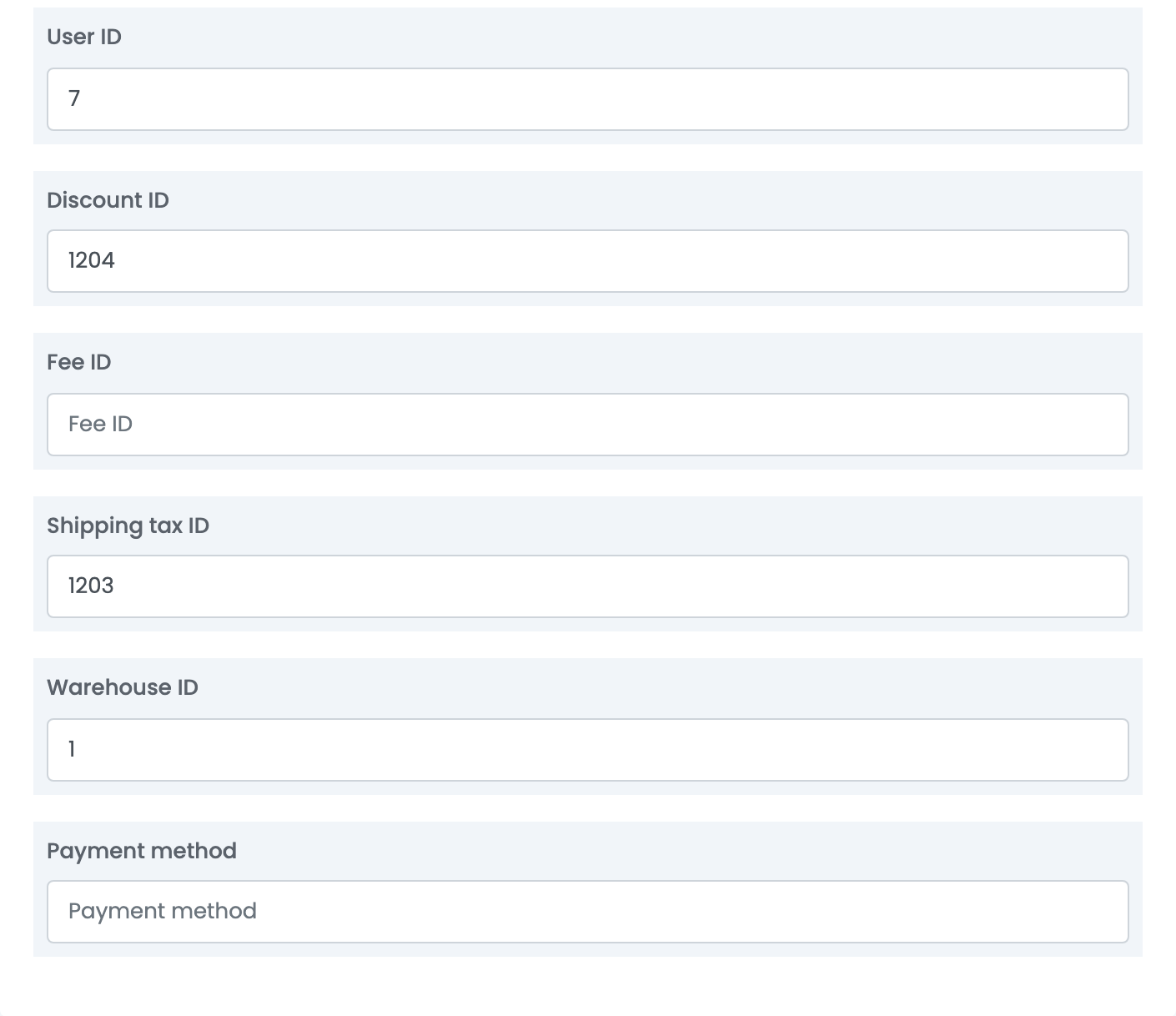
| Field | What goes in it |
|---|---|
| User ID | The number of the Sedona operator (utilizator) the orders are created under. Required. |
| Discount ID | The Sedona product used for discount lines. Left empty, discounts are not sent. |
| Fee ID | The Sedona product used for extra fees. Left empty, fees are not sent. |
| Shipping tax ID | The Sedona product used for the shipping cost. Left empty, shipping is not sent. |
| Warehouse ID | The number of the Sedona warehouse (gestiune) the orders go to. Required. |
| Payment method | Optional. The Sedona name of the payment method — see the note below. |
Press Connect. After you save, send one order to Sedona — see Step 3 — and check that it appears there with its customer and products.
Step 3 — Send orders with a flow
Add the Send order to ERP system action to an automation flow under Flows, choose the Sedona connection, and set the conditions that pick the orders you want in Sedona — for example, orders that reach a certain status.
For each order, easySales:
- finds the customer in Sedona — a company by its VAT number, a person by phone number — or creates it;
- finds each product in Sedona by its barcode, using the product's EAN;
- creates the customer order in the warehouse you set, with the order's prices, the marketplace order number as description, and the shipping, discount and fee lines you gave an ID for.
An order is sent only when every line is linked to an easySales product whose EAN exists as a barcode in Sedona. If an order does not show up in Sedona, check its lines first.
Step 4 — Read stock from Sedona
Stock comes in through a separate connection. Under Integrations → Stock sources, open the Sedona card and enter the same IP Address, Port, Username and Password, then set it as the stock source of your shop.
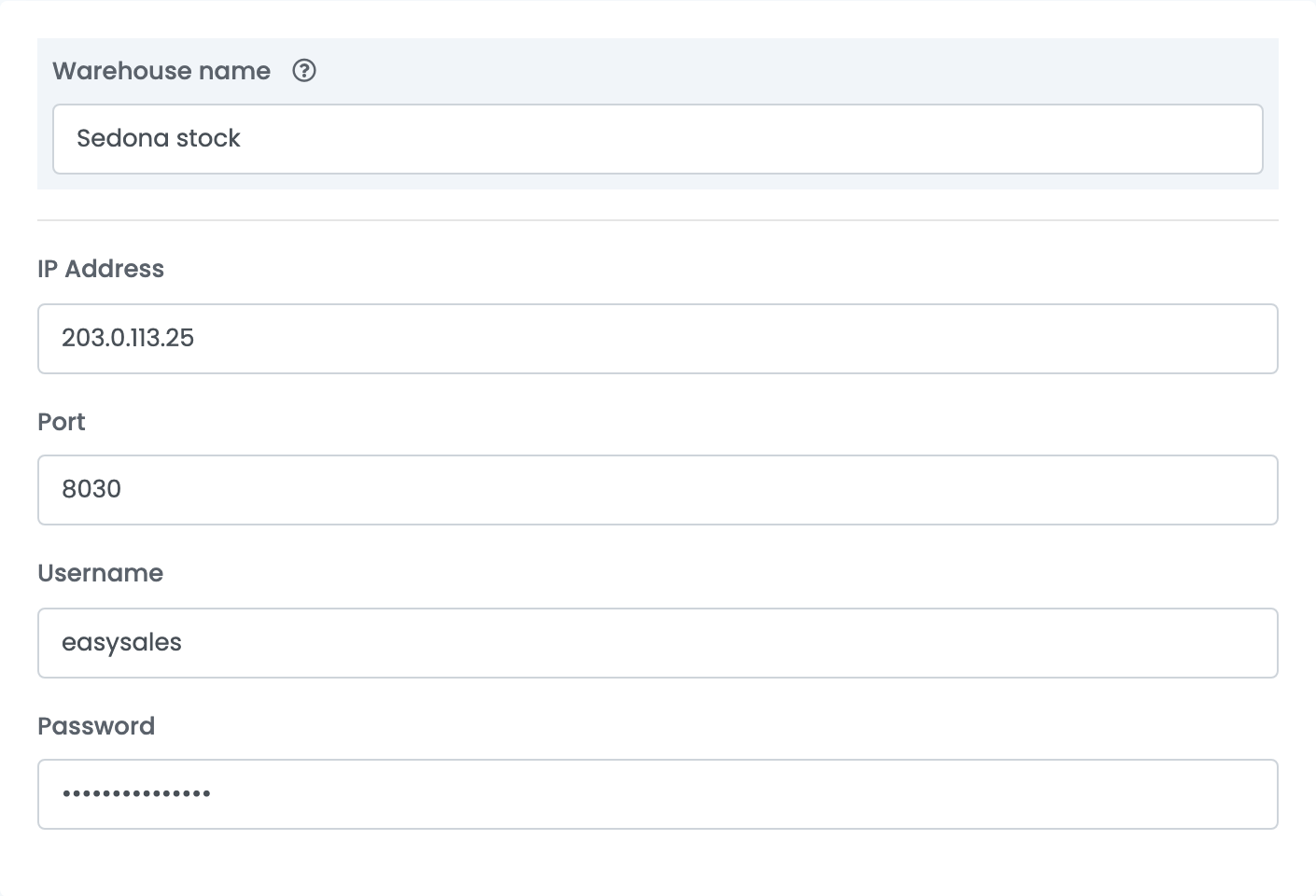
Each Sedona product is matched to the easySales product whose Stock code holds its barcode, or, without a Stock code, whose SKU does. The stock read is the total across all your Sedona warehouses.
What the connection does not do
Invoices, AWBs and order statuses stay in easySales — Sedona sends nothing back for an order. Products and prices are not imported from Sedona, and stock is not sent to it.
When something does not work
| Message | What to do |
|---|---|
| Failed to connect to … port … Couldn't connect to server | easySales cannot reach your Sedona server. Check that the server is on, that the API module is running, and that the IP and port are open to the internet. |
| Empty reply from server | Something other than the Sedona Retail API answers on that port. Check the port with your Sedona administrator. |
| Cannot send order to ERP: … | Sedona refused the order; its reason follows the colon. Correct it and send the order again. |
| Eroare tranzactie … was deadlocked … Rerun the transaction. | Sedona was busy with another order. The order is sent again automatically. |