How to connect Pigu, 220.lv, Kaup24 and Hobbyhall with easySales
Connect the PHH Group marketplaces — Pigu.lt, 220.lv, Kaup24.ee and Hobbyhall.fi — to easySales: login and Seller ID, VAT and delivery settings, linking your existing offers and sending new products.
What connecting PHH Group gives you
PHH Group runs four marketplaces: Pigu.lt in Lithuania, 220.lv in Latvia, Kaup24.ee in Estonia and Hobbyhall.fi in Finland. Connected to easySales, each of them brings its orders into easySales, lists your products as offers and keeps their price and stock up to date. The offers you already have there are imported too.
Each marketplace has its own card in easySales, and you connect each one you sell on separately, with the same PHH seller login. Two things to know before you begin:
- Offers you already have on PHH must be linked to your products. They are imported unlinked, into a separate tab for each marketplace. Until you link them, they receive no price or stock from easySales, and orders for them arrive without a product, so no stock is reserved.
- Default Tax Rate decides the VAT on your prices. easySales adds it to your prices before sending them. It is 0 on a new connection, and 0 means you are not a VAT payer, so your prices would go to PHH without VAT.
Before you start
A PHH seller account
Its e-mail and password connect easySales to every PHH marketplace you sell on.
Your Seller ID
Shown in the top right corner of the PHH seller panel after you log in.
Products with an EAN
PHH needs an EAN on every product, and Autolink can match your existing offers by it.
Product import enabled
To list new products from easySales, PHH must have enabled product import on your account. Your PHH manager can turn it on.
Step 1 — Find your login and Seller ID
easySales connects with the username and password of your PHH seller account — the username is the account's e-mail address. Log in to the PHH seller panel and note your Seller ID, shown in the top right corner after you log in.
Step 2 — Connect the marketplace in easySales
Go to Integrations → Marketplaces, search for the marketplace — pigu, 220, kaup24 or hobbyhall — and press Connect on its card, or Edit if you have connected it before. Every step below is the same on all four cards.
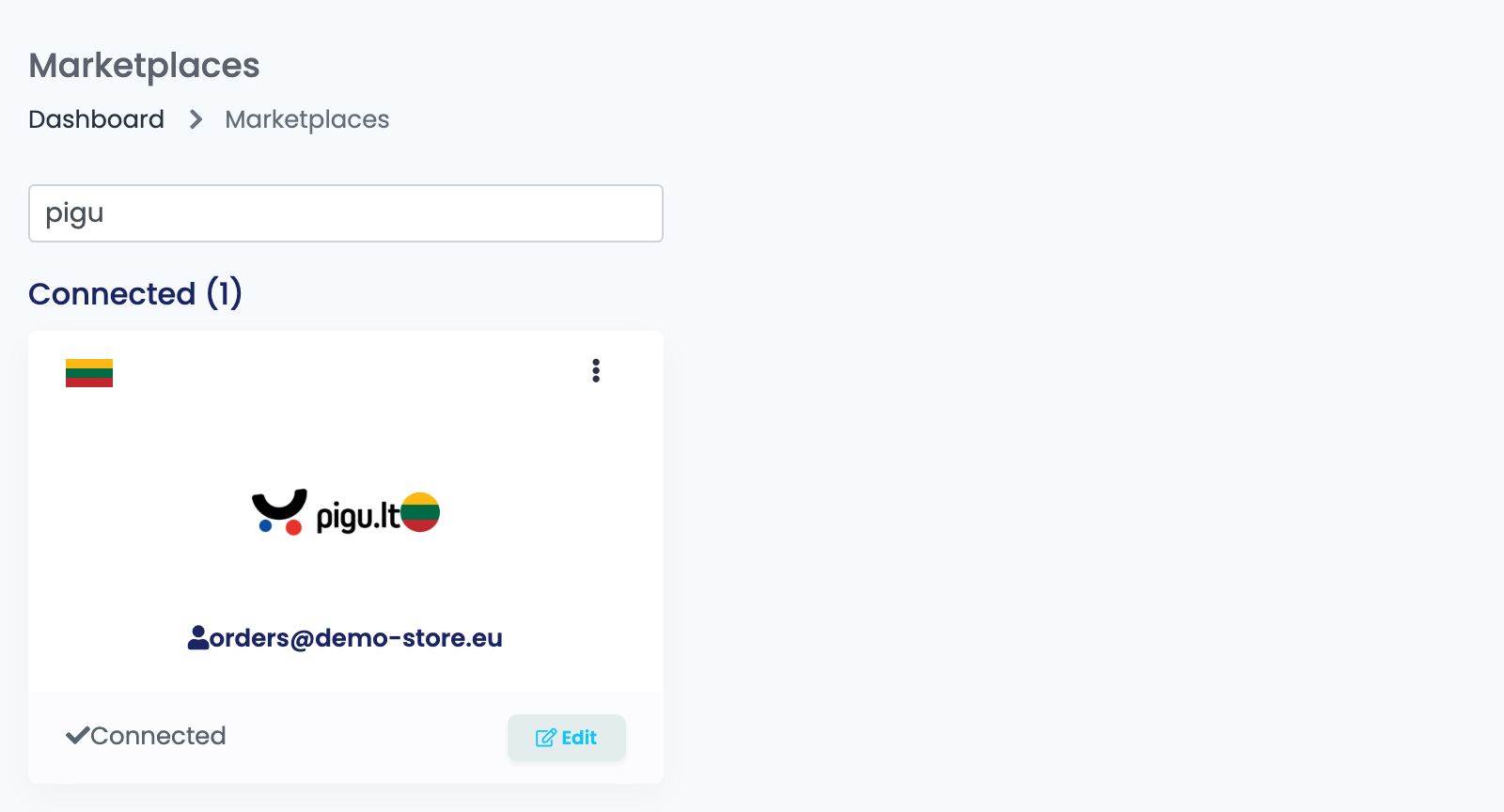
Fill in the first fields and press Continue:
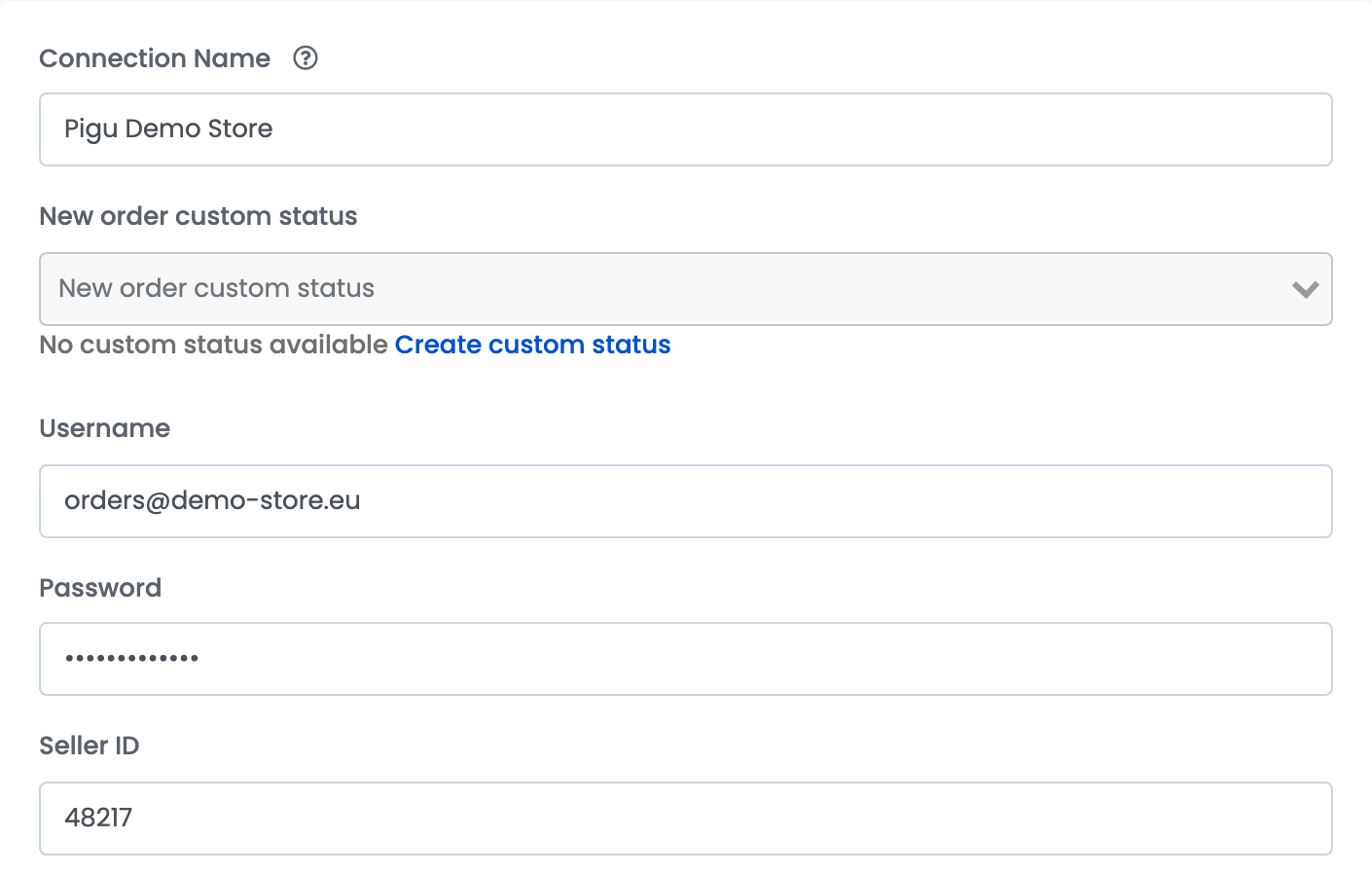
| Field | What goes in it |
|---|---|
| Connection Name |
A name you will recognise inside easySales, for example Pigu Demo Store.
|
| New order custom status | Optional. A custom status of yours that new orders from this marketplace receive when they are imported. |
| Username | The e-mail address of your PHH seller account. |
| Password | The password of your PHH seller account. |
| Seller ID | The number shown in the top right corner of the PHH seller panel. |
Continue checks the username and password with PHH. The rest of the form then appears, and the button becomes Save.
Step 3 — Prices, VAT and delivery
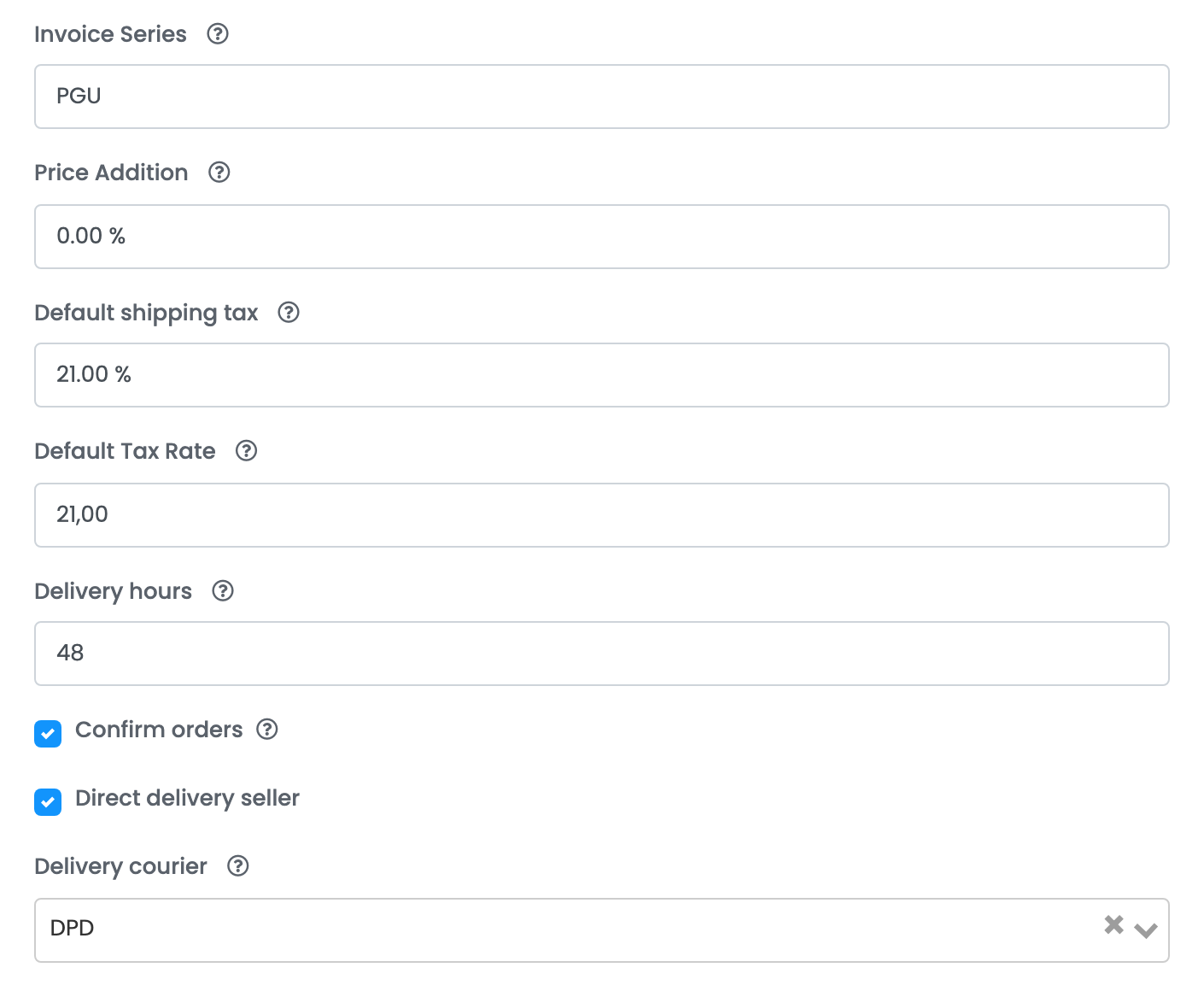
| Field | What it does |
|---|---|
| Invoice Series | The invoice series used for this marketplace's orders when you issue invoices. |
| Price Addition | A percentage added to the product's price for this marketplace. It is saved on each offer when the offer is created, so a change applies to new offers only. |
| Default shipping tax | The VAT rate of the shipping on imported orders. |
| Default Tax Rate | The VAT rate added to your prices and used on your orders. 0 means you are not a VAT payer. |
| Delivery hours | How many hours you need to ship an order. A product's own handling time takes its place. |
| Confirm orders | Ticked, easySales confirms each new order on PHH as soon as it is imported. |
| Direct delivery seller | Tick it if you deliver orders to customers yourself rather than through PHH's logistics. |
| Delivery courier | Shown when Direct delivery seller is ticked: the courier PHH is told about when you add a tracking number to an order by hand. |
Press Save. easySales checks your login with PHH again on every save.
Step 4 — Additional settings
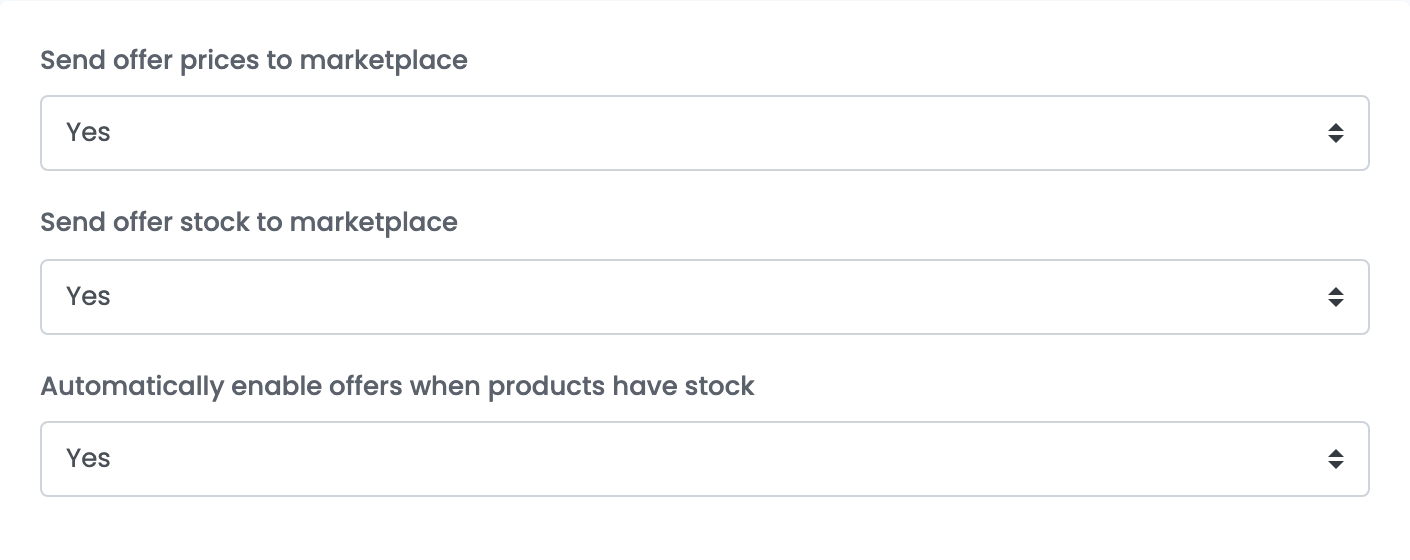
The Additional settings tab, above the form, holds the switches for what easySales keeps up to date.
| Setting | What it does |
|---|---|
| Send offer prices to marketplace | Yes keeps your prices on PHH in step with easySales. No stops price updates after an offer's first send. |
| Send offer stock to marketplace | Yes keeps your stock on PHH in step with easySales. No stops stock updates after an offer's first send. This switch is on the Pigu card; the 220.lv, Kaup24 and Hobbyhall connections always send stock. |
| Automatically enable offers when products have stock | Turns an offer back on when its product comes back into stock. |
Step 5 — Link the offers you already have on PHH
Your existing offers are imported into Marketplaces → Offers, on the tab of the marketplace they are on. An imported offer is greyed out and marked as not linked until you attach it to a product in easySales.
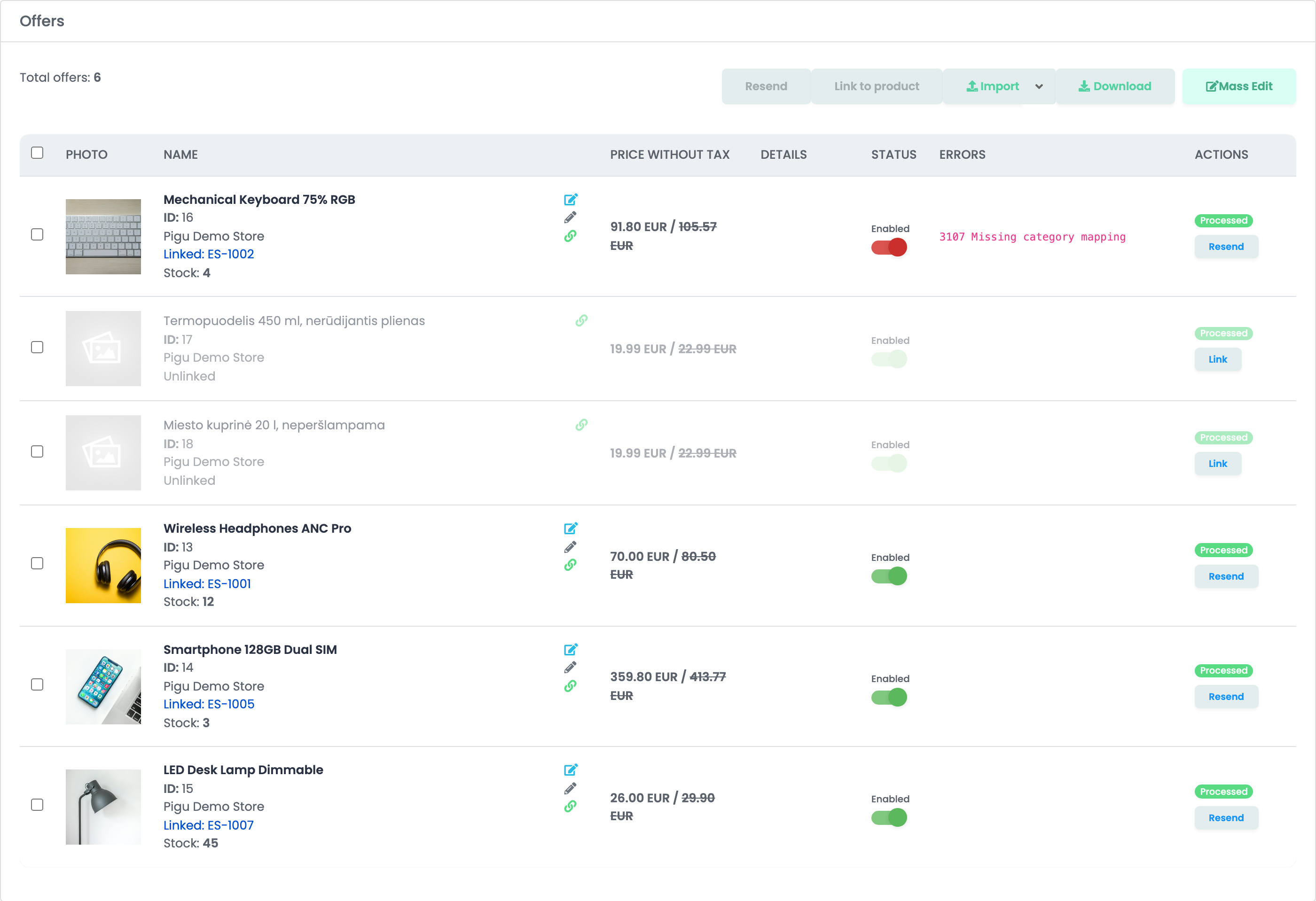
- Link, on the offer's row, attaches that one offer to a product you choose.
- Link to product does the same for the offers you have selected.
- Marketplaces → Autolink matches the offers to your products in bulk, by SKU, EAN or name.
Each marketplace keeps its own offers, so link them on every tab you sell on. Once an offer is linked, easySales sends it the product's price and stock, and new orders for it arrive with the product attached.
Step 6 — Send your products to PHH
Open Products → Virtual Shop → Products and filter by Without offers on and the marketplace, so you only see products that are not listed there yet. Then press Add offer under a product, or select several and use Add offer(s) on.
easySales sends PHH the product itself — name, description, images, SKU, EAN, weight, category and characteristics — and PHH checks it. The offer, with its price, stock and delivery hours, is created once PHH accepts the product.
Each of the four marketplaces has its own category list, so map your categories under Categories for each marketplace you sell on, and fill in the characteristics its category asks for. Before anything is sent, easySales checks the product:
| Error | What it means |
|---|---|
| 3107 Missing category mapping | The product's category is not mapped to a category of this marketplace. Map it under Categories, then resend the offer. |
| 107 Missing Product Categories | The product has no category in easySales. Give it one. |
| 3109 Missing EAN | The product has no EAN, which PHH needs for every product. |
| 3108 Missing description | The product has no description. Add one. |
Orders from PHH
- New orders are fetched every minute. Synchronize orders on the connection fetches older ones on demand, up to 30 days at a time.
- Status: every order is imported — one PHH has rejected arrives as Canceled, a completed one as Completed and a returned one as Returned.
- Customer: a company order arrives with the company name and its VAT code; the buyer's comment is in the order's observations.
- Payment: an order paid on delivery arrives with cash on delivery as its payment method.
- Invoices: an invoice you issue for a PHH order through your billing software is uploaded to PHH.
- Cancelling an order in easySales rejects it on PHH.
When an offer is refused
Refusals from PHH are shown in the Errors column of the offer, under 3110 Product rejected by Pigu, with PHH's reason after it. The ones you are most likely to see:
| PHH's reason starts with | What to do |
|---|---|
| Pigu did not return a validation result | PHH did not finish checking the product in time. Press Resend on the offer. |
| Category is not exist | The marketplace category you mapped the product to is no longer on PHH's list. Map it to another category under Categories, then resend the offer. |
| Seller has import and so delivery hours, amount, sell and sell after discount prices cannot be changed from this endpoint | A product import set up in your PHH account is feeding these offers, and while it runs PHH takes their price and stock only from it. Ask PHH to stop that import if you want easySales to update them. |