How to connect Meest with easySales: a complete setup guide
Connect Meest to easySales for cross-border parcels: the Meest API login, the service type, the sender details, the drop-off point, additional services and common refusals.
What connecting Meest gives you
Meest delivers parcels across borders, to the countries in its European network. With Meest connected, easySales creates Meest shipments for your orders: it sends the sender and the recipient to Meest, receives the label as a PDF, puts the AWB on the order and follows the parcel's delivery status.
Three things to know before you begin:
- Meest gives you the login. The Username and Password are the API login of your Meest account, which Meest sets up with your contract. Ask your Meest account manager for them.
- Fill in every sender field, Sender company included. The sender block goes on every label from the connection.
- One connection uses one service type. Every label from a connection goes out with its Service type and Additional Services. For another service, add a second connection.
Before you start
A Meest contract
For sending parcels through Meest's network.
Your Meest API login
The username and password Meest gave you for the integration.
Your sender details
Name, company, phone, e-mail and the full address.
Step 1 — Your Meest login and the service
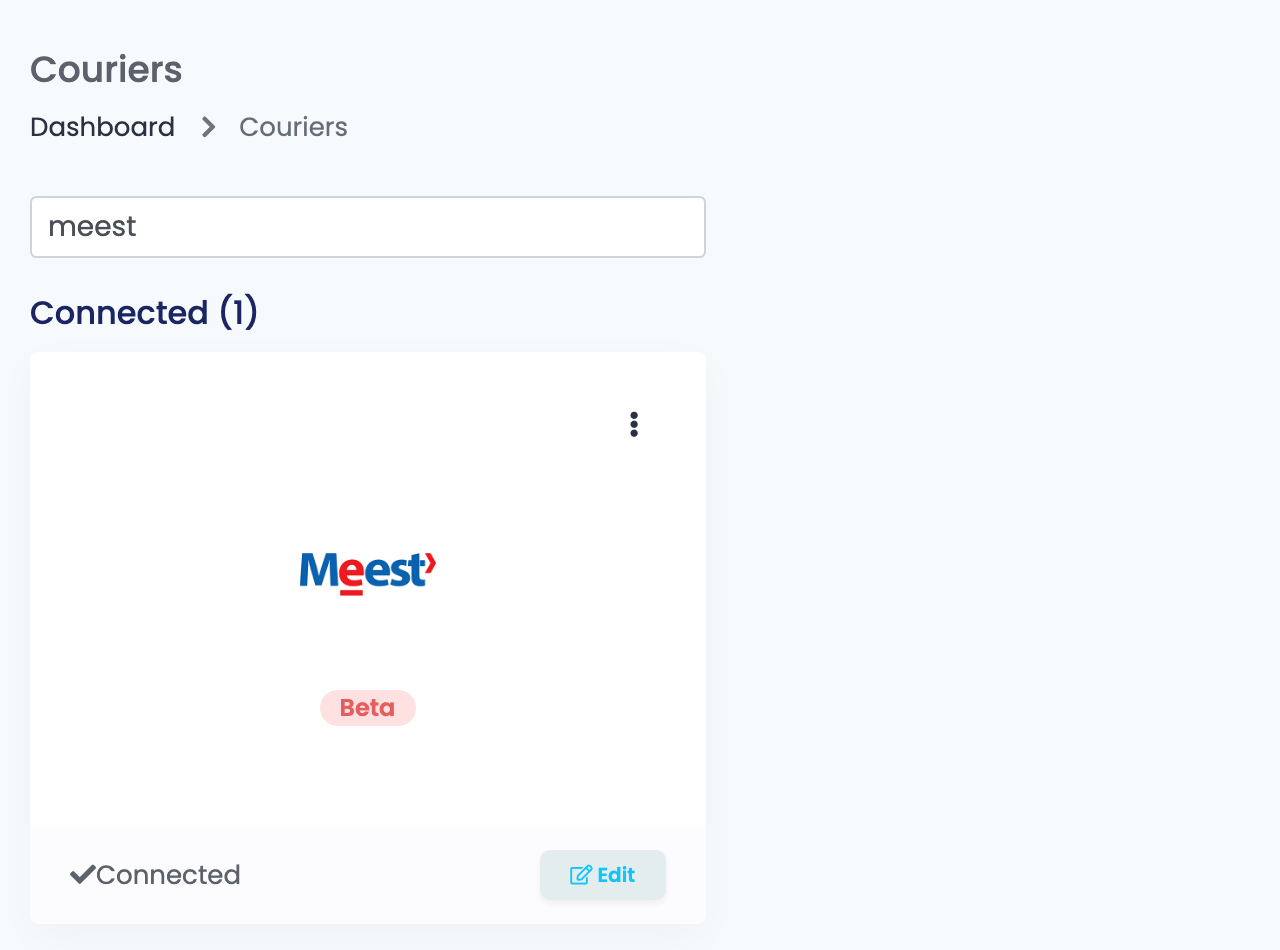
- Go to Integrations → Couriers, search for
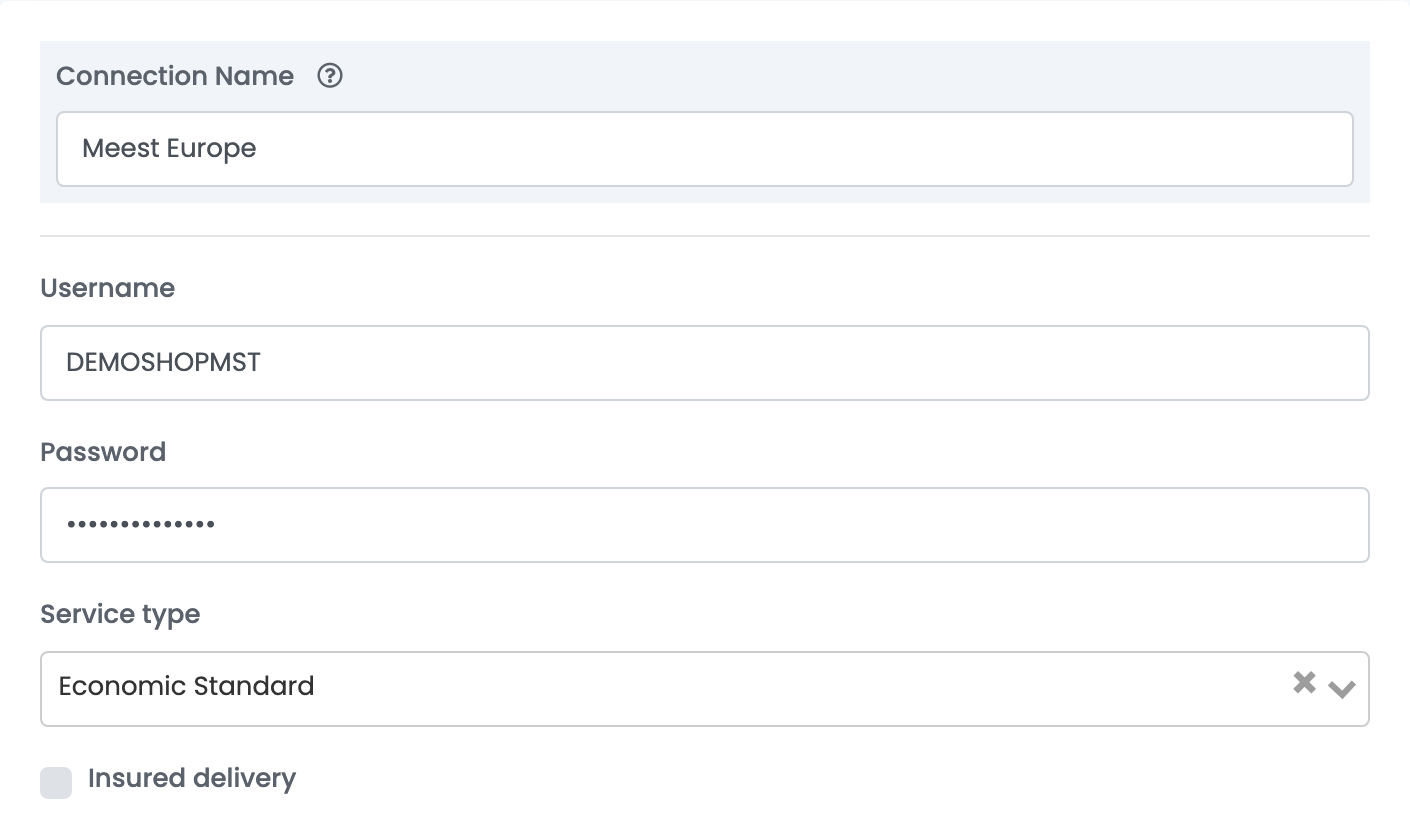
meestand press Connect on the Meest card. - Enter a Connection Name you will recognise, and the Username and Password Meest gave you.
- Choose the Service type of your Meest contract: Economic Standard, CARGO or Collect Box.
- Tick Insured delivery to declare the order total as the value of each parcel.
Step 2 — Sender details
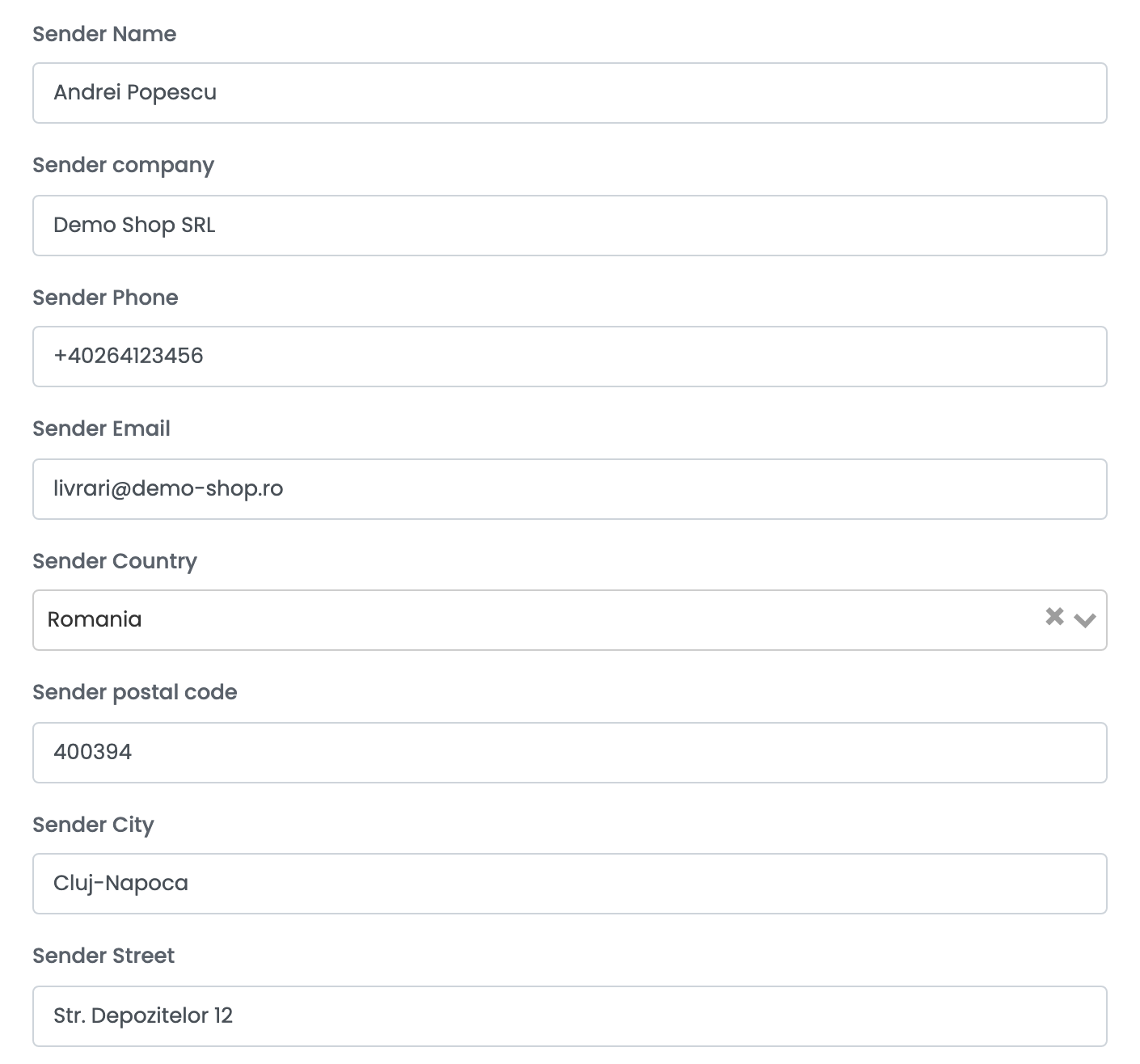
Fill in Sender Name, Sender company, Sender Phone, Sender Email, Sender Country, Sender postal code, Sender City and Sender Street — the street with its number, in one field.
Step 3 — Drop-off point and additional services
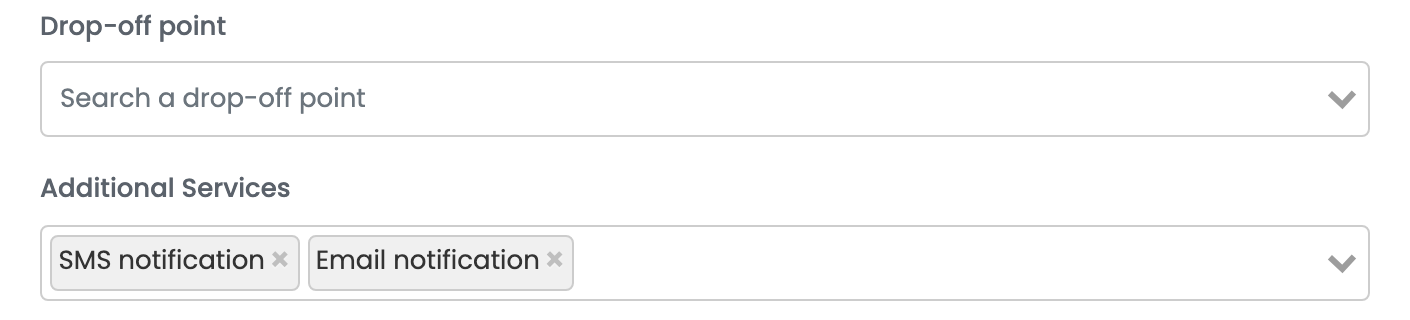
| Field | What goes in it |
|---|---|
| Drop-off point | Optional. Search for the Meest point where you hand over your parcels, if you drop them off instead of having them collected from the sender address. |
| Additional Services | Added to every label of this connection: SMS notification and Email notification tell the recipient about the delivery, and Customer return is Meest's return service, for contracts that include it. |
Press Save. easySales signs in to Meest with your login, and shows Meest's reason if the login is refused.
For a second service or sender address, choose Connect another courier account in the card's ⋮ menu, or open the connection and press Clone.
Creating labels
- Quick create: in the orders list, choose Quick Create → Meest in the AWB column. The label is created with the connection's service and the order's weight — 1 kg when the products have none.
- From the order: in the order's Awbs section, press Create AWB and choose Meest. You can change the recipient and set several parcels or envelopes.
For an order paid on delivery, the order total is sent to Meest as cash on delivery. The label arrives as a PDF on the order, and easySales updates the order's delivery status from Meest. Deleting the AWB on the order cancels the parcel at Meest.
When Meest refuses a label
The reason is shown on the order:
| Message | What to do |
|---|---|
| Could not authenticate, please try again. | Meest refused the login. Check the Username and Password with your Meest account manager. |
| Problem while creating LAST_MILE: The attributes [cashOnDeliveryService - currency] do not correspond to the specification. | The cash-on-delivery currency is not the destination country's currency. Sell orders paid on delivery in the destination's currency. |