How to connect Erli with easySales: a complete setup guide
Connect Erli to easySales: the API key from moje Erli, VAT settings, linking the offers you already have, sending new products and the refusals Erli returns.
What connecting Erli gives you
Erli is a Polish marketplace. Connected to easySales, it brings your Erli orders into easySales, lists your products on Erli as offers and keeps their price and stock up to date. The offers you already have on Erli are imported too.
Two things to know before you begin:
- Offers you already have on Erli must be linked to your products. They are imported unlinked. Until you link them, they receive no price or stock from easySales, and orders for them arrive without a product, so no stock is reserved.
- Default Tax Rate is the VAT of every Erli order. easySales splits every Erli order line with it, so set it to your real VAT rate — 23 for most goods in Poland.
Before you start
An Erli seller account
With access to moje Erli, where you generate the API key.
SKUs or EANs that match
Autolink finds your existing Erli offers among your products by SKU, EAN or name.
Your VAT rate
Default Tax Rate is applied to every Erli order, so know the rate you sell at.
Step 1 — Generate the API key in moje Erli
- Log in to moje Erli, your Erli seller panel.
- Open Ustawienia sklepu and, in the menu on the left, Metoda Integracji.
- Choose the Własna integracja po API tile.
- Type a description for the key in Opis klucza — for example
easySales— and press Wygeneruj nowy klucz. - Copy the key. This is the App token easySales asks for.
Step 2 — Connect Erli in easySales
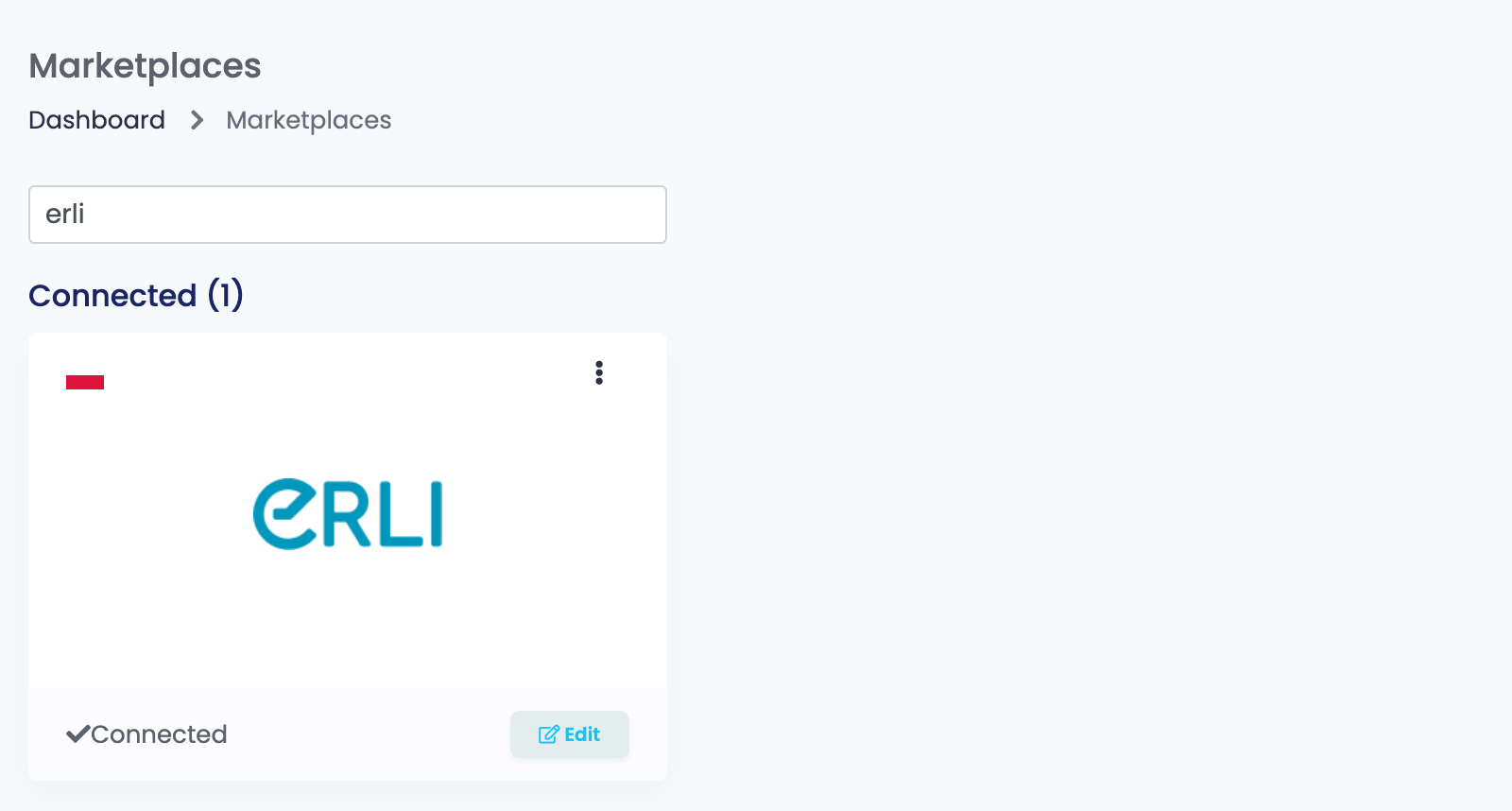
Go to Integrations → Marketplaces, search for erli and press Connect on the Erli card — or Edit, if you have connected it before.
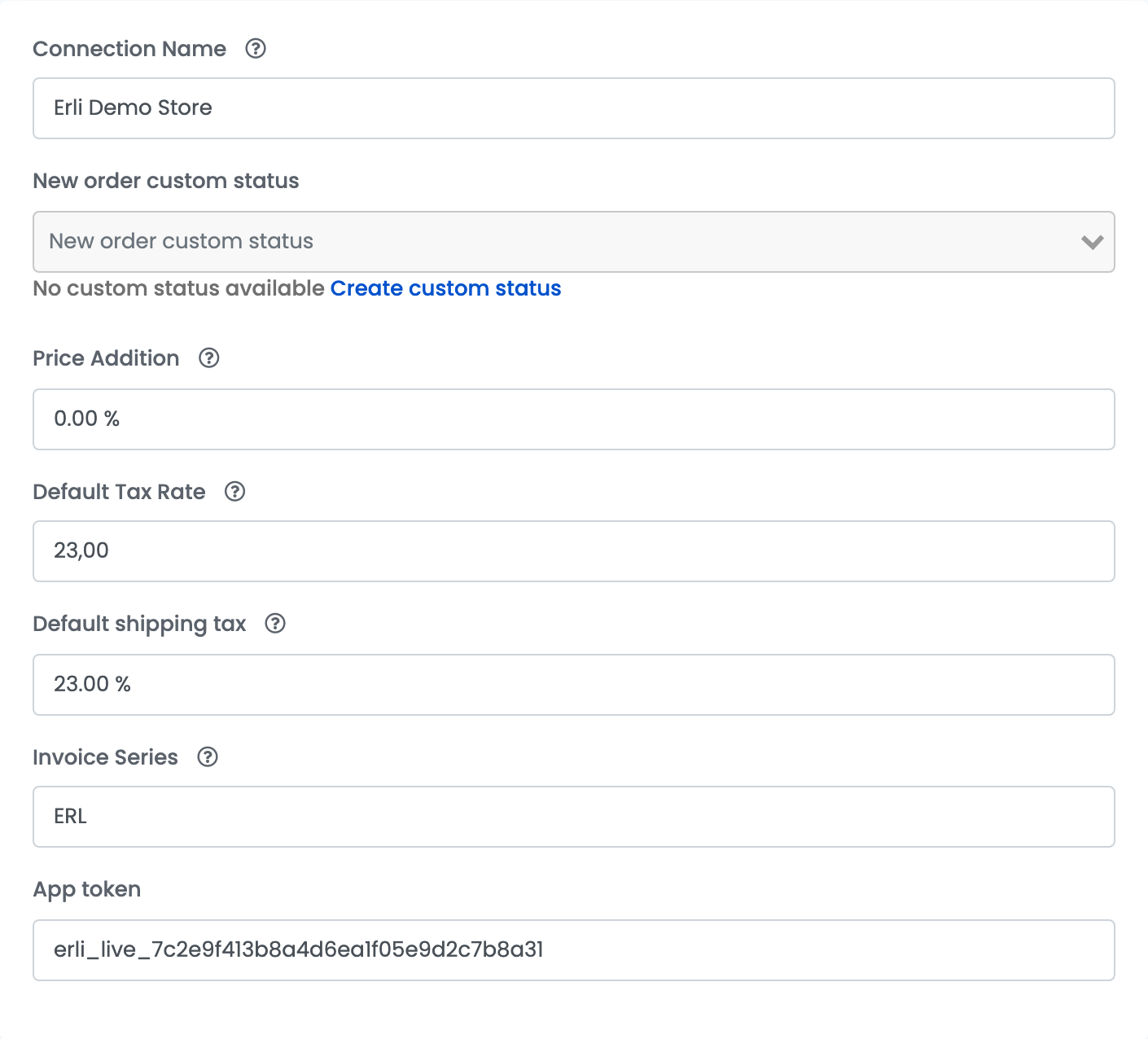
Fill in the form on the Main settings tab:
| Field | What goes in it |
|---|---|
| Connection Name |
A name you will recognise inside easySales, for example Erli Demo Store.
|
| New order custom status | Optional. A custom status of yours that new Erli orders receive when they are imported. |
| Price Addition | A percentage added to the product's price for Erli. |
| Default Tax Rate | The VAT rate of every product line on your Erli orders — 23 for a Polish VAT payer. |
| Default shipping tax | The VAT rate of the shipping on your Erli orders. |
| Invoice Series | The invoice series used for Erli orders when you issue invoices. |
| App token | The API key from moje Erli. |
Press Save. easySales checks the App token with Erli, and on the first save it starts importing your Erli offers and orders.
Step 3 — Additional settings
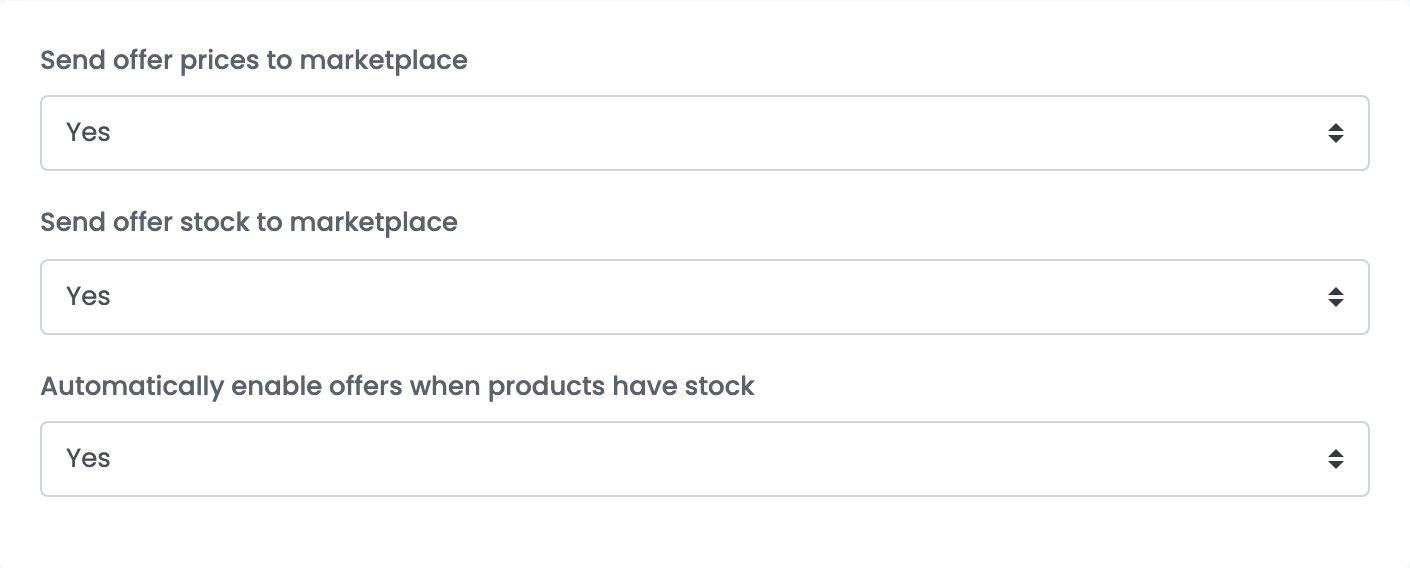
The Additional settings tab, above the form, holds three more switches.
| Setting | What it does |
|---|---|
| Send offer prices to marketplace | Yes keeps the prices on Erli in step with easySales. No stops price updates after an offer's first send. |
| Send offer stock to marketplace | Yes keeps the stock on Erli in step with easySales. No stops stock updates after an offer's first send. |
| Automatically enable offers when products have stock | Turns an offer back on when its product comes back into stock. |
Step 4 — Link the offers you already have on Erli
Your existing Erli offers are imported into Marketplaces → Offers, on the Erli tab. An imported offer is greyed out and marked as not linked until you attach it to a product in easySales.
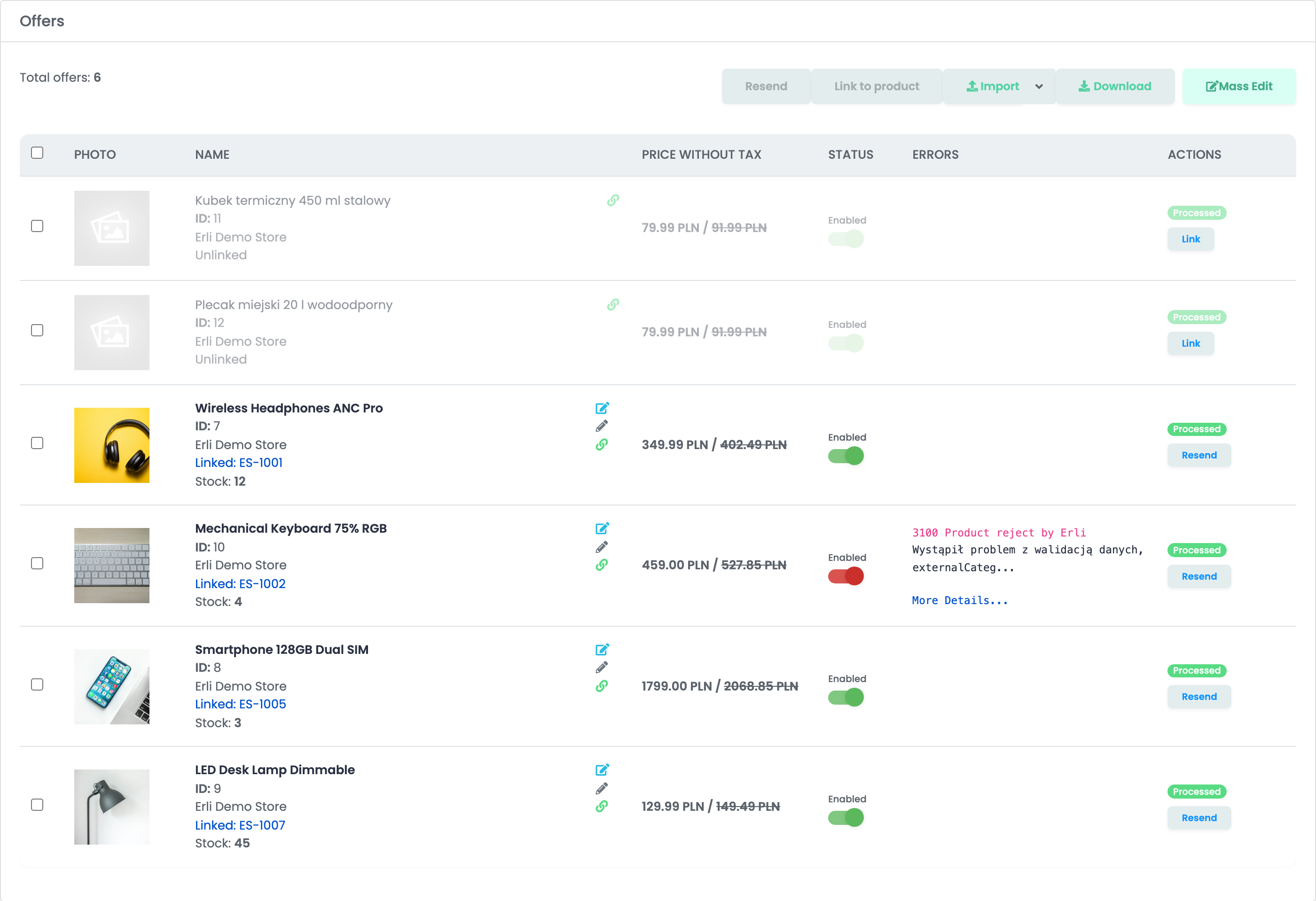
- Link, on the offer's row, attaches that one offer to a product you choose.
- Link to product does the same for the offers you have selected.
- Marketplaces → Autolink matches your Erli offers to your products in bulk, by SKU, EAN or name.
Linking does not change the offer on Erli. Once an offer is linked, easySales sends it the product's stock, and new orders for it arrive with the product attached.
Step 5 — Send your products to Erli
Open Products → Virtual Shop → Products and filter by Without offers on → Erli, so you only see products that are not on Erli yet. Then press Add offer under a product, or select several and use Add offer(s) on.
easySales sends the product to Erli with its name, description, images, EAN, SKU, price, stock and weight, in the Erli category you chose for it. Map your categories to Erli's under Categories first, and fill in the attributes Erli asks for in that category. Before anything is sent, easySales checks that the product has a name (3101 Missing name) and at least one image (3102 Missing images).
Orders from Erli
- New orders are fetched every minute, and Synchronize orders on the connection fetches the orders of up to the last 30 days on demand.
- Every order is imported: an order Erli has cancelled arrives as Canceled, a returned one becomes Returned, and one already shipped on Erli arrives as Completed.
- Customer: a company order arrives with the company name and its NIP; the buyer's comment is in the order's observations.
- Parcel lockers: an order to a parcel locker arrives with the locker the buyer chose.
- VAT: the order's products are split with the connection's Default Tax Rate, and shipping with Default shipping tax.
When an offer is refused
Erli's answer is shown in the Errors column of the offer, under 3100 Product reject by Erli, in Polish. The ones you are most likely to see:
| Erli's message ends with | What to do |
|---|---|
| externalCategories[0].breadcrumb[0].id must be a string | The product has no Erli category. Map its category under Categories, or choose an Erli category on the offer, then resend it. |
| externalVariantGroup.attributes must contain at least 1 items | The product is a variant, and Erli needs the attribute its variants differ in, such as colour or size. Fill it in on the offer and resend it. |
| description must be one of [object, string] | The product has no description. Add one and resend the offer. |