How to connect DragonStar with easySales: a complete setup guide
Connect DSC Dragon Star Curier to easySales: API credentials from DSC, work points, default settings and additional services, and the messages DSC returns on an AWB.
What connecting DragonStar gives you
DSC Dragon Star Curier is a Romanian courier network. Connected to easySales, it creates the AWB for an order from the order list or the order page, puts DSC's tracking number on the order, sends it to the marketplace or shop the order came from and follows the delivery status.
Two things to know before you begin:
- easySales connects with DSC's API credentials, not with your DSC login. The username and password you use in DSC's web application do not work here. DSC creates API credentials on request.
- Your pickup work points come from DSC. The Office list shows the work points DSC has activated on your account. A work point you added in DSC's web application appears only once DSC has activated it.
Before you start
A contract with DSC
Ask for an offer at dragonstarcurier.ro if you do not have one yet.
API credentials
A username and password for DSC's API, which DSC creates on request.
Your work points activated
Every address you ship from, activated by DSC for API use.
Step 1 — Ask DSC for API credentials
- Write to DSC at api@curierdragonstar.ro with your company name and a contact person (phone and e-mail), and ask for API access for easySales.
- DSC replies with an API username and password. Keep them for Step 2.
- If you ship from more than one address, ask DSC at comenzi@curierdragonstar.ro to activate each work point for API use.
Step 2 — Connect DragonStar in easySales
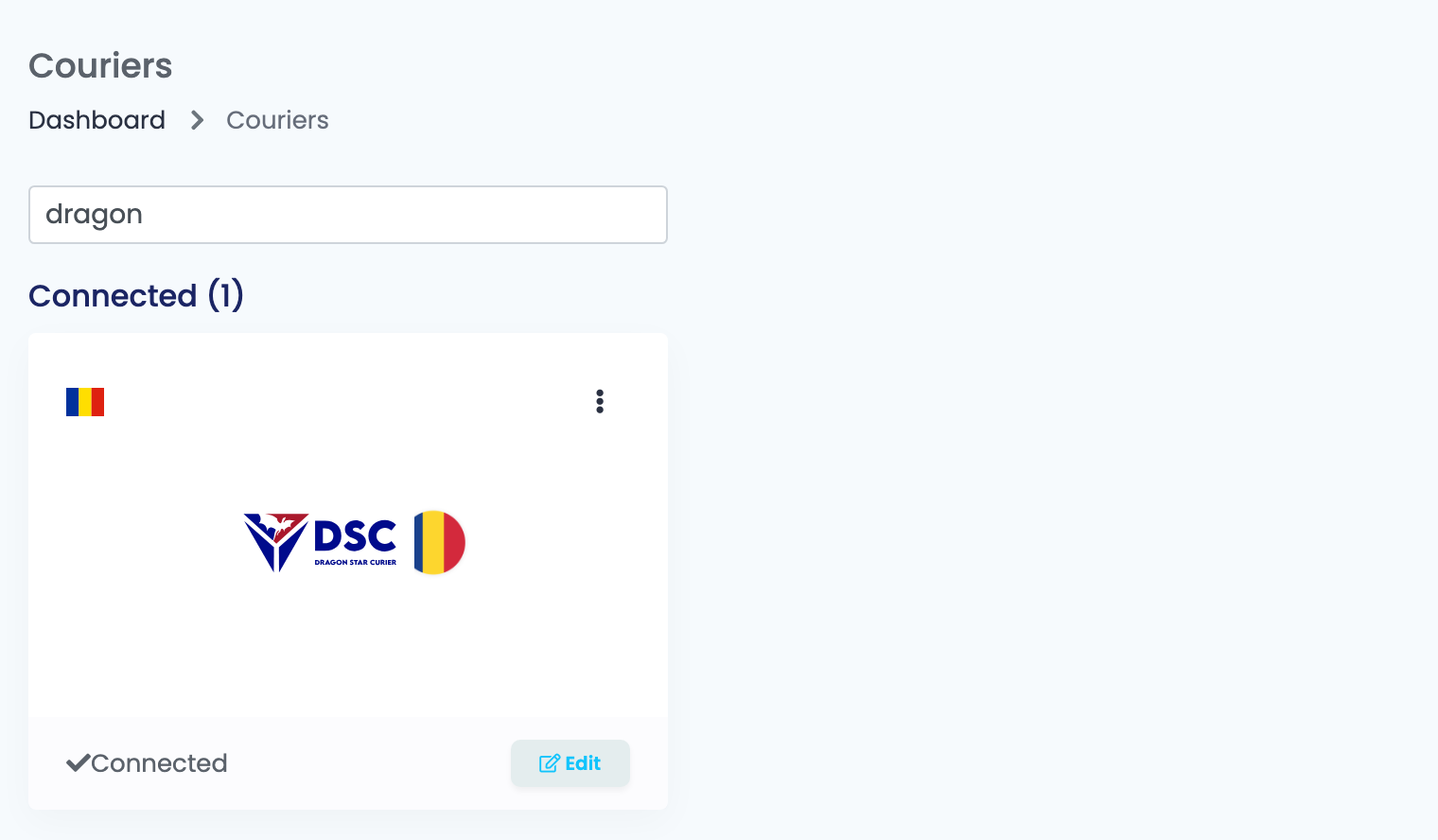
Go to Integrations → Couriers, search for dragon and press Connect on the Dragon Star card — or Edit, if you have connected it before.
Fill in the connection details:
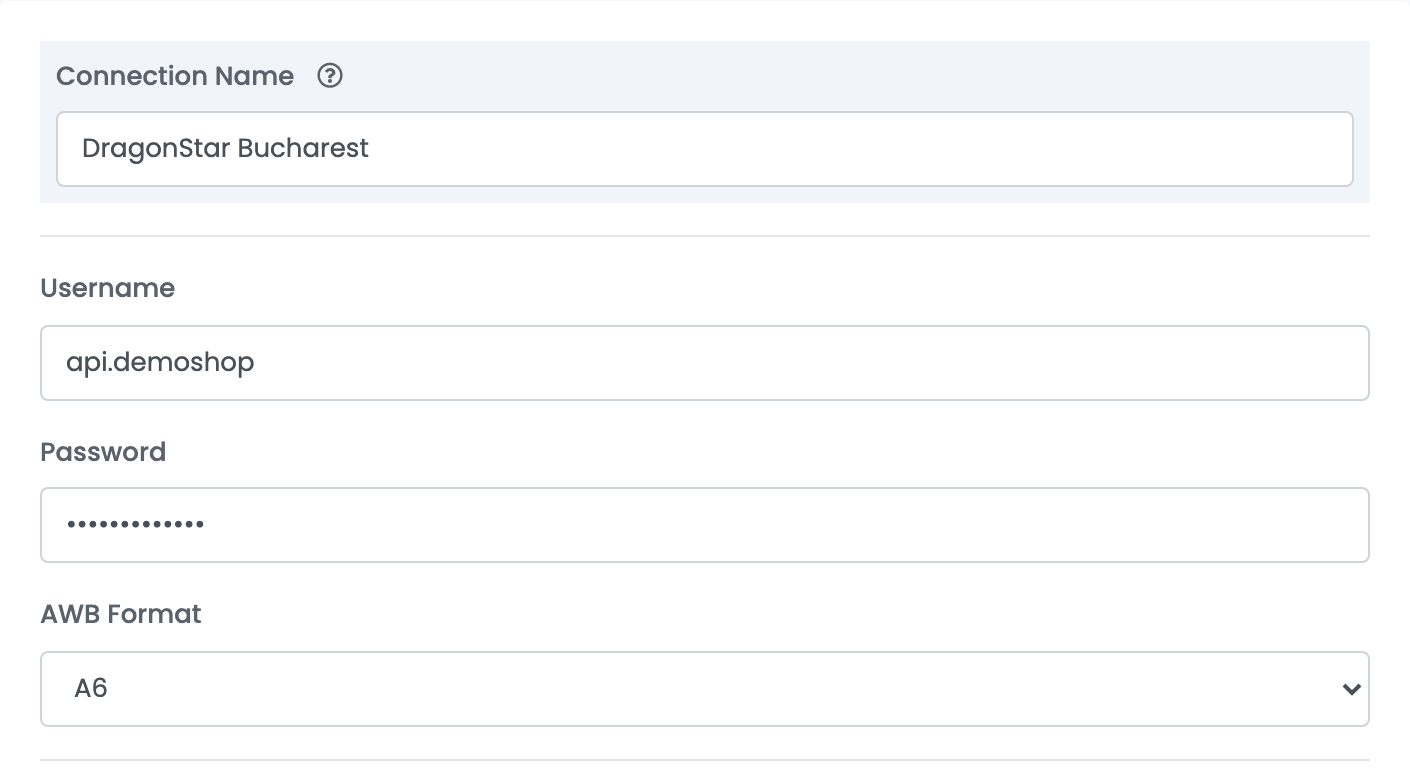
| Field | What goes in it |
|---|---|
| Connection Name |
A name you will recognise when choosing between connections, for example DragonStar Bucharest.
|
| Username | The API username DSC sent you. |
| Password | The API password DSC sent you. |
| AWB Format | A4 for an office printer, A6 for a label printer. |
Press Save. Then open the connection again: the Office list below now shows the work points DSC has activated on your account.
Step 3 — Default settings
These settings apply to every AWB created with this connection.
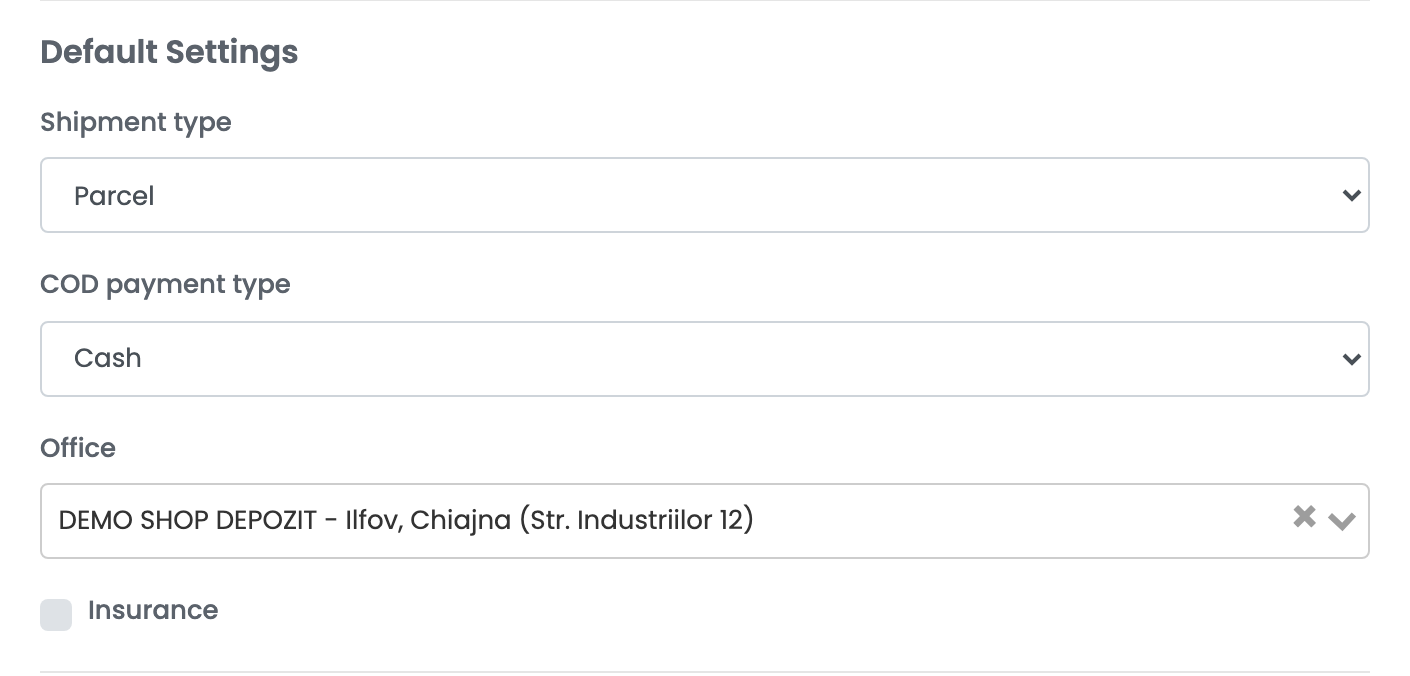
| Field | What it does |
|---|---|
| Shipment type | Envelope, Parcel or Pallet — what you usually send. |
| COD payment type | How DSC collects the cash-on-delivery amount from your customers, as agreed in your contract with DSC. Cash is the usual choice. |
| Office | The DSC work point your parcels leave from, chosen from the ones DSC has activated on your account. Left empty, AWBs are issued on your main DSC account. |
| Insurance | Insures every parcel from this connection for the value of its products, VAT included. |
Step 4 — Additional services
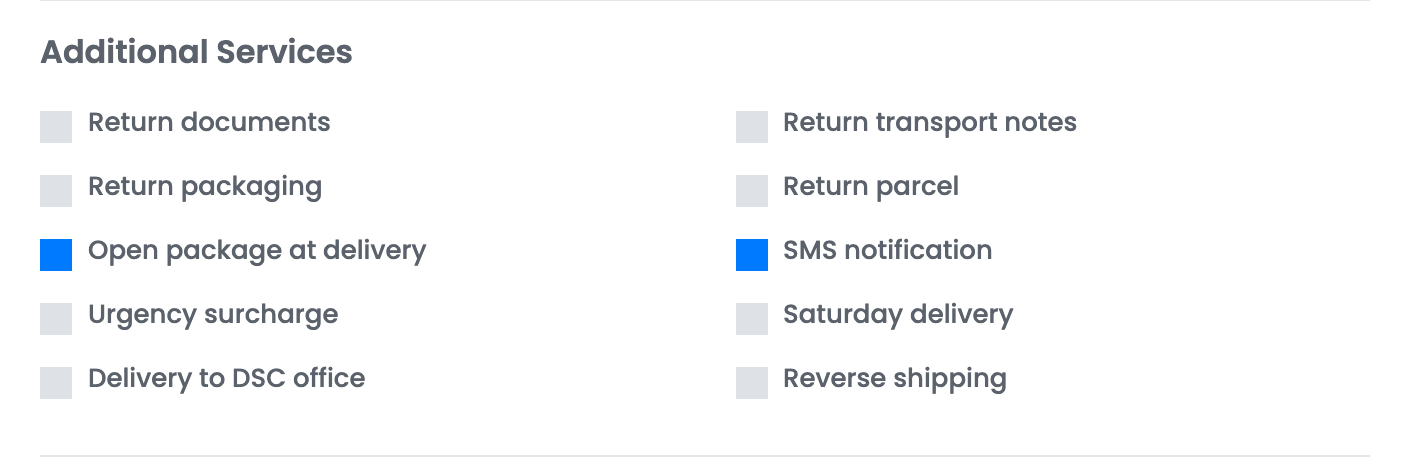
The switches under Additional Services are DSC's own services — return documents, opening the parcel at delivery, SMS notification, Saturday delivery and the rest. They are all off on a new connection, and what you tick is added to every AWB from this connection, so tick only the ones your contract with DSC includes and that you want on every parcel. On the order page you can add a service to a single AWB.
Press Save when you are done. To ship from a second work point, open the connection and press Clone: easySales saves a copy, which you rename and point at the other Office.
Creating AWBs
- Quick create, from the order list, uses everything saved on the connection. The weight is the weight of the order's products, and the number of parcels comes from the order.
- From the order page you can change the weight, the number of parcels and the cash-on-delivery amount before you create the AWB.
Cash on delivery is added when the order is paid on delivery; the amount is the order total. The shipping cost is paid by you, as the sender. The AWB is printed in the AWB Format of the connection, the order then carries DSC's tracking number, and its delivery status follows DSC's tracking.
When an AWB is refused
DSC's answer is shown on the order, in Romanian. The ones you are most likely to see:
| Message | What to do |
|---|---|
| localitate : invalid | The city in the delivery address is not written the way DSC lists it — for example "Municipiul București" instead of "Bucuresti", a county name in place of the city, or a village without its commune in brackets, such as "Popeni (Zorleni)". Correct the city in the order's delivery address, then create the AWB again. |
| greutate : minimum allowed is 1 : maximum allowed is 9999 | DSC needs a weight of at least 1 kg. Create the AWB from the order page and set the weight to 1 kg or more. |
| Numarul de telefon invalid : 07XXXXXXXX sau 02XXXXXXXX. | The customer's phone number is not a Romanian number in the form 07XXXXXXXX or 02XXXXXXXX. Correct it on the order. |
| adresa : minimum 4 caractere | The delivery address is too short. Complete the street and number on the order. |
| Unauthorized | The username or password is not the API login from DSC. Enter the API credentials on the connection and save. |